How to Unlock Forgotten Pattern on Android


Wondering why your Android phone remains locked even after a factory reset? This article will guide you through how to reset locked Android unlock after factory reset.


Even after resetting an Android phone to unlock it, you may still be locked by the FRP lock.
Have you tried to unlock your Android phone by performing a factory reset, only to find yourself still locked out? This time, it's not because you forgot your password, pattern, or PIN — you're stuck at the Google account verification step. This phenomenon is often unexpected and incredibly frustrating for users.
If you can't provide the Google account credentials linked to your Android phone, you still won't be able to unlock the device. But don't worry, this article will guide you on how to handle an Android phone that's already been reset yet remains locked. You'll learn why the lock persists after a reset, and how to reset a locked Android phone after unlocking it via factory reset, truly restoring your control and normal usage.
Appgeeker Android Unlocker provides a convenient way to unlock your locked Android phone after resetting it. It effortlessly removes the FRP lock post-reset without requiring Google account credentials.
Table of contents
Many users believe that once the Android phone is wiped, the lock will disappear along with it. Yes, that's partially true — the reset does remove locks tied to local data or screen credentials (like password, pattern, or PIN), which can help resolve issues when you've simply forgotten your Android phone's lock screen code.
However, if you perform the reset without first removing the associated Google account, or if you reset the Android phone to its factory settings via recovery mode, the Android system will activate Factory Reset Protection (FRP). This is a built-in security feature that cannot be cleared by the reset process itself. That's exactly why you might not be able to use your Android phone normally even after unlocking it through a reset.
Only by verifying the Google account credentials previously linked to the Android phone can you truly unlock and set up the phone. If verification fails, the phone will remain locked even though the reset was completed successfully.
Yes, you can still reset your FRP-locked Android device after attempting to unlock it via factory reset. Currently, there are two distinctly different ways to unlock your Android phone after a factory reset.
The first is ownership verification. If you can sign in with the Google account that was associated with the Android phone, the Android system will recognize you as the legitimate owner and automatically remove the restrictions. This is the most straightforward and officially supported method.
The second method involves removing or bypassing the FRP lock when account verification is not possible. These methods interact with the system at a deeper level, aiming to reset the locked state created after the factory reset. They are typically used in situations where the original account cannot be recovered or was never provided, such as with used devices.
Once you factory reset your Android phone, it is no longer locked by a screen passcode, but by the post-reset FRP verification system. To reset your locked Android phone after a factory reset and regain access, it essentially means you need to reset or verify the Google account details to re-establish the trust relationship between the phone and Google's security system.
If you still have access to the original Google account — or can even recover the associated email or phone number — this method provides the safest way to unlock the device.
Most users get stuck by the FRP lock simply because they've forgotten their Google password. Follow the steps below to reset your Google account password and clear the lock status on your Android phone, even after a full factory reset.
1. Grab a laptop or another smartphone and navigate to the Google account recovery page.
2. Carefully enter the Google account email or phone number that was linked to the Android phone before the reset.
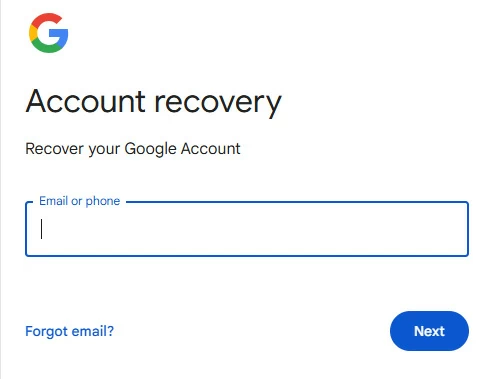
3. When prompted for the password you've forgotten, select Try another way. Google will then cycle through your pre-set safety nets:
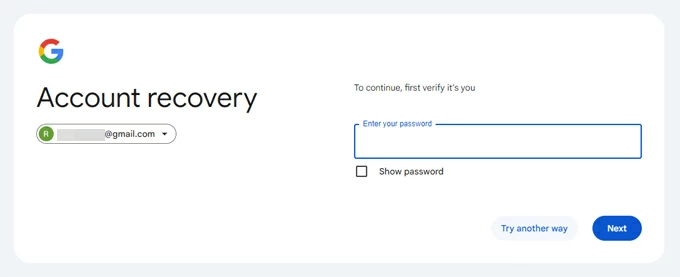
4. Once verified, create a robust new password and confirm it, then click Save password. Do not immediately try to sign in on the locked phone.
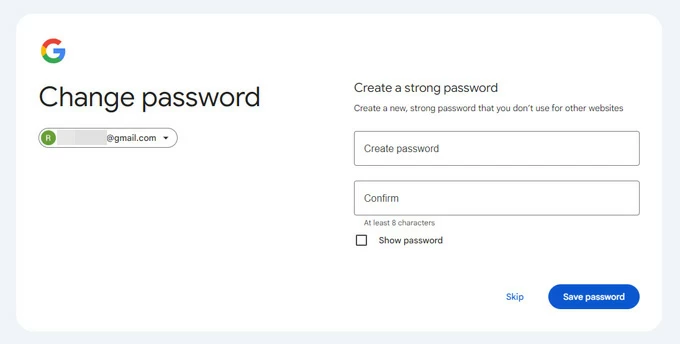
Tip: Google often enforces a 24-72 hour security delay on many Android devices after a password reset. If you enter your new password and the phone still rejects it, stop. Repeated attempts can extend this lockout. Wait a full 24 hours to ensure your new credentials has synchronized across all devices.
As soon as trust is rebuilt, the system identifies you as the rightful owner and remove the Google FRP lock. Your Android phone's lock state is also reset, allowing you to truly unlock and access your device normally.
If you don't know the Google account username tied to your device either, you'll first need to recover your Google account email before proceeding to reset the password.
When you are unable to verify your identity on your Android phone to automatically reset the lock after a factory reset, you can turn to professional FRP bypass tool or some tricks to remove the FRP lock from your locked Android phone and unlock it.
Not everyone can recover the original Google account. The phone might have been sold, inherited, repaired, or accidentally reset. In these cases, the professional Appgeeker Android Unlocker comes in handy.
Compared to the complicated steps of resetting your Google account credentials, this software lets you bypass the FRP lock on your Android phone with just a few clicks — no Google account information required. Even after resetting your phone, you can quickly regain full control of the device.
Supporting major brands like Samsung, Motorola, OnePlus, Xiaomi, and Realme, and compatible with various Android versions, the software offers exceptional versatility. If you need to unlock an Android phone that's still locked by FRP after a reset, Android Unlocker is definitely worth a try.
1. Download and launch the program on your computer, then select Bypass Google FRP Lock to start unlocking your Android phone.

2. Choose the correct device brand and use a USB data cable to connect your locked Android phone to the computer.
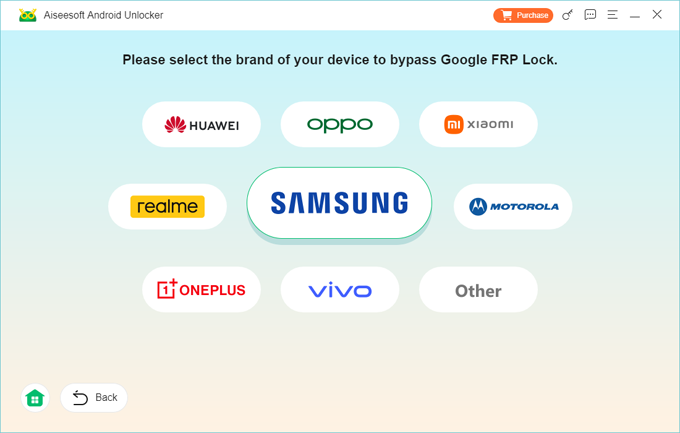
3. Click Bypass Now and follow the software's on-screen instructions to prepare your phone for FRP removal — such as enabling USB Debugging mode or performing other necessary configurations as required.
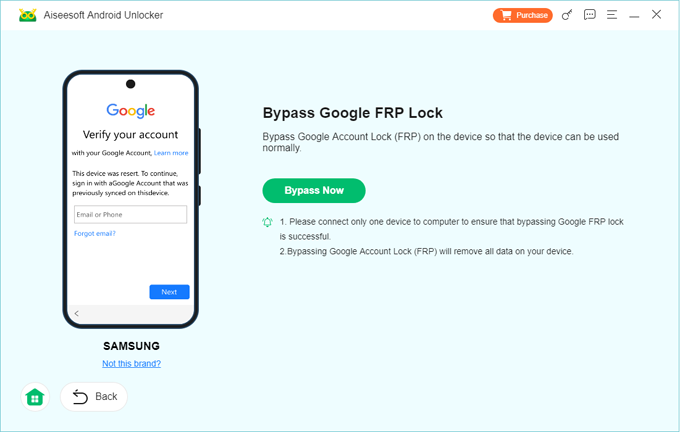
4. Once everything is set up, the unlocking process will begin automatically.
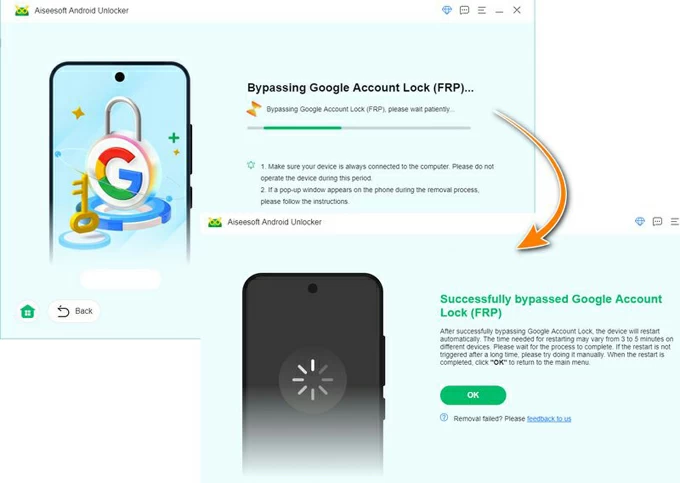
Wait for it to complete. Your phone will reboot to the initial setup screen. Set up your device as if it were brand new. You will find that the previous lock state has vanished and your Android phone is now unlocked without requiring any Google account verification.
In earlier Android versions, such as Android 10–12, you could exploit system vulnerabilities to activate the TalkBack accessibility tool. This helps you break out of the locked state and gain access to a fully functional web browser.
If your Android phone is running an older Android version, you can try this method to unlock your locked Android phone after it's already been reset without needing a computer.
1. Plug your locked Android phone into an available Wi-Fi network.
2. Use two fingers to long-press the center of the screen, or simultaneously hold down the Volume Up button and Power button to activate TalkBack.
3. On the screen, draw a large reverse L shape to wake up the voice assistant, then tap Use voice commands.
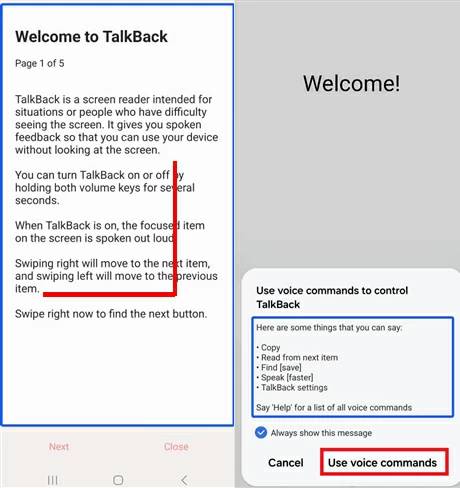
4. Once inside settings, hold down the Volume Up and Power buttons again to disable TalkBack.
5. Speak clearly into the phone: Open YouTube. Your device will accept the command and open YouTube in the browser.
6. Inside YouTube, tap the profile icon (top right) > Settings > About > YouTube Terms of Service. This will automatically launch the Chrome browser, giving you unrestricted internet access.
7. In Chrome, search for FRP Bypass APK and visit any reliable website to download it.
8. Tap Open Settings to directly bypass the lock and access the system's Settings menu.
9. In Settings, perform a factory reset: usually go to System > Reset options > Erase all data (factory reset) to restore your Android phone to its default settings, which clears the FRP lock.
After unlocking or resetting your Android phone, the phone finally completes the setup process and behaves like a normal Android device again. You can reach the home screen, add a new Google account, install apps, and configure the system as you like.
However, one thing does not return: the data that was erased during the factory reset. Photos, messages, and apps are already gone. The only possible recovery comes from cloud backups linked to a Google account, such as Google Photos or Drive.
The key point is that the phone is no longer in a restricted ownership state. It becomes a blank but usable device, ready for a fresh start.
Conclusion
The lock you encounter after the reset is not a leftover problem — it is the Factory Reset Protection (FRP) lock deliberately triggered by the Android system to prevent unauthorized use of the device. The real solution begins when you stop trying to erase the phone and start addressing the verification layer itself.
When you perform the factory reset in an attempt to unlock your Android phone, make sure you know your Google account credentials beforehand. Otherwise, you will still be blocked by FRP even after the reset finishes.
Whether you restore trust through Google account recovery or remove the FRP restriction using specialized tools, once you apply the right method, the phone can move forward again.
1. Why does my Android phone say "This device was reset" and ask for a Google account?
This message means Factory Reset Protection (FRP) has been activated. Android detected that the device was reset without unlinking the Google account, so it now requires verification of the last synced account before allowing access. The reset succeeded—but the ownership lock was created at the same time.
2. Can a hard reset unlock my Android phone?
If you have forgotten your Android phone's password, pattern, or PIN, performing a hard reset via recovery mode can unlock your device. However, once the reset is complete, you must still pass Google account verification before you can use the phone. A hard reset is capable of wiping your screen lock, but it cannot clear the device ownership (FRP)
3. How do I reset my locked Android phone to unlock it?
To reset the Android phone when locked, you need to enter recovery mode by pressing the correct button combination and then reset the device from the recovery menu.