How to Connect Phone to TV - 2026 Methods
Need to know how to connect phone to TV? Learn the best wireless and wired methods, including Chromecast, AirPlay, HDMI, and more, for easy setup.

Martin Tord Updated on Jan 23, 2026 2:31 PM
Connecting your phone to your TV has become a practical and convenient way to enjoy content on a larger screen. Whether you're streaming movies, giving presentations, or playing games, the ability to connect phone to TV enhances the experience. With the right tools, you can easily cast or mirror your phone's screen, enjoying the benefits of a bigger display without the hassle.
In this guide, we'll explore how to connect phone to TV, covering both wireless and wired methods, so you can pick the best option based on your needs.
How to Connect Your Phone to Your TV
There are several ways to connect your phone to your TV, each with its own disadvantages and methods of operation. You can choose between wireless and wired options, depending on your preferences and the type of devices you're using. Below, we'll cover both wireless and wired methods to help you easily link your phone to your TV, whether you're at home, at work, or on the go.
Wireless Methods
Wireless methods are particularly convenient since they don't require any physical connections between your phone and TV. With advancements in technology, there are now several reliable ways to connect your phone to your TV wirelessly. These methods allow you to enjoy content, mirror your phone screen, or even stream videos directly to your TV without worrying about cables. See how to connect your phone to your TV wirelessly:
Method 1: Miracast
Miracast is one of the most widely used wireless screen mirroring technologies available today. It works by creating a direct Wi-Fi connection between your phone and the TV, bypassing the need for a router. It's compatible with many Android phones and TVs, offering a fast and efficient way to connect phone to TV.
Connect Android phone to TV using Miracast:
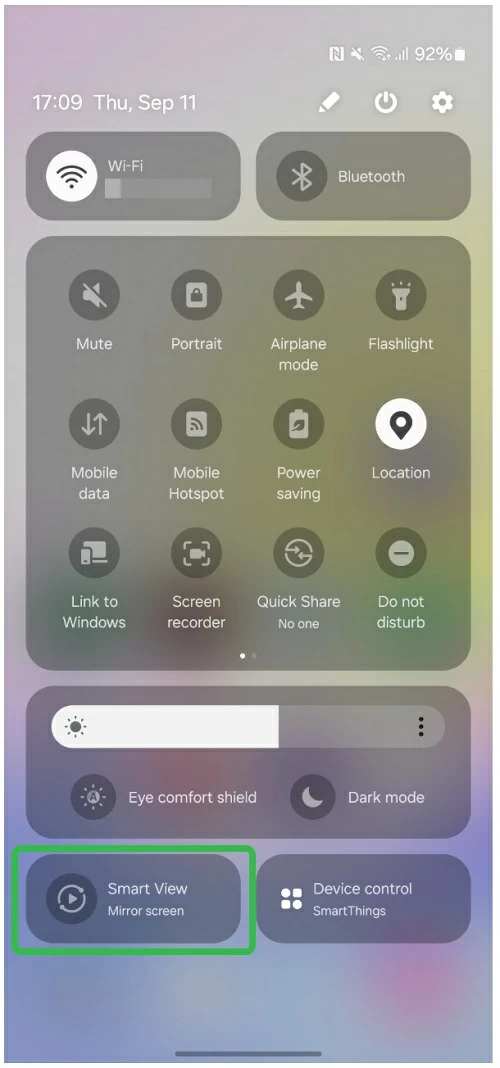
1. Swipe down on your Android home screen to access the quick settings menu.
2. Look for the Cast or Smart View option (this might vary by device) and tap on it.
3. Select your TV from the list of available devices. Your phone's screen should appear on the TV almost immediately.
Method 2: AirPlay
AirPlay is Apple's proprietary wireless streaming protocol, designed specifically for iOS devices. It allows you to connect your phone to your TV seamlessly, making it ideal for iPhone users who want to mirror their screens or stream media to AirPlay-enabled TVs.
Connect iPhone to TV using AirPlay:
1. Ensure both your iPhone and the TV (or Apple TV) are connected to the same Wi-Fi network.
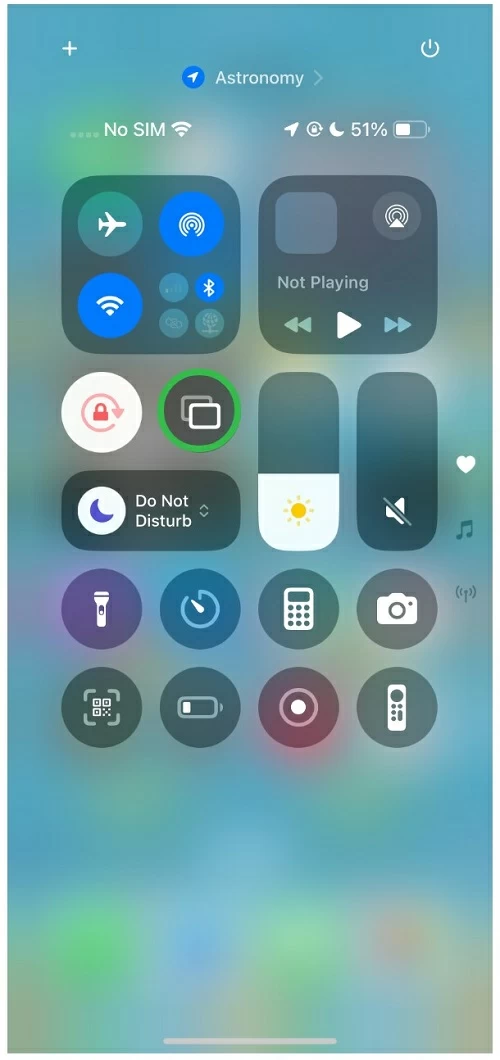
2. On your iPhone, swipe down from the top right corner to open the Control Center.
3. Tap the Screen Mirroring option and select your AirPlay-enabled TV or Apple TV.
4. Your iPhone's display will now be mirrored to the TV. You can also stream media such as photos, videos, or music.
Method 3: Chromecast
Chromecast offers an easy and convenient solution for linking your phone to your TV. By plugging the small device into your TV's HDMI port, you can stream content from your phone directly to your TV, all via Wi-Fi. Chromecast supports various apps like YouTube, Netflix, and Google Photos, allowing for seamless streaming.
Connect Android or iPhone to TV using Chromecast:
1. Plug the Chromecast into your TV and set it up using the Google Home app on your phone.
2. During setup, ensure your Chromecast is connected to the Wi-Fi network as your phone.
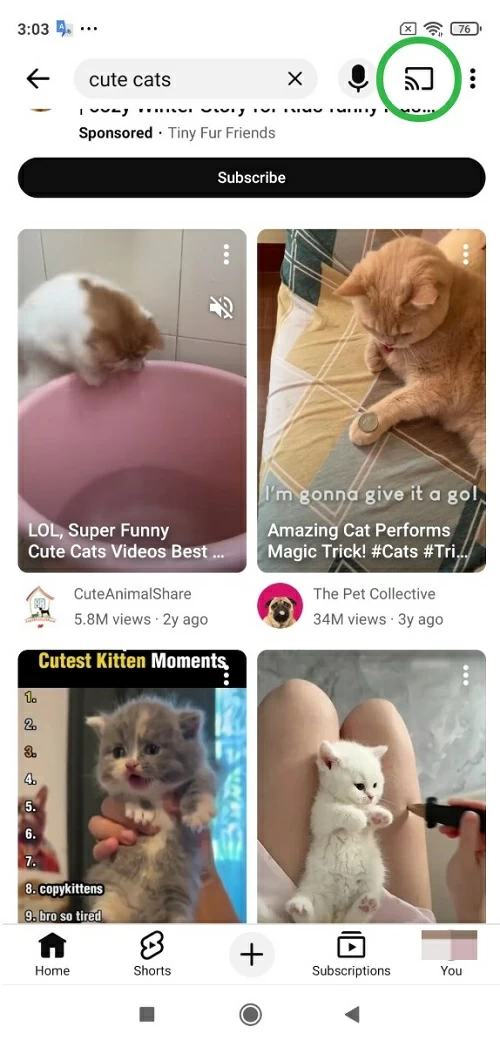
3. Open a Chromecast-compatible app, such as YouTube or Netflix, and tap the Chromecast icon at the top of the screen.
4. Select your Chromecast device, and your phone's content will be mirrored to your TV.
Method 4: Third-Party Apps
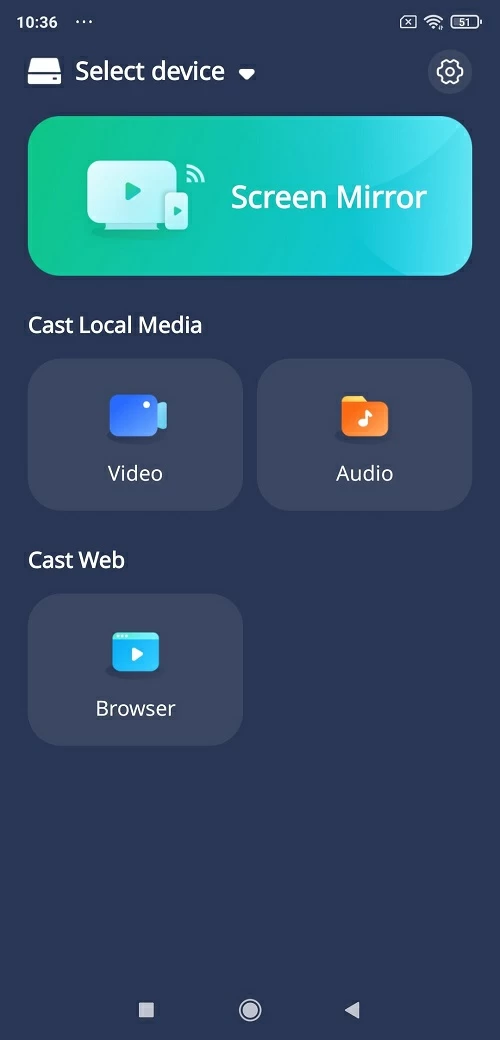
For those looking for an easy, cross-platform wireless mirroring solution, apps like PigeonCast provide a simple and effective way to link phone to TV. These apps support both Android and iOS devices, making them a great choice for users who want to mirror their screen or stream content without worrying about device compatibility.
Connect phone to TV with PigeonCast:
1. Download and install the PigeonCast app on both your phone and TV.
2. Open the app on both devices and ensure they are connected to the same Wi-Fi network.
3. Connect your phone to TV by choosing it from the list of available devices or scanning the QR code on the TV screen.
4. Start streaming content from your phone to your TV.
Wired Methods
If you prefer a stable, lag-free connection, or if wireless options aren't available, wired methods might be a better fit. These methods require physical cables, but they ensure high-quality video and audio without relying on Wi-Fi strength.
Method 1: HDMI Cable
Connecting your phone to your TV using an HDMI cable is a tried-and-true method that guarantees a direct and high-quality connection. This method is ideal for users who don't want to rely on Wi-Fi for streaming or mirroring.
Connect phone to TV using HDMI:
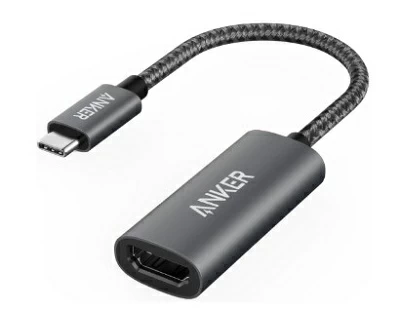
- For Android devices: You'll need a USB-C to HDMI adapter. Plug one end into your phone and the other into the HDMI cable, then connect the other end to your TV's HDMI port.
- For iPhones: Use a Lightning to HDMI adapter or a USB-C to HDMI adapter. Connect your iPhone to the adapter, then plug the HDMI cable into the adapter and the TV.
Once connected, switch your TV to the corresponding HDMI input to start mirroring your phone.
Method 2: MHL or SlimPort
If you have older smartphones that don't support USB-C or Lightning connections, MHL (Mobile High-Definition Link) and SlimPort offer an alternative to set up a phone-to-TV connection.
Connect phone to TV with MHL or SlimPort:
1. Connect the MHL or SlimPort adapter to your phone, and then use an HDMI cable to link the adapter to your TV.
2. Ensure your TV is set to the correct HDMI input, and your phone's screen will appear on the TV.
Conclusion
Now that you know how to connect phone to TV, you can choose the best method based on your needs and preferences. Whether you prefer wireless solutions like Miracast, AirPlay, or Chromecast, or you're looking for a stable wired connection through HDMI, there's an option for everyone. Third-party apps like PigeonCast also provide a user-friendly, cross-platform alternative. Whatever your choice, the ability to link your phone to TV opens up endless possibilities for entertainment, work, and more.