How to Get into an Unavailable iPhone 17


Forgetting your Android phone's password/PIN isn't a big deal; this guide provides full instructions to help you get into your Android phone after forgetting your password or PIN.


Getting into a locked Android phone after forgetting the password/PIN typically requires erasing your device.
Forgetting the password, PIN, or pattern you set on Android phone is actually a fairly common occurrence. Whether the screen lock changed recently, a child entered too many wrong attempts, or you simply can't recall the pattern you set long ago, being locked out of your Android phone can be alarming, especially when you need your phone for important tasks.
Luckily, the Android system includes multiple built-in unlocking methods that can get into the locked Android phone when forgot your password or PIN under specific conditions. On top of that, powerful third-party tool like Appgeeker Android Unlocker offers robust technical support to get into a locked Android phone without needing the password or PIN.
Many viable solutions exist, but the key is finding the best option to get back into Android phone if you forget the password/PIN. This guide summarizes all these methods—including clear requirements and step-by-step instructions—so you can regain access to your locked Android phone when the password or PIN is forgotten in the safest and most effective way possible.
When you are facing a locked Android screen, choosing the right method is just as important as the method itself. The following options serve as a quick navigation guide to help you find the appropriate solution for getting into your device when you forget your Android phone's password or PIN.
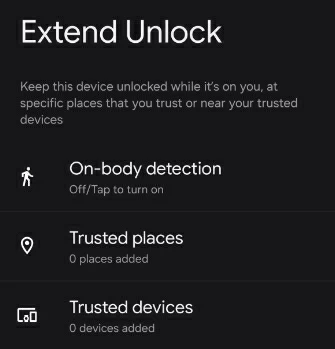
Extend Unlock is the most convenient way to regain access to your locked Android phone without needing a password or PIN, and it's one of the few methods that allows you to unlock your Android phone without losing data—but only if you've previously configured trusted places, trusted devices, or on-body detection to enable Extend Unlock.
In other words, Extend Unlock quietly leverages the security settings you've set up in advance and automatically bypasses the screen lock when you've forgotten your password.
To make Extend Unlock work, you can move to a trusted location you've saved, such as your home or workplace, or bring your phone close to a registered accessory for Bluetooth pairing. Once the phone detects it, your device will be unlocked.
Note:
Most official unlock methods require certain conditions to be met. If you want a solution with no restrictions that allows you to get into a locked Android phone after forgetting password or PIN, Appgeeker Android Unlocker is undoubtedly the best choice.
This tool can bypass various types of screen locks on your Android phone, unlocking your device without a password/PIN/pattern—making it especially suitable for users who have forgotten their Google login details, haven't used a Samsung account, or whose device can't connect to the internet.
Not only are the unlock steps simple, but it also boasts powerful compatibility, supporting major Android brands and models like Samsung, Xiaomi, OPPO, VIVO, Google Pixel, Motorola, OnePlus, Lenovo, etc., and is compatible with the latest Android versions. In addition, it can remove FRP lock without verifying Google account credentials.
Here's how to use Appgeeker Android Unlocker to restore entry to your inaccessible phone without any credentials if you forgot the PIN or password:
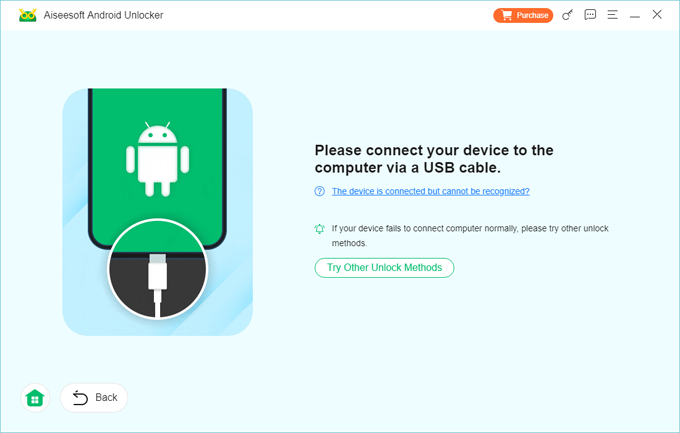
1. On your computer, download and install the Android Unlocker software. Use a reliable USB cable to connect your locked Android phone to the computer.
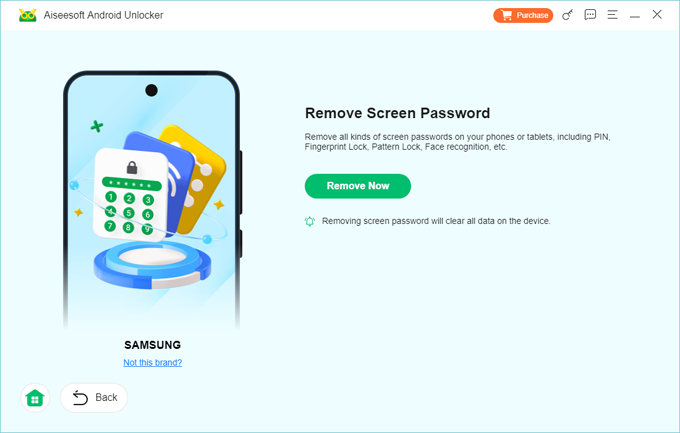
2. Click Remove Screen Password to remove the forgotten security screen lock on your locked Android phone. The software will automatically identify your phone's brand; if not, manually select your phone manufacturer.

3. If your phone cannot be successfully recognized by the software, click The device is connected but cannot be recognized? link. This will guide you to boot your phone into recovery mode to establish the connection.
4. Click Remove Now to start unlocking your Android phone. This process will reset your Android phone to factory settings, thereby erasing the forgotten screen lock password or PIN.
Once completed, your Android phone will restart to the initial setup screen. Follow the on-screen instructions to complete the setup and access your phone again without a password/PIN.
When your Android phone is linked to a Google account, remains online, and has Find Hub enabled, Google's Find Hub (previously known as Find My Device) service provides a remote way to wipe your forgotten password or PIN, letting you get into your Android phone again.
Provided that these prerequisites are fulfilled, you can access the Google Find Hub official website to unlock your phone. However, note that this method will clear all existing data and settings on your device, including apps, photos, messages, contacts, and more.
1. On another device, visit the Google Find Hub website via a web browser.
2. Log in using the same Google account that is tied to your locked Android phone.
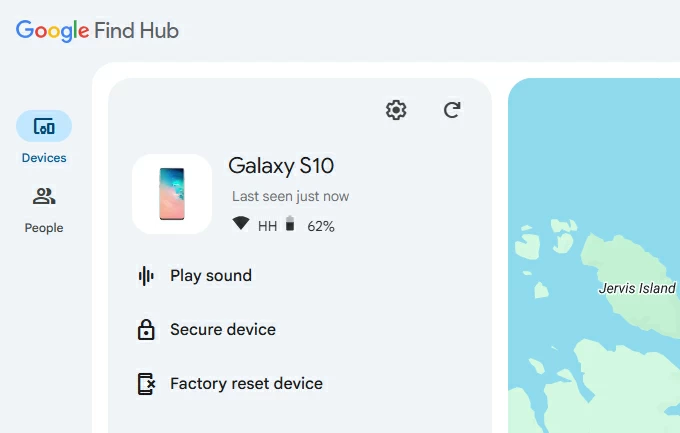
3. Locate the Devices section and select your password-forgotten phone from the list. Google will show its last known location and available actions.
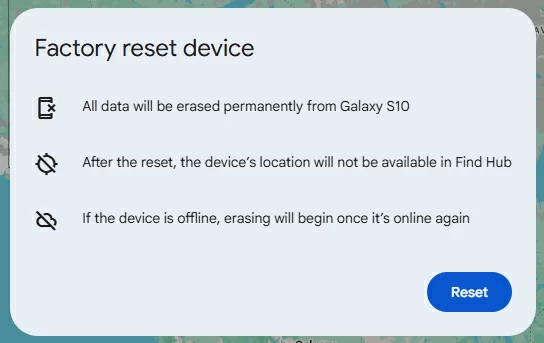
4. Click Factory Reset Device to wipe your phone back to its original state, without the screen lock settings.
5. Click Next > Reset to confirm. The device will automatically wipe itself and be unlocked without the need for a password or PIN.
Note:
For Android users with a Samsung phone, the dedicated official Samsung direct unlock solution—the erase function of SmartThings Find—can re-enter your password-forgotten phone, similar to Google Find Hub's remote reset feature.
To use this method to get into your locked Samsung phone due to a forgotten password/PIN, your device must have an active Samsung account, have Find My Device turned on, and be connected to an available Wi-Fi or mobile data network.
1. Access the Samsung SmartThings Find website using another computer or phone.
2. Enter the necessary Samsung account login information (username and password) associated with the locked Galaxy phone.
3. In the remote control panel that appears, select the irreversible Erase data utility. This powerful command will immediately perform a complete factory data reset on the locked device, successfully removing the screen lock restriction.
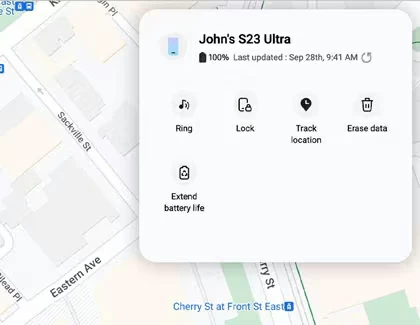
4. Re-enter your Samsung account password for verification, and then click OK to confirm. As long as your locked Samsung phone has an internet connection, the unlocking process will begin immediately.
Putting your phone into recovery mode and performing a factory reset is a more classic method for getting into the locked Android phone when you forgot the password or PIN. Recovery mode is particularly useful when you can't use cloud services or the phone is offline.
This method requires using different physical button combinations, which will vary depending on the Android brand or model.
1. Completely power off your Android phone. If powering off requires the correct password/PIN, you can wait for the battery to drain automatically until the phone shuts down, then charge the phone to at least 30% to ensure the unlock process is not interrupted.
2. Press the specific hardware button combination required to enter the bootloader or recovery mode.
3. Use the Volume buttons to navigate to Recovery mode, then press the Power button to enter.
4. Press the Volume Up or Volume Down button to locate Wipe data/factory reset and press the Power button to select it.
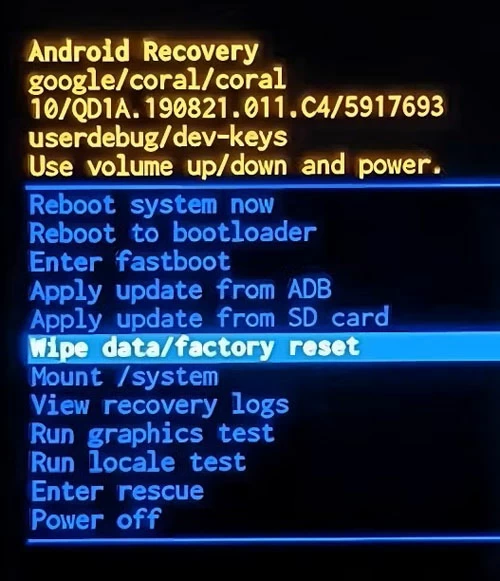
4. Continue using the Volume buttons to select Factory data reset and press the Power button to begin the unlocking.
5. Conclude the process by selecting the final option, Reboot system now, to start the phone freshly, prompting the user to begin the initial device setup process.
For more detailed steps on entering recovery mode for a specific Android phone, you can refer to How to put your Android phone or tablet into recovery mode.
Although Android version 4.4 is outdated, if you happen to be using an older Android phone running Android 4.4 or an earlier version, you can leverage your Google account information to reset the screen lock on your locked Android phone to override your forgotten password or PIN.
1. Enter the wrong password or PIN five times in a row on your Android phone.
2. You will see a Forgot pattern, Forgot PIN, or Forgot password option on the lock screen.
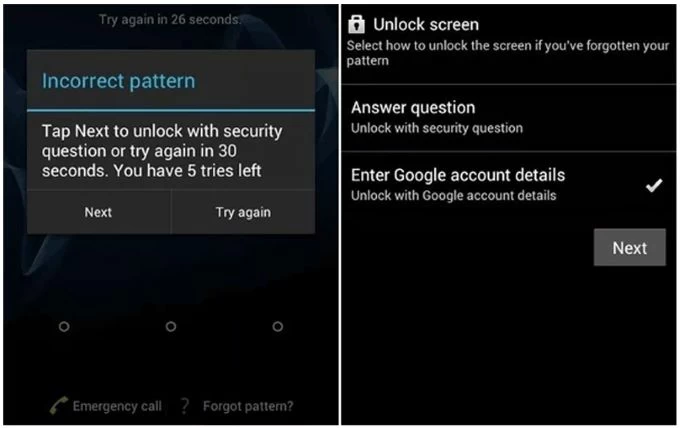
3. Tap on it and then choose Enter Google account details.
4. Input the Google email address and password associated with your device as prompted.
5. Tap Sign in, and then you can reset your screen lock and unlock your phone with a new password/PIN/pattern.
You can sometimes unlock a locked Android phone without losing data, but only under very specific conditions. If Extend Unlock was set up earlier, the device may unlock automatically in trusted places or when connected to trusted devices, allowing direct access without wiping anything.
Certain brands also provide limited no-reset options—for example, Samsung phone running One UI 6.1 or newer lets you use your previous password/PIN/pattern within 72 hours to reset the screen lock.
If none of these conditions apply and a factory reset becomes unavoidable, you can still restore important information afterward using Google backups or manufacturer cloud backups.
Final thoughts
When faced with a forgotten password/PIN screen lock, you can choose the appropriate unlock method based on the status of your locked Android phone—from Extend Unlock automation to Google or Samsung remote erase, third-party Appgeeker Android Unlocker, or even the classic recovery mode.
But remember: Most methods for getting into an Android phone after the password or PIN is forgotten require you to reset your device. Furthermore, devices linked to a Google account will still need verification of your Google account credentials after unlocking the device.
To permanently neutralize the risk of future lockouts, multi-layered security measures are essential. We strongly recommend that you configure redundant authentication methods (e.g., fingerprint, face unlock, and a PIN code backup) to avoid over-reliance on a single pattern or password. Crucially, ensure you enable strong and consistent cloud backup—whether through Google Drive, Samsung Cloud, or other services.