
How to Factory Reset Android Tablet


Want to learn how to reset the FRP lock to bypass Google verification on Android device? This article will tell you everything you need to know about resetting FRP on Android.


A successful FRP reset lock on Android re-establishes trust between the motherboard and the device's digital identity.
Are you wondering why you are still trapped by the FRP lock even after successfully resetting your Android phone? Unlike a standard screen lock designed to protect daily access, Factory Reset Protection (FRP) is a post-reset security mechanism that only comes into play after an Android device has been erased.
While a standard factory wipe clears the user partition, the FRP lock resides in a protected persistent partition. After the reset, you must provide the previously synced Google account credentials to pass the FRP screen. But when you've forgotten your Google account information—whether the username or password—this becomes a major challenge.
If you want to get into your Android device by resetting the FRP lock, this article provides a comprehensive explanation. We will cover whether an Android FRP reset is feasible and how to reset the FRP lock on Android, freeing you from the FRP restrictions.
Additionally, we introduce an alternative solution: Appgeeker Android Unlocker, a professional software that lets you bypass the FRP lock on Android device without Google account verification.
Table of contents
The answer is yes — but not in the way people expect. FRP does not have a "reset button", a master code, or a universal unlock method. You cannot clear it as simply as clearing the cache or removing a screen lock. FRP can only be reset by changing how the system evaluates trust in the device's owner. In other words, you cannot directly reset the FRP lock on an Android phone. What you're actually resetting are the conditions that make FRP necessary—the Google account information.
A FRP lock reset means successfully convincing the device's internal security manager that a change of ownership (or restoration to the legitimate existing owner) is lawful and authorized. Therefore, the prerequisite for resetting the FRP lock on your Android is that you must be the legitimate owner of that Android device.
Once your Android phone is signed in with a Google account, the FRP's activation rights are bound to that cloud-based account. So, Google account recovery is the safest and most direct choice for resetting FRP on an Android phone.
Instead of bypassing security mechanisms, this method completes the reset process exactly as the Android system officially intended. By verifying your identity, Google allows you to reset your password or retrieve your Gmail address, thereby resetting the login credentials required for the FRP lock associated with your Android device.
However, successfully using this method to reset your Android's FRP lock information depends on one key prerequisite: you must have previously set up some recovery options (such as a recovery email, phone number, or even access to another mobile device signed in with the same Google account), or you must be able to answer certain account-related security questions.
If you still have access to the original Google account's username (email address or phone number) but have forgotten its password, you can reset the FRP lock by resetting your Google account password through recovery methods.
1. On another computer or a working smartphone, visit Google account recovery website and enter the linked email address or phone number.
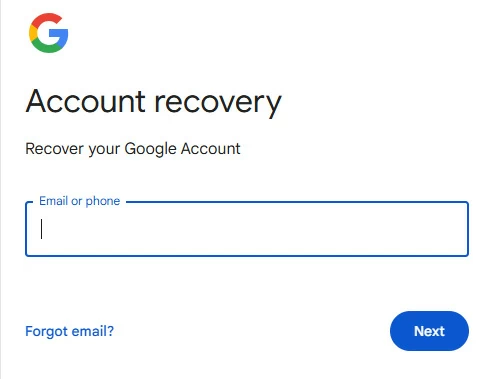
2. Click Try another way, then follow the verification options provided:
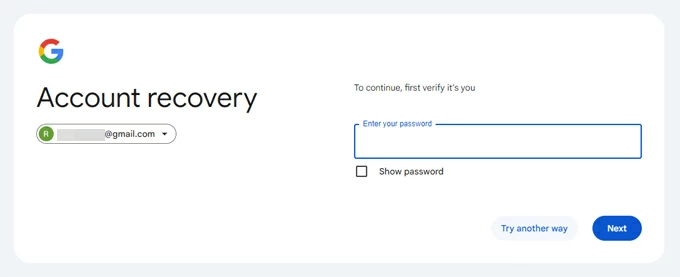
3. Once you successfully verify that you are the true owner, you will be taken to the password reset screen.
4. Create and confirm your new password, then click Save password. This action not only updates the credentials that trigger FRP, but also refreshes your ownership tokens across the entire Google system, including on your Android device.
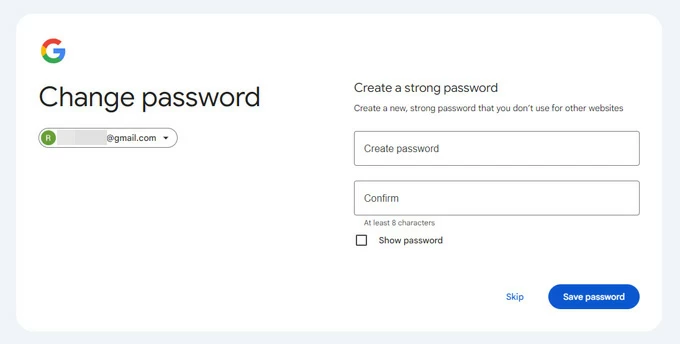
5. Return to the FRP screen on your Android phone, make sure the device is connected to a stable Wi-Fi network, and enter the updated Google account password.
If the system recognizes the new credentials, the FRP lock will be removed immediately and the setup process will continue normally.
Note:
1. On your computer or another phone, open the official Find your email page.
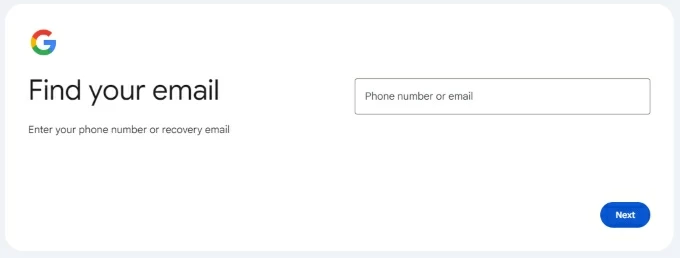
2. The system will ask you to enter:
3. After clicking Next, Google will verify your identity. It may ask additional questions, such as an approximate previous password, commonly used devices, etc. The more accurately you answer, the higher your success rate.
4. If verification is successful, the system will display the Google email addresses that match your information. If multiple accounts exist, you can select the correct one from the list.
Once you have retrieved the original Google account address, you can use it to complete the FRP verification on your Android phone. If you have also forgotten the password, use the method described in Situation 1 to reset your password before proceeding.
In summary, as long as you can recover your Google identity or verify your ownership, you will be able to perform the FRP lock reset on your Android phone.
If you fail to recover your Google account details, it means you will not be able to reset the FRP lock on your Android device. To remove the Google FRP lock on your Android phone and restore normal access and usage, you can rely on certain FRP bypass tools.
Whether you don't remember your Google account credentials or purchase a second-hand Android device still linked to the previous owner, Appgeeker Android Unlocker is a PC-based unlocking tool that can remove the FRP lock without requiring the original Google account username or password.
This software does not restore the device's trust relationship—instead, it directly deletes the memory data that enforces the trust requirement for Factory Reset Protection lock to take effect. It doesn't convince FRP; it removes the conditions under which FRP exists.
It supports FRP removal on a wide range of Android brands, including Samsung, Huawei, Motorola, Xiaomi, OnePlus, and more, and is compatible with the latest Android versions. In addition, the software can also unlock your Android phone without password/pattern/PIN.
1. After downloading and installing Android Unlocker on your computer, launch the program and select Bypass Google FRP Lock to proceed.

2. Use an appropriate data cable to connect your FRP-locked Android phone to the computer, then select your device's brand.
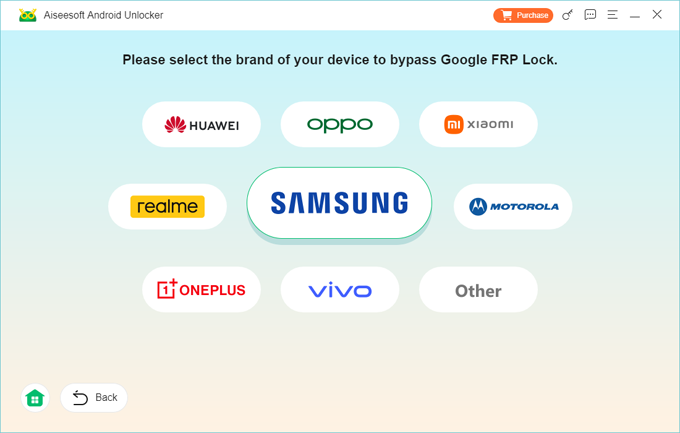
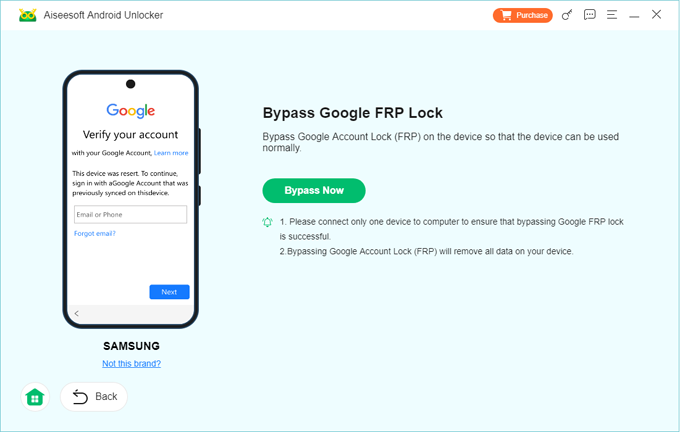
3. Click Bypass Now and follow the on-screen tutorials to configure the necessary environment for FRP removal. If you are using a Samsung device, for example, you will be prompted to enable debugging mode.
4. Once everything is prepared, the tool will perform a complete system rewrite and restart the device. This process removes the FRP lock from your Android phone entirely.
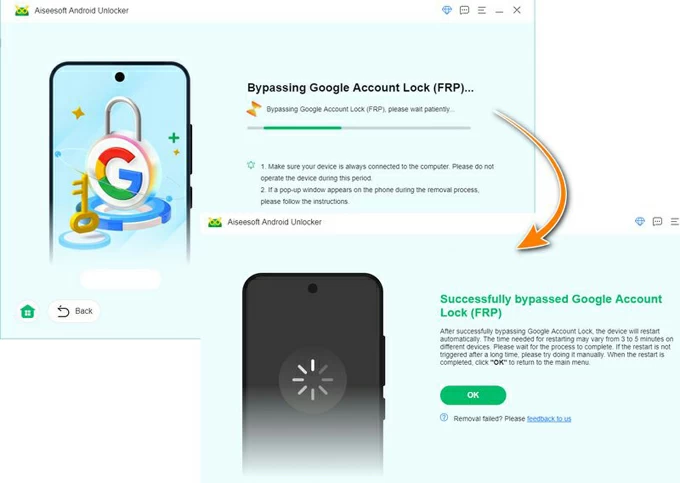
After completion, the phone will boot up as if it were a brand-new device, no FRP verification required anymore. By adding another Google account to your Android device, you can reset the previous FRP lock with a new set of credentials.
For Samsung users, Odin—Samsung's proprietary internal flashing tool—can reset FRP by rebuilding the system environment that handles storage ownership verification logic. If your Samsung phone is stuck on the Factory Reset Protection lock, this software can help you bypass the Google FRP verification after a reset.
However, it is not recommended for casual users, as mistakes can permanently brick the device.
1. On your computer, download the latest version of Odin from the official website and make sure you have installed the matching Samsung USB drivers.
2. Download the Samsung FRP reset firmware file, extract it, and then run Odin as an administrator.
3. Boot your phone into Download Mode. The usual steps are:
4. Once Odin detects your Samsung device (you'll see a blue/green COM port light up), load the combination firmware file into the AP or PDA slot.
5. Click Start to begin the flashing process. Wait for it to complete—this may take a few minutes.
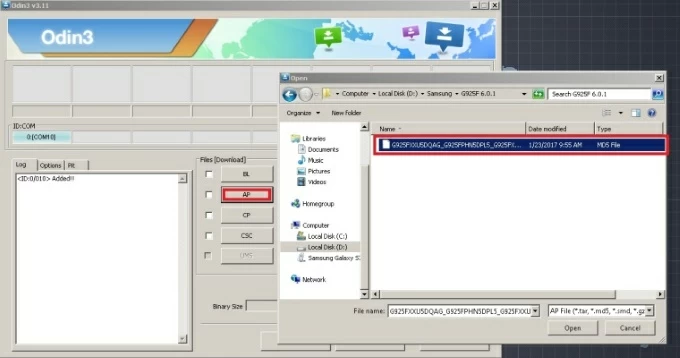
After the process finishes, your device will automatically reboot and be completely free from the Factory Reset Protection lock. For more detailed steps and explanations, you can refer to: Bypass FRP using Samsung FRP reset file with Odin.
The 24-Hour Lockout: If you have reset your Google password but the phone still won't accept it, please be patient. The token synchronization between your phone and Google's authentication servers is not always instantaneous.
Proof of Purchase: If software methods fail, the ultimate way to "reset" FRP is to seek assistance from your carrier or manufacturer. Most manufacturers can reset the FRP screen on the server side once you provide the IMEI and a valid proof of purchase.
The "Binary Lock" Error: If Odin shows a "Fused > Binary" error, it means you are trying to flash firmware older than what is currently on the device. You can only move forward or stay on the same binary level.
Conclusion
The process of resetting the Factory Reset Protection screen on Android highlights the inherent tension between security and accessibility. Resetting the FRP lock is essentially the same as resetting the associated Google account credentials.
As long as you can regain access to the Google account linked to your Android device—whether by resetting the password or recovering the account—you have a legitimate chance to successfully reset the FRP lock after performing a factory reset on the Android device.
Otherwise, you will need to rely on specific FRP bypass tools to remove the Google lock entirely and restore your control over the device.
1. Is FRP reset illegal on Android?
Resetting FRP on a device you own is not illegal. However, FRP is specifically designed to prevent unlocking stolen devices, which is why it cannot be reset without ownership proof.
2. Will a Hard Reset remove the FRP lock on my Android phone?
No. This is the most common misconception. A "Hard Reset" via recovery mode is exactly what triggers the FRP lock in the first place. Because the system detects a factory wipe performed outside of the trusted "Settings" menu, it assumes the device may have been stolen and locks the persistent partition. To truly reset the lock, you must use one of the identity-verification or system-level methods described in this guide.
3. Does resetting the FRP lock void my warranty?
Official methods (like Google Account Recovery) do not void your warranty. However, using third-party flashing tools like Odin to install "Combination Files" or using exploits to inject code can technically void your software warranty or trip security flags like Samsung Knox, which may permanently disable features like Samsung Pay.
4. How to disable FRP lock on an Android phone?
You cannot truly disable FRP after it is triggered. Once a factory reset activates FRP, it can only be cleared through ownership verification or system-level reset methods.
However, you can prevent FRP from activating in the future by removing all Google accounts from the device before resetting your phone to its factory settings. When no Google account is linked, FRP has no ownership record to enforce, so the reset will not trigger verification. The most direct method is to go to Settings > Passwords & Accounts and remove all linked Google Accounts.




