
How to Remove Screen Lock on Android Phone


Forgot your Samsung password or PIN and locked out of your phone? Learn proven ways to unlock any Samsung device safely, with or without data loss.

It can feel like a nightmare: You've forgotten password, PIN or pattern on a Samsung Galaxy phone, and stuck at the lock screen with no way in. The rigid security system integrated into Samsung can make getting back into a locked device a challenge.
Fortunately, there's a good chance that you can unlock the Samsung phone without password or PIN lock. By performing a remote wipe or manual factory reset that removes all data including the forgotten screen locks, Samsung allows you get in again and set up a new lock method.
Whether you can't remember the password/ PIN/ Pattern after recent change or whatever, or deal with a second-hand phone that is still tied to a previous owner's credentials, this guide will cover a few methods to get into your locked Samsung Galaxy with or without losing data, ranging from official Samsung tools to specialized third-party software.
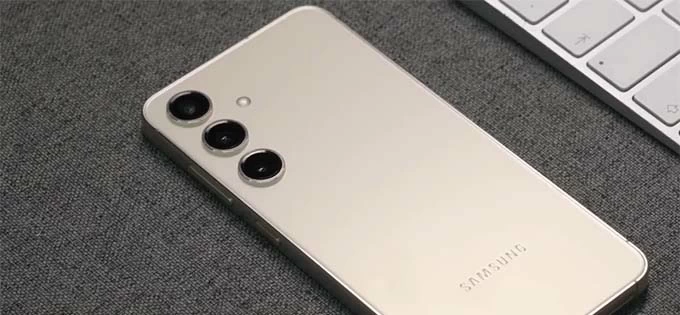
Getting in a Samsung phone when forgotten the password requires you to reset the whole device to bypass the lock screen.
To open a locked Samsung phone after forgetting password or PIN and regain device's access fast, Appgeeker Android Unlocker offers a robust Samsung unlock toolkit to remove the lock screen without password, PIN or pattern.
Table of contents
While setting up a lock password, PIN, or pattern is great for protecting user data, it also means that bypassing the screen lock isn't straightforward.
In the event that you have forgotten your Samsung phone's password and can't sign into the device, the only option to regain access is to reset the device to its factory settings, which erases the password as well any content & settings currently on the device. Tools like SmartThings Find, Google Find Hub, Recovery Mode or Appgeeker Android Unlocker serve the factory reset purpose, letting you unlock your Samsung phone without needing the password or PIN. The device will start fresh if there's no previous backup to restore data from.
With One UI 6.1's "Reset with Previous Screen Lock" feature, unlocking forgotten password on Samsung without resetting or losing data becomes possible - if you meet some requirements, and it's a simple matter of using the old password to get in directly and reset the code to something new.
The following wizard explains every approach to re-enter Samsung phone when you forgot the PIN, pattern or password, starting with the easiest Previous PIN recovery feature to the "nuclear" factory reset options.
If you are running One UI 6.1 or later - which includes Samsung Galaxy S24, S25 and newer models, Samsung has Samsung has introduced the "Reset with previous screen lock" feature as a lifesaver allowing for a direct access with the old password—provided you changed it recently.
When you changed your password within the last 72 hours and forgot what you change to right after, you can intentionally enter the wrong code 5 times and tap the "Forgot PIN?" prompt (or "Forgot Password?", "Forgot Pattern?"). It will take you to attempt the previous lock credential for recovering access and resetting the Samsung forgotten password without wiping the entire device clean.
1. On the lock screen, enter the wrong password five times until you see "Forgot Password? Too many incorrect unlock attempts. Try again in 30 minutes.
2. Tap "Forgot Password?" link to proceed with previous lock recovery process.
3. Enter your previous password correctly to let Samsung verify it's you and unlock the device without deleting your data.
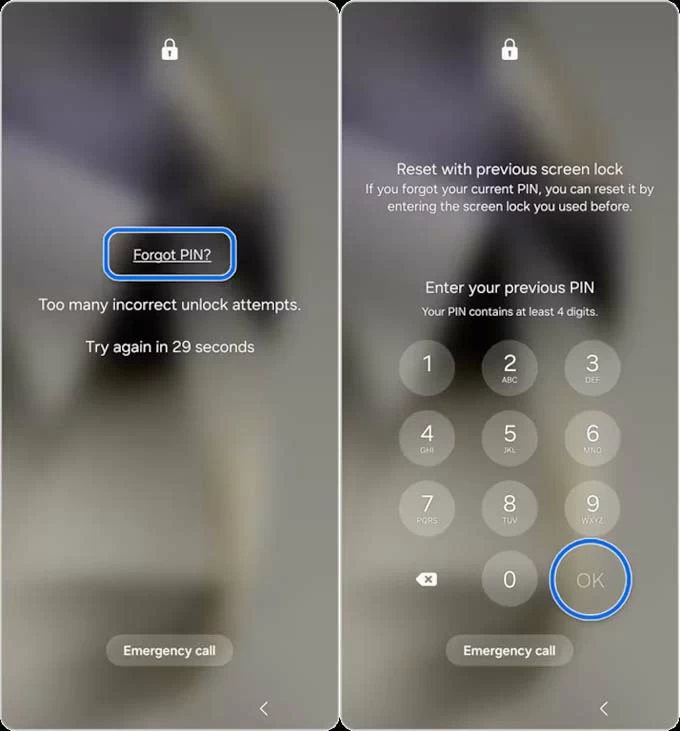
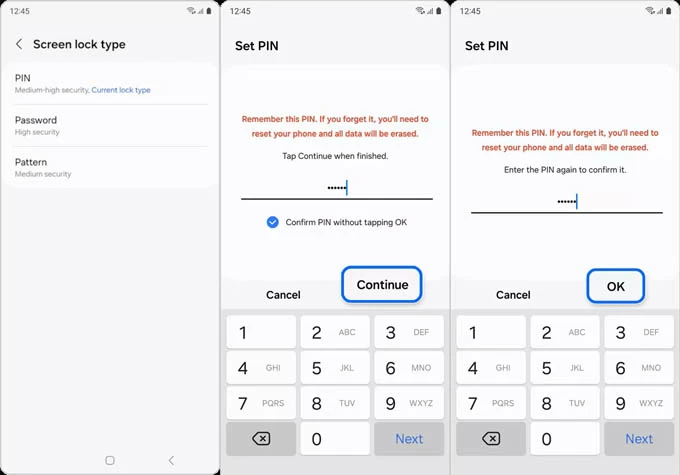
4. Once accepted, the phone will bypass the lock password you do not remember and immediately prompt you to create a new lock method.
5. After password reset, you're able to get into your Samsung device use it again.
If you have a Samsung account signed in and settings for Remote control & remote unlock enabled before you're locked out, you can take advantage of SmartThings Find to remotely erase your Samsung phone and remove a forgotten PIN lock, password or pattern.
Here's how to get into a Galaxy device without knowing the password or PIN using your Samsung account. Note that, if you don't have a backup in place, you will lose all data—but at the very least, you can overcome Samsung lockouts and get access back to your phone.
1- Go to smartthingsfind.samsung.com on a computer or another mobile device.
2- Sign in using your Samsung account credentials associated to your Samsung phone you forget the lock screen password to.
3- On the left-hand sidebar, choose your locked Galaxy phone.
4- A menu will appear on the right. Choose Erase data.
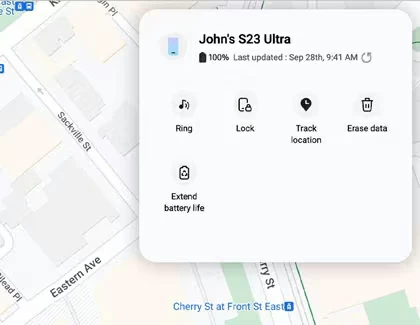
5- Verify your identity through a verification code sent to your Samsung phone, or other means like text messages, or backup code. Then, click Erase data again.
6- A pop-up will warn you that your phone will be reset, which deletes all of phone data and lock screen info. Click Erase.
7- Verify your Samsung account password to kick off the remote reset process. Make sure your device is connected to Wi-Fi or mobile data network.
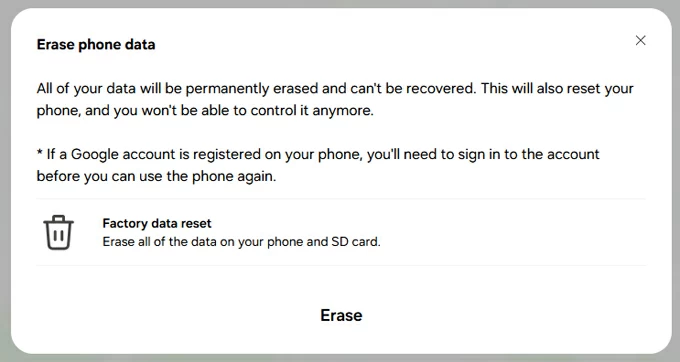
Within seconds, your phone will remotely unlock itself. You can then go to Settings and set up a new PIN, password, pattern, and Biometrics.
No. The "Unlock" option in Find My Mobile (now part of SmartThings Find) was once designed to remotely unlock any Samsung phone without erasing the data. However, this remote unlock feature has been terminated already, leaving you the "Erase data" option to get to a locked Galaxy due to a forgotten password.
Appgeeker Android Unlocker could be the ultimate solution whenever you cannot open your Samsung phone either because you forget the password or because you bought a preowned device that's still locked.
The PC-based software stands out for its complete Android phone unlock solutions including lock screen removal, and FRP bypass. When you're stuck at the lock screen, it automates the reset process and lets you bypass the PIN, Pattern, Password, Fingerprint, and Face ID in minutes and restore full access. Virtually all Samsung Galaxy models and over 6,000 other Android devices are supported.
To unlock a password you've forgotten and get into Samsung phone, Appgeeker Android Unlocker utility will guide you through a simple 3-step process with no technical knowledge. Here's how.
Step 1. Launch Android Unlocker on your PC and choose Remove Screen Password mode.

Then, choose SAMSUNG on the interface to confirm your device's brand.
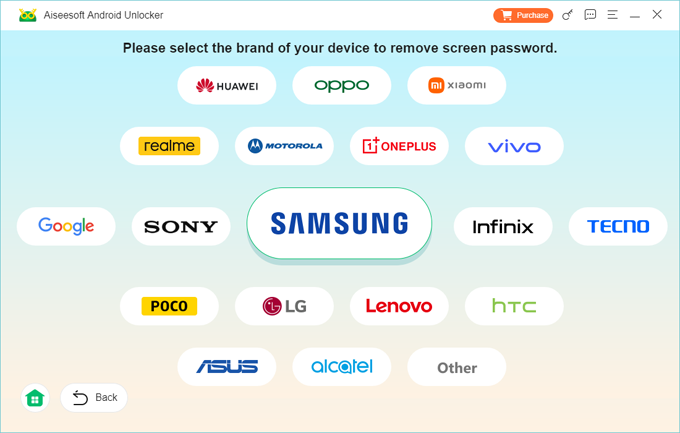
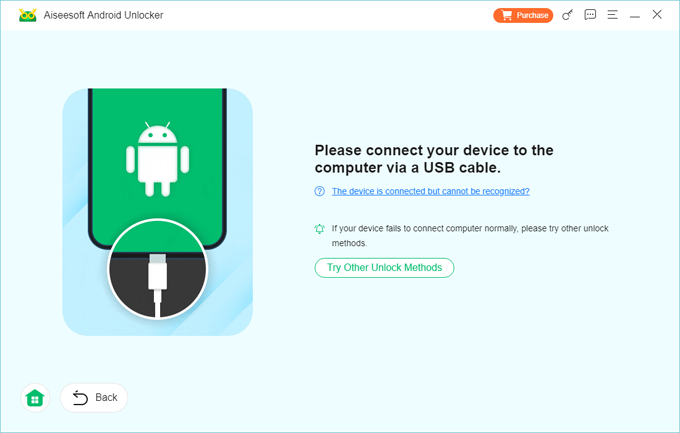
Step 2. Plug your Samsung phone into your computer using a USB cable.
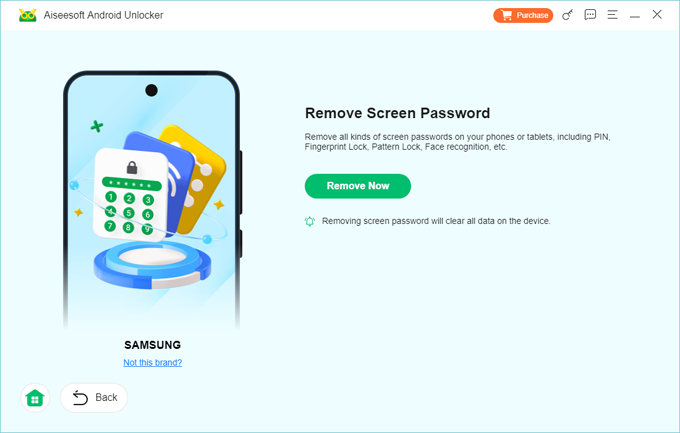
Step 3. Hit Remove Now button to start factory resetting the Samsung device and removing the screen locks even if the phone is offline.
Tip: If your phone can be recognized, the program will guide you to do an extra step of accessing recovery mode before the Samsung password unlocking process runs.
When the password for getting into your Samsung Galaxy phone is removed successfully, the device should reboot and allow for an initial setup. If you've kept a backup, you can restore your data during the setup process; or else, you will return an empty device after forgetting the PIN or password on Samsung.
If your Galaxy device is signed into a Samsung account or Google account previously, you will be asked to re-sign the account to verify your identity. This is owing to factory reset protection (FRP), which is activated after a factory reset to prevent unauthorized access.
If you cannot provide the correct credentials of the account, try resetting the password with Samsung Account Recovery or Google Account Recovery, which requires identity authentication with recovery email or phone number. Be aware that Google may impose a 24-hour security delay before the new password can be used to unlock a device.
You can also use Appgeeker Android Unlocker to bypass FRP on Samsung and remove the account verification effectively if you forgot any details of Google or Samsung account.
Google's Find Hub can factory reset your locked Samsung phone when you forgot the screen's password or PIN, which remotely removes the lock screen for access but also wipes all content. If you have a Google account linked to your Samsung and the device is powered on with internet connection, take these steps to unlock a Samsung phone with Google account:
1. Visit Google Find Hub website for a remote factory reset if you're unable to get into your Samsung without password or PIN.
2. Log into the Google account that's tied to your phone.
3. From Devices tab, choose your Samsung device, and select Factory reset device option.
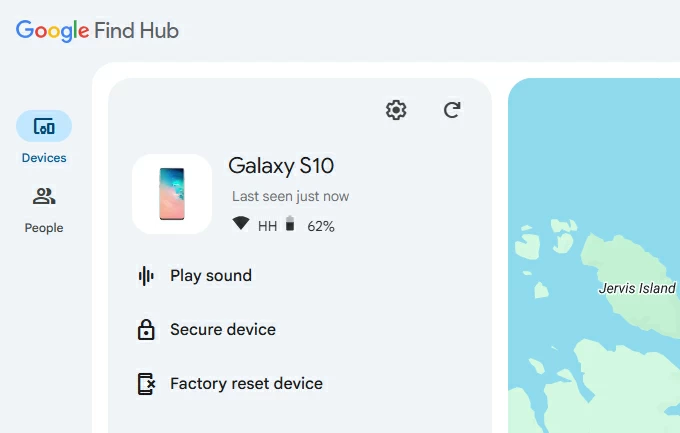
4. When prompted, click Next button, then enter [Google password] again to verify you're the owner to reset your Samsung phone that's locked by a forgotten PIN or password.
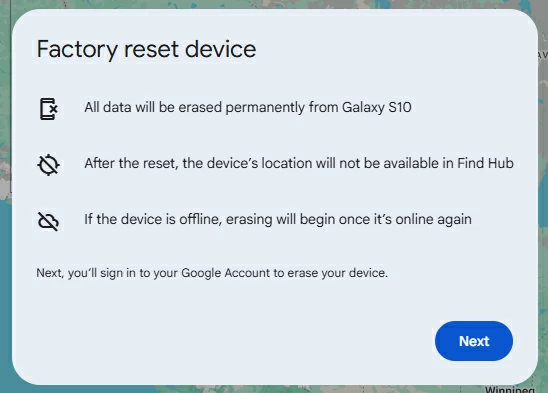
5. After authentication, hit Reset button, followed by Erase button to completely erase device data and screen locks.
After reset, the phone will restart to the Welcome screen, and the lock will be gone. Set up the phone again—but you'll need to verify the Google account to bypass Google FRP barrier.
Unlocking a Samsung phone without risking at data loss is only possible for older models running Android 4.4 or lower. When you have forgotten the pattern, PIN or password to Samsung, enter the wrong codes five times. This triggers the "Forgot Pattern", "Forgot PIN", or "Forgot Password". Tapping on the option will let you sign into your Google account to reset the forgotten password for Samsung Galaxy and regain instant access to your phone.
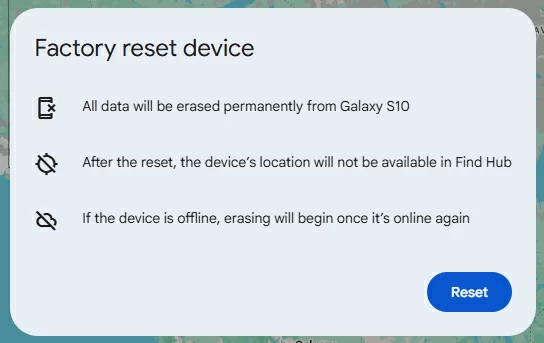
By performing a factory reset via Recovery Mode using hardware buttons, you can get back into your Samsung phone if you can't remember the password or PIN on the lock screen. The process involves permanently deleting any data, apps, and settings as well as removing the screen lock on the Samsung phone without a computer or without internet connection.
When your Samsung phone is locked after you forget the password and PIN or you don't know it at all, simply put the device into recovery mode, where you'll get the Wipe data/factory reset option to restore and unlock the phone.
1- Shut down the phone completely. You may need to wait it to run of the battery for a shutdown if the password or PIN was forgotten.
2- Connect the phone to the computer. Since Android 11, most Samsung phones require being plugged into a PC to enter Recovery Mode.
3- Press the certain button combinations to boot Samsung into recovery mode. Keep holding the buttons until the Samsung logo appears.
4- When you're in the Recovery menu, use the Volume buttons to highlight Wipe data/factory reset (or Delete all user data), and press Power button to select it.
5- Proceed to choose Factory data reset (or Yes, Yes - Delete all user data).
6- Your Samsung will process factory reset for the removal of the lock screen password, PIN or pattern.
7- When you see "Data wipe complete" at the bottom of the screen, select Reboot system now to finalize the process.
8- Upon rebooting, set up the phone from the scratch or restore from an available backup.
Now, you can get into your locked Samsung phone after a forgotten password/ PIN/ pattern reset.
With five Samsung unlock tools and extra tips mentioned above, getting into a Samsung Galaxy if you forget the password or PIN is not that hard. You can comfortably unlock the device with or without a factory reset and regain full control.




