How to Reset Samsung Phone When Locked


Locked out of your device and can't remember your Samsung password? Don't worry, this step-by-step guide will show you how to reset Samsung forgot password using your PC.

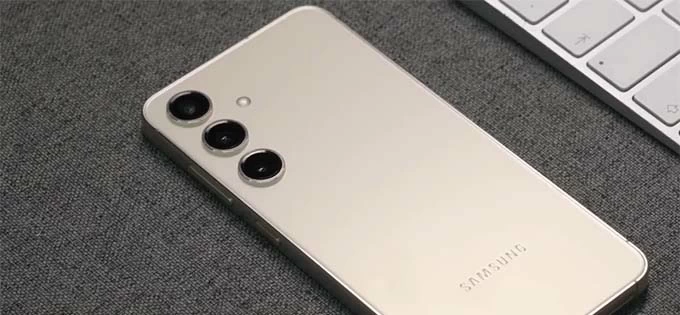
Using a PC to reset your Samsung password after forgetting it first requires unlocking your device.
Forgetting the lock screen password on a Samsung phone leaves you with very limited on-device options. Your Samsung lock screen does not provide a simple option to reset the password, which is why many users resort to PC-based solutions for resetting forgotten Samsung password after being completely locked out.
Although with the development of Samsung systems, you have the opportunity to directly reset the forgotten password on your Samsung phone to unlock the device, it comes with strict conditions. In fact, resetting a forgotten password on a Samsung device with PC remains the most reliable and widely used approach.
This guide is focused on how to reset Samsung forgot password with PC, whether you use professional Android Unlocker software or Samsung and Google official reset services. This guide helps you remove the lock and regain access as efficiently as possible.
Among them, PC-based Appgeeker Android Unlocker software allows you to effortlessly remove a forgotten password on your Samsung phone, letting you quickly reset the screen lock password to one that's easy to remember.
Table of contents
For modern Samsung Galaxy phones running One UI 6.1 or later, it is indeed possible to reset a forgotten password directly on the device. This is thanks to a new feature called "Unlock with a previous screen lock."
If you recently changed your password, you can use your previous screen lock credentials to reset the forgotten new password within 72 hours, without wiping your device. This is currently the only direct reset method that allows you to preserve your photos, messages, and settings.
However, in most cases, the forgotten password has already exceeded the 72-hour protection window. At that point, you will need to use a PC to reset the password that is forgotten on your Samsung phone.
It's important to clarify that when people search for how to reset a Samsung forgot password with a PC, they are usually not resetting the password itself. Instead, they are resetting the device to completely remove the screen lock. This process resets the entire Samsung phone to factory settings, clearing the forgotten lock screen password and allowing access once again—though at the cost of erasing all locally stored data.
When your Samsung phone is locked due to a forgotten password, a dedicated PC-based tool—Appgeeker Android Unlocker—becomes the most convenient solution, especially if your device is offline or has never been synced with a Samsung/Google account.
Provided that your Samsung device can communicate with a PC via USB, this software can quickly remove your forgotten screen lock password, thereby unlocking and restarting your device so you can set up a new password.
Android Unlocker supports most Samsung phone and tablet models and is compatible with the latest Android systems. Rather than requiring the phone to verify the password you have forgotten, the software uses the computer as a control point to bypass the lock from the outside. In addition to unlocking your Samsung phone without the password, it can also remove the Google FRP lock on any Android device.
1. Download and launch Android Unlocker on your computer. On the main interface, select the Remove Screen Password module and specify Samsung as your device brand.

2. Plug your locked Samsung phone into the PC using a reliable USB cable. Avoid using hubs or unstable connections.
If the software does not recognize your Samsung device, click The device is connected but cannot be recognized? and follow the tutorials to put the device into recovery mode.
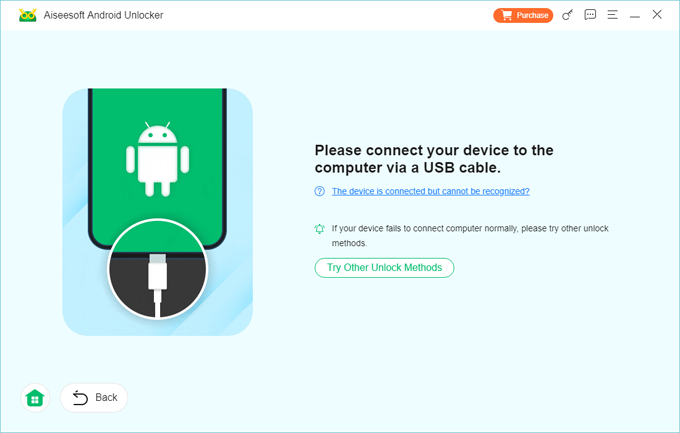
3. Once recognition is successful, click Remove Now to start clearing your device, including your screen lock password. The entire process only takes a few minutes.
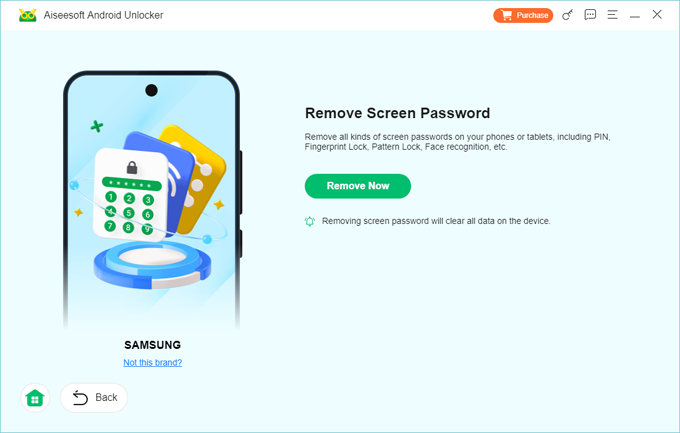
After completion, your Samsung device will restart to its initial state and the original password will be deleted. When prompted to choose a new screen lock type, you can set a new password according to your needs and use it to unlock your Samsung phone.
The Samsung ecosystem provides an official reset option through SmartThings Find, specifically designed for situations where the phone is lost, stolen, or inaccessible. When used to solve the problem of forgetting password, this feature does not attempt to modify the screen lock itself, but instead remotely erases the Samsung device, allowing you to reset your forgotten password on a Samsung phone.
Since the reset command is issued through the SmartThings Find web interface rather than from the phone, a computer is essential for this process.
Prerequisites and limitations:
1. Open any web browser on your PC and navigate to the SmartThings Find website.
2. Sign in using the Samsung account that is associated with the Samsung phone for which you forgot the password.
3. Once logged in, wait for the system to load all registered devices under your account, then select the currently locked Samsung phone from the device list on the left side.
4. Locate and click the Erase data option from the available controls.
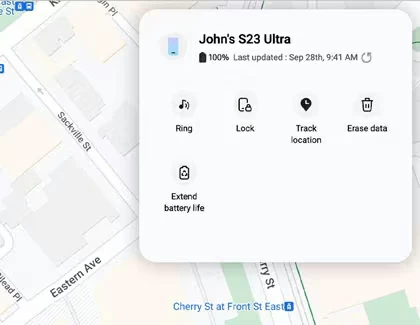
5. Enter the verification code you receive as prompted to confirm your identity.
6. A warning will pop up, informing you that this action will factory reset the phone to bypass the forgotten password. Click Erase to continue.
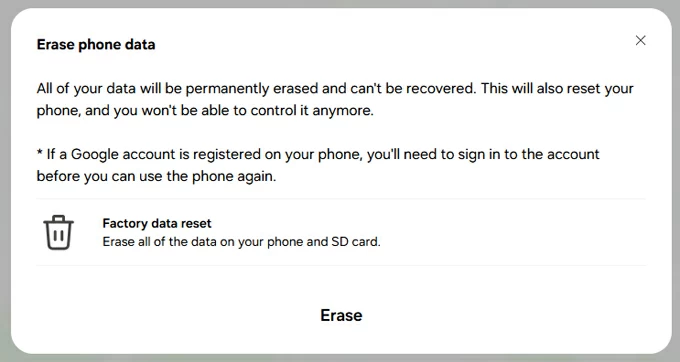
7. For security reasons, Samsung will require you to re-enter your account password one final time to authorize this ultimate command. Enter the password and click Next.
8. As long as the phone has a signal and an active internet connection, it will immediately begin resetting your Samsung device without needing the password. This process effectively lets you reset the password you forgot on your Samsung device.
Your Samsung device will reboot as a brand new device with no password requirements. You can then set a new lock screen password to protect your phone as needed.
If your Samsung device is closely integrated with a Google Account, the Google Find Hub (Find My Device) provides an alternative solution to get your forgotten Samsung password reset with a PC. This method fully relies on Google's device management system, allowing you to remotely trigger a factory reset from your computer and remove the lock screen password.
Conditions:
1. Go to google.com/android/find on your PC and log in to Google Find Hub using the Google account tied to your locked Samsung phone.
2. On the left sidebar of the map, locate the Devices section and select the Samsung phone that you don't remember password. This will display your device's status and the available options.
3. Click Factory reset device. This action will allow you to perform a Samsung password reset for forgotten credentials in the following steps.
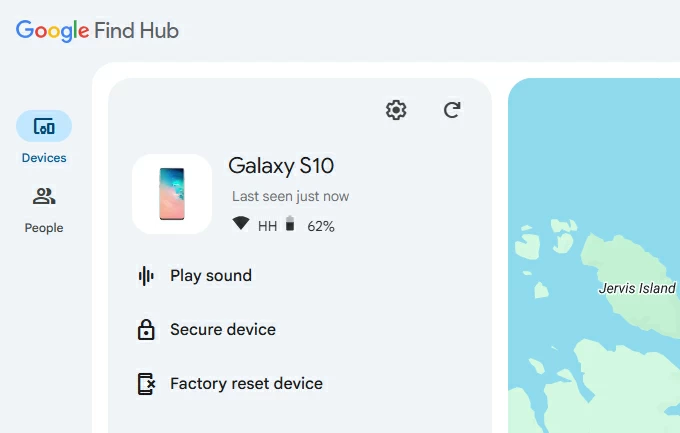
4. Review the warning message, which informs you that all data will be erased, including the forgotten password, then click Next.
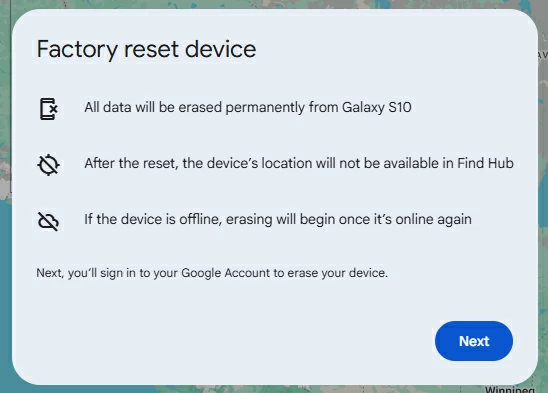
5. Google will require you to re-verify your account password to ensure that you are the authorized user and not attempting to reset someone else's phone.
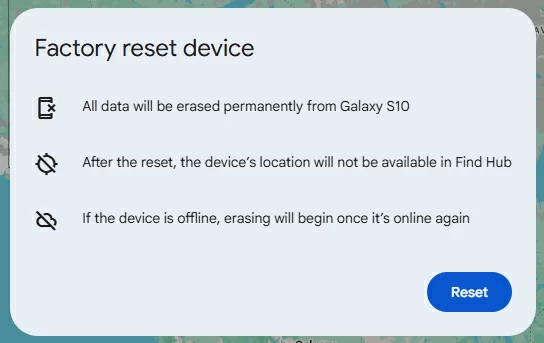
6. Hit the Reset button. The system will send a persistent signal to your Samsung phone. Once the phone receives the signal, it will immediately begin the process of unlocking the device so that you can create a new password.
Note:
If what you've forgotten is the Samsung account password as opposed to the lock screen password, then resetting your forgotten Samsung account password via PC is also an important way to regain control of the device.
When you need to carry out a reset on your forgotten Samsung account password with PC:
1. Launch your desktop browser, access the official Samsung account portal.
2. Input the Email address or Phone number linked to your Samsung account and click Reset password.
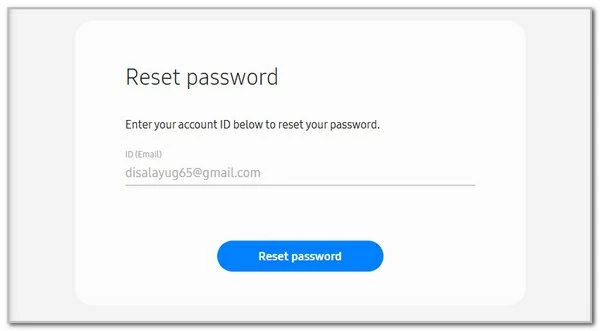
3. Enter your phone number as prompted to complete two-factor verification.
4. Select one of the identity verification methods: email verification, SMS verification, or security questions, then follow the prompts to verify that you are the account owner.
5. Once verification is successful, you will be redirected to the Reset Password screen.
6. Create a new secure password for your Samsung account and confirm it.
Final thoughts
Samsung has a robust security system, so a forgotten password cannot be easily recovered or bypassed. However, using a PC to reset your forgotten Samsung password as a way to get back into your device is a highly effective strategy.
It is crucial to understand that you must first unlock your Samsung phone via PC—using AppGeeker Android Unlocker, SmartThings Find, or Google Find My Device—before you can proceed with a full password reset.
If certainty and independence are your top priorities, using a PC-based AppGeeker Android Unlocker tool is generally the safest bet. However, if your account access and internet connectivity are guaranteed, the official password reset methods from Samsung or Google offer a more standardized alternative.
1. Can I reset a forgotten Samsung lock screen password via PC without losing data?
In most situations, no. Resetting a forgotten Samsung lock screen password with a PC usually requires a factory reset, which purges local data to ensure security. The only exception is some Samsung devices running One UI 6.1 or later, where you may reset the password without computer within 72 hours if you still know the previous screen lock.
Also see: How to unlock Samsung phone forgot password without losing data
2. Why won't my PC recognize my Samsung phone when I plug it in via USB?
This is usually due to one of three things: a "charge-only" USB cable, outdated Samsung USB drivers on your PC, or a faulty port. For password recovery, always use a high-speed data cable. If the PC still doesn't see the phone, you may need to boot the phone into Recovery Mode before connecting it, as this forces the device to broadcast its hardware ID to the computer.
3. Will I need to sign in to an account after resetting my Samsung phone with a PC?
Yes. After a factory reset: