Unlock Android Phone Password without Data Loss


Forgot your password to access your old Samsung tablet? You're not alone. Explore a few effective methods to unlock an earlier Galaxy Tab that is locked and regain full control.

Your Samsung lock screen password protects your tablet from unauthorized access, but forgetting it can be a hassle. And if you're locked out, you're probably wondering how to unlock your old Samsung tablet if forgotten the password, in hopes of gaining your old files.
Whether you completely forgot your Samsung tablet password on device that hasn't been used for a long time, or you inherited an older Samsung Tab from your family without knowing the login password to access the tablet, there're still possible ways to unlock an old Samsung Galaxy tablet without the password.
This in-depth Samsung unlock guide shows you all workable solutions to unlock forgotten password on the old Samsung tablet (Tab S series, A series, E series, etc.) and bypass the lock screen efficiently.
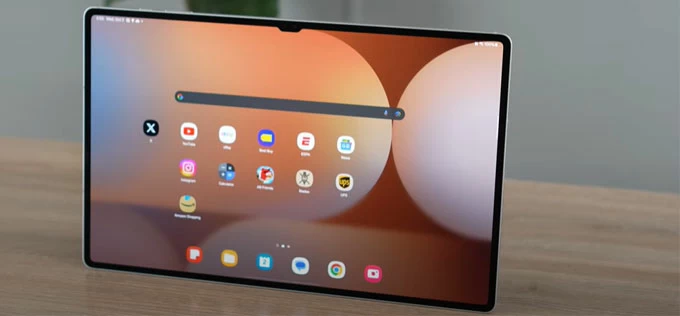
With updated security measures, you'll need to perform a factory reset to unlock Samsung tablet after forgetting the password.
In case you've forgotten the lock password and can't log into your Samsung tablet, one simple method is to use Appgeeker Android Unlocker. It's long-term and effective measure to unlock any locked Samsung Galaxy device and remove the password, pattern, PIN or biometrics.
Table of contents
For years, it's pretty straightforward to unlock a Galaxy Tab even you forget your password - especially you have older Android version. The Legacy Unlock called "Forgot Password" for Android 4.4 KitKat and earlier, the Unlock feature in Samsung Find My Mobile until December 2023, and the Lock option in Google Android Device Manager way back in 2013, offer a convenient unlocking way without factory reset to bypass a forgotten password, PIN or pattern—a true lifesaver for unlocking Samsung tablet without losing data.
However, these dedicated "Unlock" features are indeed gone. With significant advancements in security and encryption implemented by Samsung and Google since Android 7.0, FACTORY RESET remains the primary approach to open the old Samsung Galaxy tablets if you forgot the password, after which you can set it the device again and set a new screen lock.
To help you with Samsung tablet unlock without password, we focus on all methods that are still in use today along with detailed steps to get you back into the long-unused device when locked out. You'll also learn several outdated options that once worked for unlocking the older Samsung tablet's screen with forgotten password.
This is the most universal method and works on every Samsung tablet ever released. When you have an old Samsung tablet sitting unused for months or years, or even have a discontinued device that no longer receive updates, and don't remember the password to sign in, you can often factory reset the device from Android Recovery Mode to be able to use it again. This involves deleting all data, downloaded apps and settings, as well as removing Samsung tablet forgotten password and unlocking your old system.
Follow the instructions below to enter recover mode using buttons for a factory reset and unlock your old Samsung Galaxy tablet after you forgot your password, pattern or PIN code, bringing it back to life.
1. Turn off your tablet completely. To force a shutdown and factory reset without having your password, you would need to either let your battery discharge.
2. With the device powered off, connect it to your PC - if it's running Android 11 or higher.
3. Put your locked Samsung tablet into recovery mode. The buttons you use depend on your model.
Keep holding the buttons until Android Recovery screen appears.
4. Press the Volume Down button to navigate to Wipe data/ factory reset, then press Power button to confirm the selection.
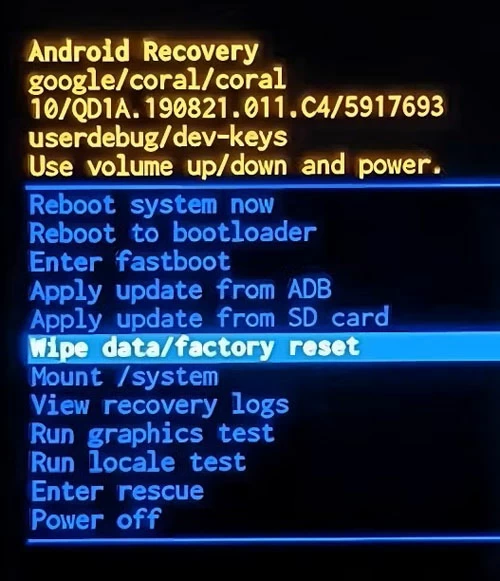
5. On the next menu, choose Factory data reset (or Yes, Yes – delete all user data) This triggers the factory reset on your Samsung tablet without password and unlock the lock screen.
Once completes, you will see "Data wipe complete" notification at the bottom.
6. Press Power button to select Reboot system now. It will take a while to restart, allowing you to access it with no password anymore.
After your old Samsung Tab is unlocked, set it up as if it were the first time it has been used. If it has Android 5.1 or later and linked to a Samsung account or Google account, you'll have to go through Android Factory Reset Protection (FRP) bypass by entering your credentials for identity verification to restore full access.
While hard resetting the Samsung tablet helps bypassing lock screen passwords, it results in data loss. The good news is that, if you were backed up photos and other data to Google or Samsung Cloud or other cloud services, you're in luck - the initial setup process includes a backup restore option to help you bring a lot back.
Read also: How to recover data on Android phone after factory reset
Whether you forgot a long-unused or recently-changed password lock on your old Samsung tablet, Appgeeker Android Unlocker can do a favor, streamlining the Samsung unlock process to regain access in no time.
This handy software lets you unlock Android screen locks including password, PIN code, pattern, fingerprint, facial recognition lock. In a few clicks, users can swiftly remove a forgotten screen lock password and unlock the tablet & smartphone and create a new one.
It also offers useful "Google FRP bypass" feature that gets around FRP locks and removes Google account or Samsung account without knowing the original credentials. In all, if you'd like to unlock Samsung tablet without email and password, Android Unlocker is a solid choice.
This Samsung unlock tool is a breeze to use on Windows computer and works seamlessly for unlocking an old or modern Samsung tablet in case you're locked out and forgot the password, PIN or pattern. Here's how.
Step 1. Launch Appgeeker Android Unlocker on your PC.
Step 2. Choose Remove Screen Password mode to recover access to your old password-locked Samsung device.

Step 3. Click on SAMSUNG among the brands.
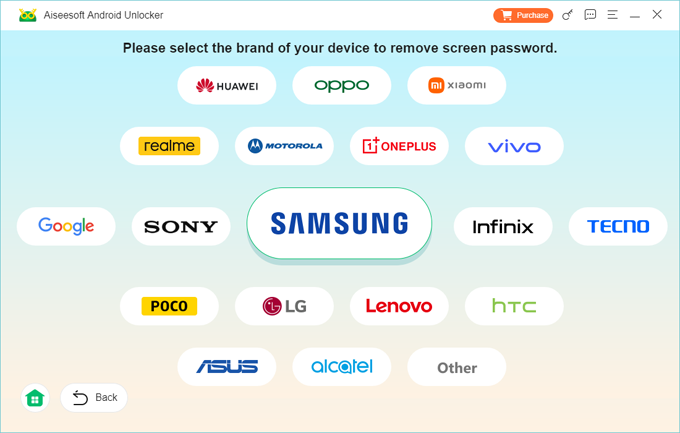
Then, use a data cable to connect the device to the computer. If asked, follow the onscreen prompts to boot the tablet into recovery mode, so the software can recognize it.
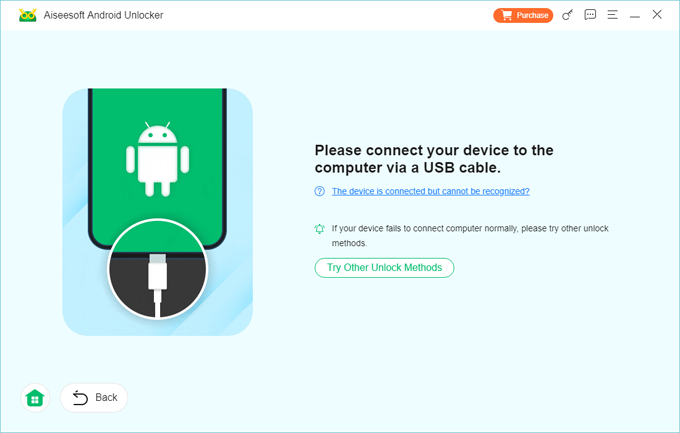
Step 4. When ready, hit Remove Now button. The program begins resetting your Galaxy tablet and removing the password from the lock screen.
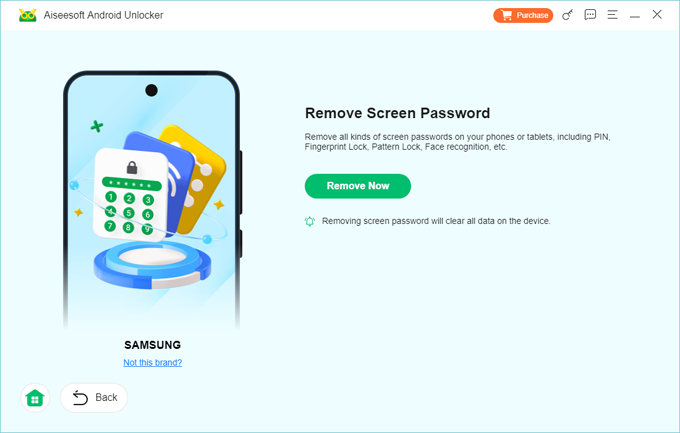
Once the removal of Samsung password is done, the device should reboot. Continue with the setup process and restore data from a backup if you have one available. You should now have no hassle of opening your long-unused or discontinued tablet without a password until you set a new one.
Previously, a lockout-out user with pre-activated Remote Unlock Samsung within Find My Mobile could log into the Samsung Account from a web browser and click the Unlock button. This temporarily disables lock screen and remotely unlocks a locked Samsung tablet without resetting, granting the user access to reset the forgotten password from the Settings menu. Specifically, you can take the Samsung Find My mobile unlock device steps for just limited earlier tablets models.
However, remote access is gone. Since 4th of Dec 2023, Find My Mobile has been integrated into SmartThings Find, along with the remote unlocking feature removed. If you forget your lock screen credentials now, you can no longer simply bypass the lock to reset it while keeping your data intact. Instead, the inbuilt "Erase data" that functions as a remote reset is your only way to remove the screen lock from Samsung in the event that you cannot remember the password for your old tablet - which renders data loss unless you've backed up your data.
Here's how to get into a Samsung tablet without a password using SmartThings Find.
1- Access the SmartThings Find Website.
2- Sign into your Samsung account that's previously sign into your older device.
3- On the left sidebar, click on your locked Galaxy Tab you need to factory reset and unlock.
4- From the menu that appears, choose Erase data.
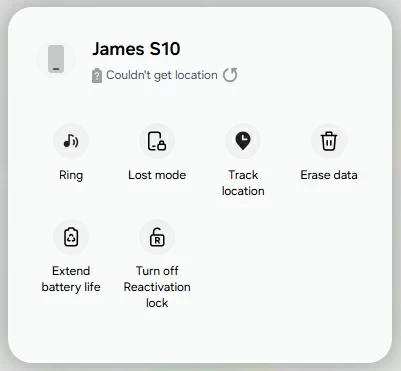
5- Authenticate your identity. You will be asked to enter the verification code that has been sent to your tablet. Since you're locked out and can't get into your Samsung, click on "Didn't get the verification code" link and choose Verify with text message or other means.
Then input verification code, and click Verify. Return and choose Erase data again to procced.
6- A pop-up box appears, reminding you that resetting Samsung without password will permanently delete all of your data and settings. To confirm, click Erase to remotely reset your tablet and unlock the old password you forgot.
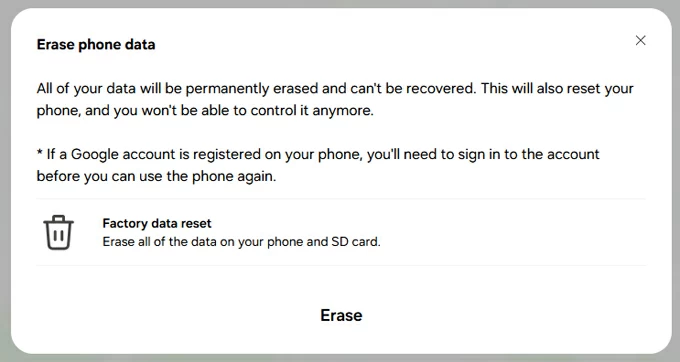
7- Enter your Samsung account password and the reset begins.
When that's done, you should manage to bypass the lockout issue and get into your old Samsung Galaxy tablet again even it's left unused for an extended period.
Keep in mind that Samsung SmartThings Find can only run a factory reset on a device that is signed into Samsung account, connected to a Wi-Fi or mobile network, or has Find My Mobile setting enabled.
Extend Unlock (formerly Smart Lock) on any reasonably recent Android device appears to save you time of unlocking Samsung without needing a password, PIN or pattern. By setting it up, your device will unlock itself and stay unlocked when you're holding on it, or when trusted locations or devices are detected. For example, if you set your office as a trusted place, when you come to your office your Galaxy Tab will detect the location and automatically unlock.
The catch is that this automatic unlock feature can keep your device unlocked for up to 4 hours, after which you must unlock the screen using the password, pattern or PIN you set. So when you truly forgot your Samsung Galaxy tablet password, you can temporarily get into the device and back up your data before doing a factory reset to actually remove the password.
To enable Extend Unlock, go to Settings > Lock screen and AOD > Extend Unlock, enter your lock screen credentials, and set up how you want your Samsung table to unlock: On-body detection, Trusted places, Trusted devices.
This is not working for second-hand or really ancient Samsung tablets, and here're the supported gadgets: Tab S5e, S6, S7, S8, S9, S10, S11 series, Tab A9, A9+, A11, Tab Active 5, Active 4 Pro, and most newer devices running recent One UI versions.
Some outdated options like Forgot Password and Google's Android Device Manager even made it easier to access the old Samsung tablet if the password was forgotten - without resetting or losing data.
Option 1- Forgot Password in Android 4.4 and lower
This is a common method many years ago for ancient Samsung tablet unlocking when you've forgotten the password. When you enter an incorrect password multiple times, "Forgot Password" would show up. Tapping on it will let you enter the Google account credential that was tied to the device to bypass Samsung lock screen and then reset password.
Option 2- Google's Android Device Manager
Android Device Manager once provided a LOCK feature, allowing you to sign into the Google account from a browser, enter and confirm a new password, which will be required to open the outdated tablet.
The service along with the remote password reset feature for lock screens has already been ditched, and replaced by Find My Device, and finally by Google Find Hub in recent years. For any Samsung tablet running the Android version newer than 5.0 Lollipop, a complete hard reset is required to bypass the old forgotten password and gain unrestricted access to the device. We have a separated guide on how to unlock Android device using Google Find Hub.
Q1- Forgot screen lock password of my Samsung Galaxy Tab S9 FE+. Is there any way to retrieve data before factory reset?
Unfortunately, if your Galaxy Tab S9 FE+ is locked and you don't have the correct password, there's no official way to access or retrieve data before a factory reset. If you have backed up your phone before the lockout, you can restore your data to your device after it's reset and unlocked. Otherwise, you'll lose anything.
Q2- Is there any way available today to unlock a locked Samsung tablet without factory reset?
Yes. Forgetting password on Samsung devices that have One UI 6.1 software version, it's not necessary to reset the whole device and erase all data including the login password. The "Reset with previous screen lock" feature allows for using the past screen lock method (password, PIN or pattern) to unlock the device after changing it if you've forgotten or lost your current unlock code. This is useful if you change your password and next day you forgot it.
Samsung's tablet eligible for update to One UI 6.1 or higher: Galaxy Tab S11 Ultra, S11+, S11, S10 Ultra, S10+, S10 FE, S10 FE+, S10 Lite, S9, S9+, S9 Ultra, S9 FE, S9 FE+, S8, S8+, S8 Ultra, S7 FE, A9, A9+, A7 Lite, Xcover 7, Xcover 6 Pro, Active 5, etc.
Q3- Can I unlock an old Samsung Galaxy tablet without password or without resetting?
You may have to factory reset the older Samsung tablet so as to unlock it if you forgot the password, as the direct Unlock or Password Reset options already stopped to work due to security reasons in Android 5.0.
Some trusted Samsung unlock tools like SmartThings Find, Android Recovery Menu, Appgeeker Android Unlocker, and Google Find Hub are available and walk you through a simple factory reset process on a locked Galaxy Tab, removing your forgotten password and unlocking the tablet effectively.