How to Remove Google FRP Lock on Android phones


Samsung phone locked by pattern? Want to unlock your Samsung phone's pattern lock but don't want to factory reset your phone? This article will tell you how to do this.

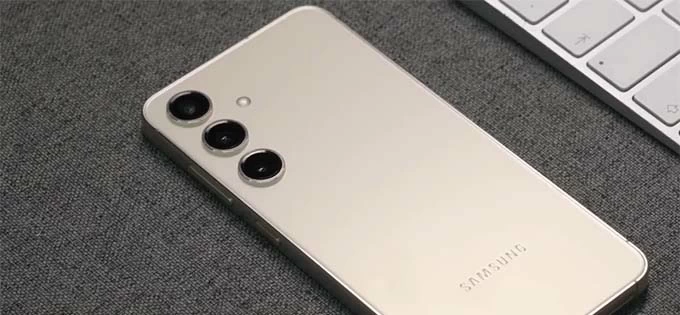
The key to picking a way for unlocking pattern lock on Samsung without reset lies in the Android version your phone is running.
You might find yourself locked out of your Samsung phone due to forgetting the pattern, or the device becomes inaccessible after multiple incorrect pattern attempts. While unlocking a Samsung phone pattern lock is generally straightforward, many users specifically need to unlock the Samsung phone pattern lock without a factory reset to preserve important data or cherished memories.
Don't worry—unlocking the pattern lock on your Samsung phone without resetting is not impossible, provided you meet certain conditions. This article will outline how to unlock Samsung phone pattern lock without factory reset, covering new features added in the One UI system as well as some folk techniques you can try, letting you unlock your Samsung pattern without losing any data.
Additionally, we will introduce alternative solutions. Among these, using an Appgeeker Android Unlocker allows you to easily unlock a Samsung phone without a pattern, quickly regaining access to the device and restoring normal use.
Table of contents
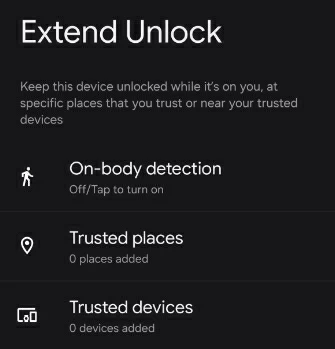
Extend Unlock (previously known as Smart Lock) is a trust-based feature built into Samsung phones. If your Galaxy phone detects that it's still with you — in a familiar place, near a trusted device, or in motion — it may temporarily fully unlock the screen without requiring you to manually draw the unlock pattern.
As long as you enabled Extend Unlock before the lockout and have not restarted your device since it was locked, you can activate the feature under the following trusted conditions to unlock your Samsung phone pattern lock without resetting the entire device:
Samsung quietly introduced a highly practical recovery feature in One UI 6.1 and later: Unlock with Previous Screen Lock. This gives users a chance to save their devices after forgetting a new Samsung screen pattern lock.
Instead of resetting your Samsung phone when locked, this feature allows you to use your old password, PIN, or pattern within a 72-hour window to reset your current pattern lock, hereby unlocking the locked device without erasing existing data.
When this method applies:
1. Repeatedly draw the incorrect pattern. After five failed attempts, the Samsung phone will temporarily disable input and display a countdown.
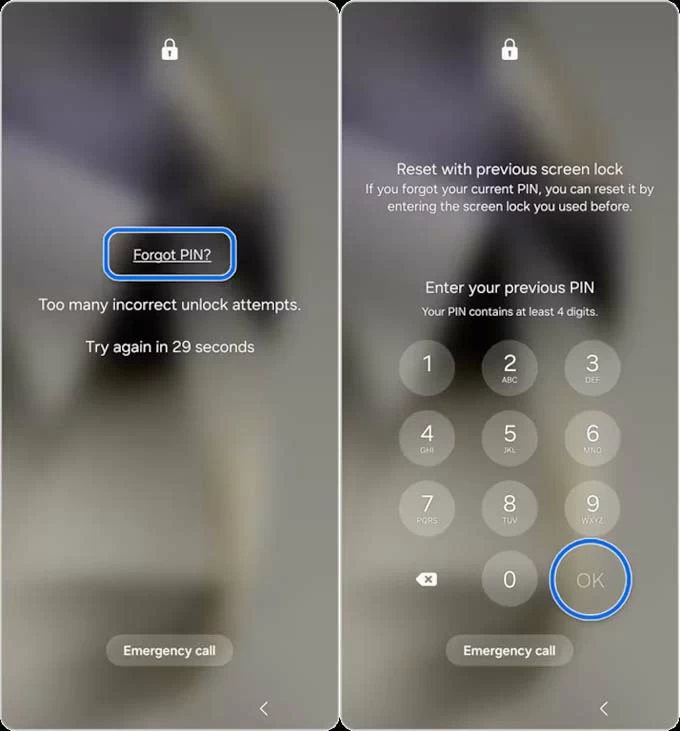
2. A Forgot Pattern option will appear on the lock screen; tap on it.
3. The system will prompt you to enter your previous screen lock credential, draw the pattern/password/PIN used before the most recent change.
4. After successful verification, the system will guide you to set up a new screen lock immediately. Choose your preferred screen lock type — PIN, Pattern, or Password.
5. Enter and confirm your new pattern/PIN/password.
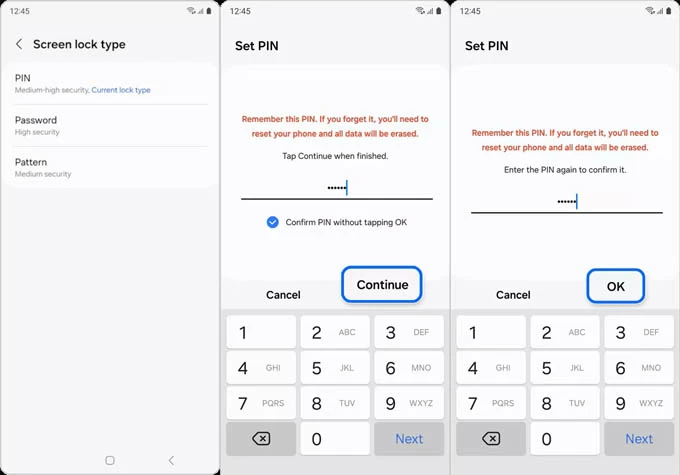
When you return to the lock screen, you can use your updated pattern/PIN/password to unlock your Samsung phone, ensuring the device's data remains intact.
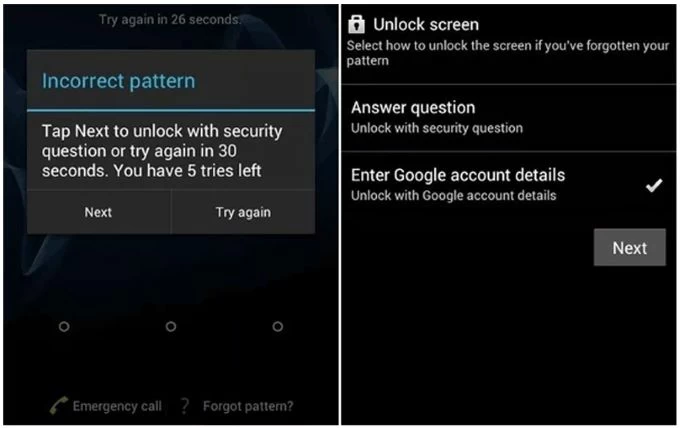
Older Samsung phones running Android 4.4 or lower versions come with a built-in Google-based unlock option, suitable for unlocking your forgotten pattern lock on a Samsung phone without a factory reset. But this feature is no longer available in modern Android versions.
Requirements for this method:
1. Draw the wrong pattern five consecutive times until Forgot pattern? appears in the bottom right corner of the screen.
2. Tap the Forgot pattern? option, then select Enter Google account details.
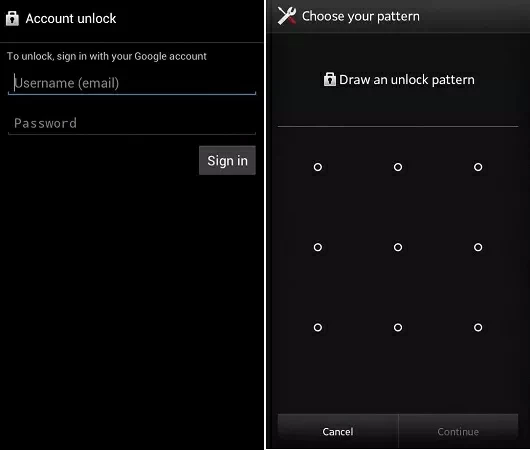
3. Log in using the Google email address and password previously linked to the phone.
4. Once your identity is verified, you will be prompted to set up a new pattern lock to unlock your Samsung phone.
5. Draw the new pattern and confirm to regain access.
There are some folk techniques that exploit vulnerabilities in the Android system to unlock your Samsung phone's pattern lock without resetting the device. However, these methods generally work on earlier Android versions, such as Android 12 or below. Even though they can't guarantee 100% success in unlocking your Samsung phone, they are certainly worth a try since they will not erase your data.
Samsung devices still contain hidden diagnostic entries. On specific firmware versions, accessing these menus may interrupt the lock screen process and expose system controls, allowing you to get into the phone without the pattern lock.
1. On the Samsung lock screen, tap the Emergency Call button.
2. Type a long string of characters, such as ten asterisks.
3. Copy and paste these asterisk characters into the input box until no more can be entered.
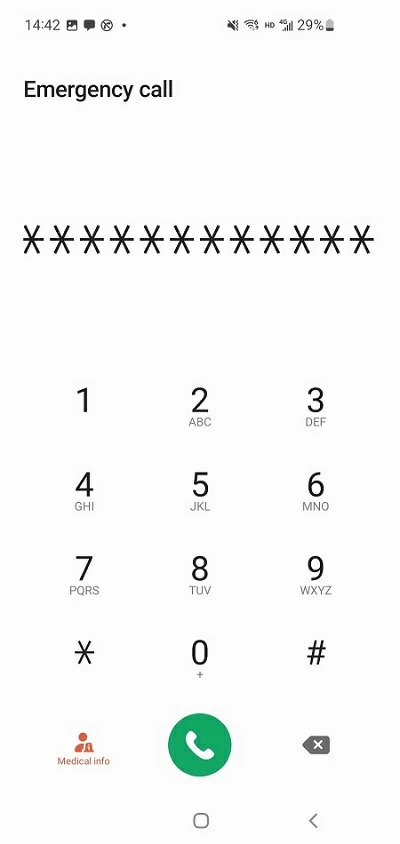
4. When the dialer encounters issues loading the text, tap the back button at the bottom to return to the lock screen.
5. Open the camera app, then go to the notification panel and tap the Settings icon.
6. On certain software versions, the User Interface (UI) will crash, briefly displaying the Home screen and effectively bypassing the pattern lock.
As a member of the Android family, Samsung phones can try Android's universal master code to unlock a pattern lock on a Samsung phone without performing a factory reset.
1. On the Samsung phone's pattern lock screen, tap Emergency Call.
2. In the dialer, enter *2767*3855# or *#*#7780#*#*.
3. Tap the dial button to unlock your phone.
For advanced users and those who have previously modified developer options, ADB provides a method to communicate from a computer with the phone's root directory to unlock the pattern lock without resetting your Samsung phone to its factory settings.
Prerequisite: USB debugging must have been enabled in the developer options before the phone was locked.
1. Connect your Samsung phone to the computer using the original USB-C data cable.
2. Open the command prompt in the ADB tool's installation folder.
3. Enter the following command and press Enter: adb shell rm /data/system/gesture.key.
4. After restarting the phone, your phone will be unlocked without a pattern lock, and you can access your data as before.
When the above methods for unlocking Samsung phone pattern lock without a reset are not applicable, you need to try other alternative solutions to bypass the forgotten pattern lock and unlock your Samsung phone, even if it means paying the price of erasing data, but at least you regain control of the device and can use it again.
When all non-reset methods have been exhausted, unlocking a Samsung phone becomes a matter of restoring access rather than saving data. This is where the professional Appgeeker Android Unlocker stands out. This software can quickly remove forgotten screen locks, including pattern, PIN, password, fingerprint, and facial unlock, allowing you to unlock your Samsung phone without the original pattern.
It is suitable for most Samsung phone models, such as Galaxy S, Galaxy Z, Galaxy A, and others, and is compatible with the latest Android systems. Without complex operations or prerequisites, you can easily use it to get into your Samsung phone locked by the pattern.
1. Download and run Android Unlocker on your computer, then select Remove Screen Password to unlock your Samsung phone that is locked by the forgotten pattern lock.

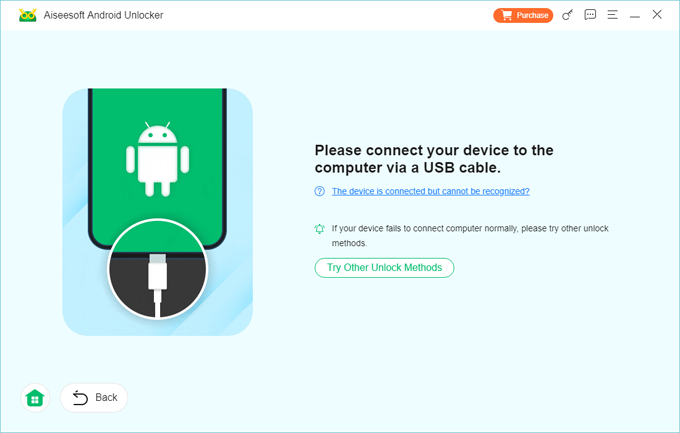
2. Choose your phone brand—Samsung, and use an appropriate data cable to plug your locked Samsung phone into the computer.
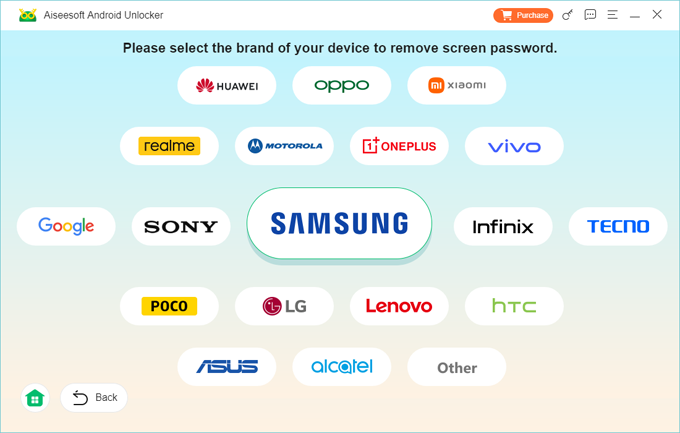
If the software doesn't recognize your phone, click the "The device is connected but cannot be recognized?" link to resolve it.
3. After recognition, click Remove Now to begin removing the locked pattern from your Samsung phone.
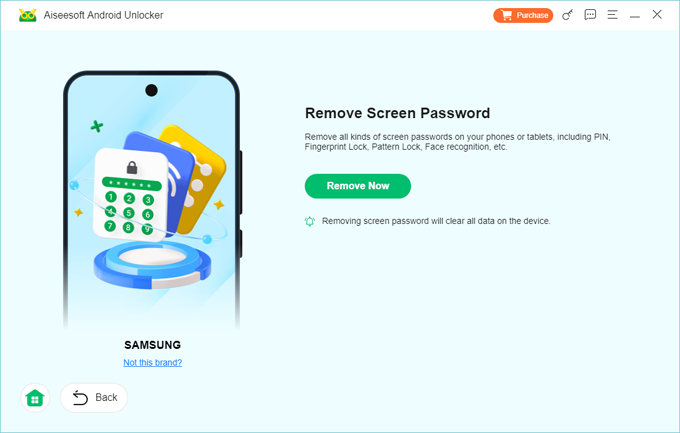
Once the removal is successful, your device will restart. At this point, your Samsung phone will be unlocked, free from the pattern lock restriction, and you can set up your device from scratch by following the on-screen instructions.
This software can also help you bypass Google verification on your Samsung phone.
Some users have claimed that SmartThings Find can directly unlock a screen pattern lock via the "Unlock" option without resetting Samsung phone to its initial state. However, in reality, this "Unlock" feature has been discontinued since December 2023.
But when you forget the pattern on your Samsung phone, you can still remotely unlock your device via SmartThings Find—though this will wipe all your data and settings.
Requirements:
1. On another device, open the Samsung SmartThings Find website and log in using your Samsung account credentials.
2. From the list of associated devices, select your locked Samsung phone.
3. Click the Erase data function to clear your pattern lock.
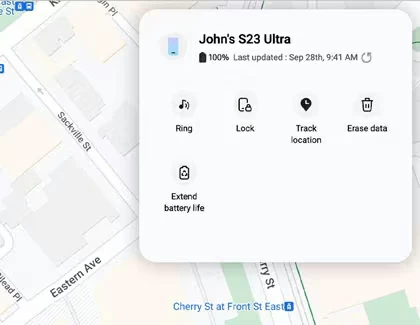
4. Verify your identity as required by entering the verification code, then click Verify.
5. Read the notes in the pop-up window and hit Erase to confirm.
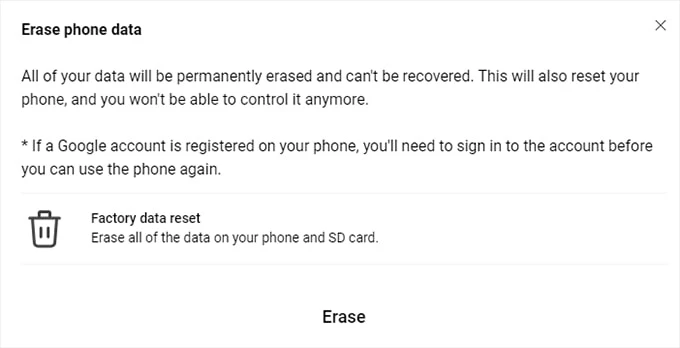
6. Re-enter your Samsung account password and click Next to initiate the process of unlocking the pattern lock from your Samsung phone.
Tip: Similarly, if your Samsung phone is signed into a Google Account, you can also use the Google Find Hub to unlock your Android phone (including Samsung) without the pattern.
This is the final manual method to unlock Samsung phone without pattern. Recovery mode can completely bypass the Android system and directly use hardware controls to reset the phone — no accounts, no internet, no remote tools.
1. Turn off your Samsung phone. If the system requires a pattern to power down, simply wait for the battery to drain completely.
2. Connect your phone to a computer and use the specific button combination based on the model to enter recovery mode.
3. Use the Volume buttons to highlight Delete all user data or Wipe data/factory reset, then press the Power button to select.
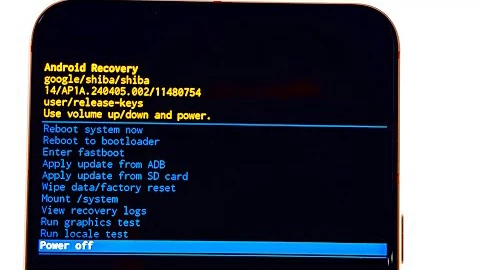
4. Press the Volume Up or Down button to select Yes, Yes – delete all user data or Factory data reset, then press the Power button.
5. Once your Samsung phone has finished resetting, select Reboot system now to restart the device to the initial setup screen.
Note:
Conclusion
Unlocking the pattern lock without resetting the Samsung phone is still possible in modern Android systems. However, the success of these methods depends entirely on the Android version you are using and whether the necessary features were enabled on your Samsung device beforehand.
Of course, if these data-preserving methods don't work, a factory reset remains a viable solution, letting you get back to your phone without the pattern.