How to Reset Samsung Phone When Locked


Forgot your Samsung tablet's password and locked out of the device? Don't worry, this article will give you step-by-step instructions to unlock Samsung tablet without password.

To effortlessly unlock a Samsung Galaxy tablet without a password, give Appgeeker Android Unlocker a try—it lets you get into your locked Samsung tablet without any conditions after forgetting the password.
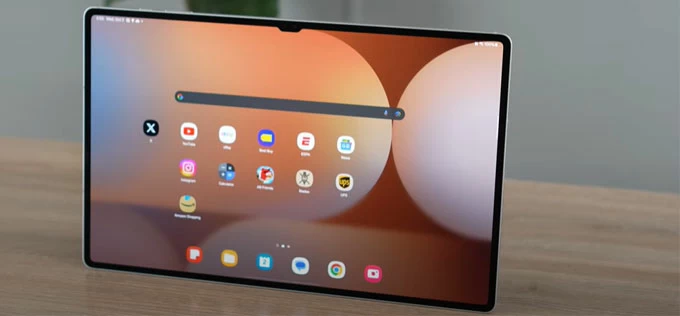
The methods for unlocking Samsung tablet without password fall into two directions: non-destructive options and factory reset.
Locked Samsung tablets are actually a common issue — a forgotten PIN/password you haven't typed in months, a pattern you changed too quickly, or even a second-hand device that still carries the previous owner's lock screen. Whatever the cause, losing access to your tablet can feel like your entire digital world has suddenly been sealed away.
The good news is that the methods to unlock your Samsung tablet without a password are far more numerous than many users realize, and most are directly built into the system. This guide compiles all effective solutions for how to unlock Samsung tablet without password, even allowing you to regain access without losing data in some cases.
Each method serves a different situation, and the key to unlocking a Samsung tablet without the password safely is choosing the right approach based on what you still have access to: your accounts, your computer, or the device itself.
Table of contents
Before starting any password-free unlock for your Samsung tablet, you must conduct a critical validation step. Access to several key recovery pathways hinges entirely on your pre-lock configuration.
Specifically, confirm the status of the Samsung Account and Google Account that were actively logged into the tablet. These cloud credentials are not merely passwords; they serve as the crucial remote authorization keys that permit cloud-based unlocking or remote data erasure. The success and speed of your unlocking journey directly correlate with the availability and integrity of these linked accounts.
Yes, but only in specific situations. If your Samsung Galaxy tablet is running One UI 6.1 or a higher version, you can use the Reset with previous lock feature to unlock the device without factory reset.
In addition, if Extended Unlock was enabled prior to the Samsung tablet getting locked, it provides password-free access to your Samsung tablet, guaranteeing no data loss. In all other situations, most unlock solutions will require you to erase your tablet to remove the lock screen, letting you re-enter the device.
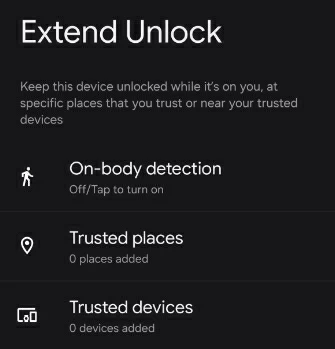
Extend Unlock is designed to reduce how often you must enter a password by keeping the device unlocked under trusted circumstances, such as near a trusted Bluetooth device or in a trusted location, effectively creating an automated, physical key.
The Extend Unlock feature elegantly transforms trusted physical environments or linked accessories into automatic unlock conditions. If you thoughtfully configured this functionality prior to being locked out, including Trusted Places, Trusted Devices, and On-body Detection, you simply need to move to a familiar, designated location or activate a recognized accessory to unlock your Samsung tablet without entering any password and without erasing data.
Note:
This is a new feature available on Samsung devices running One UI 6.1 or a later version, which allows you to unlock your tablet without a reset after forgetting your Samsung tablet password.
It is a data-preserving unlock method. It works because the system temporarily stores your previous lock credential for 72 hours after you switch to a new one. If you remember the older password, PIN, or pattern, this method restores access instantly.
1. Attempt to unlock your Galaxy Tab with an incorrect password at least five times, until the Forgot Password option appears on the lock screen.
2. Tap Forgot Password and, as prompted, enter your previous PIN, password, or pattern, then tap OK. You have three attempts.
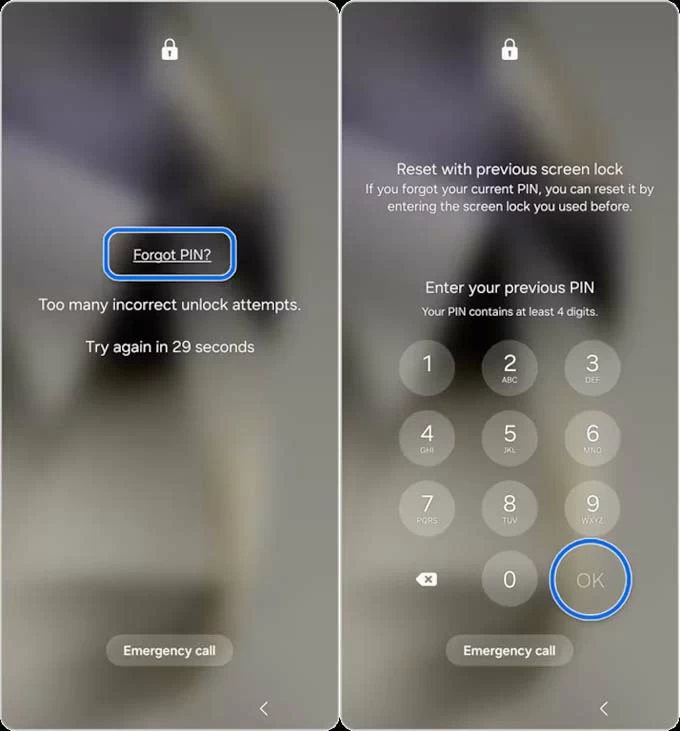
3. Once verified, Samsung will guide you to create a brand-new screen lock. Select your desired screen lock type: Password, PIN, or Pattern.
4. Set the new screen lock password/PIN/pattern, then tap Continue.
5. Re-enter your new screen lock credential and tap OK to confirm the change.
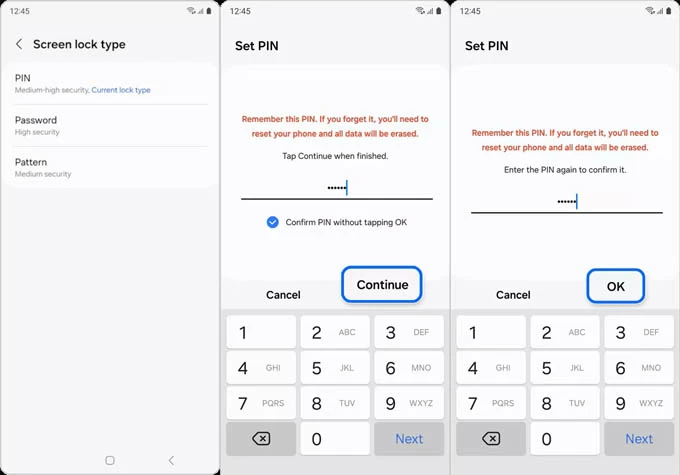
Return to the lock screen and you can use your updated password/PIN/pattern to unlock the tablet normally.
Note:
Professional Appgeeker Android Unlocker software can guide you through a computer-based process to remove the forgotten screen lock, letting you quickly unlock an inaccessible Samsung tablet without a password. It's helpful when Samsung's built-in features aren't available or when account access has been lost.
It effectively removes various screen locks from your Samsung device, including passwords, PINs, patterns, and biometrics. Best of all, it requires no technical expertise or account credentials—just a few clicks to get into your locked Samsung tablet without the password.
Backed by robust technical support and broad compatibility, this software works with a wide range of Samsung tablet models, such as the Galaxy Tab S11/S10/S9 and Galaxy Tab A11/A10/A9/A8 series, and supports the latest One UI version based on the Android OS. Additionally, it includes the ability to bypass Google FRP lock on your Samsung tablet.
Here's how to unlock password-protected Samsung tablet using Android Unlocker:
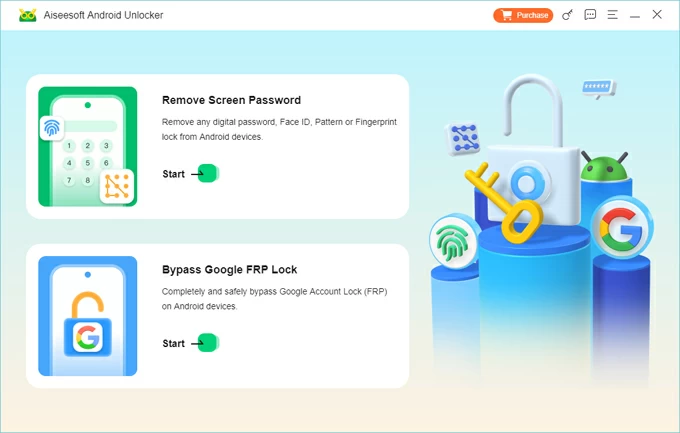
1. On your computer desktop, download and launch the Android Unlocker, then select Remove Screen Password to unlock the Samsung tablet whose password was forgotten
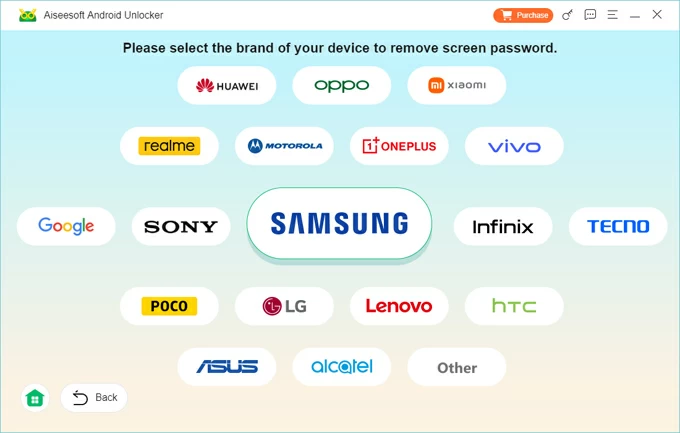
2. Select your device brand—Samsung.
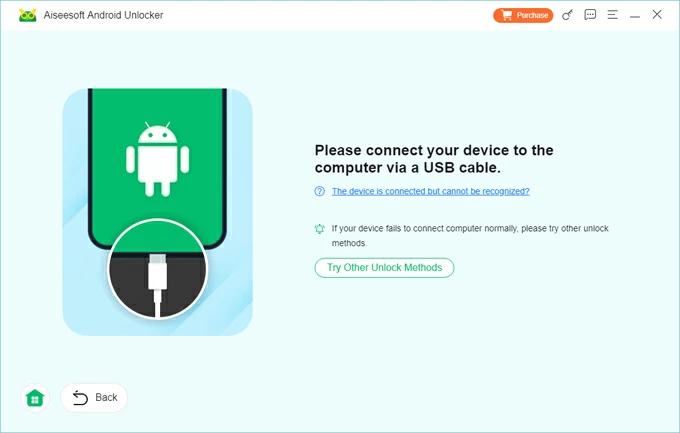
3. Use a USB data cable to connect your Samsung tablet to the computer. If the connection fails, click The device is connected but cannot be recognized and follow the tutorial to enable the software to recognize your device.
4. Click Remove Now to start the unlock process. This will erase the tablet to remove the forgotten lock from the system security configuration, granting you immediate full access.
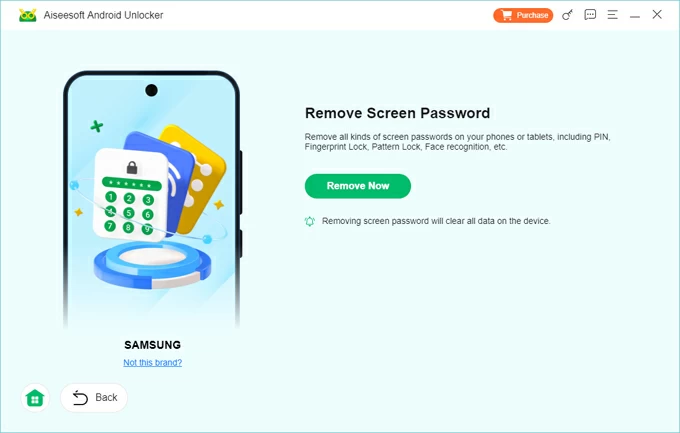
Once done, the tablet will reboot without the previous lock. Follow the steps to complete the initial setup, and you will be able to go straight to the home screen, successfully bypassing the forgotten password prompt.
Also read: Bypass FRP Using Samsung FRP Reset File with Odin
As the primary cloud safeguard offered by Samsung, SmartThings Find allows authenticated users to remotely manage their device. Its "Erase data" function can unlock your locked Samsung tablet without needing password. However, selecting this option is a commitment—it guarantees access by sacrificing all stored user data.
Key requirements:
1. On a separate, working device, access the official Samsung SmartThings Find portal website.
2. Provide the accurate Samsung account credentials associated with your locked Galaxy Tab to authenticate your user identity against the secure cloud service.
3. Choose the locked Galaxy tablet model in the list of registered devices displayed on the left side of the control panel.
4. In the window that appears, select the Erase data option.
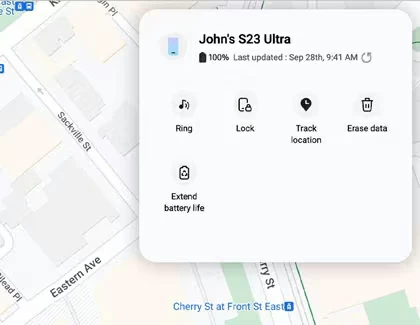
5. To validate the security command, you need to enter a verification code to confirm your identity, and then click Verify.
6. Click Erase data again, and then click Erase to confirm.
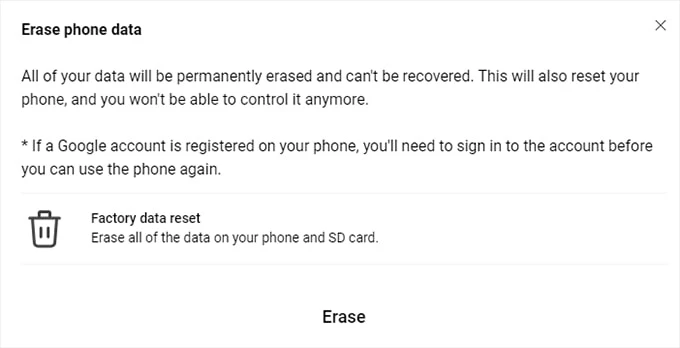
7. As required, re-enter your account password, and then click Next, instantly triggering the factory data reset on the target tablet and consequently clearing the screen lock.
Operating as the universal safety net mandated for all modern Android devices, Google's Find Hub portal provides a reliable remote reset function. This method will wipe all data, but if you know your Google account credentials, you can use it to remove the screen lock and ensure your Samsung tablet is fully unlocked without needing to enter a password.
When this method works:
1. On a computer or another mobile device, open the Google Find Hub website and sign in with your Google account credentials.
2. Find your Samsung tablet from the list of associated devices and click on it.
3. From the control panel options, select the Factory reset device command to unlock the tablet.
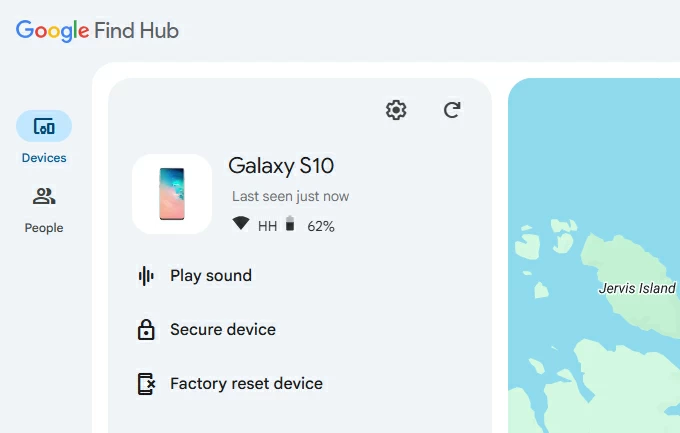
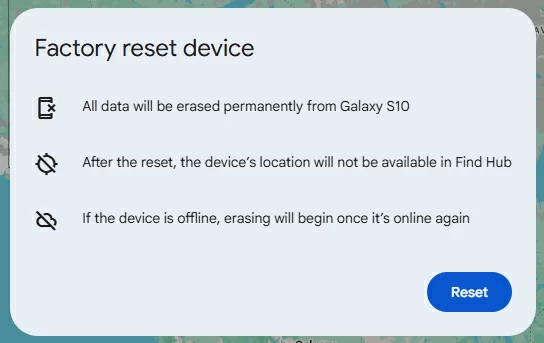
4. Click Next, then click Reset to confirm the erasure action to remotely command the tablet to execute its factory reset sequence, successfully removing the screen lock password and returning the device to its initial, unlocked, and newly wiped state.
Tip: For Samsung tablets that were still linked to a Google account before being locked, during the setup process, you'll need to provide the previously synced Google account and password to bypass Google verification on Samsung. Once setup is complete, if an available backup exists, restore your apps and data from the Google backup.
This is the most drastic and fundamental measure, forcing the Samsung tablet into its internal recovery system to execute a factory data wipe locally. Executing a factory reset on Samsung tablet without password via recovery mode will permanently erase all data, installed applications, media stored on the device, and your screen lock password, thereby allowing you to re-enter your Samsung tablet.
1. Power off the tablet. If the screen lock password prevents normal shutdown, wait for the tablet to run out of battery naturally.
2. Use the correct physical button combination to enter recovery mode. You first need to plug your locked Samsung tablet into a computer, then simultaneously press and hold the Volume Up button and the Power button; or, on some models, press and hold the Volume Up + Home + Power buttons. Release these physical buttons only once the Samsung logo vanishes and the dedicated Android Recovery screen materializes.
3. Use the Volume Up/Down buttons exclusively as your navigation tools to scroll through the vertically listed menu options. Locate Wipe data / factory reset or Delete all user data, and then press the Power button to confirm the selection.
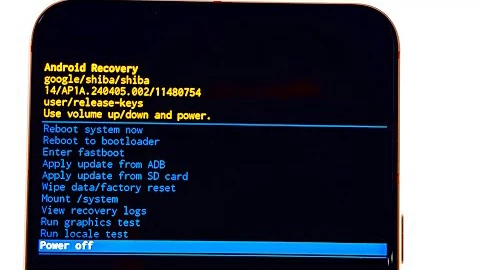
4. Navigate to and confirm by selecting Factory data reset or Yes – delete all user data on the subsequent, highly visible warning screen.
5. Once the data wiping operation has successfully finished, and the recovery menu reappears, ensure the option Reboot system now is highlighted, and press the Power button to initiate the tablet's final restart. Your tablet will then be unlocked, no password required.
Conclusion
Unlocking your Samsung tablet without the password is entirely possible—you just need to match the right method to your situation. Start with the non-destructive options like Reset with Previous Lock or Extend Unlock If your Samsung tablet meets some of the pre-set conditions.
If those aren't available, you'll need to perform a factory reset to unlock the password-forgotten Samsung tablet, for example, using Google Find My Device or SmartThings Find, trusted Appgeeker Android unlock tool, or recovery mode.
Choose the path that fits your device's condition, follow the steps carefully, and you'll regain control of your tablet with confidence.