How to Erase an iPhone


Whether you are dealing with a forgotten password or a system malfunction, this article provides a step-by-step guide to factory resetting your phone without a password.

For those looking to reset the phone to factory settings without password quickly and restore functionality, Appgeeker Android Unlocker is undoubtedly one of the best choices. It can remove any screen lock on a locked phone without any prerequisite conditions.

If you are attempting to reset a phone without a password, ensure you are the legal owner of the device.
Lock screen passwords are not just about preventing strangers from prying into your data; they are essential for protecting your digital assets. Correctly entering your passcode serves as verification that the system is being accessed by its rightful owner. Therefore, when you forget your password or enter it incorrectly too many times, the system locks you out because it treats you as an unauthorized intruder.
If you cannot remember your password, you will need to factory reset the phone without a password to remove the screen lock credentials and regain access. Beyond forgotten passwords, you may also need to perform a password-free reset on a phone in the following scenarios:
This guide provides a comprehensive walkthrough on how to reset your phone without password, designed for Android users. We cover both built-in Android features and professional third-party unlocking tool, offering multiple solutions tailored to your specific situation.
Table of contents
In short: No, you cannot directly reset the phone from within the phone itself. Once the screen is locked and the password is forgotten, the device will not permit any in-system resets. This is not a technical limitation; it is a fundamental security protocol.
From the phone's perspective, the person holding it is unverified. Allowing a simple reset from the lock screen would mean that anyone could erase a lost or stolen phone and claim it as their own. To prevent this, the system blocks all internal reset paths and forces the process to occur outside the operating system environment.
Therefore, all legitimate reset methods must come from one of the following three sources:
The outcome for all three cases is identical: the phone must be cleared of all data and settings before it can be set up again. You can only replace the forgotten password by resetting the phone, and resetting the phone without password always begins with erasing the device.
For iPhone users, you can refer to How to factory reset iPhone without passcode.
Even if your phone is locked and inaccessible, Google still recognizes it as an asset tied to your account. As long as your phone is linked to your Google account, it exists inside Google's trust network. Google Find Hub allows you to remotely command the phone to wipe its data from the cloud, enabling a factory reset on the phone without needing the password.
However, to successfully trigger a reset command via Google Find Hub, you must meet the following requirements:
1. On a computer or another mobile device, launch a browser window and head to the Google Find Hub.
2. Log in using the exact Google Account currently signed into the locked phone.
3. The dashboard will display a sidebar with your registered devices, then select the phone you want to reset from the Devices list.
4. Google will attempt to locate it. Once it appears, click Factory reset device.
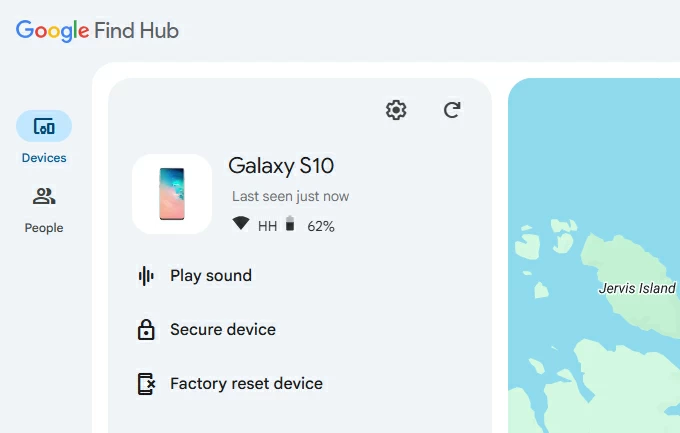
5. Read the warning message explaining that all data will be erased, then click Next.
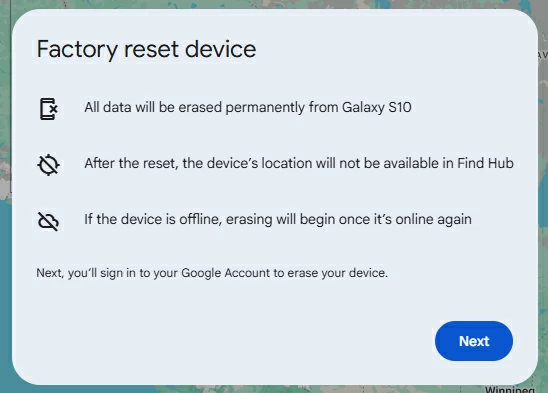
6. Google will ask you to re-enter your password one last time to verify your identity.
7. Click Reset again to confirm. If the phone has internet connection, it will immediately go dark, reboot, and begin the internal formatting process.
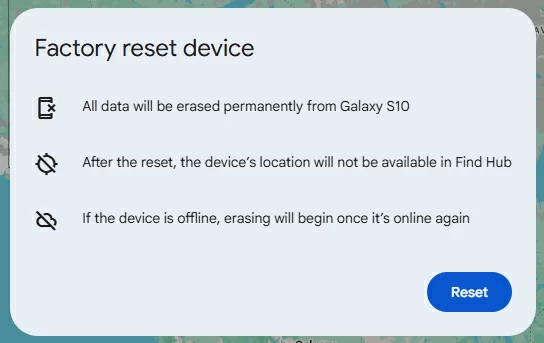
Once the process finishes, your phone will reset to its original factory state with no lock screen in place. You can then set it up from the beginning and unlock it without entering any password.
Tip: One of the biggest advantages of using this method to factory reset a phone without a password is that you won't get stuck at the FRP lock, as you already possess the necessary Google account details to verify ownership afterward.
When cloud verification fails, you'll need a solution that works through direct physical connection — using a professional Appgeeker Android Unlocker tool.
Android Unlocker requires no credentials; instead, it communicates directly with the phone's internal system partitions and removes the screen lock from the underlying operating system level, including password, PIN, pattern, and biometric lock. This effectively resets your phone to factory settings without needing any password.
Acting as a universal digital key, the software offers broad compatibility. It can reset most brands of phones to their initial state without a password, including Samsung, Motorola, OnePlus, Google Pixel, Xiaomi, and more. Besides, it supports most Android operating systems, including the latest versions.
1. Download and install Android Unlocker on your computer. Launch the program and select Remove Screen Password to initiate the reset process on your mobile phone.

2. Connect the phone to the computer using a USB cable, then select your specific device brand.
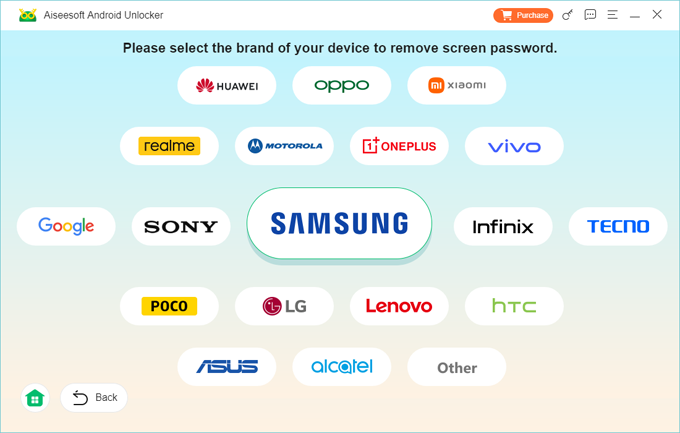
3. If the software fails to recognize your device automatically, click the link that says The device is connected but cannot be recognized?. The program will display instructions on how to put your phone into recovery mode. Follow the prompts carefully until the system successfully detects your phone.
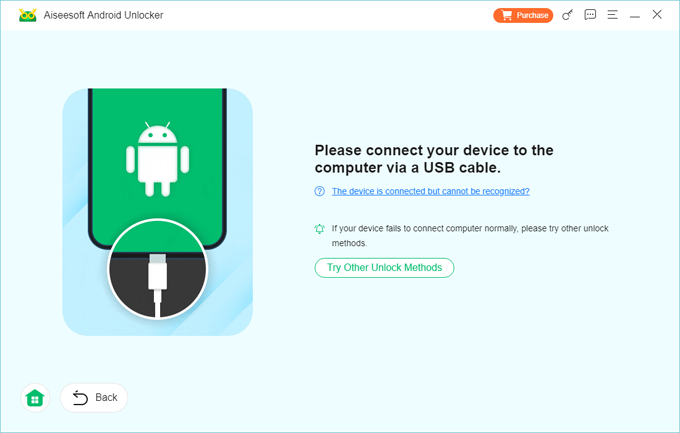
4. Once the software confirms the phone is ready, click Remove Now. The program will then begin resetting your phone, including the screen lock, so you can regain full access to the device.
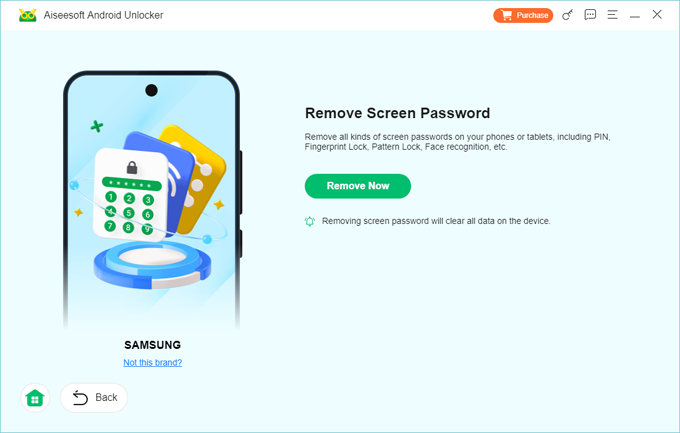
Do not disconnect the USB cable during this process. When finished, the phone will reboot into the initial setup interface. In addition to resetting a phone without password, this software can also help you remove the Google FRP lock on your Android phone.
Using the physical buttons to boot your phone into recovery mode is a common method for resetting your phone without a password, especially when you are locked out.
Recovery Mode is not part of the standard operating system; rather, it is a protected environment stored within the phone's firmware. When the main OS cannot be trusted or accessed, the device switches to this mode to gain direct hardware control.
Recovery mode lets you force a complete reset of the phone. However, success depends on using the correct button combination, which varies depending on your specific phone model.
Here are the specific steps for using recovery mode to factory reset phone without password on some common brand:
1. Turn the phone completely off.
2. Modern Samsung phones usually require being plugged into a PC via USB to enter recovery.
3. Force your phone into recovery mode:
4. Use the Volume Down button to highlight Wipe data/factory reset or Delete all user data, and press the Power button to confirm your selection.
5. Use the Volume buttons to select Yes, Yes - delete all user data, or Factory data reset. Press Power to start restoring your phone to default settings without password.
6. Once the wipe is complete, locate the Reboot system now option and use Power button to select it.
1. Shut the phone down.
2. Hold Power + Volume Down until the Fastboot screen (Android robot on his back) appears.
3. Use the Volume keys to move to Recovery Mode, then press Power.
4. When the Android robot appears, keep pressing the Power button, then press Volume Up button, then release both quickly.
5. In the recovery menu, navigate to Wipe data/factory reset and select it with the Power button
6. Confirm by selecting Factory data reset.
7. After the process completes, select Reboot system now.
1. Power the phone off.
2. Hold Volume Down + Power together and release when the Bootloader menu appears.
3. Scroll with Volume Down until Recovery Mode is highlighted. Press Power to enter.
4. When the Android robot with "No command" shows up, hold Power, then tap Volume Up once to enter recovery menu.
5. Use Volume keys to navigate to Wipe data/factory reset. Press Power to select the option.
6. Select Factory data reset to confirm it.
7. Highlight Reboot system now and press Power.
1. After turning off your phone, press Volume Up + Power buttons and let go when the Mi logo appears.
2. You will enter the Mi Recovery interface. Use Volume Up or Volume Down to choose Wipe Data, then press Power button.
3. Select Wipe All Data and press Power again to confirm.
4. When done, select Back to Main Menu to start fresh.
1. Switch off your phone.
2. Press and hold the Power button until the phone vibrates, then immediately press and hold the Volume Up button together for about five seconds. Your phone will go to a black screen and then enter recovery mode.
3. Alternatively, after the phone vibrates, press the Power button five times in quick succession to access the recovery menu.
4. Once inside the menu, use the Volume Up and Down buttons to navigate to Clear data, then press the Power button to select it.
5. Use the Volume buttons to select Restore your device to its factory settings and confirm your choice by pressing the Power button.
6. Once done, your phone will be reset to its original state. From the recovery menu, select the option to reboot the system
For Samsung phones, there is also a dedicated cloud-based method to reset your phone without a password: using SmartThings Find. Similar to Google Find Hub, provided that your phone is online and associated with a Samsung account, you can remotely erase your phone through the SmartThings Find website to bypass the screen lock and reset all data.
1. Go to the SmartThings Find website on a desktop and sign in with your Samsung account credentials.
2. From the list of devices on the left, select your locked smartphone. The map will update to show its current status.
3. Click the Erase data option in the floating menu.

4. You will be prompted to verify it's you. A verification code may be sent to another Samsung device you own.
5. Once verified, click Erase in the pop-up box to continue.
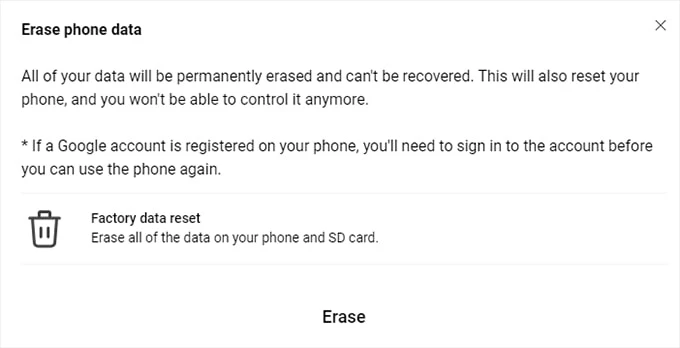
6. Input your Samsung account password again, then click Next to perform a deep factory wipe, removing the Samsung account and the screen lock simultaneously.
Once your phone has been reset without a password and reboots, it may look like a brand-new device, but it is actually still protected. Instead of relying on a screen lock, the device will now require account verification to confirm its rightful owner.
If you did not remove your Google account prior to the reset, the phone will typically view a password-free reset as an "untrusted" action. Consequently, Factory Reset Protection (FRP) will prompt you to enter the Google account credentials previously linked to the phone during the setup. Having your Google account information ready is crucial to avoid the headache of a "ghost device"—a state where the phone can wake up but cannot be fully activated.
Similarly, if your phone was bound to a Samsung account, the device will require you to verify the original Samsung account credentials after the reset.
Furthermore, while your personal data (such as photos, apps, and messages) is deleted during the reset process, you can restore your data from a backup if you have previously synced your phone with cloud services like Google One or OneDrive.
Conclusion
With various methods available to factory reset your phone without the passcode, picking the right one is essential for a smooth and hassle-free experience.