
Easy Samsung FRP Tool - Full Guide for Samsung FRP Bypass


If you're stuck in an FRP lock and don't know the Google account on your Samsung device, this article will tell you how to bypass Factory Reset Protection on Samsung.

With a professional Appgeeker Android Unlocker, you can quickly and securely bypass the Factory Reset Protection screen on your Samsung phone or tablet, even if you don't know the password for the originally synced Google account.

Bypassing Factory Reset Protection on Samsung must be for legitimate use.
Factory Reset Protection is meant to protect your Samsung phone—but in the wrong situation, it can end up locking out the very person it's supposed to protect. Once a Samsung device is reset, FRP requires verification with the previously linked Google account. If that information is missing or forgotten, the phone becomes unusable, even though it legally belongs to you.
This is a robust protective barrier for Samsung devices, far more complex than simply forgetting a Samsung password. This guide focuses on how to bypass Factory Reset Protection on Samsung, helping rightful owners regain access to devices they legally own.
From Google's official account recovery process to dedicated tools and built-in accessibility features, the methods covered in this guide apply to various Samsung models and Android versions, allowing you to confidently and with minimal risk bypass the Factory Reset Protection lock on your Samsung phone without Google account credentials.
Table of contents
Factory Reset Protection, commonly referred to as FRP, is a security feature developed by Google and deeply integrated into the Android ecosystem, including all Samsung devices, aimed at preventing unauthorized users from accessing the device after a factory reset.
When your Samsung device is tied to any Google account, Factory Reset Protection automatically activates. Once triggered, the Samsung phone requires input of the previously synced Google account details, effectively turning the device into a digital safe that cannot be opened without the correct credentials.
This problem is more common than many users expect. It often happens after resetting an old Samsung device, buying a second-hand phone without proper account removal, or losing access to the original Google credentials. However, the essence of its trigger is that you reset your Samsung device in an untrusted environment, such as using recovery mode.
If you perform a factory reset through the Samsung Settings menu, the Factory Reset Protection lock will not trigger, because your identity has already been confirmed via the provided screen lock password and bound account before starting the reset.
Using Google Account Recovery is the most direct and policy-compliant method for bypassing Samsung Factory Reset Protection issues. This method does not directly remove the FRP lock; instead, it focuses on reconfirming ownership by resetting the Google account that was associated with the device. You can then use the updated credentials to unlock Factory Reset Protection on your Samsung phone, regaining full control of your device.
But this method requires you to have access to available verification options, such as a linked recovery phone number, a recovery email, or an already-logged-in trusted device.
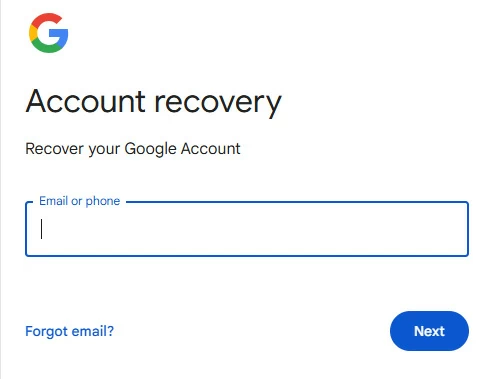
1. On a separate phone, tablet, or computer, open the Google Account Recovery page.
2. Enter the Gmail address or phone number that was previously signed in on the locked Samsung phone, then click Next.
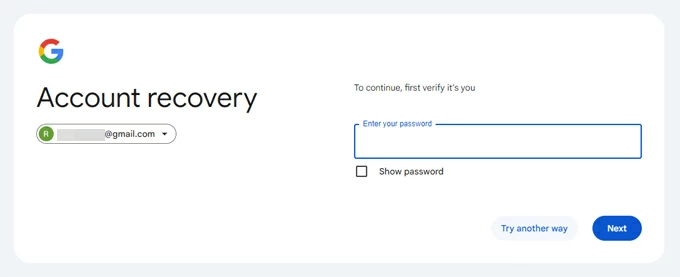
3. Click Try another way to verify your identity on the password entry page.
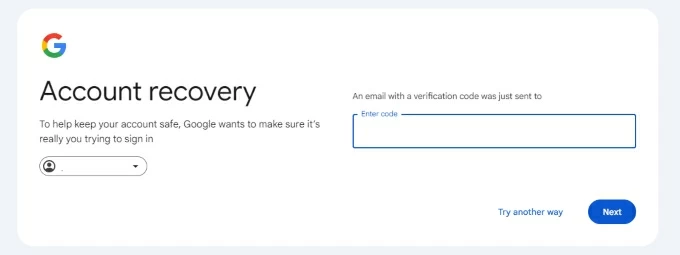
4. You can prove ownership of the account by using another trusted device or by receiving a verification code via your recovery email or phone number.
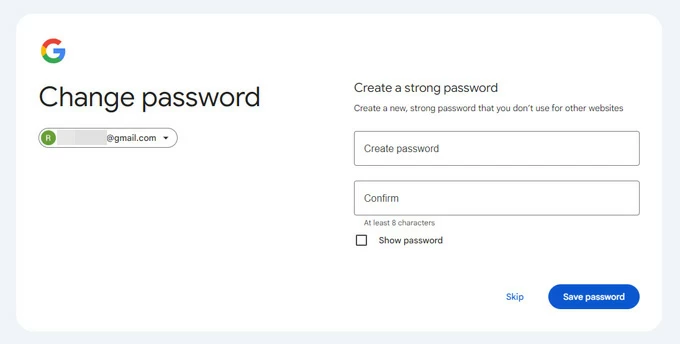
5. Once verified, follow the prompts to create and confirm a new Google account password, then click Save password.
After resetting the password, do not attempt to log in immediately. Wait 24 to 72 hours for Google's security system to sync the changes across all services. Once the waiting period has passed, return to your Samsung device and use the new password to bypass the Factory Reset Protection screen. You will then be able to get into your device.
Note:
Another relatively common method for getting pass Factory Reset Protection on a Samsung device after a reset without Google account is to leverage FRP bypass tools for Samsung. Below, we will introduce several reliable Samsung Factory Reset Protection unlock tools.
Unlike account recovery, Appgeeker Android Unlocker targets the device itself rather than the Google account. It bypasses the Factory Reset Protection at the system level, enabling the phone to boot up normally without requiring entry of prior credentials. This makes it especially valuable for second-hand Samsung devices, inherited phones, or situations where account ownership cannot be reverified.
The software excels at bypassing Factory Reset Protection from all Samsung phone and tablet models without Google account verification, while fully supporting the latest Android versions. Featuring a clear interface and straightforward steps, it is beginner-friendly and does not require flashing your Samsung device to remove the Factory Reset Protection lock, making it a highly reliable and safe solution.
1. Run Android Unlocker on your computer and connect the locked Samsung device to the computer using a USB data cable, then select Bypass Google FRP Lock.

2. Choose your device brand—Samsung.
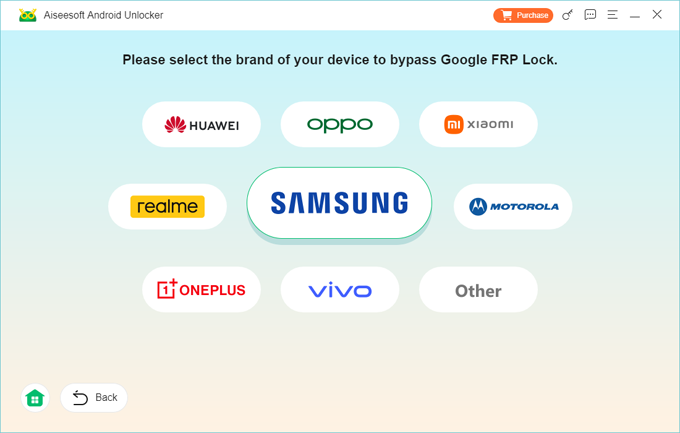
3. Click the Bypass Now button, and follow the on-screen instructions to enable USB debugging mode on your Samsung device. This allows the software to configure the necessary environment to bypass Factory Reset Protection.
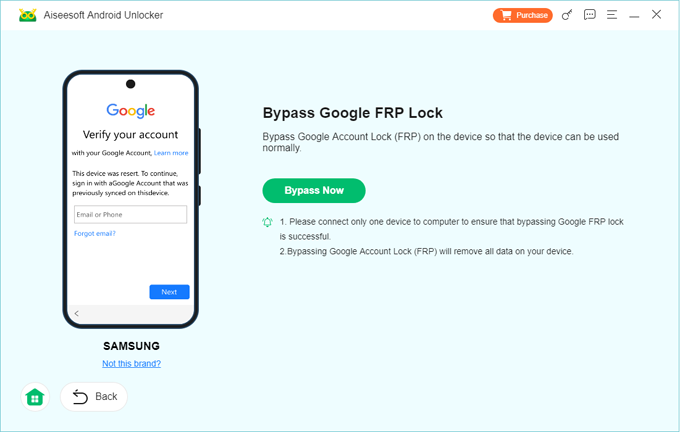
4. Once everything is prepared, the software will automatically start removing the Factory Reset Protection lock on your Samsung. The process won't take long.
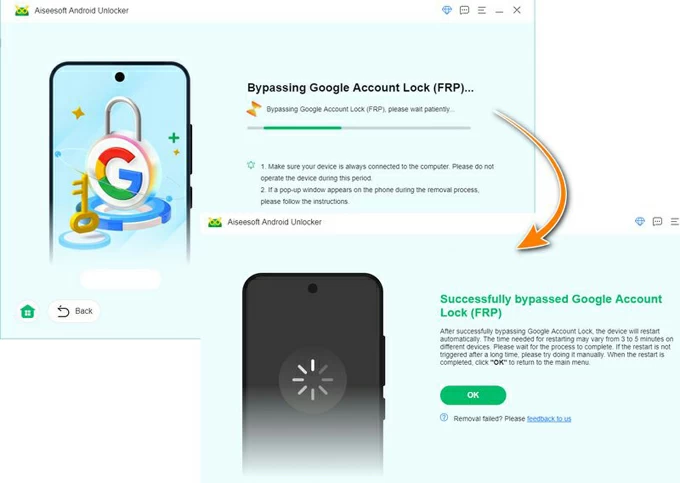
After it's complete, you can proceed with the standard setup of your Samsung device, completely skipping the Google account verification step. Beyond removing Google FRP lock on any Android device, it also unlocks your Android phone without a password, pattern, or PIN.
SamFw FRP Tool is a dedicated utility crafted exclusively for Samsung phones to bypass Factory Reset Protection. It is widely popular due to its high efficiency on older Android versions, where FRP enforcement was less stringent. While its compatibility with newer devices is limited, it remains a practical choice for Samsung models released in 2022 and earlier.
1. Download the latest version of the SamFw FRP Tool (currently SamFw FRP Tool version 5.3) from a trusted website, and install it on your Windows computer.
2. Install Samsung USB drivers if they are not already present.
3. Connect the FRP-locked Samsung phone to the computer via a USB cable.
4. On the Samsung Welcome screen, tap the Emergency Call button and dial *#0*# to enter diagnostic mode.
5. Launch the SamFw FRP Tool, navigate to the Samsung tab, and wait for device detection—basic information will appear in the right-hand panel once recognized.
6. Select the Remove FRP function, and if prompted on your Samsung device, tap to allow USB debugging.
7. Start the process and monitor the progress indicator.
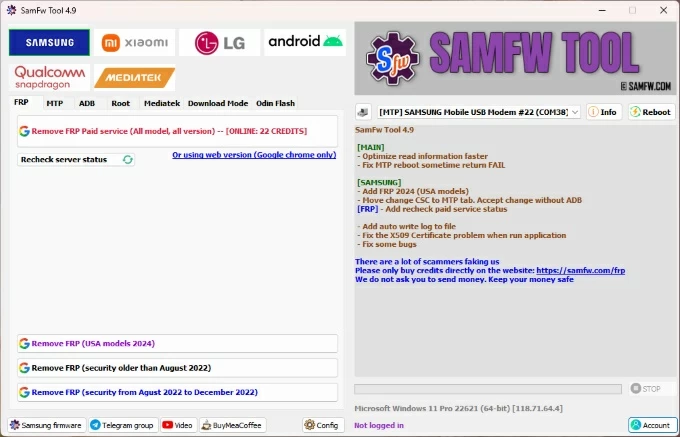
Upon completion, the Samsung phone will reboot automatically, letting you proceed with setup as normal, with Factory Reset Protection successfully bypassed.
Note:
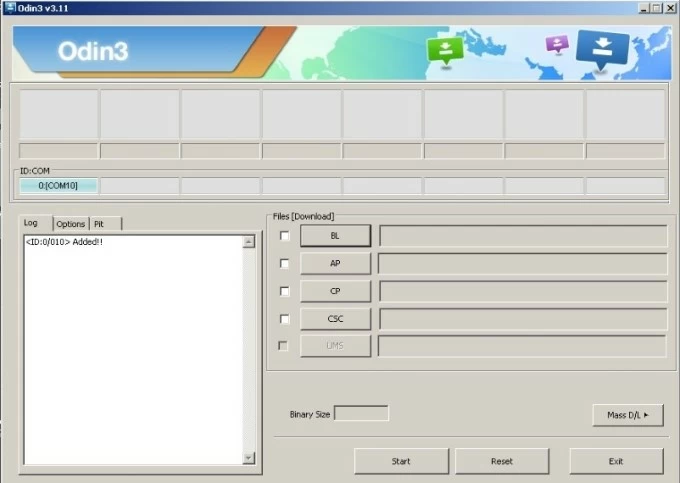
Odin is Samsung's internal flashing tool, originally intended for firmware installation and system recovery. By reinstalling or modifying firmware components, Odin can reset system states that trigger Factory Reset Protection verification. This method is highly technical and is best suited for advanced users who are familiar with firmware manipulation.
1. Install Samsung USB drivers on your computer.
2. Download Odin and the correct firmware package tailored to your exact Samsung model.
3. Power off the phone and boot it into Download Mode.
4. Plug the Samsung device into the computer and open Odin.
5. Load the firmware file into the appropriate Odin slot (usually AP).
6. Verify that only required options are checked.
7. Start the flashing process and wait patiently.
8. Once finished, restart the Samsung phone and continue with the setup.
Note:
For more detailed information and steps on Odin, see Bypass FRP using Samsung FRP reset file with Odin.
TalkBack is an accessibility feature designed to assist visually impaired users. However, on certain Android versions, it can be used to exploit system loopholes to circumvent Factory Reset Protection screen on Samsung devices without the need for a computer. That being said, precise execution and a deep familiarity with TalkBack gestures are critical for success. Furthermore, this method is not 100% effective and may not work on all Samsung devices.
1. On the locked Samsung phone, complete the initial setup steps as prompted, especially by connecting to an available Wi-Fi network.
2. When you reach the "Verifying your account" screen, press and hold the Volume Up and Power buttons at the same time to enable the TalkBack shortcut.
3. Press the Volume Up and Power buttons together once more to fully activate TalkBack.
4. Once the "Welcome to TalkBack" screen appears, draw a reverse L gesture on the screen (starting from the bottom, moving right to left). In the menu that appears, select and double-tap Use voice commands.
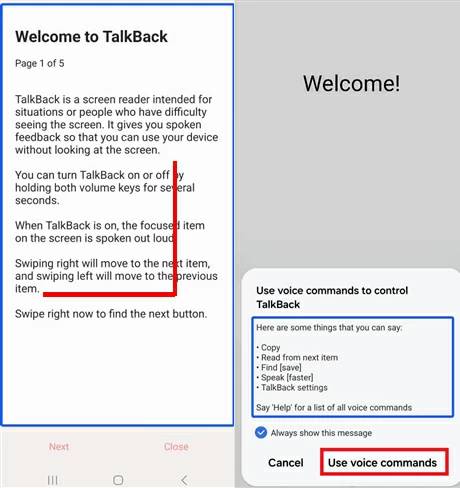
5. Clearly say Open YouTube to the phone, and it will redirect to the web version of YouTube.
6. Simultaneously press the Volume Up and Power buttons again to exit TalkBack mode for easier navigation.
7. In the YouTube page, tap the account icon in the top right corner > Settings > About > YouTube Terms of Service. This will bypass the setup wizard and launch the Chrome browser.
8. Search for an FRP Bypass APK website, such as vnrom bypass, and visit the site.
9. Select Open Setting, which breaks the restrictions and allows direct access to the settings menu.
10. Go to Biometrics and security > Other security settings > Pin windows, and turn on Pin windows and Use screen lock type to unpin options.
11. Set a new screen lock type as required, then return to the Welcome screen.
12. Tap Start to normally set up your Samsung phone, and you'll be prompted to use the screen lock you just set to unlock the device.
13. On the Google Sign-in page, you will now see the option to Skip. The Factory Reset Protection will no longer block your progress.
14. Complete the remaining setup steps to regain full access to your device
Conclusion
With multiple ways to deal with Samsung Factory Reset Protection, the real challenge isn't whether FRP can be bypassed, but which approach makes sense for your specific situation. Each method operates at a different level—account verification, software intervention, firmware control, or system navigation—and that difference directly affects success rate, risk, and time investment.
This is a quick summary of the method to bypass the Factory Reset Protection on Samsung devices.
1. Why is my Samsung phone asking for a Google account after a factory reset?
This happens because Factory Reset Protection was enabled on the device before the reset. When a Samsung phone is reset without first removing the Google account, Android requires the previously synced account to confirm ownership and prevent unauthorized use.
2. How to remove Factory Reset Protection on Samsung?
Factory Reset Protection is generated along with the Google account. You can only disable Factory Reset Protection by removing the Google account from your Samsung phone.
If you know your Google account information, you can open Settings > Accounts and backup > Manage accounts on your Samsung phone, select the associated Google account, then tap Remove account and confirm.
If you don't remember your Google account password, you can use the methods introduced in this article to directly bypass the FRP lock on Samsung or refer to How to remove Google account from Samsung phone after factory reset.
3. Is it legal to bypass Factory Reset Protection on a Samsung phone?
Bypassing FRP is legal only if you are the rightful owner or have authorization to access the device. Using Factory Reset Protection bypass methods on stolen or unauthorized devices may violate local laws.




