
How to transfer WhatsApp data from iPhone to iPhone seamlessly


Get to know the quick methods for transferring WhatsApp chats from an iPhone to a Samsung Galaxy phone, from the official Smart Switch to flexible transfer tools.

If you prefer a more flexible option, Appgeeker WhatsApp Transfer is a great alternative, allowing you to move WhatsApp chats from iPhone to Samsung/Android, or vice versa — even after setup or without factory reset.
Explore efficient ways for iPhone-to-Samsung WhatsApp transfer when switching to a new Galaxy phone.
Transferring WhatsApp from iPhone to Samsung allows you to keep your important chat history when switching to a Galaxy phone. However, moving WhatsApp data between iOS and Samsung can be challenging because the two platforms use different backup and encryption systems, which prevents iPhone WhatsApp backups from being restored directly on Samsung devices.
Fortunately, there are reliable ways to transfer WhatsApp from iPhone to Samsung. Official options such as using a physical cable with Samsung Smart Switch can help transfer your WhatsApp chats when switching from an old iPhone to a new Samsung.
In this guide, we will walk through each available method step by step to complete WhatsApp transfer from iPhone to Samsung quickly and safely. The methods apply to various Samsung models, including the Galaxy S series, Galaxy Note series, Galaxy Z series (Fold and Flip), and Galaxy A series, as well as other supported Samsung devices.
Table of Contents
When transferring WhatsApp from an iPhone to a Samsung phone, the main challenge lies in the differences between the two platforms. iOS and Samsung (Android) rely on separate backup encryptions, which prevents direct WhatsApp data transfer across devices.
iPhone uses iCloud for WhatsApp backups, while Samsung devices rely on Google Drive. As a result, the WhatsApp backup in your iCloud cannot be restored to the Samsung phone directly.
WhatsApp backups are encrypted and formatted differently on iOS and Android, requiring specific transfer methods to convert when moving chats from iPhone to Samsung.
iOS-to-Android transfer methods usually work only during the initial setup of a brand-new or factory-reset Samsung phone. Attempting to transfer WhatsApp after setup typically requires resetting the device or using a compatible tool for iPhone-to-Samsung WhatsApp transfer.
If you are switching from iPhone to Samsung and want to transfer WhatsApp to your new phone, Samsung Smart Switch is the official method to use. It bridges the gap between iOS and Samsung, allowing you to transfer your WhatsApp chat history, account information, profile photos, individual and group chats, media, and settings.
Note: The call history and peer-to-peer payment messages are not included in the transfer.
Samsung Smart Switch is preinstalled on most new Galaxy devices and is also available from Google Play Store. While Smart Switch does not necessarily require a factory reset, WhatsApp should not be activated on the Samsung device before the transfer begins. If WhatsApp has already been set up, uninstall it before proceeding.
To make successful WhatsApp chat transfer from iPhone to Samsung, ensure that:
If you're transferring WhatsApp from your iPhone to a brand-new or newly-reset Samsung Galaxy phone, here's what to do:
1. Power on the Samsung mobile and follow the setup prompts.
2. When you see the Set up using another device screen, select iPhone or iPad and get started with Start Switch.
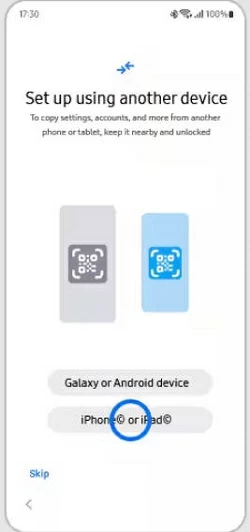
TIP: If your Samsung phone is already set up, open it and go to Settings > Accounts and backup > Bring data from old device. When prompted, choose Receive data and select a source from iPhone/iPad.
3. Connect the old iPhone to your new Samsung using a USB-C to Lightning cable.
4. On your iPhone, tap Trust and verify your passcode when Trust This Computer alert appears.
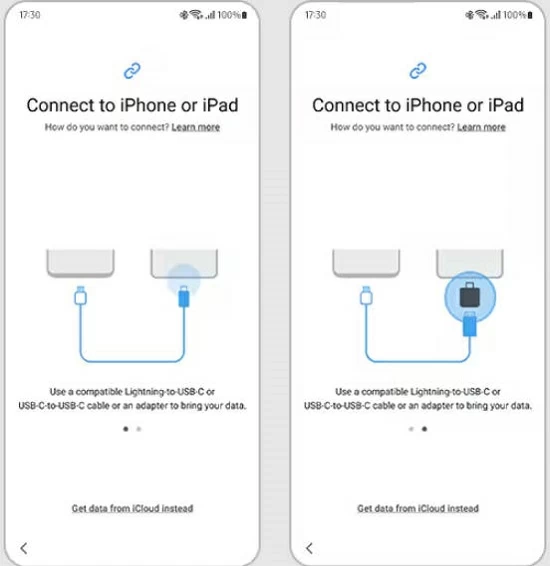
5. Tap Next on Samsung phone. Smart Switch will scan the source iPhone and prompt you to select data to transfer.
6. Choose Apps on Samsung and select WhatsApp from the list. You can also select or deselect other apps, depending on your preference.
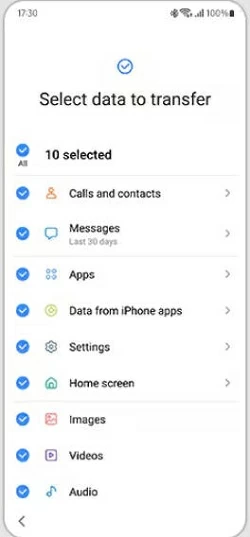
7. Tap Transfer and let Smart Switch complete the transfer process.
8. Finish the remaining setup steps on Samsung until you reach the home screen.
9. Once in, install and open the latest WhatsApp from Play Store.
10. Log in with the same phone number used on your old iPhone.
11. When prompted, tap Start to import the WhatsApp chats transferred from your iPhone. TIP: You will not be able to import later if you skip this step.
After that, the WhatsApp chats on your iPhone should be transferred to your Samsung Galaxy phone successfully.
Alternatively, if you want to transfer WhatsApp from your iPhone to a Samsung phone that is already set up, you can install Samsung Smart Switch from the Google Play Store or open it by navigating to Settings > Accounts and backup > Bring data from old device.
Ensure WhatsApp has not been activated on your Samsung. Once ready, follow the steps below:
1. Link the source iPhone to your Samsung phone via a USB-C to Lightning cable.
2. Run the WhatsApp on your old iPhone and go to Settings > Chats > Move chats to Android, then tap Start button.
3. Install and open the latest version of Samsung Smart Switch on the target Galaxy phone.
4. Then tap Receive data and select iPhone/iPad as the source device. The Samsung device will automatically search your iPhone for all movable data.
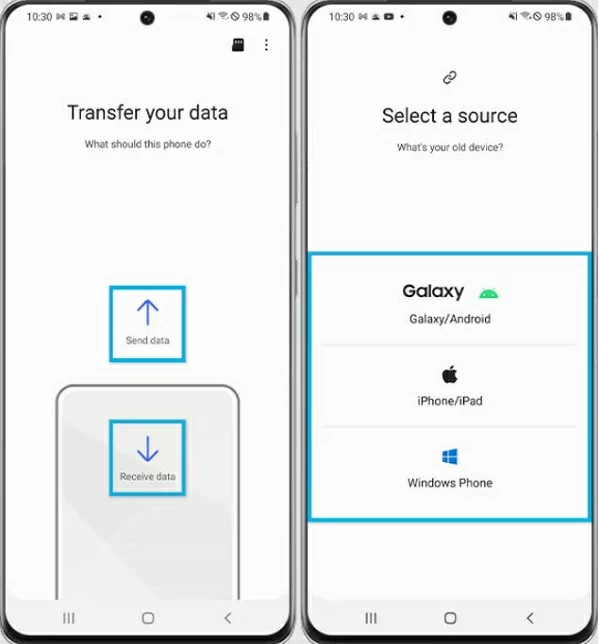
5. Check Apps and ensure WhatsApp Messenger is selected in the app list, then tap Install.
6. When a QR code shows up, scan it with your iPhone's Camera.
7. After your iPhone recognizes the QR code, tap Open in WhatsApp and tap Start on Move Chats to Android screen. If asked, tap Trust on your iPhone and enter passcode to proceed.
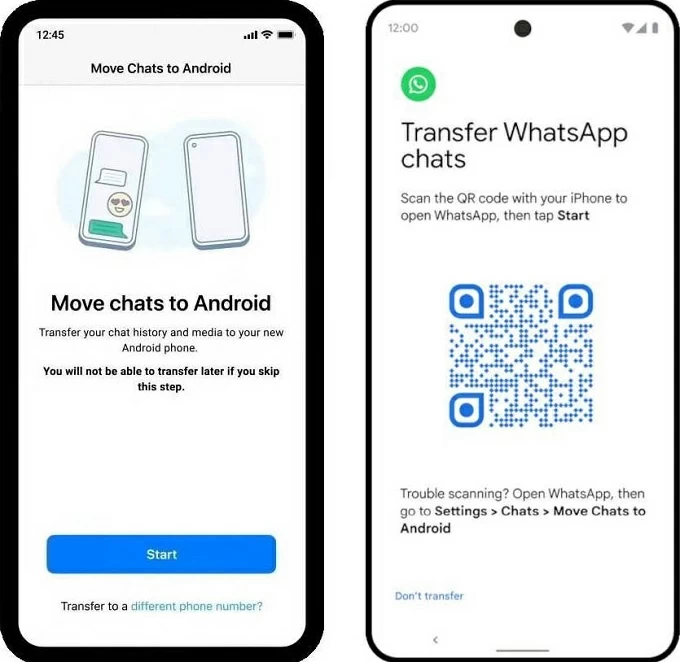
8. Follow the setup prompts on your Samsung phone until you reach the home screen.
9. Open WhatsApp, agree the terms of services, and enter the same phone number to log in.
10. When you see the Importing chat history screen, tap Start to import your WhatsApp data.
After importing, you can view all previous WhatsApp chats on your Samsung phone.
Note:
If you are looking for a more direct way to transfer WhatsApp from an iPhone to a Samsung phone after setup, Appgeeker WhatsApp Transfer offers a convenient solution.
Compatible with major Samsung and iOS devices, this tool supports cross-platform WhatsApp transfers from iPhone to Samsung, allowing you to move your full chat history, including messages, photos, videos, audio files, documents, and other data.
By following its guided, user-friendly interface, you can transfer WhatsApp chats from an iPhone to a Samsung Galaxy phone quickly without data loss. In addition, the tool also supports reverse transfers, allowing you to move WhatsApp chats from Samsung to iPhone if needed.
To transfer WhatsApp from iPhone to Samsung after setup, here are the quick steps:
Step 1. Launch Appgeeker WhatsApp Transfer on computer and select WhatsApp.
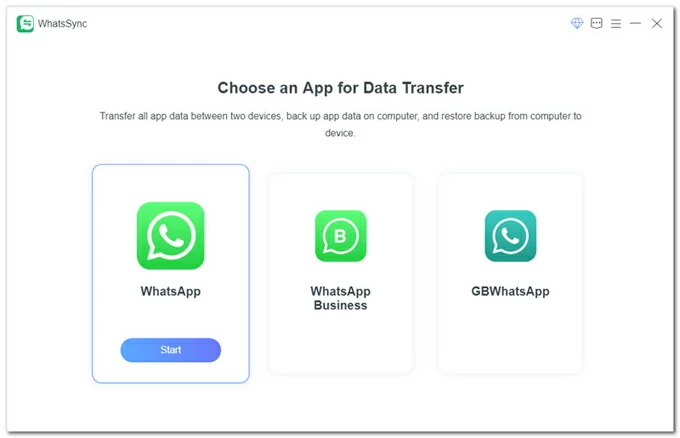
To move your WhatsApp chats from iPhone to Samsung, select Transfer to go on.
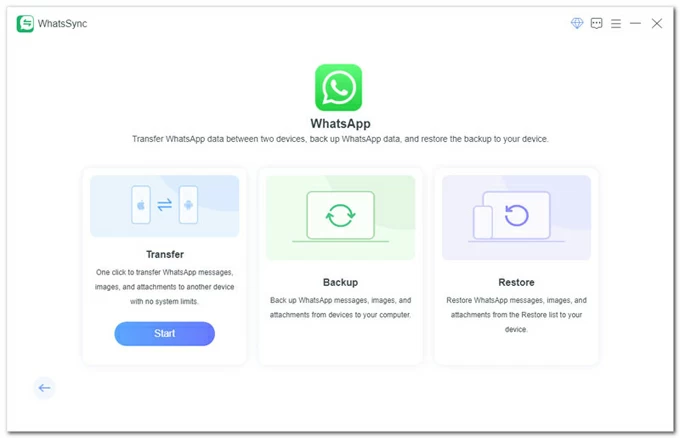
Step 2. Connect the source iPhone and target Samsung Galaxy phone.
For the source iPhone:
Ensure iTunes is installed on your computer and connect the iPhone via a working data cable; if asked, tap Trust on Trust This Computer prompt and enter your passcode to verify.
For the target Samsung:
Connect your Samsung phone with a USB cable and allow the USB debugging. If you don't see the option, reconnect your device and follow the onscreen steps to enable USB debugging.
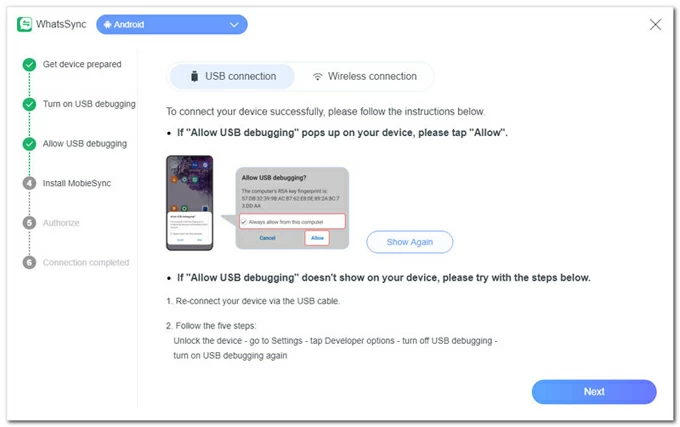
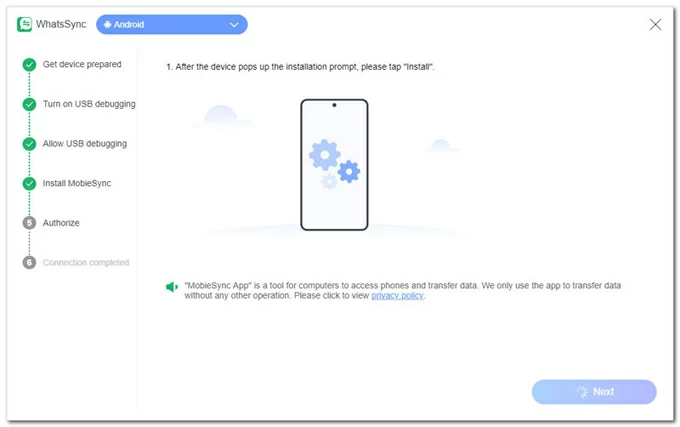
Click Next, and tap Install button to install MobieSync app on your phone.
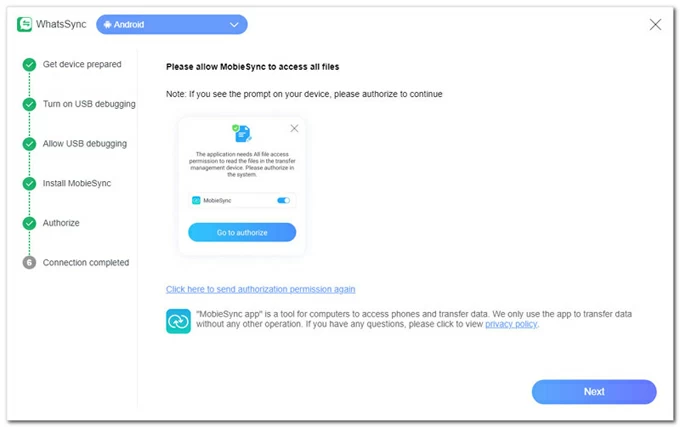
Tap Go to authorize on Samsung and allow necessary permissions; then click Next.
Once connected, select iPhone from the Source option while choosing Samsung from Target.
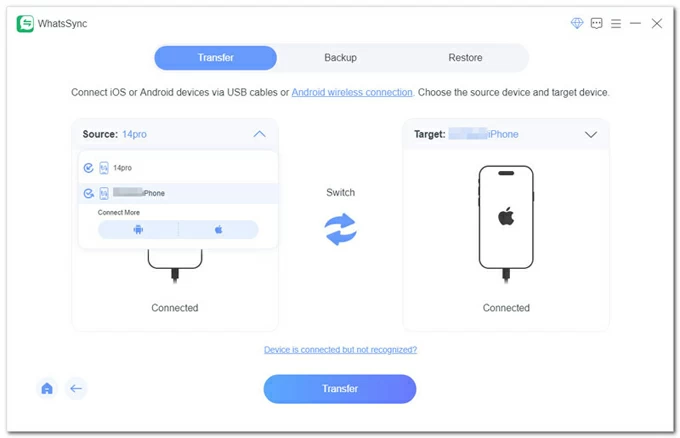
Step 3. Transfer WhatsApp from iPhone to Samsung.
Click Transfer > Continue to start transferring. TIP: If you have existing WhatsApp data on the target phone, click Backup button to create a separate backup to avoid overwriting.
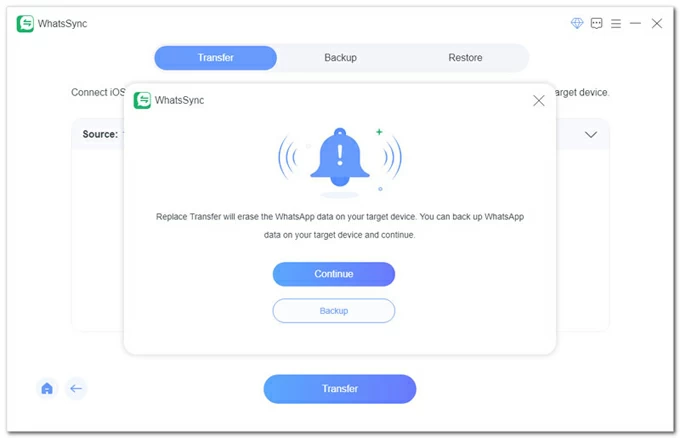
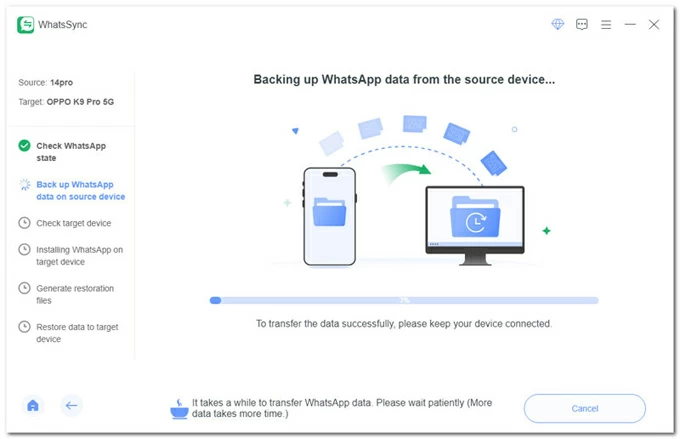
When required, enter your iPhone passcode to start WhatsApp transfer. WhatsSync will automatically back up your WhatsApp from the source iPhone.
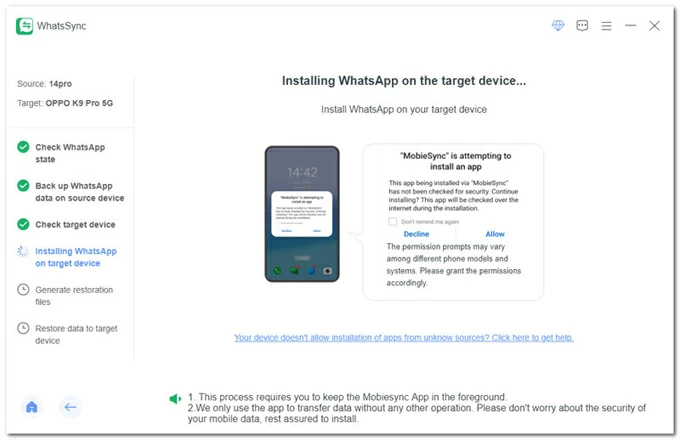
On your target Samsung Galaxy, tap Allow to install WhatsApp and allow requested permissions. Keep MobieSync in the foreground during the process.
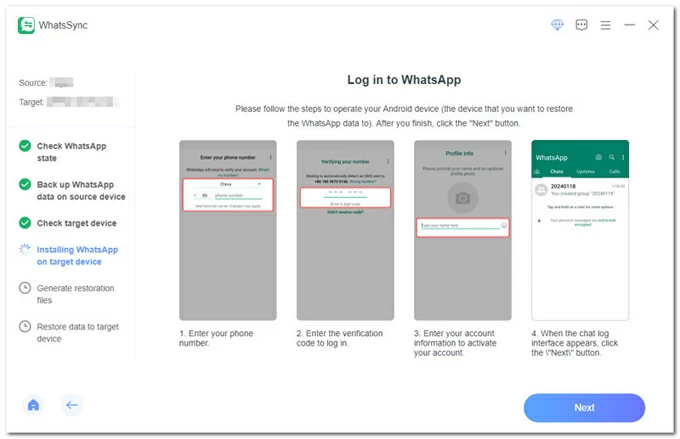
Step 4. Sign in to WhatsApp on Samsung to import all transferred chats.
After installation, open WhatsApp on Samsung and enter your phone number to sign in. Once your account is activated, you'll see the chat log screen.
Close WhatsApp and open it again, then click Next on WhatsSync window.
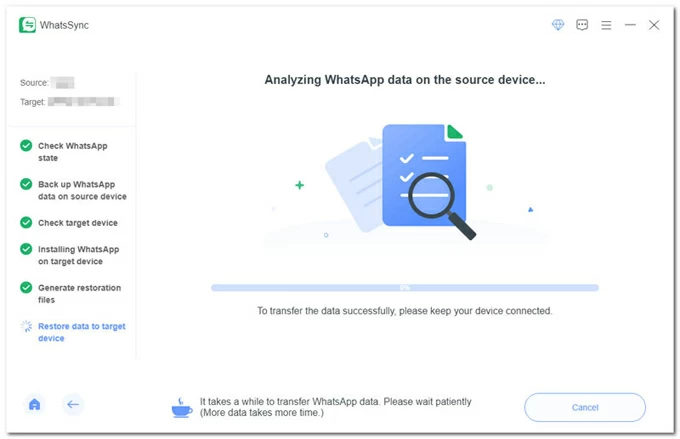
It may take a while to transfer the WhatsApp data to your Samsung device. Wait patiently.
Download and install the newest WhatsApp on your Samsung phone and log in to same account. When asked, tap Allow > Restore so that WhatsApp can restore all your contacts, photos, and other media on your Samsung phone.
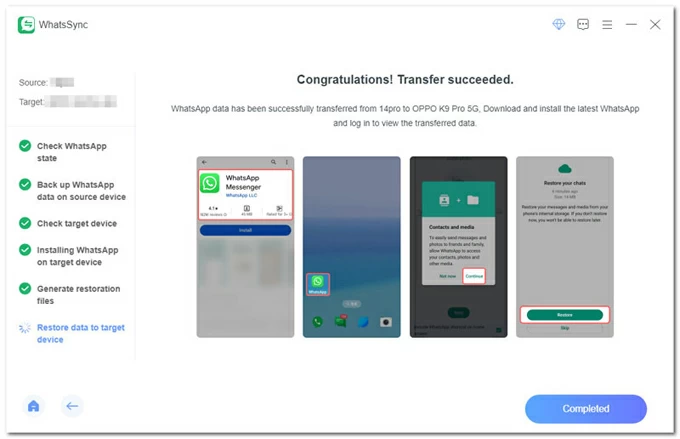
It also supports the reverse process, allowing you to transfer WhatsApp from Samsung to iPhone.
WhatsApp offers a built-in Export Chat feature that lets you export individual chats via email, with the option to include or exclude media. Using this feature, you can transfer selected WhatsApp chats from your iPhone to Samsung wirelessly. However, exported chats are saved as files and cannot be restored directly into WhatsApp on the new Galaxy phone.
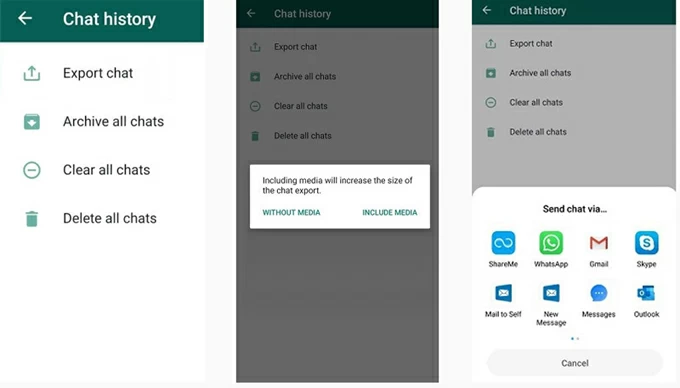
Note that your chat history will be exported as ZIP file, and you won't be able to open the transferred chats within the WhatsApp.
If your WhatsApp chats are not transferring from iPhone to Samsung, one of the following issues is usually the cause:
WhatsApp transfer from iPhone to Samsung can begin only before the WhatsApp account is activated on the target phone. If WhatsApp has already been set up, uninstall the app or factory reset the Samsung device before starting a new transfer.
WhatsApp transfers require the same phone number on both devices. Make sure to change your phone number on the source iPhone before moving WhatsApp chats to your new Samsung device. Otherwise, the transfer process may fail.
The official Samsung Smart Switch method relies on scanning a QR code to transfer WhatsApp data. If the QR code does not appear, try updating Smart Switch to the latest version, restarting both devices, and ensuring they are connected properly.
Once the WhatsApp chats are transferred, you'll be asked to verify your account on the Samsung mobile. If verification fails, the transferred chats cannot be imported into WhatsApp. Ensure you can receive the verification code via text message or phone call on the same number.
If none of these works, consider using the cross-platform tool — Appgeeker WhatsApp Transfer, which allows you to move WhatsApp chat history between iPhone and Samsung or other Android devices more flexibly.
Q1 - What WhatsApp data can I transfer from iPhone to Samsung?
Typically, the iPhone-to-Samsung transfer can move your WhatsApp messages, individual chats, group chats, photos, videos, voice messages, and documents. However, call history, peer-to-peer payment messages, and some channel content are not included.
Q2 - Can I transfer WhatsApp from iPhone to Samsung without a factory reset?
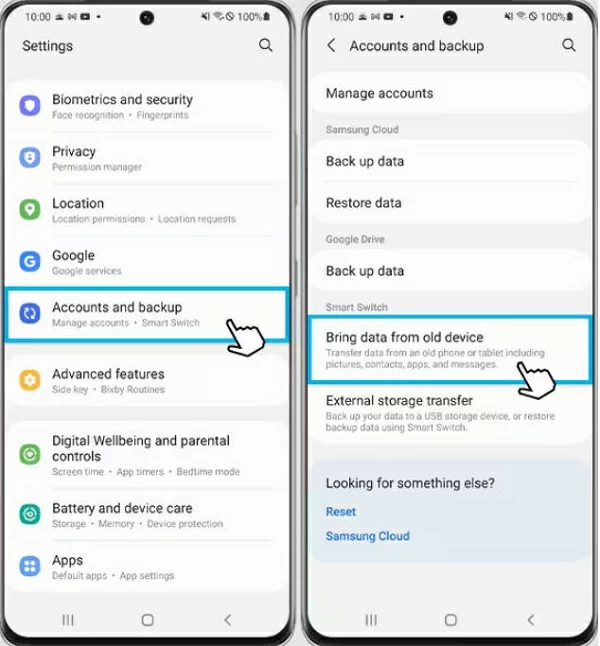
The official tool Samsung Smart Switch doesn't always require a factory reset when moving your WhatsApp chats from an iPhone to a Samsung smartphone. You may install Smart Switch from Play Store or open it from Settings > Accounts and backup > Bring data from old device.
Also, third-party tools like Appgeeker WhatsApp Transfer allow you to move chats from iPhone to Samsung without resetting the device or erasing current data.
Q3 - Does transferring WhatsApp from iPhone to Samsung delete data on my iPhone?
No. Your WhatsApp data remains on the iPhone unless you manually uninstall the app or perform a factory reset. The transfer process does not automatically remove data from the source device.
Q4 - Can I transfer WhatsApp to a Samsung phone after it has already been set up?
Yes, the official Samsung Smart Switch and some compatible transfer tools can help move WhatsApp data to an already set-up Samsung phone without data loss.
Q5 - Is it possible to transfer WhatsApp from iPhone to Samsung wirelessly?
Yes, but only in limited cases. Features like WhatsApp's Export Chat allow you to share individual chats wirelessly as ZIP files, but they cannot be restored directly into WhatsApp. Full chat transfers usually require a cable connection with Smart Switch or a transfer tool compatible with both OS.




