
Forgot Samsung Tablet Password. How to Unlock


Stuck on the Verify PIN screen after resetting your Samsung Galaxy? Follow these proven, official steps to bypass PIN verification and unlock your phone safely.

You factory reset your Samsung Galaxy phone, expecting a fresh start—only to be greeted by a screen that says "Verify PIN. Your phone was reset to factory settings. To use this phone, enter your previous PIN." If you forgot the Verify PIN lock, you'll be locked out.
Android phones including Samsung asking for verifying the latest used PIN, password or pattern is also known as Factory Reset Protection (FRP). While it's a brilliant security feature designed to make stolen phones useless to thieves, it can be a massive headache for legitimate owners. If you are staring at your Samsung Galaxy and wondering how to bypass Verify PIN after factory reset for Samsung phone, you've come to the right place.
This comprehensive guide will walk you through every legitimate method to bypass Samsung Verify PIN or Google lock after a factory reset - from official Samsung FRP tools to advanced technical workarounds - ensuring that you can get past this security protocol and finish the setup to regain full access.

If Samsung asks for Verify PIN after reset, this guide explains what it means and how to unlock your phone the right way.
Appgeeker Android Unlocker offers a practical solution to bypass Verify PIN locks after Samsung after reset, remove Google FRP without password, and unlock your phone without stress - simple steps, great results, no advanced skills.
Table of contents
Stuck on the "Verify PIN" screen after your Samsung phone is reset? You aren't alone. When the phone demands the previous screen lock PIN even it's been wiped clean, you are encountering Factory Reset Protection (FRP), which is introduced by Google and used on Samsung Galaxy devices running Android 5.1 and later as a system-level security measure to prevent unauthorized access after a forced reset.
When you add a Google/ Samsung account to your Samsung device, FRP is automatically enabled. If the device is reset via Recovery Menu rather than Settings menu, FRP kicks in. In case you fail to provide your last known screen lock PIN correctly, the device assumes the reset may have been unauthorized.
After resetting a Samsung phone to factory settings, the device may require you to verify yourself through:
You can't unlock your Samsung without bypassing the Verify PIN after factory reset screen.
Yes—if you are the rightful owner, there are several approved and safe methods to bypass the verify PIN screen and get back in your Galaxy device for full control.
Whether you forgot your old PIN for Samsung phone that hasn't been used for a long time, or you bought a second-hand handset without the original owner removing Google or Samsung account or disabling FRP before the reset, you don't need to worry about how to get past Samsung's verification PIN after the factory reset process.
Below are the most effective methods to remove the previous Verify PIN on a factory fresh Samsung phone and bypass factory reset protection obstacle smoothly, starting with the easiest methods and move toward more technical solutions.
This may sound obvious, but many users confuse Verify PIN after hard reset with SIM PIN, Samsung account password or Google account password. In fact, the Verify PIN Lock is your previously used PIN, pattern or password on the device's lock screen for physically unlocking a Samsung Galaxy phone.
If you still remember your lock code, just enter it in the requested filed to instantly have the "Verify PIN. Your phone was factory reset. Enter your PIN to unlock it." screen bypassed.
After the PIN lockout verification for proving your ownership, you can continue with the setup process - including restoring from backup using your Google account or Samsung account - until you get access to Home screen.
If you truly cannot remember the correct previous PIN for Samsung FRP bypass, don't worry. Most phone models offer an extra option in the Verify PIN screen (e.g., "Use my Google Account instead" or "Verify your account"), letting for bypassing the PIN authentication by confirming the Samsung or Google account that was previously synced to the phone.
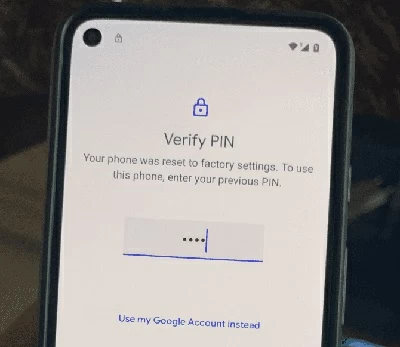
All you need is to tap on the "Use my Google Account instead" option, and then enter the associated Google account and password to kick off the identity verification and bypass Google verification on Samsung. If successful, Galaxy unlocks itself and allows setup to continue.
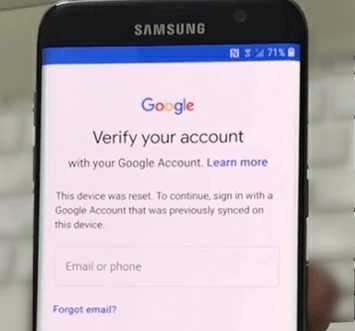
If you've forgotten the password of your Google or Samsung account but know the email address, there's also a way to recover the credentials before retrying the removal of FRP verification. You can reset the password through Google's or Samsung's official account recovery online, and then wait for 24–72 hours to update the login info and perform Verify PIN bypass for Samsung.
Keep in mind that using the linked Samsung account or Google account to unlock Verify PIN after factory reset won't work on an inherited or preowned device where you don't know neither email nor password at all.
Don't lose hope when you couldn't provide the either the previous PIN or the Google account credentials to authenticate and unlock your FRP locked Samsung phone. Here's your way in.
When you're stuck on the PIN verification screen after you factory reset Samsung phone, you can take advantage of Appgeeker Android Unlocker software to solve this. It's a reliable FRP bypass tool that comes with clever techniques to unlock any Android phone fast by removing Verify PIN, Pattern or Password as well as Google account locks.
With a clear-cut interface and step-by-step guide, bypassing FRP when the Samsung phone is asking for a PIN that you no longer remember is pretty straightforward. Just connect your Samsung phone to the computer, and the utility will direct you to set up FRP bypass files to be able to remove the Verify PIN or Google lock without knowing the credentials.
Verify PIN after factory reset stopping you from accessing your Samsung device? Here's how to get past FRP lock and unlock a Samsung when forgotten PIN or Google/ Samsung account.
Step 1. Launch Android Unlocker on your Windows computer.
Step 2. On the main interface, choose Bypass Google FRP Lock mode for overcome factory reset protection.

Step 3. Grab your locked Samsung phone and connect it to your computer using a data cable.
On the screen that appears, choose SAMSUNG to continue.
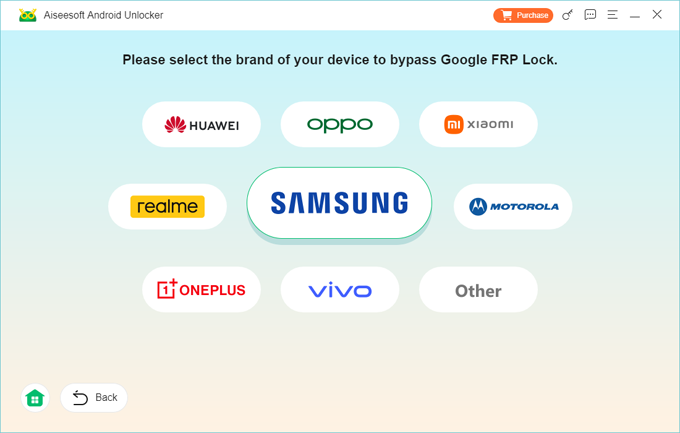
Step 4. When your device is recognized, hit Bypass Now button.
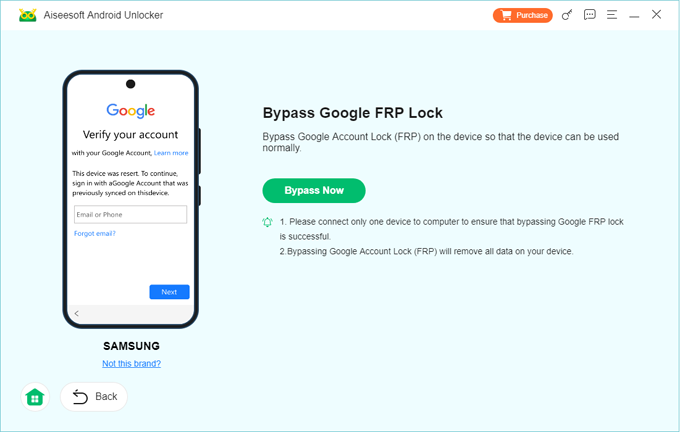
To ensure a smooth Verify PIN removal, follow the onscreen instructions.
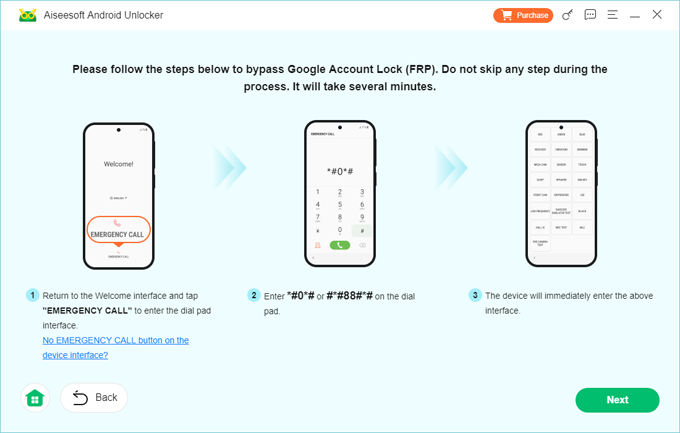
Step 5. Once you've done that, click Next button. This FRP bypass tool for PC will configure your phone to overcome the Verify PIN lock.
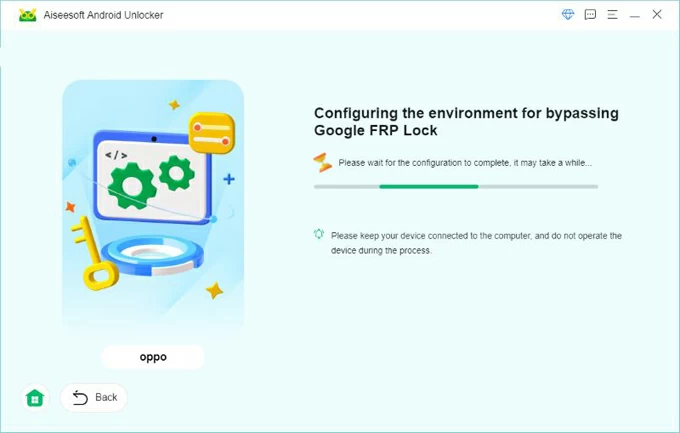
Sit back and wait for the process to complete. When your phone restarts, it means the PIN verification has been removed successfully. You can now set up and unlock Samsung Galaxy after factory reset without needing to verify your lock screen PIN, password, pattern, or Samsung account, or Google account.
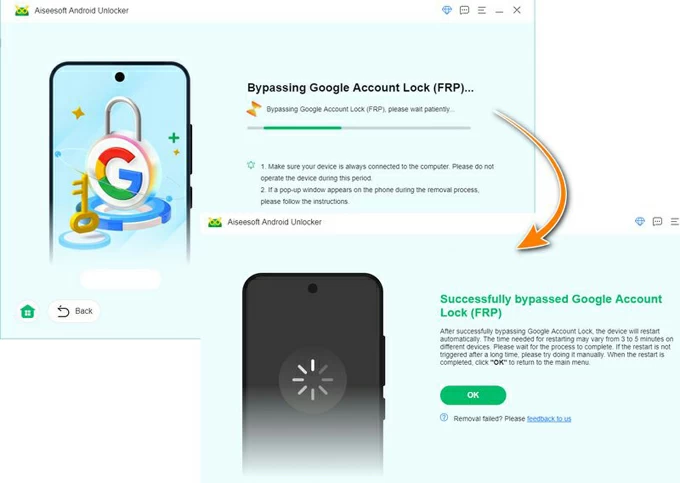
Done! Even there's no official backdoors or universal master codes for unlocking the phone due to Google FRP lock, it's not end of the world. Appgeeker Android Unlocker works well at communicating directly with system partitions and handling FRP bypass specifically for Samsung's "Verify PIN" screen.
If you don't have a PC nearby to use a dedicated Samsung FRP bypass tool, you can attempt a manual bypass for the Verify PIN after resetting. Many Samsung Galaxy phones still have a hidden feature via the keyboard settings to access the device's Settings app without actually unlocking the phone first. This allows you to set a new PIN, pattern or password that the Setup Wizard will then recognize, in a way to force your Samsung to bypass the Verify PIN or FRP lock.
Please know that this method is highly dependent on your phone's security patch level and may not work on newer versions of Android like Android 12 or higher. The process may be time-consuming and complicated.
If you decide to try this, here are the exact steps on bypassing PIN request without using a PC.
1. On the Verify PIN/Pattern/Password screen, tap "Use my Google account instead."
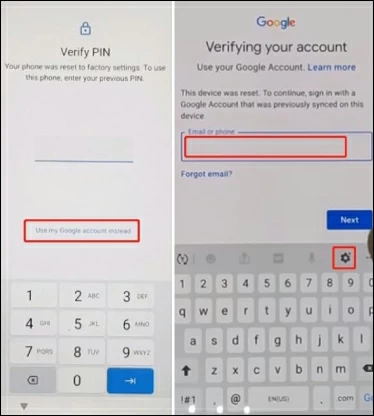
2. Tap the text field that requires your email to bring up the keyboard, then tap the Gear icon to enter Samsung Keyboard Settings.
3. Tap the Back arrow to return to the main keyboard menu and select Google Voice Typing.
4. Tap the Search (Magnifying Glass) icon in the top-right corner, and type "Voice" into the search bar and select it from the result that appears.
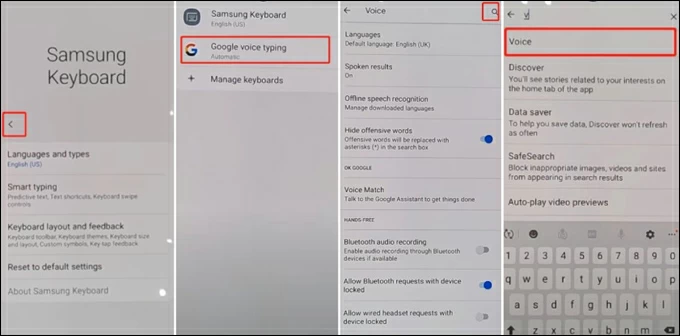
5. You should now be in the Google Assistant voice settings. Tap the Back arrow again.
6. Select General, then scroll down and tap Manage pending searches.
7. At the bottom of the screen, tap the Search tab, then type "Settings" in the search bar, and select the Settings App icon from the results.
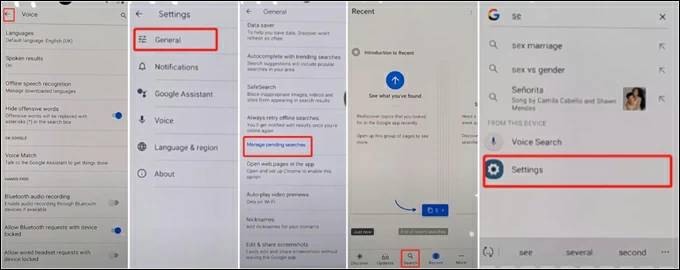
8. Once inside the Settings app, navigate to Biometrics and Security.
9. Tap Face Recognition and then Continue.
10. The system will ask you to set a new screen lock that you won't forget again: Pattern, PIN or Password.
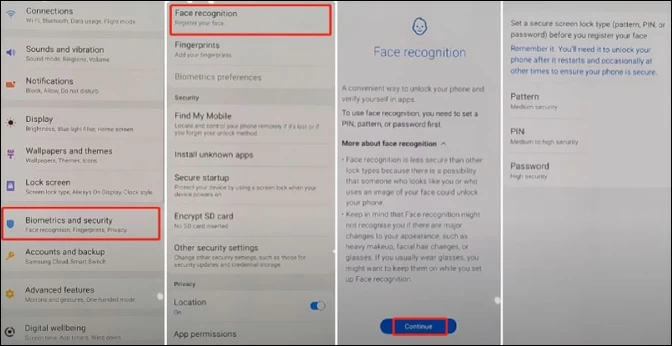
11. Once the new PIN/Pattern is set, restart your phone by holding the Power button.
12. After the device reboots, go through the initial setup screens as normal.
13. When you reach the "Verify PIN" screen asking for your PIN, pattern or password, enter the new one you created in Step10, bypassing the PIN screen entirely.
Once you've successfully bypassed the Verify PIN Lock on your FRP-locked Samsung phone, your first priority should be ensuring never happens again by removing Google and Samsung accounts. This is an essential step to disable Factory Reset Protection, so even if you factory reset Samsung you don't need to be locked by FRP or go through the verification of your old PIN Code during the device's initial setup.
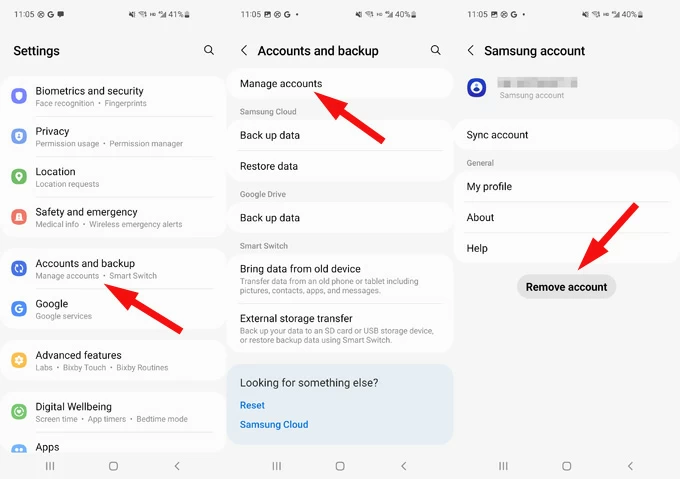
To avoid facing "after factory reset Samsung asking for PIN/pattern/password" issue, take these steps to log out of Samsung account from your Galaxy phone (or Google account if it's logged in) and deactivate FRP before you perform a full data reset.
1. Open Settings app, then choose Accounts and backup.
2. Tap Manage Accounts. You'll see all accounts tied to your Samsung.
3. Select each of your Samsung account or Google account you'd like to remove.
4. Tap on Remove account.
5. To confirm the removal, select Remove account when prompted.
6. Tap Sign out.
7. Enter your account password to verify your identity and instantly sign out of your account.
This way, FRP won't trigger. You're able to bypass previous PIN code verification for Galaxy phones after hard reset even you forget the PIN, and unlock Samsung without verifying your PIN or Google/Samsung account & password.
Other preventive measures including turning off screen locks (password, PIN, pattern, Face recognition, Fingerprint), or storing your device PIN and the specific Google account used for the device in the secure place can help prevent getting stuck on at Verify PIN again.
Also: How to reset Samsung phone when it's locked
Why does my Samsung ask for a PIN after factory reset?
This is due to Factory Reset Protection (FRP) security feature triggering to ensure only the rightful owner can reactivate the phone with the original PIN lock code.
Android or Samsung phone requests for previous PIN verification to confirm ownership if it is factory reset without first removing the associated Samsung account (or Google account) through Settings.
Does factory reset remove Verify PIN on Samsung phone?
No. A factory reset removes user data & setting but does not remove the PIN requirement. Without the last known screen lock credentials, you'll be stuck on the Verify PIN screen and cannot access the device.
Can Google account unlock the Verify PIN screen?
Yes. With Google account login credentials, you're able to bypass the need to use the old PIN for unlocking FRP locks.
When the screen says "Verify PIN" and you don't remember the device PIN, you can tap on the "Use my Google Account instead" option and enter your Google email & password to get past the verification step.
What if I bought a second-hand Samsung and it's asking for the old PIN?
You can contact the previous owner to provide the previous PIN that's used to unlock the device screen, remove their Samsung account or Google account.
If the previous owner is unreachable, try using Appgeeker Android Unlocker or Samsung keyboard trick to bypass Verify PIN after reset with or without a computer.




