
How to transfer WhatsApp from Android to iPhone


Accidently deleted a file on your Android phone but can't find the Recycle Bin to recover it? Here's everything about Recycle Bn for Android and how to recover your deleted files.

Can't find Trash or Recycle Bin on Android?
Android provides specific Recycle Bin or Trash folders of individual apps to store deleted files that you can retrieve from.
For decades, computer users have relied on the recycle bin or Trash as a vital safety net. However, when users switch to Android, they often find themselves in a state of panic after accidentally deleting a precious photo or an important document. They scan their home screens and settings menus, asking the same desperate question: "Where is the recycle bin on my phone?"
Actually, Android does not have a single, system-wide recycle bin like a PC. But your deleted files are often still there, tucked away in app-specific trash folders or "Recently Deleted" sections. This article will explore everything about the recycling bin on your phone Android, guide you through finding the trash folder and recovering data from the default File Manager or individual apps. We'll also show you how to create a permanent recycling solution for your device.
Android devices don't have a single traditional recycle bin on your home screen. Instead, Google introduced a more unified way for apps to handle trashed files, allowing apps to mark files as "trashed" for 30 days before they are permanently purged.
The recycle bin location depends heavily on the brand of phone you use and the default file manager installed by the manufacturer. So, to find the recycle bin for deleted files on an Android, your first stop should be the default file manager. Most modern smartphones feature a built-in recycling bin designed for quick file restoration.
Samsung has one of the most robust Trash systems in the Android world. The recycle bin feature integrated into the "Trash" option will keep any files or folders you delete for 30 days before they're deleted forever.
1. Open My Files app (Samsung's default file manager).
2. Scroll to the bottom and tap Trash or Recycle bin, depending on the version.
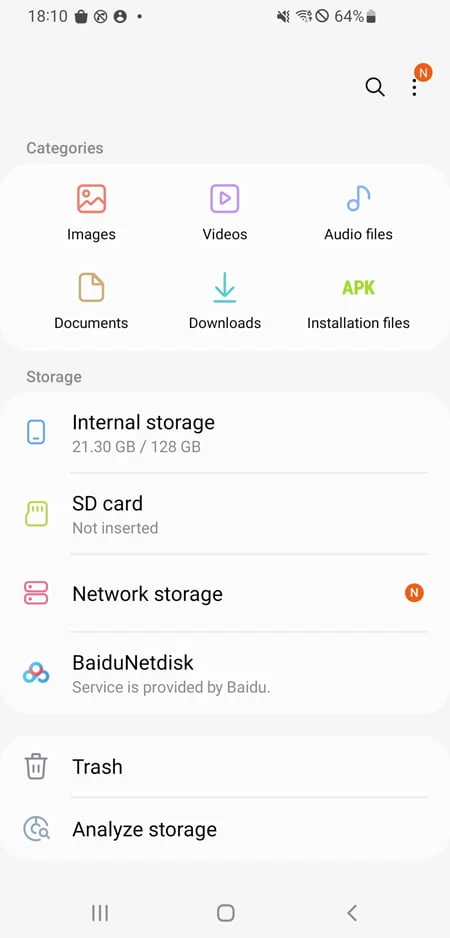
Note that Samsung also has a separate trash for its Gallery app. To find it, open the Gallery, tap the three-line hamburger menu at the bottom right, and select Trash.
3. If the files are in the trash, browse and select the deleted items you want to restore and choose the Restore. option.
The Trash (or Recycle Bin) feature in the Samsung My Files app serves as a vital safety net for managing files on your Samsung Galaxy device. Its primary benefits are to prevent accidental data loss and provide a centralized location for file management.
Related: How to bypass FRP on Android
If you use a Pixel or a phone running clean Android, you likely use Files by Google.
1. Open the Files by Google app.
2. Tap the three-line menu icon in the top-left corner.
3. Select Trash. Files here are typically kept for 30 days before being automatically deleted to save space.
4. Find the files you want to move out of Trash, tap Restore.
5. On the confirmation dialog, tap Restore again.
For most of other Android devices (like Motorola, Honor, OPPO, Vivo, Xiaomi), you still can find the recycle bin in the File Manager app.
1. Open the File Manager or Files app (usually in the Google folder).
2. Look for the Recently Deleted category on the main screen or under the "Categories" tab.
3. Here, you will find documents, zip files, and other media. You can select them and tap Restore to put them back in their original location.
Since Android treats deletions locally within each application, many of individual apps on your phone may also have their own recycle bin or trash folder to store temporarily deleted files. Let's explore how to find the trash in these common locations on your Android phone:
Need photo recycle bin? Photos are the most commonly deleted items. Whether you use the manufacturer's gallery or Google Photos, you can find a Trash or Recently Deleted folder there where you almost always have a 30-to-60-day window for recovery.
To view deleted photos or videos:
1. Open Gallery app.
2. Tap three horizon line in the bottom right.
3. Tap Trash or Recently Deleted.
4. Pick the images or videos you need, then select Restore.
Note: Android will automatically delete all deleted photos/videos from the recycle bin after the period.
To enable or disable the Trash feature on your Android for pictures, go to Gallery, tap three horizon line, select Settings. In Settings window, you can find Trash (or Recycle Bin) option.
Related: How to recover permanently deleted photos from Android
Find the recycle bin on your Android Gallery but can't see your deleted photos there? If you choose to use Google Photos as the default path to store pictures, the deleted images are actually moved to the trash bin in Google Photos rather than present on the Android Gallery.
1. Open the Google Photos app on your mobile device.
2. Tap the Library tab at the bottom right, then tap Trash (or Bin).
3. Touch and hold the photo or video you wish to recover.
4. Tap the Restore button at the bottom of the screen
The recovered pictures or videos from the Google Photos trash bin will back into your Google Photos main timeline.
Tip: Items are kept in trash bin of Google Photos for 60 days if they were backed up to the cloud, or 30 days if they were only stored on the device.
In the past, many stock messaging apps do not have a recycle bin. Once you hit delete, the database entry of the message is removed. However, newer versions of Android include a Trash or Recently Deleted option. You can now easily recover a deleted text message from recycling bin on your phone. Let's take a Samsung device as example:
1. Open your Messages app.
2. Tap the three-dot menu icon in the top-right corner.
3. Select Trash or Recycle bin, view the deleted text messages there (stored for 30 days before permanent deletion).
4. Select the messages you want to restore and tap Restore option.
The messages will be back to your inbox instantly.
If you use Google Messages instead of Samsung Messages, there isn't currently a trash folder, but it does have an Archive feature, you can check the "Archived" folder in the side menu for a message that you swiped away before.
Email app has had Recycle Bin long before the Android OS itself did. When you find that an important email disappeared, you can go to the trash folder and recover it. Depending on your region and the type of your Email app, the folder may labeled Bin, Deleted Items, or Trash.
Steps to find a Trash in an Email app on Android:
1. Open the Email app (Gmail, Outlook, Hotmail, etc.)
2. Tap the three horizontal lines menu and select Trash, Bin, or Deleted Items.
3. View the list of deleted emails and select the ones you want to retrieve. A typical Email app stores deleted emails in trash folder for 30 days before they are automatically erased.
4. Choose the Restore or Move to Inbox option.
Related: Contacts Disappeared from Android
If you accidentally delete an important contact and can't find it, there is a possible that you can recover it from the trash folder of your Contacts app (not Phone app) within 30 days.
You can also visit Google Contacts page (https://contacts.google.com) through your internet browser, and check out if you can find the contact in any of the Bin or Trash you see there. Some of native cloud backup services provided by manufacturers even allow contacts backup.
1. Access Contacts app on your phone.
2. Tap the menu icon (three lines).
3. Select Trash or Recycle Bin.
4. Find the desired contacts, and tap Restore to get your contacts back.
Web browsers don't have a recycling bin in the traditional sense, but they do close tabs and clear history. If necessary, you can recover accidentally closed tabs.
1. If you accidentally closed a tab, in your browser (Chrome, Edge, Firefox, etc.) tap the three dots menu in the upper right corner.
2. Select History.
3. In Recent Tabs section, view a list of recently closed tabs.
4. Click the closed tab you want to reopen.
Once you clear your browsing history, it's usually gone for good since there is no recycling bin or trash for web logs. Your only real safety net is Google My Activity—if your account is synced, you can often track down those missing links by accessing your activity dashboard on a desktop.
If the messages, photos, contacts, call history, browsing history are permanently deleted from the Trash or recycle bin, don't fret. You still have a chance to have them back. Third-party file recovery tools might work if the data hasn't been overwritten.
Our favorite is Appgeeker Android Data Recovery. It is a reputable desktop-based software app designed to retrieve lost or deleted files from Android phones and tablets, even when no backup exists. By connecting your device to a PC or Mac, the tool can scan internal memory to recover over 100 file types, including photos, text messages, audio files, contacts, WhatsApp data, call logs and more.
Additionally, the software allows you to preview and choose the specific file from the scan results before committing to a full recovery.
Follow these steps to find your deleted files from Android without recycle bin recovery, through Appgeeker Android Data Recovery.
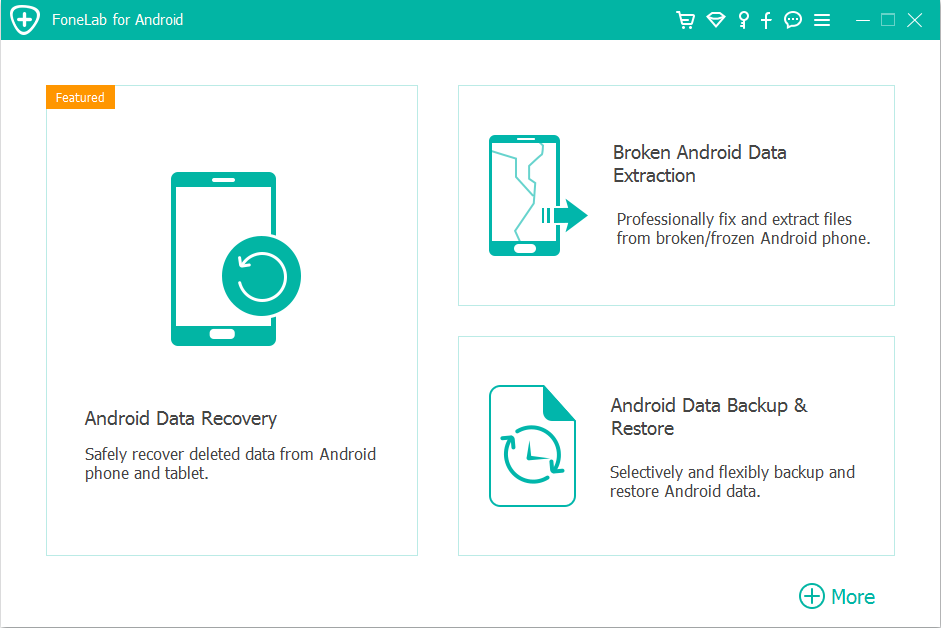
Step 1: connect
Open the software and connect your Android device to the computer using a stable USB cable. Choose Android Data Recovery from the main menu.
Step 2: Allow USB Debugging
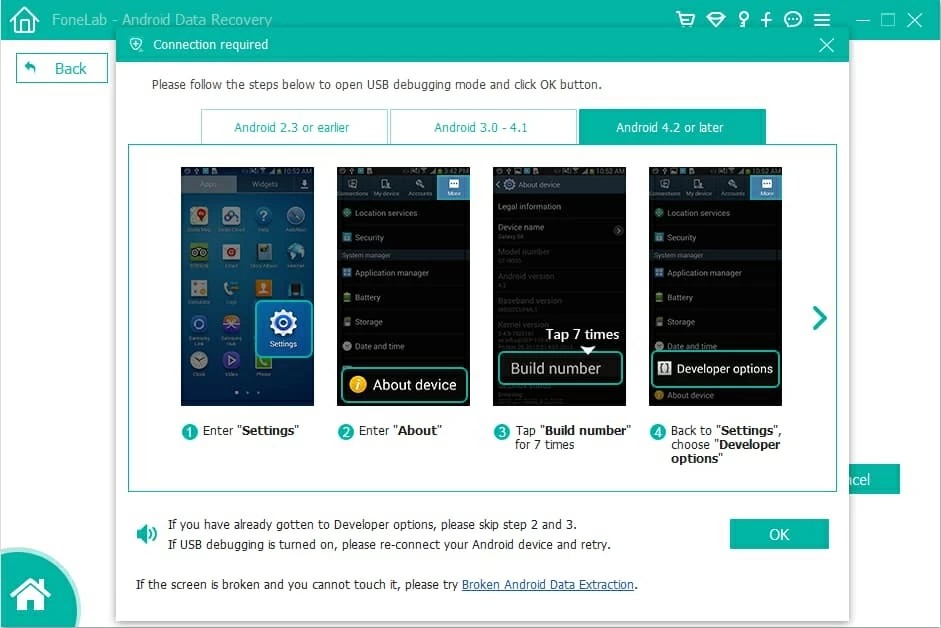
This is the most critical step. If your phone isn't detected, follow the on-screen prompts to enable USB debugging.
Step 3: Choose Android file types to scan
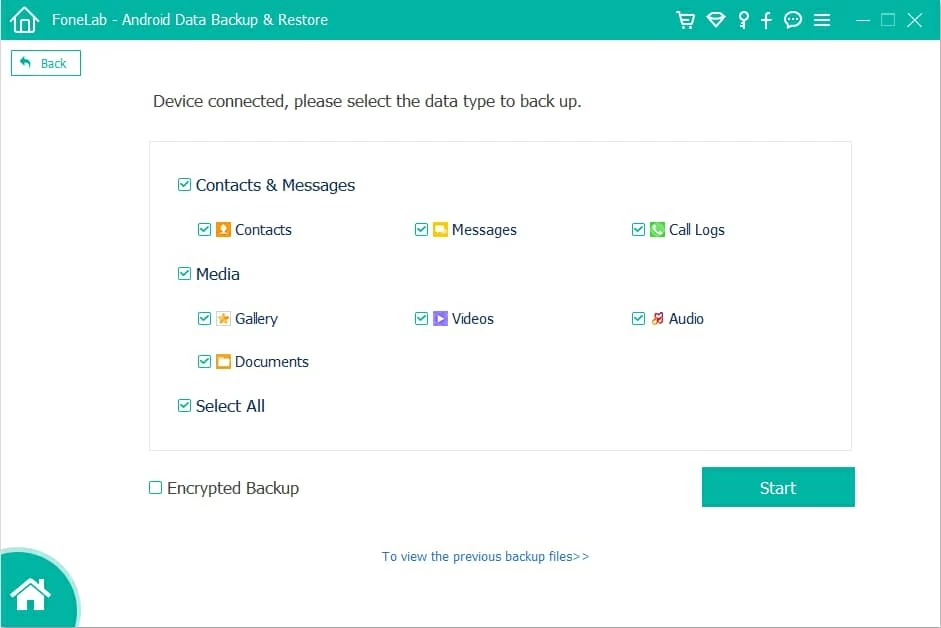
Once connected, a window will appear asking which data you want to recover (e.g., Photos, WhatsApp, Messages, Contacts). Select the specific categories to save scanning time and click Start button.
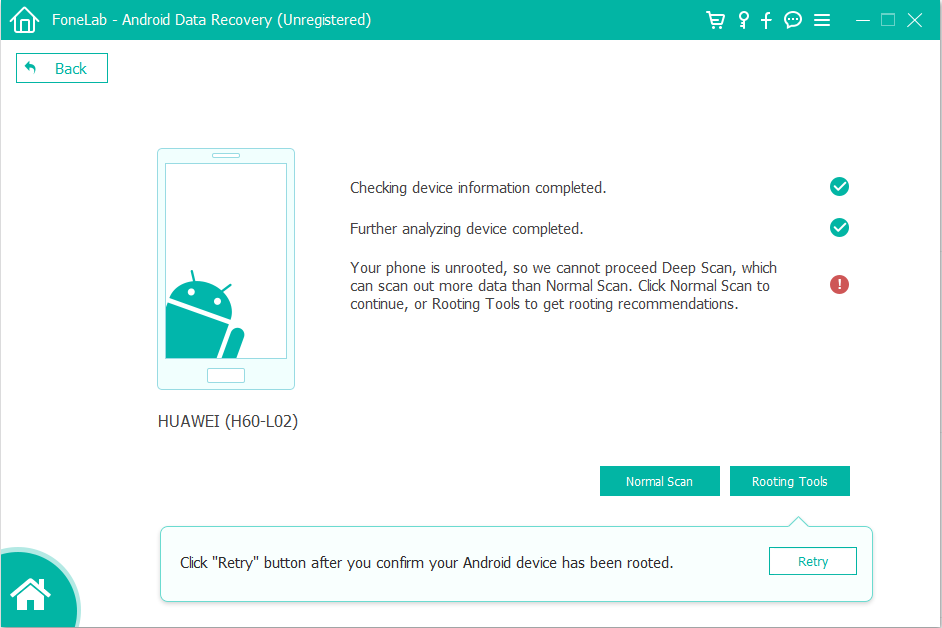
The software will first perform a standard scan. This retrieves existing files and some recently deleted ones without needing root access.
If the files you need don't appear, perform a deep scan.
Step 4: Recover deleted files
After the scan, browse through the results. You can use the "Only display deleted items" toggle at the top to filter the results.
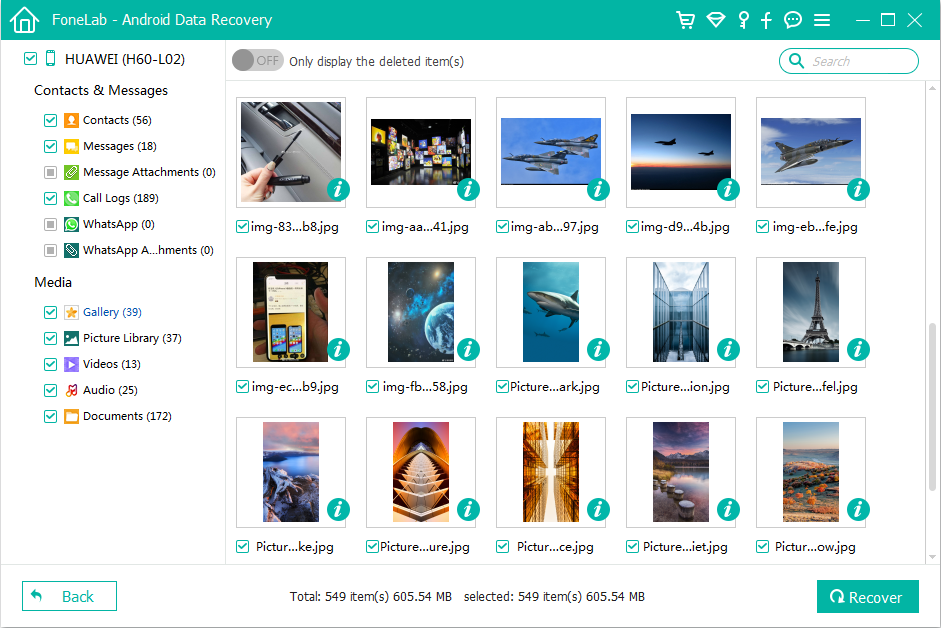
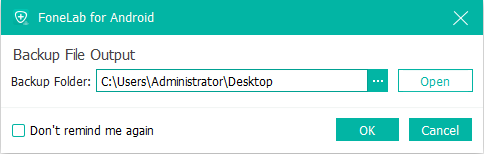
Select the files you want and click Recover at the bottom right corner. In the pop-up dialog, choose a folder on your computer to save them.
Done!
Related: Forgot Android PIN
If you find the current hide-and-seek method of finding trash folders frustrating, you can create a centralized recycling bin using third-party applications. These apps act like the Windows Recycle Bin, catching files as they are deleted across the system.
Here are a few popular options to help you create a recycle bin on your Android device.
Dumpster: This is the most popular choice for Android. Once installed, it acts as a recycling bin and backs up deleted data automatically. This recycle bin on your phone allows you to restore photos, videos, apps, and documents without needing to root your Android. It also includes a Deep Scan feature to find files deleted before the app was installed, though this is less reliable.
Recycle Master: Similar to Dumpster, this app provides a handy recycle bin Android that you can password-protect. It's an excellent way to add an extra layer of privacy to your deleted files.
ES File Explorer: While primarily a file manager, its built-in Recycle Bin tool is very effective. You must enable it in the app settings, and it will thereafter store any file deleted via the ES interface.
How these types of recycling bin on Android work? These apps typically run a background service that monitors the file system. When a file is deleted, the app intercepts the command and moves the file to its own hidden directory instead of letting the OS mark the space as empty.
The Android Recycle Bin is not a single place, but a collection of safety nets scattered across your device. From the Trash folder in your File Manager to the Bin in Google Photos, the system is designed to protect you from your own mistakes—provided you catch them within 30 days.
If the recycling bin on your Android empties the deleted files you need back, you enter the realm of Data Recovery. In this case, you may need a PC-based tool like Appgeeker Android Data Recovery: connect your phone via USB, enable USB Debugging in the Developer Options, and the software attempts to read the raw data on the storage chips to recover deleted files.