
How to Reset Samsung Phone When Locked


Whether you are using an iPhone or an Android phone, if you're locked out by the forgotten password, this article will tell you how to unlock your phone without a passcode.

Unlocking your Android phone or iPhone without a password typically requires wiping your device.
Passwords serve as a vital barrier protecting our mobile phones from data theft and unauthorized access. Therefore, if you forget the screen lock password, there is no direct "reset" button to unlock your device instantly—whether it is an Android or an iPhone.
However, this doesn't mean you're permanently locked out of your phone. There are still many ways to unlock your phone without the password, allowing you to restore your iPhone or Android device to normal use.
But be aware that while a few specific scenarios let you unlock a phone forgotten password without losing any data, in most situations, you'll need to reset your phone to its factory settings to unlock it, which will remove the forgotten password.
This article will focus on how to unlock phone without password, including official methods as well as some efficient alternative solutions, covering both Android phones and iPhones. For Android users, Appgeeker Android Unlocker can be one of the best choices for unlocking an Android phone without a password. It doesn't require any prerequisites or complicated steps, and can quickly get you back into your phone.
Table of contents
When a phone is locked and the password is forgotten, users typically fall into two unlocking goals. Some are primarily concerned with the content—photos, messages, contacts, apps, and personal files. Others simply want to make the hardware functional again, even if it means starting from scratch.
Fortunately, under certain conditions, it is indeed possible to unlock your phone without password while keeping your data intact.
For both iPhone and Android users, biometrics remain the most effective way to access a device without a password or a factory reset. As long as the phone has not been restarted and the system has not triggered a mandatory security check, fingerprint or facial recognition will usually still function.
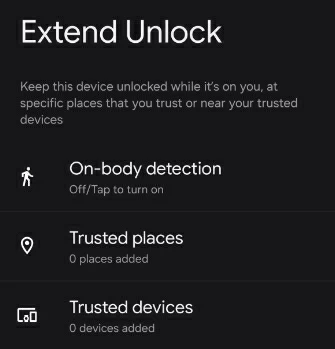
Extend Unlock (formerly known as Smart Lock) is a built-in Android feature intended to establish a "trust relationship" between the phone and its owner. Provided that you configured this feature before being locked out and your phone has not been rebooted, you can unlock your phone without the forgotten password or a reset by triggering one of its trust conditions:
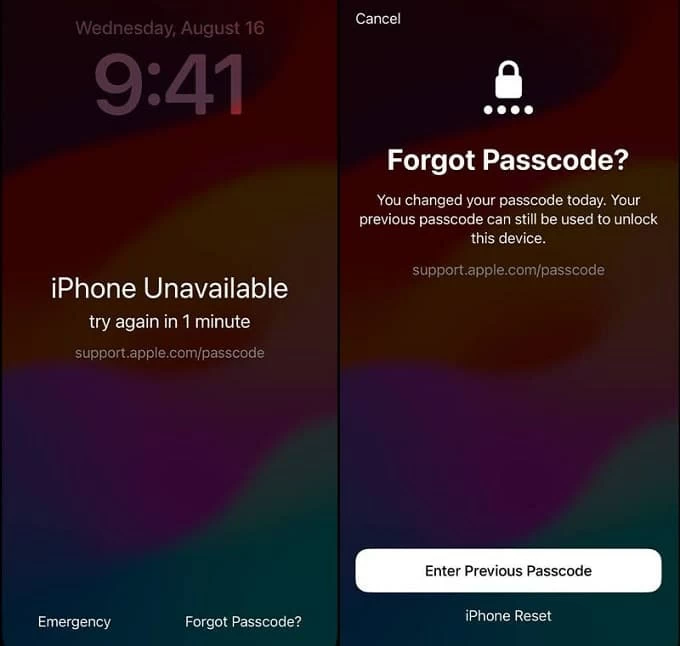
Phone models running iOS 17 and later come equipped with a option called " Forgot Passcode?" which allows you to use your old passcode to unlock the phone. Within 72 hours of changing your passcode, you can use your previous one to regain access and reset the forgotten new passcode.
1. Tap Forgot Passcode? in the bottom-right corner of the lock screen. If you don't see this option, enter an incorrect passcode five times consecutively.
2. Tap Enter Previous Passcode to continue.
3. Enter your previous lock screen passcode to verify.
4. The system will immediately prompt you to set a new passcode and confirm it.
Tip: Android phones, such as Samsung devices, offer similar features. For specific steps, you can refer to guides on how to unlock a Samsung phone without losing data.
These are currently the effective methods that let you unlock the phone without a password and without data loss. If you do not meet these conditions, you will need to use the methods in the following sections to get into your locked phone, which will require resetting your device.
When you forget your lock screen password and lack a stable internet connection or access to your Google account, the professional desktop software Appgeeker Android Unlocker acts as your digital locksmith. It is specifically aimed to communicate with your phone's bootloader to remove screen lock restrictions, allowing you to return to your Android phone without password.
In addition to unlocking your Android phone without needing the password, pattern, or PIN, this software can also bypass the FRP lock without requiring any Google account information. Thanks to its strong compatibility, it works on a wide range of Android brands, including Samsung, Google Pixel, Motorola, OnePlus, Xiaomi, Huawei, and more, while supporting multiple Android system versions.
With this tool, you can unlock an Android phone in just a few simple clicks without entering any password—even if you're a complete tech beginner, you can easily handle it.
1. Download and run Android Unlocker on your computer. From the main interface, select the Remove Screen Password feature.

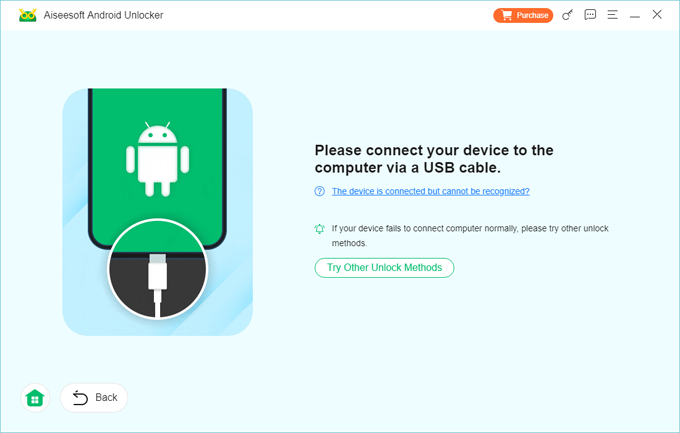
2. Use a high-speed USB-C cable to connect your Android phone to the computer and select your specific phone brand.
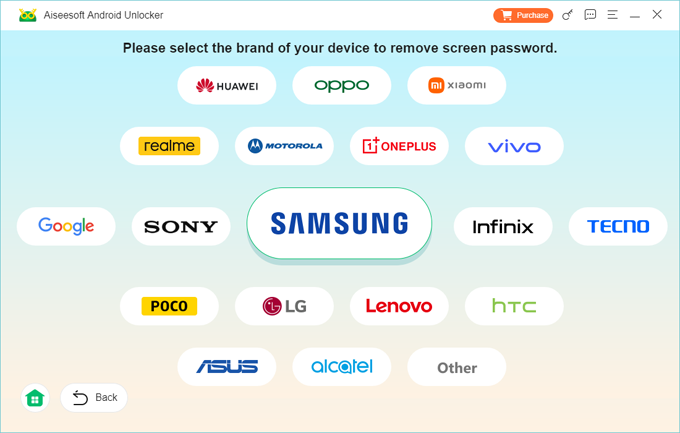
3. The software will prepare the necessary files to unlock your device. If your phone is not detected, click the The device is connected but not recognized link and follow the on-screen tutorial to establish a connection.
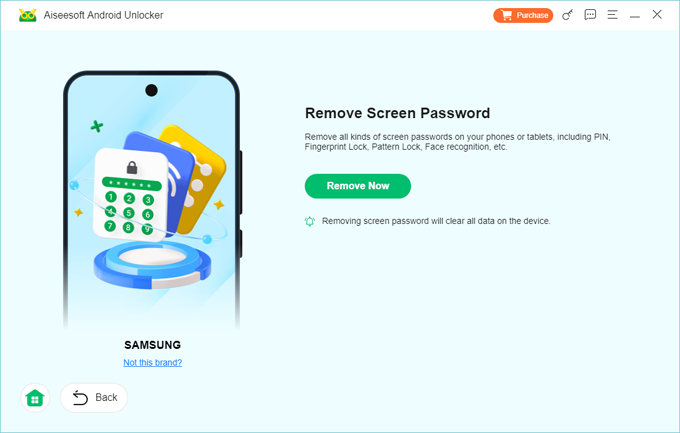
4. Once recognized, click Remove Now to initiate the unlock process. This step will erase your Android phone, effectively neutralizing the system files that store your password.
After the process is completed, your phone will reboot into a fresh system with no screen lock. Simply follow the setup instructions to access your phone without ever entering the original password.
Due to the deep integration of Google services with the Android ecosystem, for Android phones associated with your Google account, Google Find Hub (formerly known as Find My Device) can not only locate your device but also remotely unlock your Android phone without a password.
This method sends a high-priority "System Wipe" command through Google Play Services, resetting the entire phone to default settings and effectively bypassing the local lock screen. However, the following conditions must be met for this method to work:
1. Open any web browser and go to the Google Find Hub portal.
2. Sign in using the Google account and password associated with your locked phone.
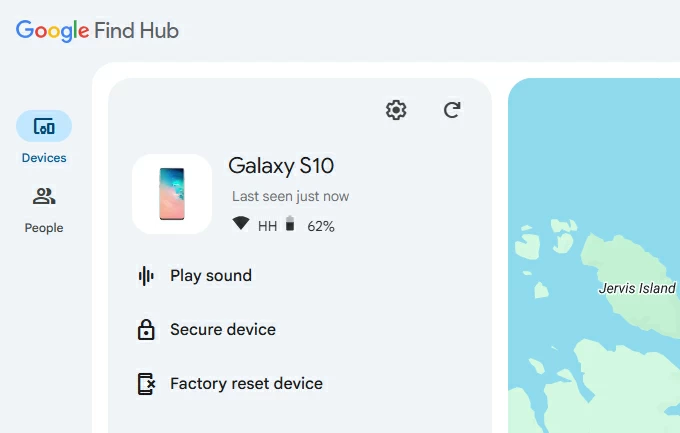
3. In the Devices sidebar on the left, select the locked phone you want to unlock.
4. From the action menu, choose Factory reset device to unlock your phone.
5. Click Next and perform two-factor verification using your Google account password if prompted.
6. Hit the Reset button to confirm. The system will send a wipe signal through the cloud.
Once the phone is online, it will immediately reboot and be unlocked without needing password.
Tailor-made for loyal Samsung users, SmartThings Find offers an "Erase data" feature that lets you unlock your phone directly through Samsung's servers when you lose access to your device.
Assuming that your Samsung phone has an active internet connection, is tied to a Samsung account, and has Remote control and Remote unlock settings turned on, you can get into your Samsung phone without the password by following these steps:
1. Log in to the SmartThings Find web interface. Make sure you are using the Samsung account associated with your locked Galaxy phone.
2. From the list of connected devices, choose the phone that is currently locked.
3. Click the Erase data button from the menu. A pop-up window will appear requiring you to re-verify your Samsung account information to prevent unauthorized unlocking.
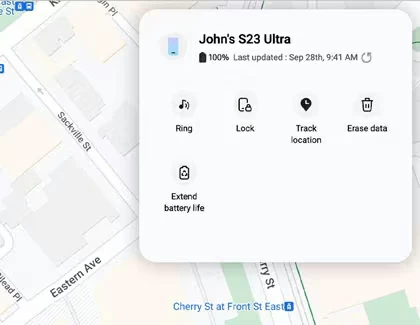
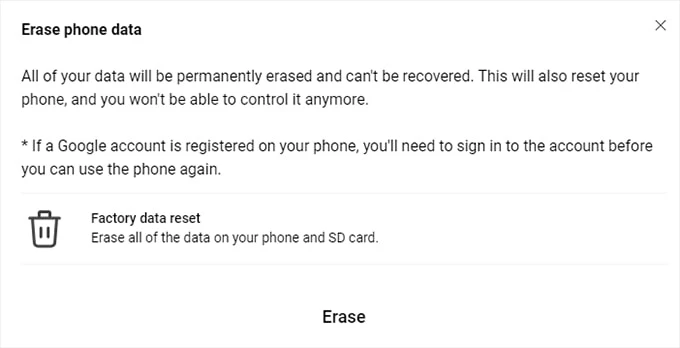
4. Once verified, click Erase to start the unlocking process. Your phone will be reset, and the screen lock password will be removed.
Recovery mode resides at the base layer of the Android operating system. As a minimalist environment embedded within the device's firmware, it cannot be disabled by system locks. When the phone cannot boot normally or when all cloud methods fail, recovery mode can be used to get your phone unlocked without a password.
The key to success with this method is using the correct hardware button combination specific to your Android phone model.
1. Completely power off your phone or wait until the battery is fully drained.
2. Put your phone into recovery mode:
3. Use the Volume Up and Volume Down buttons to highlight Recovery Mode, then press the Power button to select it. (Some phones skip this step and go directly to the recovery menu.)
4. Navigate to Wipe data/factory reset using the Volume buttons, then press the Power button.
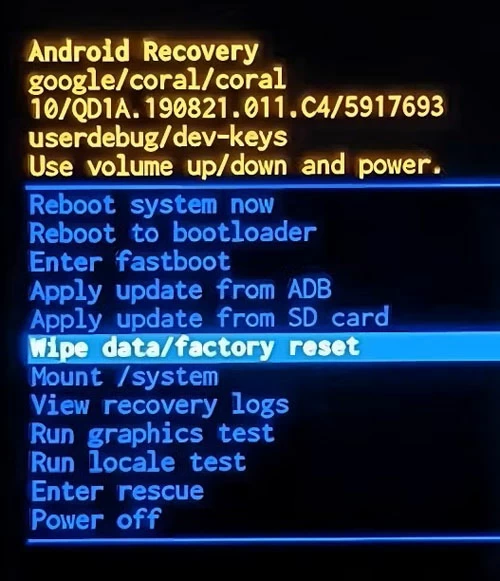
5. Use the Volume buttons to scroll to the Factory data reset and select it with the Power button to begin the complete removal of all locks, apps, and files.
6. When the process is finished, select Reboot system now to exit recovery mode and complete the initial setup.
Finding yourself facing an 'iPhone Unavailable' or 'Security Lockout' message after forgetting your passcode on the iPhone, a reliable Appgeeker iPhone Unlocker is designed to bypass the mandatory countdown and unlock your iPhone without a passcode. It works by bypassing the locked iOS system and removing the forgotten passcode, enabling you to quickly regain control of your phone.
This software supports all iPhone models and iOS versions, making it especially useful when your phone doesn't have an available internet connection. If you are looking for the fastest and most foolproof way to unlock an iPhone without password, the iPhone Unlocker is undoubtedly your best choice.
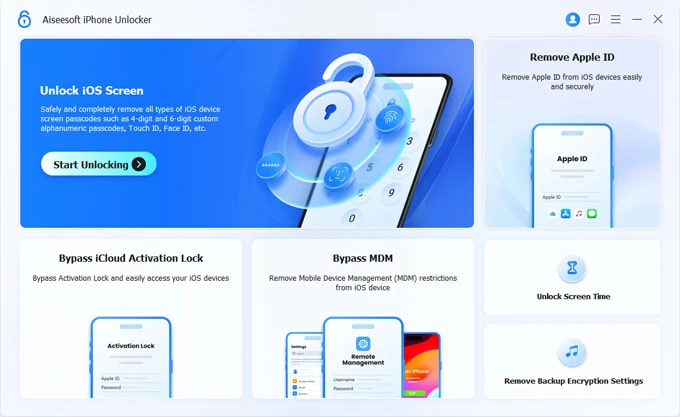
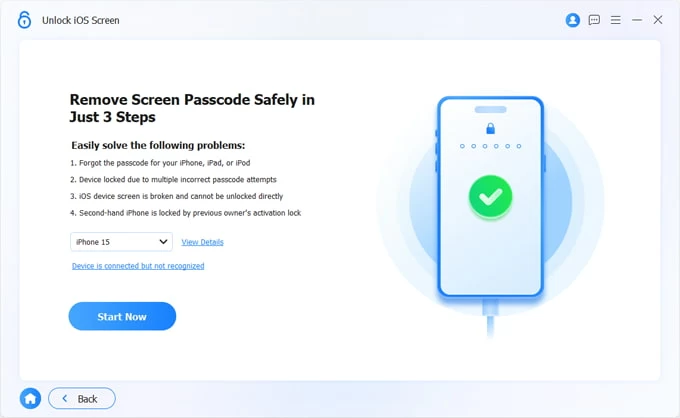
1. Launch the program and choose the Unlock iOS Screen feature.
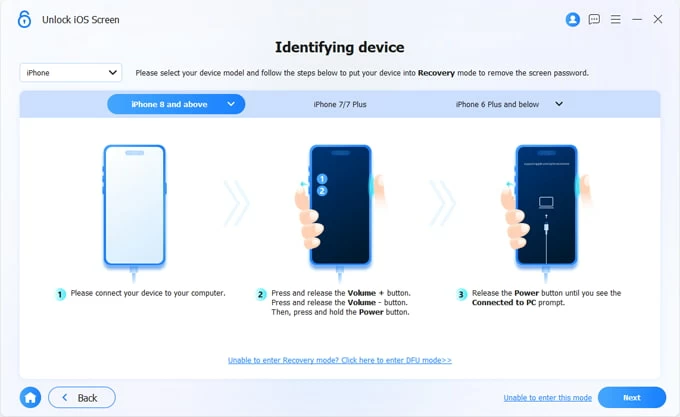
2. Plug your iOS phone into the computer using a compatible data cable. Follow the on-screen instructions to force your specific iPhone model into recovery mode.
3. Once the connection is successfully established, verify your device information. If everything is correct, click the Start Now button.
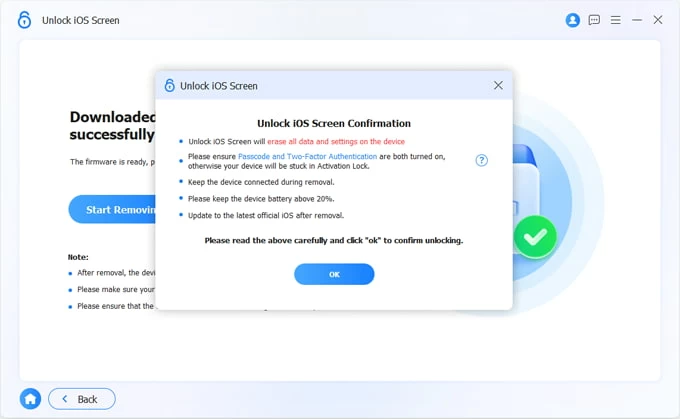
4. Click OK > Confirm Again and the software will begin unlocking your iPhone. This process won't take long.
After completion, your iPhone will start refresh without any lock screen password restrictions. You can then set up and unlock your phone as if it were a brand-new device.
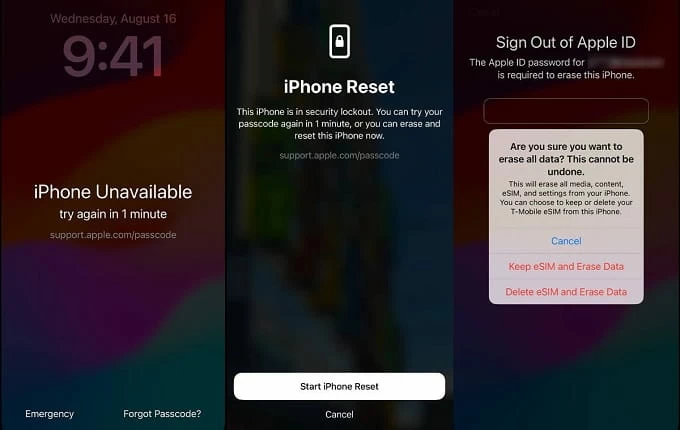
Since the release of iOS 17, the Forgot Passcode? option (known as Erase iPhone from iOS 15.2 to iOS 16) provides an integrated way to completely wipe your phone by verifying your Apple account credentials. This allows you to unlock an unavailable iPhone without needing a computer or a passcode. This method requires the following conditions:
1. Continuously enter the wrong passcode on the lock screen until the Forgot Passcode? option appears.
2. Tap Forgot Passcode? to continue.
3. On the Security Lockout or iPhone Reset screen, tap Start iPhone Reset.
4. The system will ask you to enter your Apple account password. This ensures only the legitimate owner can initiate the reset.
5. After successful password verification, tap Erase iPhone. Your phone will immediately start erasing all settings and data, including the forgotten passcode, and restore to factory settings within a few minutes.
As a powerful management and synchronization tool for the iPhone, iCloud allows you to remotely unlock your iOS phone without the password, provided the locked iPhone has a working internet connection and Find My is activated.
1. Log in to iCloud.com using the same Apple ID associated with your locked iPhone.
2. You may need to complete Two-Factor Authentication by receiving a verification code on another trusted Apple device.
3. From the All Devices list displayed on the map, select the target iPhone you wish to unlock.
4. Click Erase This Device to begin erasing your iPhone.
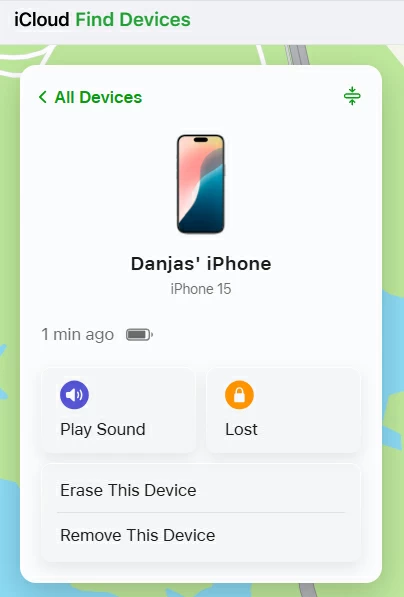
5. If prompted, input your Apple account password again, then click Erase to remove your lock screen passcode and unlock your device.
Recovery mode is always presented as the last-resort solution. As a built-in fail-safe for iOS, it allows you to pair your iPhone with your computer for a system restore when the phone is unresponsive or the passcode is forgotten. To unlock your iPhone without a password, recovery mode must be used in conjunction with iTunes (on Windows or older macOS) or Finder (on macOS Catalina and later)
1. Turn off your iPhone completely and attach your iPhone to your computer via a USB cable (Lightning or USB-C, depending on your model).
2. Engage recovery mode via hardware buttons:
3. Restore your iPhone using iTunes or Finder:
On a Mac: Open Finder and locate your iPhone under Locations in the sidebar. Click Restore in the pop-up window.
On a Windows PC: Launch iTunes and click the device icon in the top-left corner. A window will appear in the Summary tab offering Restore or Update options; select Restore.
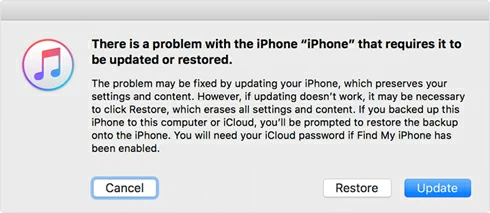
Tunes or Finder will download the latest iOS version and re-flash the system. Once the restore is complete, your iPhone will be unlocked and accessible without a passcode.
After unlocking your Android phone or iPhone without a password, you may encounter a secondary security layer during the setup process.
For Android devices linked to a Google account, the system will prompt you for your previously synced Google account details to remove the Google FRP lock. Similarly, an iPhone will require you to verify the original Apple ID and password to complete the setup. Therefore, it is crucial to ensure you have these credentials on hand to avoid getting locked out again.
Once unlocked, any data that was erased can be restored to your phone from backups. Android users can retrieve their data from Google Drive, while iPhone users have the option to restore from iCloud or a local backup on their computer.
Conclusion
This guide has covered all the essential methods for Android and iPhone users to unlock their phones without password. Whether you want to preserve your data or simply restore access, we have provided various solutions tailored to your specific circumstances. Simply choose the method that best fits your needs to successfully unlock your phone.




