Best Android Unlock Tools: Unlock Screen Locks & FRP


Forgot Samsung PIN and can't access your phone? Find out the Samsung PIN code unlock methods to access your Galaxy device securely.

Forget Samsung phone PIN? Use Appgeeker Android Unlocker to bypass the lock screen and unlock Samsung phone without PIN, password or pattern efficiently. All Samsung models and versions are supported.
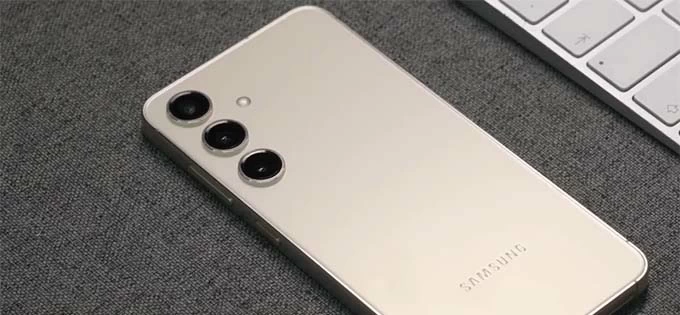
When you're locked out and can't remember the PIN, a factory reset is the most useful option to unlock Samsung phone.
Forgetting the PIN code on your Samsung phone can instantly turn a powerful smartphone into a useless brick. Whether you recently changed the lock code, haven't used the device in a while, or bought a second-hand phone, getting stuck on the lock screen could make you mad.
In the past, Samsung users could rely on Remote Unlock via Samsung Find My Mobile to instantly remove the screen lock and unlock Samsung's PIN without losing data. Unfortunately, Samsung has officially discontinued the Remote Unlock feature, leaving many users confused about how to unlock a Samsung phone without a PIN. The good news?
Samsung now consolidates Find My Mobile into SmartThings Find, and provides a reliable way to get into Samsung Galaxy after forgetting the PIN—by remotely factory resetting the device and removing the locks.
In this guide, you'll figure out exactly how to unlock a Samsung phone PIN using SmartThings Find, and what requirements must be met. You'll also learn a few SmartThings Find alternatives for Samsung PIN reset, getting access back smoothly.
Table of contents
Unlike the early days of Android, you can no longer directly unlock the Samsung phone without bypassing the PIN code - since Samsung or Google phased out the Remote Unlock feature as part of its security upgrades to protect user data from unauthorized access. To regain access, you have to force the locked Samsung device to be reset to factory settings in order to remove the forgotten PIN. Data loss may occur unless backups exist.
In One UI 6.1 and higher, a forgotten security PIN doesn't mean a permanent loss of data. Samsung has integrated a recovery tool that bridges the gap between high-level security and user accessibility. By using the previous screen lock, you will watch your phone unlock itself right before your eyes and reset the PIN without necessarily losing your data—if you've changed the PIN within the last 72 hours.
Below are all strategies to help with Samsung unlock if you do not remember the lock screen PIN, from the most common option of a factory reset to the device-specific data-friendly option. Each method will just take a few simple steps to recover your device's functionality without knowing the PIN code.
Even though Remote Unlock feature is gone, the official SmartThings Find remains the most reliable way to unlock the Samsung Galaxy after you forgot the lock PIN or made too many wrong attempts at unlocking Samsung's screen. By remotely resetting or erasing the device, you can get rid of the lock screen and regain access securely.
Should you know the credentials of Samsung account that's already logged in, Find My Mobile has been enabled before the lockout, unlocking a PIN on a Samsung phone is straightforward.
Step 1. Visit SmartThings Find on a computer, tablet, or another phone
Step 2. Select your locked Samsung phone
Note: If your device isn't connected to Wi-Fi or mobile data, it won't appear. You need to skip to Recovery Mode or third-party Samsung unlock tool for the unlocking task.
Step 3. Choose the "Erase Data" option
Since Remote Unlock is no longer available, you must use the reset option for Samsung device unlock PIN, password or pattern.
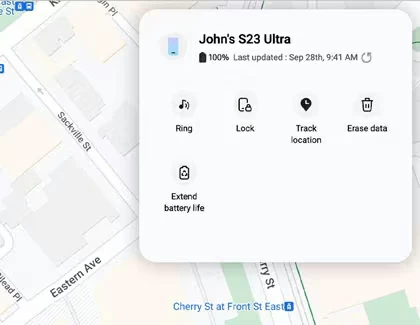
Step 4. Verify your Samsung Account to reset locked Samsung without PIN
In this stage, you need to confirm the erase request with your Samsung Account. This will factory reset your phone and delete locally stored data, including the lock screen PIN.
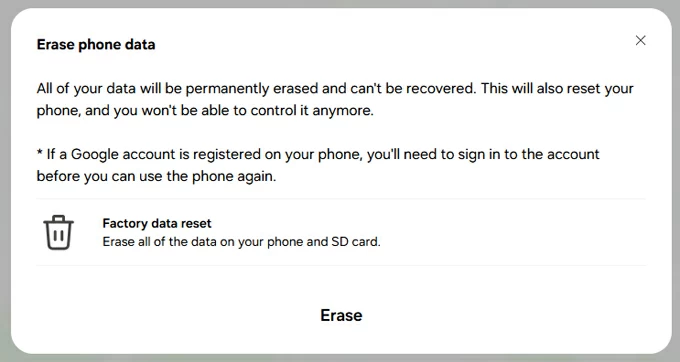
Step 5- Set up your Samsung phone again when it's unlocked
Once the lock screen PIN has been completely removed, Samsung will restart to the setup screen.
Your Samsung phone is now fully unlocked without needing the PIN you've forgotten.
Google Find Hub works almost the same as SmartThings Find, and offers an online remote reset option for those who are wondering how to unlock a forgotten Samsung PIN with a Google account. In case you have a Google account logged in, and have "Allow device to be located" option activated within Find Hub settings, simply take these steps to perform a full data wipe on the Samsung phone to bypass the PIN locks easily.
1. Browse to Google Find Hub website and sign in with the associated Google account credentials.
2. Select your PIN-locked Samsung phone and click Factory reset device option.
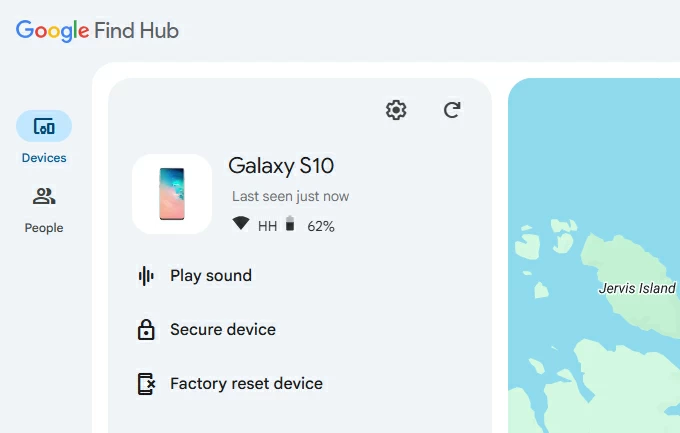
3. Confirm that you really want to reset your Samsung phone that is locked down by clicking on the Next button.
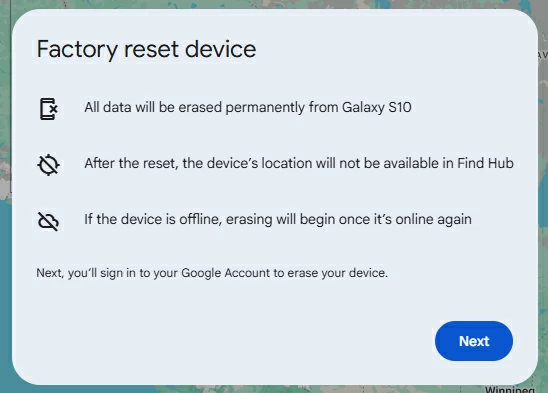
4. Enter your Google account password and follow the prompts to initiate the process of resetting Samsung to be able to delete the PIN on the lock screen as well as any other data.
5. Once the process is complete, you can sign back in with your Google account and restore your data from a cloud backup to avoid loss.
If the cloud-based reset options cannot take you back into your Galaxy device with a forgotten PIN—maybe you have no access to Samsung or Google account, you acquired a preowned device, or the phone is offline—you will need to do a manual factory reset.
Appgeeker Android Unlocker is your best bet for unlocking any Android phones if someone gets completely locked out and cannot remember the screen lock info. This powerful unlocking tool is specifically built to remove Samsung lock screens without requiring PIN, password, pattern, face recognition or fingerprint, making it ideal if official recovery options no longer work. It can also remove Google/ Samsung account and bypass Android FRP lock to restore full control.
With broad support for Samsung Galaxy devices and Android versions, AppGeeker Android Unlocker guides you through a simple, step-by-step process on your computer—no technical skills required. In just a few minutes, you can bypass the lock screen and regain full access to your Samsung phone, even after multiple failed PIN attempts.
Here's how to reset a locked Samsung device and its PIN on a PC using Appgeeker Android Unlocker. The unlocking process applies to Galaxy S series, A series, Note series, Z Flip and Fold, series.
Step 1. Start by running Android Unlocker on a computer (Windows 10 or 11 is recommended.
Step 2. On the main interface, choose Remove Screen Password mode to handle your forgotten or unknown PIN code.

Step 3. Choose SAMSUNG for your device.
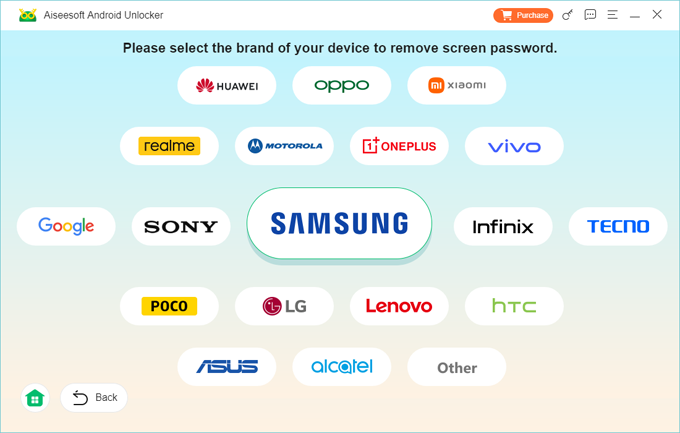
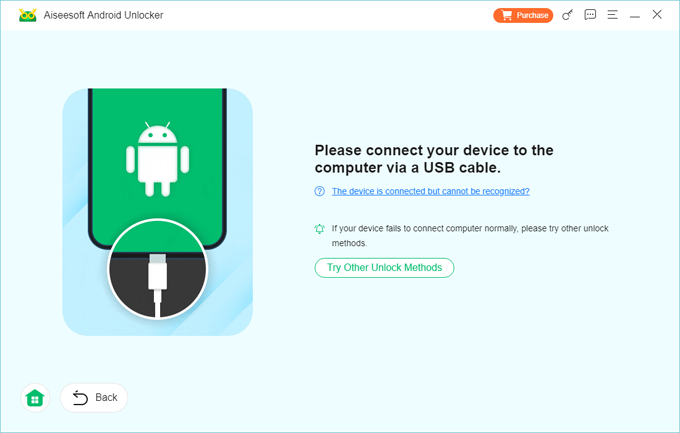
Step 4. Attach your locked Galaxy phone to the computer.
If it's not recognized, you will need to put it into recovery mode for accessibility.
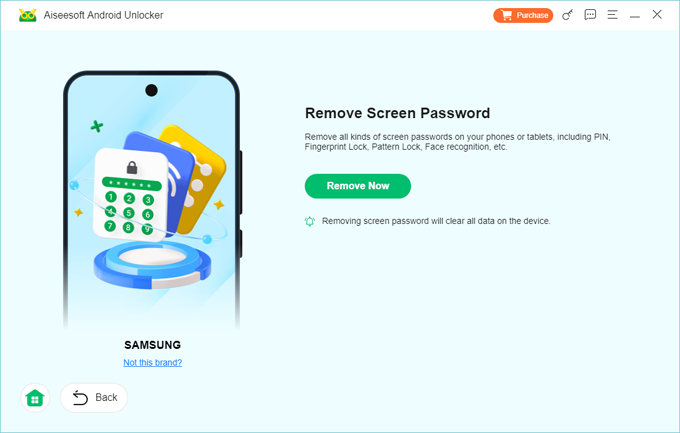
Step 5. When ready, hit Remove Now button.
Sit back and let your Samsung phone reset itself to its out-of-the-box state. All data, apps, as well as the screen lock PIN will be deleted permanently.
When done with removing the PIN from Samsung phone, you will see the welcome screen, allowing you set up the device from the scratch and use it again. If you have a backup made prior to forgetting the PIN, you can restore your data - no need to suffer from losing everything.
Tip: If the device is linked to a Google account or Samsung account, you will still need your login after the reset for Samsung FRP bypass and full use of the device - this is owing to the Factory Reset Protection.
Recovery Mode, Android's standard hardware reset route, is useful when you're experiencing a locked device due to forgotten password, pattern or PIN. It involves pressing specific buttons to access the Recovery menu, where includes a factory data reset option to erase the PIN and get into locked Samsung phone effectively.
Here's how to enter recovery mode, trigger the complete reset and let Samsung unlock phone PIN you couldn't remember.
1- Power off the device. If you can't turn it off because it asks for a PIN, wait for the battery to die.
2- Connect your phone to a computer via a data cable. This is a requirement for newer Android versions to enter recovery mode.
3- Boot the unavailable Samsung phone into recovery mode using hardware buttons based on your model.
Keep holding the button combos until the Samsung logo appears. This then open the Android Recovery menu.
4- Use Volume Up/ Down button to navigate to Wipe data/ factory reset option (or Delete all user data option), the press Power button to select it.
5- Proceed to choose Factory data reset option (or Yes, Yes – delete all user data option). Instead of recovering the forgotten PIN on Samsung, the process resets the whole device which wipes anything including screen locks.
6- When you see the "Data wipe complete" notification at the bottom, select Reboot system now option to finalize the unlocking process.
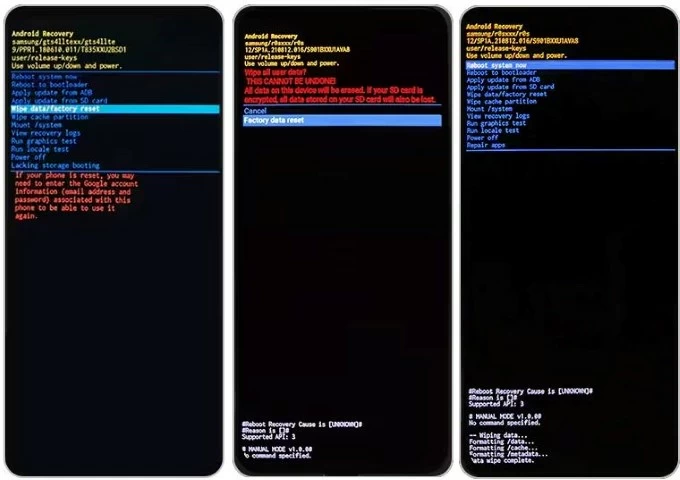
Your phone will now boot up as a brand-new device. You can then sign in to your Google/Samsung account to restore your most recent backups you made previously.
Imagine skipping the stress of a factory reset. Since One UI 6.1 (Galaxy S24, S25, and newer models), unlocking Samsung forgotten PIN without losing data has become possible - thanks to the "Reset with previous screen lock" feature.
In the event that you're locked out after you changed PIN and forgot it soon after, your old PIN remains active for 72 hours to allow for opening your Samsung phone and resetting the PIN without factory reset.
On the lock screen, enter the wrong code five times, then tap on the Forgot PIN? link to trigger the "Reset with previous screen lock" screen. Simply input the old PIN correctly to temporarily unlock Samsung's screen.
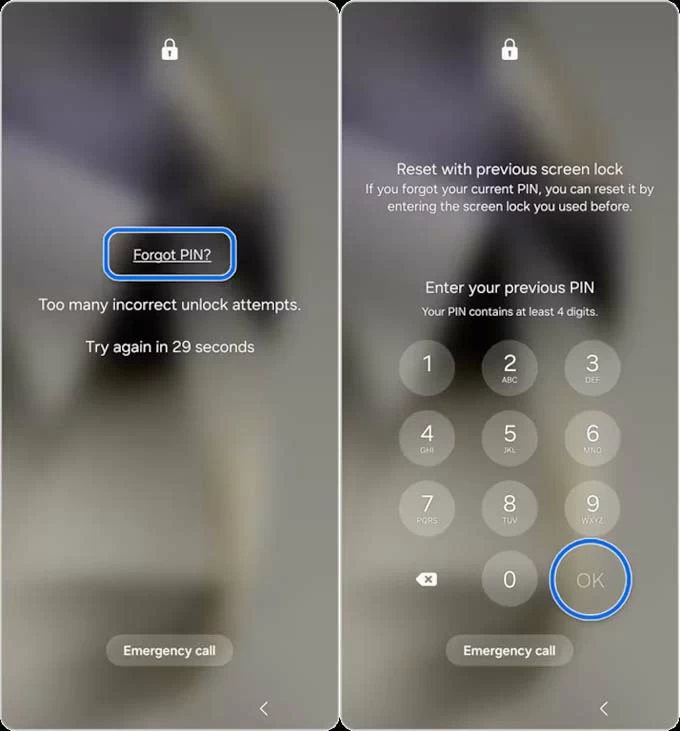
Once unlocked, you'll be directed to reset your forgotten Samsung phone PIN to something new without no risk of data loss.
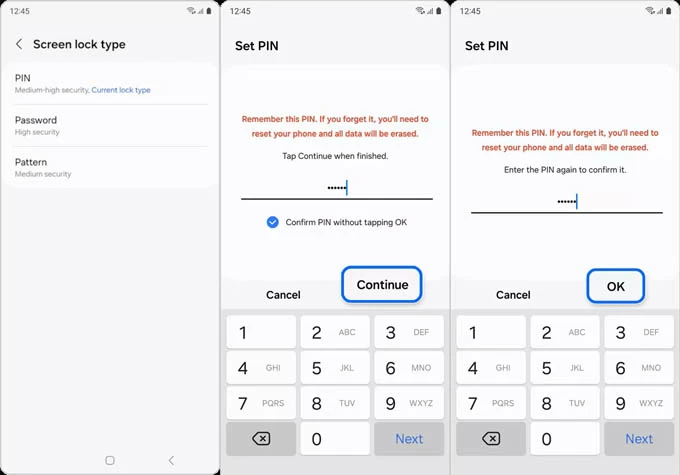
Getting into a Samsung phone if you have forgotten the PIN will often require you to erase the device completely, which removes data, settings and screen locks. You may be able to restore your content during the initial setup procedure only if you've enabled Samsung Cloud Backup or Google Account Backup, or synced data with Google Photos or OneDrive.
Keep in mind that a factory reset won't remove the previously synced Google account or Samsung account protection. When prompted for verification, you need to log into the original account again just to overcome the FRP barrier.
Q1- Can I use the master code for Samsung PIN unlock?
In the past days, 2767*2878#, 2767*3855#, and ##7780## are master codes for unlock Samsung phone when you're locked out with a forgotten PIN. However, modern Samsung devices have updated security protocols and those master unlock codes are no longer working.
Q2- Can I unlock a Samsung PIN after forgetting it without losing data?
Even the Remote Unlock feature in SmartThings Find has been removed, there is a very high probability you can use the "One UI 6.1 Reset with previous screen lock" function to get the Samsung phone unlocked without a PIN or without resetting - though this feature is only available within 72 hours of setting a new PIN, Password, or Pattern.
Q3- Why SmartThings Find doesn't work to unlock my Samsung Galaxy device?
Here are some common reasons why SmartThings Find may fail to unlock a Samsung phone when it's locked:
Q4- What are the best alternatives to SmartThings Find for Samsung PIN code unlock?
If SmartThings Find is unavailable, users typically consider:
For security and legality reasons, always ensure you are the rightful owner of the device.