
How to unlock Samsung phone pattern without factory reset


Unlock a Samsung phone or tablet without a PIN using proven methods like biometrics, remote reset services, Recovery Mode, Forgot PIN feature, or trusted unlock tools.

An efficient solution: Appgeeker Android Unlocker provides a fast and reliable way to unlock a Samsung smartphone or tablet by removing the lock screen PIN completely, whether you've forgotten it or inherited a locked device.
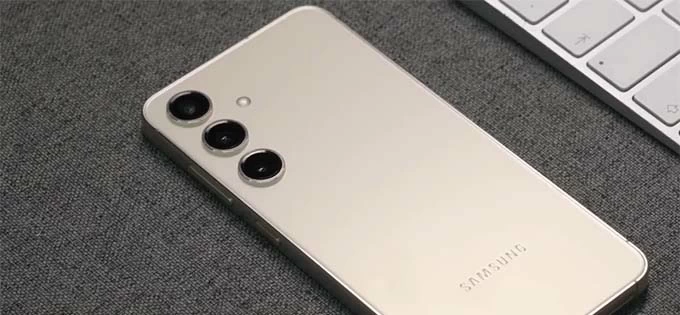
It's possible to unlock a Samsung Galaxy phone or tablet even if you've forgotten the PIN code.
A PIN code is designed to protect your Samsung device from unauthorized access. If you forget your 4- or 6-digit code and get locked out, there are still ways for unlocking your Samsung phone or tablet without a PIN.
Forgetting the PIN code on Samsung doesn't mean losing access to your device permanently. In fact, there are quite a few methods to unlock Samsung without a PIN code.
Features such as biometric authentication, Smart Lock, and Samsung's remote reset services allow you to unlock your Samsung phone or tablet without using a PIN code. Even if none of these options are available, there are still reliable Samsung unlock tools that help you regain full access to your Galaxy device without a PIN.
This guide walks you through each method step by step so you can choose the most suitable option for your situation.
Table of contents
There are several ways to regain access to a locked Samsung device. Depending on which security features were previously enabled, it's possible to unlock a Samsung phone or tablet without a PIN code, and in some cases, even without a factory reset.
If fingerprint or facial recognition was set up prior to a lockout, you can unlock your Samsung directly without using a PIN or losing any data.
If Smart Lock was configured beforehand, your Samsung device may unlock the PIN code automatically in trusted situations, such as when you're in a trusted location or it's connected to a trusted device.
To use Smart Lock for Samsung unlocking without a PIN, you can enable it in advance by going to Settings > Lock Screen > Smart Lock (or Extend Unlock). Verify your current screen lock and tap Got it to proceed. You can then choose an unlock condition such as On-body detection, Trusted places, or Trusted devices.
If none of the options above are available, the Samsung unlock tools outlined below can help you get into your Samsung phone or tablet without the unlock PIN.
However, due to Android's enhanced security measures, these methods typically require performing a factory reset, which erases all data on the device, including the forgotten PIN. If you have a recent backup, you can restore your data after successful Samsung unlocking.
The most common way to unlock a Samsung device without a PIN is by performing a factory reset. To accomplish this, both Samsung SmartThings Find and Google Find My Device offer a remote reset option.
To unlock a Samsung phone or tablet without a PIN code, you can perform a remote factory reset using the Erase Data option in Samsung SmartThings Find (formerly Find My Mobile). This process will permanently delete all data on the device, including the forgotten PIN.
Make sure the locked device is linked to your Samsung Account and is still connected to an active network. The following steps will show you how to unlock your Samsung without a PIN:
1. On another device or computer, open a browser and visit Samsung SmartThings Find site.
2. Click Sign in, then enter your Samsung Account email and password to sign in.
3. On My Devices map, select the Samsung phone or tablet you want to unlock without a PIN.
4. Select Erase data in the opening menu.
5. If requested, verify your Samsung Account password to confirm the reset option.
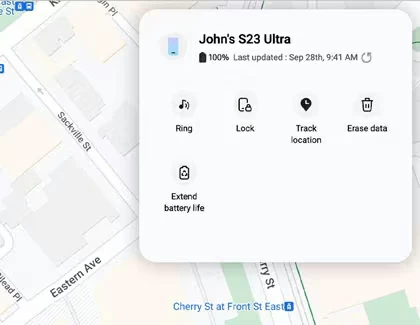
After resetting the locked Samsung phone or tablet, you'll regain full access with no PIN code required. Simply follow the onscreen prompts to set up and use the device as new.
If you're using a Google account instead of a Samsung account on your locked device, Google Find Hub (previously called Find My Device) can help you remotely unlock your Samsung phone or tablet without a PIN code.
Similar to Samsung SmartThings Find, this service performs a wireless factory reset on the locked Samsung device, as long as it is linked to your associated Google account.
1. On a different device with internet access, go to Google Find Hub website.
2. Sign in using the same Google Account and password associated with your locked Samsung.
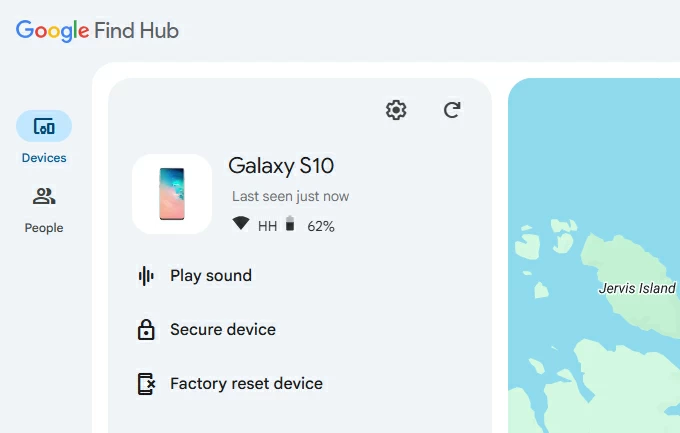
3. Once in, select Devices from the left menu to access all devices linked to your account.
4. Choose the Samsung phone you need to unlock without PIN code.
5. In the expanded options, select Factory reset device to continue.
6. When prompted, confirm the Reset option to erase your Samsung phone completely.
This way, you can unlock your Samsung phone with your Google account, no PIN code needed.
If the device is not linked to a Samsung Account or Google Account, there are also alternative ways to unlock your PIN-locked Samsung phone or tablet with ease.
Preloaded with powerful screen lock removal features, Appgeeker Android Unlocker offers an effective way for unlocking Samsung phones and tablets without a PIN, password, or pattern.
This unlocking tool can remove all types of screen locks, including 4- or 6-digit PINs, passwords, patterns, fingerprints, facial recognition, and even FRP locks. No technical skills required, it allows you to reset a locked Samsung device and regain full access without needing any PIN code.
Additionally, it's compatible with a wide range of Samsung models and also supports many other Android brands, including Motorola, Google Pixel, LG, Xiaomi, Vivo, OPPO, OnePlus, Huawei, HTC, and more. Below is a step-by-step guide on how to unlock Samsung without a PIN:
Step 1. Open Appgeeker Android Unlocker on a Windows PC, then click Remove Screen Password to start.

Step 2. Select Samsung logo from the brands and connect your locked device via a USB cable.
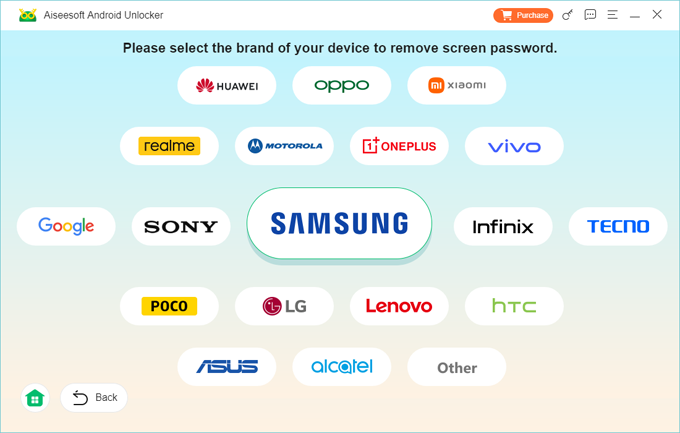
TIP: The unlocking tool will recognize your Samsung phone or tablet automatically. If not, follow the provided link or check Try Other Unlock Methods button to proceed.
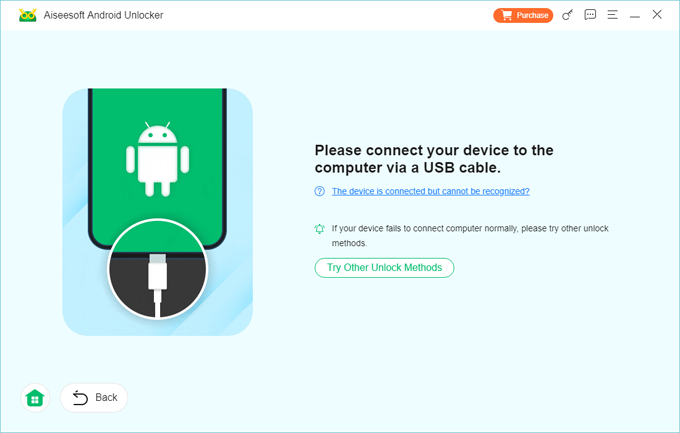
Step 3. Click Remove Now to start Samsung unlocking without a PIN code.
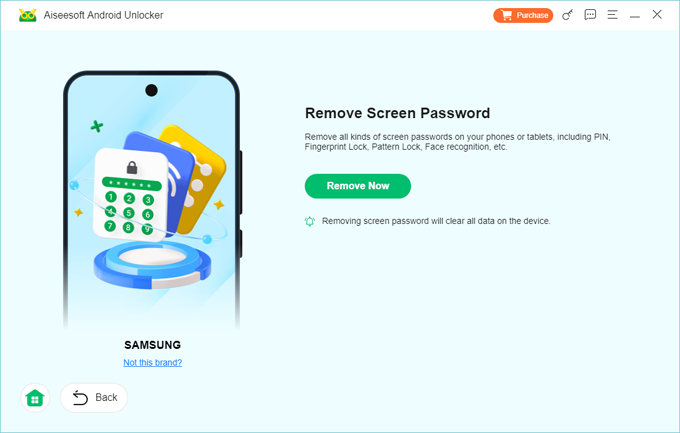
Allow it a couple of minutes to remove the forgotten PIN from your Samsung smartphone or tablet. After successful unlocking, you're able to complete the setup prompts and access the device again.
Android's built-in Recovery Mode allows direct access to your Samsung device, even if it's locked. By pressing the correct combination of buttons, you can enter Recovery Mode and perform a manual factory reset. This will unlock your Samsung without requiring a PIN code, but it will also erase all existing data on the device.
1. Power off the locked Samsung device completely.
2. Press and hold Power + Volume Up buttons at the same time. If you have an older Samsung device with a physical Bixby/Home button, keep holding the Power + Volume Up + Bixby/Home buttons simultaneously.
3. Do not release the buttons until the Android Recovery menu appears.
4. Navigate to Wipe data/factory using either Volume button, then select it by Power button.
5. Highlight Factory data reset via Volume button and press Power button to confirm.
6. Wait for the reset process to complete.
7. Afterwards, select Reboot system now to restart your Samsung device.

Upon restarting, your Samsung phone will be unlocked with no PIN code. When prompted with the initial setup screen, follow the onscreen steps to set up and use the device again.
Note: If the Samsung device is previously linked to a Google account, the Factory Reset Protection (FRP) will trigger during the new setup, requiring you to sign in with the previously synced Google account to set up the device again. If you don't have the original credentials, using a Samsung FRP bypass tool can help you unlock the Google lock and regain full access.
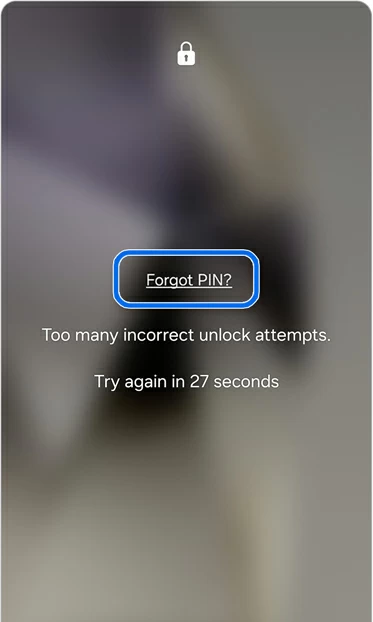
On Samsung smartphones running One UI 6.1 or later, the Forgot PIN feature allows you to unlock your Samsung without a PIN code by using the previous screen lock. This option is available if you've forgotten your PIN within 72 hours of setting it. It lets you regain temporary access to your phone and immediately set a new PIN.
Ensure you still remember the last PIN code. Here's how to unlock a Samsung phone without losing data via Forgot PIN feature:
1. On your Samsung lock screen, enter more than 5 incorrect PIN codes until the Forgot PIN? option appears.
2. Tap Forgot PIN? and you'll see the Reset with previous screen lock screen.
3. Enter your previous PIN and tap OK to go on. TIP: If you enter the previous lock incorrectly 3 times, no further attempts will be allowed.
4. You can now select a screen lock type and create a new PIN, then tap Continue.
5. Re-enter the PIN code and tap OK to confirm the reset.
Once reset, go back to the lock screen and enter the new PIN to unlock your Samsung phone without needing the original code.
Q1 - Is there a master code to unlock a Samsung phone?
In most cases, there's no universal master code that can unlock a Samsung phone for sure. If you forget your screen lock PIN, the standard method to regain access is to perform a factory reset. While some older Samsung models might accept dialer codes such as *2767*3855# or ##7780##, these codes also trigger a reset and will erase all user data.
Q2 - How can I unlock my Samsung phone if I forgot the PIN?
If you forget your Samsung PIN, you may still be able to unlock your phone using fingerprint or facial recognition if the biometric authentication is enabled. If the biometrics are unavailable, a factory reset is generally required to remove the forgotten PIN and unlock your Samsung phone.
Here are some available options:
After a reset, the Samsung phone will return to factory settings and can be accessed without a PIN.
Q3 - Can I unlock my Samsung forgotten PIN without losing data?
In certain cases, yes. If your Samsung device is running One UI 6.1 or later and the PIN was changed within the last 72 hours, you can use the Forgot PIN feature to unlock the Samsung phone using the previous screen lock. This allows you to set a new PIN immediately without data loss.
Q4 - Is a factory reset necessary to unlock a Samsung phone without a PIN code?
If biometric unlocking, Smart Lock, or the Forgot PIN feature are unavailable or ineffective, a factory reset is the only remaining method to unlock a Samsung without a PIN code.




