Too many incorrect unlock attempts on Samsung. How to fix it


This guide covers multiple reliable Samsung unlock tools to regain full access and control of your phone or tablet, whether for screen lock removal, FRP bypass, or SIM unlocking.

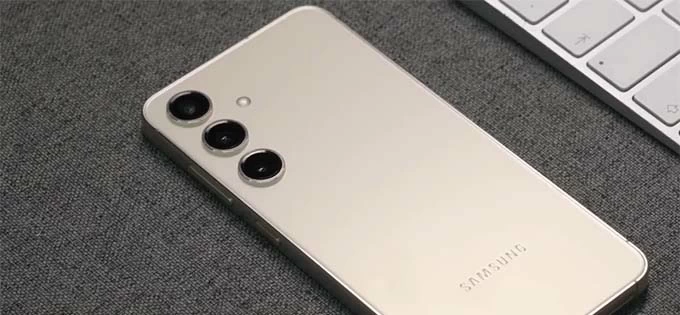
Getting into a screen-locked or FRP-locked Samsung phone or tablet easily by using a Samsung unlocking tool.
Getting locked out of a Samsung phone can happen for different reasons, such as forgetting a password, PIN, or pattern, triggering Google Factory Reset Protection (FRP) after a reset, or encountering an unexpected SIM lock. If you find yourself in this situation, don't worry. Both official methods and reliable Samsung unlock tools are available to help you regain access.
A dedicated Samsung unlock tool is designed to remove screen locks and bypass FRP on supported Samsung devices. In this guide, we will introduce some of the most convenient and effective Samsung unlock tools, letting you regain full control of your Galaxy phone or tablet.
Equipped with screen lock removal and FRP bypass features, Appgeeker Android Unlocker is an all-in-one tool for Samsung users to unlock their phone or tablet without a password, PIN, pattern, or Google account.
Table of contents
A Samsung unlock tool can help remove screen locks when you've forgotten the password, PIN, or pattern, or to bypass Google Factory Reset Protection (FRP) if you no longer have access to the Google account previously synced with the device. Some Samsung unlock tools also support SIM unlocking, allowing you to remove SIM restrictions and use your phone on any carrier.
Regardless of the situation you are in, the Samsung unlocking tools introduced below can help you unlock a Samsung phone or tablet and regain full access safely and efficiently.
When removing a screen lock or bypassing FRP using a Samsung unlock tool or official methods, the unlocking process typically involves a factory reset, which erases all data and restores the device to its original factory state.
Whether your Samsung device is locked by a forgotten screen lock or stuck on Google account verification screen after a factory reset, Appgeeker Android Unlocker stands out as a reliable and efficient solution for unlocking Samsung phones and tablets with ease.
The main features this unlock tool offer for Samsung:
Widely compatible with all major Samsung Galaxy phones and tablets, this Samsung unlocker tool enables you to regain full access in minutes. Simply follow these steps below:
Step 1. Open Appgeeker Android Unlocker on a PC and select Remove Screen Password.
If you're looking to unlock a FRP-locked Samsung phone after a reset, choose Bypass Google FRP Lock instead.

Step 2. Select Samsung brand logo and connect your locked phone or tablet via a USB cable.
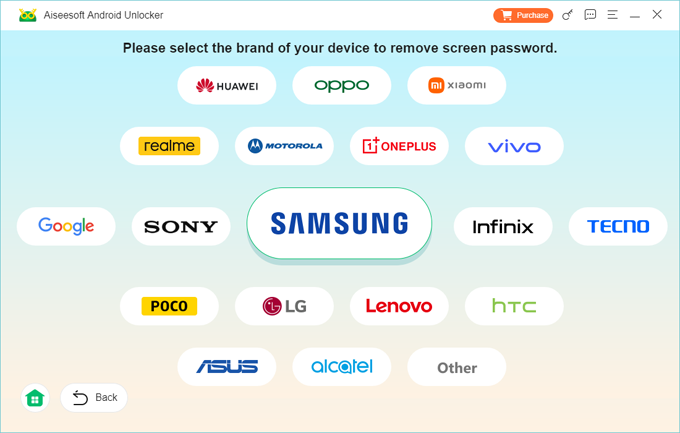
Step 3. This Samsung unlocker tool will detect your device automatically. If not, check the onscreen link or click Try Other Unlock Methods to go on.
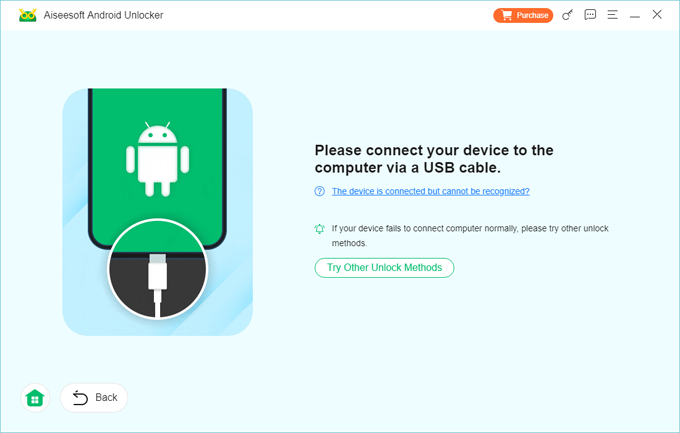
Step 4. Click Remove Now and wait for the tool to unlock your Samsung without password, PIN, or pattern. After that, the device will be reset to factory settings, allowing for new setup.
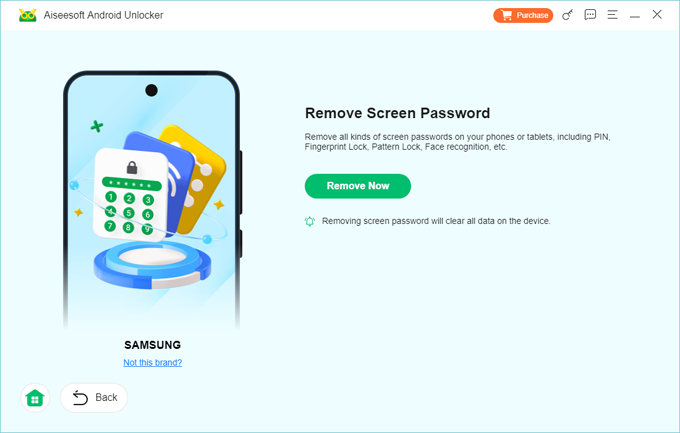
Keep the device connected until the unlocking process is complete. When you see the Samsung welcome screen, follow the onscreen prompts to set up your phone or tablet again.
Pros
Cons
If you're locked out of a forgotten password, PIN, or pattern and the biometrics are not working, here are several Samsung unlock tools that can remove screen locks from your Samsung quickly.
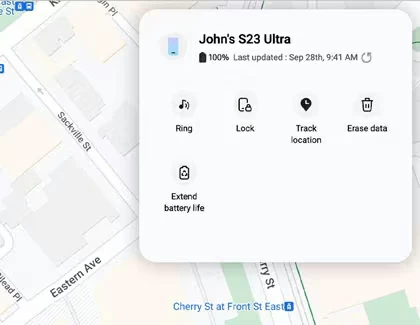
Developed by Samsung, SmartThings Find (formerly Find My Mobile) is not only a device tracking service but also a built-in Samsung unlock tool. It allows you to remotely reset and unlock a Samsung phone or tablet without a password, PIN, or pattern, as long as the device is linked to your Samsung account and remains connected to the internet.
The process works by resetting the device, which erases all screen locks along with everything else. When your Samsung is unlocked, you can set it up again from the scratch and use it as new.
Pros
Cons
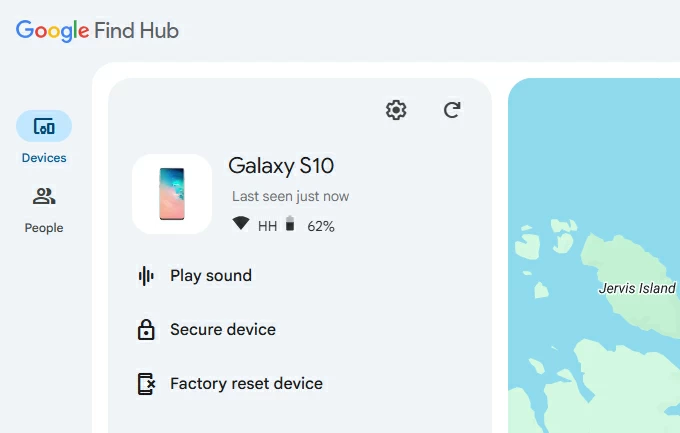
For a Samsung device linked to a Google account rather than a Samsung account, Google Find Hub (previously called Find My Device) can also be used as an effective option to remotely unlock your Samsung phone or tablet through a wireless factory reset, even if you've forgotten your password, PIN, or pattern.
Pros
Cons
While a factory reset can unlock a Samsung phone without password, it may trigger Google Factory Reset Protection (FRP) during the next setup. In that case, you'll be asked to sign in with the Google account that was previously synced with the device before you can access it.
If those credentials are forgotten or inaccessible, the Samsung unlock tools below can help with FRP bypass, so you're able to complete the setup and regain access your phone or tablet.
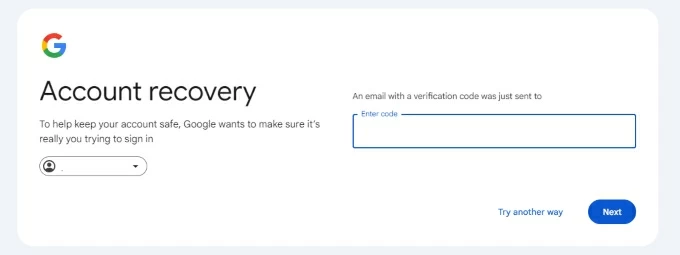
Google's official tool for online account recovery. If you are stuck on Google account verification screen after resetting a Samsung device due to a forgotten password, you may recover your account online, and use the updated credentials to unlock the FRP on your Samsung phone or tablet for full access.
Pros
Cons
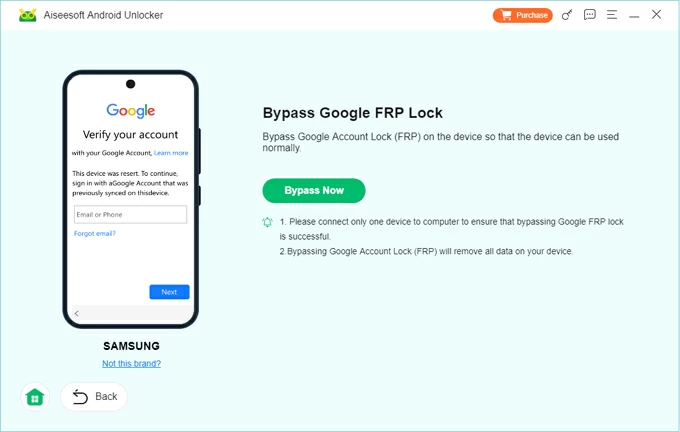
If you have completely forgotten the Google sign-in details previously used on the device, or if your phone is still tied to the previous owner's account, Appgeeker Android Unlocker is a reliable tool for bypassing FRP on Samsung smartphones and tablets.
It enables you to remove the Google account from your Samsung device after a reset, so you can regain access without needing to verify the original credentials. The process does not require any technical skills. Its user-friendly interface guides you through the Samsung FRP bypass process step by step.
Pros
Cons
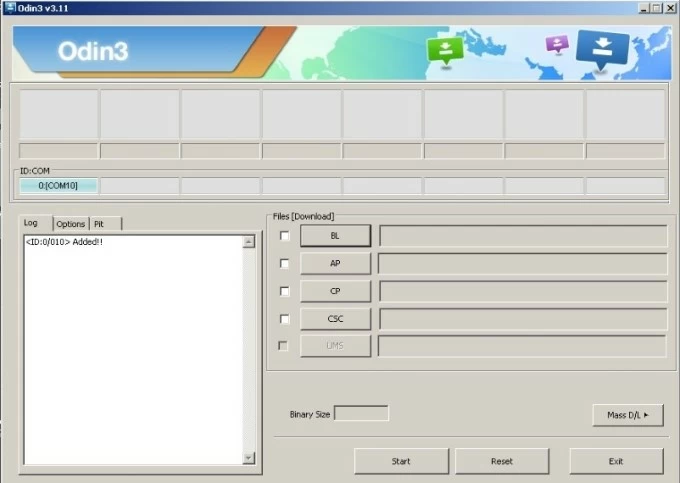
Odin is an official firmware flashing tool developed for Samsung devices. It can be used as a free FRP bypass tool for Samsung users to remove Google account lock from their phone or tablet after a factory reset. It interacts directly with the Samsung system, and needs to be used with the correct FRP reset firmware for a specific Samsung model.
Pros
Cons
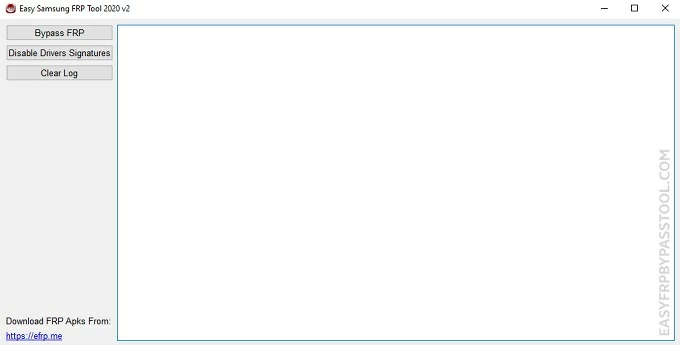
Another reliable option for unlocking a Google-locked Samsung device is Easy Samsung FRP Tool. Compatible with Windows and supporting most Samsung models with Android 5-13, it allows you to quickly bypass FRP without requiring the original Google account credentials.
Pros
Cons
A SIM card lock is a security feature that prevents your SIM card from being used on other mobile devices. While you can usually remove this SIM lock directly through Samsung's Settings, a network-locked Samsung phone often requires extra technical steps to unlock, typically involving carrier authorization or specialized unlocking tools.
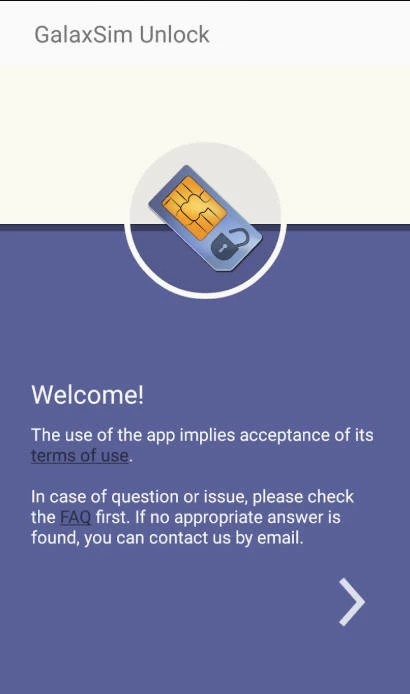
For Samsung SIM unlocking, GalaxSim Unlock is a useful app that removes carrier restrictions from supported Samsung Galaxy devices, allowing you to use the phone on different mobile networks without requiring complex unlock codes. It's available in Google Play Store, offering a convenient SIM unlock solution, particularly for users who plan to switch carriers or use a local SIM card while traveling.
Pros
Cons
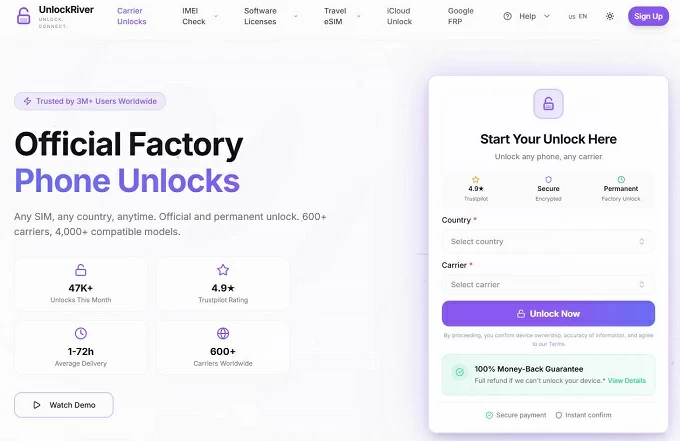
UnlockRiver is an IMEI-based online service that provides efficient carrier unlocking for Samsung and many other Android devices. By using your device's IMEI number, it generates official unlock codes from the carrier. Entering the code on your phone allows you to restart your Samsung and use any SIM card or eSIM from any network provider worldwide.
Pros
Cons
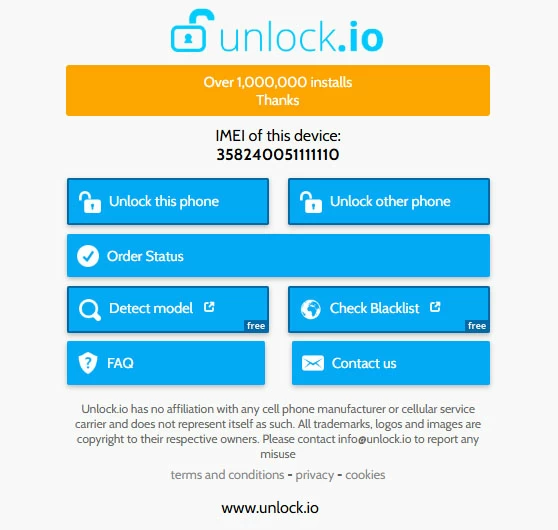
If you're looking for a tool to unlock your Samsung phone for use with any SIM card, Unlock.io can be an effective solution. It provides a quick way to unlock your Samsung SIM lock by IMEI code, allowing you to use it with any mobile network operator worldwide.
Pros
Cons
Whether you are facing a screen lock, Google FRP lock, or SIM lock, the Samsung unlocking tools mentioned above can help you quickly unlock your phone or tablet and regain access with ease. Choose the tool that best fits your specific situation and needs.
Q1 - I forgot my password. What Samsung unlock tool can I use?
If you've forgotten your Samsung password, several screen unlocking tools can help:
Q2 - Is there a tool that can help unlock the FRP on my Samsung phone?
Yes. Google's Factory Reset Protection (FRP) requires the credentials of the Google account previously used on your device.
Q3 - How can I remove the SIM lock from my Samsung phone?
To remove a SIM lock from a Samsung phone, simply follow the steps:
Once disabled, your Samsung phone will no longer require a PIN code when restarting or inserting a SIM card.
If the Samsung device is carrier-locked, you may need to contact the service provider for a network unlock, or use a trusted online carrier unlock tool.