Unlock Android with Google Find Hub / Find My Device


Locked out of your Android? Explore official methods and top tools to remove Android screen locks, bypass verification, and unlock your phone or tablet safely and quickly.


Explore the best lock screen removal tools to unlock your Android phone or tablet if you forget your password, PIN, or pattern.
Android's built-in screen lock is designed to protect your data and secure the device, but they can also make it difficult to regain access when you forget your password, PIN, or pattern. In that case, some reliable Android lock screen removal tools can help you unlock your phone or tablet and get back in.
This guide will introduce you several lock screen removal tools for Android and explain when they're appropriate to use. You'll also explore their advantages and limitations, so you can choose the best tool to remove your Android screen lock and recover full access to your device.
For users who are completely locked out, Appgeeker Android Unlocker is able to remove any screen lock from an Android phone or tablet in minutes, including password, PIN, pattern, fingerprint, facial recognition, and even the FRP lockouts.
Table of contents
The lock removal tools in this guide support a broad range of Android brands and models, including Samsung, Google Pixel, Motorola, LG, Xiaomi, Vivo, OPPO, Huawei, Sony, HTC, etc.
An Android screen lock removal tool is a software application designed to help regain access to an Android device when you've forgotten the password, PIN, pattern, or biometric lock.
If you're locked out of your phone or tablet — whether you forgot your lock credentials or purchased a second-hand device that's still secured — a lock screen removal tool for Android can assist in removing the existing lock and recovering full access to your device.
Important:
Ideal for: Free Android lock removal tools for users who have linked their device to their Google or Samsung account.
Before trying any other lock screen removal tools, consider using the official services provided by Google or Samsung, which allow you to permanently remove the screen locks from a locked Android phone or tablet remotely.
Google Find Hub (formerly Find My Device) is primarily used to locate, track, and secure Android devices linked to your Google account. It can also be used to remove an Android screen lock by remotely resetting the locked phone or tablet, which erases the password, PIN, or pattern along with all other data on the device. Here are the general steps:
1. On any other device with internet access, visit Google Find Hub website.
2. Sign in with the same Google account used on your locked Android device.
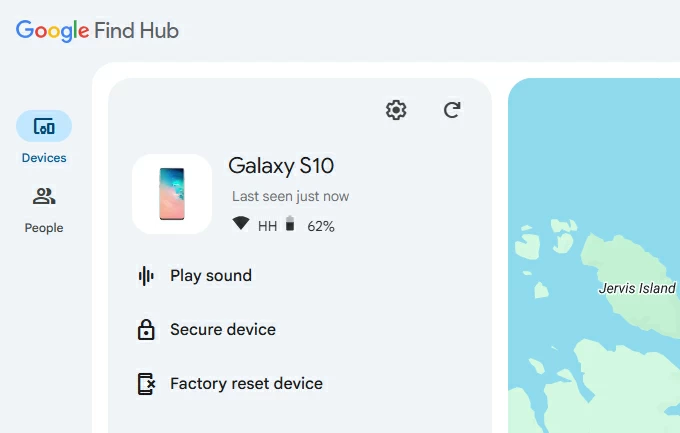
3. Once in, check Devices in the left sidebar and select the phone or tablet you want to remove the screen lock from.
4. Choose Factory reset device option in the expanded card.
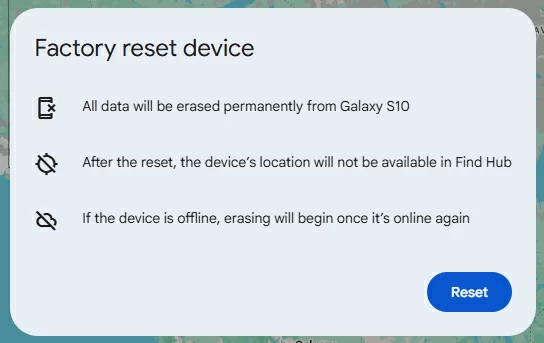
5. Click Next and confirm the Reset option. If asked, verify your identity to get started.
This will remotely perform a factory reset on your Android phone or tablet as long as it's online, permanently removing the screen lock and everything else.
Pros
Cons
For Samsung users, SmartThings Find (previously called Find My Mobile) is an official tool that helps remove a screen lock on Samsung if you forget your password, PIN, or pattern. Once your Galaxy device is linked to your Samsung account, you can use this service to remotely reset your locked phone or tablet for permanent screen lock removal.
1. Go to Samsung SmartThings Find website on any network-connected browser.
2. Sign in using the same Samsung account that's linked to your locked phone or tablet.
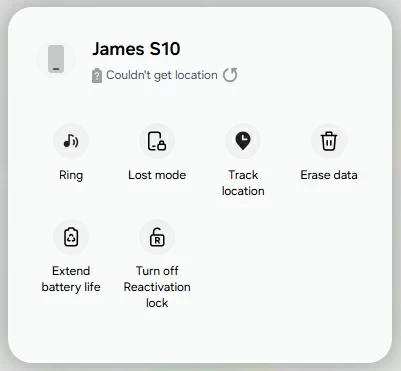
3. Select the target device from the left-hand side and ensure it's online.
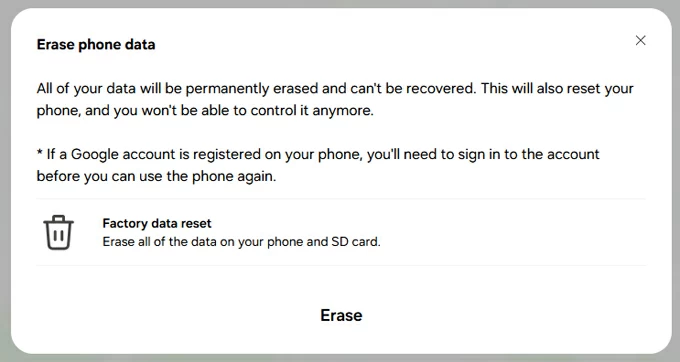
4. Choose Erase data in the opening options.
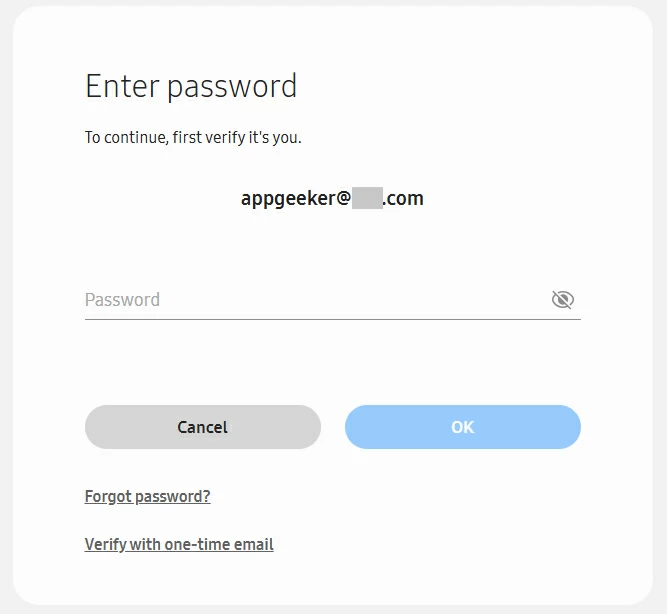
5. When prompted, enter your password to verify your identity.
6. Click Erase to confirm the Samsung lock screen removal.
All data on the Samsung device, including the screen locks, will be removed completely.
Pros
Cons
If official screen lock removal services don't work for your phone or tablet, there are alternative tools available that can help you unlock your Android device for full access.
Ideal for: Quickly remove screen locks & FRP locks from an Android phone or tablet.
Whether you're locked out because of a forgotten password, 4-/6-digit PIN code, pattern, or biometric lock, Appgeeker Android Unlocker can be a reliable solution to remove any Android screen lock and recover instant access to your phone or tablet.
This Windows-based utility features a guided, step-by-step interface that makes the removal process simple and beginner-friendly. With just a few clicks, you can remove all types of screen locks and unlock your Android without needing a password, PIN, or pattern.
In addition, it also includes a FRP bypass tool, letting you easily remove FRP lockouts and bypass Google verification after a factory reset, especially if you have no access to the previously-linked account credentials.
Requirements:
Steps to remove lock screen password, PIN, or pattern from Android:
Step 1. Open Appgeeker Android Unlocker on your computer and start with Remove Screen Password mode.

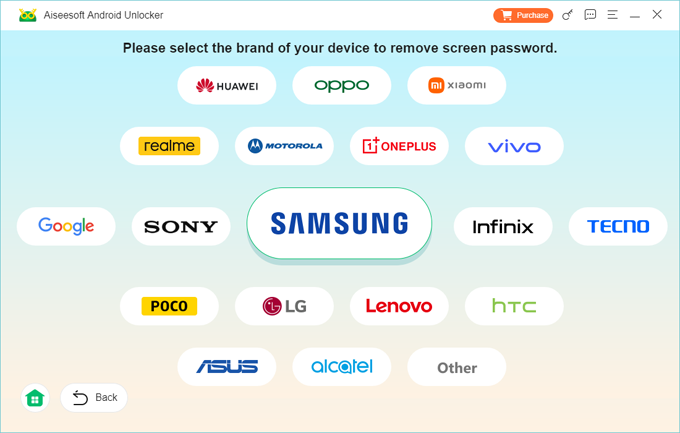
Step 2. Select the brand of your locked Android device.
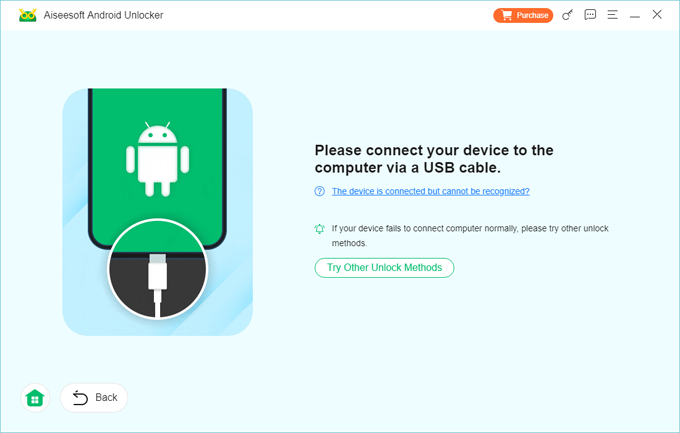
Step 3. Connect the Android phone or tablet using a USB cable.
If your device is connected but not recognized, click the provided link for troubleshooting. Or, check Try Other Unlock Methods and follow the onscreen instructions to proceed the removal.
Step 4. Click Remove Now and do not unplug your Android device until the screen lock removal is fully complete.
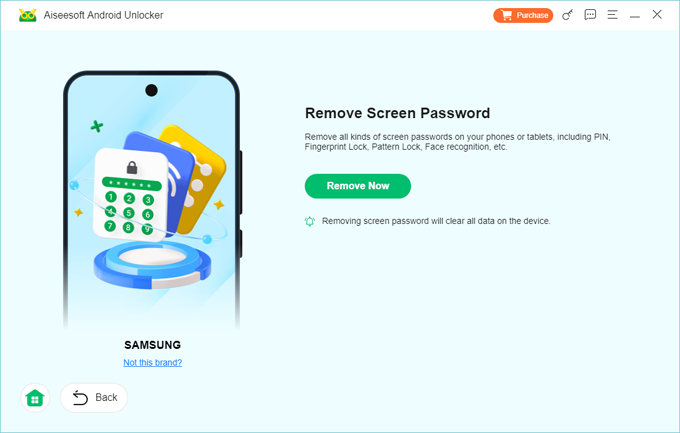
Once the screen lock is removed successfully, your Android device will restart and allow you to set it up again from the beginning. If available, try restoring your data from a recent backup after regaining access.
TIP: If you get stuck on the Google verification during setup, use the FRP Bypass tool built into Android Unlocker to remove FRP-related locks without any original account credentials.
Pros
Cons
Ideal for: Securely remove screen lock password, PIN, or pattern from certain Android devices.
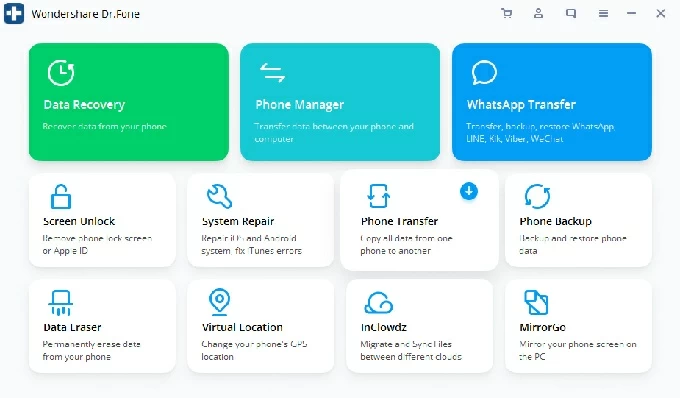
Dr.Fone is another reliable lock screen remover for Android users to unlock their phone or tablet when they forget their password, PIN, or pattern. Most importantly, it can help remove screen lock without losing data for some older Samsung devices. No technical skills required, it allows you to regain full access to your Android devices efficiently.
Pros
Cons
Ideal for: Unlocking a screen-locked Android device without a password, PIN, or pattern.
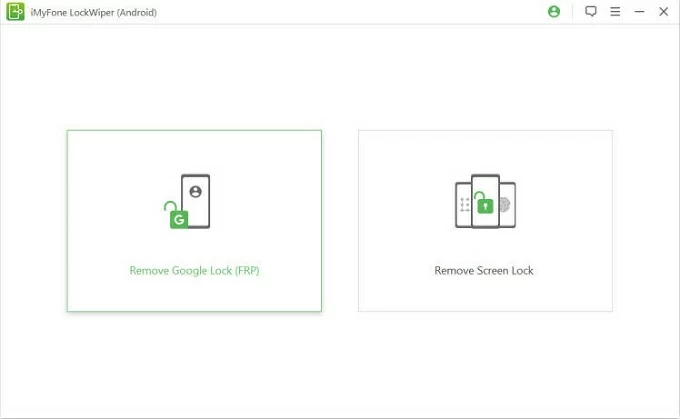
With a simple interface, LockWiper can help users remove various screen locks from different Android phones and tablets. Supporting many brands, it allows you to unlock an Android device even if you forget the password, PIN, pattern, or are able to use your fingerprint or face lock.
Additionally, it lets you bypass FRP & Google account verification on Samsung, Xiaomi, Redmi, and OnePlus phones, without requiring the last-used account details.
Pros
Cons
Ideal for: Removing a forgotten screen lock from many Android phones or tablets.
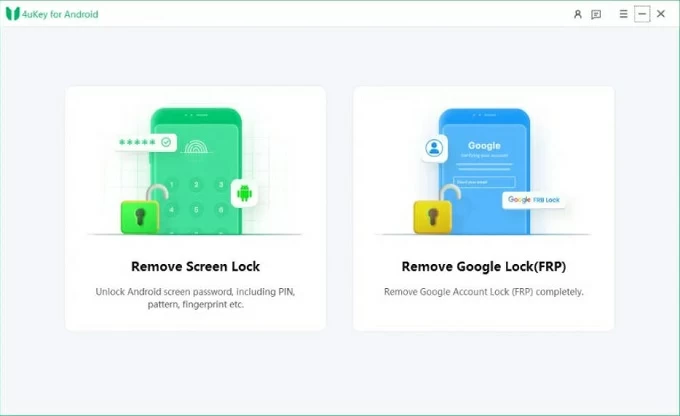
Requiring minimal setup, 4uKey supports many major Android devices for basic screen lock removal. It's a practical option for quick unlocks, especially when you don't remember or cannot access the current password, PIN, or pattern on your phone or tablet.
It also has a newly added feature for Samsung, Xiaomi, OPPO, and Huawei users to bypass FRP verification and remove the Google account from their phone without password.
Pros
Cons
Ideal for: Remove Android screen locks if you've forgotten your pattern, password, PIN, or purchased a used device.
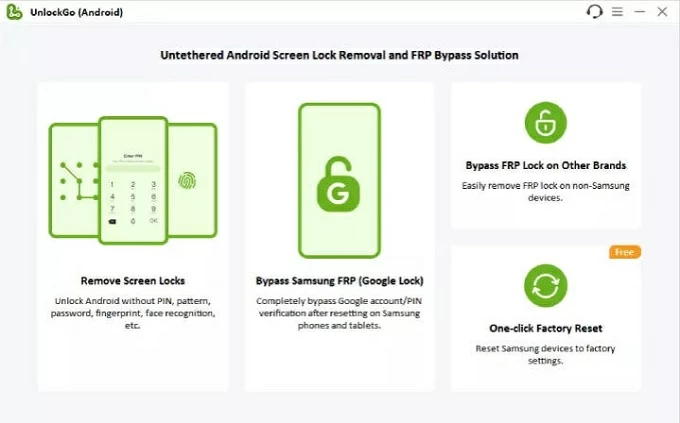
iToolab UnlockGo Android is a quite powerful software application that allows you to instantly remove Android locks from a phone or tablet easily, including a PIN, password, pattern, fingerprint, and even face lock. What's more, you can also use it to remove Google's FRP lock on a Samsung, Motorola, Xiaomi, Redmi, Vivo, OPPO, and Realme device.
Pros
Cons
When it comes to removing an Android screen lock, the best option depends on your device brand, Android version, and whether you're signed in with your Google or Samsung account.
Official methods from Google (Find Hub) or Samsung (SmartThings Find) should always to be your first choice — if the locked device is signed in with your account and still online.
If those options are not working, 3rd-party lock removal tools can provide additional ways to regain access to a locked phone or tablet, even if you forget the password, PIN, or pattern.
Whichever tools you choose, having regular backups and keeping your account information safe will be helpful to prevent future lockouts and restore lost Android data.
Q1 - Can an Android lock removal tool unlock my phone without losing data?
In most cases, no. Due to Android's security design, removing a screen lock requires a complete factory reset, which erases all existing data and settings on the device.
If you have a recent backup, it's possible to restore your data afterward and minimize the loss caused by removing the lock.
Q2 - If I use a lock screen removal tool, will it factory reset my phone?
Yes. Typically, most tools perform a factory reset to remove the screen locks and restore access to an Android phone.
Q3 - Is there any free screen unlock tools for Android?
If your device is signed in with your Google account or Samsung account before it was locked, the official services, such Find My Hub (Google) or SmartThings Find (Samsung) empowers you to remotely remove the screen lock and unlock your Android phone/tablet for free.
Q4 - Which lock screen removal tool can unlock my Android phone without a password?
In general, a widely compatible lock removal tool can unlock many Android models without requiring the original password. Here's a list of reliable solutions, simply choose the one that matches your device and Android version: