Recover Permanently Deleted Photos from Android


Accidentally deleted important texts from your Android phone with no backup available? Take it easy—here's full guide to retrieve deleted messages without any Android backups.

Appgeeker Android Data Recovery is a popular tool to recover deleted text messages and other data on an Android phone without backup. It helps scanning device storage, enabling you to see lost or deleted messages on Android and get SMS back effortlessly.

It's possible for Android users to find and recover messages that were deleted by accident without restoring from backup.
Have you ever hit "Delete" on a text message only to realize seconds later that it contained your essential information and that you never turned on Google Backup? No worries, the deleted messages without being backed up are not necessarily gone forever—they can be recovered as long as you know where are deleted text messages stored on Android's file system.
This comprehensive guide will show you exactly how to recover deleted messages on Android without a backup, step by step. Even if there's truly no backup in Google Drive, Samsung Cloud or other manufacturer's storage services, you'll learn the four most effective ways of restoring recently or permanently deleted text conversations from an Android smartphone hassle-free.
Table of Contents
Even you haven't set up an automatic backup or manually created one, the message history you deleted remains in the Android database. You need to know where to find your deleted Android messages for recovery.
Before you do anything else, remember two vital tips to ensure a successful recovery of deleted messages on Android phones (Samsung, Motorola, OnePlus, Pixel, Xiaomi, OPPO, Vivo, Huawei, LG, Sony, Lenovo, etc.)
Stop using your phone immediately
When a message gets deleted, the data isn't actually erased from Android flash memory. Instead, the system mainly marks the internal storage where the deleted content is stored as EMPTY. This means that the message is still lying inside the system, invisible to you, until something new overwrites it (like new photos, app data, downloads or software updates.) That's also why recovery tools can often retrieve text messages that were permanently deleted or not backed up anywhere - as long as they are not overwritten yet.
To prevent your deleted messages from being overwritten, turn on Airplane Mode immediately and stop using your phone.
Attempt recovery as soon as possible
The sooner you try to retrieve SMS messages on your Android phone after deletion, the higher the chance of successful recovery, even there's no available backup to restore from.
When you delete or lose important text messages, no Google backup doesn't mean no hope of getting them back to Android's Messages app. Android native tools and third-party tools come in handy to offer straightforward solutions that make finding and retrieving the deleted texts without an Android backup file easier than ever before.
If you're clearing out old messages on your Android and accidentally deleted a conversation recently, simply navigate to the Trash folder or Recycle Bin where deleted messages stay for up to 30 days before they are permanently deleted, and then trigger the recovery to restore the recently deleted text thread back to the inbox without using a backup or any app.
Steps to restore text messages deleted in Samsung Messages directly from the Trash/ Recycle Bin within 30 days:
1. Open Samsung Messages app and tap More options (three dots)
2. Tap Trash or Recycle Bin.
3. Browse the text messages you've deleted by mistake.
4. Tap and hold the message you'd like to recover, and tap Restore. You can also tap All to have all messages in the trash selected and the tap Restore All.
Once restored, the conversation(s) will return to your main message list.
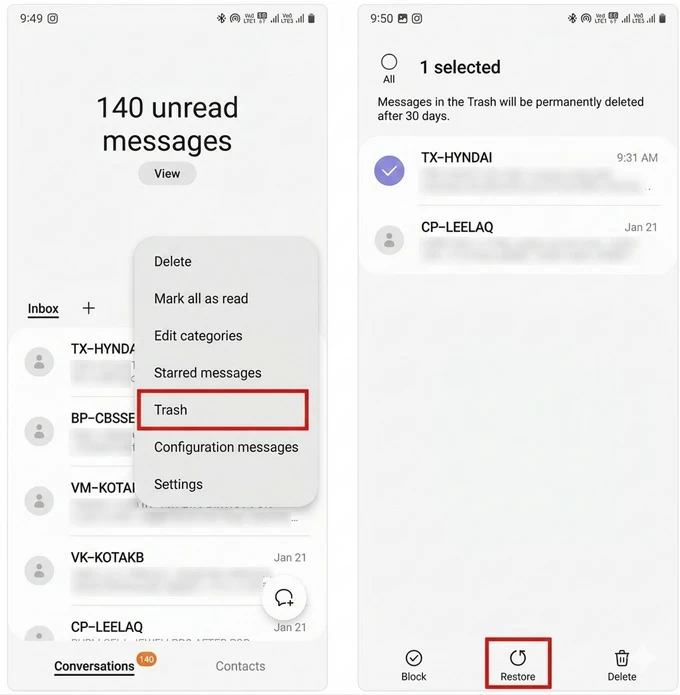
If you're using Google Messages on a Pixel phone, Motorola or other Android devices, you can either retrieve the deleted or lost texts that are not backed up from the built-in Archive folder or Trash folder.
Recover deleted messages from Trash
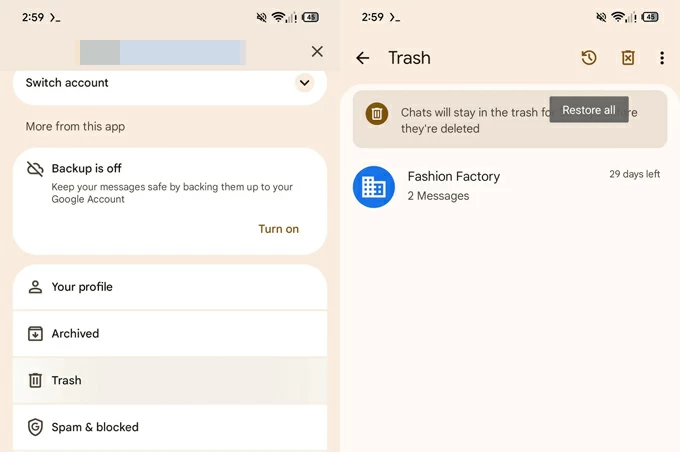
Google Messages has terminated the Instant Delete action and currently adopts a smart Trash feature in its beta version 20260227, allowing messages to be recovered within 30 days of being deleted. After the period, an automatic, permanent deletion should take place.
Here's how to retrieve Android messages you deleted without backup using Google Messages Trash feature.
1- Once you open Google Messages, tap your profile icon the in the upper right corner.
2- Select Trash option. You can now view your messages after deleting from your Android device
3- Choose to restore all chats or individual trashed conversations to the inbox.
Restore disappeared Android messages from Archived folder
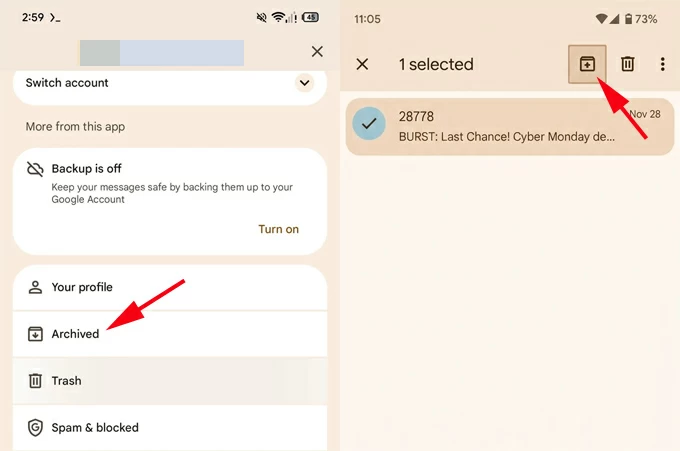
There's also a chance your messages weren't deleted at all—they may have been archived instead. Archived messages are removed from your main inbox but remain on your phone's storage, which means that you can unarchive them to restore your lost text conversations on Android without relying on a backup.
When your text messages disappeared from your Android mobile phone, trying finding them in the "Archived" folder within Google Messages and retrieving them to chat list.
1. In Google Messages app, tap on your profile.
2. Select Archived to see if your missing texts are there.
3. If yes, long-press the conversation and tap the Unarchive icon to recover hidden conversations instantly.
When you can't find your text history in the Android messaging app - whether because the messages aren't in the Trash after grace 30-day period expires, or because you deleted the chats from the Trash to get rid of them for good, they have been permanently deleted from the app's database.
How can you recover permanently deleted text messages without backup? This is where Appgeeker Android Data Recovery comes in. This professional-grade tool scans the raw storage sectors of your Android phone to find data that is lost, deleted or inaccessible, including text messages, contacts, gallery photos, videos, audio files, call history, documents and more.
It works to bypass the need for cloud Google/ Samsung backup or local backups and reach into the internal memory to extract invisible SMS, letting you preview the deleted texts on your computer screen before deciding to restore them.
In the event that no new data writes over your deleted texts, you'll stand a great chance of retrieving them using this recovery utility. Here're a detail guide on how to recover permanently deleted messages from an Android device without needing a backup - all Android models and versions are supported.
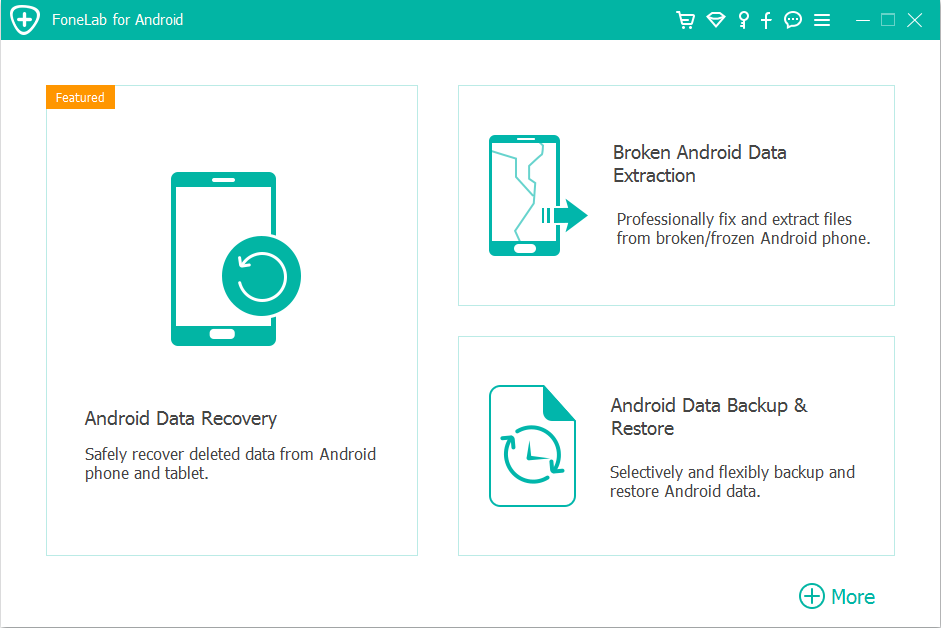
Step 1: Launch Appgeeker Android Data Recovery on a computer (PC or Mac.)
Step 2: On the main interface, click on Android Data Recovery mode. Tip: The program won't require you to factory reset your phone for recovering the lost texts. Any existing device data will keep intact.
Step 3. Connect your Android phone to the computer via a data cable.
If asked to enable Debugging mode for allowing access permission, follow the instructions to complete the task on the device.
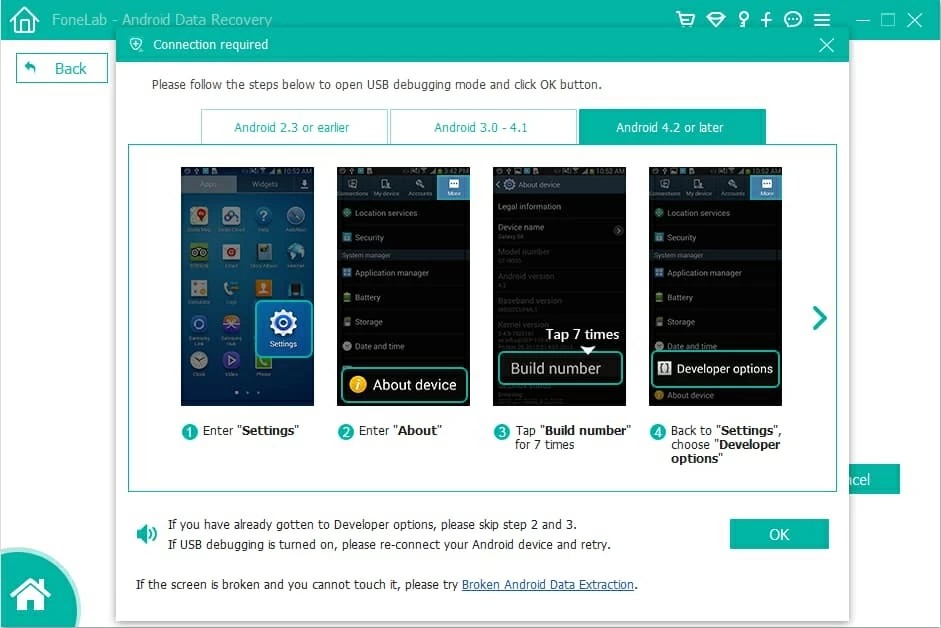
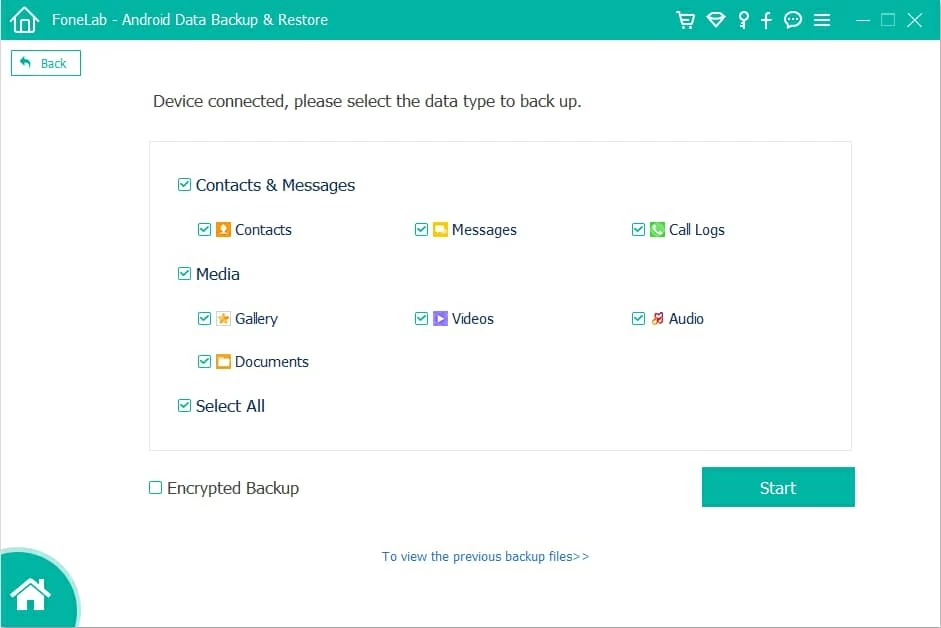
Step 4. Once connected, select Messages and click Start button.
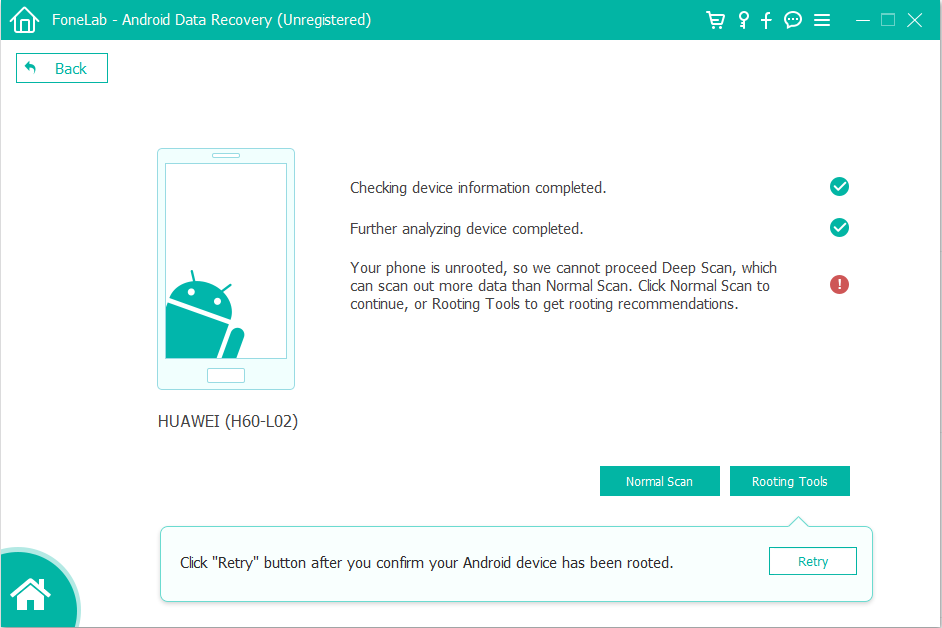
The software will first perform a standard scan around the internal storage. This quickly retrieves the text messages you deleted recently without rooting your Android phone.
If the texts you wish to bring back don't appear, force the program to run a deep scan.
Step 5. After scanning, access and browse the deleted messages and attachments in the program screen, select the ones you need, and click Recover button at the bottom.
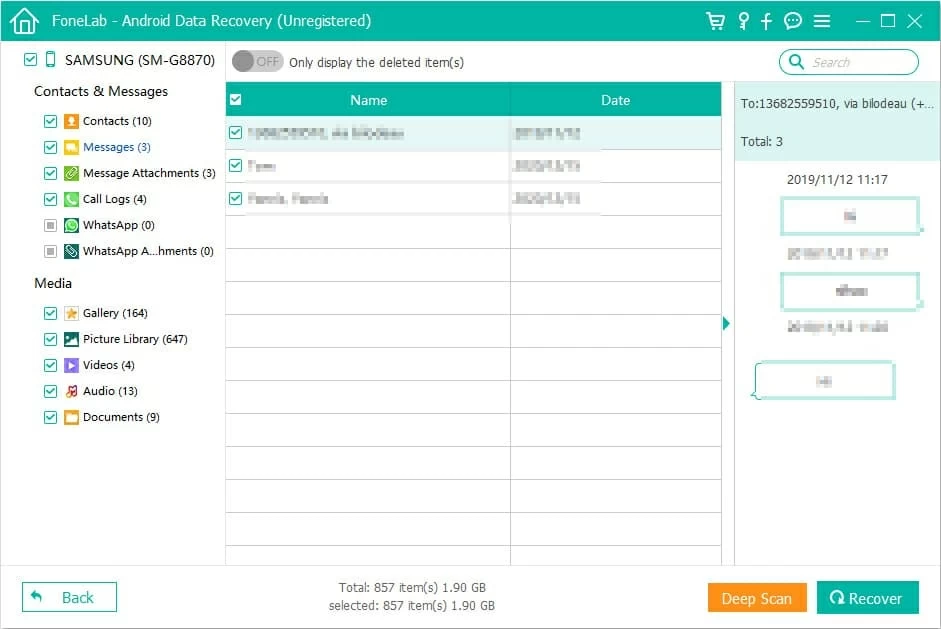
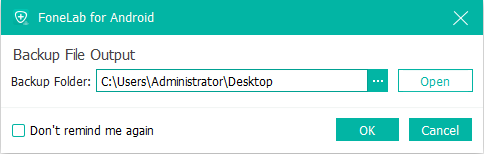
In the pop-up dialog, choose a local folder on your computer and click OK button. Within seconds, your text messages that have been deleted permanently are back even no Android backup exists!
Also: How to remove screen lock on Android (password, PIN, pattern)
Mobile service provider (Verizon, AT&T, T-Mobile, etc.) might also be your life saver if you're worried about how to recover a deleted message without backing up Android to Google Drive, Samsung Cloud or elsewhere.
Most often, carriers maintain temporary records of SMS messages, including message logs or content copies for billing or legal reasons within a limited period. So when you completely lost an important conversation without being backed up and need to restore it to your Android phone, you can contact your mobile carrier's customer support, verify your identity, and request the message logs to retrieve your texts painlessly without using third-party apps.
While it's possible to retrieve Android deleted messages without a backup, it's wise to always keep backups or archives at hand to prevent your data from deleting permanently and to ensure a simple Android message recovery. The preventive measures include enabling automatic backup, archiving messages or taking screenshot of important texts.
Enable Google backup
Android devices can automatically back up SMS messages through Google services. Go to Settings > Google > Manage backup, then turn on the toggle for Backup by Google One to start the automatic backups. To manually back up Android data, tap Back up Now.
Note: To recover the permanently deleted messages from Google backup, you have to perform a factory reset which erases all data that is not included in your previous backup.
Enable Samsung backup
If you're a Samsung user, you can use Samsung Cloud to back up text messages. Right after that, you can restore messages to your phone without having to reset the device to factory settings.
To make a Samsung Cloud backup, navigate to Settings > Accounts and back up > Back up data, then select the switch next to Messages, and tap Back up now > Done.
Archive messages in Google Messages
Google Messages also includes an option to let you archive individual conversations with a swipe left gesture, avoiding accidental deletion. The archived messages will temporarily disappear from the chat list and can be accessed in the Archived folder. For restoring the conversation, simply unarchive it.
Take screenshot of texts
If a conversation is especially important, you can take a screenshot to save it in Gallery or sync with cloud services. This allows you to easily check your text messages on your Android phone even they got deleted from the conversation list.
1. Are deleted Android text messages permanently gone?
Not immediately. Deleted SMS messages may remain in device storage temporarily until overwritten by new data.
2. Can I recover deleted messages without root?
Yes. Many recovery tools, something like Appgeeker Android Data Recovery, can retrieve deleted messages without requiring root access, though deeper scans may require additional permissions.
3. Which is the best Android data recovery app for retrieving messages?
Although many tools claim to recover deleted text messages for Android phone, not all are worked as expected. Appgeeker Android Data Recovery and Disk Drill are two of the most popular programs among users, and here is a comparison:
Appgeeker Android Data Recovery
Disk Drill
To our tests, Appgeeker Android Data Recovery software specifically designed for Android devices and offers a much higher recovery rate compared to Disk Drill. With its intuitive interface, restoring deleted text messages from Android internal memory can complete in just a few steps.