How to bypass Google lock on Samsung


Stuck at a Recovery mode menu screen, or need to know exactly what recovery mode option is used to troubleshoot the issue on your device? Here's everything to do.

Tip: If you're locked out of your Android device due to a forgotten PIN, password, or pattern, you may enter recovery mode and use the "Wipe Data / Factory Reset" option in the menu to erase your device completely. If it fails, try a simpler approach - Appgeeker Android Unlocker.

Learn how to get out of a Recovery mode, or boot into it to fix your device when something goes wrong.
Android devices come with maintenance tools to keep them running smoothly. One of the most important tools is Android Recovery Mode. Whether you're troubleshooting a frozen phone, performing a factory reset when you forgot Android password, pin, or pattern, installing updates manually, or simply trying to understand what the recovery menu options mean, knowing how to use Android Recovery Mode can save you time and stress.
Millions of users search for terms like "Android recovery mode Samsung," "factory reset Android recovery mode" every month. This shows just how essential this feature is for everyday users in mobile troubleshooting.
Below is a comprehensive guide that explains everything you need to know about Recovery Mode on Android—from the basics to advanced troubleshooting—using clear language and complete explanations of every menu option.
Table of contents
Despite its importance, Android Recovery Mode is not intuitive. Different brands use different key combinations, the menu options are often cryptic, and choosing the wrong option—especially factory reset—can lead to irreversible data loss. Many users also get stuck on the Android recovery mode screen need a way to exit.
Samsung, Google Pixel, Xiaomi, OPPO, and other brands all implement recovery mode slightly differently. Even the terminology varies: some devices show "Recovery," others show "Android Recovery," and some include additional OEM-specific tools.
This fragmentation makes it difficult for users to confidently navigate the recovery menu, understand each option, or know when and how to use them safely.
Android Recovery Mode is a lightweight, separate bootable partition built into every Android device. It runs independently from the main Android operating system and is designed for system recovery, troubleshooting, maintenance, manual updates, as well as factory resets.
You may think of it as a safe zone that allows you to repair your device even when Android won't boot normally.
All Android devices include recovery mode. Even if your system is corrupted, recovery mode can still load. You can use it when:
Related: How to Enter Recovery Mode When iPhone is Unavailable
The exact method varies by brand, but the general principle is the same: Power off the device, use physical key combinations to Boot into recovery. Below are the most common methods.
1. Power off your phone completely.
2. Press and hold Power + Volume Up simultaneously.
3. Release the buttons when the manufacturer logo appears.
4. The Android Recovery Mode screen will appear.
1. Turn off the device completely, then connect the phone into a PC with a USB cable.
2. Press and hold Volume Up + Power.
3. Release when the Samsung Recovery screen appears.
4. Samsung's recovery mode includes additional options like "Repair apps."
1. Power off the device.
2. Hold Volume Down + Power to enter Fastboot Mode.
3. Use volume keys to highlight Recovery Mode.
4. Press Power to select.
5. When the Android robot appears, hold Power, then press Volume Up once.
1. Power off the device.
2. Hold Volume Up + Power.
3. Release when the Mi logo appears.
4. Choose Recovery from the menu.
1. Power off the device.
2. Hold Volume Down + Power.
3. Release when the recovery screen appears.
Related: FRP Bypass Motorola
The Recovery mode on Android provides several options to troubleshoot issues or do some special tasks. Here are the available options and what each one does:
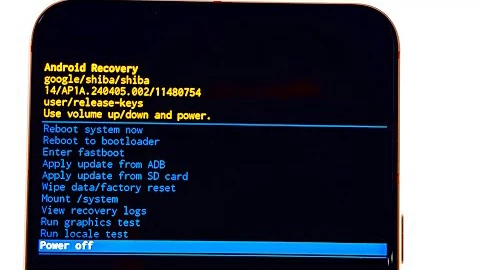
Reboot system now: Restart your phone normally. You can choose it after performing any recovery action (wipe cache, factory reset, etc.).
Reboot to bootloader: Opens the bootloader interface for flashing firmware or unlocking the bootloader. It's mainly used by developers, technicians, advanced users.
Enter fastboot: Opens the fastboot interface for advanced tasks like unlocking the bootloader, flashing custom software (ROMs, recoveries), or fixing a bricked device.
Apply update from ADB: Install system updates manually using a computer and ADB commands.
Apply update from SD card: Install updates stored on a microSD card. It won't work if the device does comes with SD card slots.
Wipe data/Factory reset: Erases all user data and restores the device to factory settings. All photos, messages, apps, accounts, and settings will lose forever.
This is the most important—and dangerous—option. You should use only when you've forgotten password or pin on your Android device, there is a severe system corruption, malware, or you prepare to sell or donate the device.
Wipe Cache Partition: Clears temporary system files without deleting personal data. It won't delete data.
Mount /system: Mounts partitions for debugging or manual file operations.
View recovery logs: Shows system logs for debugging.
Rung graphics test: Diagnostic tools for hardware and UI testing.
Run locale test: Check if text translations for various languages (locales) are rendering correctly on the screen.
Power off: Completely shut down the device.
Getting out of recovery mode Android is simple. Here're steps to take:
1. Highlight Reboot system now.
2. Press Power.
3. The device restarts normally.
If the Android device keeps returning to Recovery Mode, it usually indicates a deeper issue like corrupted system files, failed update, bootloop, or faulty hardware. In that case, you will need to try "Wipe Cache partition" or "Wipe data/Factory reset" option in the menu to get the Android out of recovery mode.
You can also force an exit by holding Power for 10–20 seconds until the device shuts down. For Samsung devices, if you're stuck on the Samsung recovery screen, Hold Power + Volume Down for 7–10 seconds to force reboot.
Related: How to Unlock Samsung Tablet without Password
If you forget password, PIN, or pattern to your Android phone or tablet, you can how to reboot Android phone in recovery mode and use the "Wipe data/Factory reset" feature to reset the device to its default settings, allowing you to set it up and use again.
Please note that a factory reset will erase all your photos, contacts, videos, messages, installed apps, app data and settings. If possible, back up your data first using Google drive, Samsung cloud, or local backup tools.
1. Boot into Recovery Mode Android using the methods above.
2. On Android recovery mode screen, use Volume Down to highlight Wipe data/factory reset.
3. Press Power to select.
4. Confirm by selecting Factory data reset.
5. Wait for the process to complete.
6. Select Reboot system now.
Your device will restart and show the initial setup screen. Follow the prompts to set it up, and if available, restore your data from a recent backup.
If factory reset Android recovery mode doesn't work to unlock your Android tablet or phone, don't fret. There are a lot of third-party utilities available to remove the lock screen and reset the PIN, password, or pattern you've forgotten.
Our favorite is Appgeeker Android Unlocker. It's a neat mobile-unlocking utility designed to help Android users regain access to their devices when locked out. Its core strength lies in its ability to remove various types of Android lock screens quickly and without requiring technical expertise. Additionally, It includes tools to bypass FRP lock on an Android device after a reset.
Note: Removing the lock screen with Android Unlocker may erase all data on the Android devices due to Android security design.
Step 1. Open Android Unlocker on your PC after installation. On the main interface, select Remove Screen Password.

Next, select the brand that matches your device. For example, if you're unlocking a Samsung phone without password, select "Samsung" here.
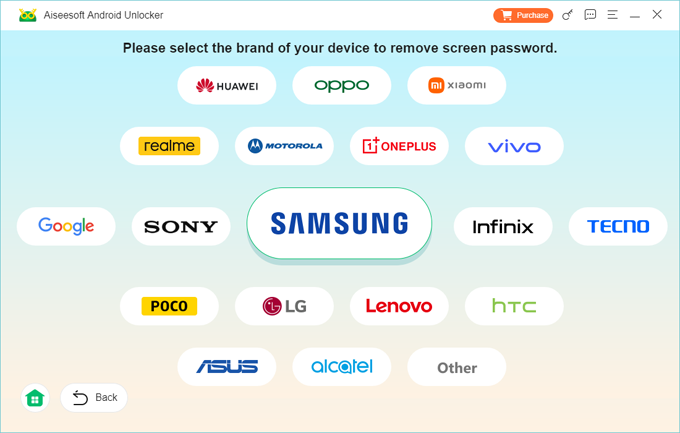
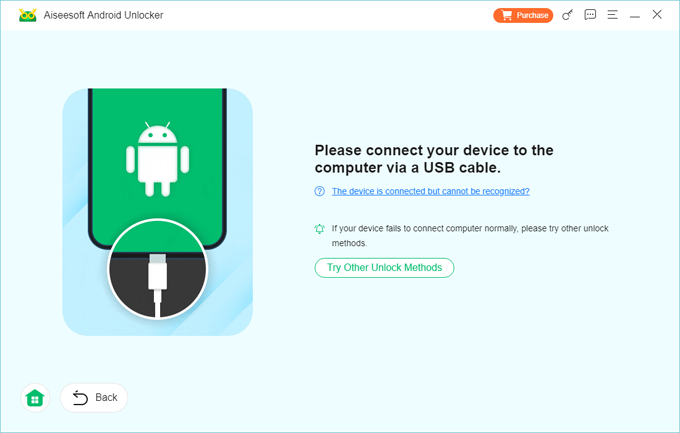
Step 2. Use a USB cable to connect your locked phone to the computer. If the device is not recognized, the software will guide you to enable the correct drivers.
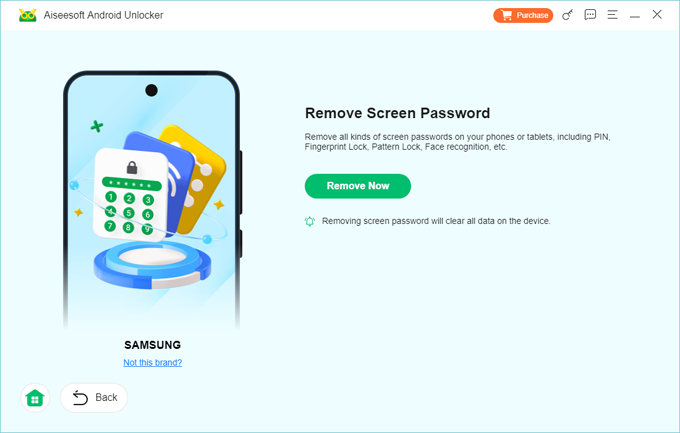
Step 3. When you're ready, click Remove Now button to begin the unlocking process automatically.
This step may take several minutes depending on the device.
After the lock screen is removed, the device will restart normally. You'll go through the initial Android setup screen.
You can now access the home screen without entering a password, PIN, or pattern.