
How to bypass FRP on Android tablet


Need to know how to enter Recovery mode to reset your Samsung Galaxy phone if forgot password? These steps are easy to follow when you know which buttons to press.

Modern phones are designed like digital vaults, making it nearly impossible for unauthorized users—or forgetful owners—to breach the lock screen without right PIN, pattern, or password.
If you are locked out of your Samsung Galaxy phone, you don't necessarily have to throw in the towel. Samsung provides built-in recovery mode to help you unlock the phone to regain access. However, the process will execute a factory reset on the phone, which erases all local data (apps, photos, messages). Once reset, you can restore backed-up data from your Google or Samsung Cloud account during the initial setup

Once you know how to enter Recovery mode, it's easy to factory reset a Samsung phone when locked.
For those who want an easier manner to unlock the Samsung phone or any other Android device, consider using Appgeeker Android Unlocker, a reputable tool that gives you ability to bypass and remove all standard screen locks—including PINs, passwords, patterns, fingerprints, and face locks—as well as skip Google Factory Reset Protection (FRP) on Android devices.
This method is extremely useful when you never linked a Samsung Account to your device, or if your phone isn't connected to the internet.
Prerequisites & Warnings
Factory resetting a Samsung phone without password through Recovery mode erases all internal storage—including photos, downloaded files, app data, and local contacts. Data stored on a microSD card or synced to cloud services (Google Photos, Samsung Cloud, OneDrive) remains safe.
Android includes a security system called FRP. After resetting your Samsung phone via Recovery Mode, Android will ask you to enter the Google Account credentials previously synced to that device before letting you complete the setup process. Make sure you know your Google email and password.
Modern Samsung phones (Galaxy S20 series through S24/S25, Z Fold/Flip series, and recent A-series devices) no longer feature a dedicated Home button and combine the Power and Bixby keys into a single Side Key. Additionally, starting with Android 11 (One UI 3.0), Samsung requires the device to be connected via a USB cable to a PC or a pair of USB-C earphones to enter Recovery Mode.
1. Plug your locked Samsung phone into a powered-on computer using a USB-C data cable.
2. Because you cannot turn off a locked Samsung phone normally without entering the PIN, press and hold the Volume Down button and the Side (Power) key simultaneously. Keep holding both buttons for about 7 to 10 seconds until the screen turns completely black.
3. The instant the screen goes black, release the Volume Down key while continuing to hold the Side key, and immediately press and hold the Volume Up key.
4. Keep holding Side key + Volume Up until the Samsung Knox logo appears, followed by the Android Recovery Menu screen (blue or yellow text on a dark background). Release all keys.
The touch screen does not function inside the Android Recovery environment. You must use the physical hardware buttons to select options:
Volume Up / Volume Down: Scroll up and down through menu items.
Side (Power) key: Select or confirm an option.
1. Press the Volume Down key repeatedly until Wipe data/factory reset is highlighted in blue.
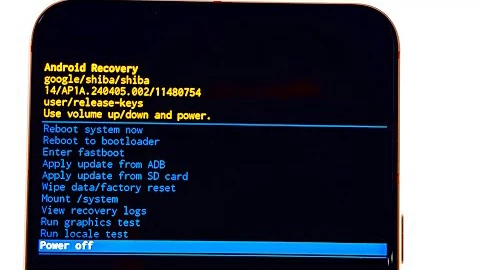
2. Press the Side (Power) Key to confirm your selection.
3. Recovery Mode will display a red warning reminding you that this action cannot be undone. Press Volume Down to highlight Factory data reset, then press the Side key.
4. Look at the bottom of the screen. You will see system log lines like Formatting /data... and Data wipe complete.
5. Once the format completes, the menu will automatically return to the top option: Reboot system now. Press the Side key one last time.
Your phone will restart. The initial boot process after a factory reset takes longer than a normal reboot (typically 3 to 5 minutes) while Android rebuilds essential system caches.
Once your Samsung phone reboots, you will be greeted by the initial "Welcome" setup screen.
1. Select your language and tap Start.
2. Connect to a Wi-Fi network (required for verification).
3. When prompted to draw your old pattern or enter your old PIN, tap Use my Google Account instead.
4. When you see a screen that says "This device was reset, to continue sign in with a Google account," enter the details of your Google Account that was registered on the device prior to the reset.
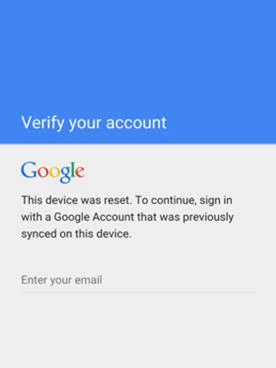
5. Once authenticated, Android will allow you to set up a brand-new screen lock, restore backups from Google Drive or Samsung Cloud, and resume normal operation.
Once you have regained access to your Samsung Galaxy phone, it's wise to Go to Settings > Security and privacy > Lost device protection (or Find My Mobile). Turn on Allow this phone to be found and toggle on Remote Unlock.
If, for some reasons, you can't boot the Samsung device into recovery mode, there are other methods available to use. Appgeeker Android Unlocker (Anock) is widely regarded as one of the easiest ways to unlock Samsung devices.
It is a desktop utility designed to remove various screen security barriers—including standard PINs, numeric passwords, pattern locks, fingerprints, and facial recognition—from a wide selection of Android smartphones and tablets. A key highlight of the tool is its ability to bypass Google Factory Reset Protection (FRP) without needing account credentials. Built with an accessible, step-by-step interface, it provides a straightforward method for regaining device access across major manufacturers like Samsung, Google Pixel, Huawei, Xiaomi, OPPO, VIVO, Lenovo, LG, TCL, and Motorola.
Download and install the tool on your computer.
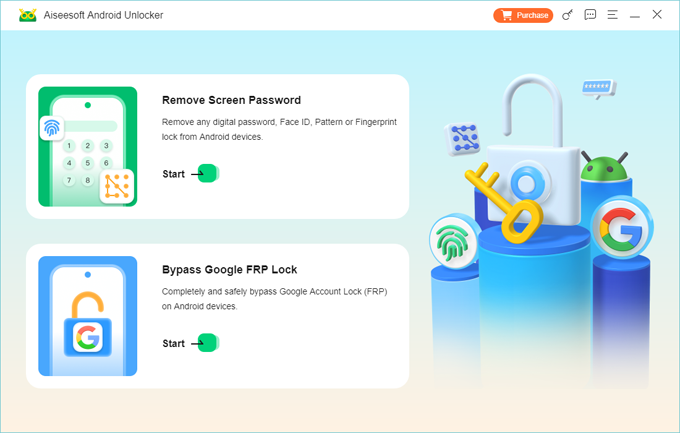
Step 1. Launch Android Unlocker.
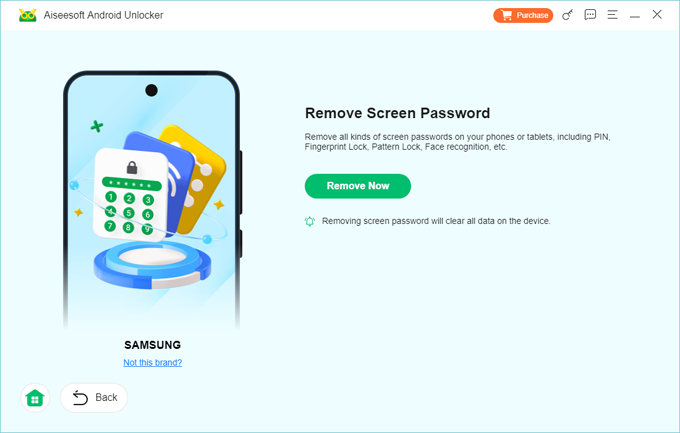
Open the application and select Remove Screen Password from the main toolbox.
Then select Samsung from the list of device brands.
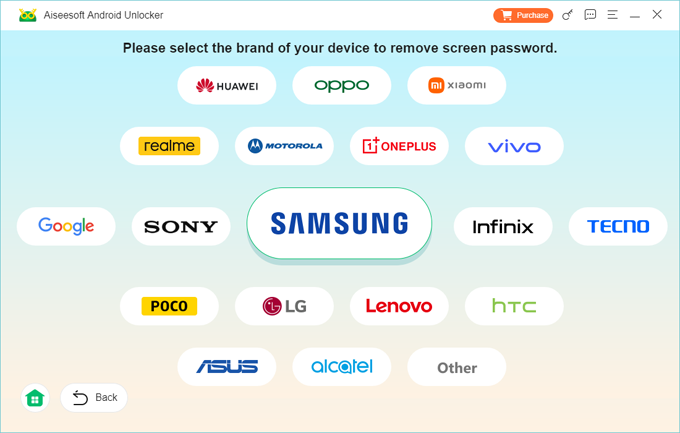
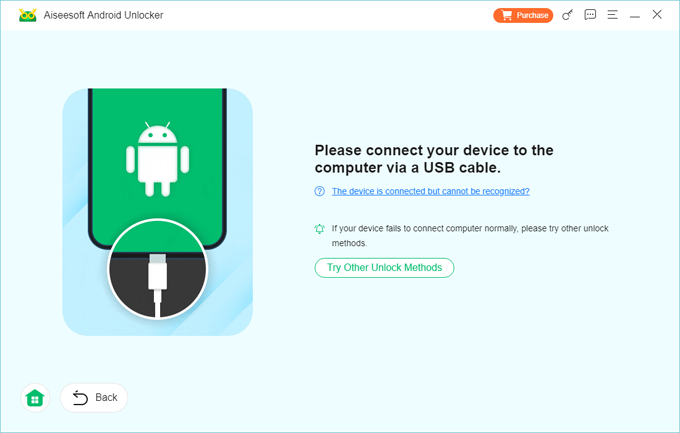
Step 2. Connect your locked Samsung phone to your computer using a USB cable. If it isn't detected, click the link on the screen to fix it.
Step 3. Download recovery package and unlock the Samsung phone
Click Remove Now button. The software will automatically start downloading the relevant recovery package for your phone model. Keep the USB connection stable throughout the download process.
Once the package verification completes, it will remove the screen password automatically.
See also: FRP bypass on Motorola
Q1. Will unlocking my Samsung phone using Recovery Mode erase my data?
Yes. Selecting Wipe data/factory reset inside Android Recovery Mode completely restores the phone to its original factory settings. It deletes all local files, apps, photos, contacts, and personal settings. Unless your data was previously backed up to Samsung Cloud, Google Drive, or a computer, it cannot be recovered after the reset.
Q2. Can Recovery Mode remove the Google lock (FRP) after I reset the phone?
No. Factory Reset Protection (FRP) is just a built-in Android security feature. While Recovery Mode wipes the lock screen password, upon rebooting, the device will prompt you to enter the credentials of the Google Account previously synced to the phone. You cannot bypass this step using Recovery Mode alone.
Q3. Why won't my Samsung phone enter Recovery Mode?
This typically happens for two main reasons:
1. On Samsung devices running Android 11 (One UI 3.0) or newer, the phone must be plugged into a PC or USB device via cable while holding the button combination to enter Recovery Mode.
2. Different models require different button setups:
Q4. How do I force my Samsung phone to turn off if I can't enter the password?
1. Press and hold Volume Down + Power simultaneously for 7 to 10 seconds to force a restart.
2. The moment the screen turns black, immediately switch your fingers to hold Volume Up + Power (while keeping the phone connected to a computer via USB) until the Samsung logo appears.
Q5. Is there a way to unlock my Samsung phone via Recovery Mode without losing data?
No, not natively through Android Recovery Mode. The only official ways to unlock a Samsung phone without losing data are: