How to Remove Google FRP Lock on Any Phones for Android


If you want to retrieve permanently deleted text messages on your Android phone, this article offers a full guide on how to recover permanently deleted messages on Android.

With the help of powerful Appgeeker Android Data Recovery software, you have a good chance of finding and recovering permanently deleted text messages on your Android phone without factory resetting your device.
The simplest way to retrieve your permanently deleted text messages on an Android phone is to have a data backup available.
Text messaging remains a vital medium for social interaction, often housing critical data such as verification codes, financial alerts, work details, and private conversations. When certain crucial text messages are permanently deleted on your Android phone, it can be quite a headache—whether you deleted them accidentally or they were automatically purged forever.
It is important to distinguish between "deleted" and "permanently deleted" messages. This guide provides a deep dive into whether permanently deleted messages can still be retrieved and, more importantly, how to recover permanently deleted text messages on Android device—with or without a backup—ensuring you can safeguard and continue your essential conversations or message threads.
Table of Contents
Unfortunately, for permanently deleted text messages, you cannot directly find them on your Android phone anymore. Permanently deleted messages differ from regularly deleted ones. When you delete a message, it is typically moved to a folder called Recycle Bin or Trash, where it is held for 30 days. During this window, a simple Restore command is all it takes to bring the messages back to your Android phone.
However, "permanently deleted" implies that the 30-day retention period has expired and the system has automatically cleared the texts, or that you have manually emptied them from the Recycle Bin. At this stage, messages are no longer visible through the phone's interface.
Although permanently deleted text messages cannot be read from the device, they may still reside in the storage partition. As long as the original raw data hasn't been overwritten by new data or you have a backup, you can restore these permanently deleted messages to your Android phone.
Read more: How to recover Android data after factory reset
Due to the deep integration between the Android system and Google services, your text messages are automatically backed up to Google Drive if your Android device is linked to a Google account with the backup feature enabled. This serves as a vital resource for recovering permanently deleted messages on an Android device.
To ensure a successful recovery, you must verify that the messages were permanently deleted after the backup was created, as the backup contains a complete copy of your conversations up to that specific point.
However, be aware that restoring from a backup typically requires erasing your Android phone. During the setup process, you can then restore the backup to get your permanently deleted messages back on Android phone, which will overwrite all your existing data.
Go to Settings > Google > Manage backup (or Backup under Google services). Check the last successful backup time under Backup by Google One. If the timestamp is prior to the permanent deletion of your messages, it indicates that a viable recovery point exists.
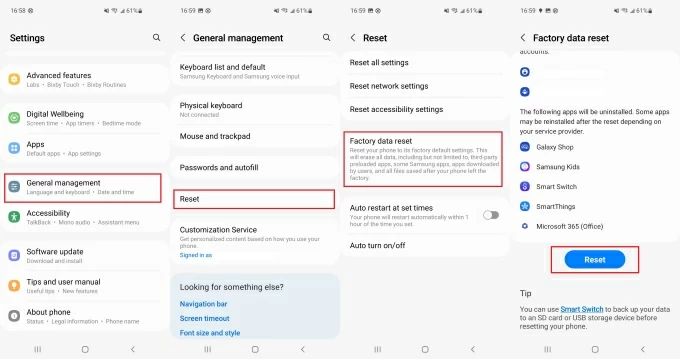
1. Open the Settings app and select System or System & Updates or General management.
2. Tap on Reset options or Reset, then select Erase all data (factory reset) or Factory data reset.
3. Tap Reset phone or Erase everything to begin restoring your Android device to its default factory state.
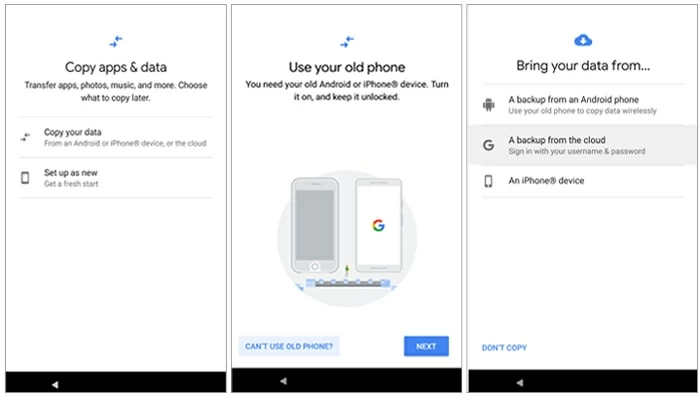
1. On the initial setup or Welcome screen, follow the on-screen instructions.
2. Sign in using the Google account credentials used to create the backup.
3. When you reach the "Choose a backup to restore" screen, select the backup that contains your permanently deleted messages
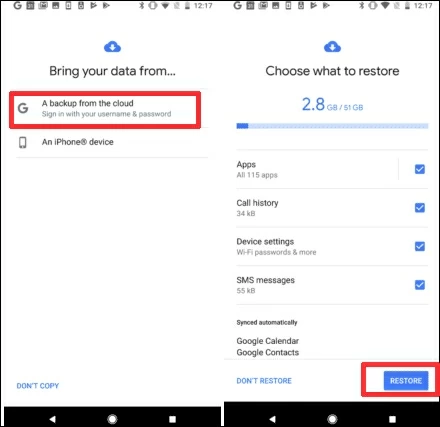
4. Some devices will take you to the "Copy apps & data page." From there, select Copy your data, and then choose A backup from the cloud.
4. During the data restore selection, make sure to check the SMS Messages (or Messages) option if it's listed separately.
5. Tap Restore to begin retrieving the permanently deleted messages back to your Android phone.
Tip: If your phone has generated new data since the last backup, it is strongly recommended to create a fresh backup of the current data before proceeding with the restoration of the older backup.
If you own a Samsung device, the Samsung Cloud service provides an alternative way to back up and restore your text messages after permanent deletion. Unlike Google Backup, Samsung Cloud does not require reset your Samsung phone to retrieve your permanently deleted text messages.
Its restoration process is incremental, meaning you can pull deleted messages directly from the cloud onto your already-configured phone without overwriting your current message threads.
1. On your Samsung phone, open Settings > Accounts and backup > Back up data. Ensure that Messages is toggled on and check the date of the latest backup to confirm your permanently deleted texts are included.
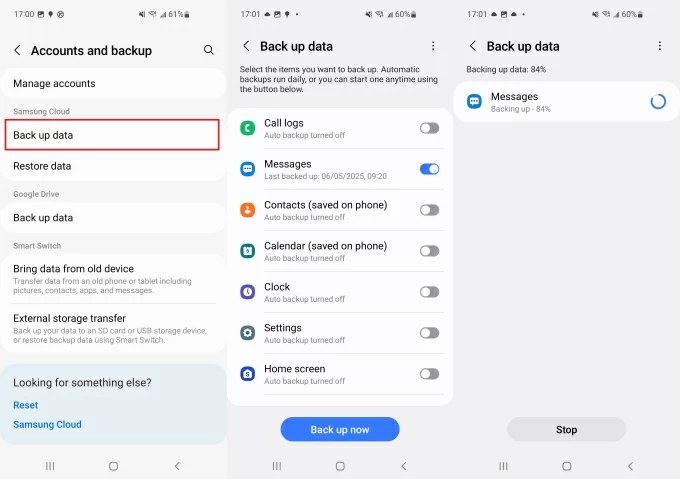
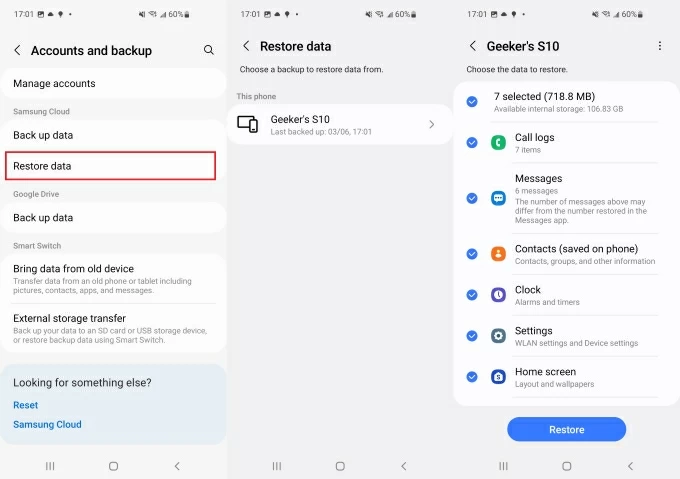
2. Return to the Accounts and backup menu, and under the Samsung Cloud section, tap Restore data.
3. A list of available backups associated with your Samsung account will appear. Select the backup that was created before you permanently deleted the messages.
4. Select Messages and tap Restore. Your device will begin downloading and restoring the saved text messages.
Also see: How to reset Samsung phone when locked
In reality, many Android users don't have a pre-existing backup that includes their permanently deleted text messages. In such cases, a reliable Appgeeker Android Data Recovery becomes the best assistant for retrieving deleted permanently text messages from an Android.
When a message is deleted on Android, the system typically removes the reference to that message rather than immediately erasing the underlying data. Instead, that storage space is simply marked as "available" for new information. Until that space is overwritten, fragments of the permanently deleted messages may still be present in the device's internal storage.
Android Data Recovery is specifically designed to perform deep scans of this nature. It analyzes the device's storage and identifies recoverable message data without resetting. This allows users to recover their Android's permanently deleted text messages and attachments while keeping their existing data intact.
Furthermore, the software enables you to preview the content of deleted messages and selectively restore specific conversations. It supports recovery of multiple data types and is compatible with a wide range of Android brands.
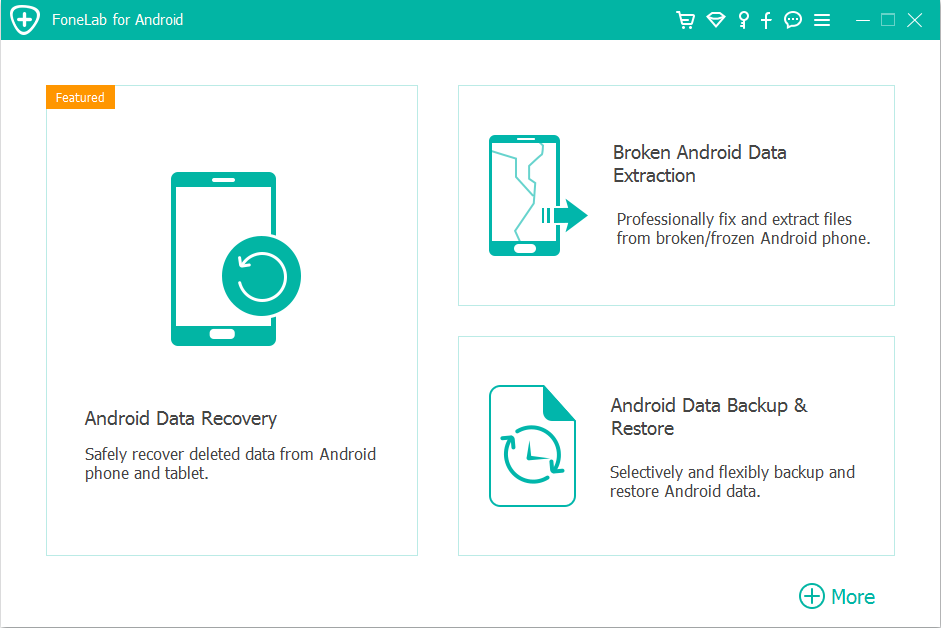
1. Use a high-quality data cable to plug your Android phone into your computer. Launch the software and select the Android Data Recovery mode to get back your permanently deleted messages.
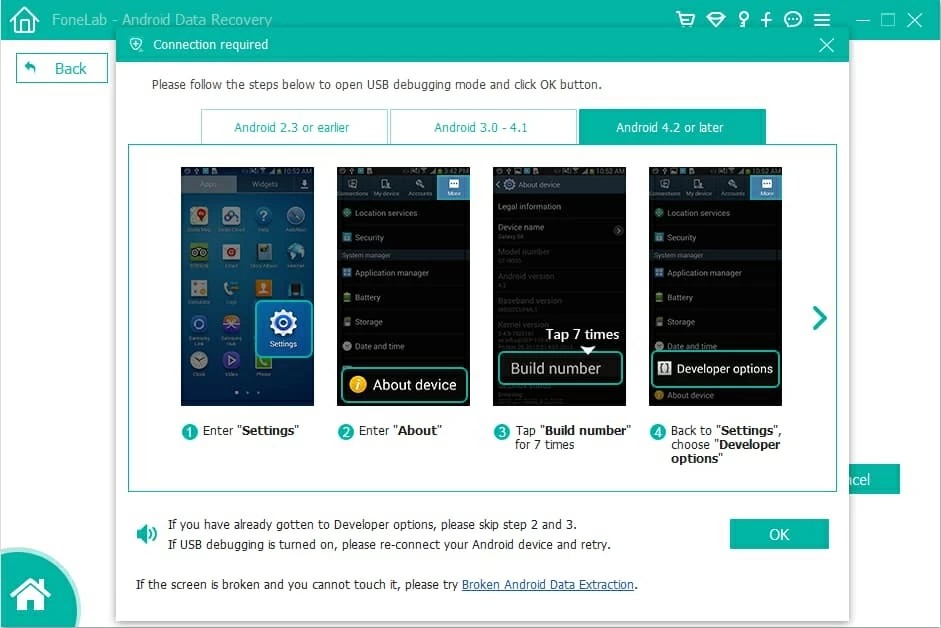
2. When the "Allow USB Debugging" prompt appears on your phone, tap OK. If the prompt does not appear, follow the tutorials to manually enable USB Debugging in your device settings.
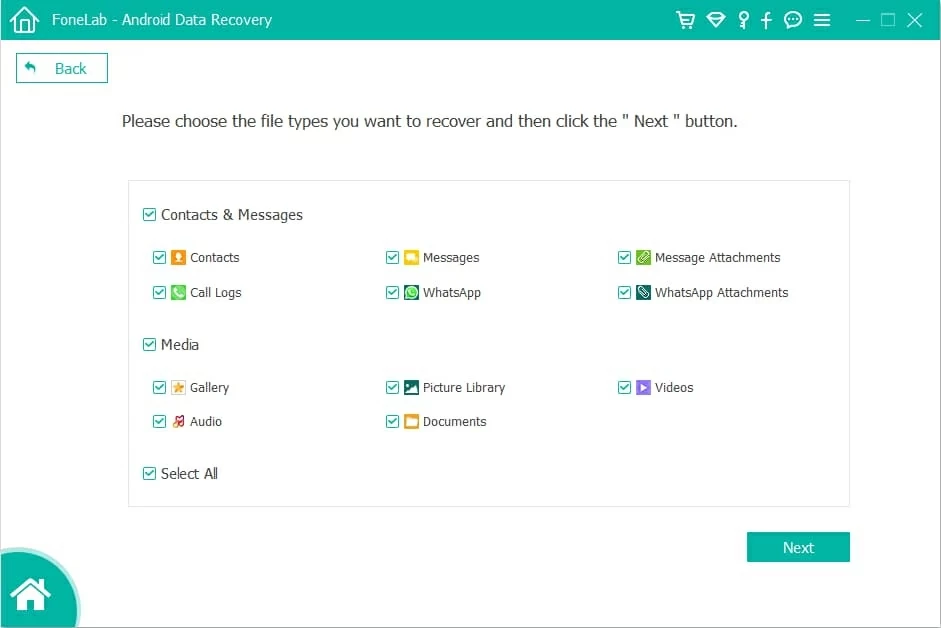
3. Once the connection is established, the software will ask you to choose the data types you wish to recover. Check the Messages, Messages attachments, then click Next to begin scanning and analyzing your phone's internal memory.
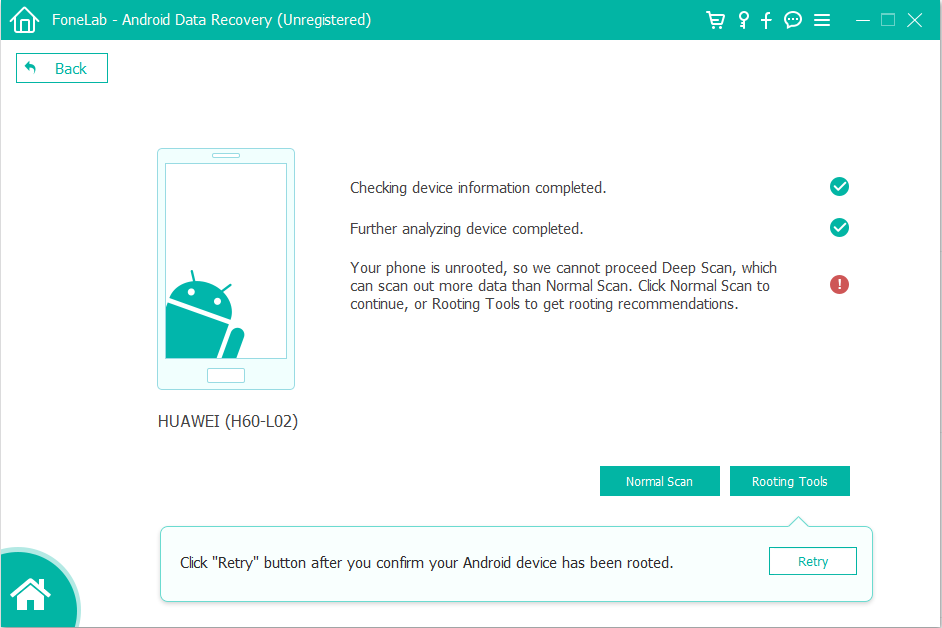
4. If a standard scan fails to find your permanently deleted messages, click on Rooting Tools for a more comprehensive deep scan, which requires rooting your device.
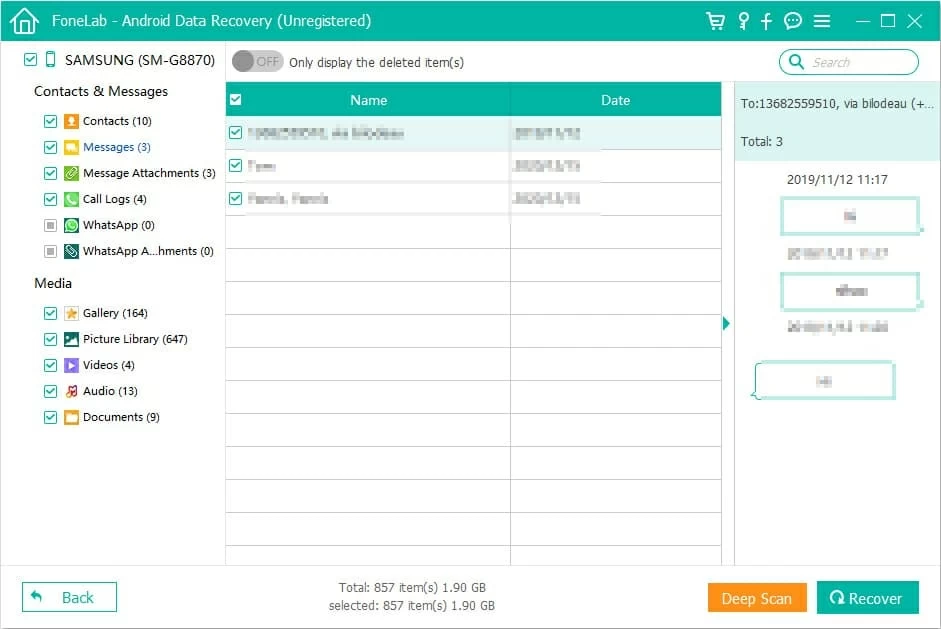
5. After the scan completes, all message threads—including those permanently deleted—will be displayed. Select the specific texts you need and click Recover in the bottom right corner.
6. Choose a destination folder on your computer to save your recovered text messages.
Sometimes, users may mistakenly believe they have permanently deleted a critical conversation when, in fact, it has only been archived on their Android phone. In the Google Messages app, archiving a text thread simply hides it from your main inbox to keep the interface clutter-free.
Much like deleted messages, archived texts do not appear in your primary conversation list; however, they remain fully readable and are moved to a dedicated Archived folder where they never expire.
Therefore, before assuming your messages are gone forever, it is worth checking the Archived folder to see if the messages you thought were permanently deleted are actually still there, and easily restore them if needed.
1. Open your Messages app on your Android device.
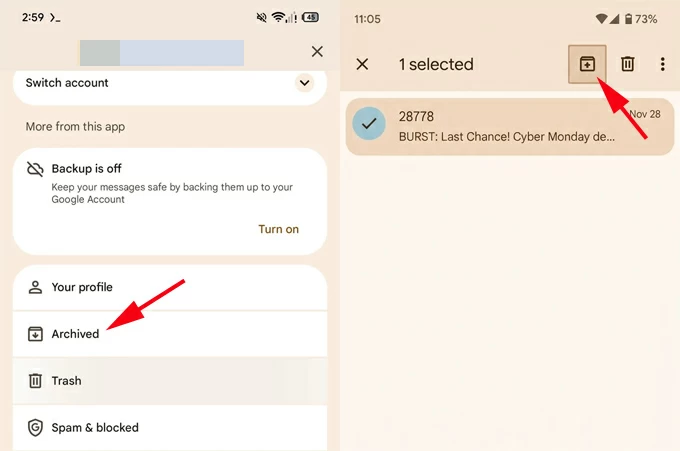
2. Tap your profile icon in the top-right corner and select Archived. Here, you will see all your archived text messages.
3. Locate the desired conversation, long-press it, and then tap the Unarchive icon (an upward-pointing arrow) to move the messages back to your main chat list.
Related: How to recover permanently deleted photos from Android phone
Conclusion
In short, permanently deleted messages are not always irretrievable. You can recover your permanently deleted text messages on an Android phone using cloud backups or data recovery tools such as Appgeeker Android Data Recovery software.
The key factors are timing and usage behavior: the sooner you attempt recovery after deletion, and the less you use the device afterward (to minimize overwriting of old data), the higher the chances of successfully restoring the deleted messages.
1. How to retrieve deleted text messages on Android?
On modern Android devices, deleted text messages are relocated to a temporary area named the Recycle Bin, Trash, or a similar folder, giving you about 30 days to change your mind and restore them.
Open Messages app, tap the three dots in the top right corner, go to Recycle Bin or Trash, select the messages you want to recover, then tap Restore or Restore all.
2. What should I do immediately after permanently deleting important messages to maximize recovery chances?
Switch your phone to Airplane Mode immediately or disable non-essential functions to stop new data from writing over the deleted fragments. Avoid installing new apps, taking photos, or recording videos. Then, follow these steps:
3. Is it possible to recover permanently deleted messages on Android without a factory reset?
Yes. If you do not have a manufacturer-specific cloud service (like Samsung Cloud), your best option is Appgeeker Android Data Recovery software.
Google's native backup system is "all-or-nothing," meaning you generally cannot extract individual conversations from a Google Drive backup without performing a full device reset. Appgeeker Android Data Recovery bypasses this limitation, letting you preview and export individual conversations directly to your computer.
4. Where are deleted text messages stored on an Android device?
Depending on the messaging app you use, deleted text messages may be temporarily retained in one of the following locations:
Once messages are removed from these locations or the retention period expires, they are considered permanently deleted.