Forgot PIN on Samsung Phone. How to Unlock It


Forgetting your pattern and wondering how to unlock Android phone without reset? Try these straightforward steps to unlock forgotten pattern on Android without losing data.

Setting a pattern lock on an Android phone is a relatively quick and easy process that will greatly increase the security of your data. Security is important, but it can be hurdle if you forgot the Android pattern to unlock your phone and get locked out after five incorrect attempts.
To regain access, you may be not comfortable with the factory reset - the official solution for when the pattern, password or PIN on Android is forgotten, and wonder what methods still exist to unlock Android phone pattern lock without factory reset.
While the options for Android pattern unlock without resetting are limited, they do exist—if certain recovery features were previously enabled. In this up-to-date guide, we'll explain how to unlock a forgotten pattern on Android without a factory reset, facilitating Android lock screen removal to regain full access along with any data intact.

It's still possible to remove a forgotten Android pattern without needing to factory reset your phone if it's locked and use it again.
Even though this article focuses on bypassing the need of factory resetting Android to unlock the pattern, we'll also provide practical solutions when factory reset is the only option to get into a locked phone, and one safe & effective option with higher success rate at pattern unlocking is Appgeeker Android Unlocker.
Table of contents
Before you can learn how to unlock your Android phone when you forgot pattern lock without wiping data, it's important to know why Android ecosystem now intentionally blocks most simple bypass methods and forces a factory reset in order to actually remove pattern from lockscreen.
For years, older Android version used to offer option like "Forgot Pattern", Universal unlock pattern for Android, Emergency Call, ADB trick, or even Google Find My Device's Lock feature to make bypassing the forgotten pattern and lock screen without resetting the Android phone relatively easy.
Currently, with stronger encryption, FRP lock (factory reset protection) and OEM restrictions implemented by Google and manufacturers, those no-reset methods for Android unlocking don't work anymore. Whether you forget the password, pattern or PIN code, Android typically requires you to reset the phone, which removes the forgotten screen locks along with all other data. However, you can restore data from a recent backup after recovering access.
So, can you still unlock Android phone without pattern or without resetting? The answer is YES. Depending on your proactive setup for special features, device brand, Android version, there are two available approaches for regaining access to a pattern-locked Android phone without a full factory data reset. One is Samsung's Reset with previous lock feature, and another is the Extend Unlock (formerly Smart Lock).
For the outdated Android pattern unlocking solutions that avoids a factory reset, you can also check out our separate guide on How to bypass Android lock screen without reset - if your phone is running an older operating system.
Samsung understands the pain of formatting the device and deleting user data by which to unlock the pattern you forgot and get into the phone, and to maintain the security, the "Reset with previous lock" feature has been introduced in Galaxy S24 as well as newer models that have One UI 6.1 software version, helping you restore access to your locked phone if you change your password, PIN, or pattern and immediately forget it.
The method is only active for 72 hours and based on the old unlock method (pattern, password, PIN) where, after entering the wrong pattern five times, the lock screen displays Forgot Pattern? link. Tapping on that will allow you to enter the previous lock code, and if correctly, you can set up a new screen lock to bypass the forgotten pattern without resetting the phone.
To unlock Android lock screen by resetting with previous lock method instead of the whole device, do the following:
1. When you're locked out and forgot Samsung pattern, enter the pattern incorrectly five times until Forgot Pattern? link appears on the lock screen, along with a message saying Too many incorrect unlock attempts. Try again in 30 seconds.
2. Tap on Forgot Pattern? link to proceed.
3. On the login screen that follows, input your old PIN, Password, or Pattern, and tap OK. If the previous unlock method is entered incorrectly three times, your only option is usually a complete reset, which will erase everything including your screen locks.
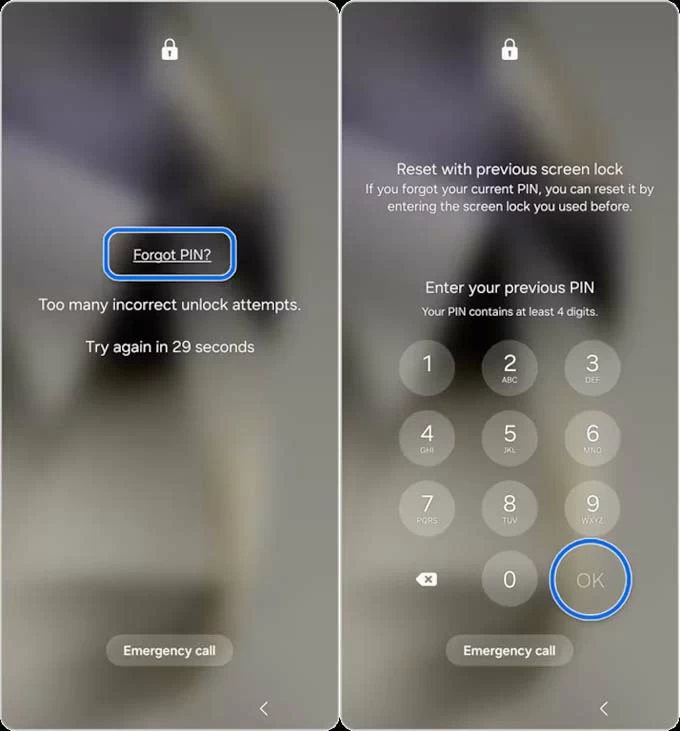
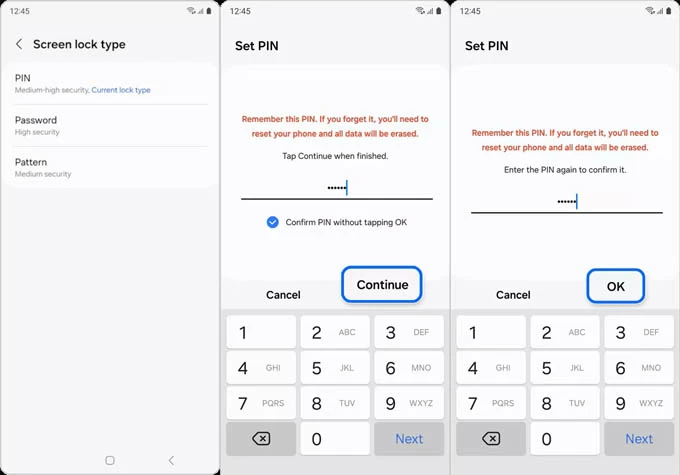
4. The phone unlocks and immediately prompts you to reset the pattern on Samsung.
You can choose a new screen lock type (password, pattern, PIN), and enter a new unlock code to confirm the pattern reset.
That's done! Your Samsung Android forgotten pattern is unlocked without risking at data loss, and you can get back into your phone.
If you're prepared ahead and set up Extend Unlock feature before the lockout, your Android phone forgotten pattern will be unlocked automatically without the need of a factory reset - in certain conditions, such as when you're holding it on your hand or in your pocket, at a specified location, or near a trusted device.
When you're locked out of the phone due to forgotten pattern on Android - especially after long periods of inactivity or frequent changes, this previously enabled Extend Unlock feature enables you to bypass your lock screen and keep your phone unlocked. If you still have access to the device, take these steps to activate Android Extend Unlock:
Once set up, you would get instant access without factory resetting Android phone after forgetting the pattern lock.
By far, you've learned every no-reset unlock method that genuinely works today for unlocking a forgotten pattern on an Android phone without data loss. If both options mentioned above are not working for you, your phone is still recoverable - the only recourse to have a pattern unlocked is to attempt a factory reset or a remote erase in the Android's system.
Below are three common ways to factory reset Android phone when it's locked, in an effort to remove the pattern you forget and unlock the device effectively. Due to Android's encryption system, you cannot recover your data that hasn't been backed up to Google account or elsewhere - but at the very least, you manage to open your device when pattern is forgotten.
In the past, Google Find My Device or Android Device Manager came with a LOCK function to bypass the original pattern and set a new one for unlocking Android phones without the reset. However, Google has removed this feature due to security reasons, and only allow you remotely erase Android if you completely forgot the pattern and cannot unlock the screen.
If your phone has been already signed into your Google account and is connected to Wi-Fi or mobile data network, as well as Find Hub is enabled to allow device to be located prior to the Android pattern lockout, you don't need to worry about how to unlock an Android phone with a forgotten pattern. Follow the remote reset guide below to remove the screen lock from any Android phones:
1- Head over to Google Find Hub website. You can also reset your Android phone forgot pattern without a computer, by using another accessible Android device or even an iPhone.
2- Log into associated Google account you used on your Android phone.
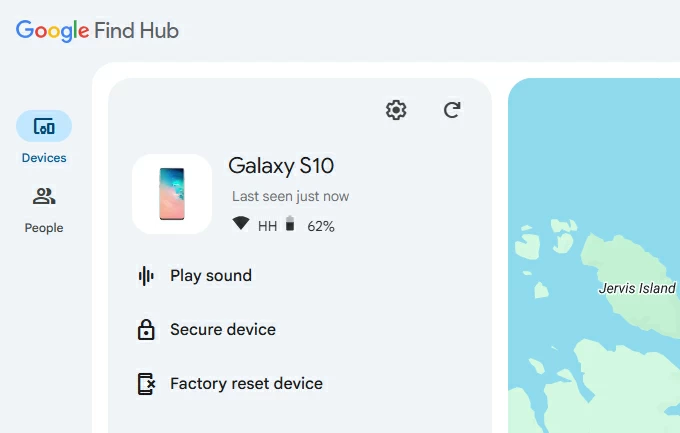
3- Click Devices on the left sidebar and choose [your phone] you forgot the pattern to.
4- Click Factory reset device option.
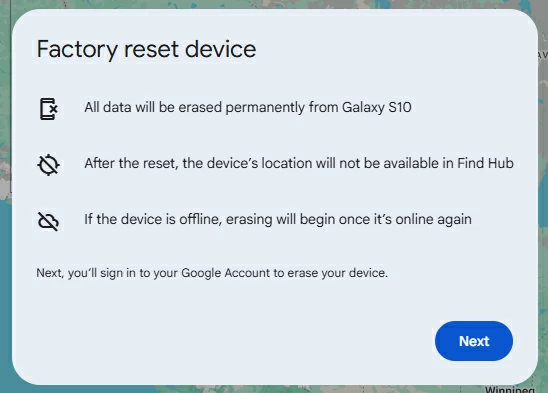
5- Next, you'll be prompted that resetting Android without pattern will permanently delete all of your data and settings on the device. To confirm, click Next.
6- Verify your identity again by entering your Google account password.
7- In the pop-up dialog, click Reset button to remotely reset your phone and unlock the pattern you couldn't remember.
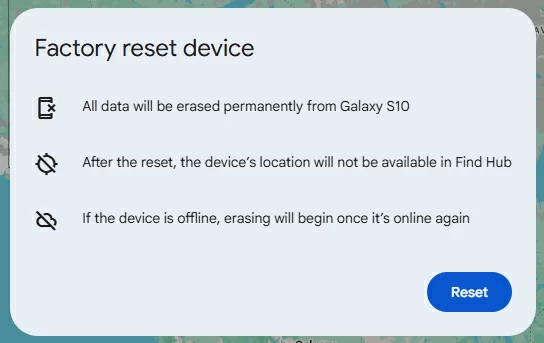
It will take some time to go through the factory reset process. When that's done, your Android device is unlocked. Set up the phone from the scratch, create a new unlock method, restore a backup you made previously, and signed into your Google account to use the phone again.
To unlock an Android phone without a pattern lock, another option is Appgeeker Android Unlocker software - which could be your best bet for a factory reset even if your phone is offline or you don't know the Google account.
It's safe to use and offers powerful unlocking features, enabling any Android users to remove all kinds of screen locks, including patterns, passwords, PINs, fingerprints, face IDs, and even Google FRP locks. The user-friendly layout guides you to bypass forgotten pattern to unlock Android's lock screen effectively and efficiently so you can regain full control of the device.
Whether you forgot a long-unused or recently-changed pattern, or bought a second-hand device that's still locked, these steps will help you remove the lock screen and get you back into your Android phone.
Step 1. Launch Appgeeker Android Unlocker on your Windows PC.
Step 2. To unlock the pattern lock, choose Remove Screen Password mode on the main interface.

Step 3. Choose your device brand.
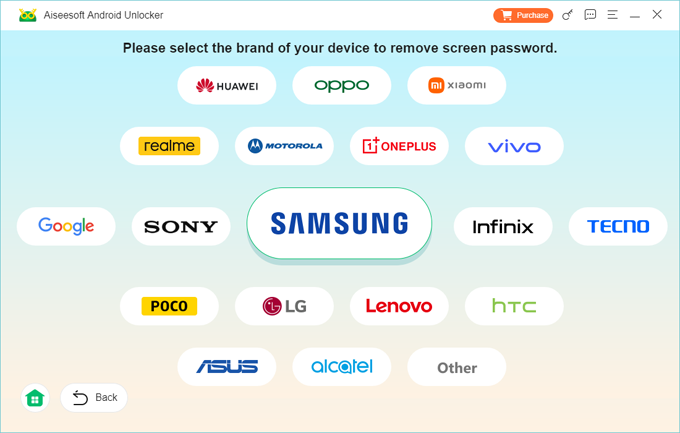
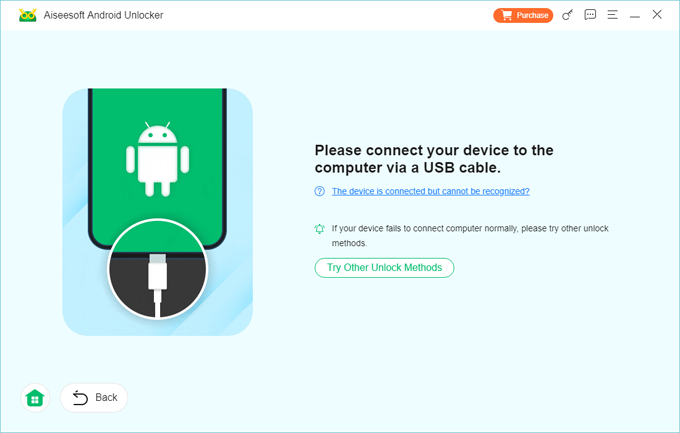
Step 4. Connect your Android phone to your computer via a USB cable. Since it's locked and may not be recognized, you will need to put it into recovery mode.
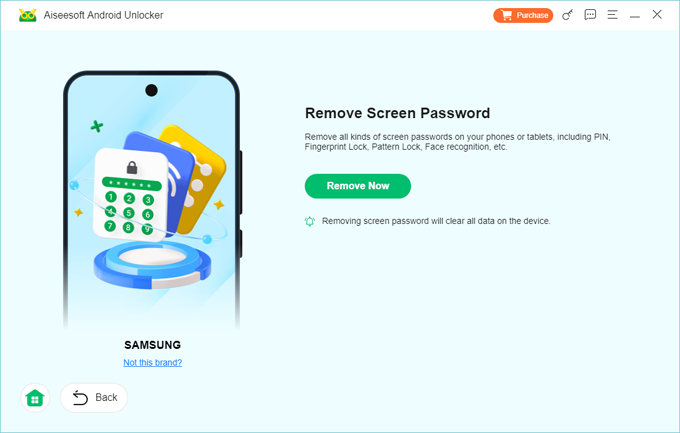
Step 5. When ready, hit Remove Now button. This resets your Android phone and deletes the pattern and ant other data, returning it to the its original factory state.
With the pattern you've forgotten to unlock your Android phone removed, go through the initial setup process to open the device again.
Read also: All-in-one FRP unlock tool
Android's Recovery Menu is an official way that provides a Wipe data/ factory reset option to unlock Android in case of forgetting the screen pattern lock. This is a process of entering recovery mode and resetting a locked Android phone with buttons to get around a forgotten pattern, password or PIN from the lock screen. Here's how.
1. Turn off or force shut down your phone. Wait for a while to make sure it's off completely. If you can't turn it off, let it run out of the battery.
2. Connect the device to your computer through a data cable.
3. Place the phone into recovery mode using the correct button combination, which differs depending on your device. If you're in trouble, you can check your phone manufacturer's website. For most recent Android devices, press the Power button and the Volume Down button simultaneously until the Recovery menu appears.
Android Recovery menu should display on your device where you can factory reset your locked Android phone and unlock its pattern you forgot.
4. Use the Volume button to navigate to Wipe data/factory reset and press Power button to select it.
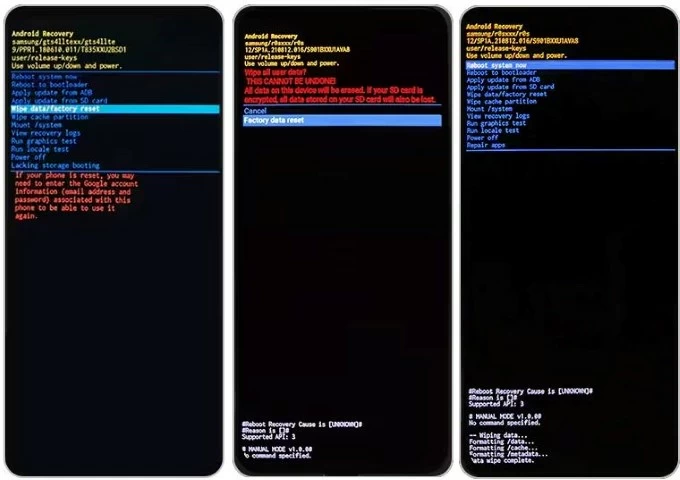
5. In the next menu, choose Factory data reset or Yes, Yes - delete all user data (according to your phone model). Your phone will immediately process the factory reset, erasing the forgotten password from Android.
6. Once you see the "Data wipe completed" alert at the bottom, the Recovery menu reappears. Press the Power button to choose Reboot system now. Your phone will reboot and let you to set up again for full use. Again, if you've backed up your device before forgetting the pattern, you won't lose all of data.
Unlocking an Android phone if forgotten the pattern without factory reset is possible—but the options are limited. For most Android phones, factory reset remains the only guaranteed method. It erases all data including the screen locks (passwords, patterns, and PINs) and restore access. While painful, it ensures the device is secure and usable again.
After the pattern-locked screen is bypassed, you can restore your data from an available backup if you have one, and set up a new screen lock for security enhancement.
Q1- Is there any way to unlock pattern lock without reset? I have newer Android 16.
Yes. Android Extend Unlock (previously Smart Lock) is now the only way for any modern Android phones to unlock a forgotten pattern without resetting or losing data. However, it needs to be enabled in advance of the time when you were locked without knowing the correct pattern.
Some manufacturers like Samsung have introduced convenient way to unlock Android pattern directly from the lock screen without need to reset the entire device.
Q2- Will a factory reset remove the pattern from Android phone if I forget it?
Yes. A factory reset will removes all content and settings on the device including pattern, PIN, password as well as biometrics.
Q3- Can I unlock my Android phone without losing data?
To unlock an Android device without data loss, make sure you've backed up data to Google Drive or other cloud services. After performing a complete reset to unlock the device if you forget or don't have the password, PIN or pattern, the setup wizard will let you restore your data so you won't lose everything.
Q4- How to unlock Android phone if I forgot the pattern lock?
To unlock your forgotten pattern, you need to factory reset your Android phone, and the quickest way is to use Appgeeker Android Unlocker - a dedicated Android lock screen removal tool.
The Android phone will be unlocked soon, with no need for a lock pattern.