
How to Get Into Locked iPhone without Passcode


Forgot your phone password? Learn how to use Emergency Call to unlock Android phones, and if failed, the alternatives you can take to get back in to your phone without password.

key points regarding the "Emergency Call" unlocking method for Android password:

Updated security techniques discontinued the ability to unlock the phone via Emergency Call - a factory reset is required to remove the password.
We've all felt that sinking feeling of losing access to a smartphone. When you lost or forgot the Android password and can't get in, unlocking the phone using Emergency Call could sound almost too good to be true.
This article provides a comprehensive look at the "Emergency Call" method for phone unlocking, explaining what the Emergency Call unlock feature actually is, how it worked, why it mostly doesn't work now, and the legitimate Android unlock tools you can take to bypass the password and get into a locked phone smoothly.
If you're an iOS user, check out our separate guide on how to unlock iPhone with Emergency Call when you can't remember the lock screen passcode.
Table of contents
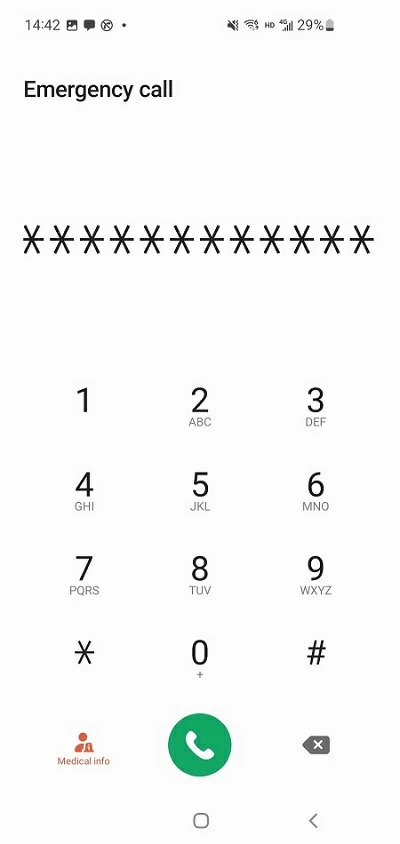
Yes. On older versions of Android 5 or earlier for all Android devices, Emergency Call Lock Screen Bypass trick could be exploited to bypass the lock screen without needing the password, PIN, pattern or biometrics. By typing a long string of asterisks into the emergency dialer, the lock screen would crash, enabling users to get past the security layer and land directly on the home screen.
However, modern phone running on Android 6 or higher won't let the Emergency Call unlock Android happens. Even if the emergency dialer crashes, it will no longer grant access to the home screen or user data. In case you're locked out of Android, you have to reset the phone to unlock the password.
If you have an old phone with outdated Android software, you can proceed with the Android emergency call bypass method for unlocking the device when you forgot the pattern, password or PIN, or when the biometrics aren't working, which bypasses the need to do a factory reset.
Note:
Here's how to unlock forgotten password on older Android phone using Emergency Call, bypassing lock screen security and getting access back.
1. On the lock screen of your locked device, tap Emergency Call to open the dial pad.
2. Enter 10 asterisks.
3. Copy and paste the string repeatedly until the interface crashed. Then return to the lock screen.
4. Open the camera shortcut at the bottom right corner.
5. Pull down notification shade, and tap on Settings icon.
5. When the password prompt appears, keep entering the massive string into the field until the system UI crashes. You will see an enlarged view of the camera and then crash as well.
6. After Emergency Call cracks the password, your phone is unlocked and displaying the home screen. You can access your phone freely.
This way, you can quickly bypass Android lock screen through Emergency Call free, skipping the password entry and get into your phone without losing data.
Yes. There are secret codes entered into the emergency dialer that will instantly unlock a phone after forgetting the password, PIN or pattern: *2767*3855# or *#*#7780#*#*. Your phone will go through a factory reset, which means that all data and settings will be deleted and the original password will be removed, so you can set up the phone from the scratch and create a new lock method.
To use the master code to unlock Android phone's password and reset the device to start fresh, do the following:
Since the emergency call method is unlikely to work on a device that has Android 6 and higher, you need to turn to modern, high-success-rate alternatives that can trigger an Android password removal and get you back into your smartphone when locked out.
Most modern recovery methods require factory resetting the phone to remove the password and set a new one. We'll cover all possible alternatives to Emergency Call unlocking technique, and walk you through step-by-step guide on how to unlock your screen password without relying on emergency dial codes.
If you're not good at remembering your password, pattern or PIN on the lock screen, try Face recognition or fingerprint unlock feature—a direct way to get into the device within a second.
This is a proactive action done through Settings > Security or Biometrics and security > Face recognition or Face unlock (depending on your device model.)
Even you forget the password for unlocking the phone's screen, the previously-configured Extend Unlock feature will help skipping the lock screen to access the home screen in certain conditions, where you phone is held on your hand, brought at the trusted place, or connected to a trusted Bluetooth device.
While your phone unlocks automatically without knowing the password, there's no option to reset the password to something new if you cannot recall the original one for identity verification. The only way to regain full access is to reset the phone for password wipe. You can back up any important data before resetting.
While Emergency Call unlock tricks may sound appealing, they rarely work on modern Android phones anymore. If you're stuck at the lock screen and have forgotten your device's password, PIN, or pattern, Appgeeker Android Unlocker is one of an excellent alternatives to emergency call designed specifically for screen locks removal, as well as Google FRP bypass after reset.
When forgotten the password or bought a second-hand device that remains locked, no worried, the utility insists you in unlocking your Android phone by completely removing the lock screen, so you can get past the security layer and use the handset again.
With just a few clicks, you're able to unlock the password on a locked Android without wasting time on outdated tricks of using Emergency Call. See how Appgeeker Android Unlocker works for phone unlocking without a password.
Step 1. On a Windows PC or laptop, download the tool and then install it.

Step 2. Run Android Unlocker and select Remove Screen Password mode to deal with a forgotten 4-/ 6-digit password, draw pattern or PIN lock.
Then, click on the device's brand of yours.
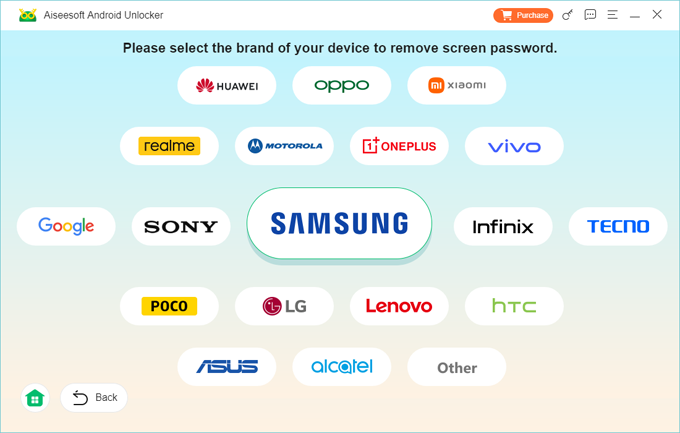
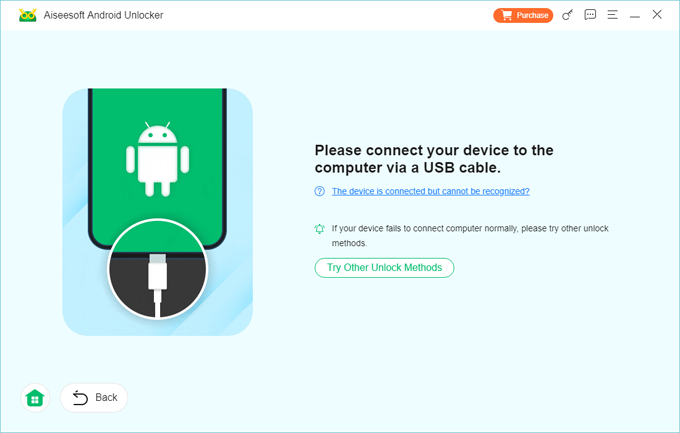
Step 3. Use a USB cable to connect your phone to the computer. If it's not recognized, you will be directed to boot the device into recovery mode with a clear wizard.
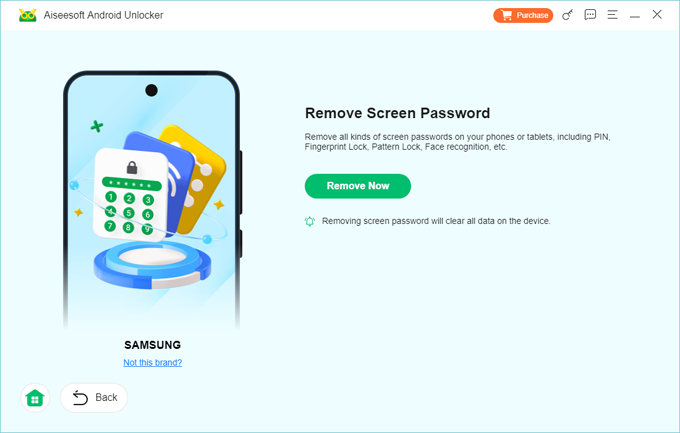
Step 4. Once the software detects your phone, hit the Remove Now button to initiate a full reset. This wipes the device clean to have the password removed thoroughly.
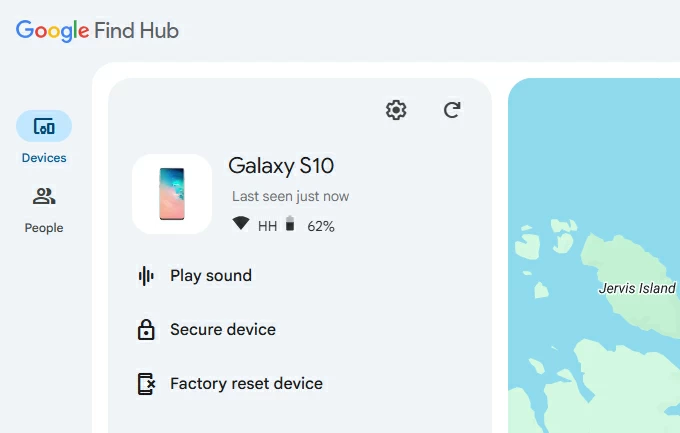
Instead of relying on Emergency Call bypassing technique, Google Find Hub service (previously Find My Mobile) lets you use the Google account that's tied to your Android to factory reset the device without password and unlock the lock screen security remotely.
As long as Google account is signed in, Find Hub is enabled and the phone is connected to the internet, you don't need to worry about how to unlock an Android phone with forgotten password. Employ Google Find Hub for a remote reset and password removal.
1- In a browser on a computer or another phone, visit Google Find Hub website.
2- Log into your Google account with email address & password.
3- On the left column, click Devices and choose your locked device.
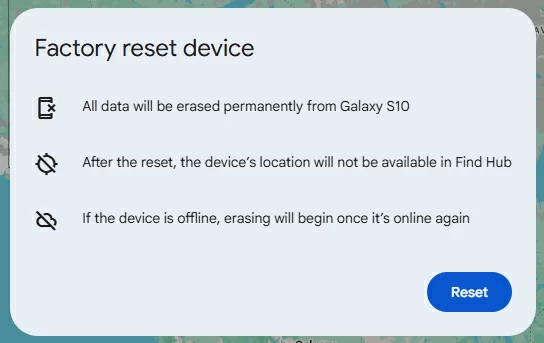
4- To unlock the Android password lock, select Factory reset device option to go through a device wipe process.
5- When asked, enter the password of your Google account.
6- Hit Reset, followed by Erase to begin remotely resetting the locked Android system. This will delete all lock information (PIN, Pattern, Password) from the lock screen.
Wait for your phone to complete the entire reset process. When it reboots, you can set it up as new or restore from a backup if you have one available.
Outdated: "Forgot Password" in Android 4.4 and lower version was once exploited to unlock a locked Android phone without losing data. It involves the Google account to open the phone and reset the password with no need to factory restore the phone.
When you forgot the password, PIN or pattern for unlocking your phone, another reliable option is to do a factory reset via recovery mode. This requires specific button combinations to boot the device into recovery mode, which allows for bypassing the screen locks to give you low-level access to the hardware and reset the phone even it's locked.
Here's how to remove screen lock on Android when the free Emergency Call hack isn't working - by using recovery mode reset method.
1. Power down the device as you did normally. If the shutdown procedure asks for a password that you can't remember, you will need to let it run out of the battery.
2. Connect the device to the computer. This is an essential step for most modern devices.
3. Boot your phone into Recovery Mode using a combination of buttons which varies across device models and manufacturers. For most Android devices, keep holding both Volume Down and Power buttons. Do not release them when the Recovery Mode screen appears.
Here are some common button combos:
The Android Recovery menu should be displayed as the image below. Proceed to unlock your phone password on Android that's locked you out.
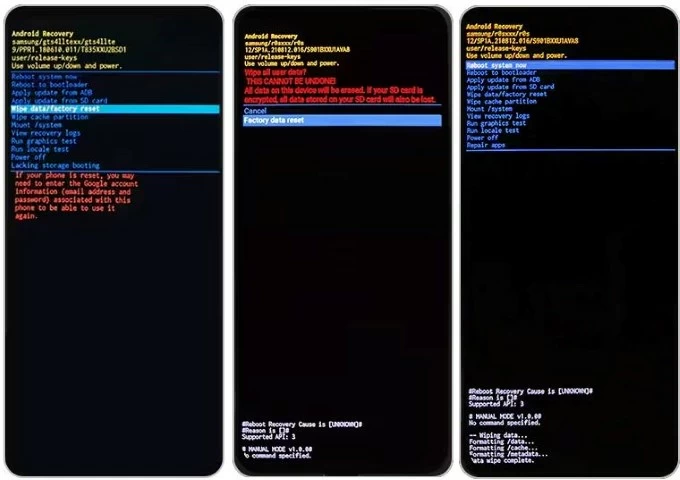
4. Press the Volume button to navigate to Wipe data/factory reset option, and press Power button to select it.
5. To confirm, choose Factory data reset option. Your phone will immediately restore itself to factory settings, and when finished, it shows "Data wipe complete" notification at the bottom.
6. The last step is to select Reboot system now option to let your phone boot up back to the welcome screen.
Done! The phone's password has been removed. You can set up a new lock method, sign into the previously synced Google account due to FRP, and restore data from a backup to avoid data loss.
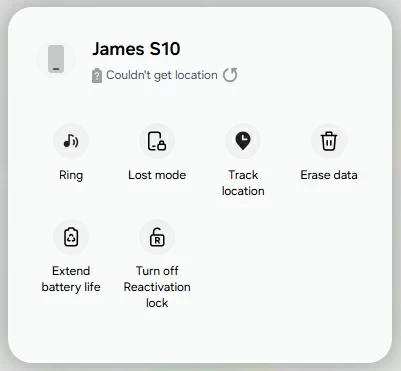
If you have a Samsung Galaxy device and are stuck on the locked screen due to forgotten Samsung password, then SmartThings Find is the roust alternative to the outdated Emergency Call unlock trick, letting you erase the entire device remotely and get it unlocked over the Wi-Fi or cellular data network.
The online device reset process is pretty simple for unlocking the password, but it only works if you're signed into your Samsung account and configured Find My Mobile setting to be ON.
Once you get to SmartThings Find website, log into the associated Samsung account. When your phone appears, click on it and select Erase data option. Authenticate your identity by entering the account password again, and kick off the remote reset on the locked phone, erasing the password lock and any other data.
After the phone is reset, you'll need to sign in with your Samsung account to have full access.
While the idea of unlocking a phone without resetting or erasing data via the emergency call screen for free is a fascinating piece of smartphone history, it is not a viable security bypass for modern hardware. Tech manufacturers have spent years closing these backdoors to protect your personal data from theft.
If you can't get into a locked phone today, don't waste time on Emergency Call unlock tricks. Instead, your best path forward to unlock the forgotten password and regain access is to wipe the whole phone clean through an online reset or off-device reset.
Try the 6 best alternatives to Emergency Call bypass trick that are mentioned above to bypass the screen lock, open your phone and use it again without unnecessary frustration.




