10 Failed Passcode Attempts on iPhone. How to Unlock


Learn how to transfer WhatsApp from an iPhone to an Android phone without losing chats, photos, videos, etc. Covers manufacturer's switch to Android tool and third-party software.

If you want an easy and flexible solution, Appgeeker WhatsApp Transfer is a great option. It supports cross-platform device transition, enabling you to smoothly transfer WhatsApp chat history from iPhone to Android without data loss - even after setup.
You can move everything in iOS WhatsApp to Android device safely, efficiently and without losing chats.
Switching from an iPhone to an Android phone is pretty painless nowadays, and you can take all your stuff with you, including WhatsApp data that contains years of conversations, photos, videos, voice notes, important documents, and cherish memories. This guide focuses on how to transfer WhatsApp from iPhone to Android, streamlining the iOS-to-Android switching process.
When you're leaving Apple behind to try a Samsung Galaxy, Google Pixel, OnePlus, Motorola or any other Android phone, you can complete the WhatsApp transfer from iPhone via a cable connection at some point during the initial setup. Even your Android device is already set up, there're still ways to migrate the WhatsApp data from the iOS device.
Let's dive into exact steps of every method on transferring WhatsApp chats from one iPhone to a (new) Android phone with or without a cable.
Table of Contents
Before you start with moving your WhatsApp, it's always wise to back up your phone in case something goes wrong during the transfer. For iPhone, you can back up full system to iCloud or computer or make a separate iCloud backup for WhatsApp.
To back up WhatsApp to iCloud using in-app backup tool, go to WhatsApp, tap Settings, then choose Chats > Chat Backup > Back up now.
If your Android device to which you'd like to migrate your WhatsApp chats and media from an iPhone is in use, you can also back up your phone to your Google Drive.
Note: iOS backups and Android backups are fundamentally different backup systems, making direct WhatsApp transfers far from straightforward. You will need a specialized data migration tool for importing your iPhone WhatsApp to Android mobile.
Below are four effective methods to force iPhone to transfer WhatsApp over to Android effortlessly, ranging from official switching to Android solutions and third-party tools via physical cable, to individual chats export wirelessly. Choose the suitable one to make the jump.
iPhone to new Android WhatsApp data transfer is made easy thanks to the native Switch to Android app in modern devices running Android 12 or above. It triggers during the initial "out of the box" setup process, meaning that if your Android phone is brand new or factory-reset, transferring WhatsApp conversations from the iPhone is super easy. Here's how.
First, here are a few things you need to do in order to migrate your WhatsApp data from your old iPhone to your new Android smartphone.
Start by disabling Auto-lock feature on your iPhone to keep the screen always ON the entire time you migrating your chats: Settings > Display & Brightness > Auto-Lock > Never. Then, do the following to transfer WhatsApp chats over from iPhone to new Android using a cable:
1- Turn on your new Android phone and begin the setup process, during which you'll need to connect to Wi-Fi, and sign into your Google account or create a new one. This allows for data transfer of your WhatsApp messages.
2. On the "Copy apps and data" screen, choose Copy from iPhone or iPad.
3. Connect your iPhone and Android handset with a Lightning to USB-C cable.
4. If your iPhone asks for permission for connect, tap Trust.
5- On the copy screen, tap Apps and make sure WhatsApp is selected. This migrates individual chats, group chats, media files, account information, profile photo, chat history, WhatsApp Channels updates, settings and communities.
6- A QR code will appear on your Android. Use iPhone's camera to scan it to ensure that you really want to transfer your iOS WhatsApp history over to your new phone.
7- On iPhone, tap Start > Start Transfer to kick off data migration.
One thing you'll need is patience. Moving a lot of information can take a long time, especially if you have a lot of photos and videos inside your WhatsApp chat list. Switch to Android app uses data cable for the move, so do not unplug any device in progress.
8- Once it's done copying, get into your Android phone, open WhatsApp, verify the same phone number used on your iPhone, tap Start to load all of your transferred chats and data immediately.
The Switch to Android app isn't faultless. It won't transfer your WhatsApp to an already set-up Android phone - the only way is to freshly factory reset your Android device after which you can restart the setup and copy your chat history from an iPhone - you will lose existing data unless you have a backup in place.
Also, it's impossible to attempt the WhatsApp chat transfer to another phone number that's different from the one in iPhone. You can't even move everything in WhatsApp from your old iPhone to your Android device - call history, display name, peer to peer payment messages, status updates, or media received over WhatsApp Channels couldn't be migrated.
Even if your Android phone has been configured for use, you don't have to be worried about how to transfer WhatsApp conversations from iOS to Android. The good news? You can avoid the factory reset loop where you realize too late that you missed the data transfer window during setup.
Appgeeker WhatsApp Transfer is a dedicated PC-based tool that can effortlessly and reliably move WhatsApp chat history from iPhone to Android after setup without losing data, or vice versa. It bypasses the need to factory reset your Android phone and to use the same phone number, making it flexible to transfer your individual chats, group chats, media files, account info, settings and more in WhatsApp Messenger from an iOS device to an Android device smoothly.
The software relies on data cables for the WhatsApp transfer. With a few simple clicks, you can migrate your iPhone WhatsApp messages to your Android without resetting. Here are the exact steps on copying WhatsApp when you make the jump from iPhone to Android Samsung, Pixel, OnePlus, Motorola, Xiaomi, OPPO, VIVO, Huawei, etc.
Step 1. Once the tool is downloaded and installed on your Windows computer, launch it.
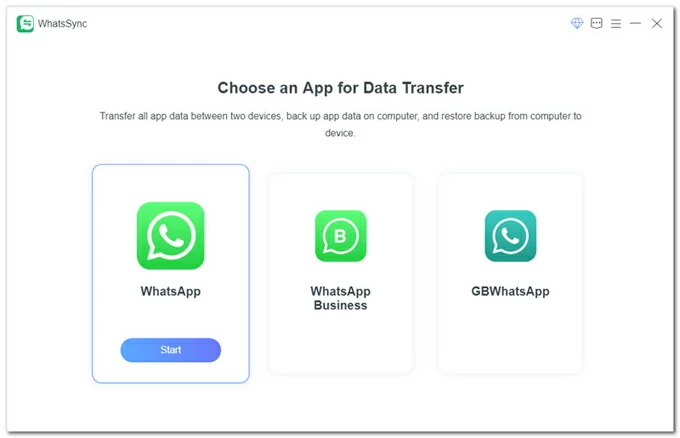
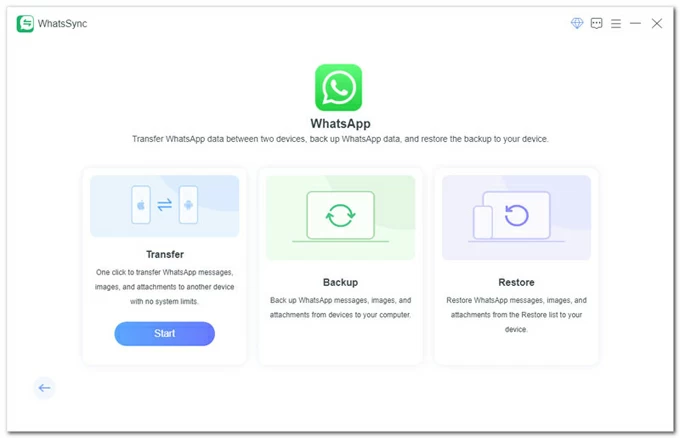
Step 2. Choose WhatsApp > Transfer.
Step 3. Use the charging cables that match your iPhone and Android phone to connect both devices to the computer.
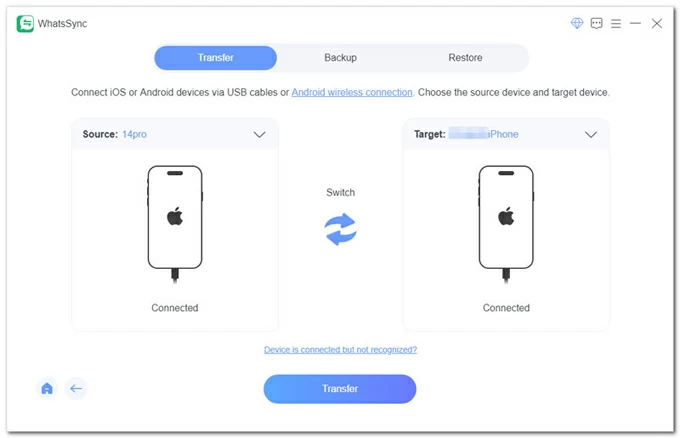
Then, make some configurations to ensure a successful connection for transferring your WhatsApp to new phone:
On iPhone
On Android phone
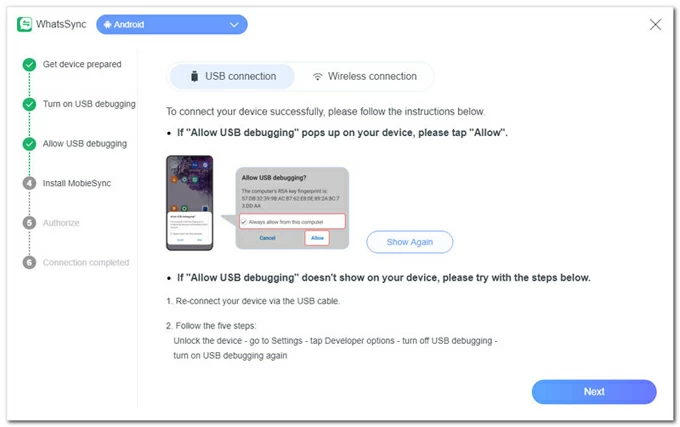
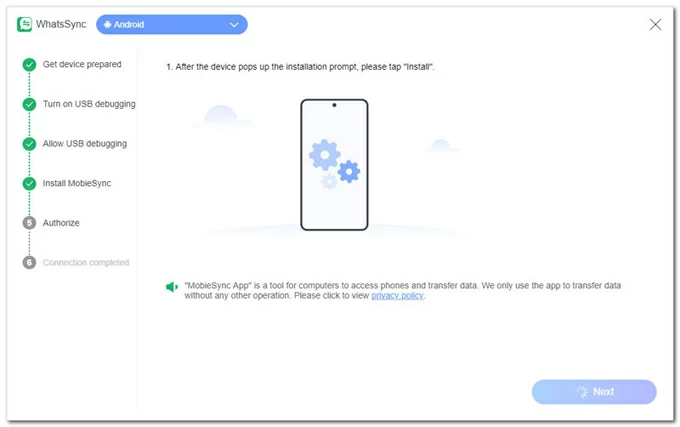
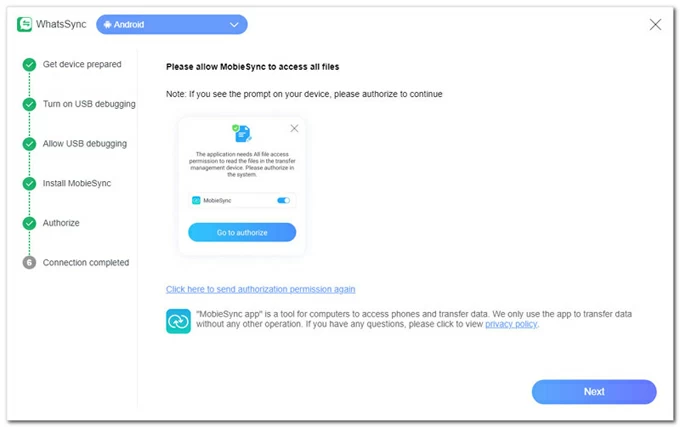
Step 4. Once the connection has been built, check if iPhone is at the Source pane and Android is at the Target pane. You can use the Switch button to correct that.
Then, click Transfer button.
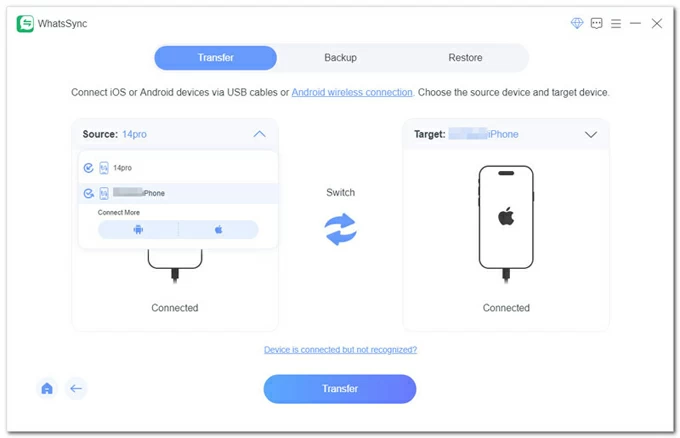
Before the WhatsApp data migration begins, you'll be asked to back up your target Android phone. This is a useful solution for exporting WhatsApp chat without resetting Android if it's set up. Click on Backup button to proceed.
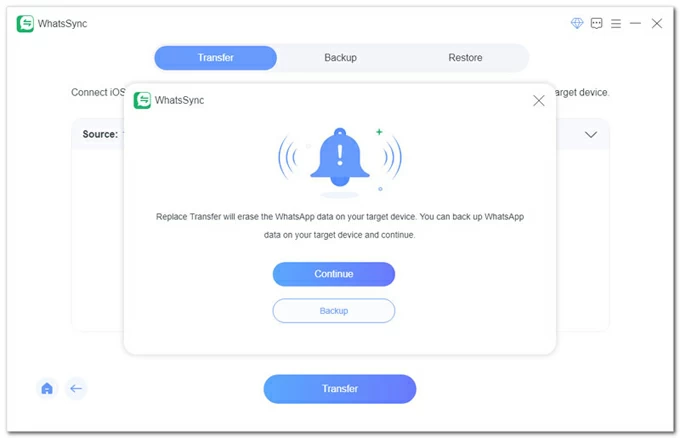
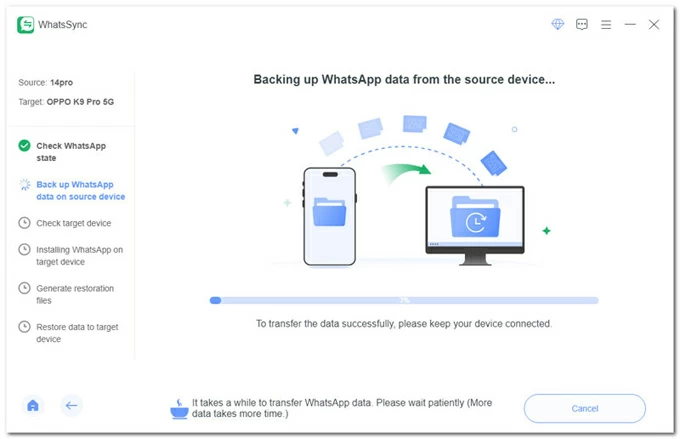
Step 5. The utility starts transferring iPhone's WhatsApp over to the Android phone, while keep the existing data intact on both devices. This may take for a while.
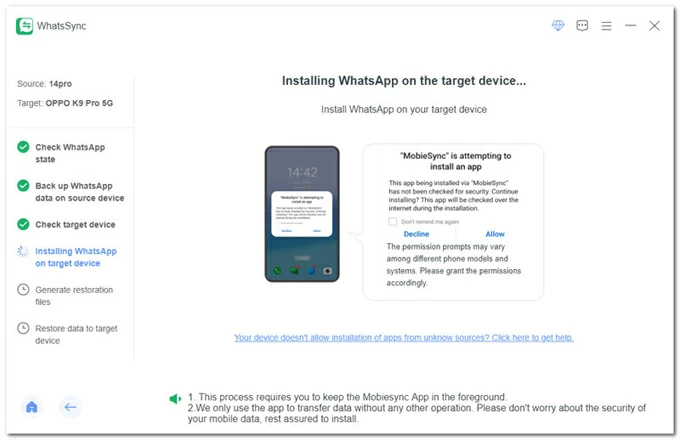
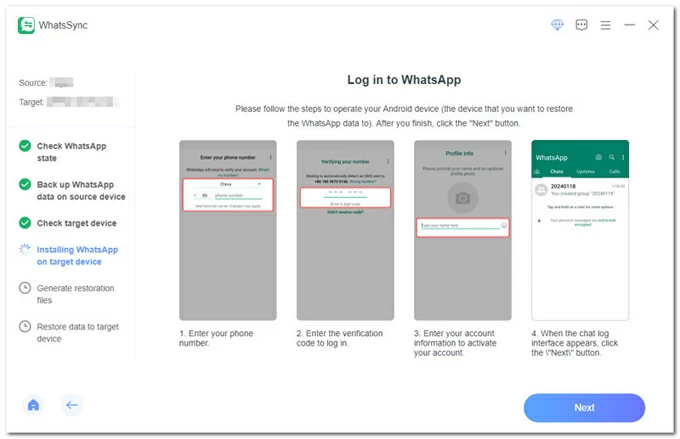
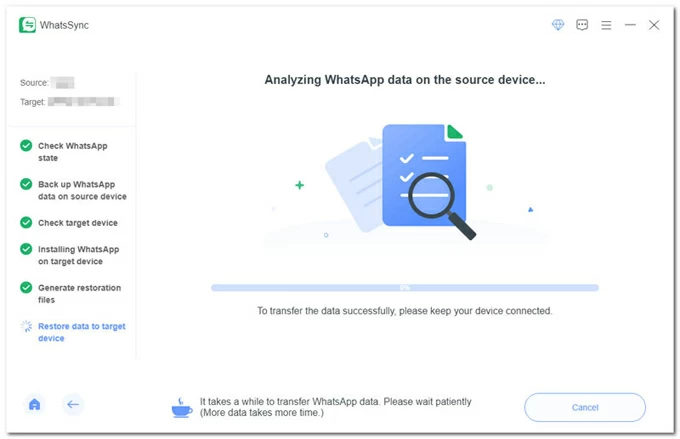
Step 6. When you see the "Congratulations! Transfer succeeded" notification, all WhatsApp chats and data are transferred over to Android device.
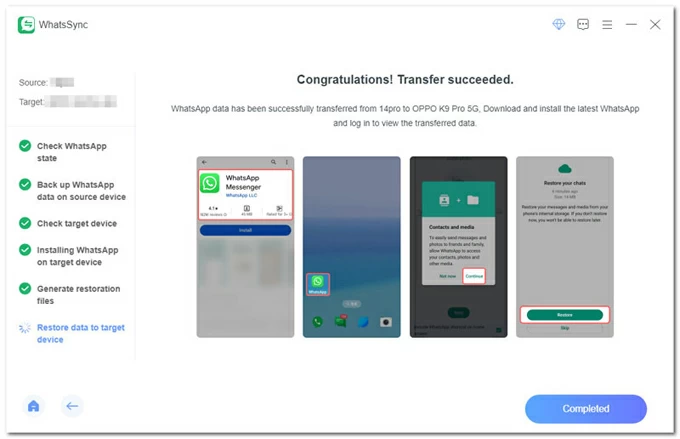
That's it. Having your WhatsApp messages on the iPhone imported to an Android phone via cable using Appgeeker WhatsApp Transfer software is a direct cable transfer for large chat histories, which involves connecting devices, backing up source device's WhatsApp data to a certain destination, and then restoring the backup to export WhatsApp to the target Android without factory reset or data loss.
Don't miss: How to get into a locked iPhone without passcode
While transferring WhatsApp via a cable is the standard for full chat history migration, manually emailing your chats is a useful alternative if you only need to save a specific conversation for legal, professional, or sentimental reasons. It is important to note that this method creates a read-only text file (.txt); you CANNOT import these messages back into the WhatsApp application on your Android phone to continue the conversation where you left off.
Here's how to email WhatsApp chats and media from iOS to Android wirelessly and free, no restoring required. Note that, you can only transfer one conversation at a time.
1. On your iPhone, open WhatsApp application.
2. Tap Settings > Chats > Export chat.
3. From the recent chat list, tap to enter a specific individual chat (or group chat) that you'd like to copy over.
4. When prompted, choose "WITHOUT MEDIA" OR "INCLUDE MEDIA" option.
5. Select the Mail icon from the iOS Share Sheet.
6. Enter your own email address (like Gmail - the one you use on your Android phone) in the "To" field and tap Send.
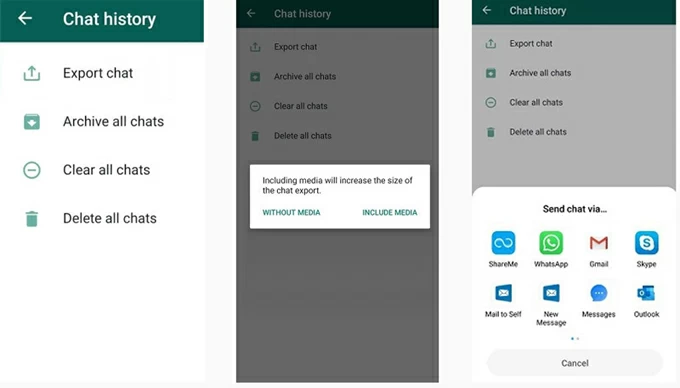
Once it's been sent, open email app, find the WhatsApp attachment, download it, and view the transferred WhatsApp conversation and media. The chat will be formatted with clear timestamps, names, and the message content, making it easy to read or print.
Samsung has its own tool called Smart Switch that works for migrating WhatsApp data directly from an old iPhone to a new Samsung Galaxy phone that's running on Android version 10 and above. It allows users to perform the WhatsApp chat transfer when setting up a factory new phone.
Similar to the standard "Switch to Android" tool, Smart Switch is of no use when moving call history, display name or peer to peer payment messages. It also requires the same phone number for a fast and seamless transfer of WhatsApp from iPhone to Samsung Android device.
Here are the steps to conduct the transfer:
1- Factory reset your Samsung phone to bring it back to a fresh new state - if it's set up.
Tip: If you previously backed up your new Samsung phone without WhatsApp or you skipped the backup process when setting up your phone, you can go to Settings > Accounts and backup > Bring data from old device, then choose Receive data, followed by iPhone/iPad.
2- Follow the onscreen instructions to go through the setup process.
3- When prompted by the preinstalled Smart Switch, connect your iPhone to your Samsung phone via a USB-C to lightning cable.
4- On your iPhone, tap "Trust" to transfer your data.
5- When the "Select data to transfer" screen, you can choose the data and apps you wish to transfer over, including WhatsApp inside the "Data from iPhone apps" option.
6- Tap Transfer.
7- When prompted, scan the QR code displayed on the Samsung's screen using iPhone's Camera app. This opens WhatsApp on the iPhone.
8- Tap Start to initiate the process of transferring WhatsApp messages to your new Samsung phone.
9- Once done, continue to finish the setup process until you get to Home screen.
10- Open WhatsApp and verify the same phone number for login.
11. Tap Start button to import your WhatsApp data from your old iPhone.
After you complete the migration, you old iPhone still has your data unless you delete WhatsApp or erase the iPhone completely.
No. WhatsApp transfer from iOS to Android by means of the onboard "Switch to Android" app can only take place via a USB-C to lightning cable.
Cable data transfer is designed for migrating all data that's on the iPhone straight onto the new Android phone, including WhatsApp chats and data, contacts, photos, videos, text messages, iMessages, call history, calendar, notes, music, Wallpaper that use your on-device pictures, free Apps downloaded from Google Play Store.
Wireless transfer through a Wi-Fi connection only works for contacts, photos, videos, and calendar events.
Transferring WhatsApp chat history from iPhone to (new) Android is no longer the headache it once was due to compatibility issues. Whether you want to make the data switch directly from your phones via a physical cable and native migration tools, or you prefer using a computer to implement the WhatsApp import after Android setup, you can bring years of digital messaging data into your new ecosystem in a few minutes - if you are in luck.
In the event that you encountered trouble of moving iPhone to Android WhatsApp, don't worry. Here is how to handle the most common roadblocks:
If the QR code won't appear or you can't scan the QR code, you can:
If your chats do not import after WhatsApp transfer from an iPhone to an Android, your chat history may be corrupted, but you can retry the process.
Make sure that you used the same phone number, update WhatsApp to its most current version, keep both devices connected firmly.
You must use the same phone number to attempt the WhatsApp migration between iPhone and Android. If you are switching to a new number, change it first on the iPhone prior to copying your chats onto Android's WhatsApp inbox. To do that, go to WhatsApp > Settings > Account > Change Number.
The native tool for moving the WhatsApp message history to a new Android from an old iPhone can works smoothly only if the WhatsApp haven't been activated on the target device. You have to trigger a factory reset, binging it back to the time when you first turned it on.
To avoid a factory reset for the transfer, you can try Appgeeker WhatsApp Transfer utility. It lets you import the WhatsApp messages and data from any model of iPhone to any Android device after setup without losing existing chats or other current data. Plus, you can merge the new conversations currently in Android with the old conversations from the Apple iPhone.