How to bypass Google verification on Samsung


When you switch to a new Android device, transferring your vital WhatsApp data is a top priority. This guide shows you how to transfer WhatsApp data between Android devices.


Moving WhatsApp data from Android to Android is more than just transferring files; it's about preserving your digital legacy.
Transferring WhatsApp data from an Android phone to another isn't as simple as it seems; your WhatsApp data won't automatically reappear just by logging into the app on a new device.
Android-to-Android WhatsApp data transfer relies on multiple factors: the phone number, Google account, app version, device environment, and even how the new phone is initialized. If any of these factors don't match, the transfer may fail, stop midway, or only restore partial data.
This guide will comprehensively explain how to transfer WhatsApp data from Android to Android, covering the prerequisites and specific steps for different methods, so you can choose the best way based on your situation. This ensures your WhatsApp data—including messages, photos, videos, documents, voice messages, timestamps, and more—is fully transferred to your target Android device.
Regardless of the Android brand you use or the version of the OS you are running, Appgeeker WhatsApp Transfer can seamlessly migrate your WhatsApp data from your old Android phone to the new Android phone without missing any chats.
Table of Contents
Most WhatsApp transfer failures don't happen during the transfer itself—they happen before it even begins. To make sure your WhatsApp data is fully and smoothly transferred between your two Android phones, please make the following preparations:
If you switch from Android to iPhone, you can see How to transfer WhatsApp chats from Android to iPhone.
WhatsApp's official Chat Transfer feature is the closest thing to a "direct handoff" between two Android devices. Instead of creating a cloud backup and downloading it again, this method establishes a secure local connection and moves WhatsApp data straight from the old Android phone to the new Android phone. All data remains end-to-end encrypted during the process.
This approach is efficient and trustworthy, but it also has some limitations. It only works during the initial setup of the WhatsApp and cannot be triggered later. If WhatsApp has already been opened or activated on the new device, the transfer option is permanently disabled.
1. On your old Android phone, open WhatsApp.
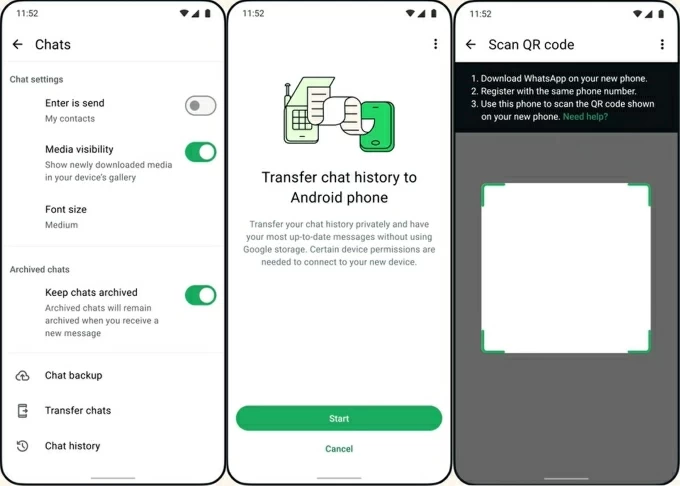
2. Tap the three-dot icon in the top right corner, then select Settings > Chats > Transfer chats.
3. On the "Transfer chat history to Android phone" page, tap Start, enable location services, and grant permissions for camera, storage, and local network access.
Note:
1. Open WhatsApp on your new Android phone and begin the initial setup process.
2. Tap Agree and continue, then enter the phone number used on your old phone and verify it via SMS code.
3. On the "Transfer chat history from old phone" screen, tap Continue, then grant Wi-Fi permissions and enable Location to detect nearby devices.
4. A QR code will appear on the new phone; use your old phone to scan the QR code to establish a secure connection.
5. Keep both phones unlocked and close together, and wait for WhatsApp data—including messages and media files—to transfer from your old Android to the new device.
6. Once done, WhatsApp will automatically log out of your source device. Tap Next on the new Android and complete the remaining setup steps.
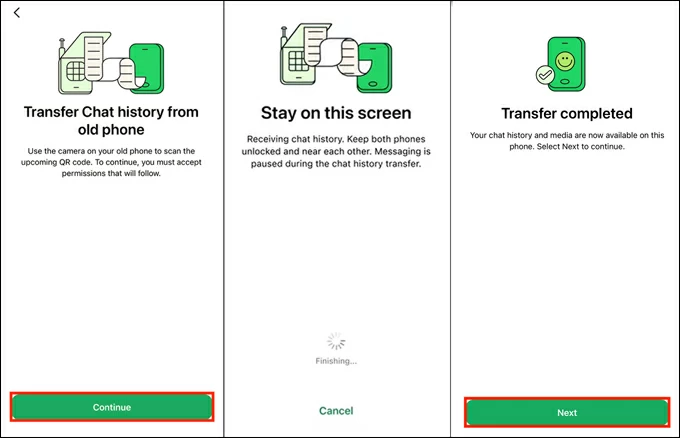
Allow WhatsApp to finish indexing the data before opening conversations. Now, you can view the transferred WhatsApp data on your new Android phone and continue your previous conversations.
When official methods fail to meet needs—for example, if WhatsApp chats are not fully transferred or certain photos or videos are missing—third-party Appgeeker WhatsApp Transfer software provides a more flexible solution. By connecting Android phones to a computer, the software can transfer your entire WhatsApp data from Android to Android while preserving all details (chat order, timestamps, media, and attachments), without needing to reset the new phone or relying on existing cloud backups.
It is compatible with multiple Android brands and various Android system versions, including the latest ones. Beyond seamless Android-to-Android transfers without data loss, it also supports transferring WhatsApp between iPhone and Android, or between two iPhones.
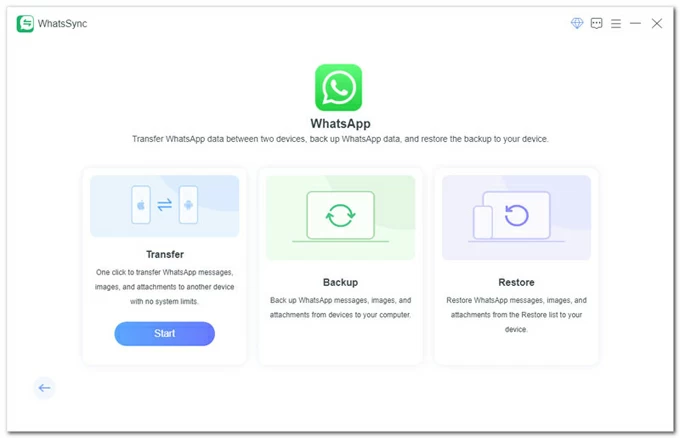
1. Run WhatsApp Transfer (WhatsSync) on your computer, select WhatsApp, and click Transfer to start moving WhatsApp data between your two Android phones.
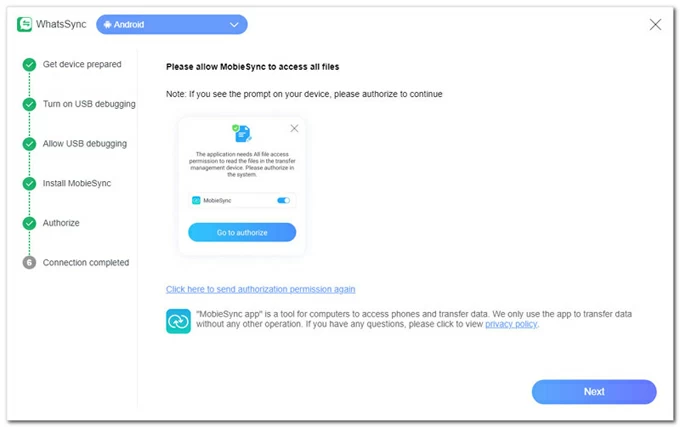
2. Plug both Android phones into your computer using good-quality data cables. When the "Allow USB debugging" prompt appears, tap Allow.
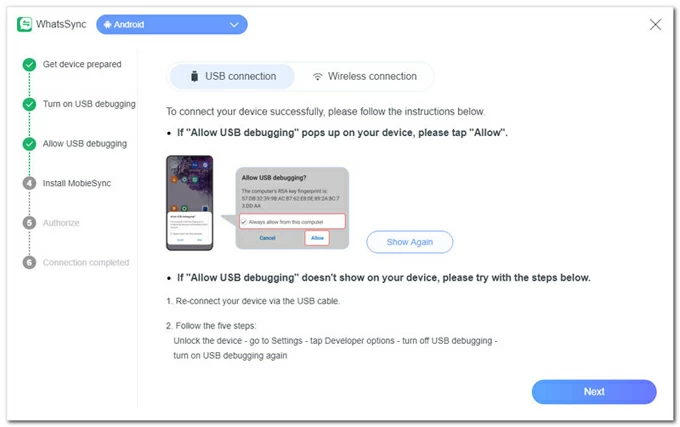
Follow the prompts to install the MobieSync app on your Android, then tap Go to authorize to allow MobieSync access to your Android phone. Once everything is ready, click Next on the computer.
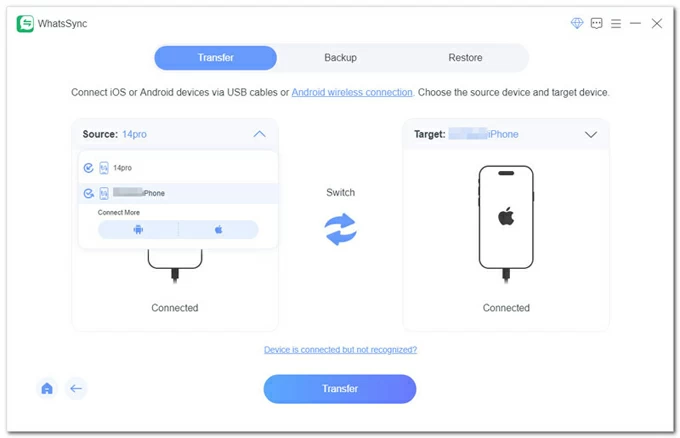
3. Correctively identify your Source and Target Android phones under the respective labels, then click Transfer.
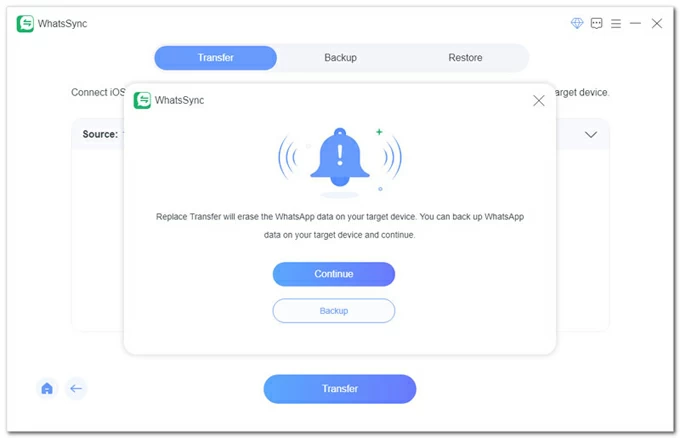
4. Decide whether you need to back up the existing WhatsApp data on your target phone to prevent it from being overwritten by the data from the source phone.
5. On your source Android phone, disable end-to-end encrypted backup. Navigate to WhatsApp > Settings > Chats > Chat backup > Backup to check. If it's enabled, turn it off.
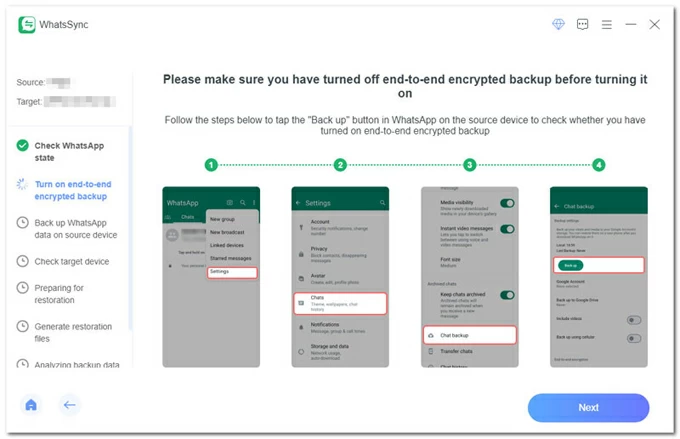
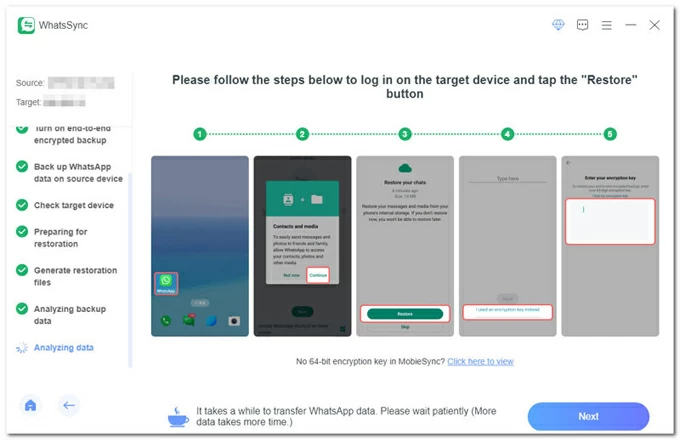
6. Return to the computer and click Next, and follow the tutorials to turn on or re-enable end-to-end encrypted backup, then tap End-to-end encryption key > Use 64-digit encryption key instead.
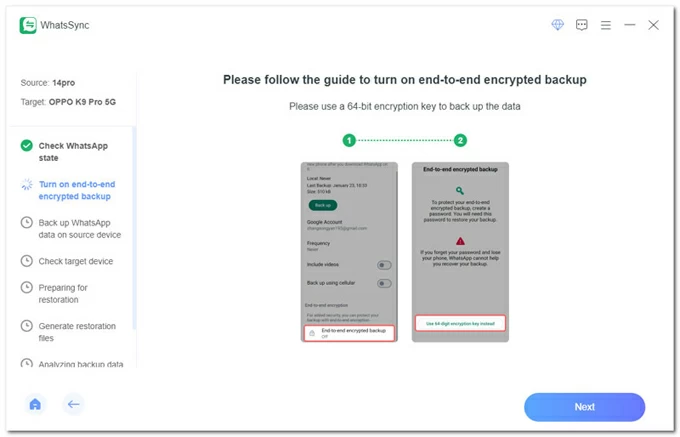
7. In WhatsSync, click Next, then on your Android device, tap Turn on > Generate your 64-digit key, and immediately click Scan in WhatsSync.
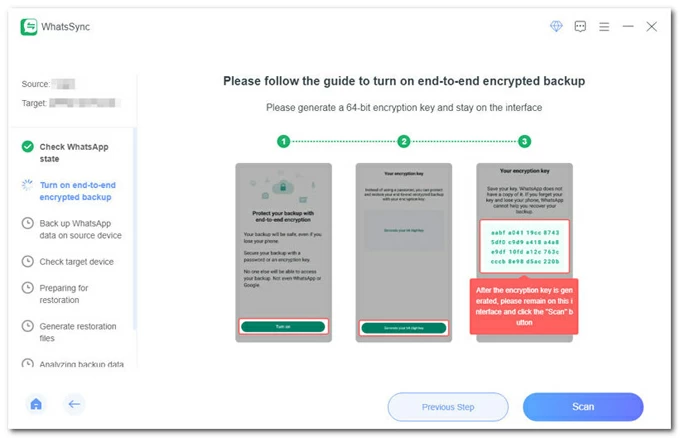
8. On your Android phone, tap I Saved My 64-digit Key > Create > Backup to obtain the WhatsApp data backup from the source Android phone.
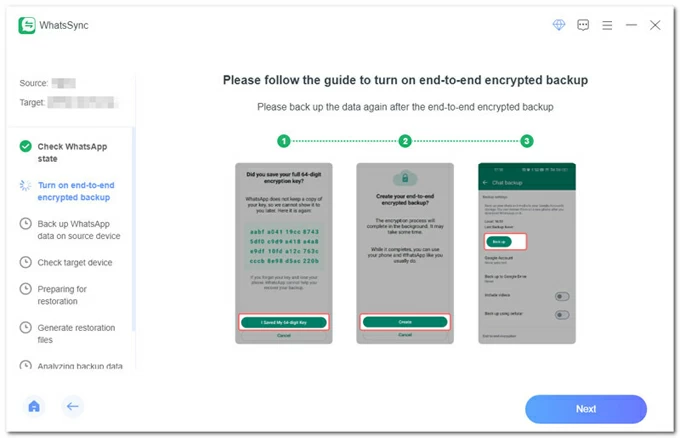
9. Install the WhatsApp Messenger app on your target Android phone but do not log in.
10. Follow the instructions to sign out of Google Drive and click Disconnected; or directly click the Never used Google Drive button to continue.
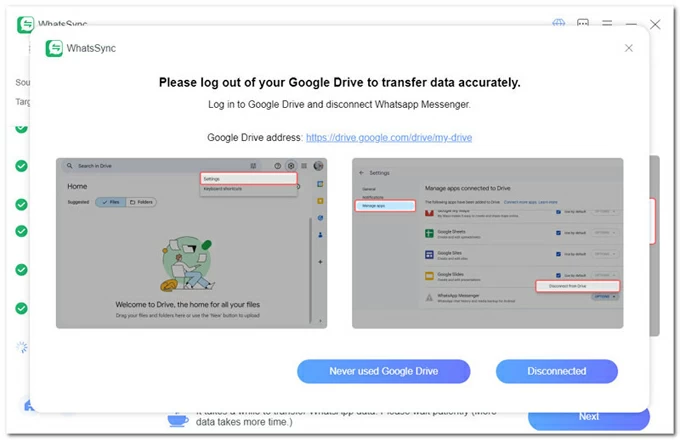
11. Open WhatsApp on your new Android phone and enter the encryption key to restore your WhatsApp data.
Also see: How to recover iPhone deleted WhatsApp messages without backup
On the Android system, WhatsApp has deep integration with Google's services. WhatsApp supports backing up chat history, photos, videos, and more to Google Drive, making Google Drive restore the most commonly used method for migrating WhatsApp data from one Android phone to another Android phone—without needing a data cable.
However, this method largely depends on the timeliness and completeness of the backup. If the backup has expired or is incomplete, recent chats may be permanently lost after restoration. Additionally, you must ensure your Google Drive has sufficient space to accommodate your WhatsApp data.
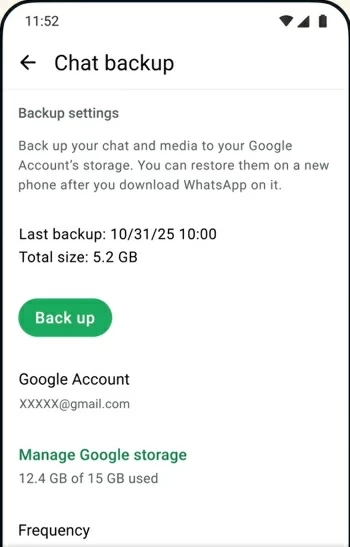
1. Open WhatsApp on your old Android phone and go to More Options (three dots) > Settings > Chats > Chat backup, then tap Back up to make a backup archive that includes your most recent WhatsApp chats and media files.
2. On the new Android phone, install the up-to-date WhatsApp and open it, then tap Agree and continue.
Note:
3. Input the phone number you previously used for WhatsApp and verify the received verification code.
4. Allow WhatsApp to access your device's storage and multimedia files.
5. When you reach the "Restore or transfer chats" screen, select Restore from backup.
Note:
6. Tap Continue, then tap Restore to begin restoring the WhatsApp data to your new Android phone.
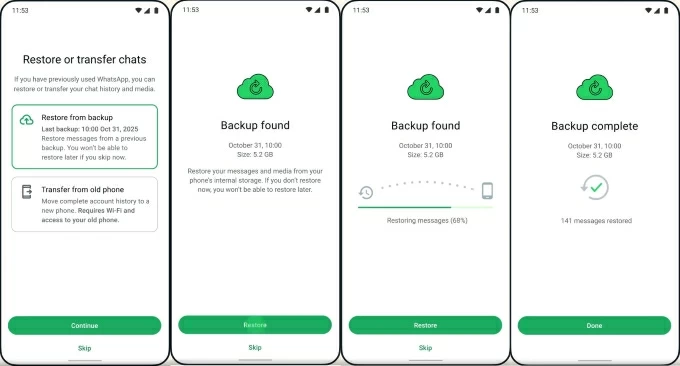
Messages will be retrieved first; when you enter the WhatsApp chat interface, your media files will continue to be restored in the background.
Here are a few things to note:
Every Android device stores WhatsApp chat backups locally in encrypted form. For users who prioritize total privacy or operate in an offline environment without internet, manual folder injection is the most reliable method to transfer WhatsApp data from one Android phone to another Android phone. This involves moving the literal heart of the app—the msgstore.db.crypt15 file or msgstore.db.crypt14 file—from one filesystem to another.
However, this design involves significant manual intervention. You must ensure that every folder you select is correct; otherwise, the WhatsApp data may go missing during the transfer process.
1. Head to WhatsApp > More options > Settings > Chats > Chat backup.
2. Set the Frequency option to Disabled or Never to disable Google Drive backup and ensure the created backup is saved to your phone's local storage.
3. Tap Back up to create the most up-to-date local data backup.
1. On the old phone, use a file manager (usually the Files app) and navigate to: Internal storage > Android > media > com.whatsapp > WhatsApp.
2. Select the Databases folder (containing your chat history) and the Media folder (containing your files), then copy and paste them to your Windows computer.
3. Connect your new Android phone to the PC. Copy these folders into the exact same path on the new phone: Internal storage > Android > media > com.whatsapp > WhatsApp. If these folders do not exist yet, you must create them manually.
Note:
1. Download and install the latest version of WhatsApp from the Google Play Store. If it is already installed, uninstall it first to ensure a fresh start.
2. Open WhatsApp and verify the same phone number as prompted.
3. During the verification process, WhatsApp will automatically detect the local backup files you moved. When the "Restore your chats" prompt appears, tap Restore.
4. Wait for the process to complete; your chat history and media files will load progressively. Once finished, WhatsApp will notify you that the setup is complete.
Important considerations:
One major reason is account binding. WhatsApp backups are not only linked to your phone number but also to your Google account, device environment, and app version. If WhatsApp cannot find the backup, first check account consistency—most issues stem from mismatched phone number or Google account.
Another issue arises from device and system differences. WhatsApp must be updated to the latest version, and ideally, both phones should be running the exact same version of the app.
If chat history is restored but media files are missing, wait patiently for WhatsApp to finish the download. Media files are typically downloaded in stages, especially with larger backup files. Stay connected to Wi-Fi.
If you're using local backup to transfer WhatsApp data and only the messages are restored without videos and photos, make sure you've copied the entire /Android/media/com.whatsapp/WhatsApp/ folder. This is because /Android/media/com.whatsapp/WhatsApp/Databases/ contains the chat text, while media files are stored in /Android/media/com.whatsapp/WhatsApp/Media/.
Timing also matters. Opening WhatsApp on the new phone too early, restoring the wrong backup, or reinstalling the app multiple times can overwrite valid data. Once a backup is replaced or flagged as invalid, WhatsApp does not offer a rollback option.
If you got a new iPhone, you can check How to transfer WhatsApp to new iPhone.
Conclusion
Transferring WhatsApp data from an Android phone to an Android phone isn't just a technical task—it's a decision about data safety. Each transfer method comes with trade-offs between convenience, completeness, and control.
Understand your situation, protect your existing data, and choose the method that aligns with your priorities. Whether you rely on WhatsApp's official tools or a more advanced solution, preparation remains the key to keeping your chat history intact.