
How to Fix iPhone Security Lockout


Following these steps can save you from the hassle of transferring WhatsApp messages from one iPhone to iPhone 17 (Air, Pro, Pro Max) and help avoid losing chats & media.

While Apple makes it easier to transfer iPhone to iPhone, the migration of WhatsApp remains a technical challenge for most users. If you're wondering how to transfer WhatsApp to iPhone 17, you've come to the right place.
This guide will walk you through proven ways to transfer WhatsApp from iPhone to iPhone 17 - whether it's set up or not. By using the WhatsApp built-in Chat Transfer feature, iCloud backup & restore, to Apple Quick Start or third-party data transferring tool, all your WhatsApp chats, photos, videos, documents, account information on your source iPhone will be moved onto your target iPhone 17 seamlessly, without needing to fear losing any data.
Let's dive into the exact steps for a wired or wireless WhatsApp Transfer to an iPhone 17, 17 Pro, 17 Pro Max, 17 Air when switching within iOS ecosystem.
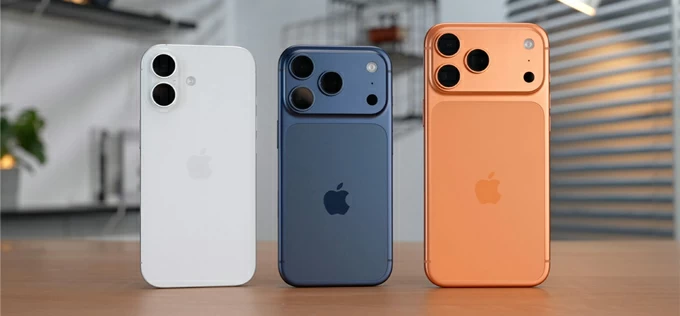
Moving WhatsApp between an iPhone 17 and another iOS device is pretty simple if you know how.
Appgeeker WhatsApp Transfer is an excellent alternative to in-app WhatsApp Chat Transfer and iCloud backup when it comes to transferring data from one iPhone to another. Even you're using different phone numbers or Apple accounts, the tool can still transfer WhatsApp data directly to the iPhone 17 without losing everything.
Table of Contents
The easiest and quickest method to transfer WhatsApp to new iPhone 17 is to use the native iPhone-to-iPhone Chat Transfer function, which allows for a full account move including entire chat history, media files and settings without relying on extra iCloud storage.
Even if you skip transferring your WhatsApp data during the initial iOS setup or your iPhone 17 has been used for a while, this peer-to-peer wireless transfer mechanism begins with the verification of the same phone number used on the old iPhone, and the generation of a unique QR code on the target device, which contains the connection parameters and encryption handshakes required for the source device to authorize the data handover.
Here's how to use Chat Transfer to copy anything in WhatsApp right to an iPhone 17 wirelessly without iCloud, including preparations and detailed instructions.
There are some steps you should take to facilitate a smooth, complete transfer of WhatsApp chat data between the old and new iPhones.
Once you're ready, you'll get to your old iPhone to transfer WhatsApp data to your iPhone 17's WhatsApp inbox without backup. Start by bringing the two iPhones close to each other and unlocked, as well as make to not leave WhatsApp the entire time during migration.
On your old iPhone
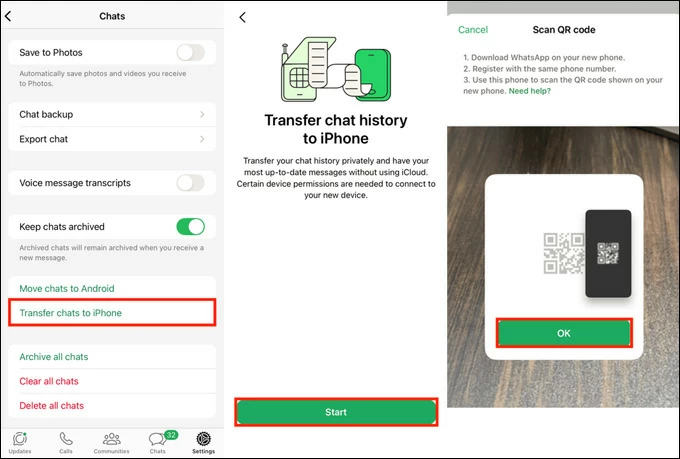
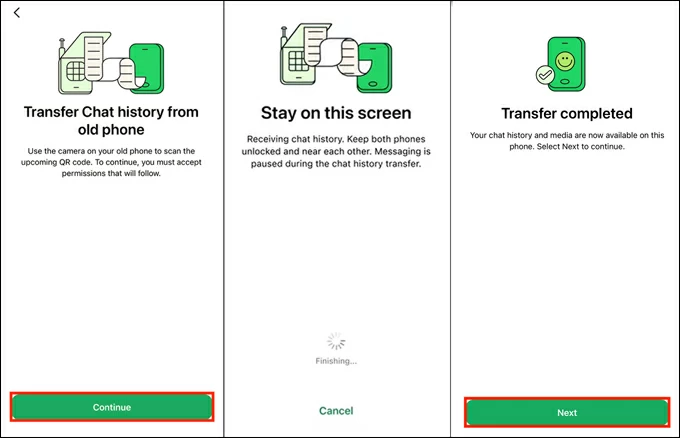
On your iPhone 17 (Air, Pro, Pro Max)
The time of the official direct QR Transfer depends on how many WhatsApp chats, photos, videos, and settings are moved to your iPhone 17 from another iOS device that are sharing the same phone number.
Also: How to recover deleted WhatsApp history on iPhone without backup
Transferring your WhatsApp data between iPhones using the in-app iCloud backup feature is the official, cloud-based method to ensure your message history, media, and settings move seamlessly to a new device even it's already set up. The process relies on your Apple Account to back up entire WhatsApp content to your iCloud storage, after which when install WhatsApp on the target iPhone and verify your phone number, the app automatically detects your backup and gives you restore option to complete the transfer.
Unlike the 'all-or-nothing' approach of traditional full iPhone iCloud backup, this standalone WhatsApp backup enables a selective restoration for copying chat history to iPhone 17, which is essential for users who want to avoid the data loss.
These also are the common troubleshooting steps if you encounter the issues of iCloud backup not appearing, WhatsApp iCloud backup restore stuck at 0% or 99%.
Follow these instructions of iCloud backup & restoration to transfer WhatsApp over from one iPhone to iPhone 17 without losing the chats or without restoring the whole iCloud backup.
Step 1. Back up WhatsApp on source iPhone
If your backup is more than a day or two old, take an extra few minutes to create a new backup of your message history, high-resolution photos & videos, voice notes, documents, etc.
Keep your phone connected to Wi-Fi and power to prevent interruptions. Wait for the backup to finish. Ensure it says "Last Backup: Today" with the current time before proceeding.
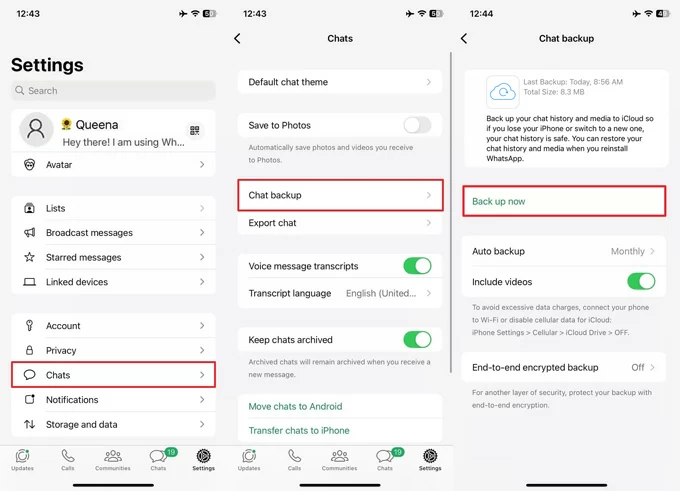
Tip: If you don't have your old handset physically with you but already made a WhatsApp backup, you can also restore that backup when switching to iPhone 17.
Step 2. Restore previous WhatsApp backup on iPhone 17
Once the backup is in place, importing WhatsApp chat history and media onto iPhone 17 is a simple matter of reinstalling WhatsApp, authenticating your phone number and Apple Account, and restoring the chats from large WhatsApp backup.
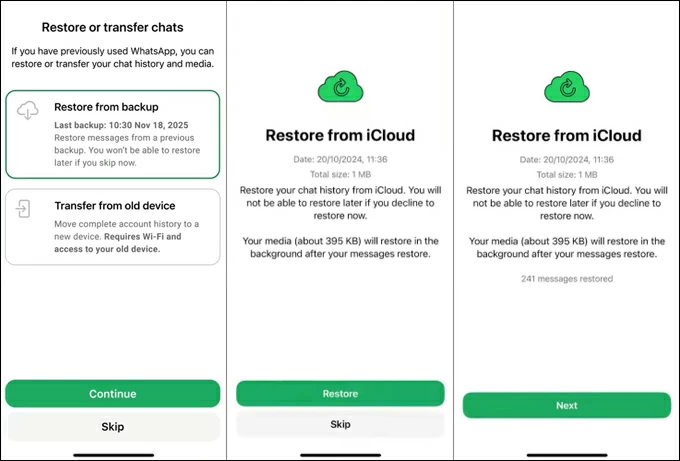
While the iCloud-based WhatsApp migration to Apple iPhone 17 is convenient, it often faces hurdles like speeds for large backups, and storage limits if you're not willing to pay for more iCloud storage.
With the built-in Chat Transfer and iCloud backup-restore transfer mode, you don't have to worry about how to transfer WhatsApp messages to new iPhone - even after setup. However, the complications arise when users switch Apple Accounts or phone numbers during the transition of WhatsApp, and the official methods for transferring data from iPhone to iPhone doesn't work at all.
Don't worry. With Appgeeker WhatsApp Transfer software, a successful handover between different account IDs is possible by establishing a temporary bridge on the legacy device, allowing a seamless data upload to the new destination and transfer everything from WhatsApp onto the target iPhone without losing data.
Regardless of the iOS version of two iPhones, you can transfer your WhatsApp's individual messages, group chats, photos, videos, voice messages, documents, account information to your iPhone 17, 17 Air, 17 Pro, or 17 Pro Max in a few simple clicks, while keeping the existing data on the new device intact.
Here are the steps you can take to import WhatsApp history to an iPhone 17 from any other iPhone model, even you're using different phone numbers or iCloud accounts. Before you perform a wired iOS-to-iOS WhatsApp chat transfer without a backup file, make sure Find My iPhone feature is disabled via iOS Settings on both phones, and the latest version iTunes is installed on your Windows computer from Apple official website.
Step 1. Download WhatsApp Transfer tool on the PC and install it properly.
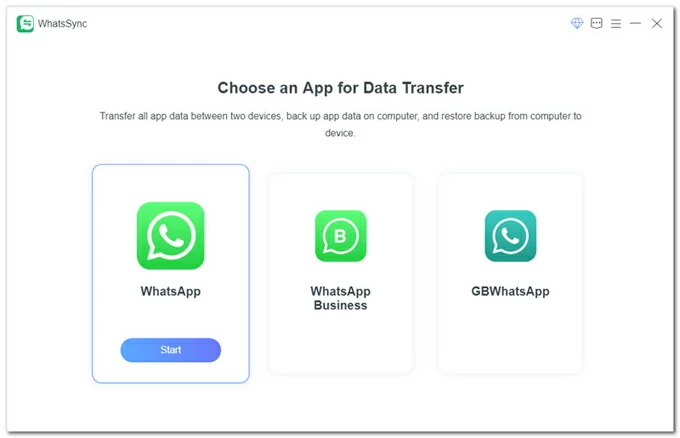
Step 2. Launch the program and choose WhatsApp module on the main interface. You can also transfer chats on the WhatsApp Business app.
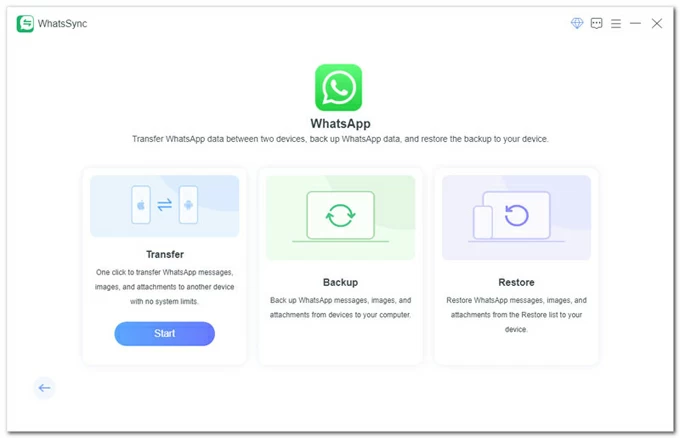
Step 3. Select Transfer mode and click on Start button.
Step 4. Connect both your old and new iPhones to your computer via lightning cables.
To allow the transfer, you have to tap "Trust" on the phone's screen. Do not lock the screen or switch apps.
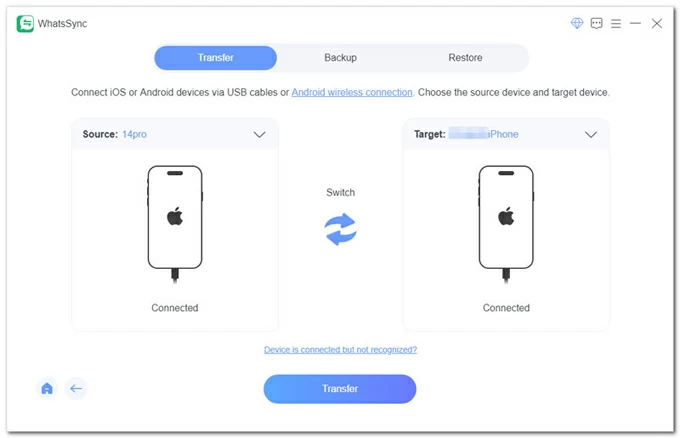
Step 5. Select your old iPhone as Source device, and your new iPhone 17 as the Target device. Then click Transfer button.
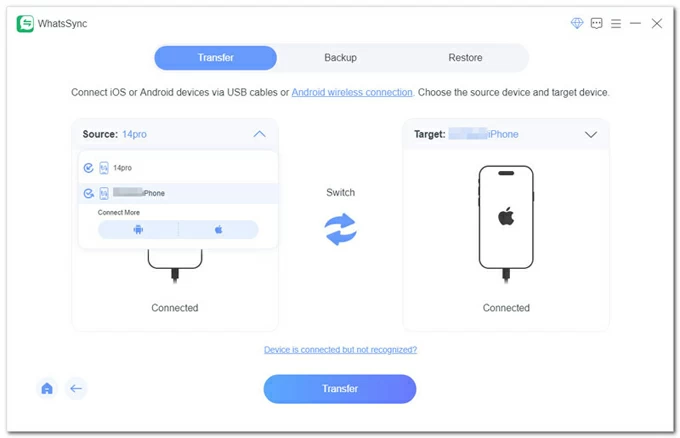
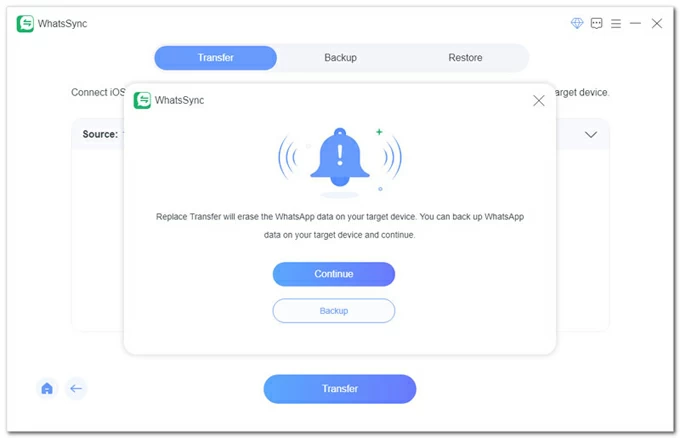
Step 6. When prompted, click Backup button to save your existing WhatsApp data on your target device if necessary. This is particular helpful for iPhone WhatsApp move without erasing chats in case your iPhone 17 WhatsApp has been set up and used for some time.
If your phone is fresh new, choose Continue button to skip the step.
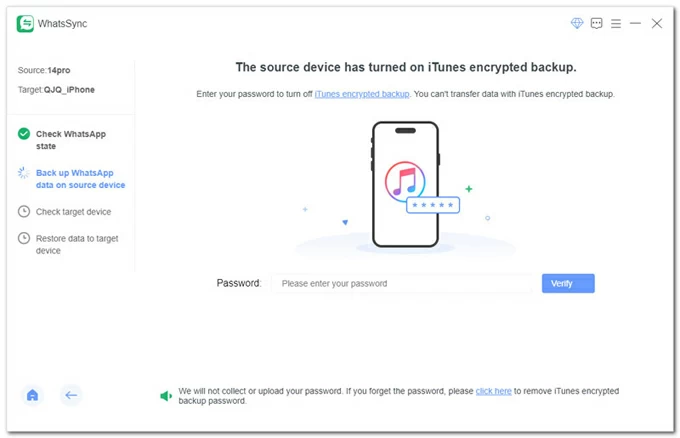
Step 7. Make sure the latest WhatsApp is installed on both source and target handset.
When asked, follow the prompts to enter the password if you've ever made the iTunes encrypted backup.
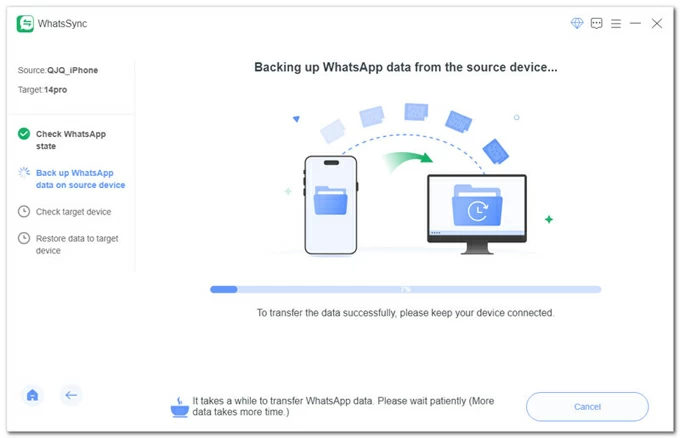
Step 8. Once everything is ready, the utility backs up your WhatsApp content from the old iOS device to the computer as a bridge and then export to your iPhone 17.
Log into WhatsApp on iPhone 17 with any phone number if you haven't done so, and then press Logged in. Continue button to start copying WhatsApp chat history to your iPhone 17 inbox.
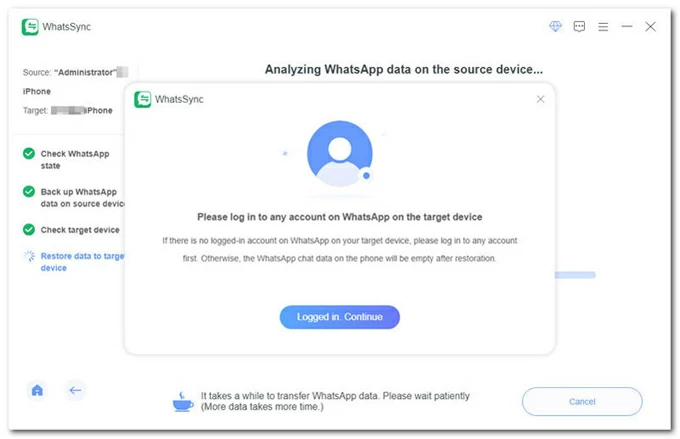
Done! All of your chat data in your old iPhone's WhatsApp is transferred and put onto your iPhone 17. You can check the transferred conversations and other files after the device reboots. Click the Completed button and choose to keep or delete the WhatsApp backup of the old phone on your computer.
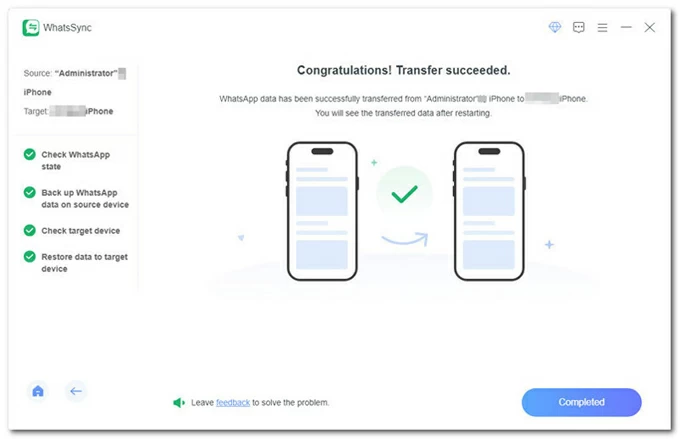
This is how desktop-based Appgeeker WhatsApp Transfer program works for getting WhatsApp data transferred straight onto an iPhone 17 using a cable. It offers superior success rates for large volumes of WhatsApp message history, media files and more, specifically bypassing the storage bottlenecks and the "same phone number", "same Apple Account" requirements inherent in official methods. Once the transfer is complete, then the data remains on the old iPhone as well.
Will Quick Start transfer WhatsApp chats? The answer is YES. Since iOS 12.4 update, Quick Start supports direct data transfer as part of the initial iOS setup when switching between iPhones. It creates a private, peer-to-peer Wi-Fi and Bluetooth connection between the two devices, helping users to clone or move everything including WhatsApp messages from an old iPhone to a new one.
Once the transfer is complete and you log in to WhatsApp on the new phone with the same phone number, your chats should be exactly where you left them.
For how to transfer all WhatsApp chat history to your iPhone 17 from another iOS device, do the following. The catch is that, if your iPhone 17 is already configured, you need to restart the setup process by a factory reset.
1. Erase iPhone 17 to factory settings if it's been set up
To factory reset iPhone 17, go to Settings > General > Transfer or Reset iPhone > Erase All Contents and Settings. Follow the instructions to finalize the reset. When it restarts, it should display the Hello screen.
2. Prepare your devices for the move.
3. Trigger Quick Start on iPhone 17.
4. Transfer your previous iPhone's WhatsApp and any other data to new iPhone 17.
5. Activate WhatsApp on the new iPhone 17 (Air, Pro, Pro Max).
Note:
Q1- Can I transfer WhatsApp from iPhone to iPhone without iCloud?
Yes. Assuming you have limited iCloud storage, you can move your chat data using WhatsApp built-in Chat Transfer feature, Apple's Quick Start, or third-party WhatsApp migrating software like Appgeeker WhatsApp Transfer.
Q2- Can I copy WhatsApp chats between two different Apple IDs?
Yes, but you cannot use the standard iCloud backup-restore transferring tool for the WhatsApp migration between two iPhones. Instead, use the direct Chat Transfer (QR code) method and same phone number verification to have the WhatsApp data copied over to the new device.
Q3- Will I lose my WhatsApp chats if I change my phone number?
No, but you have to use WhatsApp's Change Number feature to renew your account identity before transferring. To do so, navigate to WhatsApp Settings > Account > Change Number, then enter your old and new numbers to tell WhatsApp migrate your identity.
Q4- What's the difference between in-app WhatsApp iCloud backup and full-system iCloud backup?
WhatsApp in-app back creates a copy of chats and media inside your iCloud Drive, which is a common way to move your chats to a new iPhone. You're able to restore your WhatsApp data without wiping your whole phone if it's set up for use.
Full system backup saves everything on the iPhone, including WhatsApp database. This is designed to set up a new iOS device, as well as avoid data loss due to accidental deletion or phone loss. However, restoring data from iCloud backup requires you to factory reset your entire system, which overwrites the content that is not in the backup copy.
Q5- Will my WhatsApp data be deleted from my old iPhone after the transfer?
No. WhatsApp does not automatically wipe your old device until you manually delete your WhatsApp inbox or reset your iPhone. You can log out of WhatsApp on the old device after all chat history and data are copied and present on the new phone.




