
iPhone 17 Unavailable? 6 fixes to regain access!


When transferring videos to an iPhone, the process is less about "dragging and dropping" and more about managing technical compatibility. Here's everything to know.

Based on the file size, formats, and whether you have a computer nearby or not, you can:
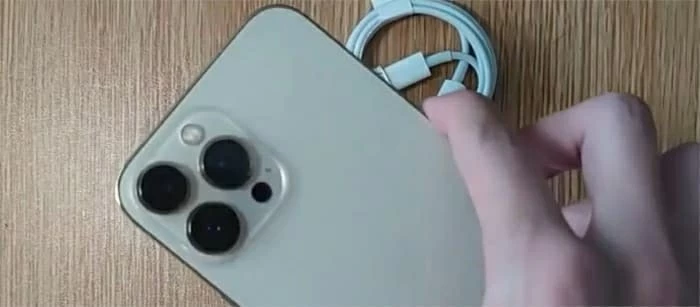
There are several ways to transfer movies to an iPhone from laptop, regardless of the operating system
You want to transfer a movie from a laptop to an iPhone for entertainment, especially when traveling, commuting, or simply relaxing away from your desk.
You would think it's quite as easy as drag-n-drop while connecting the device, but Apple doesn't allow to do that directly. Fortunately, there are tricks within some apps and services, including Apple's own tools, to get around that limitation and help you move movies on laptop to iPhone.
In this article, we'll explore all major transfer methods, explain their pros and cons, and provide step-by-step instructions. Whether you're using Windows or macOS, prefer wireless or wired transfers, or want to avoid official route entirely, this guide will help you choose the best approach.
Note, the fastest method for large movie files is connecting via USB cable and using the desktop-based app to transfer.
Table of Contents
Transferring a movie from your laptop to your iPhone is easy, but before doing that, it's important to know that Apple has its file playback principles.
1. File formats: iPhone is picky about formats. It only accepts movies in MP4, MOV or M4V formats for native iOS playback. You should check the file extension before doing the transfer.
2. Storage: The file size of a movie varies, generally ranging from 1 GB to over 100 GB for a standard feature-length film. Make sure your iPhone has enough storage space to store the movie you want to transfer from laptop.
3. Large files: For 4K movies, USB transfer is recommended over cloud services to save time.
4. Hardware capabilities: If you are transferring professional ProRes files, keep in mind they are massive. Only iPhone 13 Pro and newer models have native hardware acceleration for this format.
This is Apple's traditional and most controlled method. It ensures compatibility and organizes videos within the Apple ecosystem. It involves a computer, regardless of a PC or a Mac. After the transfer, you can find and play the movie in Video app.
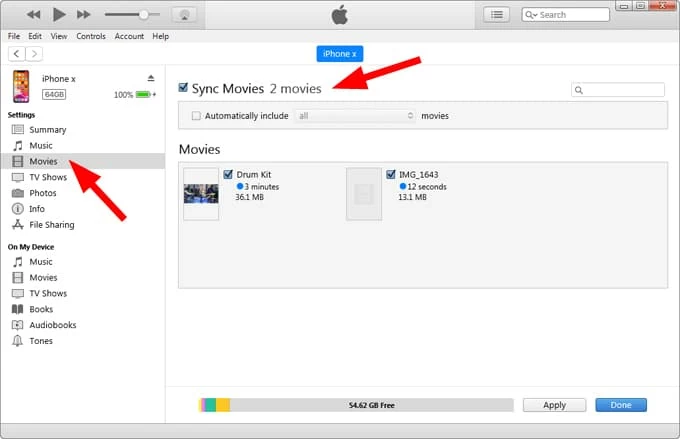
Here's how to use iTunes or Apple Devices app to transfer movies from laptop to iPhone:
1. Check your available space before starting. Go to Settings > General > iPhone Storage. A 10-minute 4K video can easily take up 3GB to 4GB.
2. Install the latest version of iTunes on your laptop.
3. Connect your iPhone to the laptop using a USB cable.
4. Go to File > Add File to Library to add your movies that are stored on the laptop.
5. Open iTunes and click the device icon.
6. Select Movies from the sidebar.
7. Check Sync Movies and select the titles you want.
8. Click Apply or Sync.
See also: How to bypass iPhone passcode
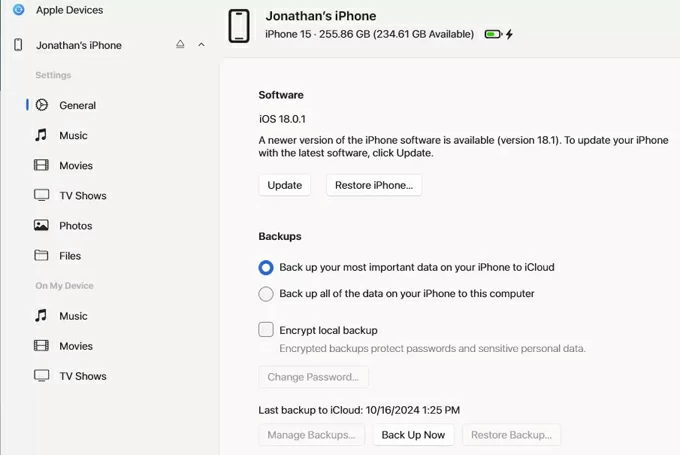
If you're using Apple Devices app to manage your iPhone regularly, follow the steps below:
1. Open the Apple Devices app
2. Connect your iPhone via USB and click Trust on your phone if prompted
3. Select your device, click Files in the sidebar.
4. Drag and drop the movie files into the app window.
5. Wait for it to sync movies from laptop to your iPhone.
For Mac user, launch Finder app, then do the following:
1. Select your iPhone after connection under Locations in the left sidebar.
2. Go to the Movies tab.
3. Drag your movie files into the window.
4. Click Sync.
Pros:
Cons:
Another reliable way to transfer movies from laptop to iPhone is using third-party transfer tools, something like Appgeeker iPhone Data Transfer or VLC. These tools are popular because they bypass iTunes and support more formats.
Many high-quality movies use .mkv or .webm. These will not play in the native Videos app. Thankfully, with iPhone Data Transfer, you can directly transfer any of them to your iPhone—you won't need to convert them first or use a third-party player, the tool automatically detects the format of the movie and convert it to an iPhone friendly file type.
The tool also has a set of tools to help transfer music, photos, and other media files to and from iPhone, as well as export personal information, including messages, contacts, notes, etc.
General steps to transfer movie files from a laptop to an iPhone:
Step 1: Connect the iPhone
After installing the right version on your Mac or PC, launch the tool and connect your iPhone via USB cable.

Step 2: Open Video library
Click the Videos tab on the left sidebar, which will display all your video and movie files in list. At the upper right corner, you can click the display icon (next to search box) to switch display style.
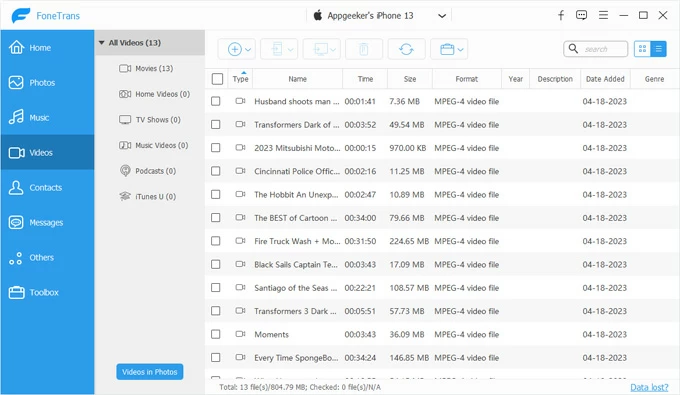
Step 3: Add movies to iPhone
In this stage, you can either drag your movie files into the interface, or click the Add icon and then import a single file or a full folder of movies.
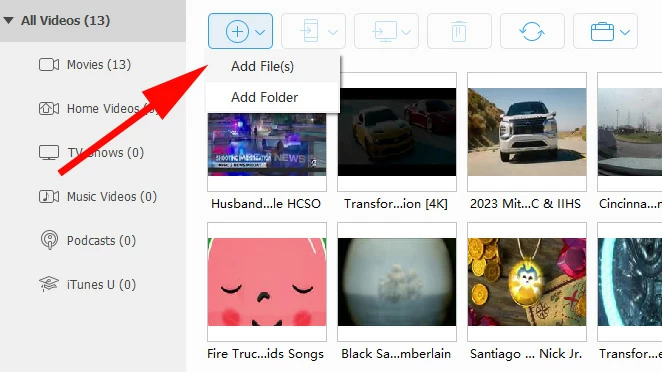
The tool automatically converts the movies that're not compatible with the iPhone and transfers them. Be patient.
Pros:
Cons:
See also: How to transfer photos from iPhone to PC
If you're a fan of VLC player, you can use it to handle the transfer tasks. It offers a flexible way to help transfer your movies to iPhone wirelessly from laptop, and best of all, it supports almost every video format.
1. Install VLC for Mobile from the App Store.
2. Open VLC, at the bottom tap the Network icon.
3. Enable Sharing via Wi-Fi. You should get an IP address.
4. On your laptop's web browser, Type the IP address exactly as shown on your iPhone into the browser's address bar.
5. A VLC upload page will appear.
5. Drag your movie files into the upload window.
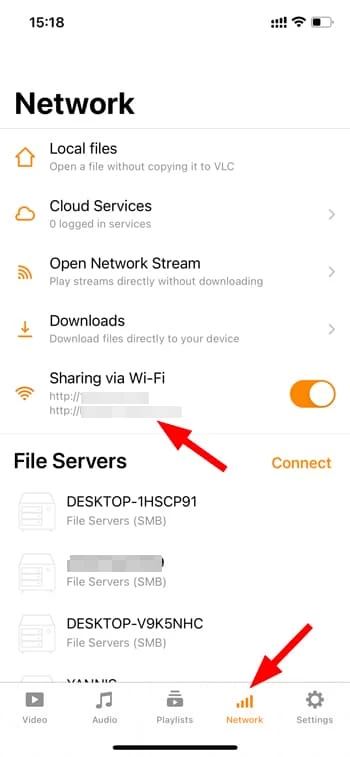
Keep the VLC app open on your iPhone until the progress bar on your laptop reaches 100%.
Pros:
Cons:
See also: How to transfer WhatsApp from Samsung to iPhone
Cloud storage is ideal for users who prefer wireless transfers and don't want to use iTunes. However, one thing to be noted, the free 5GB plan will barely hold one high-definition feature film. Ensure your iCloud+ plan has enough overhead.
1. On your laptop, visit icloud.com on a web browser.
2. Click iCloud Drive if you want to keep it in a folder (better for organized libraries), or click Photos if you want the movie to appear in your iPhone's camera roll.
3. Click the Upload icon (an arrow pointing up into a cloud) in the upper right corner.
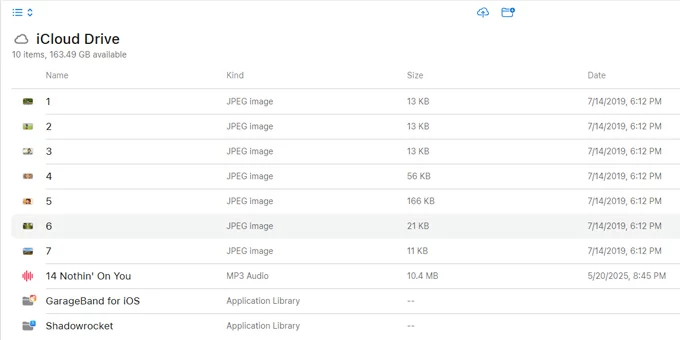
4. Select your movie file from your laptop. A progress bar will appear at the bottom of the screen. Do not close the tab until it finishes.
5. On your iPhone, open the Files app.
6. Navigate to iCloud Drive.
7. Tap the movie to download it.
Pros:
Cons:
See also: How to find deleted photos on iPhone
For Apple users who have movies stored in a MacBook, you can even use AirDrop to transfer those movies to iPhone wirelessly.
Note, very large files (over 5GB-10GB) can sometimes timeout or fail. For files this large, a physical cable is much more reliable.
1. Enable AirDrop on your iPhone. You can do this by going to Control Center > AirDrop > Everyone or Contacts Only.
2. On your MacBook, right-click the movie file.
3. Select Share > AirDrop.
4. Choose your iPhone from the list.
5. Accept the transfer on your iPhone.

If your movie is in a MP4 or MOV format, it will go to Photos app. Otherwise, iPhone will ask which app to open it with (e.g., VLC).
Pros:
Cons:
Transferring movies from a laptop to an iPhone doesn't have to be complicated. The best method depends on your device ecosystem, video formats, and personal workflow preferences.
By understanding the strengths and limitations of each method, you can choose the workflow that fits your needs and enjoy your movies on your iPhone anytime, anywhere.




