How to unlock Google account on Android after factory reset


Explore all proven ways to reset a locked phone and regain full access, covering Recovery Mode, remote reset services, and unlocking tools for both Android and iOS devices.

Widely compatible with major Android brands and devices, Appgeeker Android Unlocker allows users to reset an Android phone without a password, PIN, pattern, or Google account—whether the device is screen-locked or FRP-locked.
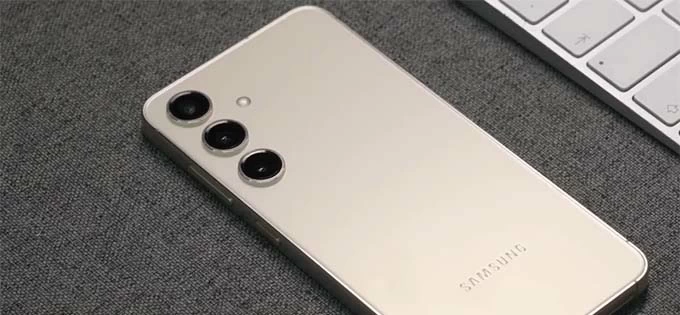
Resetting a locked phone lets you regain full control of the device, even if you have forgotten the password, PIN, or pattern.
Resetting a locked phone involves erasing all data and restoring the device to its factory default settings, effectively returning it to a out-of-box state. This process is typically useful if you have forgotten the password, PIN, or pattern, or when preparing a long-unused phone for a new owner.
Performing a factory reset on a locked phone removes all screen locks and permanently deletes all existing data and settings. After reset, your phone will be unlocked and restart like fresh new.
This guide explains how to reset a phone that is locked. The exact steps vary depending on whether you are using an iOS or Android device and on the specific model.
Table of contents
If you factory reset a phone when locked out, whether due to a forgotten password, PIN, or pattern, the process erases all current data and settings and returns the device to its original factory state.
Safe data wiping
Performing a full reset on a locked phone securely and permanently erases all personal data and settings, including apps, photos, videos, contacts, messages, and other stored information. It's an effective way to protect your privacy before selling or giving the device away.
Factory Reset Protection (FRP)
Factory resetting a locked Android phone may trigger Google's FRP lock (Factory Reset Protection) if the device was previously tied to a Google account. During next setup, you'll be asked to sign in using the Google credentials that were last associated with the device. If you no longer have these details, check this FRP bypass tool to regain access.
Similarly, performing a reset on a locked iPhone will activate Apple's iCloud Activation Lock, which requires the Apple Account previously used on the phone to complete setup.
A fresh start
A reset can help unlock a locked phone without password, restore full access, resolve performance issues, and return the device to its original factory state for a new setup.
Regardless of your reason, the methods below will guide you through resetting a locked phone on both Android devices and iPhones safely and effectively.
To perform a factory reset on a locked phone without password, entering Recovery Mode is the most common approach. It's a special bootable partition on iOS and Android devices, accessed by specific button combinations during startup, differing by manufacturer.
Android Recovery Mode requires holding a certain combination of buttons on device, which varies by manufacturer. Below are the common steps to reset a locked Android phone:
1. Power off your locked Android phone completely.
2. To reset an Android phone, press and hold the right buttons simultaneously until the Android Recovery menu appears.
TIP: If you're resetting a Samsung phone, connect it to computer via a USB cable first.
3. In the Android Recovery menu, use Volume Down button to scroll through and highlight Wipe data/factory reset option.
4. Confirm it by pressing the Power button.
5. Use either Volume button to select Yes or Factory data reset, then press Power button to confirm. Allow it a few minutes to complete the reset process on your locked phone.
6. Select Reboot system now to restart the device.
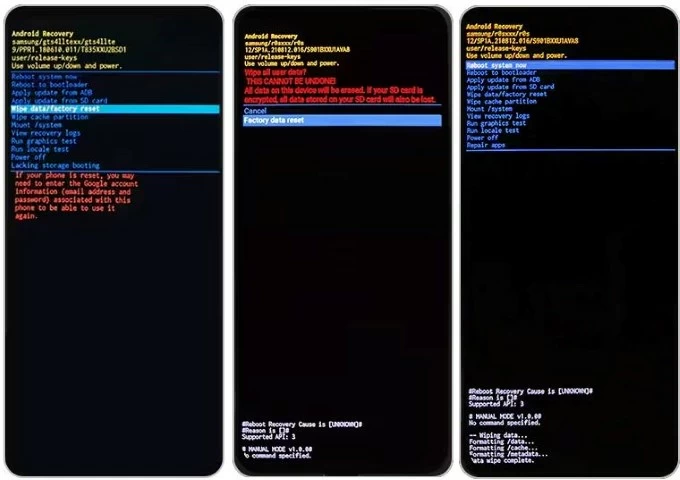
After the reset, your Android phone should be unlocked with everything erased permanently, allowing for fresh start.
Entering iPhone Recovery Mode lets you easily reset the phone to factory settings even when it's locked and you've forgotten the passcode. No extra iPhone reset tools needed, here's how:
1. Open iTunes on Windows and macOS 10.14 or earlier, or run Finder on macOS 10.15 or later.
2. Connect your iPhone into a computer with a USB cable.
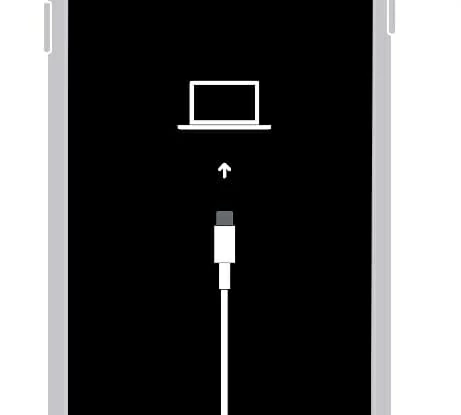
3. Quickly press and release the Volume Up button, then press and release the Volume Down button, and long-press the Side button until a cable-to-computer screen appears.
4. When the Restore or Update message pops up, select Restore to proceed.
5. Confirm the Restore and Update option to initiate a factory reset on your locked iPhone.
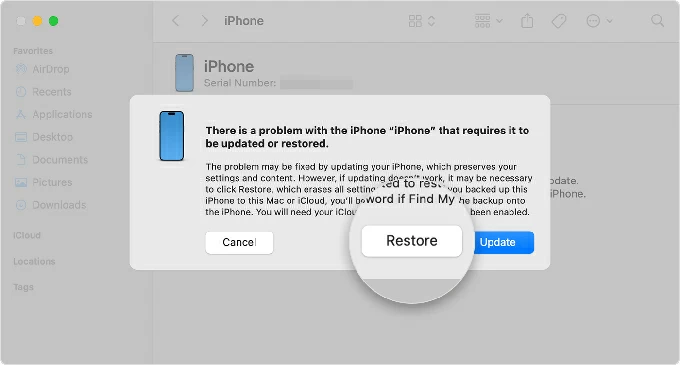
All current data and settings will be erased from your iPhone, including all screen locks.
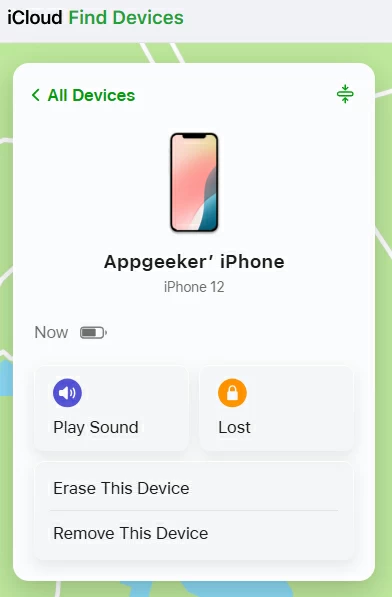
It is also possible to remotely reset a locked phone if you were previously signed in to the device with a Google account or an iCloud account. Both Google and Apple offer a Find Device feature that allows you to perform a wireless factory reset even when the phone is locked.
If Google Find Hub (formerly Find My Device) was enabled on your phone before it was locked, you can perform a remote factory reset to remove screen lock and erase all data on the device.
To reset a locked Android phone using Google Find Hub, make sure it's still connected to the internet and that you remember your Google account credentials.
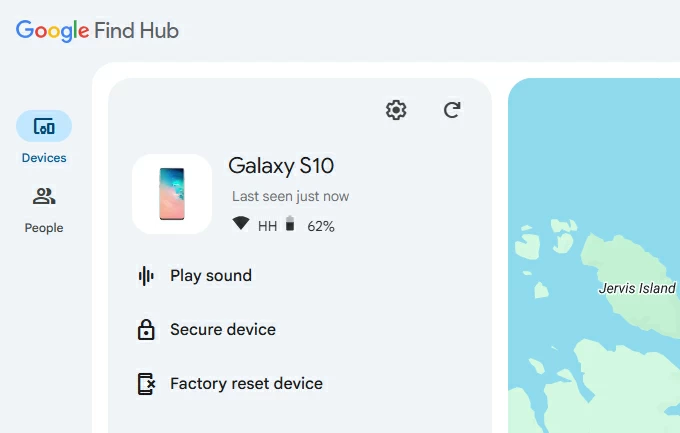
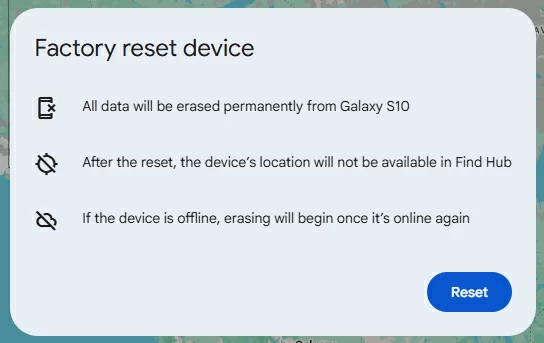
After the reset, all data will be erased permanently from your phone, including all screen locks.
For Samsung users, Samsung SmartThings Find (previously known as Find My Mobile) provides an alternative way to remotely reset a locked Samsung phone, as long as the device is linked to your Samsung account and online.
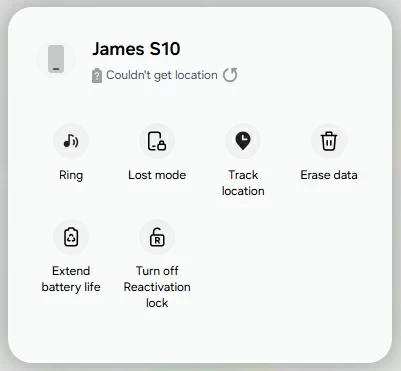
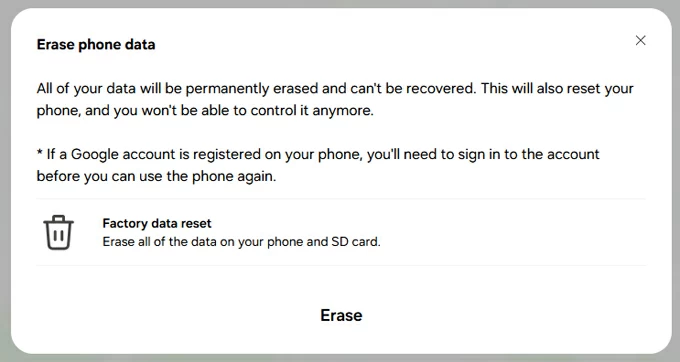
Your Samsung phone will be factory reset with everything erased completely.
When you're trying to remotely factory reset a locked iPhone due to a forgotten passcode, the iCloud Find My feature can provide a straightforward solution, provided it was enabled before a lockout and you have access to the associated Apple Account and password.
TIP: For security reasons, Apple may require a two-factor authentication code. Ensure you have another accessible Apple device or trusted method to receive the verification code.
If Recovery Mode and remote resets are unavailable, there're still efficient tools that support resetting a phone even if you are completely locked out and forget the password, PIN, or pattern.
Appgeeker Android Unlocker makes it easy to reset an Android phone, even if you are locked out due to a forgotten password, PIN, pattern, or even Google FRP verification.
This powerful phone reset software supports a wide range of Android phones and tablets, including Samsung, Motorola, Google Pixel, LG, Xiaomi, VIVO, OPPO, Realme, Huawei, and more.
With just a few simple clicks, you can fully reset a locked phone and remove all screen locks from it, such as password, 4-/6-digit PIN code, pattern, fingerprints, and facial recognitions.
In addition, Appgeeker Android Unlocker includes a built-in FRP bypass tool that enables you to bypass Google account verification after a factory reset.
Whether your phone is screen-locked or FRP locked, this all-in-one solution helps you quickly and securely reset your locked Android phone and regain instant access without restriction.
Step 1. Launch Appgeeker Android Unlocker on a Windows PC or laptop, then click Remove Screen Password to start.
TIP: If your phone is FRP-locked, select Bypass Google FRP lock mode instead.

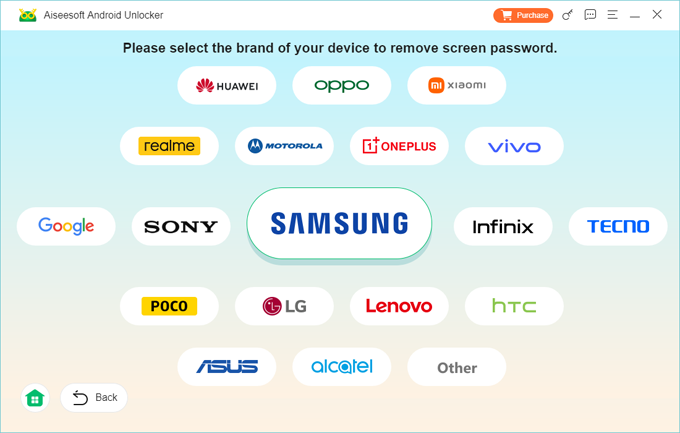
Step 2. Select the Android brand you're using and connect the locked phone with a cable.
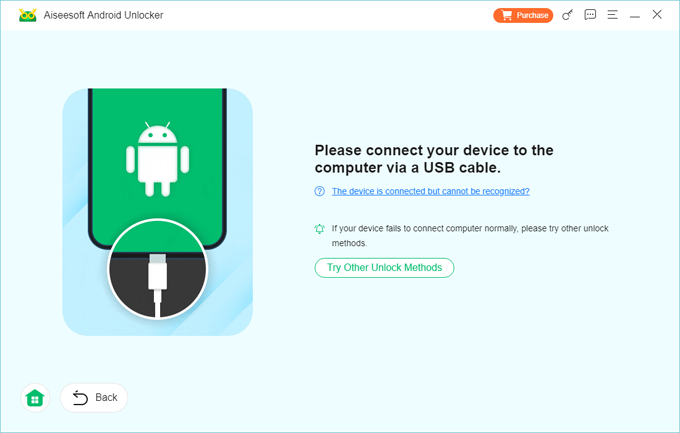
If not recognized, follow the onscreen link to operate your phone and get it ready for reset.
Step 3. Click Remove Now; the locked Android phone will be factory reset completely.
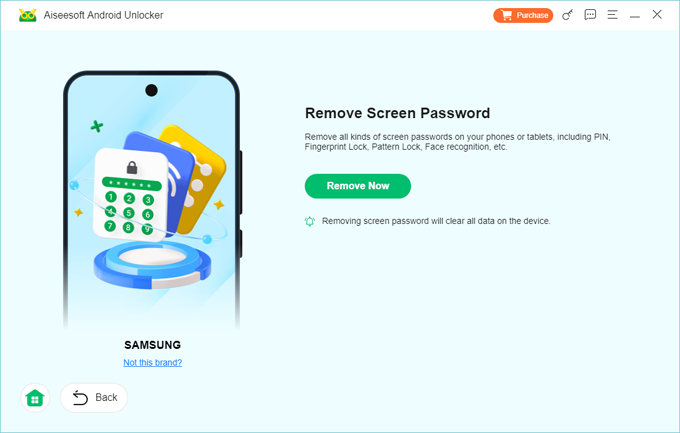
Note that this reset process removes everything from your Android phone. Once done, you can set it up as new or restore your data from a previous backup.
To reset a locked iPhone, especially if you've forgotten the passcode, Appgeeker iPhone Unlocker offers a convenient and reliable approach.
Featuring a user-friendly interface, this iPhone reset tool can easily remove 4-digit or 6-digit screen passcodes, Face ID, Touch ID, Apple ID, and Screen Time restrictions, allowing you to regain full access to your locked phone and set it up as a new device.
1. Install and open iPhone Unlocker on your PC or Mac, then select Unlock iOS Screen.
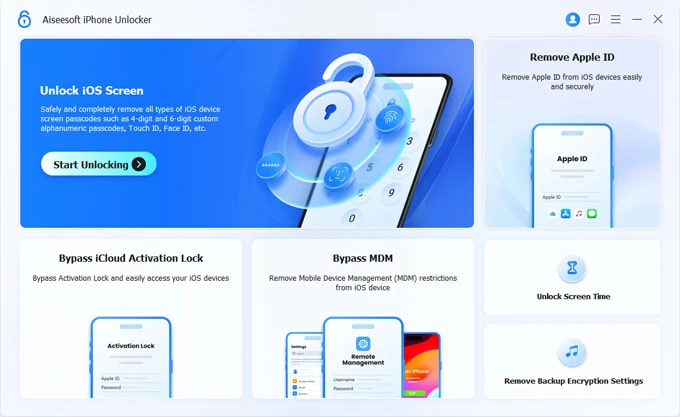
2. Connect the locked iPhone with a working cable and follow the onscreen instructions to enter iOS Recovery Mode.
3. Confirm the device information and check Start Now button.
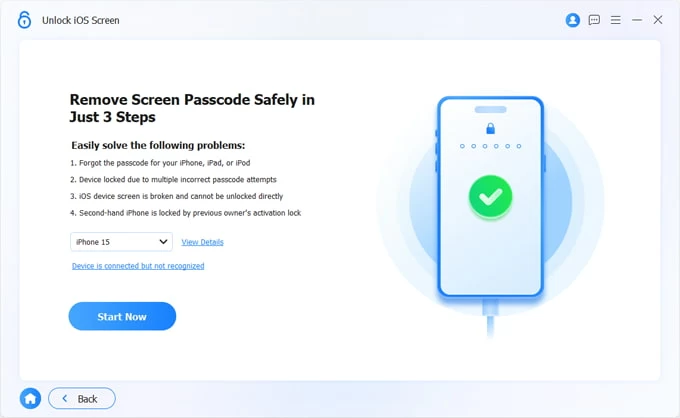
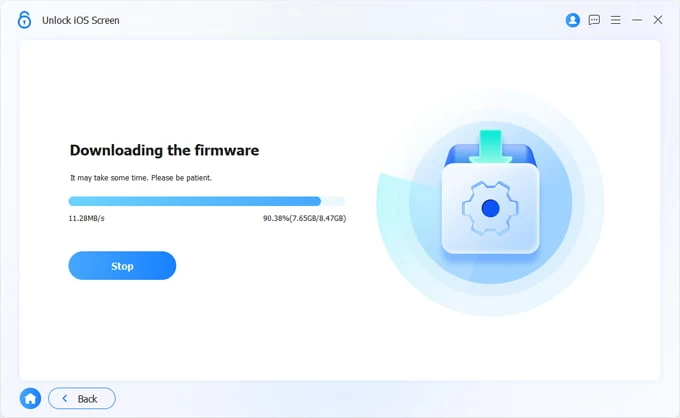
4. Give it a few minutes to download suitable reset firmware package for your phone.
5. When the download is complete, read the pop-up precautions carefully and click OK > Confirm Again to start phone resetting.
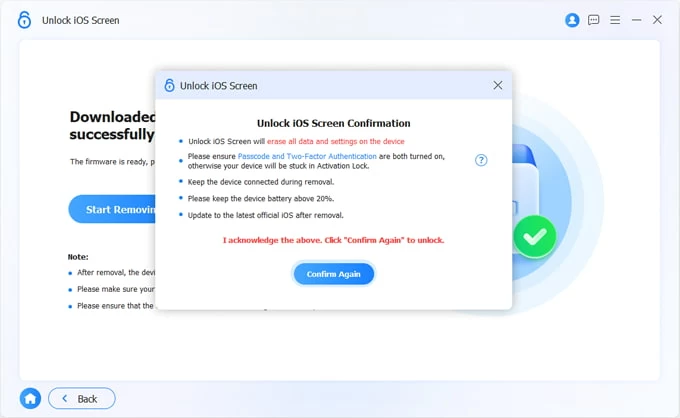
6. Keep your phone connected until the reset process is finished.
Once done, the locked phone will be back to its factory settings, allowing for setups like brand new.
Once the locked phone has been successfully reset to factory settings, you can set it up again from scratch and use it as a new device, or prepare it for sale or transfer to another user.
Note that all data and settings on the device will be permanently erased during the reset process. If a recent backup is available, you may restore your data after completing the setup.
As mentioned above, a phone factory reset may trigger Google Factory Reset Protection (FRP) or Apple iCloud Activation Lock during the next setup. If you have access to the previously synced Google account or Apple ID credentials, simply verify your account and get back in.
If you don't have these credentials, you will need to bypass the Google lock or iCloud lock before you can access the device again.
Q1 - Is it possible to factory reset a phone without password?
Yes. There are multiple methods available to factory reset a phone even if you don't know the password:
Q2 - How can I reset my locked phone without a computer?
If your phone was previously linked to a Google account and had Google Find Hub enabled before being locked, you can reset it remotely by signing in to Google Find Hub from another phone or tablet. For iPhone users, the same can be done through iCloud Find My, allowing a wireless reset without using a computer.
Q3 - Why is my phone locked after a factory reset?
If you perform a factory reset without first removing the previously synced Google account from your phone, Google's Factory Reset Protection (FRP) will be automatically activated. This security feature locks the phone until the original Google account credentials are entered.
Q4 - How do I reset an Android phone with buttons?
You can reset an Android phone by pressing and holding a specific combination of hardware buttons to enter Recovery Mode. The exact button combination varies by manufacturer, but the general steps are as follows:
Power off the locked phone first. If you have a Samsung phone, connect it to computer.
Then, enter Android Recovery Mode with buttons:
Do not release the buttons until the Android Recovery screen pops up.
Select Wipe data/factory reset using either Volume button and confirm it with Power button.
Highlight Factory data reset by Volume button and press the Power button to confirm;
After that, select Reboot system now. That's it!