How to Wipe iPad without Passcode


Locked out of apps because you forgot Screen Time passcode? This guide will tell you how to reset forgotten Screen Time passcode on iPhone or how to unlock Screen Time.

By using a professional Appgeeker iPhone Unlocker, you can quickly remove a forgotten Screen Time passcode without losing any data on your iPhone, whether you are the family organizer or a member of a Family Sharing group.
The most critical factor in resetting your Screen Time passcode after forgetting it is your Apple ID information.
Most users set up Screen Time on their own or their children's iPhones to prevent digital addiction, particularly regarding gaming and social media. The Screen Time passcode serves as a vital safeguard, ensuring you can effectively monitor and manage iPhone usage.
This is why forgetting your Screen Time passcode can be unexpectedly frustrating. Although your iPhone remains unlocked, you are barred from using restricted apps for the rest of the day unless you enter the correct Screen Time passcode to lift the limitations. You aren't locked out of the device, but you have lost control over it.
Unlocking a forgotten Screen Time without passcode on an iPhone isn't a huge challenge. This article will show you how to reset the forgotten Screen Time passcode on iPhone, and explain how to unlock it if the standard reset options fail.
Table of Contents
Introduced in iOS 12, Screen Time is Apple's digital wellbeing assistant. Seamlessly integrated with the iOS system, it is designed to help users reasonably manage their time spent on various apps and iPhone. Unlike the Lock Screen passcode that protects physical access to the device, the Screen Time passcode is an independent, four-digit security code used to safeguard the restrictions and permissions you have configured within the Screen Time.
The Screen Time passcode controls app usage limits, content restrictions, communication permissions, and even the ability to modify Apple account settings. More importantly, in Family Sharing feature, it serves as a remote parental control tool to monitor and manage a child's iPhone usage. Parents can oversee app limits, downtime, and content & privacy restrictions, ensuring that children use their devices in a healthy way.
Forgetting Screen Time passcode leads to a series of restrictions, especially when you urgently need to use a specific app. The lockout duration escalates with each incorrect attempt:
Fortunately, the Screen Time passcode mechanism will not automatically erase your iPhone, no matter how many times you enter it incorrectly. However, you will be unable to modify any "Content & Privacy" settings, and your iPhone will freeze access to certain apps. If Family Sharing is enabled, children cannot bypass parental controls without the organizer's approval.
Resetting a forgotten Screen Time passcode on your own iPhone requires a simple and secure method: using your linked Apple Account for verification. This is the dedicated recovery path provided by Apple.
As long as you remember the Apple Account details used when the Screen Time passcode was originally set up—which might differ from your current login credentials—you can easily regain control.
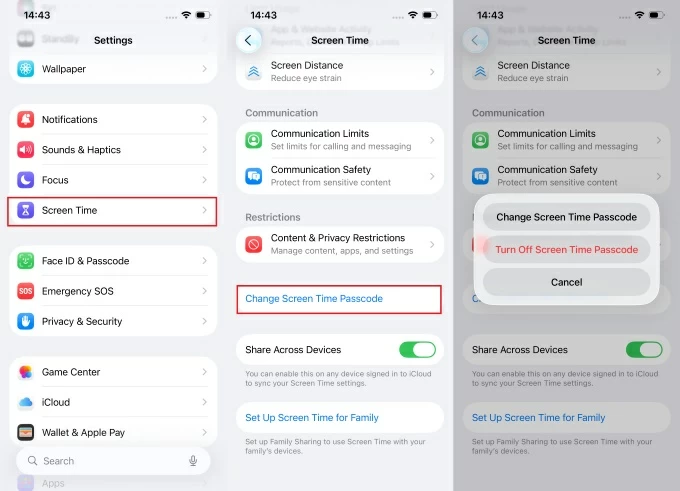
1. Unlock your iPhone, open the Settings app, then scroll down through the options to Screen Time and tap it to enter the management center.
2. Locate and select Change Screen Time Passcode, then tap the Change Screen Time Passcode option again in the pop-up confirmation window.
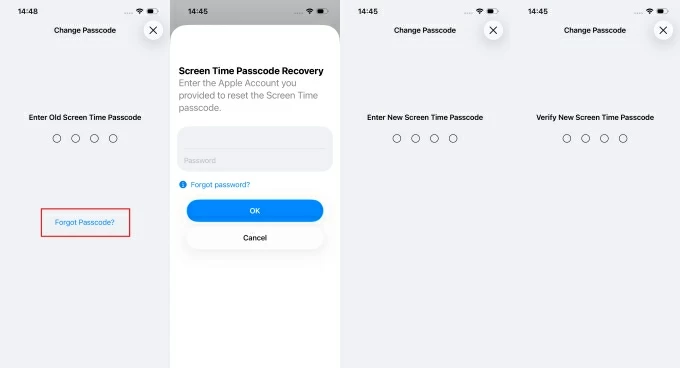
3. The system will ask you to enter your old Screen Time passcode. Tap the Forgot Passcode? option at the bottom.
4. Follow the prompts to enter the email address and password associated with the Apple Account used when Screen Time was first set up to verify your identity.
5. Create a new Screen Time passcode, then immediately re-enter the same passcode in the verification prompt to lock it in place.
Once completed, you can use the new Screen Time passcode to bypass app restrictions and adjust your Content & Privacy settings.
Note:
If you are the primary owner of the iPhone and have your Apple Account credentials, this method allows you to reset the Screen Time passcode if forgotten on your iPhone. But if you are a member of a Family Sharing group, move to the alternative solutions below.
When you've forgotten your Apple ID password, see How to find your Apple ID password.
When using Screen Time in a Family Sharing environment, the reset process follows a specific hierarchy. A child's device does not hold administrative privileges; instead, these are held by the Family Organizer. This is an intentional design by Apple to prevent children from independently disabling parental controls on their devices.
Therefore, even if a child knows their own Apple Account credentials, they cannot change Screen Time restrictions without approval from the Organizer. If the forgotten Screen Time passcode is on the child's iPhone, the Organizer must reset a forgotten Screen Time passcode from their own iPhone.
1. On the Organizer's iPhone, open Settings > Screen Time to access the Family Sharing control panel.
2. In the menu, scroll down to the Family section, where you will see the family members listed; select your child's name to access their specific profile and control options.
3. Within the Restrictions area, tap Manage Screen Time to view the customizable settings for that device.
4. Select Change Screen Time Passcode, then tap the same option again to confirm the action.
5. When prompted, authenticate your identity using Face ID, Touch ID, or your iPhone passcode.
6. Enter a new Screen Time passcode for the child, then enter it once more to confirm.
While resetting a Screen Time passcode that you forgot is closely tied to your Apple Account, what if you don't know the Apple Account associated with it? Or what if your device is part of a Family Sharing group and you aren't the Organizer? Restoring your iPhone to factory settings can unlock the Screen Time passcode, but it will also wipe all your existing data.
In such cases, the safest and most efficient solution is to use a professional Appgeeker iPhone Unlocker. This software can remove the Screen Time passcode from your iPhone without needing the forgotten password or your Apple ID, while keeping all your original data completely intact.
With just a few clicks, the forgotten Screen Time passcode will be unlocked, freeing you from all Screen Time restrictions.
1. Download and launch iPhone Unlocker on your computer. Use a compatible data cable to connect your iPhone to the computer, then select Unlock Screen Time from the main menu.
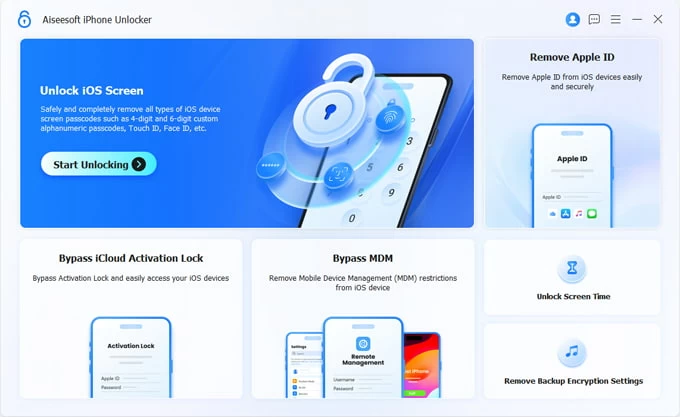
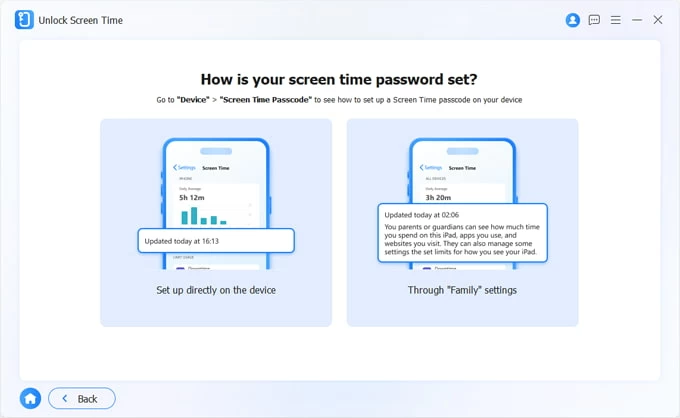
2. Choose how your Screen Time passcode was configured: Set up directly on the device or Through "Family" settings.
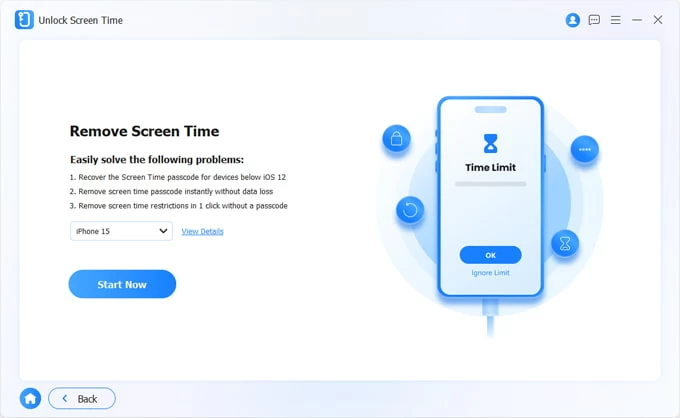
3. Select your iPhone model, then click Start Now.
4. Follow the on-screen instructions to trust the computer on your iPhone and enter your lock screen password.

5. If Find My iPhone is turned on, you must turn it off by navigating to Settings > [Your Name] > Find My on your device. This will require your Apple ID credentials.
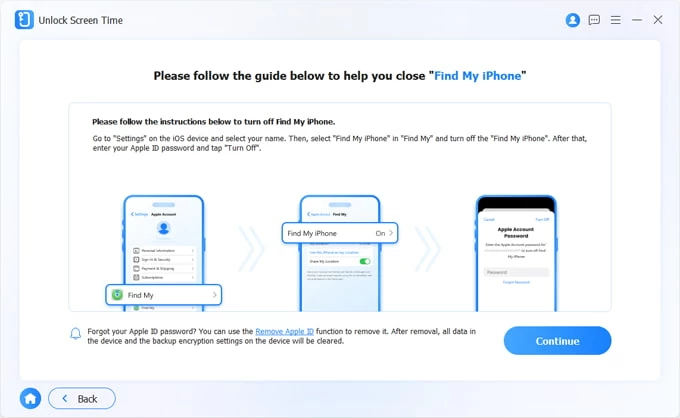
5. Once everything is ready, click Continue. The software will begin unlocking your Screen Time lock.
After the process is complete, your iPhone will restart, and the Screen Time passcode will be disabled. You can now use previously restricted apps and adjust settings as usual. The software can also help you get into locked iPhone without passcode.
If you encounter obstacles while resetting your iPhone's forgotten Screen Time passcode—such as the "Forgot Passcode?" option not appearing or the reset process failing—here are the primary reasons:
Based on these factors, ensure your iPhone is online and that you are using the correct Apple Account credentials used during initial Screen Time configuration. If these standard methods still fail, you can rely on Appgeeker iPhone Unlocker to get the Screen Time passcode unlocked.
1. Is there a risk of data loss if you forget the Screen Time passcode?
No. Entering the incorrect Screen Time passcode multiple times will not cause any data loss on your iPhone. Unlike the Lock Screen passcode, forgetting the Screen Time passcode will not lock your entire phone or erase your device. However, it will strictly enforce any previously set restrictions, preventing you from modifying or bypassing them, which may result in certain apps being restricted or "permanently stuck."
2. Can resetting my iPhone unlock Screen Time passcode?
Yes. Performing a factory reset on your iPhone will unlock the Screen Time passcode. However, if you reset the device directly from Settings, the phone will still require you to enter the Screen Time passcode before proceeding—unless you use iTunes/Finder or recovery mode to reset your iPhone.
But this is a costly method—you will lose all data on your iPhone. We strongly recommend resetting the forgotten Screen Time passcode via your Apple Account or using Appgeeker iPhone Unlocker to remove the passcode without data loss.
3. How do I turn off the Screen Time passcode on iPhone?
To disable the Screen Time passcode, go to Settings > Screen Time > Change Screen Time Passcode, then select Turn Off Screen Time Passcode. Next, enter your current Screen Time passcode to confirm.
4. Can I reset the Screen Time passcode if I am not the Family Organizer?
No. If your iPhone is managed through Family Sharing, you cannot remove or reset the passcode yourself; the "Forgot Passcode?" option will be greyed out. You must either have the Organizer reset it from their own device or use a reliable tool like Appgeeker iPhone Unlocker to bypass the local management profiles on the hardware.