How to transfer music from iPhone to Windows 11 PC


Unlike Android, photos transfer for iPhone is tricky without the right tools. While Apple offers its paths, a few third-party utilities can get the job done, too. Here's how to do.

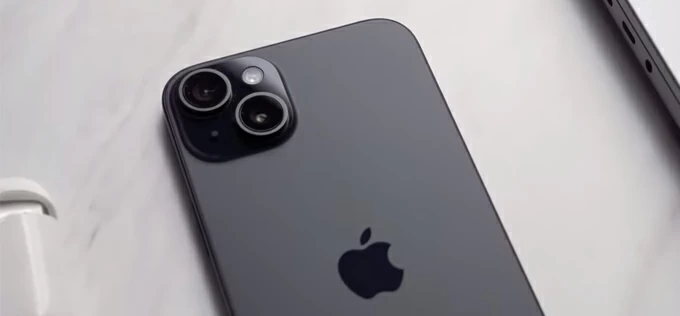
The tasks of transferring pictures from an iPhone 15 to a PC can be finished with several methods.
While the introduction of the USB-C port to iPhone 15 simplifies cable management, transferring high-resolution ProRAW photos (and 4K videos) you captured with iPhone 15 camera to a Windows PC still requires a strategic approach. Whether you are clearing space on the device or backing up your memories locally, this guide covers every method to move your photos from iPhone 15 to PC efficiently.
For those who want to import entire library or specific pictures without complicated steps, go with Appgeeker iPhone Data Transfer. It's designed to bypass the traditional limitations of standard syncing software, enabling seamless bidirectional transfers of music, videos, photos, and ringtones between iPhone/iPad devices and computers (PC/Mac).
Table of Contents
Before diving into the process of copying photos from your iPhone 15 to your PC machine, it is important to understand that the iPhone 15 Pro and Pro Max support USB 3.2 Gen 2 (up to 10Gbps), while the iPhone 15 and 15 Plus utilize USB 2.0 speeds. This means if you own a Pro model, you may be experiencing a much faster speed to transfer your picture library. To maximize efficiency, ensure you are using a high-quality data cable rather than just a standard charging cord.
For most users, the built-in Windows Photos app is the most straightforward route. It treats your iPhone like a digital camera and allows for organized imports.
Here's how to use Windows Photos app to transfer photos from iPhone 15 to PC.
1. Plug your iPhone 15 into your PC using a USB-C cable.
2. Unlock your iPhone. If prompted "Trust This Computer?," tap Trust and enter your passcode.
3. On your PC, click the Start button and type Photos to open the app.
4. Click the Import icon (usually at the top right) and select From a connected device.
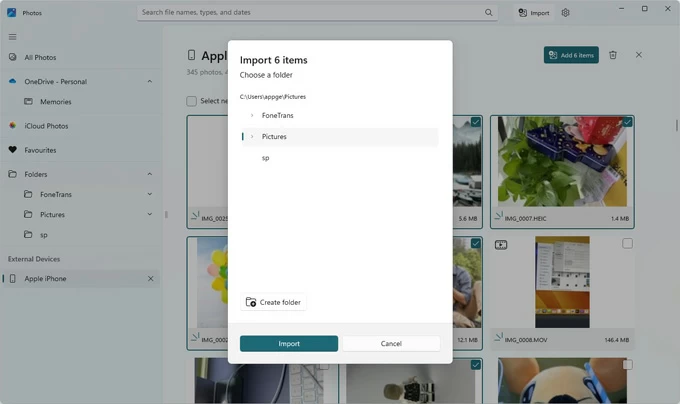
5. The PC will scan your iPhone for media. You can choose to Import all items, which downloads your entire library that contains photos and videos. or select specific photos from the list.
6. Select the folder on your PC where you want the pictures to be stored and click Import.
If the PC fails to recognize the iPhone 15, ensure your "Transfer to Mac or PC" setting in Settings > Photos is set to Keep Originals to prevent the phone from trying to convert HEIC files to JPEGs during the transfer, which often causes timeout errors.
While native tools are functional, they often lack the granularity needed for large-scale transfers. Professional utility tools like Appgeeker iPhone Data Transfer provide a bridge that Windows natively lacks, particularly when maintaining folder structures or offering flexibility for picking items.
Unlike the Windows Photos app, which often dumps everything into one folder, Appgeeker iPhone Data Transfer can sort your iPhone 15 library by Album, Media Type (Selfies, Downloads Bursts, Screenshots), or Date. Additionally, it uses proprietary drivers that are often more stable than the standard Windows MTP driver.
Follow these steps below to transfer photos to PC from iPhone 15:
Step 1: Connect your iPhone and launch the software
First of all, to import your photos from iPhone 15 to PC Windows 11 or 10, plug your device with a high-quality data cable. If this is your first time connecting, you will need to tap Trust on your iPhone screen and enter your passcode.
Launch the software, you will get a similar screen like this.

You can also use this software to import your photos from an iPad.
See also: How to undelete messages on iPhone
Step 2: Choose Photos and filter by albums
Click the Photos icon in the sidebar. The software will take a moment to load your library, including all albums.
You can browse by Camera Roll, Media Types (Live Photos, Videos, Selfies, Places, Screenshots, Download, etc.)
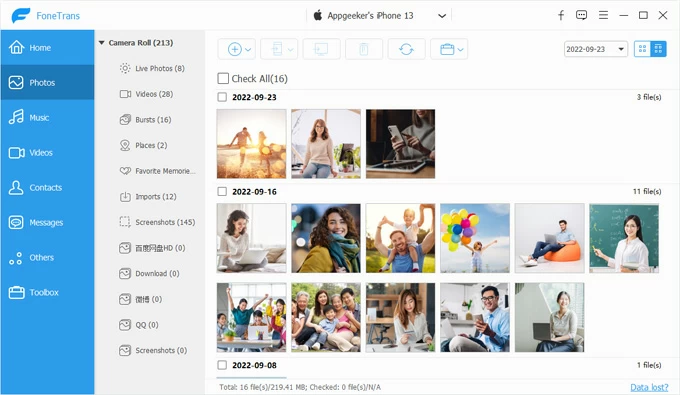
Step 3: Select your photos and download to PC
Select individual photos by checking the small boxes in the upper left corner of the items, or select "Check All" to highlight all.
Click the Export to PC icon located in the top toolbar. A window will appear and ask you to choose where on your PC you want the photos to be saved.
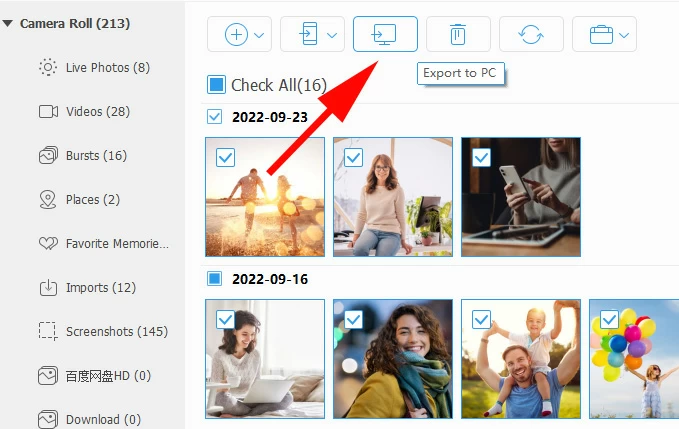
Finally, click Open or OK in the dialog to begin the transfer process. An operations window will appear showing the progress of the transfer. Do not disconnect your device until the status bar is complete.
Once finished, click Open Folder to view your photos on your PC.
Option 1: You can also download photos from iPhone 15 to PC by using the right-click context menu.
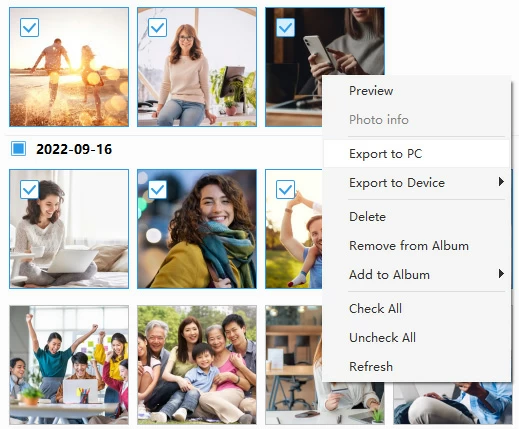
Option 2: Using the context menu to import all photos from a specific album to PC.

Option 3: Move pictures from one album to another in your iPhone 15 library.
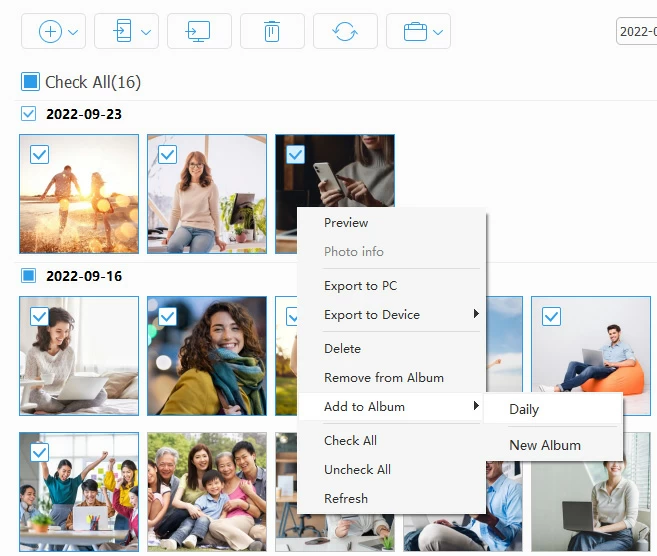
See also: How to transfer music to iPhone without iTunes
If you have an active iCloud+ subscription and want your iPhone 15 photos to appear on your PC automatically as soon as they are taken, iCloud for Windows is the best solution. This wireless sync Way creates a bridge between your Apple cloud storage and your Windows File Explorer.
The steps to sync photos from iPhone 15 to PC:
1. On the iPhone 15, Go to Settings > Photos and ensure iCloud Photos is toggled ON.
2. Download iCloud for Windows from the Microsoft Store.
3. Use your Apple ID credentials to sign in.
4. Check the box next to Photos. Click Options to ensure iCloud Photo Library and Download new photos and videos to my PC are selected.
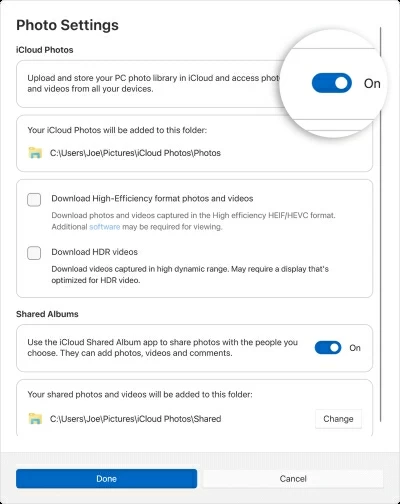
5. Open File Explorer. You will now see an iCloud Photos section in the sidebar.
Whenever you are on Wi-Fi, your iPhone 15 photos will download here on your PC automatically.
For those who prefer the old-school method of transferring your iPhone 15 photos to PC without opening any apps, the manual Drag & Drop way via File Explorer would be your choice. It can access your phone as a Digital Camera.
1. Connect your iPhone 15 to PC.
2. Open File Explorer.
3. Under This PC, you should see your iPhone 15 as Apple iPhone.
4. Navigate to Internal Storage > DCIM.
5. You will see several folders (e.g., 100APPLE, 101APPLE). These contain your photos.

6. Simply copy the files and paste them into your desired PC folder.
Note that folder names in DCIM are often randomized or non-chronological, making it difficult to find specific photos in a large library. File Explorer is suitable for moving a few specific photos from iPhone 15 to PC. For a more flexible and efficient way, consider using Windows Photos app or the reputable Appgeeker iPhone Data Transfer.
See also: Fix iPhone Unavailable try again
Even with the improved USB-C port, Windows and iOS sometimes clash. Here is how to fix the most common issues:
PC Doesn't Recognize the iPhone?
Ensure you are using a cable capable of data transfer. Also, right-click the Start button > Device Manager. Look for "Universal Serial Bus devices" or "Portable Devices." Right-click "Apple iPhone" and select Update driver.
"The Device is Unreachable" error?
It usually happens because the iPhone is trying to convert a 48MP ProRAW photo into a compatible format for Windows in real-time and the process times out.
To fix it, go to Settings > Photos. Scroll to the bottom and change "Transfer to Mac or PC" from "Automatic" to "Keep Originals."
Photos not showing?
If you find that some photos simply will not transfer no matter what you do, check if they are in Shared Album. Photos that live in an Apple Shared Album don't technically exist in your main DCIM folder; they are stored in a separate, hidden cache. To transfer these, you must first save them to your own Camera Roll on the iPhone 15.
Transferring pictures from an iPhone 15 to a PC is not that difficult. For the average user, the Windows Photos App is sufficient. However, if you are a power user or photographer dealing with the massive file sizes of the iPhone 15 Pro, using a professional transfer utility like Appgeeker iPhone Data Transfer or setting up iCloud (make sure you have enough cloud storage) will save you hours of troubleshooting and manual sorting.