
How to Erase an iPhone


Switched to an Android phone and want to move WhatsApp from iPhone to Android? This guide will show you how to transfer all WhatsApp chats from iPhone to Android phone.

Break down the barriers between iOS and Android: Appgeeker WhatsApp Transfer, you can effortlessly cross-platform migrate your WhatsApp chat history from iPhone to Android, ensuring your messages remain intact.

Some iPhone-to-Android WhatsApp chats transfer methods require you to restore your Android phone to default settings.
Switching from an iPhone to an Android phone is more than just a hardware upgrade—it's a full digital migration. WhatsApp holds many important chat histories and memories, so when changing phones, transferring WhatsApp chats from an iPhone to the Android becomes a top priority.
However, cross-platform migration of WhatsApp data is notoriously tricky. WhatsApp relies on iCloud on iPhone and Google Drive on Android, and these two systems do not natively sync with each other.
This guide aims to solve the entire issue, providing comprehensive instructions on how to transfer WhatsApp chats from iPhone to Android — whether you're setting up a brand-new phone, switching to a Samsung Galaxy, keeping your current Android device, or just trying to save a few important messages. With these methods, you can securely transfer your complete WhatsApp chats from iPhone to Android phone to retain and continue your conversations.
Table of Contents
A successful WhatsApp chats transfer from iPhone to Android doesn't start with a cable or an app — it starts with preparation.
Confirm that both phones meet the basic requirements. Your iPhone should be running the most recent iOS release, and your Android device should be updated to a supported Android version. Using outdated systems can lead to data loss or tool failure. Similarly, update WhatsApp to the latest version on both devices to avoid compatibility issues during migration.
Check storage and power. Ensure your Android phone has sufficient available space to accommodate the full chat history, and charge both devices to at least 50% (ideally more).
Phone number consistency is another key point. You must use the same WhatsApp phone number on both devices. Changing the number during the transfer may prevent chats from being restored or cause WhatsApp to treat the Android phone as a new account.
Prepare a well-contacting, compatible data cable. Most iPhone-to-Android WhatsApp transfers use wired connections, so have a cable ready that can connect the iPhone and Android phone.
If you have a need for reverse transfer, refer to transfer WhatsApp chats from Android to iPhone.
WhatsApp's official chat transfer feature is ideal for users seeking a clean, system-level migration without relying on third-party software. Instead of using cloud backups, it transfers WhatsApp chat history directly from iPhone to Android via a physical connection. This local transfer method minimizes privacy risks and avoids the need for lengthy uploads or downloads.
But this method is tightly integrated with the initial Android setup process. It is best suited for brand-new Android phones or those that have just been factory reset and are not yet configured.
Prerequisites:
1. Power on your Android phone and kick off the setup.
2. Select your language and Wi-Fi settings, then proceed until you reach Copy apps & data.
3. Tap Next, and connect your Android phone to the iPhone using an appropriate data cable as prompted, while keeping the iPhone unlocked.
4. The iPhone will display a "Trust this computer" window, tap Trust and enter your passcode to establish the connection.
5. On your Android phone, follow the steps to log in to your Google account and agree to the relevant terms and conditions.
6. When you reach the "Choose what to copy" screen, select Apps, then tap Copy.
7. On the "Choose your apps" page, make sure to check WhatsApp Messenger, then tap Copy.
8. A QR code will appear on your Android phone's screen; use the iPhone's Camera app to scan this QR code.
9. WhatsApp will automatically launch on the iPhone and navigate to the "Move Chats to Android" screen.
10. Tap Start to begin transferring WhatsApp chats from your iPhone to your Android. During this process, keep both phones unlocked and placed close together.
11. Once finished, the Android screen will display "Copying's done"; complete the remaining Android setup steps.
Note:
12. Install WhatsApp from the Google Play Store and sign in using the same phone number.
13. When you see "Importing chat history' prompt, tap Start to confirm the restore and access your transferred chat history.
After it's all done, your original WhatsApp chat threads will appear on your Android device, allowing you to seamlessly continue your conversations. Restoring multimedia files may take a bit more time. When you swipe down the screen and see no ongoing transfer tasks, you can then unplug the data cable.
The main drawback of the official method is that it requires a factory reset. To avoid impacting other data on your already set up Android phone, Appgeeker WhatsApp Transfer stands out because it removes the biggest barriers most users face: device restrictions, factory resets, and partial transfers.
It is specifically designed for users who already have data on their Android phone or who want to migrate WhatsApp chat history from iPhone to Android without disrupting existing settings.
Moreover, it can quickly and completely transfer WhatsApp chats from the iPhone to the Android phone, including large chat histories, photos, videos, files, and more, without missing any data. It supports most Android phone brands and Android/iOS versions, and enables WhatsApp transfers between cross-platform and same-platform devices.
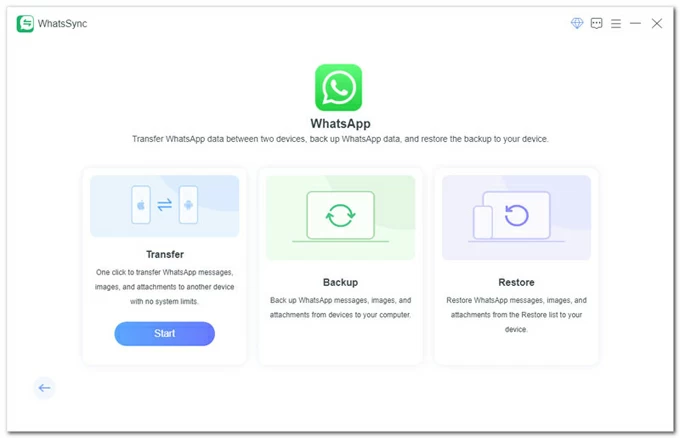
1. Run the WhatsApp Transfer (WhatsSync) software on your computer, select WhatsApp, and enter Transfer mode.
2. Plug your iPhone into the computer, remember to unlock your device and trust the computer.
3. Link your Android phone to your computer and allow USB debugging, then tap Install on Android to install the MobieSync app.
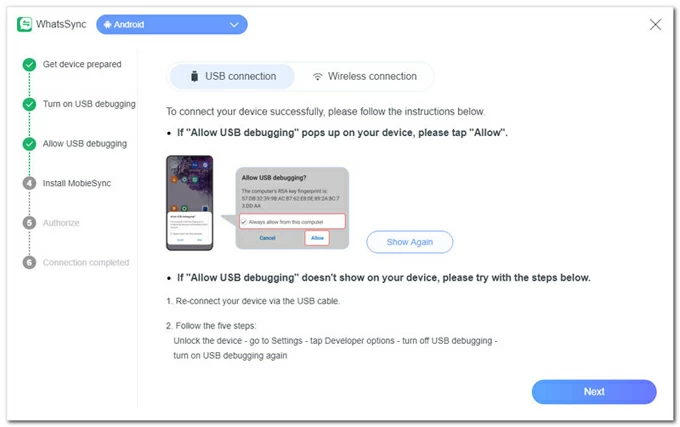
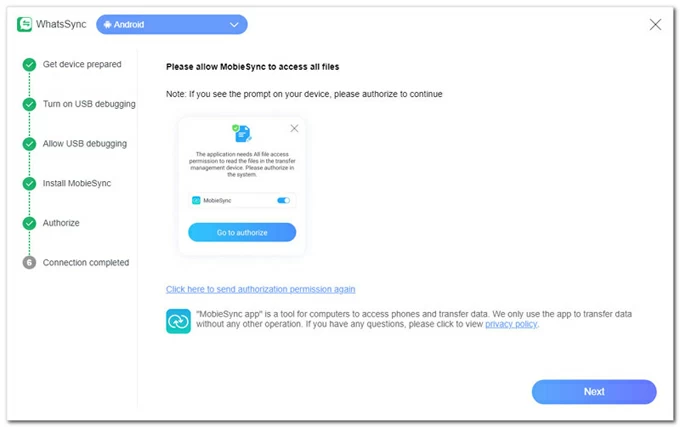
Tap Go to Authorize to allow MobieSync to access your Android data. Then return to the computer and click Next.
4. Correctly select the iPhone as your source device and the Android phone as your target device.
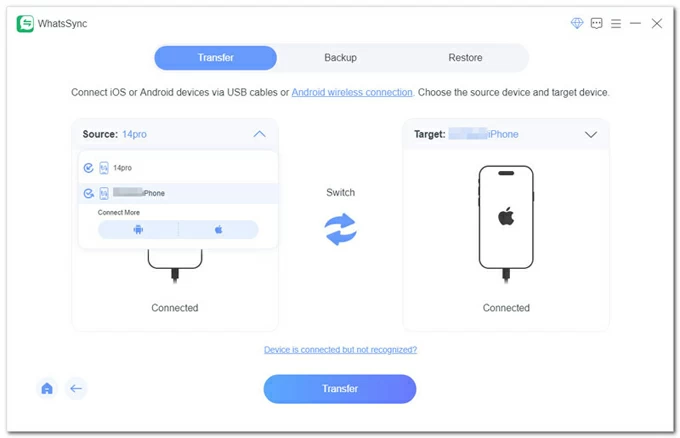
5. Click Transfer and decide whether to back up your target device (Android phone)'s WhatsApp data, as the transferred WhatsApp chats will replace the current ones.
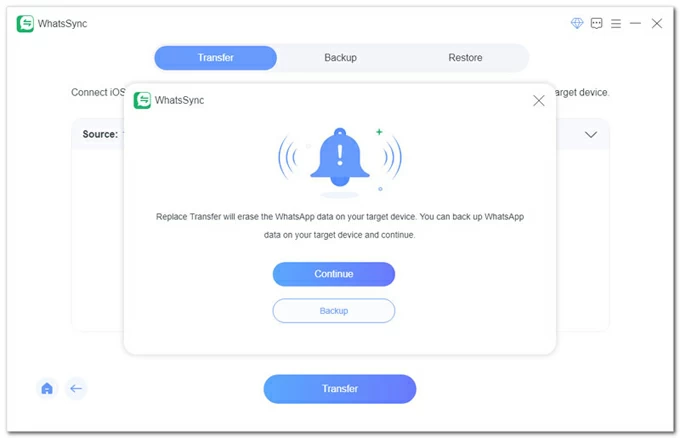
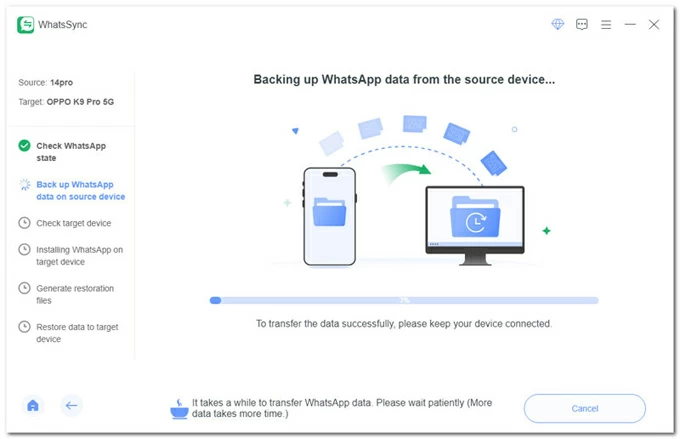
6. The software will begin analyzing your iPhone's WhatsApp; you'll need to input your iPhone's lock screen passcode to start backing up your WhatsApp chats from the iPhone.
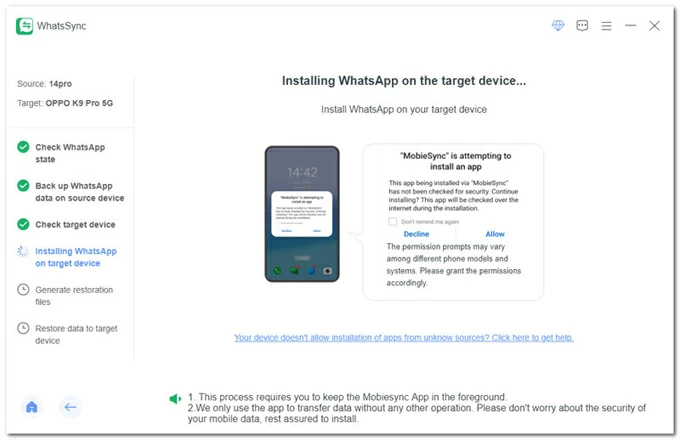
7. Your Android device will pop up a request to install WhatsApp; tap Allow and grant access permissions.
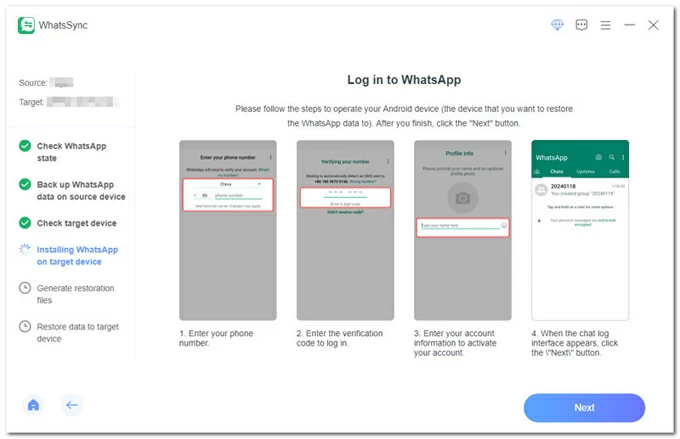
8. Follow the instructions to log in to WhatsApp on your Android phone, then click Next in the WhatsSync window on your computer.
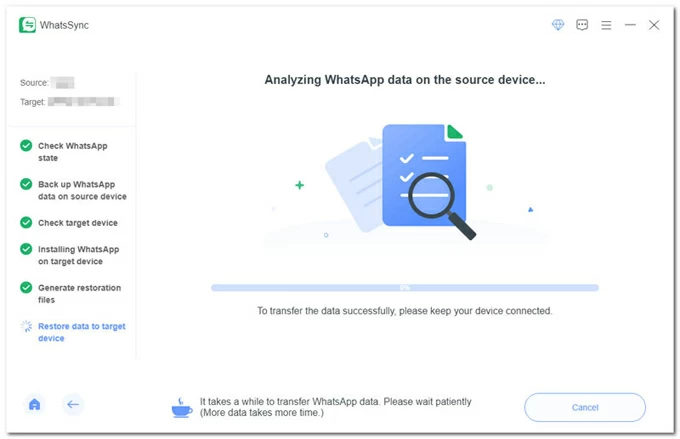
9. The software will start restoring the backed-up WhatsApp chats to your Android phone—let it complete its work.
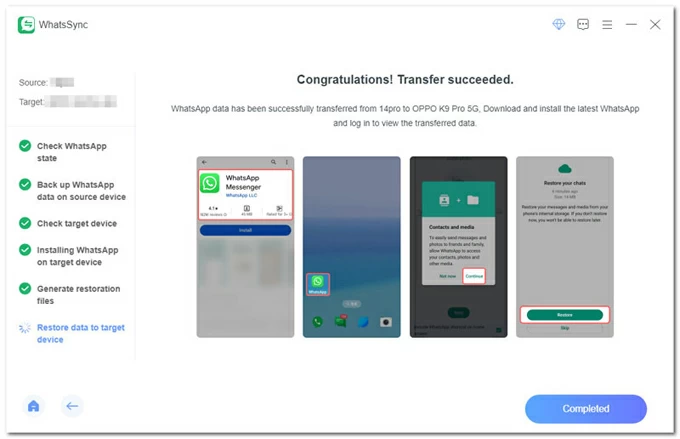
10. After the transfer succeeds, download the latest version of WhatsApp on your Android phone and sign in, then tap Continue to enable WhatsApp to use your device's media files, followed by tapping Restore to retrieve the transferred WhatsApp chats.
Also see: How to recover deleted WhatsApp messages without backup on iPhone
For users migrating to the Samsung ecosystem, there's a dedicated tool for transferring WhatsApp chats from iPhone to a Samsung Galaxy phone—Samsung Smart Switch mobile—which means fewer manual operation steps and superior system-level integration. WhatsApp chat history can be migrated alongside contacts, apps, and settings, making it an efficient all-in-one solution.
While this method does not require you to reset your Samsung phone to factory settings, your WhatsApp must not be activated yet. If WhatsApp is already set up on your Samsung device, you will need to reinstall the app before starting the transfer process.
1. Download Samsung Smart Switch Mobile on your Samsung Galaxy phone if you haven't already.
2. Open Smart Switch and, at the "Transfer Your Data" step, select Receive on This Phone (some displays show Receive Data).
3. Select the iPhone/iPad option as your source device.
4. Open WhatsApp on your iPhone, head to Settings > Chats > Move Chats to Android, then tap Start to get chats ready.
5. Connect both phones using a USB cable. When prompted on your iPhone, tap Trust and enter your screen lock passcode.
6. When you get to the "Select Data to Transfer" screen, choose Apps, then tap Transfer.
7. In the next step, ensure WhatsApp Messenger is checked and tap Install.
8. Scan the QR code displayed on the Samsung screen using your iPhone's camera, then tap Start to authorize exporting the chat history.
Note:
8. Wait for Smart Switch to finish importing your data. This process may take some time depending on the file size.
9. On your Samsung phone, install WhatsApp and log in for the first time using the original phone number, then verify the number.
10. The app will immediately detect the local Smart Switch archive; on the "Importing Chat History" screen, tap Start to complete the chat history restoration.
Once done, your WhatsApp chat history will be available on your new Samsung device.
Read more: How to reset Samsung phone when locked
Email Export is not intended for migrating WhatsApp chat history to a new device. Instead, it converts dynamic chats into static, readable documents that are stored permanently on your device, completely independent of the WhatsApp application.
If you only need to preserve certain conversations for reference or personal archiving, exporting WhatsApp chats via email from iPhone to Android is very simple and doesn't need a cable connection.
However, this method has certain limitations:
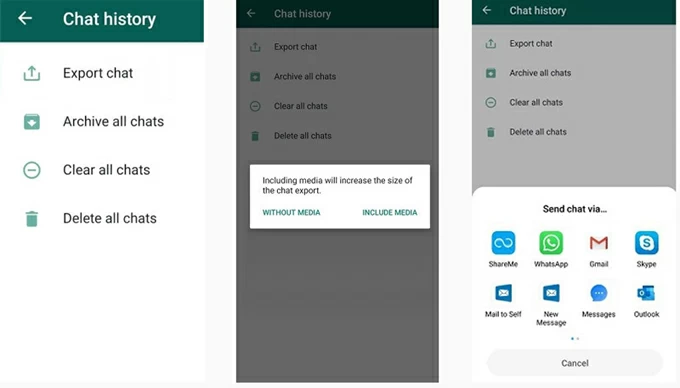
1. Open WhatsApp on your iPhone and enter the specific chat you wish to export.
2. Tap More options at the top-right corner, then select More > Export chat.
3. Choose whether to include media files.
4. Select Mail as the export method and send the email to yourself.
5. Open the email on your Android device to view the files.
Conclusion
That's all the methods available for moving WhatsApp chats from an iPhone to an Android phone. For the vast majority of users, if you've acquired a new Android phone, opting for the official native migration is the most reliable approach; if your Android device is already in use or want to transfer your WhatsApp chats from iPhone to Android without factory reset, the professional Appgeeker WhatsApp Transfer tool is the most suitable choice.
As long as you prepare thoroughly and select the method that best fits your situation, your chat history can be transferred completely and orderly, ready to continue using anytime.
1. Why can't I transfer WhatsApp chats from iPhone to Android?
One common problem is mismatched phone numbers. WhatsApp identifies accounts by number, not device, so both phones must use the same number throughout the process. Another frequent issue is insufficient storage on the Android phone, especially when large videos are involved.
Interruptions are also risky. Disconnecting cables, locking screens, or switching apps mid-transfer can cause incomplete imports. It's best to keep both devices active and untouched until the process finishes.
Finally, your WhatsApp must be unactivated. You may need to factory reset your Android phone or reinstall WhatsApp to ensure a smooth migration of WhatsApp chats. And you cannot merge WhatsApp chat histories from two different devices.
2. Can I transfer WhatsApp chats from my iPhone to an Android phone without resetting?
Yes. While WhatsApp's official method requires erasing your Android phone, third-party tool like Appgeeker WhatsApp Transfer is for already-used Android phones and won't wipe existing data. Besides, if you're using a Samsung phone, you can also use Smart Switch to transfer WhatsApp messages from iPhone to Android without a reset.
3. What happens if I'm also changing my phone number during the move?
This is a common trap. You must not change your SIM card and transfer simultaneously. The correct sequence: While still on your iPhone, use the WhatsApp "Change Number" feature (Settings > Account > Change Number). Once your account is linked to the new number on your iPhone, then proceed with any of the migration methods mentioned in this guide.




