
Recover iPhone deleted WhatsApp messages without backup


Transferring WhatsApp data from Android to Samsung can be done in different ways, whether you're using the built-in features, cloud backup, or direct transfer tools.

Transferring WhatsApp to a Samsung phone is simple with Appgeeker WhatsApp Transfer, which is specifically designed for cross-platform migrations that supports Samsung, Android, and even iPhone devices.
The process is relatively easy when it comes to Android-to-Samsung WhatsApp transfer.
Switching to a Samsung phone doesn't mean you'll leave your WhatsApp chats behind. Whether you're upgrading from an older Samsung device or moving from another Android brand, there are several reliable ways to transfer WhatsApp from Android to Samsung quickly and securely.
As both devices run on Android, transferring WhatsApp to Samsung is generally straightforward. You can use WhatsApp's built-in Chat Transfer feature, restore your chat history from a Google Drive backup, or rely on Samsung Smart Switch when moving from an old Galaxy device.
Below, we'll walk through these effective methods, so you can transfer your WhatsApp chats from Android to Samsung with ease and continue your conversations without data loss.
Table of Contents
WhatsApp's built-in Chat Transfer feature is one of the quickest ways to move your chat history when switching from an Android phone to a Samsung device. It is free to use and works even after setup, so no factory reset is required on the target phone.
The WhatsApp transfer from Android to Samsung moves your full account information, including all your personal messages, photos, videos, documents, etc. However, the peer-to-peer payment messages or media received over WhatsApp Channels are not included.
Before transferring WhatsApp to your new phone, ensure that WhatsApp has not been registered or activated on the target Samsung device. Also, confirm the following requirements are met:
When everything is ready, here's how to transfer WhatsApp from Android to Samsung wirelessly:
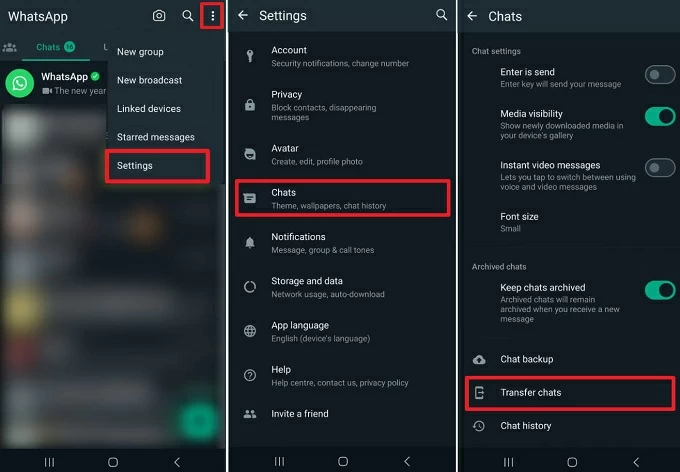
Step 1. Prepare the old Android phone for WhatsApp transfer.
Open WhatsApp on the source Android device, and tap More Options icon in the top-right corner.
Select Settings > Chats > Transfer chats, and confirm with Start. If prompted, allow the permissions and prepare to scan the QR code that will appear on the target Samsung phone.
Step 2. Connect your Android to Samsung for WhatsApp transfer.
Download and open WhatsApp on Samsung; tap Agree and continue, then verify your phone number to go through the basic setups.
Select Transfer from old phone when you see the Restore or transfer chats screen; proceed with Continue > Start to access nearby devices.
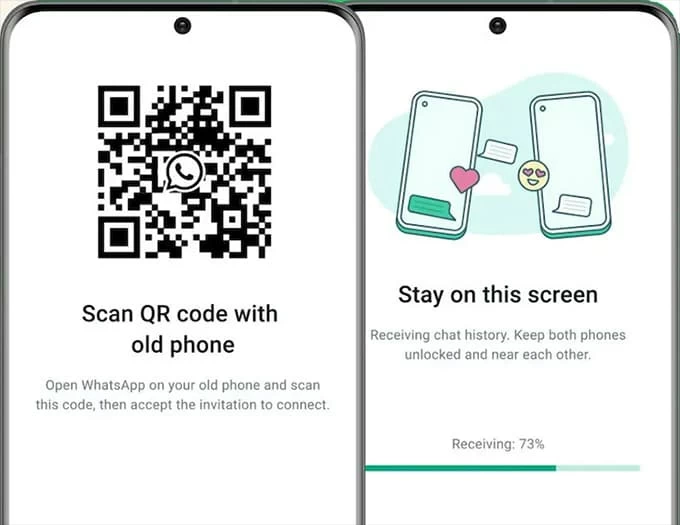
When the QR code displays, scan it with your old Android phone and tap Accept to connect.
Step 3. Transfer WhatsApp to new Samsung phone.
Once connected, a progress bar will show up on your devices during the transfer. To avoid interruption, keep your Android and Samsung close to each other and stay on this screen.
When the transfer is complete, tap Next on Samsung. All previous WhatsApp chats will be there on your new Galaxy phone.
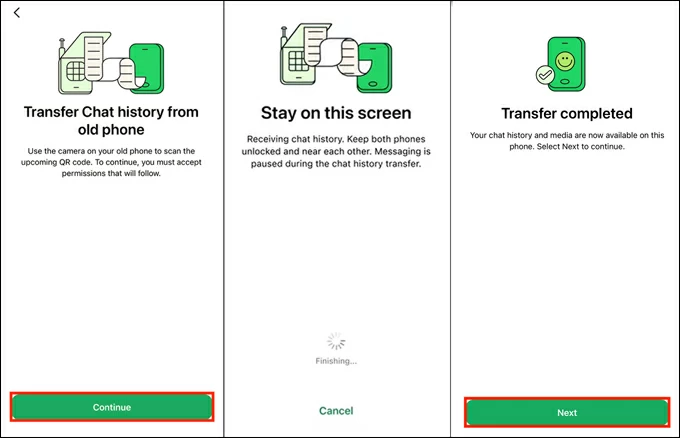
TIP: If the process doesn't go smoothly, restart both devices and try the chat transfer again.
Whether you're upgrading from an older Galaxy device or switching from any other Android brand, Appgeeker WhatsApp Transfer makes it easy to move your WhatsApp data to a Samsung phone.
This powerful tool supports direct WhatsApp transfers across platforms, including Android to Samsung, Samsung to Android, and even iPhone to Samsung. Its guided, step-by-step interface will help you transfer your WhatsApp chat history entirely, covering personal messages, group chats, photos, videos, audio files, documents, and other media.
Best of all, the tool is compatible with a broad range of Android versions and devices. You can seamlessly transfer WhatsApp to your Samsung Galaxy phone from Android brands such as Motorola, LG, Xiaomi, VIVO, OPPO, Huawei, HTC, POCO, Realme, and more. Here's how:
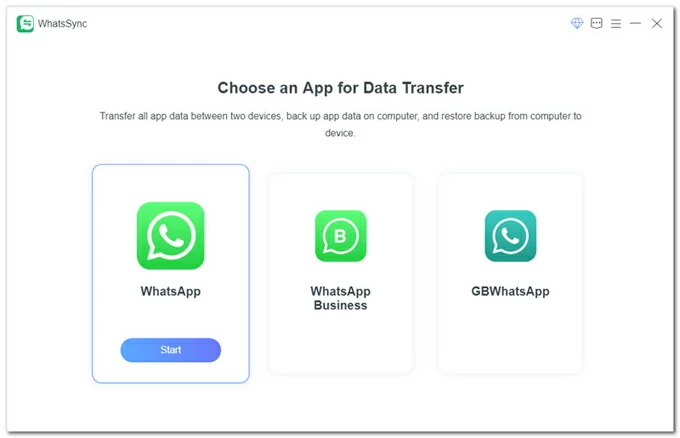
Choose WhatsApp from the main screen and select Transfer mode to start.
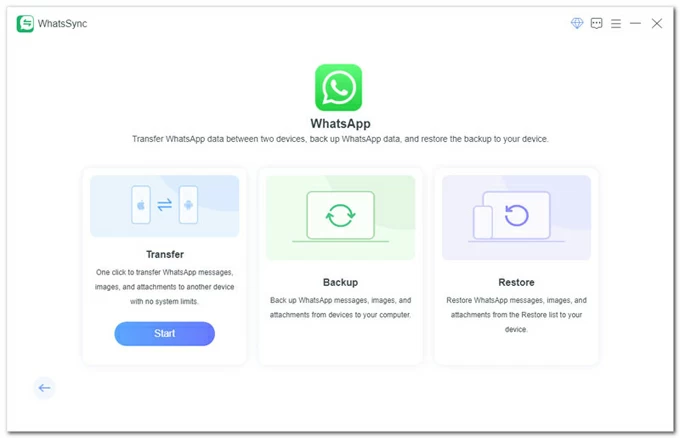
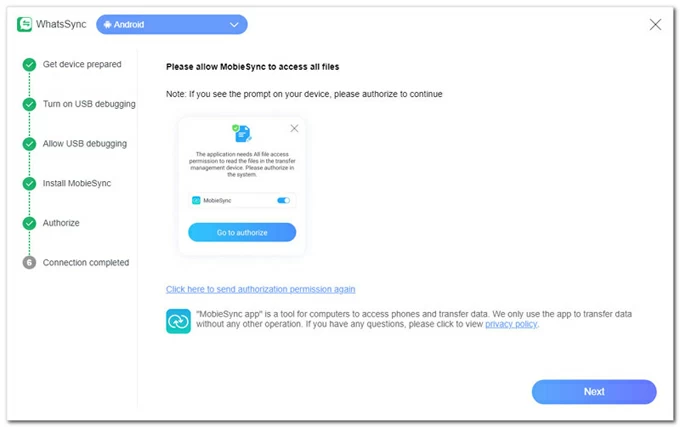
After connection, tap Allow when you see Allow USB debugging prompt. If it doesn't appear, reconnect your devices and follow the onscreen instructions to turn on USB debugging again.
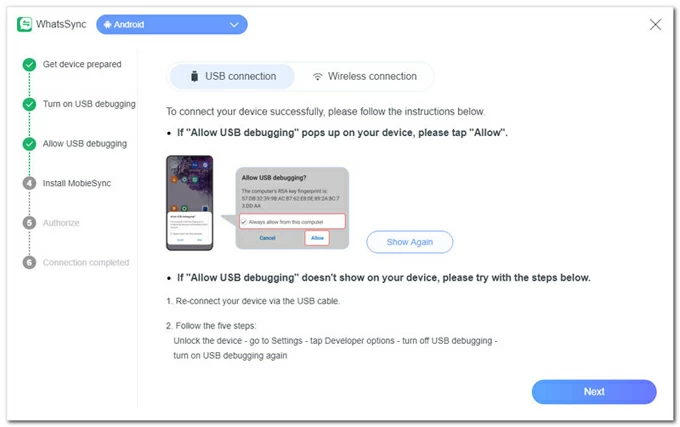
When prompted, tap the Install button on your Android phone. This will install MobieSync app on your phone and get it ready for WhatsApp transfer.
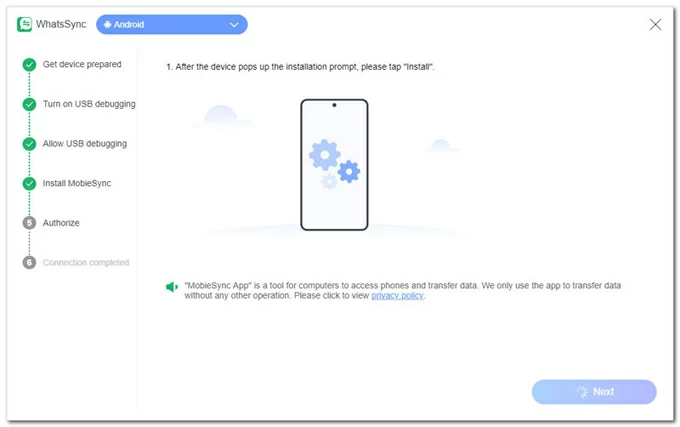
Tap Go to authorize to allow the app to access WhatsApp data on your device. Then, go Next.
Check the drop-down menu next to Source and select your old Android phone; then choose your Samsung smartphone from the Target box.
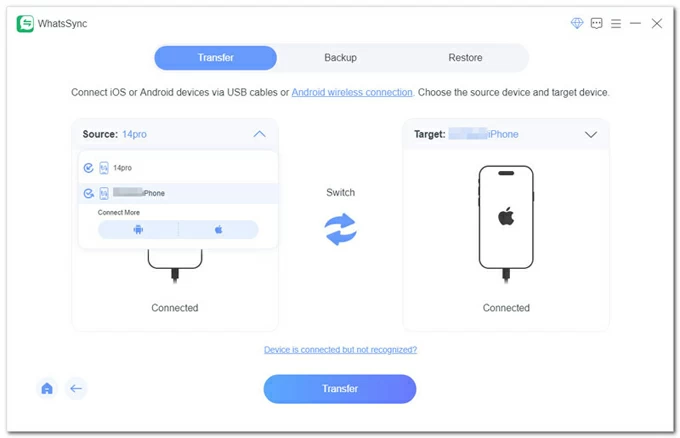
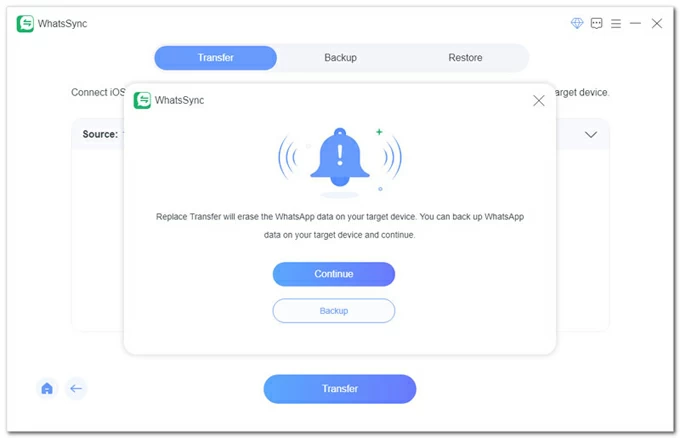
Once ready, click the Transfer button and click Continue to start.
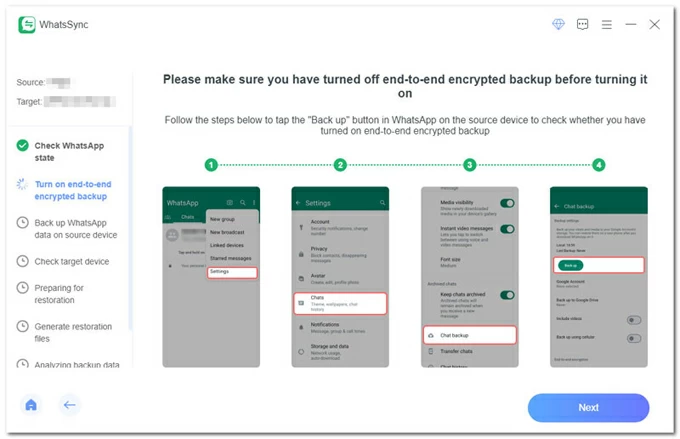
Let it check the WhatsApp state on your source phone, then open WhatsApp and go to Settings > Chats > Chat backup > Backup. Ensure the End-to-end encrypted backup is turned off.
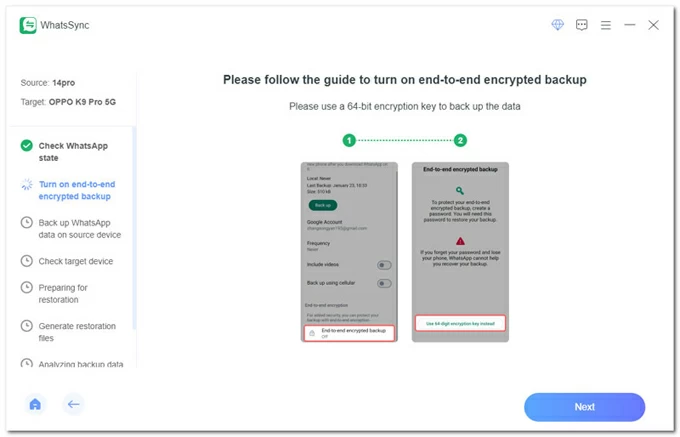
Turn on the End-to-end encrypted backup option. Note: If it's already on, make sure to turn off it, wait shortly, and turn it back on. Then, click Next on the program.
After that, select Use 64-digit encryption key instead and go Next in WhatsSync.
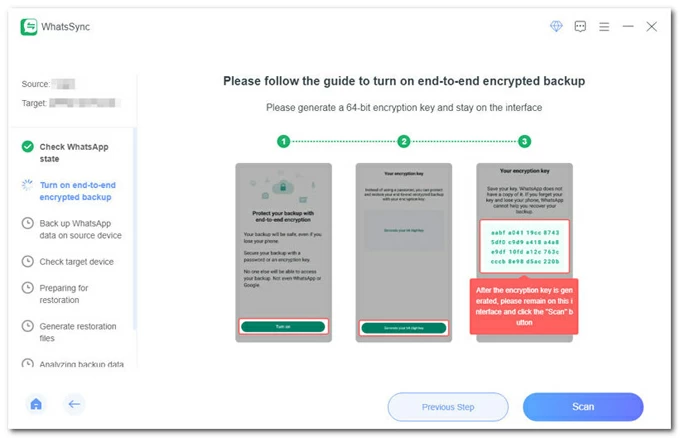
Tap Turn on > Generate your 64-digit key. Your Android phone will create a 64-digit key; stay on this screen and click the Scan button at the bottom of WhatsSync.
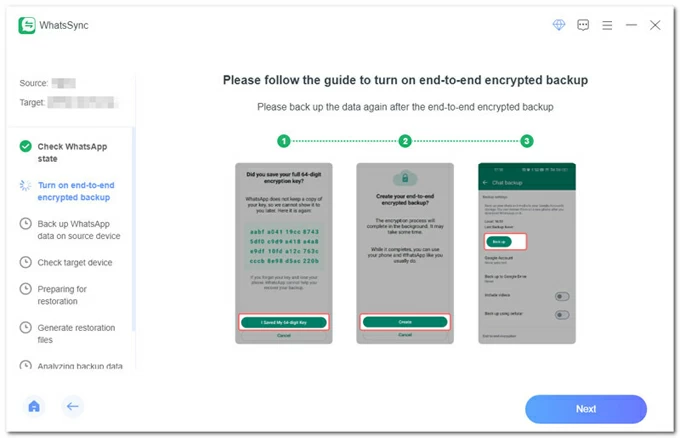
To back up WhatsApp data from the source Android phone, tap I Save My 64-digit Key > Create > Backup. Wait for a short while.
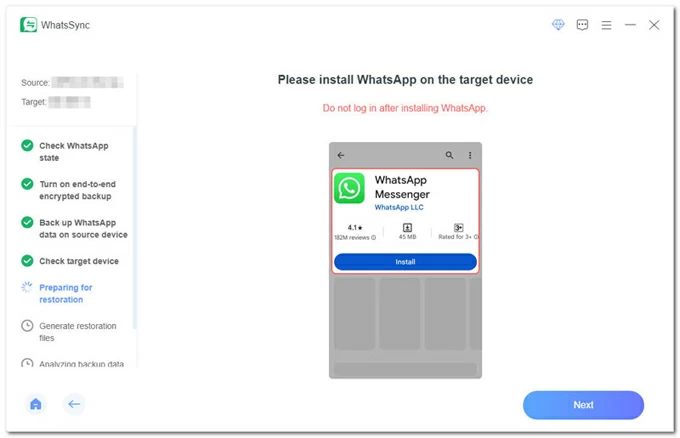
Install WhatsApp Messenger on your Samsung Galaxy device. Do not log in at the moment.
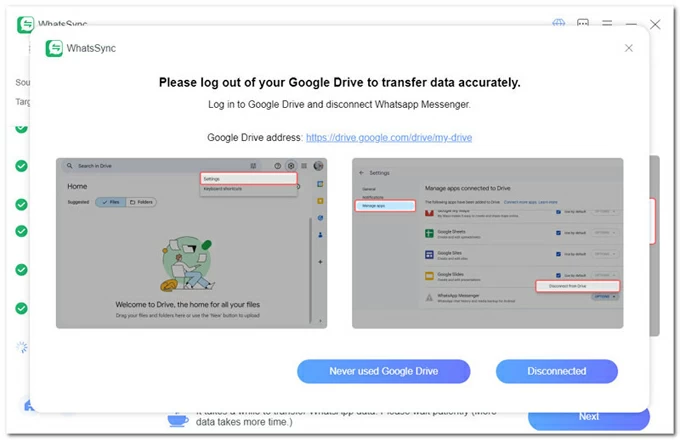
To ensure accurate WhatsApp transfer, log out of your Google Drive on Samsung and click the Disconnected button.
If you're not signed in to your Google Drive, click Never used Google Drive and go on.
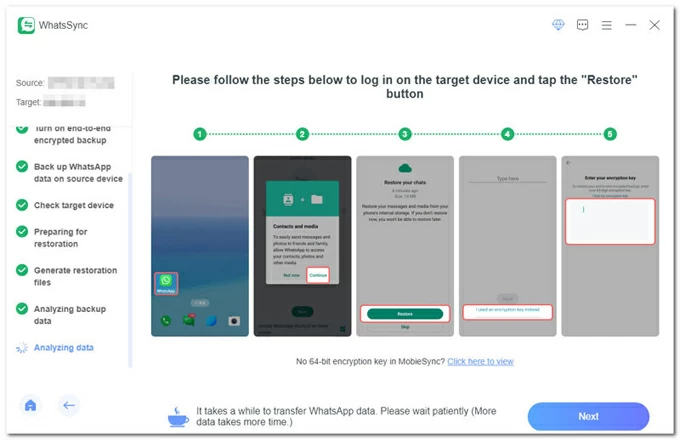
Then, open the WhatsApp and follow the general setup steps. When Restore your chats screen appears, tap Restore and enter the encryption key.
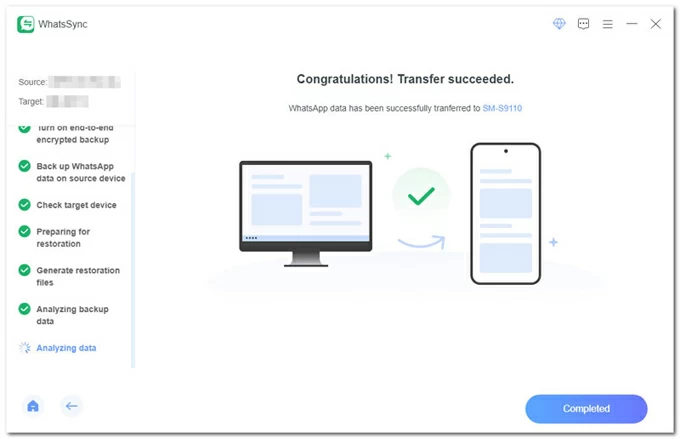
Allow it a while to restore WhatsApp chats onto your Samsung phone. Once done, you can disconnect both devices and enjoy chatting on your new phone.
Not limited to Android-to-Samsung transfer, this tool also allows you to transfer WhatsApp from one phone to another across Samsung and iOS, or iOS and iOS.
If you prefer to use a cloud-based method, Google Drive is a great option compatible with all Android and Samsung devices. With sufficient cloud storage on Google Drive (starting from free 15 GB), you can back up your WhatsApp data from the old Android phone and then restore it to your new Samsung Galaxy device.
This method relies on a stable internet connection. Make sure WhatsApp Backup is enabled on the source Android phone and that your Google Drive has enough storage to complete a full backup of your chats and media history. Additionally, to ensure a successful Android-to-Samsung WhatsApp transfer, do not sign in to WhatsApp on the new phone before starting the restore process.
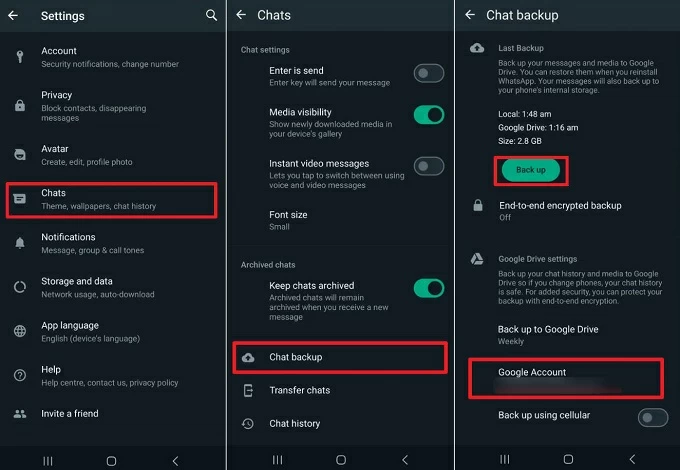
Step 1. Back up WhatsApp to Google Drive from the old phone.
TIP: If you've backed up your WhatsApp before, the new backup will overwrite the existing one.
Step 2. Restore WhatsApp chats on Samsung phone.
Ensure your Google Drive is signed in with the same account you used for WhatsApp backup.
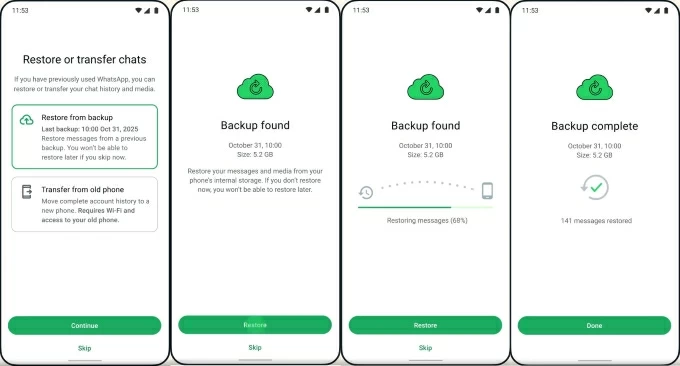
If you skip this step, you won't be able to restore your chats later.
Allow it a few minutes. WhatsApp will restore all chats from that Google Drive backup to your Samsung phone. Once done, tap Done and the full chat log will show up.
When upgrading from an older Galaxy phone to a new one, Samsung Smart Switch is often the most convenient option for data transfer. It comes pre-installed on recent Samsung Galaxy devices and is also available on the Google Play Store. With Smart Switch, you can transfer WhatsApp to your new Samsung phone directly, without needing a backup.
1. Open the pre-installed Smart Switch on your new Samsung phone through Settings > Accounts and backup > Bring data from old device.
Or, you can also install and open Smart Switch from Google Play Store.
2. When asked, select Receive data and choose Galaxy/Android as a source device.
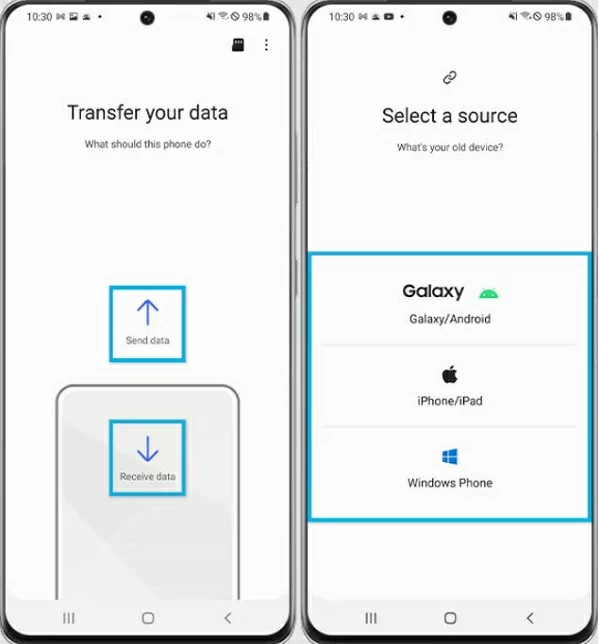
3. Select a cable or wireless option for connection.
4. When a QR code appears on the new device, use your old Samsung phone to scan it.
5. Follow the onscreen prompts and tap Accept to connect your old and new Samsung devices.
6. When you're prompted with Select data to transfer screen, tap Apps and select WhatsApp Messenger from the list.
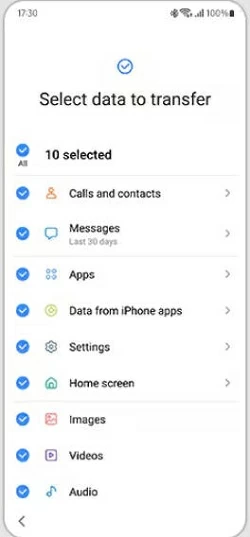
7. Start the transfer and wait patiently. Make sure to place your devices near each other.
8. After the transfer is complete, install and open WhatsApp on the new Samsung device.
9. Follow the setup prompts to verify your phone number. Make sure it's the same one used on your old Galaxy phone.
10. Tap Start to import all transferred chats into the WhatsApp app on the new Samsung mobile.
The WhatsApp data will stay on your previous device until you manually uninstall the app or perform a factory reset on that Samsung Galaxy phone.
If you are transferring your WhatsApp to a Samsung with a new phone number, use the built-in Change Number feature on your previous device first.
Ensure your new number can receive SMS texts or phone calls. Here's how to change phone number on your old Android device before the WhatsApp transfer to Samsung:
1. On your current Android phone, tap the three-dot icon and move to Settings > Account > Change Number > Next.
2. Enter your old phone number and then enter the new phone number. Make sure both in full international format.
3. Tap Next. It's optional to turn on Notify contacts and choose the contacts you want to inform.
4. Tap Done and follow the prompts to register your new number with an SMS or phone call.
5. When you receive a 6-digit code, enter it correctly to complete registration.
Finally, you can start moving your WhatsApp from the old phone to your new Samsung device. Choose a method above that best fits your situation to complete the transfer smoothly and securely.
Q1- Will I lose my WhatsApp conversations if I switch to a new Samsung phone?
No. WhatsApp provides several ways to transfer your chat history when changing phones. As long as you follow the correct transfer method, all your existing WhatsApp conversations can be moved to your new Samsung device without data loss.
Q2 - What WhatsApp data can be transferred from Android to Samsung?
In most cases, the transfer includes individual and group chats, account information, profile details, photos, videos, audio messages, documents, and chat settings. However, peer-to-peer payment messages and media received via WhatsApp Channels are usually not transferred.
Q3 - How can I restore my WhatsApp chat history on a Samsung phone?
If you've previously backed up your WhatsApp data to Google Drive, install WhatsApp on your Samsung phone and complete the initial setup. When prompted, choose Restore from backup to recover your chat history.
If no backup exists, open WhatsApp on your old phone and go to More options > Settings > Chats > Chat backup, select your Google account, and tap Back up to create a new backup.
Q4 - How to transfer WhatsApp chats to a new Samsung phone without backup?
WhatsApp has a built-in Chat Transfer feature that allows you to move your chats to a new Samsung phone without using any cloud backups.
Alternatively, third-party tools such as Appgeeker WhatsApp Transfer can help you transfer WhatsApp data directly between Android devices without needing a backup.
Q5 - Will my WhatsApp chats be deleted if I change my phone number?
No. WhatsApp includes a built-in Change Number feature, letting you update your phone number while keeping your existing chat history intact.
Samsung Unlock Tools — Unlock Screen Locks, FRP, and SIM Locks




