
Recover iPhone deleted WhatsApp messages without backup


Transfer WhatsApp to a new phone from Android or iOS using built-in options or reliable transfer tools. Learn how to move your chats securely, whether during or after setup.

All-in-one option: Appgeeker WhatsApp Transfer enables cross-platform transfers, allowing you to move WhatsApp chats across Android and iOS in any direction, including Android to iPhone/Android, and iPhone to Android/iPhone.

Explore easy ways for transferring WhatsApp to a new phone, whether from the same OS or a different platform.
When switching to a new phone, transferring WhatsApp chats may be one of the most important things on the to-do list. Whether you're moving between the same OS or across different platforms, there are easy ways to transfer WhatsApp to a new phone.
In this guide, we'll cover both official methods and reliable tools to help Android and iPhone users to transfer chats from WhatsApp to their new phone. From WhatsApp's built-in Chat Transfer feature, Apple's Move to iOS app, to Android's Copy apps & data function, you can make direct WhatsApp transfer to a new phone quickly and safely.
Table of Contents
This guide applies to a wide range of Android and iOS devices, including iPhone, Samsung, Motorola, Google Pixel, OPPO, VIVO, Xiaomi, OnePlus, LG, Huawei, and more.
Transferring WhatsApp to a new phone can be easy with Appgeeker WhatsApp Transfer. It's a powerful tool that supports cross-platform WhatsApp transfers, including Android to iPhone, iPhone to Android, iPhone to iPhone, and Android to Android.
With its guided, user-friendly interface, you can quickly transfer your WhatsApp chats to a new phone after setup, whether you're moving between same OS or switching from a different system. In just a few clicks, the tool moves your full chat history, including conversations, messages, photos, videos, audio files, documents, and other data.
It supports a wide range of phone brands, such as iPhone, Samsung, Motorola, OPPO, VIVO, Xiaomi, Google, Realme, OnePlus, Huawei, LG, HTC, POCO, Infinix, Sony, etc.
Not requiring a factory reset when transferring WhatsApp to a setup phone, it enables you to safely move WhatsApp chats to an iPhone or Android without losing data. Here's how:
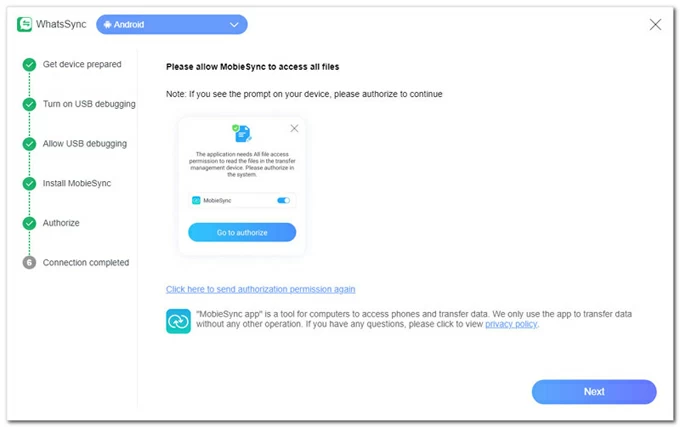
Step 1. Launch WhatsApp Transfer on computer.
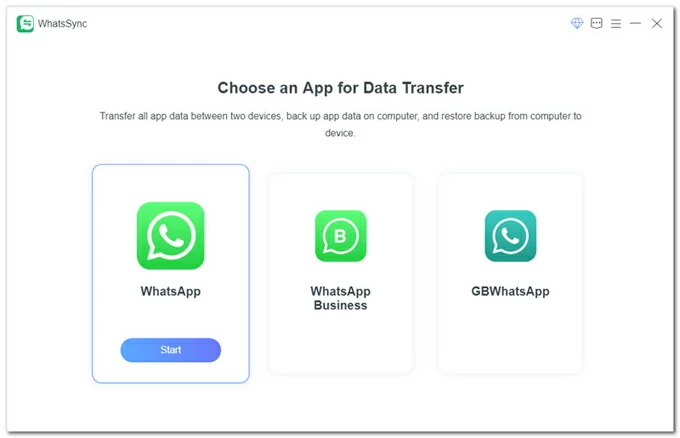
Install and open WhatsApp Transfer on your PC and select WhatsApp from the main screen.
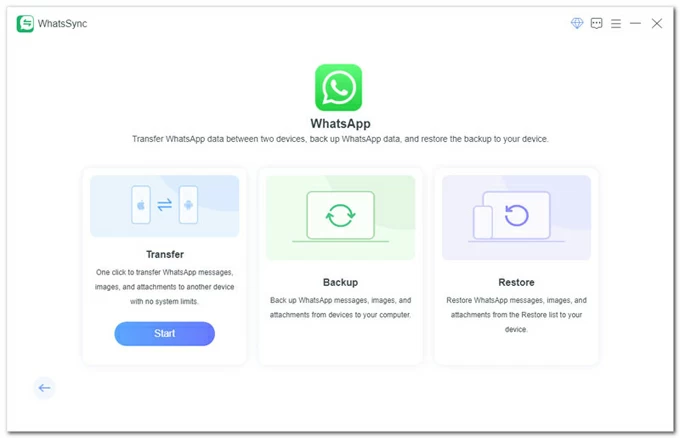
In the following options, select Transfer to start.
Step 2. Connect both of your old and new phones.
Connect the iPhone(s):
Connect the Android device(s):
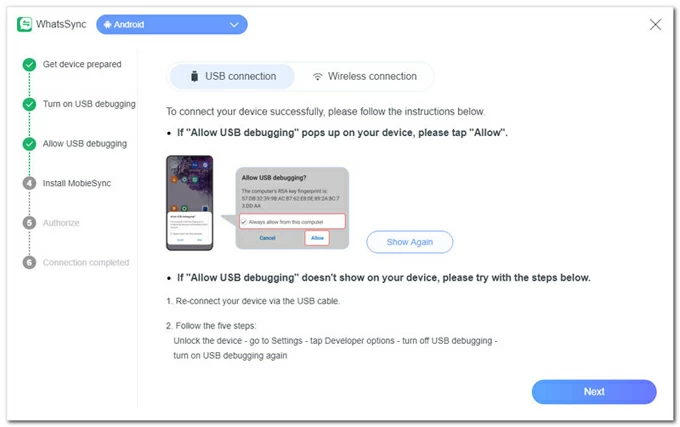
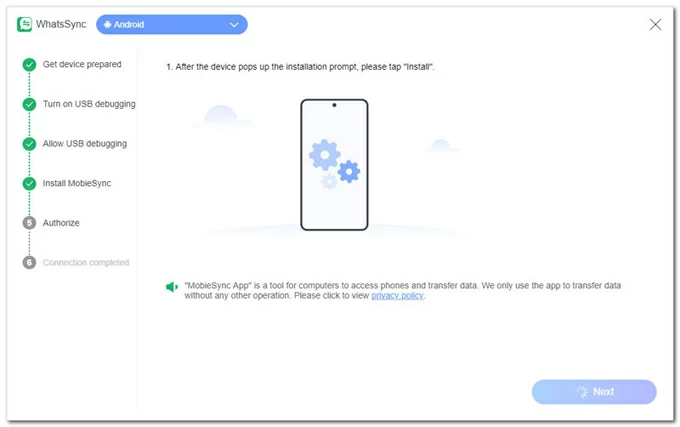
Once connected, click the Source box and select your old Android phone; then check Target box and choose your new iPhone.
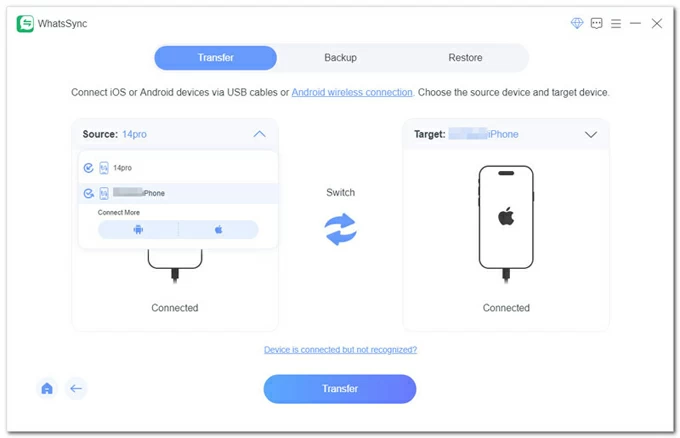
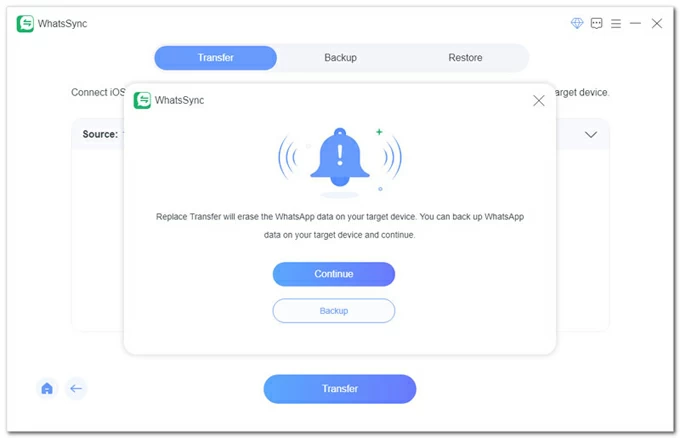
Step 3. Transfer WhatsApp to new phone.
This tool supports WhatsApp transfers between Android and iOS in any direction. For example, if you are transferring WhatsApp from an Android phone to a new iPhone after setup, follow the instructions below. Alternatively, you can refer to the WhatsApp Transfer user guide for detailed steps for all supported transfer scenarios.
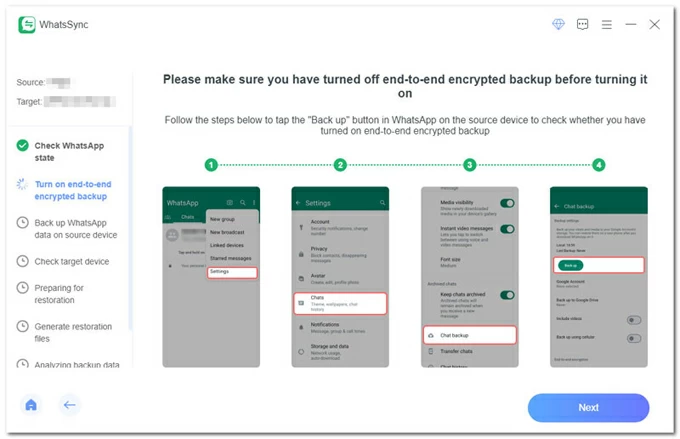
Let the software check the WhatsApp state on your Android phone; then follow the onscreen guide to turn off End-to-end encrypted backup in WhatsApp and turn it back on. You can complete it through More options > Settings > Chats > Chat backup > Back up.
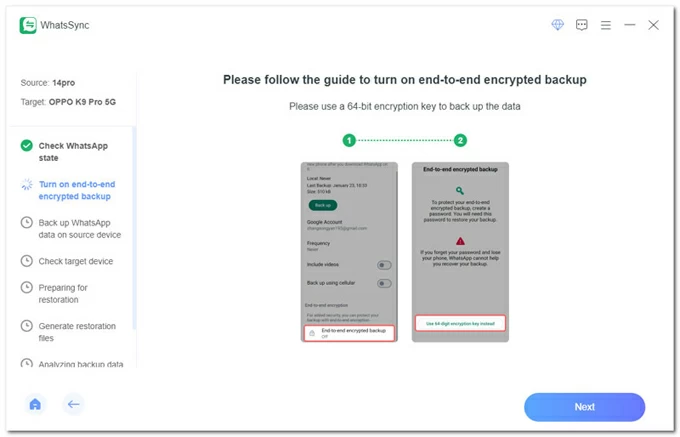
After you tap End-to-end encrypted backup to enable it, choose Use 64-digit encryption key instead; then click Next on the WhatsSync window.
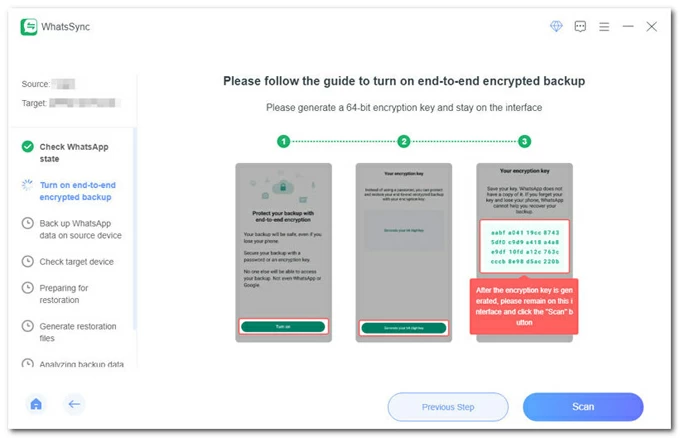
Tap Turn on > Generate your 64-digit key on Android phone. After that, stay on this screen and click the Scan button on computer. The transfer tool will scan the key code automatically.
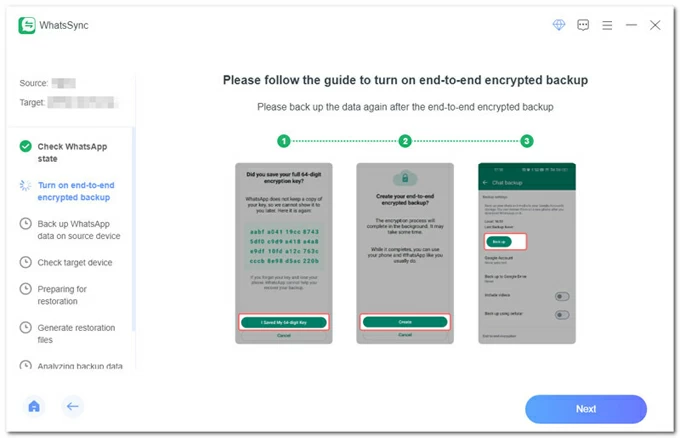
Tap Saved My 64-digit Key > Create > Backup on your Android phone to create an end-to-end encrypted backup of your current WhatsApp data.
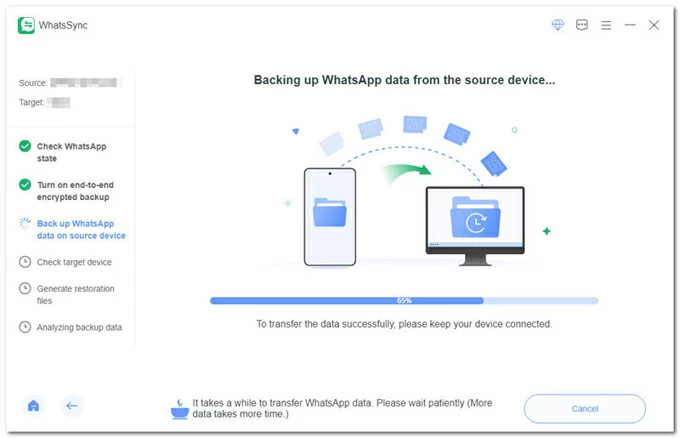
Hit Next button to start backing up WhatsApp data from the source Android device.
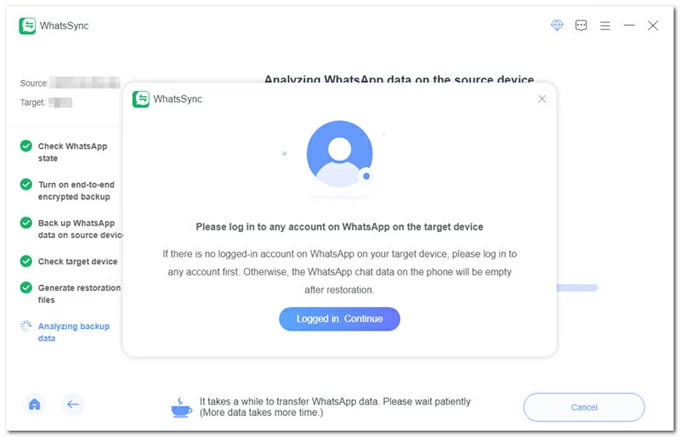
When the backup is complete, open WhatsApp app on your new phone and log in to any account. Then, click Loggin in. Continue button. If not, the WhatsApp data will be empty after the transfer.
Allow it a few minutes to transfer WhatsApp from the old phone to your new phone. Once completed, you can view all transferred WhatsApp chats when your iPhone restarts.
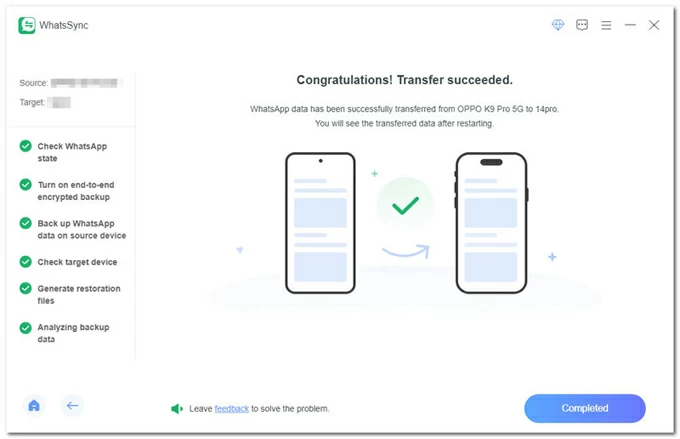
It also works if you want to transfer WhatsApp from one phone to another between Android and Android, or iPhone and iPhone.
The built-in Chat Transfer feature allows you to transfer full chat history within WhatsApp app when moving to a new phone. This feature works only between devices running the same OS. Whether you're switching from one Android phone to another or upgrading from an old iPhone to a new one, it lets you transfer WhatsApp chats to your new phone directly without requiring a factory reset or additional tools.
Before transferring WhatsApp from an old phone to a new phone via Chat Transfer:
When you're ready, follow these steps to transfer your WhatsApp to a new phone within the app.
For WhatsApp transfer to a new iPhone, update the latest iOS version on both phones and allow the local network permissions when required.
Step 1. Prepare WhatsApp chat transfer on the old iPhone.
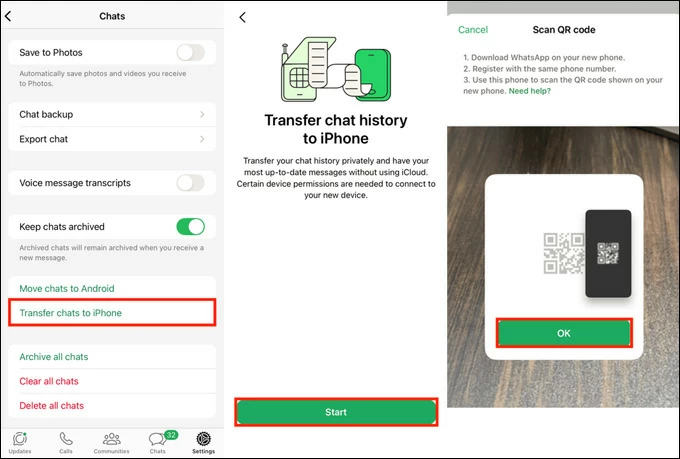
Step 2. Get new iPhone ready for WhatsApp transfer.
Step 3. Link two devices to start WhatsApp chat transfer to the new iPhone.
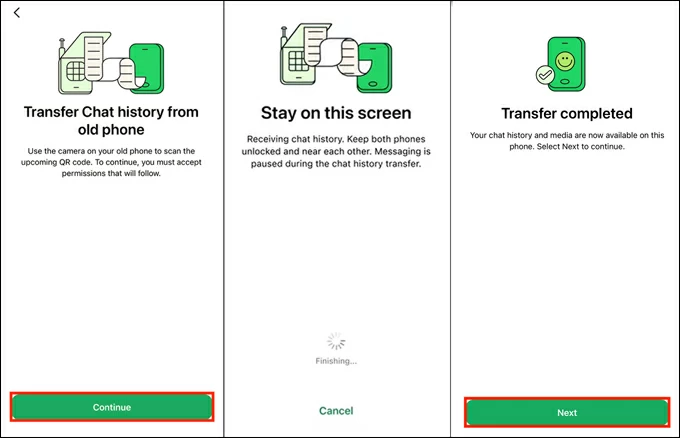
Once done, confirm your profile information on the new phone to view all your WhatsApp chats and media content.
To transfer WhatsApp from Android to Android, ensure both the old and new phones are running Android 6 or above. Certain device permissions will be required to start the transfer.
1. Open WhatsApp on your old phone and tap More Options (three dots) from the top-right corner.
2. Select Settings > Chats > Transfer chats and confirm Start, then allow the onscreen permissions.
3. Download WhatsApp on your new phone and open it.
4. Tap Agree and continue and enter your phone number. If asked for Two-step Verification, enter the PIN that you set up.
5. Tap Continue and a QR code will appear on your new phone.
6. Scan the QR code with the old phone and accept the permissions to connect.
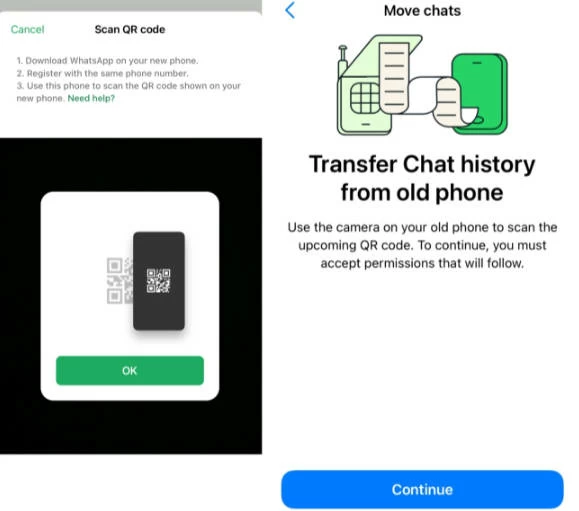
7. Stay on this screen when WhatsApp is transferring your chat history to the new phone.
8. After transfer, tap Done on the old phone to log out and tap Next on the new phone to sign in.
After confirming your profile, all your WhatsApp chats and media will display on the new phone.
Note:
When switching to a different platform, whether from Android to iOS or from iOS to Android, there are official methods, such as Apple's Move to iOS, that can help you transfer WhatsApp to a new phone during the initial setup. These tools not only transfer WhatsApp chats but also allow you to migrate other apps and data at the same time.
If the target phone is already in use, you'll factory reset your iPhone or Android, returning it to the setup screen. To avoid data, consider using the Appgeeker WhatsApp Transfer tool mentioned above, which supports WhatsApp chat transfer to a phone after setup.
Apple's Move to iOS app can help users transfer their WhatsApp data when switching from Android to iPhone. You can initiate the process when setting up the new iPhone and select WhatsApp to transfer your profile, chat history, media, communities, and settings.
Before you start:
Now, follow these Android-to-iPhone steps to transfer WhatsApp chats to your new phone:
1. Power on the new iPhone and follow the setup prompts. If you see Quick Start screen, select Set Up Without Another Device to go on.
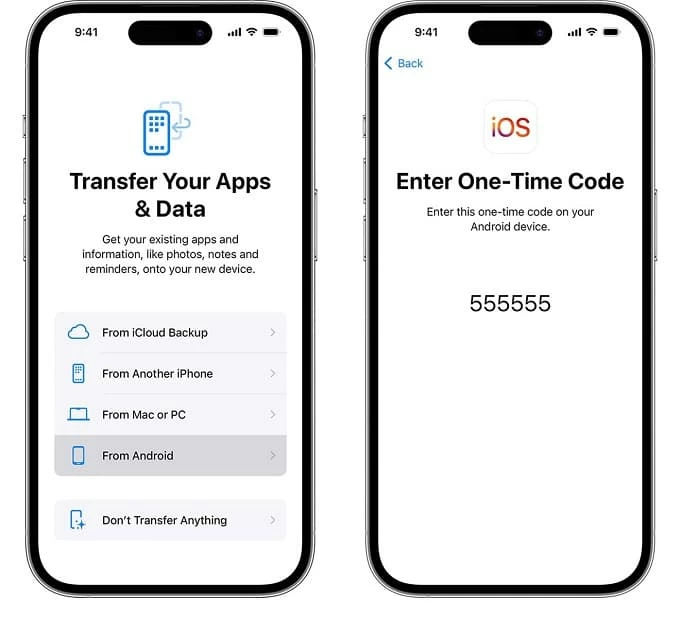
2. When you reach Transfer Your Apps & Data screen, select From Android.
3. Tap Continue on Move from Android screen; then wait for your iPhone to create a six-digit or ten-digit code.
4. Open Move to iOS on the old Android phone, tap Continue, and go through necessary setups.
5. Enter the one-time code on your Android phone and confirm Connect. This will create a temporary Wi-Fi network between your devices for data transfer.
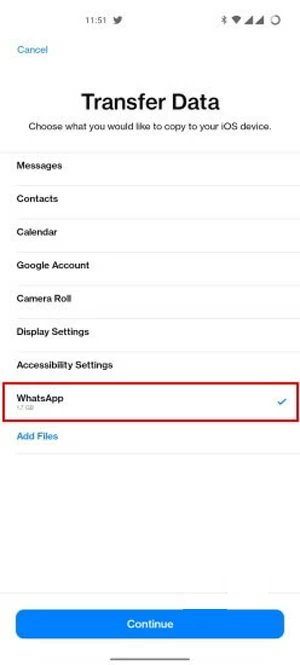
6. When your Android phone display Transfer Data screen, ensure WhatsApp is selected.
7. Tap Continue and wait for WhatsApp to prepare for the data export. Once ready, you'll be signed out from your Android phone automatically.
8. Tap Next to go back to Move to iOS screen and tap Continue to start data transfer from Android to iPhone.
9. After the transfer is complete, finish the remaining setup steps on your new iPhone.
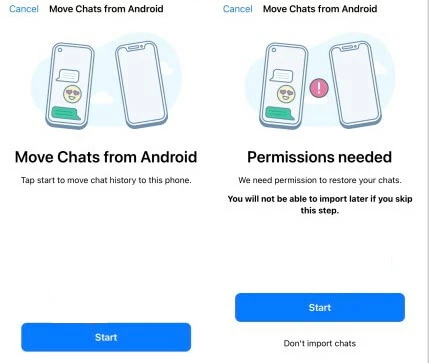
10. Install and open the latest WhatsApp from App Store and log in with the same phone number.
11. Tap Start and allow WhatsApp to restore your chats.
That's it! You can then enjoy WhatsApp chatting on your new phone at any time.
If you're moving to a new Android phone and want to transfer your WhatsApp chats from your old iPhone, simply start the process when setting up your new phone.
Before you start:
Steps to transfer WhatsApp chats to your new phone from an iPhone:
1. Turn on your new Android phone and follow the setup steps.
2. Connect it to the same Wi-Fi that your iPhone is linked to and sign in to your Google account.
3. When prompted, select Copy from iPhone or iPad on Copy apps and data screen.
4. Connect the source iPhone to your new phone with a Lightning to USB-C cable. Tap Trust if your iPhone shows a warning message.
5. On the copy screen, tap Apps and ensure WhatsApp is selected.
6. Confirm the transfer and use your iPhone to scan the QR code shown on your Android screen.
TIP: If it doesn't work, open WhatsApp on your iPhone and move to Settings > Chats > Move Chats to Android.
7. Tap Start and Start Transfer to initiate the WhatsApp chat transfer to your new phone. Finally, you'll sign out of the source iPhone.
8. Open the WhatsApp on your new phone and log in to your account.
The steps may vary between manufactures. Afterward, the WhatsApp chats will be transferred to your new Android phone seamlessly.
If you are unable to transfer WhatsApp chat history to your new phone, it is usually due to platform restrictions, setup requirements, or account-related issues. The most common reasons include:
The new phone is already set up.
The official WhatsApp transfer methods, such as Move to iOS or iCloud restore, work only during the initial device setup. If the phone is already in use, a factory reset is required. Or, use a compatible tool like Appgeeker WhatsApp Transfer that requires no factory reset to transfer WhatsApp across devices.
WhatsApp is activated on the new phone
Most WhatsApp transfer tools and methods require your account is not activated on the new phone before the transfer starts.
Different operating systems
Android backups cannot be restored directly on iOS, and vice versa. If you're transferring WhatsApp between Android and iPhone, use an official cross-platform transfer method or a supported transfer tool such as Appgeeker WhatsApp Transfer.
QR code issues
During the transfer process, you'll be asked to scan a QR code to link both the old and new phones. If the QR code doesn't appear, ensure both devices are connected to the same Wi-Fi network, and all required permissions have been granted.
Different phone numbers
WhatsApp doesn't support transferring chat history to a new or different phone number. Make sure to use the same phone number on both devices.
Insufficient storage or unstable internet
A lack of storage space or a weak internet connection can interrupt the transfer process or cause it to fail.
Unsupported WhatsApp data
Certain data, such as WhatsApp Business accounts, call history, peer-to-peer payment messages, and some channel content, is not included in WhatsApp transfers when moving to a new phone.
Q1 - Can I transfer my WhatsApp chats to a new phone without backup?
Yes, there are methods to transfer WhatsApp data directly to a new phone, with no need for a backup:
Additionally, WhatsApp's native Chat Transfer feature lets you move chat history between devices running the same OS without requiring a backup.
Q2 - How do I transfer my WhatsApp to a new phone that is already set up?
Same-OS transfers (Android to Android, or iPhone to iPhone):
WhatsApp Chat Transfer feature lets you move your chat history and media history between devices after setup, without a factory reset.
Cross-platform transfers to a setup phone (Android to iPhone, or vice versa):
Reliable tools like Appgeeker WhatsApp Transfer can complete WhatsApp transfer between Android and iOS in any direction, even if the target phone is already set up.
Q3 - How do I transfer WhatsApp from a Samsung phone to a new iPhone?
The Move to iOS tool works perfectly if you want to transfer WhatsApp from a Samsung phone to a new iPhone during the setup process. If the target iPhone is newly set up, you can reset it, or use the Appgeeker WhatsApp Transfer to move your chats across platforms without a reset.
How to transfer data from iPhone to iPhone, even after setup




