How to Transfer WhatsApp to New iPhone


Want to transfer WhatsApp history from iPhone to a new Android phone? This article will guide you step by step on how to transfer WhatsApp history from iPhone to Android.


Moving WhatsApp history from an iPhone to an Android phone cannot merge with chats already existing on your Android.
To ensure seamless connectivity and smooth progression in your social or work life, when switching from iOS to Android, you need to consider how to transfer WhatsApp history from iPhone to a new Android, including important data such as chats, photos, videos, documents, and more.
Although iPhone and Android belong to two different platforms, there are still multiple methods to achieve WhatsApp history transfer from iPhone to Android. We focus on breaking these cross-platform differences, introducing various ways to transfer your WhatsApp history from iPhone to an Android phone, ensuring the continuity of your important historical records.
With professional Appgeeker WhatsApp Transfer tool, you can migrate your entire WhatsApp history from iPhone to Android without any data loss or strict prerequisites.
Table of Contents
Before you move anything, it's essential to make sure both devices and your WhatsApp account are in a migration-ready state. This short checklist can prevent partial transfers, missing media, or a completely empty chat list.
Update WhatsApp on both devices. Transfer mechanisms depend on specific WhatsApp versions to package and unpack chat history correctly. The WhatsApp versions on iPhone and Android must be consistent.
Confirm that both phones are running stably with sufficient battery life. WhatsApp history transfer is an ongoing process, not an instant copy. Especially if your WhatsApp history is large, the transfer time will be longer.
Your iPhone and Android phone must use the same phone number. WhatsApp chat histories are linked to the phone number used for verification through encryption technology.
Ensure a clean starting point on the target device. Some methods require Android to be freshly set up, while others fail if WhatsApp has already been activated. Logging into WhatsApp too early is a common mistake that locks the app into an empty state and prevents history restoration.
If you have a need for reverse transmission, see How to transfer WhatsApp from Android to iPhone without factory reset.
A first-party, cable-based solution built for direct WhatsApp history reconstruction
WhatsApp's official chat history transfer feature is not a backup and restore process, but a controlled device-to-device migration process designed to transfer WhatsApp history to another device without exposing it to third-party servers. Instead of uploading data to iCloud or Google Drive, WhatsApp temporarily encrypts the chat history on the iPhone and transfers them directly to the Android device during the setup process.
Important prerequisite:
1. Factory reset the Android phone or power on a brand-new device. This step is mandatory because WhatsApp can only inject history during initial system configuration.
2. Complete the Android setup until the "Copy apps & data" screen appears, then tap Next or Start.
3. On the "Choose your other device" screen, select the iPhone or iPad option as the source device.
4. As prompted, connect the iPhone and Android device using a compatible data cable or adapter. When the iPhone displays "Trust this Computer," tap Trust to establish the connection.
5. Continue completing the Google account login on the Android phone.
6. When you reach the "Choose what to copy" screen, ensure Apps is selected, then tap Copy.
7. On the "Choose your apps" screen, check the WhatsApp Messenger option and tap Copy.
8. A QR code will appear on the Android screen, which authorizes WhatsApp to initiate a secure history export.
9. Use the iPhone's camera to scan this QR code. The iPhone will be redirected to the "Move Chats to Android" page; tap Start to begin transferring WhatsApp history from the iPhone to your Android phone.
10. Keep both devices unlocked and connected while WhatsApp transfers and rebuilds the data on the Android device.
11. Once the progress bar reaches 100%, finish the remaining Android setup steps. After entering the home screen, open WhatsApp.
12. Log in using your original phone number. You will see an "Importing chat history" prompt; tap Start to extract the WhatsApp history onto your Android phone.
Note:
Cross-platform, no-reset, and built for complete WhatsApp history preservation
Appgeeker WhatsApp Transfer software is intended to solve problems that official tools cannot address. It is not restricted by system settings or brands, but operates at the data structure level, extracting full WhatsApp history from one platform, converting it, and reconstructing it on another platform.
What makes this method stand out is its flexibility and completeness. It supports transferring WhatsApp history from iPhone to Android at any time, preserving message order and timestamps, and can handle large amounts of chat records containing media files without relying on cloud backups. For users who value control and minimal disruption, this is often the most practical solution.
Moreover, this method does not require resetting your Android phone, allowing WhatsApp history transfer without affecting other data. In addition, it can seamlessly transfer WhatsApp between Android devices or between iPhones.
1. Download and launch WhatsApp Transfer (WhatsSync) on your computer, select Transfer in the WhatsApp tab to start the WhatsApp history migration from iPhone to Android.
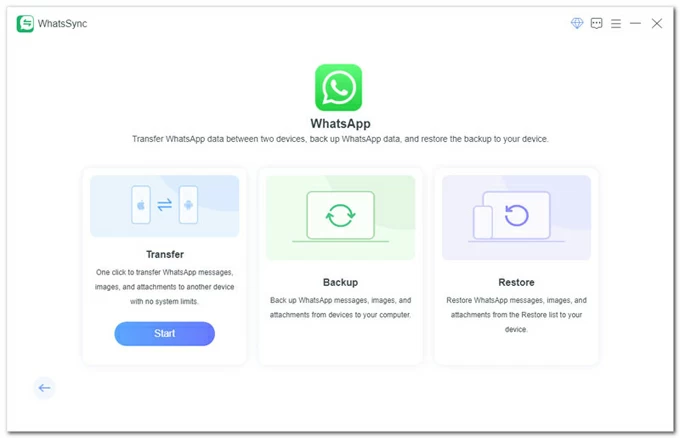
2. Connect your iPhone to the computer using a data cable and tap Trust on the device prompt.
3. Plug your Android phone into the computer and allow USB debugging when prompted.
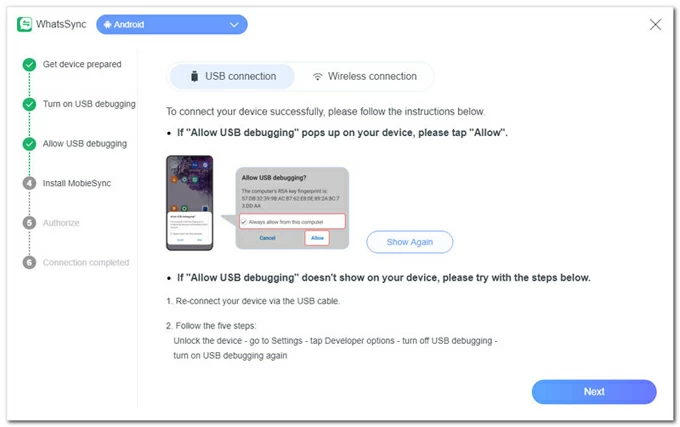
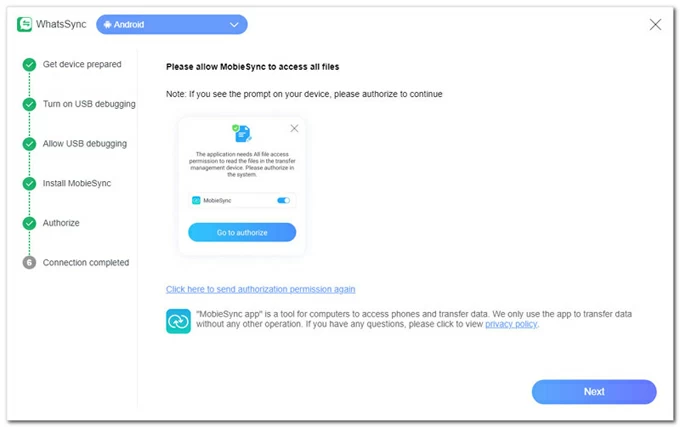
Follow the instructions to install the MobieSync app on your Android phone, tap Go to authorize to allow access to your Android phone's WhatsApp data, and then click Next on the computer.
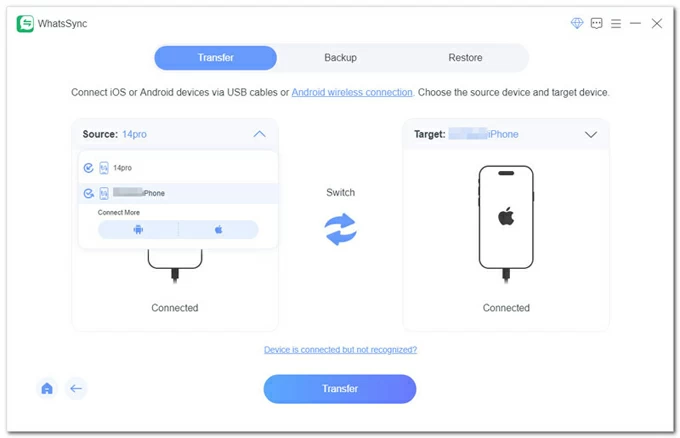
4. Select your iPhone under the Source label and your Android phone under the Target label, then click Transfer.
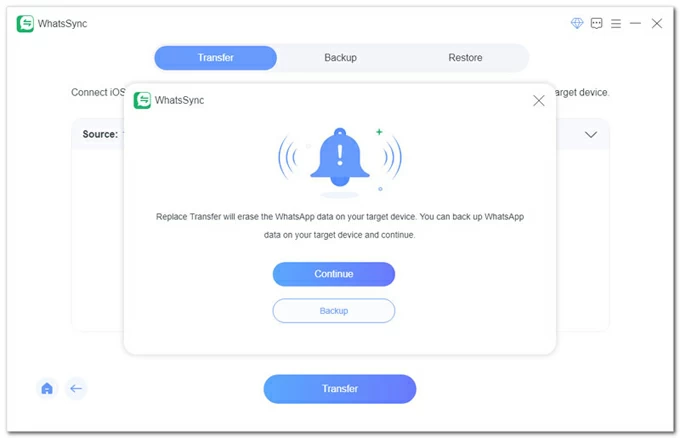
5. The existing WhatsApp data on your Android phone will be replaced by the iPhone's WhatsApp history during this process. You can click Backup to save your current Android chats first, or click Continue to proceed.
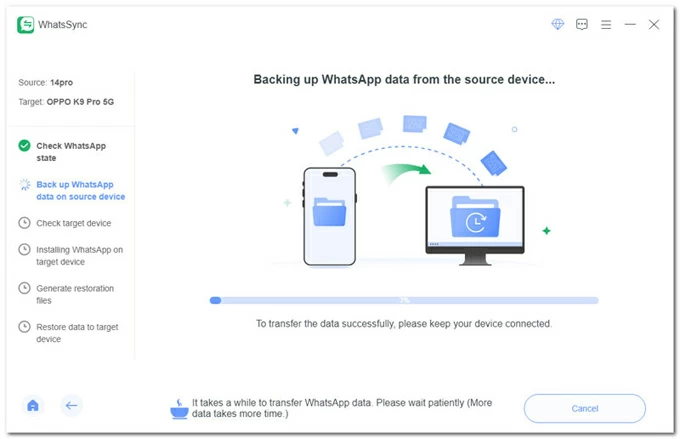
6. Your iPhone will prompt you to enter the lock screen password; after entering it, WhatsApp Transfer will begin backing up your iPhone's WhatsApp history, including chats and media files.
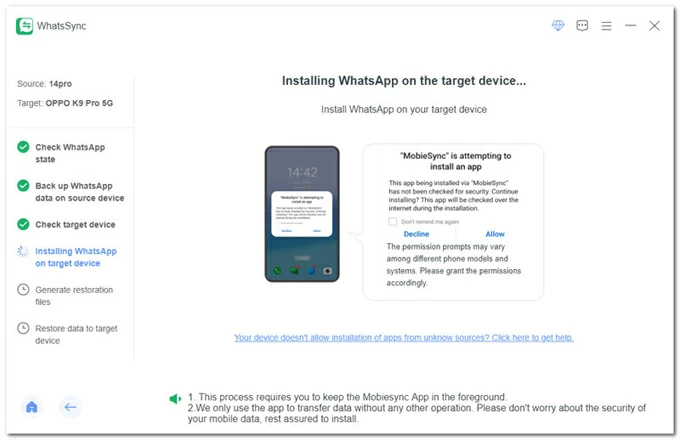
7. Allow MobieSync to install the WhatsApp app on your Android device and grant the necessary permissions as instructed.
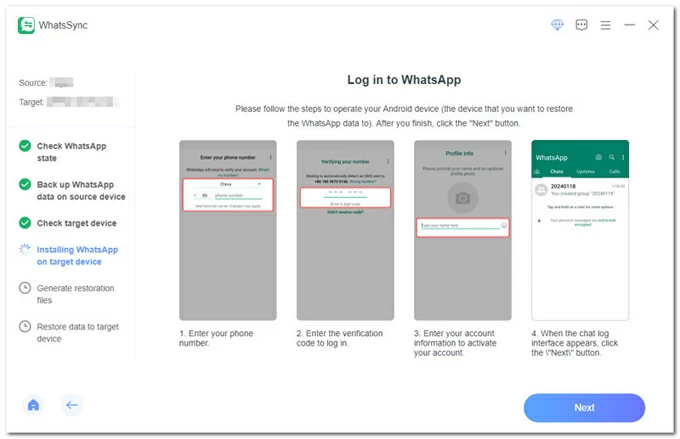
8. Open WhatsApp on your Android and log into your account, then click Next in the WhatsSync software.
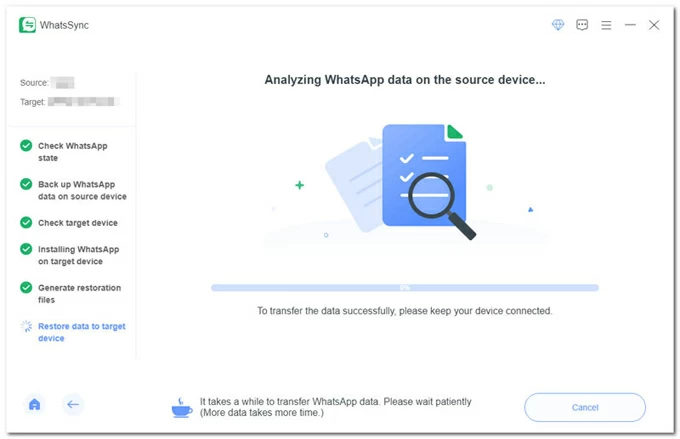
9. Re-open WhatsApp on your Android phone; the software will begin analyzing and restoring the iPhone's WhatsApp history to your Android phone.
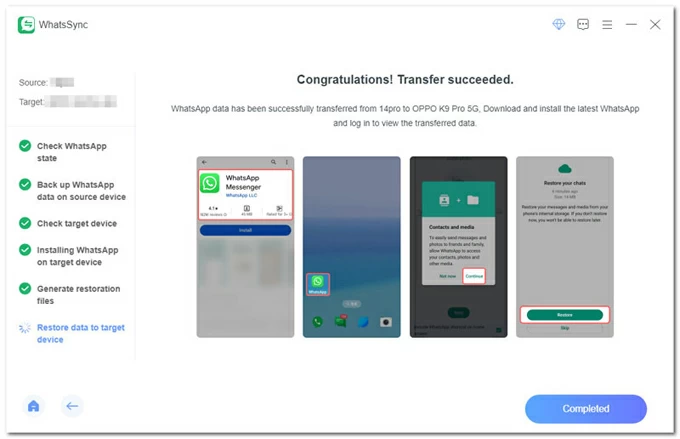
10. Download the latest version of WhatsApp on your Android phone and log in. Tap Continue, allow WhatsApp to access your media files, then tap Restore to obtain the transferred WhatsApp history on your Android.
Also see: How to recover iPhone deleted WhatsApp messages without backup
An ecosystem-based option for Samsung Galaxy devices
Samsung Smart Switch is developed to migrate phone data during device upgrades, and WhatsApp history support is an add-on feature made possible through Samsung's cooperation with WhatsApp. Rather than handling the data independently, Smart Switch acts as a guided bridge to facilitate the transfer of WhatsApp history from an iPhone to your Samsung phone.
The advantage of this method is that even if your Samsung phone has already started being used, Smart Switch still lets you transfer the WhatsApp history from your iPhone to your Samsung separately without needing to factory reset the entire Samsung phone.
1. Open WhatsApp on your iPhone, go to Settings > Chats > Move chats to Android, then tap Start on the "Move chats to Android" screen.
2. Open Samsung Smart Switch Mobile on your Samsung phone; if you don't have it, download it from the Google Play Store.
3. Follow the Smart Switch instructions until you reach the "Transfer your data" screen, then tap Receive on this phone.
4. In the "Select a source" step, choose iPhone/iPad.
5. As required, link your iPhone to your Samsung phone with an appropriate Lightning-to-USB-C or USB-C-to-USB-C data cable.
6. Tap Next on your Samsung phone to check the connection. When the "Trust this computer" prompt appears on your iPhone, tap Trust and enter your passcode.
7. Tap Next on the Samsung device, select Apps, and then tap Transfer.
8. Select WhatsApp Messenger. This ensures the WhatsApp will be installed on your Samsung phone to complete the transfer. Tap Install.
9. A QR code will appear on your Samsung screen. You can scan it directly using your iPhone's camera; or on your iPhone's "Continue on your new phone" page, tap Cancel > Cancel transfer, then select Move chats to Android > Start to begin moving your WhatsApp chat history from iPhone to your Samsung device.
10. After the transfer is complete, open WhatsApp on your Samsung phone, tap Agree and continue, and log in with the same phone number used on iPhone and verify it.
11. At the "Importing chat history" step, tap Start to begin transferring the WhatsApp history. Once finished, you will see your complete WhatsApp history migrated from the iPhone and can continue your conversations.
If you forgot the password for Samsung phone, you can check How to reset Samsung phone when locked.
Manual, selective, and best for record-keeping rather than migration
Email Export offers a completely different approach to WhatsApp history handling. While it does not allow you to import data directly into the Android version of WhatsApp, it enables you to extract individual chat history as readable files and send it from your iPhone to an Android phone. This makes it useful for archiving important conversations, legal records, or personal documentation.
1. Open WhatsApp on the iPhone and select a specific chat or group.
2. Tap the contact or group name to access chat settings.
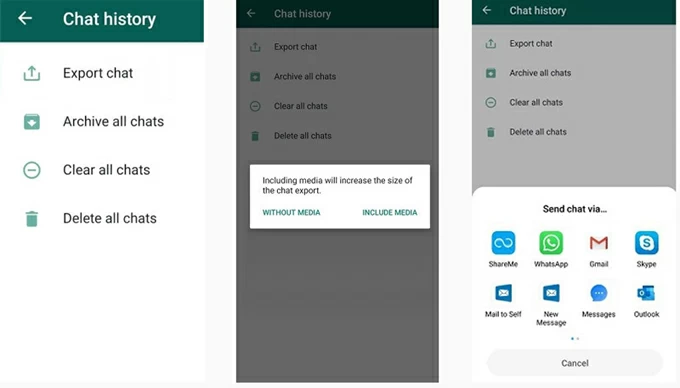
3. Choose Export Chat and decide whether to include media files.
4. Send the exported chat via email to an accessible address.
5. Open the email on Android and view the attached TXT or ZIP file.
Many failures in transferring WhatsApp history from an iPhone to an Android are not caused by the method itself, but by small missteps during preparation or execution.
One frequent mistake is assuming that iCloud backups automatically work on Android, which leads users to log into WhatsApp too early and lock the app into an empty state.
Another common issue is interrupting the transfer process—for example, disconnecting the data cable, switching apps, or turning off the device. WhatsApp history is rebuilt in stages, and any interruption can damage the reconstruction process.
Users also often underestimate storage space requirements. Chat histories containing large amounts of media files require far more space than expected, and insufficient storage can silently exclude photos or videos from the final history.
Avoiding these mistakes requires patience, stable connections, and following the chosen method exactly as designed.
Read more: How to transfer WhatsApp data from Android to Android
Conclusion
Migrating your WhatsApp history from iPhone to Android phone is not difficult, provided you follow the correct procedures to ensure a safe and complete transfer. Official tools offer security, third-party solutions provide flexibility, and selective options like email export cater to specific archiving needs. Choose the method that best fits your practical situation.