How to Remove Google FRP Lock on Any Phones


If you're locked out and can't remember the pattern on your phone, try these unlock solutions to perform a factory reset and regain full access to Android.

Fast Fix: Getting into an Android phone when forgotten the pattern:
The updated security measures make a factory reset is the only option left to unlock Android without the pattern. If the official reset methods do not work, the ultimate solution is to use Appgeeker Android Unlocker. It helps removing the pattern locks, password, or PIN just to unlock the phone without restrictions, as well as dealing with FRP lock after reset.

A locked Android phone with a forgotten pattern can be unlocked easily with a factory reset or without erasing data.
An "Incorrect Pattern" screen starts with one guess after forgetting the draw pattern. Then five. Then the timer appears "Try again in 30 seconds". If you're reading this, you're likely in the middle of lockout. In modern operating system, there are no magic backdoors or secret codes to bypass or unlock a forgotten pattern on Android phone without erasing the device.
Whether you forget the lock pattern for Samsung, Motorola, OnePlus, Google Pixel or other Android devices, the official way to regain access is to perform a factory reset, which wipes all data and lock screen to let you set up the device again or restore from an available backup.
In this guide, we'll show you how to unlock any phone if you forgot your pattern, covering all possible Android unlocking strategies to have you back to your digital life.
Table of contents
Lock out of your phone because you forgot the pattern
If you've set up an Android-style swipe pattern lock as your lock method, you can unlock the device by drawing a continuous path that connects at least four nodes in the grid. It's essentially a gesture-based password.
When you forget your pattern on an Android device, it simply means the device can no longer verify your identity by using the stored drawn-pattern hash. After you draw the wrong pattern repeatedly, Android triggers temporary security lockouts with increasing time delays between attempts.
You cannot retrieve forgotten pattern
Modern smartphones are designed to be hard to unlock without the correct pattern. They utilize advanced encryption and lock screen protection to ensure that the pattern cannot simply be bypassed. Anyone, even the manufacturers, cannot retrieve the pattern once forgotten or unlock the phone remotely.
Factory reset is the official path to regain access
When you have completely forgotten your pattern or bought a second-hand device that's still locked, then the final fallback is to do a factory reset, which erases the lock screen and restores the whole system for getting back into a pattern-locked Android phone. This is the standard solution recommended by Google, Samsung or other manufacturers.
While a full reset can unlock your phone without knowing the pattern, you may face a trade-off between your data and device's access. Resetting a locked Android device will delete everything, but if you have cloud backups (Google Photos, Google Drive, Samsung Cloud, etc.) enabled, your data isn't really gone. You simply log back in after the reset, and your digital life syncs back onto the device.
To implement a factory reset for unlocking your device if Android's pattern was forgotten, let's break down the most effective and official methods. These include three common Android phone unlock approaches for all devices regardless of the brand, as well as Samsung-specific and Pixel-specific unlocking tools, ensuring that you can open your phone again for full use.
No matter what the brand of your Android phone is (Samsung Galaxy, Google Pixel, Motorola, OnePlus, Xiaomi, OPPO, Vivo, Huawei, LG, Lenovo, POCO, TECNO, Realme, Infinix, Sony, HTC, etc.), here are three reset options you can use to unlock the screen without knowing the pattern lock.
As long as your phone has a Google account signed in and Find Hub settings enabled, you can trigger a remote device reset online when you do not remember the lock pattern and are locked out. You can use a computer to browse to Google Find Hub website and use Google account login along with the "Factory reset device" function to remove the pattern from the lock screen and unlock the device remotely.
To factory reset and recover access to Android that's locked by a pattern using Google Find Hub service, do the following.
1- Go to Google Find Hub online service, then enter your username and password to sign into Google account that's linked to your phone.
2- Once logged in, you should see your device. Click on it.
3- Choose Factory reset device option.
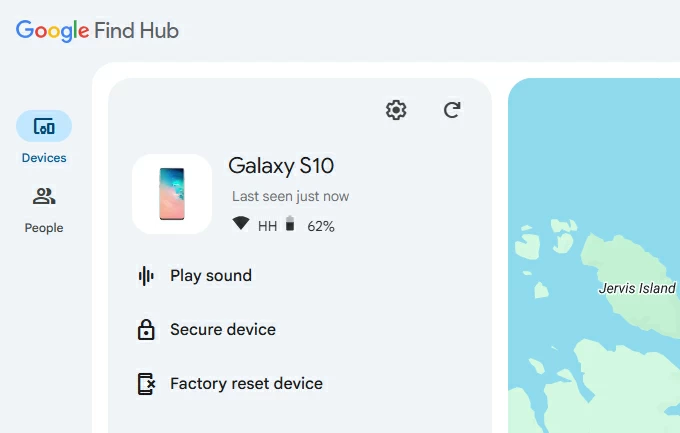
4- Authenticate your identity by providing your Google account password again.
5- When prompted, click Reset, then Erase to begin restoring the entire phone to its factory settings.
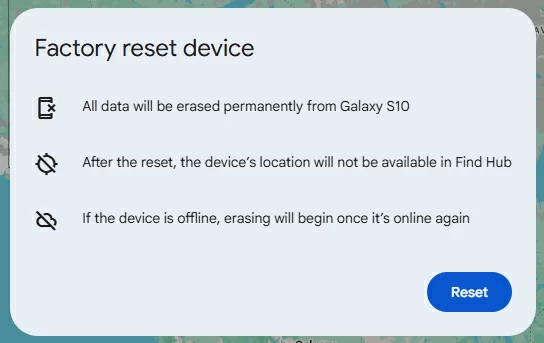
This is how you can unlock an Android phone with Google account, which removes the pattern lockout and return you a fresh new device if you don't have any backup made before. Make sure to log back into the Google account to bypass the FRP lock when the setup wizard displays "Verify your account" screen.
Google Find Hub won't work if the device isn't connected to the internet or Google account is inaccessible. If you want an offline device reset to unlock the pattern you forgot or don't know, Appgeeker Android Unlocker is your best bet.
The software is dedicated to deal with screen locks and FRP locks on thousands of Android devices using a PC, helping user restore access in minutes. When forgetting pattern to unlock the phone, the inbuilt "Remove Screen Password" function guides you to bypass the pattern lock by completely removing the lock screen app from the system. Plus, the "Bypass Google FRP Lock" toolkit makes it possible to unlock Android without Google account after reset.
With a few simple clicks on the clear-cut interface, even the beginner can quickly overcome the locked screen and get in to the phone without a pattern, PIN, password, biometrics or Google account lock.
Learn how to unlock your Android phone in the event that you've forgotten the draw pattern using Appgeeker Android Unlocker software for a reset.
Step 1. Launch Android Unlocker tool on your computer after installation.
Step 2. Click Remove Screen Password module on the main interface.

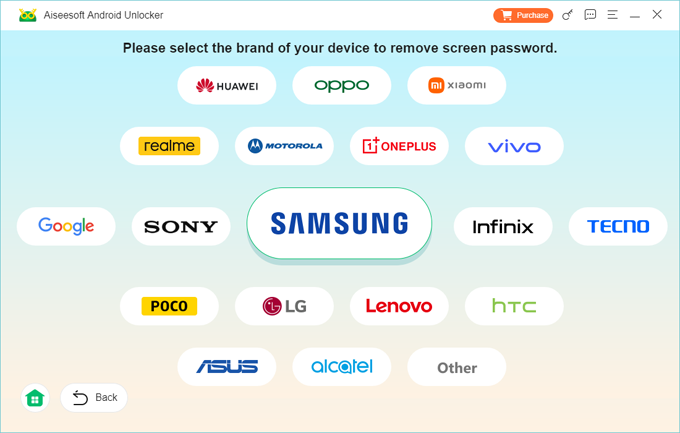
Step 3. From the brand list, choose the one that match your phone. This works for unlocking a locked Samsung, OnePlus, Pixel, Motorola, VIVO, Huawei and more.
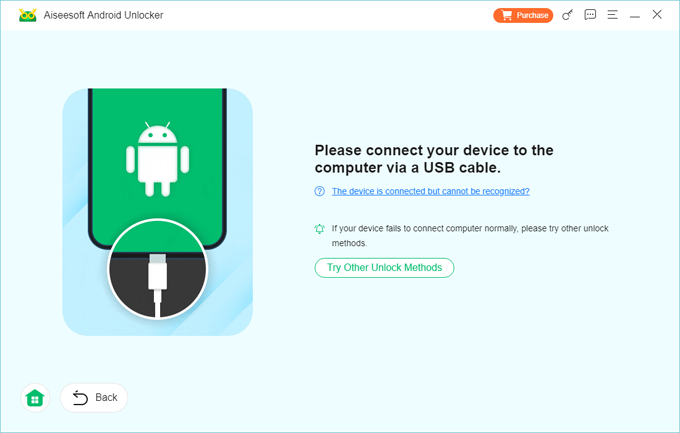
Step 4. Plug your phone into the computer through a data cable.
Tip: If the device isn't detected, you will need to follow the onscreen instructions to enter recovery mode.
Step 5. Now, to remove your forgotten pattern and unlock Android mobile, you just hit the green Remove Now button.
Your phone is processing a factory reset to have all contents including the lock screen data deleted permanently.
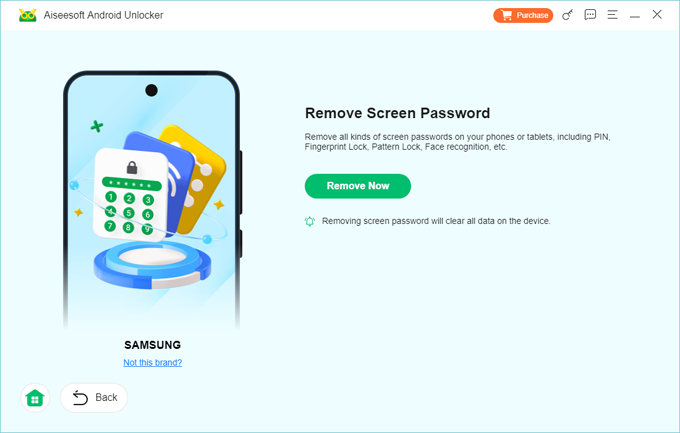
When the phone is wiped clean, it should restart. You're able to set it up from the scratch, giving you options to create a new lock method, restore data from a pre-created backup and sign back into Google account if there's one previously synced with your device. Read more if you can't verify your Google account after factory resetting Android.
By putting the Android phone into recovery mode, you're granted hardware-level access to get past the screen locks and then perform a factory reset for pattern unlock purpose. Whether you're locked out due to forgotten pattern or unknown code tied the previous owner, take these steps to enter recovery mode and unlock any Android devices without needing the pattern.
1. Begin by turning off the phone that you can't get in. If you fail to shut it down the normal way, you need to wait until the battery runs out.
2. Attach your device with a computer via a USB cable.
3. Boot the phone into recovery mode to access the phone's hardware. This requires certain button combinations based on your device model and manufacturer.
Press and keeping holding the buttons until the device screen displays Android Recovery menu.
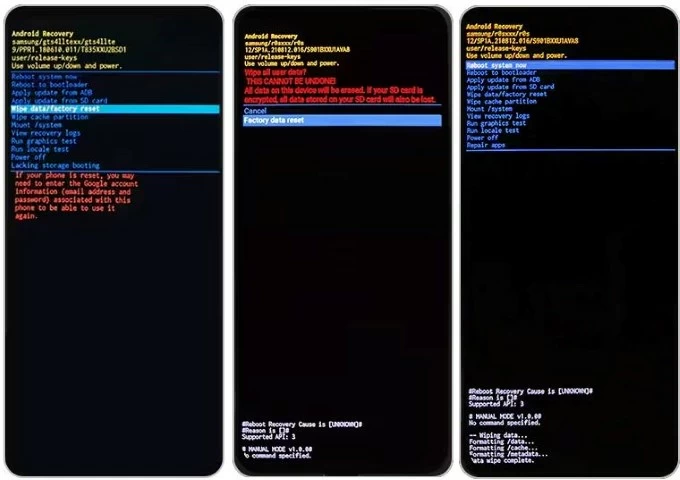
4. To unlock Android forgotten pattern with a factory reset, navigate to Wipe data/factory reset > Factory data reset. The process will complete within seconds.
5. When you see "Data wipe complete" alert at the bottom, choose Reboot system now to unlock your phone with no pattern required any more.
If you're a Samsung user and forgetting a pattern to your Galaxy phone, there are also specialized tools available to unlock the device - besides the standard Android phone unlock tools.
SmartThings Find service provides a convenient way to remotely reset a Samsung device when it's locked with a forgotten password, PIN or pattern. After the reset, your phone will be unlocked over the air.
If you signed into Samsung account and enabled Remote Unlock settings before getting locked out, go to SmartThings Find webpage on a computer. Then log into the associated Samsung account to locate your phone, and click Erase data option. You will need to verify your identity before the remote erase begins.
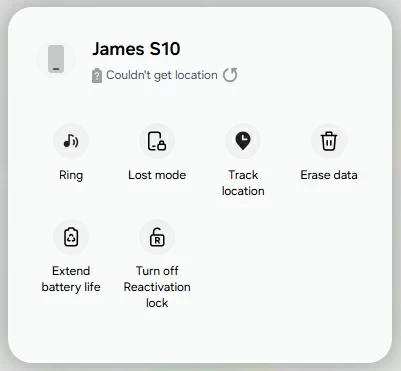
This is the only remaining way to unlock Samsung forgotten pattern - without losing data, if you're using One UI 6.1 or higher version.
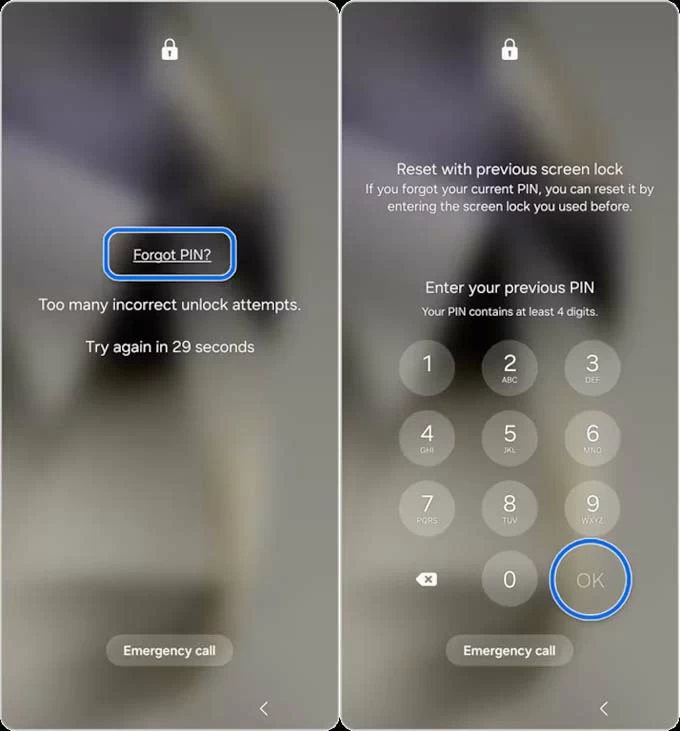
In case you recently changed your pattern and forgot the new one, Samsung allows you to use your previous pattern to reset the lock, provided it's within 72 hours of the change.
If you have a Pixel 3 or newer phone that has been updated to Android 10 and higher, resetting a pattern that you forgot to unlock the device involves the official web-based Pixel Repair Tool. While its primary job is to reinstall the operating system to fix bugs, it is often used as a last resort to regain access to a locked phone through a clean factory reset.
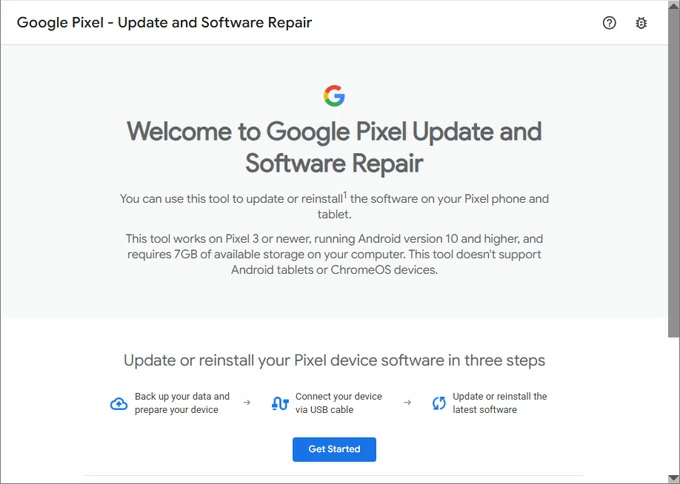
Since the forgotten pattern blocks access to your device, this tool allows you to trigger a reset from a computer. Here is the process:
1- You need a computer with a Chrome browser and a high-quality USB-C cable.
2- Visit Pixel Repair Tool website, and click Get Started button.
3- Shut down your phone as required.
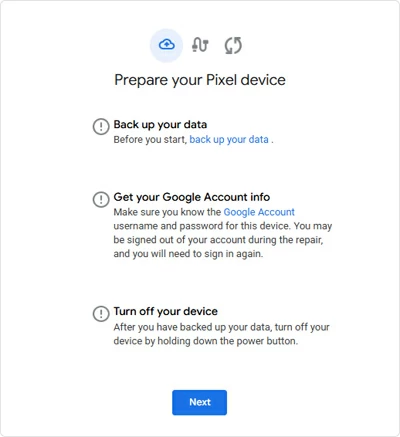
4- While your Pixel is off, put the phone into Fastboot Mode by holding the Power + Volume Down buttons.
5- Once in Fastboot, use the volume keys to select Rescue Mode option and confirm with the Power button
6- Connect your device to the computer via USB cable, then click Connect device button.
7- Choose Factory reset and reinstall option. This wipes the forgotten pattern lock and the entire phone, then downloads and flashes a fresh, updated version of Android.
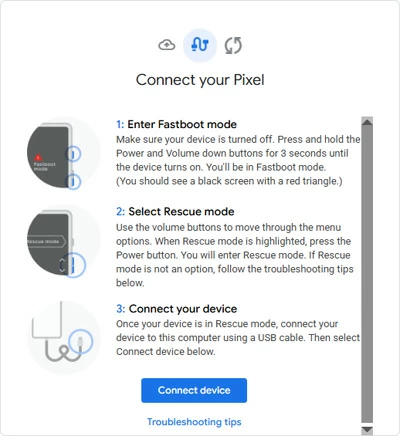
It would be obvious to unlock Google Pixel without PIN, pattern or password using Pixel Repair Tool. This will erase everything on the device, and it's not a way to bypass the pattern while keeping your data (photos, messages, contacts, etc.)
Once the repair is finished, the phone will still ask for the Google Account credentials (email and password) that were originally on the device before you can access the Home screen. This is owing to Factory Reset Protection that prevents the mobile phone from being used by someone who found or stole the phone.
Although a factory reset is the official solution for Android pattern unlock, the good news is that there're still possible ways to bypass the need to reset the entire device so as to regain access when forgotten the pattern without losing any data — which depend heavily on the Android version, brand, and whether certain features were enabled before it was locked.
If these no-reset unlock methods are not helpful for you, then a factory reset to clean wipe the device remains the most effective solution in case you forget the pattern on the lock screen and can't get in. You can then restore your data from a recent backup without risking at data loss after reset.