Forgot Windows 11 password. How to reset it - Full guide


Explore quick ways to unlock an HP laptop even without a password, from using built-in Windows recovery options to Microsoft account tools, regaining access with no data loss.

Whether you're using a Microsoft or local account, Appgeeker Windows Password Recovery allows both Admin and standard users to reset a forgotten password and unlock their HP laptop without losing data.
With rightful tools, it's possible to unlock an HP laptop, even if you forgot your password and can't sign in.
Locked out of your HP laptop and can't remember the password? Whether you recently changed it and forgot the new login details, or haven't used the device in a while, it doesn't mean you've lost access forever. In this guide, we'll show you several ways to unlock an HP laptop without password, even if you're completely locked out.
If you sign in with a Microsoft account, you can easily reset your password online and log back in with your updated credentials. For local account users, there are multiple built-in recovery options — such as a password reset disk, security questions, or other administrative tools — that can help you unlock your HP laptop without the original password.
No matter which type of account you use, the methods in this guide can help HP users unlock their laptop without password and regain access quickly and safely. These steps apply to a wide range of models, including HP Pavilion, HP Spectre, HP EliteBook, HP ProBook, HP OmniBook, ZBook, HP OMEN, HP Victus, and more.
Table of Contents
While there are several ways to unlock your own HP laptop without a password, the appropriate method depends on the type of account you use.
If you sign in with a Microsoft account (using an email), your password is stored online rather than locally on your HP laptop. When you forget the password, the most reliable way to regain access is to reset it through Microsoft's official password-recovery page.
For a local account, your login credentials are stored directly on the laptop. Therefore, you can unlock your HP password using Windows' built-in recovery options without relying a network, such as a Windows password reset disk or previously-set security questions.
If none of these are available, or if you never configured any recovery settings, proceed to next Windows unlocker tool that can help HP users to unlock their laptop without password for both Microsoft and local user accounts.
If you forget your account password and don't have any previously-created recovery options, Appgeeker Windows Password Recovery can help you unlock your HP laptop without a password and get back in quickly.
Whether you use a local account or a Microsoft account, this tool enables you to reset a Windows 11/10 password and recover full access to your HP laptop / PC without losing data.
This recovery tool requires no technical expertise. Its user-friendly interface will guide you through each step for safely unlocking a HP computer. The process won't remove any files. After that, you can create a new login password to unlock your HP laptop immediately.
What you need:
Steps for HP laptop unlock without password — even if you're completely locked out:
Step 1. Create a password reset disk for your locked HP laptop.
Install and open Appgeeker Windows Password on another PC, then click Start and insert a USB flash drive or DC/DVD to your computer.
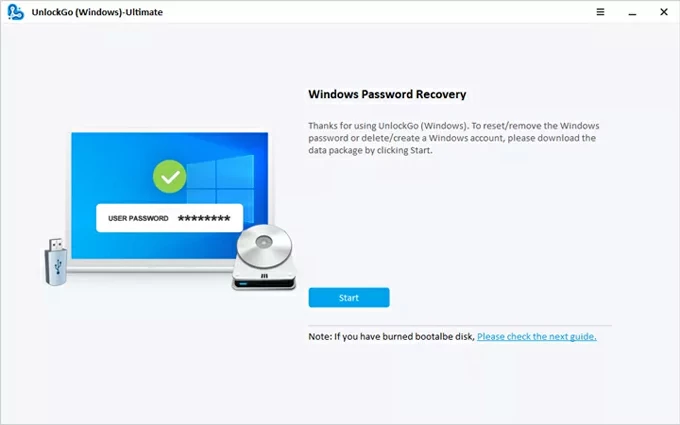
Select your media device from the drop-down menu and click Next; the program will automatically burn it into a Windows password reset disk. Once done, remove the reset disk.
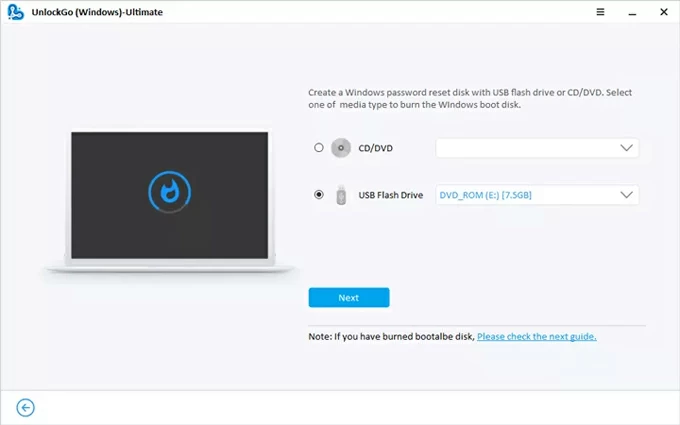
Step 2. Boot your HP laptop from the password reset disk.
Insert the password reset disk to your locked HP. Restart the system while repeatedly pressing the boot button. Typically, you'll use F9 or F10 for an HP laptop. See as below:
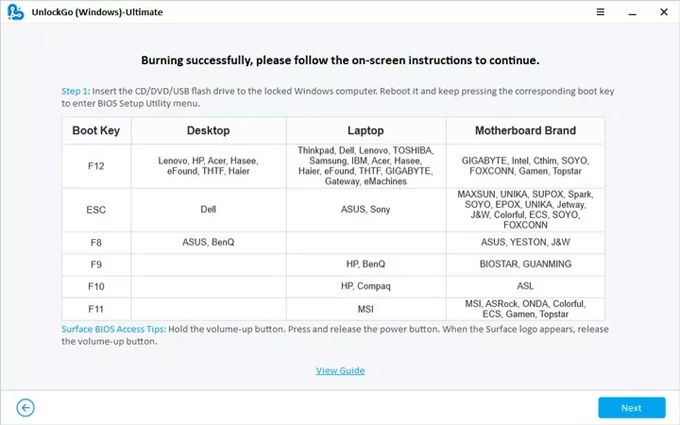
When you see the boot menu appears, use arrow keys to scroll through and select the reset disk as the top boot option; then save the order change and restart your HP again.
If you still have no idea to change the boot order, check the links below carefully.
Step 3. Reset account logins to unlock HP without password.
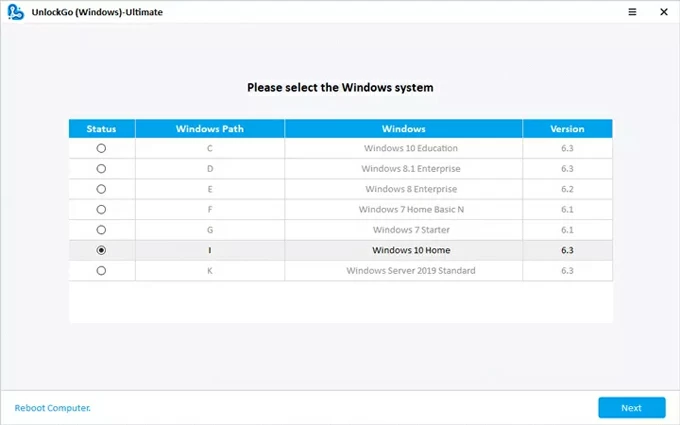
Upon restarting, the Windows Password Recovery software opens automatically. Follow the onscreen instructions to select your Windows system, then click Next.
Choose your local or Microsoft account and select Reset Account Password, hit Next again. In the new pop-up, create a new password for your HP laptop and enter it again to confirm.
Once reset, you can use the new password to unlock your HP laptop for full access.
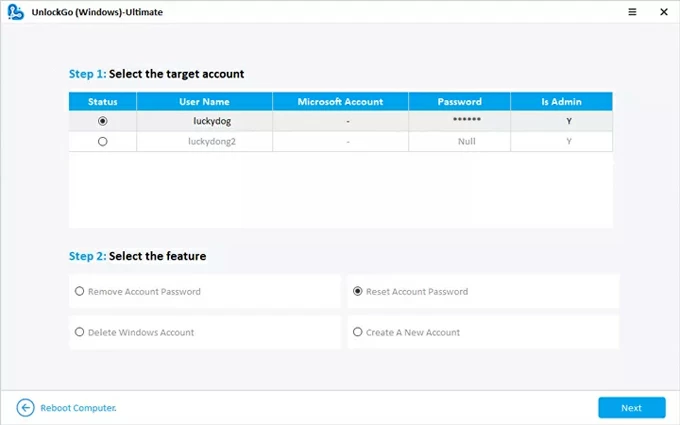
It applies not only to HP computers, but also to other brands such as Dell, Lenovo, ASUS, Acer, and more. Whether you're locked out of a Windows 10 or Windows 11 laptop or PC, simply follow the same steps above to regain access.
If your HP laptop is linked to a Microsoft account — you sign in with an email like @gmail.com or @outlook.com — regaining access is straightforward. As Microsoft syncs credentials across devices, you can reset your password online from any internet connected device, and then use the updated credentials to unlock your HP laptop without the original password.
1. On another accessible computer or phone, go to Microsoft Account Recovery page.
2. Click Sign in button and enter the email address (or phone number / Skype name) of your Microsoft account.
3. Click Next and select Forgot password? link on the next page.
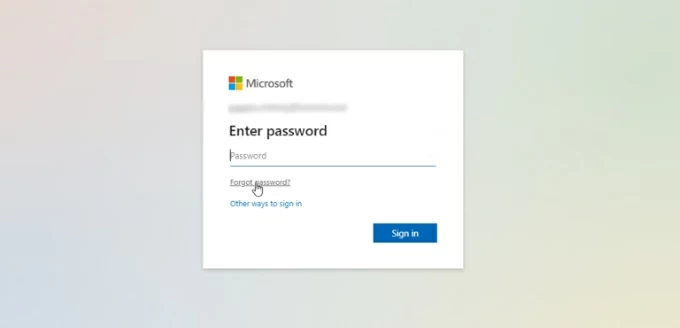
4. Follow Microsoft's instructions to verify your identity.
5. Check the verification code in your inbox and enter it on Microsoft Verify your identity box correctly, then hit Next.
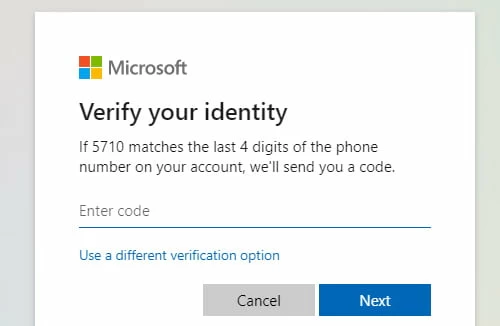
6. When prompted, create a new password and enter it again to confirm the reset.
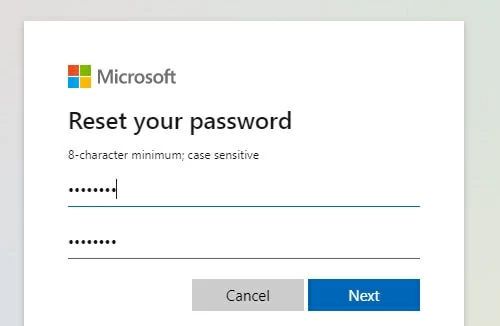
The new credentials will be updated to your linked devices in 24 - 72 hours. After that, you can use the new password to unlock your HP laptop easily, without losing data.
Alternatively, if you're using a local account, Windows provides built-in recovery options that allow you to regain access even if you forget your password.
To unlock your HP laptop without a password, you'll need either a previously-created password reset disk or the security questions you set up at the account creation.
The Security questions on Windows 10 & 11 are secret questions and answers that you set up for a local account to help you regain access if you forget the password. When you're locked out and can't sign in, you can answer the security questions on Windows sign-in screen, which allows you to reset the laptop password to unlock your HP without needing the original login details.
1. Turn on the HP laptop you want to unlock without password.
2. On the login screen, enter a random password until it says "The password is incorrect, try again."
3. Click OK and select the Rest password link.

4. When your three security questions display, type the correct answers accordingly and press Enter after the last one.
5. In next screen, create a new password and confirm the reset by entering it again.
6. Go back to the login screen and use the new password to unlock your HP laptop instantly.
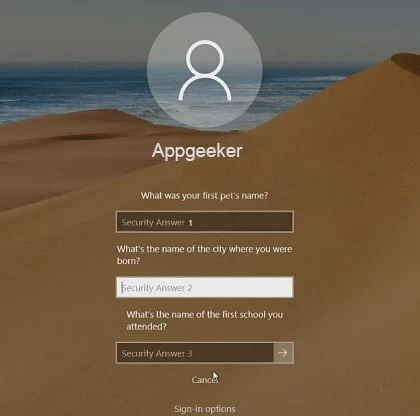
This way, you're able to get into your HP laptop even after you forgot your Windows password.
If you've previously created a password reset disk before you're locked out, you can easily use it to unlock the HP laptop without password by creating a new one. It works for both Windows 11 & Windows 10. By inserting the password reset disk to your locked HP laptop, you can unlock it with no need for the password you've forgotten.
1. Open your locked HP laptop and enter an incorrect password multiple times.
2. Click the Reset password link when it appears on the screen.
3. A Password Reset Wizard will open, then click Next to go on.
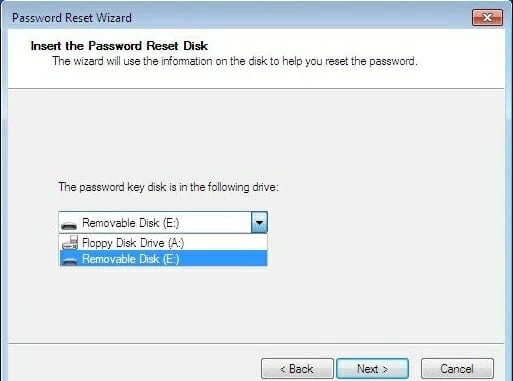
4. Insert the password reset disk to your HP laptop and select it form the drop-down menu, hit Next.
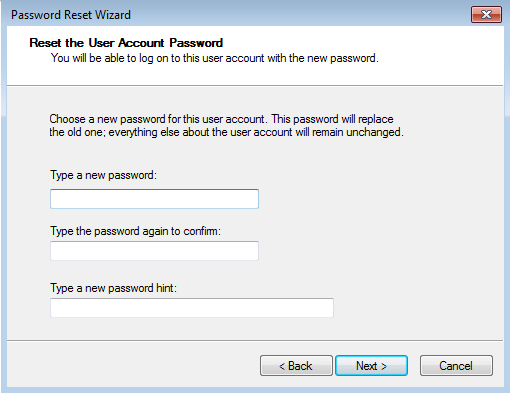
5. In the provided filed, type a new password and type it again to confirm. If needed, add a password hint as well.
6. Click Next > Finish to save the new password.
7. Remove the reset disk and return to your HP login screen.
8. Use the new password to unlock your laptop for instant access.
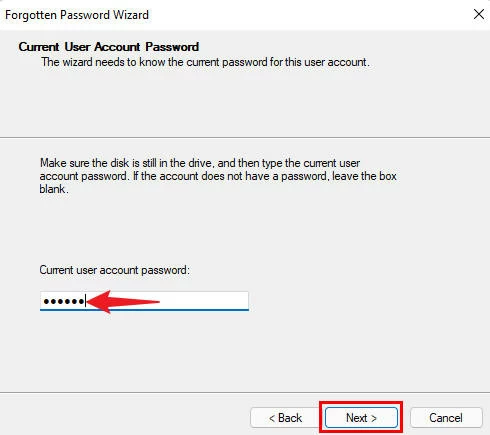
Once your HP laptop is unlocked successfully, it's a good idea to create a new Windows password reset disk to prevent future lockout. Here are the quick steps you may follow:
If you cannot remember your password and cannot use any recovery options, the last resort to unlock a locked HP without password is through a factory reset. This will let you regain control of your laptop, but it may remove existing files and apps, depending on the option you select to factory reset your HP laptop without password. Here's how:
1. Shut down your HP laptop completely.
2. Press the Power button, then immediately and repeatedly press the F11 key until the HP Recovery Manager screen shows up. TIP: If the F11 key doesn't work, press the Esc key to get a Startup Menu, then press F11 to continue.
3. From the opening options, select HP / Windows Recovery Environment, then confirm OK.
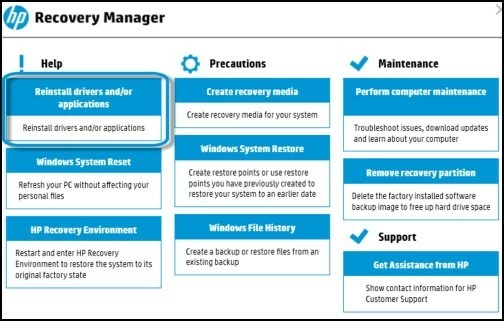
4. When you see Choose an option menu, select Troubleshoot > Recovery Manager.
5. To reset this HP laptop for unlocking, you'll have two options:
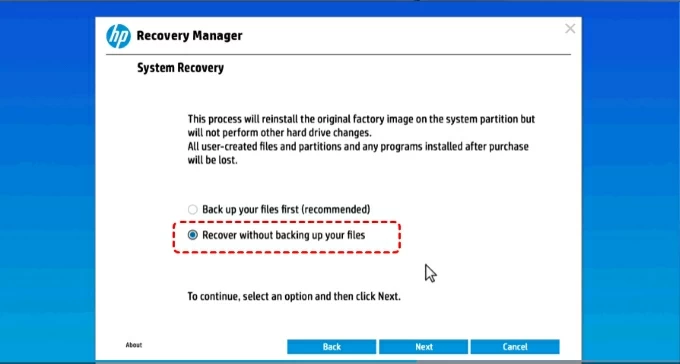
6. Click Next and wait for your HP laptop to complete the reset.
7. Click Continue and let the system reinstall all software that was originally on your laptop when it was out of the box.
When it's all done, the HP laptop will be unlocked with no password required. You can set it up again, create a new account and password, and enjoy a fresh start.
Q1 - Can I bypass the password to unlock an HP laptop?
Typically, you can only bypass Windows password on an HP laptop through a password reset. After creating a new password, it will overwrite the original one, so you'll sign in to the laptop normally.
Q2 - How can I unlock my HP laptop if I forgot the password?
Use Microsoft's online password reset (for Microsoft accounts) or built-in Windows options such as security questions or recovery tools (for local accounts).
If none of these works, consider using a comprehensive tool like Appgeeker Windows Password Recovery — it can reset the forgotten password on an HP laptop to unlock it quickly without hassle.
Q3 - What to do if my HP laptop if locked and I don't have a password reset disk?
The password reset disk only works for a local user account. If you don't have one, try unlocking your HP laptop via the Security questions that you've set at the account creation. Or, you can use another Administrator account to sign in and change the password for your locked account.
Q4 - Is it possible to unlock an HP laptop without losing data?
Yes. By resetting your Microsoft account password online, or using Windows' built-in recovery tools (like Security questions or password reset disk), you can easily get your HP laptop unlocked without data loss.
Q5 - Can you perform a factory reset to unlock an HP laptop without the password?
Yes. A full factory reset can reinstall the entire Windows system on your HP laptop and restore it to its original default settings. This process removes all personal files, apps, and settings, including the existing login password.
Once the reset is complete, the laptop will be unlocked and start as a fresh system setup, allowing you to access and configure it without needing the previous password.