Forgot Samsung Phone Password. How to Unlock


Forgot the password to Android or iPhone? This guide explains how to unlock a phone when locked using effective methods like recovery mode, remote reset or unlocking tools.

When smartphone is locked down due to forgotten password or too many failed attempts, Appgeeker Android Unlocker comes in handy to remove lock screen password, PIN, pattern efficiently, ensuring that Android users can access the phone again and set up a new lock.

Unlocking a phone after forgetting the password is relatively simple if you master the right methods.
Forgetting your phone password is one of the most frustrating tech problems imaginable. Your photos, messages, apps, documents—everything feels locked away behind a screen you suddenly can't access.
No worries. To unlock a phone when forgotten the password, the main principle especially for modern Android devices or iPhones is to perform a factory reset. This article will cover all proven ways of how to unlock the locked phone without a password, walking you through detailed steps via Recovery Mode or Remote Reset just to get into your device if you can't remember the screen lock password.
Table of contents
When your mobile phone locks you out after you forget the lock password and enter the wrong code too many times, simply wait for the lockout countdown to expire and then rely on your fingerprint or face recognition to have your phone unlocked effortlessly.
If you have proactively set up Extend Unlock (or Smart Lock) before the lockout, your phone will automatically unlock itself without factory reset - under the trusted situations, such as being at a specific place, in your hand or pocket, or connected to a trusted Bluetooth device.
In the event that those direct unlocking options are not working for you, a forgotten password on a phone requires for a factory reset to unlock - as any manufacturer has made it nearly impossible to guess your way into a device. The resetting process involves erasing the phone's content including the lock screen, letting you restore access to the handset and set up a new lock code. After getting into the phone, you can load an existing backup to restore the data.
There's no need to worry about how to unlock Android without the password, since there are multiple practical tools can be used to factory reset the device, arranged from officially free options like Google Find Hub, SmartThings Find (Samsung only), Recovery Mode, to powerful unlocking solutions like Appgeeker Android Unlocker.
Note:
Google offers an online service—Find Hub (previously Find My Mobile) with which you can remotely reset your phone even it's locked and remove the password completely.
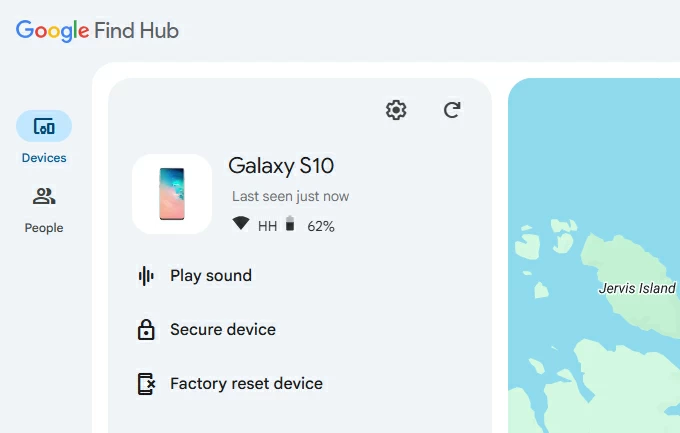
If you have previously linked your Google account with the device, enabled location services in Find Hub settings, and the device is online, then here're steps to employ Google Find Hub for unlocking phone's password that you cannot remember.
1. On a computer or another device, visit Google Find Hub on the web browser.
2. Sign in with your Google username and password tied to your phone.
3. Select your device and click Factory reset device option from the menu.
4. When prompted, enter your Google account password once again to verify your identity and for an authorized reset.
5. Click Reset in the opening "Factory reset device" dialog, followed by Erase to begin resetting your phone and remotely unlock the phone's screen without needing the password.
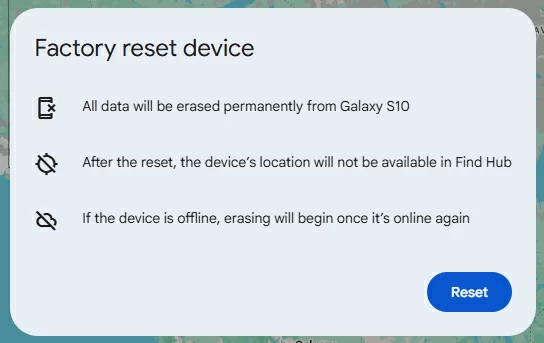
Wait for the Android phone to restore its factory settings. Once the welcome screen appears, you can go through the setup process and restore a backup if available.
If your phone is locked out whether because you have forgotten the lock screen password or because you have no access to the Google account, then Appgeeker Android Unlocker is the most reliable solution to fully unlock the device and get you back in.
Featured with powerful screen lock removal and FRP bypass capabilities, this PC-based software is designed to unlock any Android phones, like Samsung, Motorola, OnePlus, Pixel, OPPO, VIVO, POCO, Realme, Huawei, Xiaomi, etc., making it super easy to remove the PIN code, pattern, 4-digit/ 6-digit password, biometrics, as well as the Google credentials related to the Factory Reset Protection (FRP).
When you don't remember the phone password or bought a second-hand device that remained locked, follow these instructions to force Appgeeker Android Unlocker tool to run a factory reset and open your mobile effectively. No advanced technical skills are required.
To reset and unlock Android phone after forgetting password:
Step 1. Launch Android Unlocker on your computer and select Remove Screen Password mode.

Then, choose the brand of your device you own.
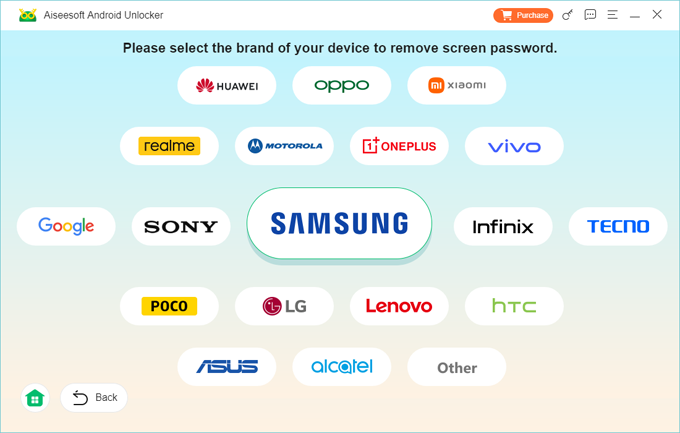
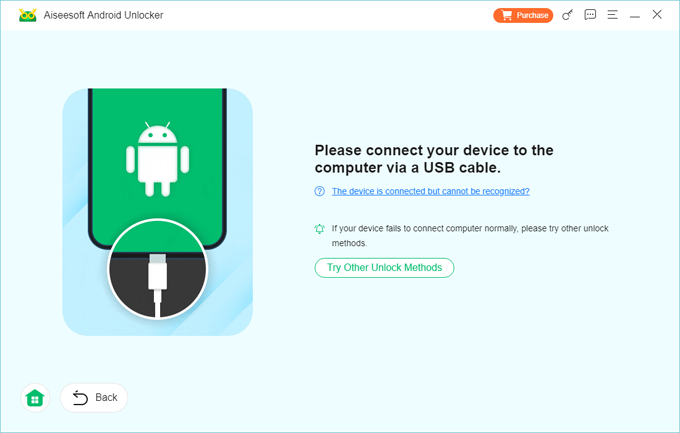
Step 2. Grab your password-locked phone and plug it into the computer via a USB cable.
If it cannot be read by the software, you'll need to put it into recovery mode. The utility should guide you to do that.
Step 3. Start unlocking the phone by clicking on the Remove Now button. The software runs a factory reset inside Android, which deletes the password and disable the Lock Screen entirely. Any other data will be wiped off as well.
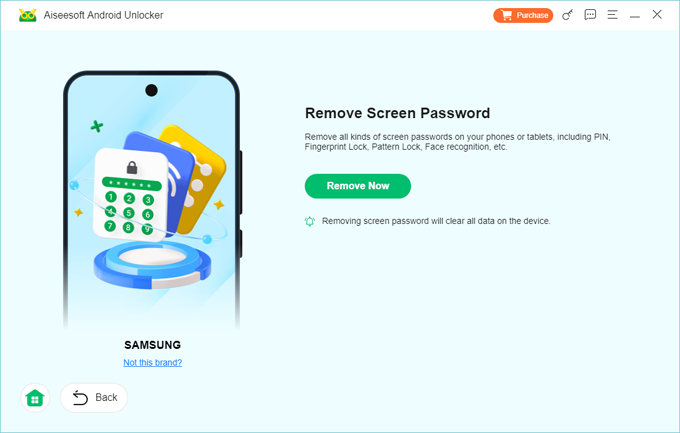
Once done, your phone is accessible, with no lock screen password, pattern or PIN left.
Also read: How to recover deleted photos from Android's Gallery
If the remote reset won't help, you can turn to Recovery Mode to unlock a phone that you forgot the password to, which bypasses the need for an internet connection to reset the device.
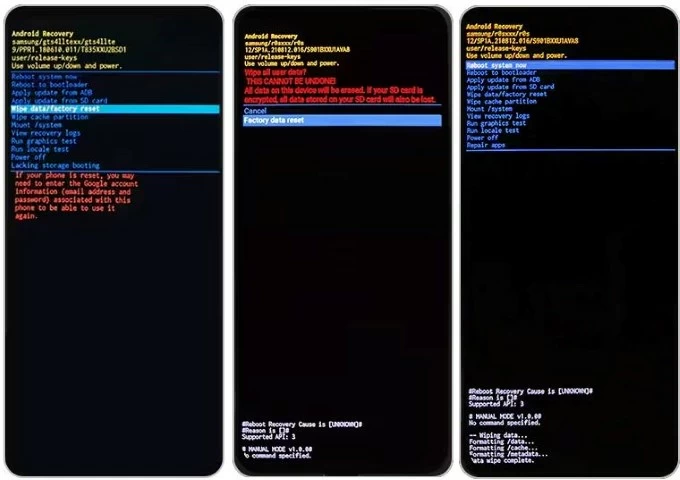
This is a backdoor for an Android phone unlock without password, but the process of booting the device into recovery mode requires different combination of hardware buttons and a bit patience. Once you access the Recovery menu, navigate to the Wipe data/factory reset option to initiate the reset of the locked device to its out-of-box status, automating the way to remove Android screen locks from the security system.
Here's how to unlock any Android device that's locked with forgotten or unknown password.
1- Power off your device completely.
2- Connect your phone to a computer through a data cable.
3- Place the device into recovery mode with certain buttons. Press and hold the buttons at the same time until the Android Recovery screen shows up.
This varies across device models and manufacturers.
4- Use the Volume buttons to highlight Wipe data/factory reset, and then press Power button to have it selected.
5- Proceed to choose Factory data reset, or Yes/ Yes - delete all user data. Your phone will immediately kick off resetting the system just to overcome the lockout issue.
6. Once data wipe completes, select Reboot system now.
Your phone will restart as new, letting you set it up again. You'll have option to set up a new lock method and restore a Google backup if you have one.
Samsung users have their own remote reset tool called SmartThings Find to deal with a forgotten password for unlocking the smartphone. Similar to Google Find Hub, you will need your device logged into the Samsung account, activated the remote unlocking settings, as well as connected to cellular or Wi-Fi network to complete the process.
To erase the forgotten password on your phone remotely via SmartThings Find, do the following and thereby recover access without any restrictions.
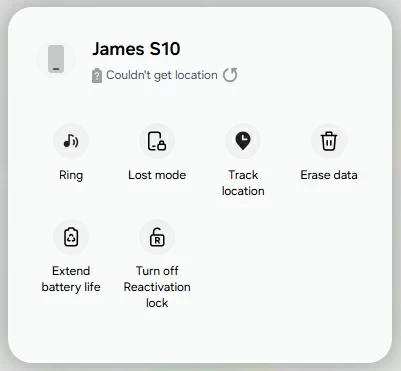
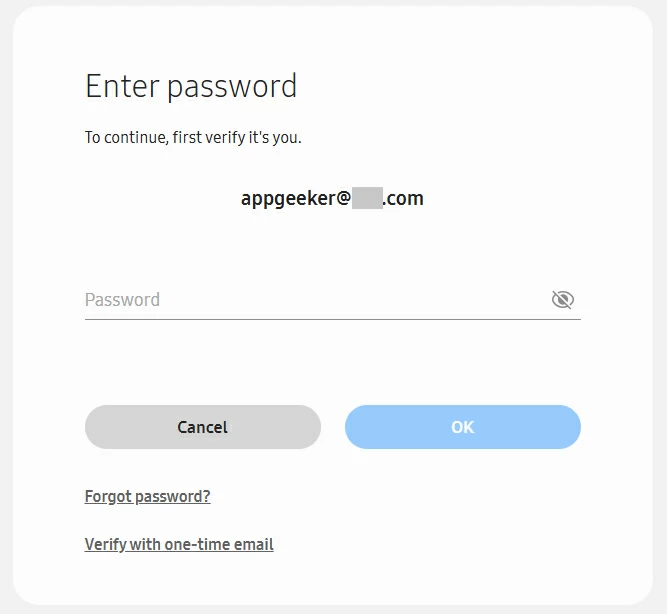
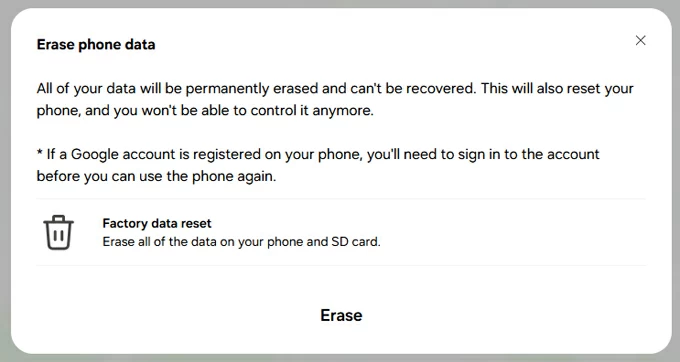
Tip: If you reset your phone this way, you'll be required to sign in with the Samsung account to finish the setup process.
When you're looking for a way to get into your phone without the Google account & password, it's most likely that you're facing the FRP lock after a factory reset and stuck at the "Verify your account" screen.
Whether you forgot the Google credentials that was previously synced with the phone or acquired a preowned device without removing the Google account first, there are a few proven routes to get past the Factory Reset Protection and have your phone fully unlocked.
It's pretty straightforward to get in to an FRP-locked phone if you remember the Google account details. By inputting the username and password, the Google account verification screen skips away instantly, allowing you access the device and enjoy all Google services.
Google Account Recovery website provides a convenient wizard to help recovering the Google account even if you forget the email address or password - as long as you know recovery phone number or email to verify it belongs to you. Once recovered, you can sign in with the updated credentials to bypass FRP on the phone.
If you can't verify your Google account after resetting the phone because you have no access to the sign-in info or the second-hand device is linked to previous owner, don't worry—try using a reliable FRP bypass tool, something like Appgeeker Android Unlocker, to remove the Google account lock without verifying your identity and unlock the phone painlessly.
Likewise, iPhone users can easily get into the phone without password by performing an on-device reset from the Lock Screen or via Recovery Mode, or a remote reset via iCloud Find My. This deletes all contents and removes the passcode key you used for unlocking the device, reverting the whole system to its factory defaults.
Start from iOS 15.2 or later, users have been able to erase their iPhone directly from the lock screen, freeing them from using a computer to unlock the device. After multiple failed passcode attempts, the option will appear at the iPhone Unavailable screen. Tapping on it will direct you to enter the Apple Account Password; the device reset starts right away over the connected Wi-Fi or cellular network.
After the reset, you're able to bypass the lock screen and get into your phone.
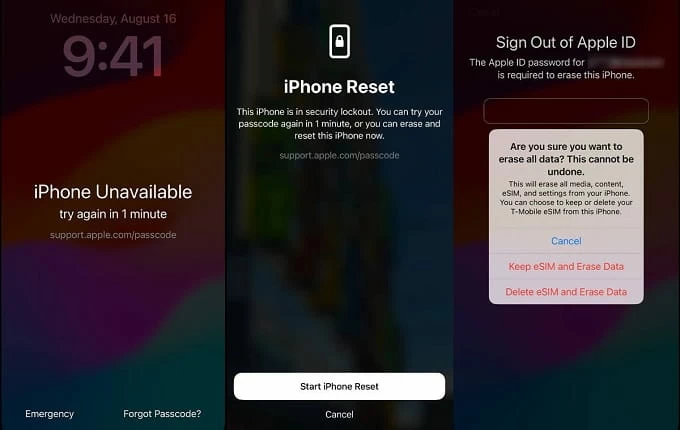
If you have a computer nearby, you can connect your iOS device to a computer and place it into recovery mode via buttons, which bypasses the forgotten passcode and accesses the phone to run a restore. Learn how to use recovery mode reset to facilitate the removal of the forgotten password and have your phone unlocked.
1- Shut down the phone. Wait for a few seconds to make sure it's completely off.
2- Grab a lightning cable and plug one end to the computer.
3- Connect the other end of the cable to the device, and quickly press a certain button until your phone enters recovery mode.
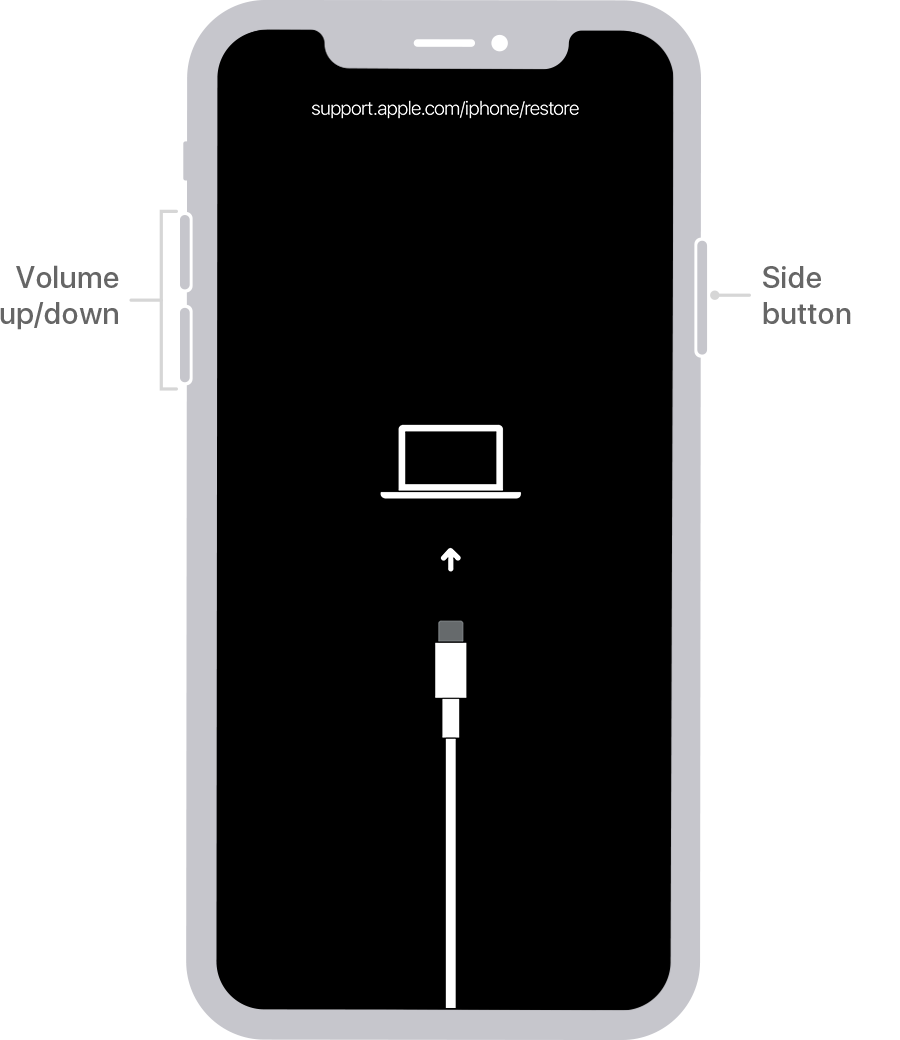
4- Once the iPhone is in recovery mode, open iTunes or Apple Devices app in Windows PC, or Finder in Mac.
5- Locate the device.
6- When asked to update or restore your iPhone, choose Restore button in order to unlock the forgotten phone password.
7- Wait for your computer to download the latest version of iOS for the device and restore it to factory settings, which wipes the password as well as anything on the phone.
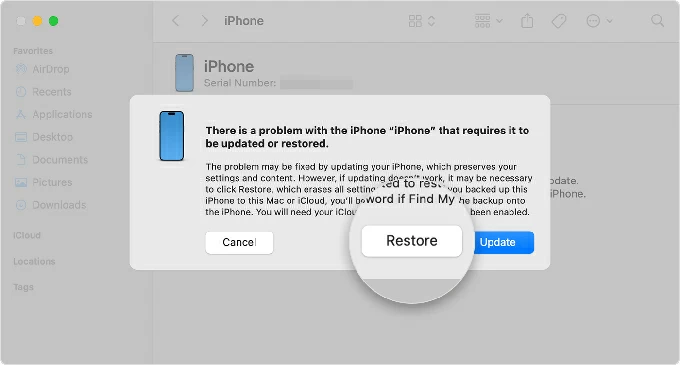
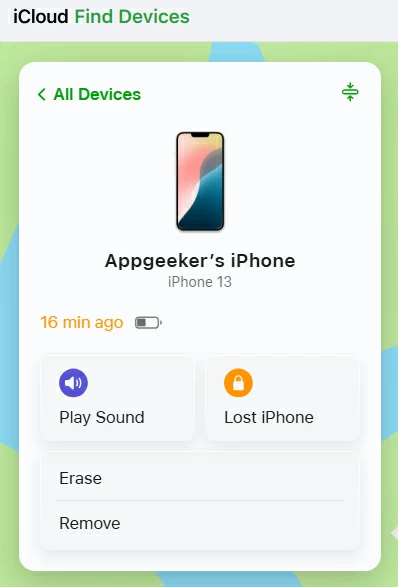
iCloud Find My is also an official way to serve the purposes of locating lost or stolen iPhone and erasing it even it's locked. If your device is permanently locked out after forgetting the passcode, you can take advantage of iCloud Find My to remotely reset the phone and unlock the screen.
As long as the device is signed in with your iCloud account, connected to the internet and you know the iCloud credentials, getting into a phone that's locked without a password would be an easy task using Apple Find My service.
All data and settings including the password will be deleted during the resetting process. After that, your phone is unlocked.
Tip: If the Apple's native routes are of no use when unlocking the forgotten passcode on a mobile phone, then your life saver is Appgeeker iPhone Unlocker software. It offers a user-friendly way to solve your forgotten passcode hassle and remove it from the lock screen, so you can get access back without needing a password.
That's done! Forgetting password to a phone isn't the end of the world. By doing a factory reset, you're able to open your phone without the password. This removes everything but gets you back in with no hassle. If you have a recent backup available, you don't worry about data loss - there's option offered during the setup process to restore data from your backup after the phone is reset and unlocked.
What is the master code to unlock any phone?
There are two master codes for unlocking phones: *2767*3855# and #*#7780#*#*. However, these secret codes only work for older Android models, not for all devices due to updated security features.
Android master codes can trigger a factory reset to unlock screen lock, which wipes the phone clean and reinstall the software.
Can I recover my password if forgotten to my phone?
When you forgot the password to your phone - whether it's Android or iPhone, you cannot recover the original password but just to remove it by resetting the whole device to factory conditions.
If you do not remember your Google password after a reset due to FRP lock, you can use the email address and other recovery methods to reset the password to something new without needing the original one that you've forgotten.