
iPhone Passcode Expired. Why and How to Fix It


Need to quickly copy a large number of photos in your iPhone 16 to your laptop? With right tool, you can. Here's how to move your iPhone 16 wired and wirelessly.

If you intend to find a solid way that offers granular control over your photos, videos and music without interruption, specialized tools like Appgeeker iPhone Data Transfer should be your choice. It offers simple and simple-click transfer workflows designed to manage and transfer your photos and other media files on iPhone to your laptop's hard drive and vice versa.
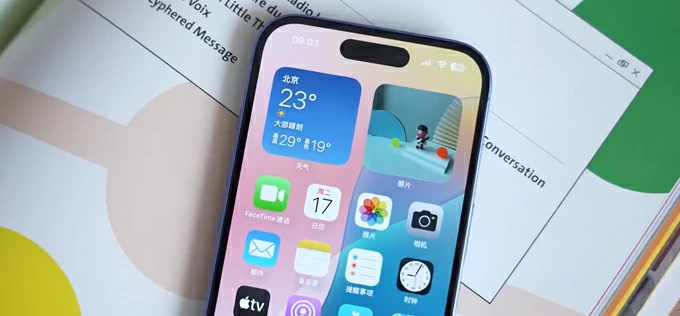
You can sync or manually transfer photos from an iPhone 16 to your Windows or Mac laptop with different options.
To free up space on your iPhone 16 or to edit your media files in a robust desktop environment, you may want to offload your media, especially photos. The good news is that moving photos on an iPhone 16 to a laptop is absolutely easy thanks to preinstalled photos importing services in computer and third-party apps.
This comprehensive guide outlines the most efficient ways to help you transfer iPhone 16 pictures to a laptop—whether you are using a Windows or macOS operating system.
Table of Contents
With support of USB 3 speeds (up to 10 Gbps) in iPhone 16 Pro or iPhone 16 Pro Max, photo transfer has become significantly quicker. If you have a Pro or Pro Max model, you can use a compatible high-speed cable to move your pictures to laptop.
Note: The standard iPhone 16 and 16 Plus are limited to USB 2.0 speeds (up to 480Mb/s).
The Windows Photos app is the default image and video viewing, importing, organizing, and editing software built into Windows 10 and 11. You can use it to import any photos you want.
1. Connect your iPhone 16 to your laptop using a USB-C cable. (ideally, new and original)
2. A prompt will pop up asking "Trust This Computer?" Tap Trust or Allow, then enter your phone's passcode to confirm.
3. Launch Photos app.
4. In the top-right corner of the Photos app window, click the Import button and select From a connected device from the drop-down menu.
The app will take a moment to load your photos on the iPhone 16.
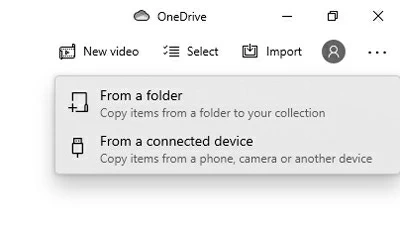
5. Check the boxes next to the photos or videos you want to copy, then select Import Selected to begin transferring those images to your laptop; or click Select All to import all of photos and videos in library.
Related: How to get into a locked iPhone
If you are moving files to a laptop that's running macOS, Apple's native Image Capture utility is an excellent alternative to the standard Photos app. It gives you raw control over destination directories without cluttering a local system library.
The steps to import iPhone 16 photos on macOS laptop through Image Capture:
1. Connect your phone to laptop.
2. Open Image Capture via Spotlight Search or Application.
3. When your iPhone 16 appears under the Devices sidebar on the left sidebar, select it.
4. At the bottom of the window, Choose a destination folder using the Import To dropdown menu.
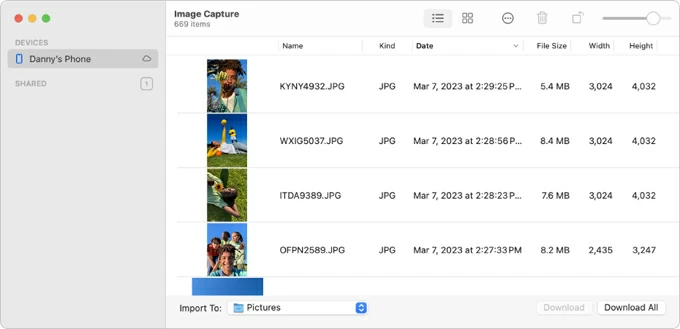
5. Click Download All to import your entire photo library, or highlight specific pictures from the phone and click Download.
If you like the preinstalled Photos app to handle the transfer task, here is exactly how to get those photos onto your laptop with it.
1. Plug your iPhone 16 into your Mac. If your Mac only has USB-C ports and your cable is older, you may need an adapter.
2. Launch the Photos app on your Mac, then select your device in the sidebar.
3. At the top of the Photos window click the Import to drop-down menu, choose a specific folder for your photos, or you can create a new one to store them.
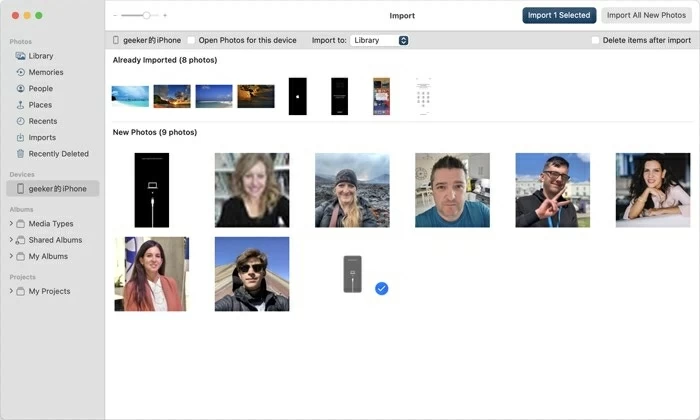
4. Click the Import All New Photos button to transfer all your pictures and videos.
5. Or, choose individual images, followed by Import Selected.
Importing photos to laptop from iPhone 16 directly using a cable is one of the fastest ways to move large batches of media. If you don't like the way the preinstalled app offers, you may consider third-party file transfer app, something like Appgeeker iPhone Data Transfer. It's a reputable tool that lets users selectively preview, transfer, and organize different types of data—including music, photos, videos, messages, contacts, and WhatsApp chats—between iPhones, iPads, and computers (bidirectional), without overwriting existing device content.
It also includes a list of 1-click shortcuts for backup or migration, an integrated iCloud drive manager, and handy extras like custom ringtone creation.
Here's how you can use the software to save iPhone 16 photos to laptop, regardless of a macOS or Windows system. You can browse your specific album first and only copy specific images you want. The process is straightforward and easy to follow.
1. Install the software on your computer, launch it, connect your iPhone 16 with a cable.

2. Click Photos category icons in the left sidebar. It will break down your library by their specific albums (e.g., Camera Roll, Videos, Bursts, Places, Live Photos, Screenshots). Click into any folder to view thumbnail previews.
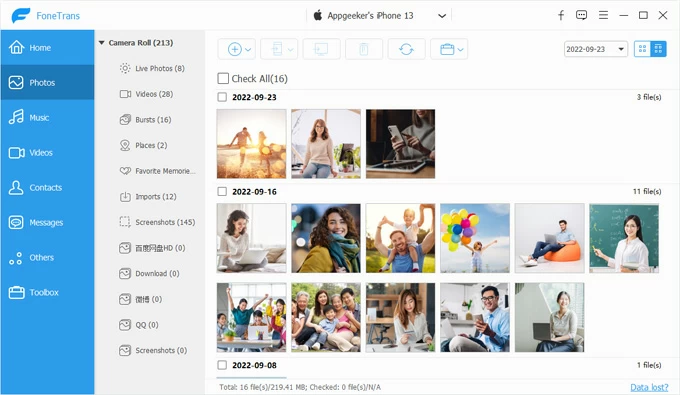
3. To select the individual photos you want to copy, you can check the boxes next to specific thumbnails, or click the specific date to select a batch, or even click "Check All" to highlight all photos in the album.
4. Click the Export to PC button (it looks like a computer monitor icon) located in the top menu bar. If you're transferring photos from an iPhone 16 to a macOS laptop, here you should click Export to Mac instead.
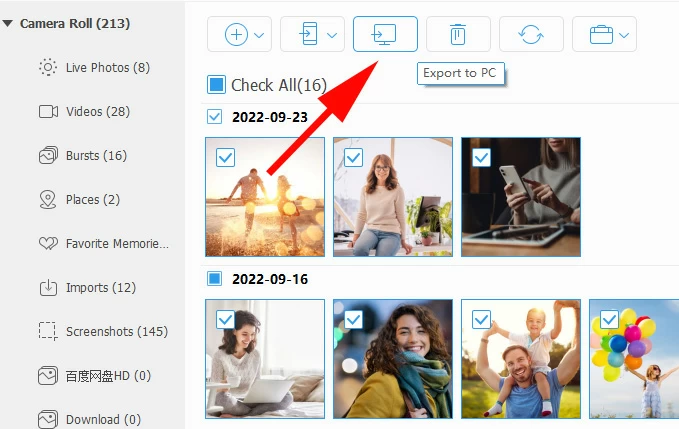
In the opening dialog, choose a folder on your laptop's hard drive.
That's it!
You can also use its right-click context menu to save your photos locally.

You can even click on a specific album and export all items inside.

Related: iMessages missing on iPhone
Windows laptops give you another option, File Explorer, to import your photos from an Apple's iPhone 16. It takes your device as an external hard drive, allowing you to directly drag and drop images and videos onto your laptop's folder. And another great thing is that if you use its "Import pictures and videos" option in context menu, it remembers your previous imports and won't duplicate the already imported items.
Here's how to import photos from iPhone 16 to laptop with File Explorer:
1. Plug your device into laptop with a good cable.
2. Open File Explorer.
3. Once you see the iPhone 16 appear in File Explorer window, right-click on it and select Import pictures and videos. Then follow the prompts to transfer photos to a folder on your laptop.
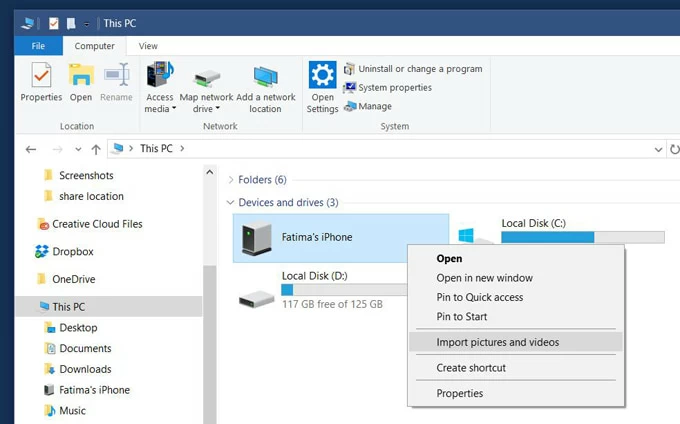
Check More options to make sure you have the desired settings.
4. Alternatively, double click the device name, then drill down into the Internal Storage > DCIM folder.
Inside, you will see various subfolders that contain your image repository.

5. Simply copy and paste the desired pictures onto your local laptop drive. You can also achieve the photo transfer through drag-n-drop.
If you just need to share a handful of pictures to your MacBook laptop, Apple's AirDrop feature should be great alternative. It eliminates the need for internet connections or data compression, ensuring your images arrive in their original format instantly.
How to utilize AirDrop for photos transfer between iPhone 16 and laptop MacBook.
1. Ensure both your iPhone 16 and your Mac laptop have Wi-Fi and Bluetooth toggled on.
2. On your Mac, open a Finder window and click AirDrop in the sidebar. Set your visibility to Everyone or Contacts Only.
3. On your phone, tap the pictures you want to send to laptop, then the Share icon in the lower-left corner.
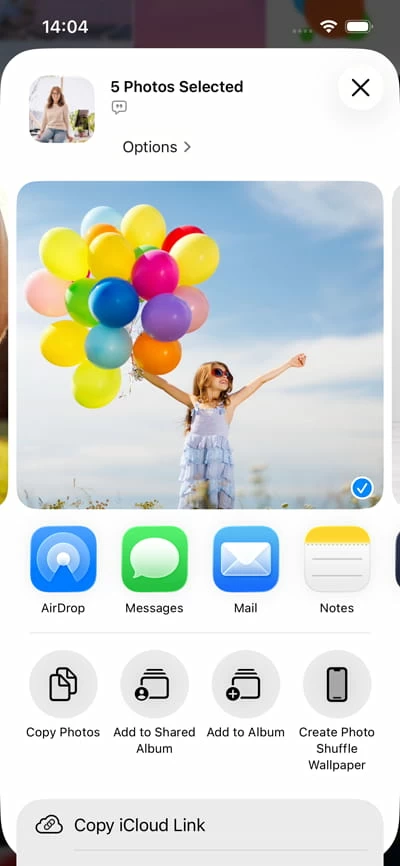
4. Tap AirDrop from the share sheet and select your MacBook's name.
5. On your laptop, click Accept when prompted.
Your iPhone 16 pictures will automatically save to your laptop.
Related: How to transfer music from Windows to iPhone
Cloud services in these days allow you to sync files, including photos across different devices when you're signing with the same account. For transferring photos from iPhone 16 to laptop wirelessly, Apple's iCloud is the ideal solution. Below are steps to follow:
First of all, on your iPhone 16, head to Settings > [Your Name] > iCloud > Photos, toggle on Sync This iPhone.
Your entire media library will begin uploading to your cloud storage vault.
To download your photos to a laptop, you have two primary options:
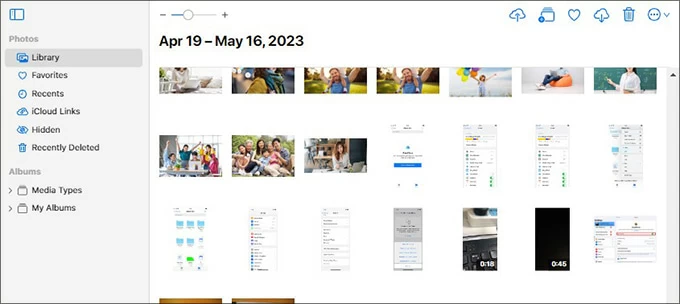
The web browser route
Open your Chrome or edge browser and navigate to iCloud.com.
Log in with the same Apple ID credentials that you use on the phone.
Go to the Photos library, select your images, and click the download icon at the upper right corner.
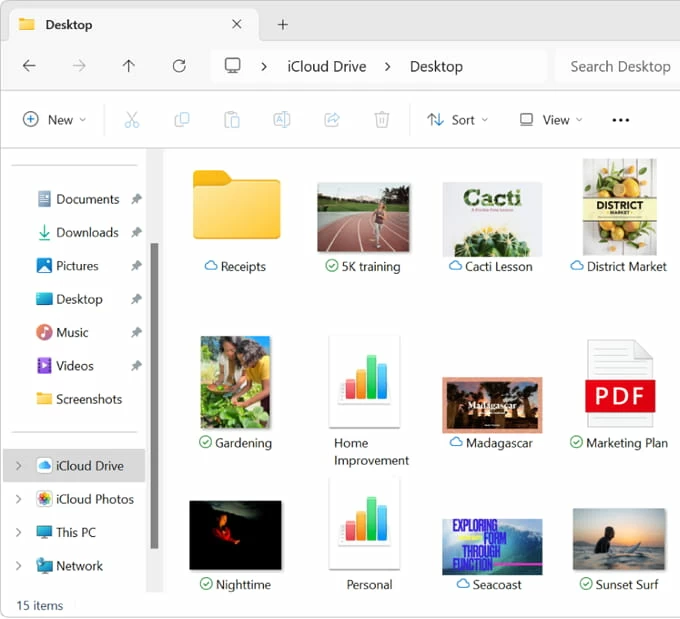
Use the dedicated desktop client
Download iCloud for Windows from the Microsoft Store.
Once configured, you can toggle the "Photos" checkbox. This integrates a dedicated iCloud Photos folder directly into your Windows File Explorer.
You can now access synced images locally.
If you prefer to bypass native Apple services completely, there are several competitive cloud clients that provide flexible file management options across platforms. Cloud platforms like Google Photos, Dropbox, and Microsoft OneDrive can act as an automated photo transfer tool.
The whole process is similar to that of iCloud: upload your photos to cloud server, open a browser on your laptop, download them locally.




