
How to Get into Locked iPhone without Passcode


To transfer WhatsApp from an old iPhone to a new iPhone 13 to ensure chats integrity, this article will show you how to transfer WhatsApp data from iPhone to iPhone 13.

Using Appgeeker WhatsApp Transfer not only migrates your WhatsApp chat history from the old iPhone to the new iPhone 13 but also ensures your iPhone 13 feels exactly like your old device from the very first login—avoiding errors like "media files missing."

Most transfers of WhatsApp chats from another iPhone to iPhone 13 do not require a data cable.
Purchasing a new iPhone 13 or receiving one from someone else, to seamlessly continue your chats on the iPhone 13, you've likely pondered how to transfer WhatsApp from one iPhone to your iPhone 13 seamlessly.
For many users, WhatsApp is more than just an app; it's a platform for work discussions, family moments, and daily life records. Therefore, fully transferring WhatsApp chat data—including messages, photos, documents, videos, and more—to the iPhone 13 is an important task.
This guide will show you several practical ways to transfer WhatsApp to an iPhone 13 from basically any other iPhone model. You can confidently select the most suitable approach based on your specific situation, such as when you set up the new iPhone, how much data you have, and whether you want everything or just selected chats, without any guesswork.
Table of Contents
To smoothly transfer your WhatsApp chats to iPhone 13, you need to make the following preparations:
1. Lock in your phone number
WhatsApp ties your chats to your number, not just the device. Therefore, both devices need to use the same phone number.
2. Update WhatsApp and iOS System
Run the latest stable version of WhatsApp and iOS on both iPhones. Mismatched versions can cause restore options to disappear or transfers to stall halfway through.
3. Decide your starting point: new or already in use?
4. Prepare power and connections
Charge both iPhones above 50%, ideally keep them plugged in. And use a stable Wi-Fi network or original data cables
5. Keep your old iPhone untouched
This is your safety net. Don't log out of WhatsApp, don't delete the app, and don't erase the device until you've opened WhatsApp on the iPhone 13 and confirmed all chat history is fully preserved.
WhatsApp's built-in tools are the top choice. They are developed by WhatsApp itself, utilizing end-to-end encryption, allowing you to transfer WhatsApp messages from one iPhone to iPhone 13 without any additional software.
Option 1. Chat Transfer feature (Local phone-to-phone move)
This feature creates a temporary secure bridge between your two iPhones, directly transferring your WhatsApp chat history between the devices without using iCloud. It is fast, private, and not limited by storage space. However, note that the WhatsApp installed on your iPhone 13 must not yet be activated.
Start by ensuring both iPhones are connected to the same Wi-Fi network. Crucially, go to Settings > WhatsApp and verify that the Local Network toggle is enabled on both devices to allow them to find each other.
On your old iPhone:
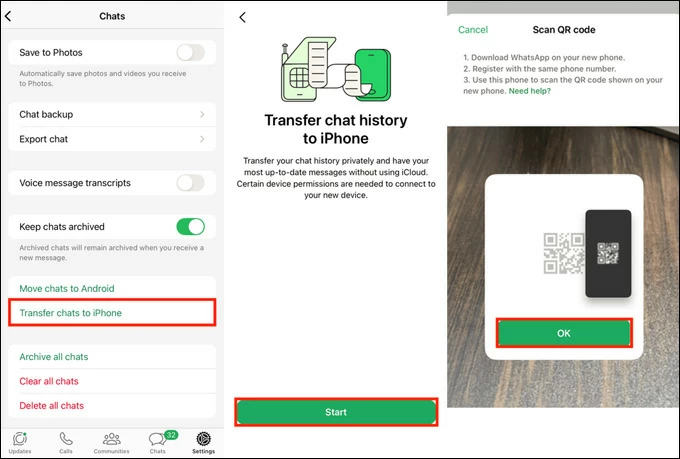
1. Open WhatsApp, and navigate through Settings > Chats > Transfer Chats to iPhone.
2. Upon tapping Start, your device will enter a "Ready to Scan" mode, effectively turning the phone into a data broadcaster.
On your iPhone 13:
1. Fire up a fresh WhatsApp installation on the iPhone 13 and tap Agree & Continue.
2. Enter the phone number you used on your old iPhone, then receive the code for verification.
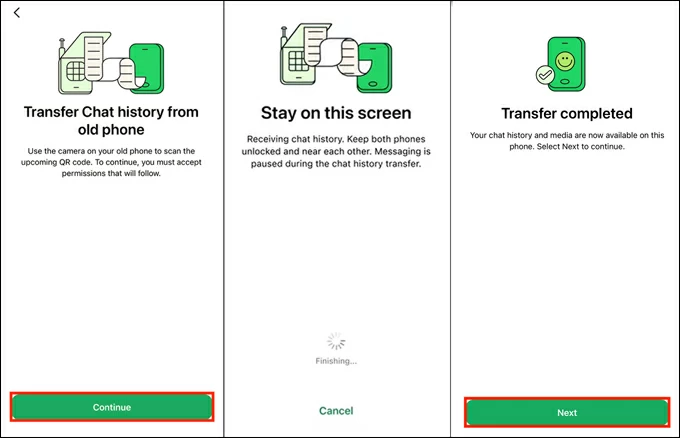
3. Tap Continue and allow local network access in the pop-up window.
4. A unique QR code will appear on the screen; use the old iPhone's camera to scan this QR code, and accept the local network request on the old phone.
5. A "Stay on this screen" warning will appear, ensure both iPhones are close to each other and remain unlocked until the transfer is complete.
Note:
6. When the progress bar reaches 100%, tap Done; the iPhone 13 will automatically re-index your messages, making them searchable instantly.
Note:
Option 2. WhatsApp cloud backup & restore
In the iOS ecosystem, WhatsApp backups are closely tied to iCloud. iCloud allows you to store WhatsApp chat history separately and restore it at any time, letting you transfer WhatsApp from other iPhones to your iPhone 13.
However, this method does not provide a real-time mirror of your WhatsApp message. Instead, it restores the state at the time the WhatsApp backup was created, any content sent or received after the backup will not be retrieved.
Requirements:
Step 1. Create the latest WhatsApp snapshot on your source iPhone
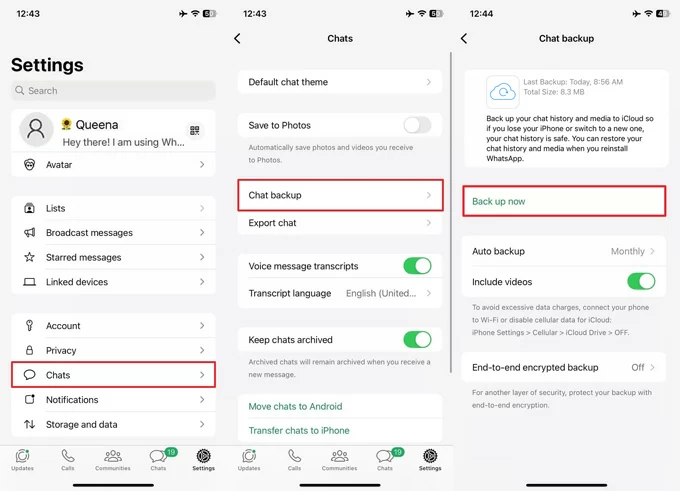
1. Launch WhatsApp, go to Settings > Chats > Chat Backup.
2. Tap Back up now to manually create the backup.
3. To avoid the common "Media Not Found" error later, ensure the Include videos toggle is active.
Step 2. Restore WhatsApp on iPhone 13
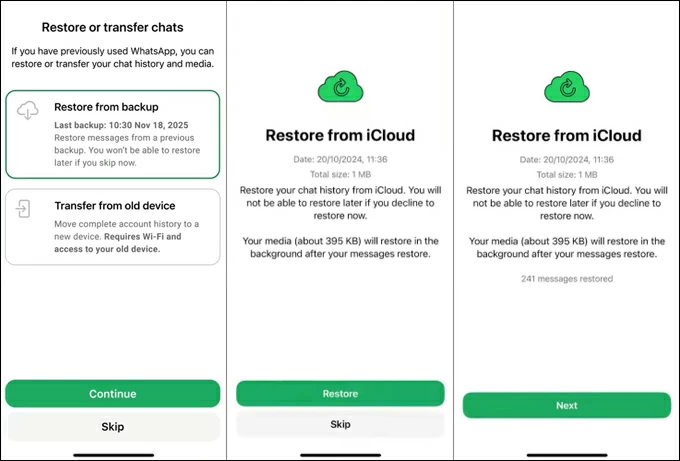
1. Open the newly installed WhatsApp, tap Agree & Continue, and verify the same phone number.
2. When you see the "Restore or transfer chats" screen, select Restore from Backup.
Note:
3. Tap Continue > Restore to start transferring WhatsApp chats to your iPhone 13.
4. Once done, tap Next. Your messages will appear first, followed by photos and videos completing in the background.
Some users report that using WhatsApp's native features results in slow transfer speeds or missing some conversations. When official options are too limited, third-party Appgeeker WhatsApp Transfer becomes a more practical choice.
It's designed specifically for users seeking flexibility: you can migrate WhatsApp even after the new iPhone 13 is up and running without factory reset, easily handle massive chat histories and media files, or completely avoid using cloud storage.
Key features:
Here's how to move WhatsApp from one iPhone to iPhone 13 via WhatsApp Transfer:
1. Run the software on your computer and click Start under the WhatsApp tab. Then, select Transfer mode to begin the WhatsApp data migration.
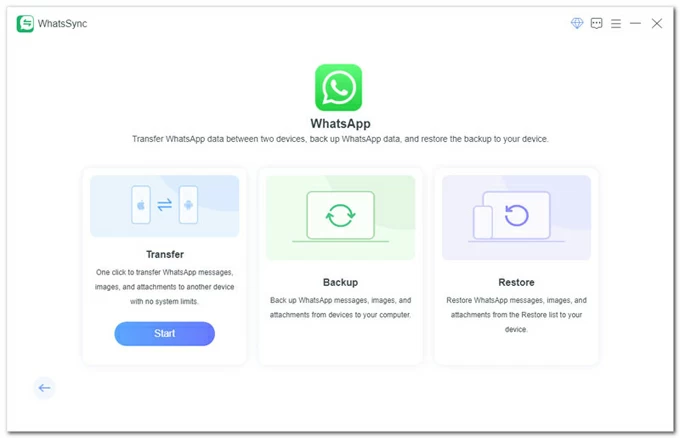
2. Use compatible data cables to connect your iPhone 13 and the other iPhone to the computer. Unlock both iPhones and choose to trust the computer.
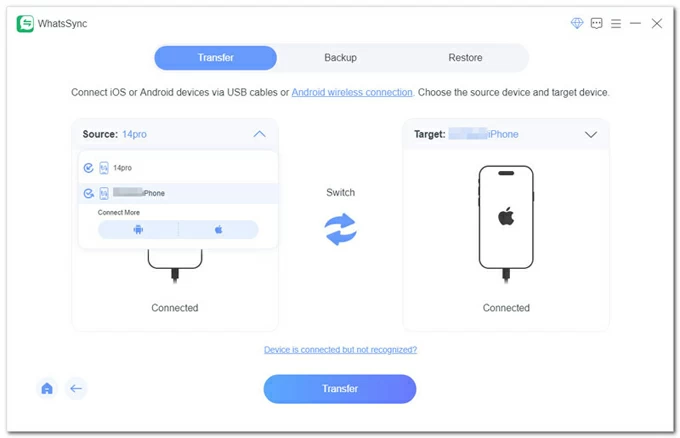
3. Confirm that both iPhones are correctly placed in the Source and Target (iPhone 13) labels, then click Transfer.
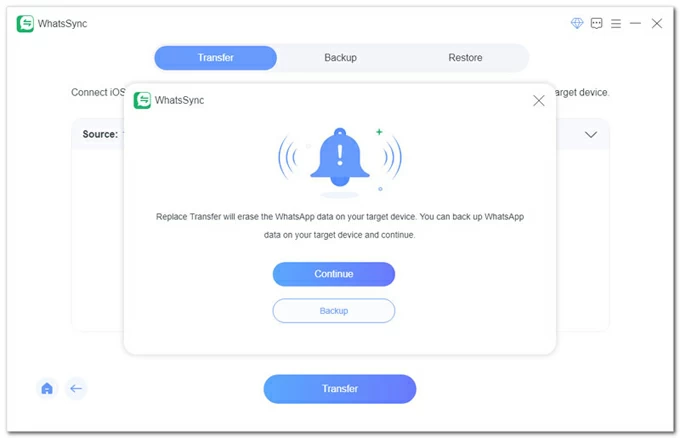
4. During the transfer process, it will replace any existing WhatsApp data on the iPhone 13 with the history from the source device. If necessary, you can click Backup first to save the current WhatsApp messages on iPhone 13. Otherwise, click Continue to proceed.
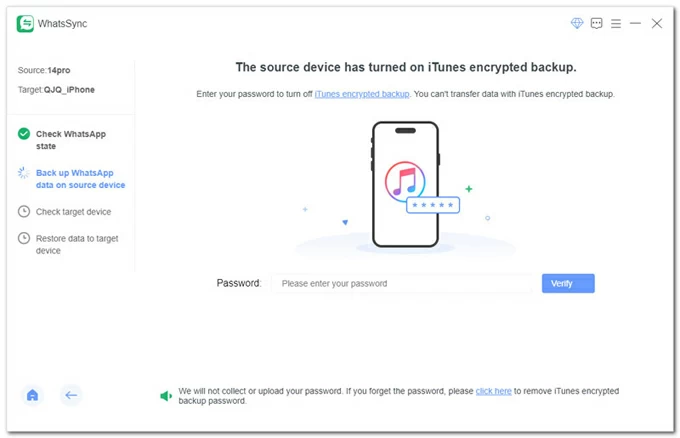
5. As prompted, enter the iTunes encryption password and input the lock screen password on your iPhone; the software will then begin backing up WhatsApp from your source iPhone.
6. Next, log in to WhatsApp on your iPhone 13, then click Logged in & Continue on WhatsApp Transfer. The WhatsApp data from the source iPhone will start transferring to your iPhone 13.
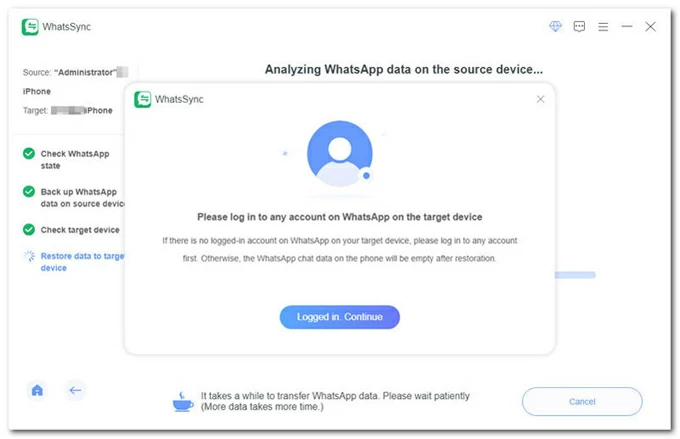
When finished, open WhatsApp to view the transferred chats and multimedia files—they will be identical to the originals.
Also see: How to transfer WhatsApp from Android to iPhone without reset
Backup methods are ideal if you're not just moving WhatsApp but cloning your entire iPhone experience. Using iCloud backup or iTunes backup is particularly suitable for a new iPhone 13, especially one that hasn't been set up yet. These options will rebuild your new iPhone based on a complete snapshot, with WhatsApp transferred as part of the full backup.
Option 1. Transfer WhatsApp messages to new iPhone 13 via iCloud Backup
For users with enough iCloud space, transferring WhatsApp from the old iPhone to the new iPhone 13 using iCloud backup will undoubtedly save you a lot of time and effort.
1. On your old iPhone, go to Settings > [Your Name] > iCloud > iCloud Backup, then tap Back Up This iPhone. Note the "Last successful backup" time to ensure it's the most recent.
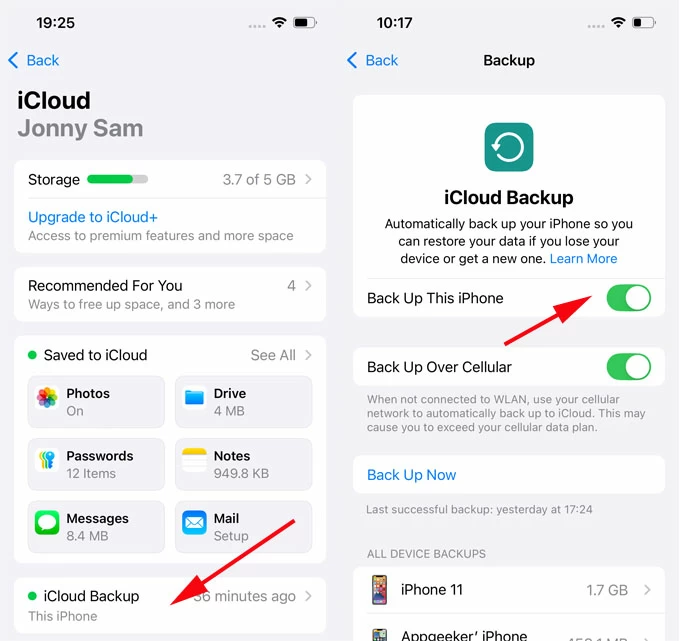
2. Start your new iPhone 13 and follow the on-screen instructions to set up your device.
Note:
3. When you reach the "Transfer Your Apps & Data" screen, choose From iCloud Backup.
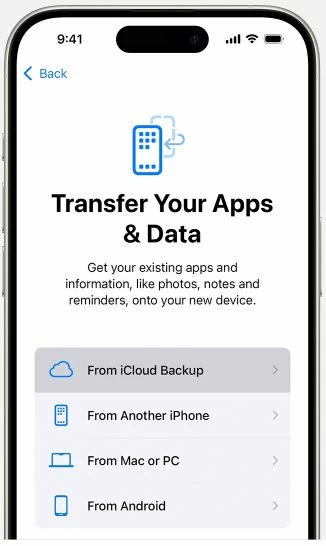
4. Sign in to your Apple account and pick the latest backup archive to restore.
Wait for the restoration to complete, then open WhatsApp on your iPhone 13 and verify your phone number—you'll then see all your chat history.
Option 2. Transfer via iTunes Backup
iTunes backup is another method for transferring WhatsApp chat history to your iPhone 13 by restoring the entire iPhone.
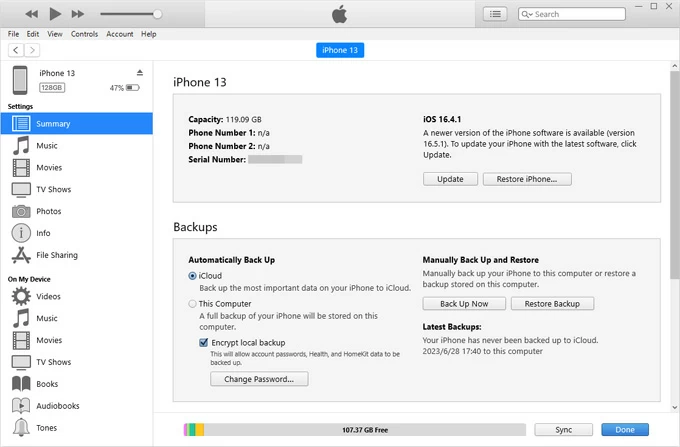
1. Plug the old iPhone into the computer and run iTunes (Windows/macOS Mojave).
Note:
2. Click the device icon in the upper-left corner and locate the Summary tab.
3. Click Back Up Now to create a local archive. If necessary, encrypt the backup.
4. After completion, disconnect your old device and link your iPhone 13 to the computer.
5. Similarly, hit the iPhone icon in the top-left corner of iTunes to access the Summary page.
6. Click Restore Backup to get WhatsApp conversations from your old iPhone on the iPhone 13.
Read more: How to recover deleted WhatsApp messages without backup on iPhone
Not every situation requires a complete migration of your WhatsApp chat history. Sometimes, you only need to save specific conversation records on your iPhone 13. In such cases, selectively exporting WhatsApp chats to iPhone 13 from an iPhone comes in handy.
1. Open WhatsApp on your old iPhone.
2. Enter the conversation you want to save and tap the contact or group name at the top.
3. Select Export Chat, then choose Without Media to save only text, or Include Media to include attachments.
4. From the sharing options, select Mail and send the exported file to your own email address.
5. On your iPhone 13, open the email and download the attachment. Store it securely in the Files app, cloud storage, or a local folder.
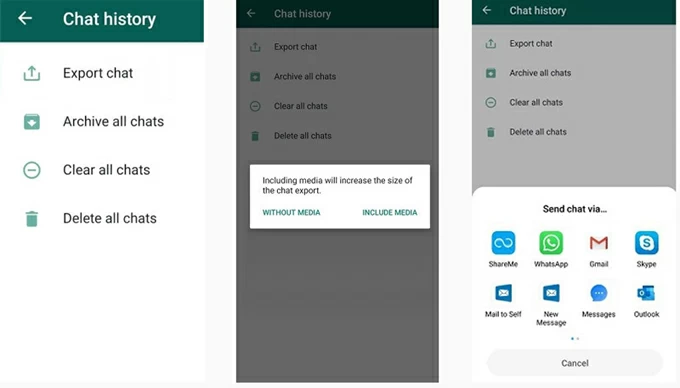
Tip: WhatsApp will package all chat history into a .zip file. This package includes a timestamped _chat.txt chat file and a folder containing all images and audio files.
Conclusion
Transferring WhatsApp from an iPhone to an iPhone 13 isn't about finding one best method—it's about choosing the method that fits your situation.
If your phone is brand new and you want a clean, official move, WhatsApp's built-in Chat Transfer does the job. If convenience matters and a snapshot is enough, cloud backups can work. If you're already using your iPhone 13 or need every single chat preserved, third-party Appgeeker WhatsApp Transfer gives you the freedom official options don't. And if all you want is to keep a few meaningful conversations, selective export is more than enough.
1. I already started using my iPhone 13. Can I still move my old WhatsApp chats?
Yes. If your iPhone 13 is no longer at the setup screen, the restoration methods via iCloud or iTunes are not applicable. In this case, Appgeeker WhatsApp Transfer tool or official options like Chat Transfer or WhatsApp backup are the most practical choice because they can move chats without resetting your phone.
2. Will my newest messages be included in the transfer?
That depends on the method. Chat Transfer and Appgeeker WhatsApp Transfer tool move your data in real time, so even recent chats go along. WhatsApp backups only restore what existed at the time of the last backup. Anything after that won't appear.
3. Can I merge chats from two iPhones into one WhatsApp account?
No. WhatsApp doesn't support merging histories. A transfer replaces the target's existing WhatsApp data. If both iPhones have important chats, back them up or export key conversations before moving forward.
4. Is it possible to use WhatsApp while the transfer is running?
It's strongly discouraged. Sending or receiving messages during migration can cause inconsistencies or missing chats. For best results, pause usage until the process finishes.




