
How to transfer files from iPhone to Mac without iCloud


f you forget password for Screen Time, you can bypass it from official recovery paths and third-party solutions. Here's how to bypass iPhone Screen Time without passcode.

Summary: To reset or bypass an iPhone Screen Time passcode, you can use official recovery methods or third-party tools like Appgeeker iPhone Unlocker. For temporarily bypassing the lock, some device workarounds might work. If all efforts fail, you have to resort to factory reset.
Uh oh, you get stuck at Screen Time lockout because you've forgotten the passcode. Is there a way to bypass the Screen Time lock without losing the data? Does Apple offers official paths to reset or recover the password?
No matter you forgot the password for Screen Time your own iPhone or iPad, or it's a child's device that's managed by Family Sharing group, there's a good chance you can bypass the Screen Time within minutes. In this guide, we'll walk you through a few simple ways to get around screen time limit without a passcode on your iPhone or iPad, starting with the easiest method.
Table of Contents
As long as your iPhone (or iPad) is running a relatively modern version of iOS, you can use your Apple ID to bypass the Screen Time without passcode and create a new one. Here is the step-by-step process to regain control.
Make sure the Apple ID is the one used to set up the Screen Time passcode before.
Step 1. Navigate to Screen Time settings
Open the Settings app on your iPhone. Scroll down and tap on Screen Time.
Step 2. Initiate the change
Select Change Screen Time Passcode. You will be presented with two option: Change Screen Time Passcode or Turn Off Screen Time Passcode. Choose any to proceed with the recovery.
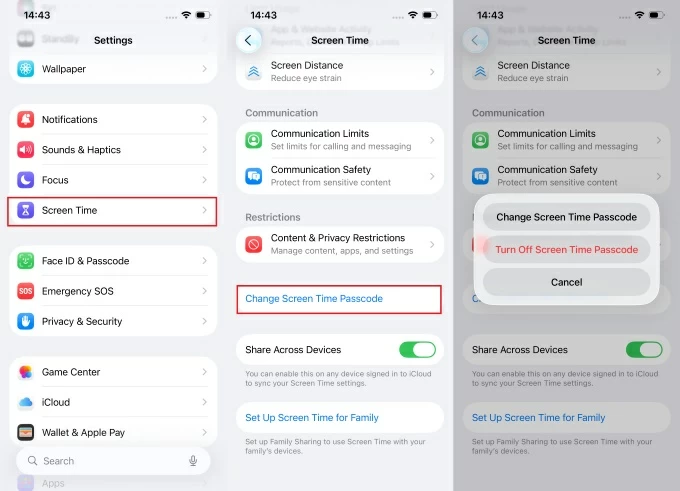
Step 3. Use the "Forgot Passcode?" option
Since you don't know the old passcode, to bypass Screen Time, tap Forgot Passcode?.
If you do not see this option, it means an Apple ID was not provided when the Screen Time passcode was first created. you may need to look into more advanced recovery methods or a device restore.
Step 4. Enter Apple ID credentials
When a Screen Time Passcode Recovery window appear, enter the Apple ID and password to verify your identity. This is usually the same Apple ID you use for iCloud and the App Store.
Step 5: Set a new passcode
Once verified, enter a new Screen Time passcode. You can then back to Settings and turn off Screen Time if necessary.
If you are using a device managed by a Family Sharing organizer (parents or guardian), you have to rely on organizer to bypass the Screen Time restrictions. They don't need to touch your device to fix the problem. This is the most effective bypass because it updates the entire Family Sharing cloud.
Note: On a managed device, the "Forgot Passcode" prompt often doesn't appear on the Screen Time settings for the child or the managed user.
Here's how to bypass Screen Time on iPhone without password in a Family Sharing group.
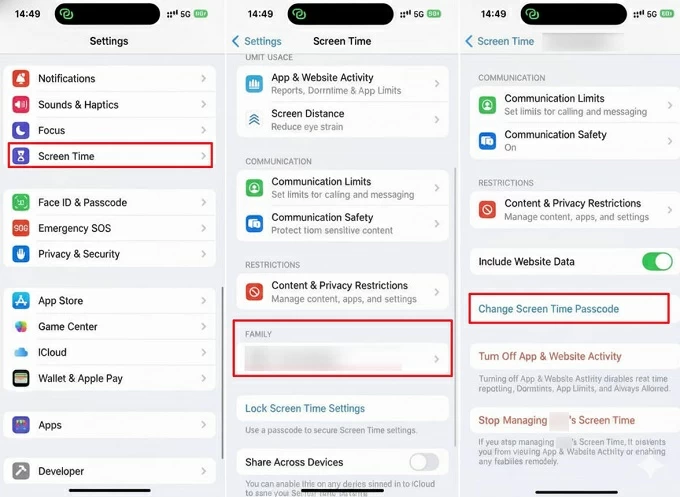
1. On organizer's device, go to Settings > Screen Time.
2. They scroll down to the Family section and tap your name. If you need to bypass Screen Time on a child phone, tap the child name there.
3. Select Change Screen Time Passcode.
4. Tap Forgot Passcode? option.
5. Follow the prompts to use the organizer's Apple ID credentials to wipe the old passcode and set a new one.
Several software options like Appgeeker iPhone Unlocker claim to bypass Screen Time passcodes without data loss. Before going for a factory reset, you may use such kinds of tool to try bypassing Screen Time when you forgot password. The process typically involves a computer.
Appgeeker iPhone Unlocker an all-in-one suite designed to resolve complex device lockout scenarios, specifically excelling at bypassing the Screen Time passcode without the risk of data loss. It provides a non-destructive alternative by surgically removing the Screen Time restrictions while preserving all user photos, messages, and app data.
Its broader toolkit includes unlocking 4-digit and 6-digit screen passcode, Touch ID, and Face ID, as well as removing Apple IDs, unlocking SIM lock, and bypassing MDM (Mobile Device Management) profiles.
Using iPhone Unlocker is one of the most reliable ways to bypass a Screen Time when you don't have the passcode. Here's how.
Step 1: Launch iPhone Unlocker
Open the software on your computer, then select "Unlock Screen Time" at the lower right side of the window.
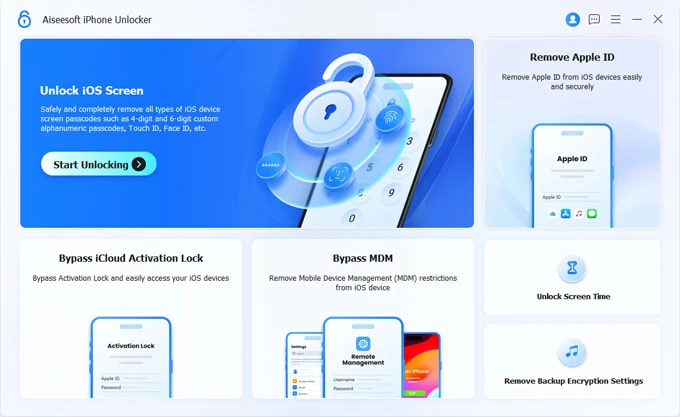
If you forget screen passcode to your iPad, you can the "Unlock iOS Screen" feature to unlock it.
Step 2: Select how you set the Screen Time before
In this stage, you will want to choose how is your Screen Time password set before. If you set up the Screen Time directly on the device, choose the former one, otherwise, opt for the latter if you do it through Family Sharing plan.
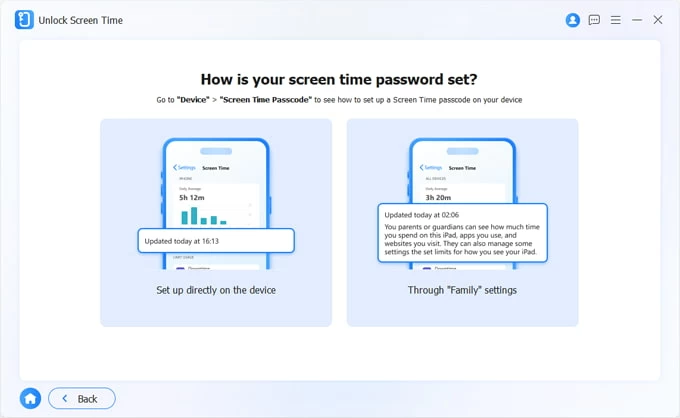
Step 3. Connect your iPhone & iPad
Next, connect your iPhone to your computer using a working cable. If prompted on your iPhone, tap "Trust" and enter your lock screen passcode.
Once connected, click "Start Now" to proceed.
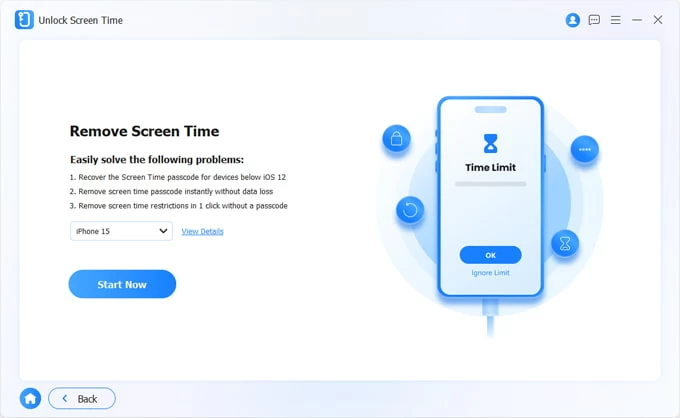
Step 4. Disable Find My iPhone
On your iPhone, go to Settings > [Your Name] > Find My and toggle Find My iPhone to OFF.
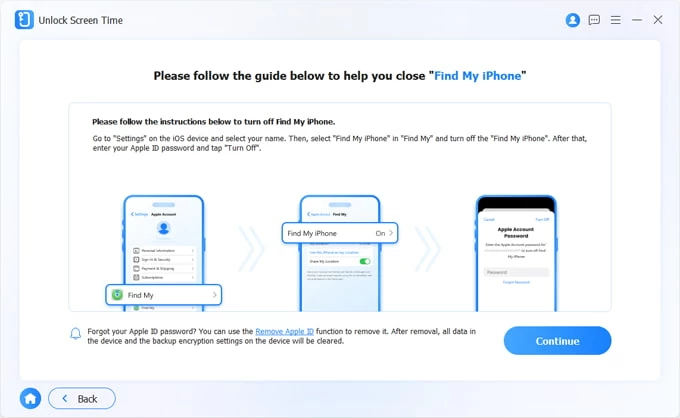
Step 5. Remove Screen Time passcode
Finally, press Continue. The software will begin analyzing your device and bypassing Screen Time passcode and removing lock.
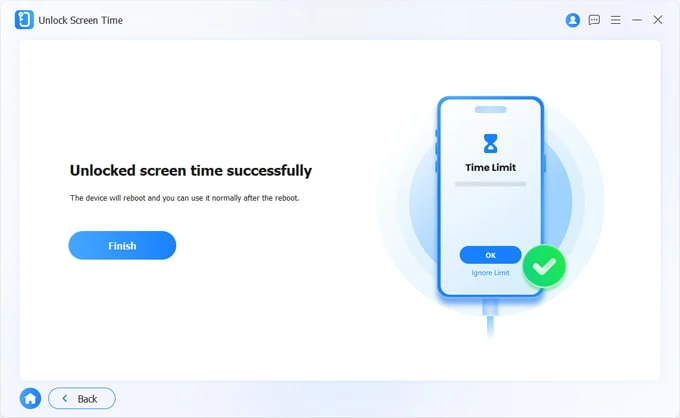
Do not disconnect your phone during this time. The process typically takes 1–3 minutes. Your iPhone will automatically restart once the process is finished, allowing you to set it up again.
Pay close attention to these two screens to ensure your data stays intact:
See also: How to transfer videos from laptop to iPhone
Your children still can use apps that are clearly not allowed during downtime? Here are some common reasons why the kids can bypass Screen Time limits.
Region Change: Some parents reported that manually changing the region in Settings > General > Language and Region can trick Downtime into thinking it haven't run out of Screen Time.
The Restart/Reboot Trick: When a device restarts, there is a 30–60 second window where apps load before Screen Time restrictions kick in. Children use this brief period to open restricted apps.
"One More Minute" Loop: By requesting "one more minute" and then force-quitting or restarting the app, some users found they could trick the system into extending access.
Picture-in-Picture (PiP) Mode: Some children use PiP (often with YouTube) to keep a video playing in a small window. Because the app isn't "active" in the foreground, Screen Time may not count the minutes or trigger the block.
Embedded Web Browsers: Children often find hidden browsers within "Allowed" apps (like Maps, Life360, or Health) by clicking on "Legal," "Privacy Policy," or "Terms of Service" links. This allows them to browse the web even if Safari is blocked.
Passcode Reset: If a child knows the Apple ID password, they can use the "Forgot Passcode" feature to reset the Screen Time lock.
Unlimited Passcode Guessing: the "Erase All Content and Settings" menu allows for unlimited guesses of the Screen Time passcode without the typical lockout timer. Once the child guesses correctly, they cancel the erase process and now bypass the Screen Time restrictions.
Syncing Delays: There are frequent complaints about Screen Time settings not syncing correctly between the parent's device and the child's device, often requiring a manual restart of both.
Default Settings Reset: Several parents noted that when Screen Time is toggled off and back on, the "Block at End of Limit" toggle often defaults to "Off," rendering the limit useless until manually re-enabled.
To avoid bypassing Screen Time limits by child, you should always keep the software updated, and use separate Apple IDs to set the Screen Time passcode, and if necessary, use Family Sharing plan for Screen Time. It's also advisable that you change the Screen Time passcode daily and ensure it is significantly different from the device's unlock passcode.
See also: How to recover iMessages from iPhone
When all else fails—the Apple ID recovery doesn't work, the "Forgot Passcode" button is missing, and the lockout timer is reaching hours—it's time for the nuclear option. Performing a factory reset on iPhone is the ultimate way to bypass any Screen Time restriction without a passcode.
Here's how to use a computer to reset an iPhone completely.
1. Connect your iPhone to your computer. Turn off your iPhone.
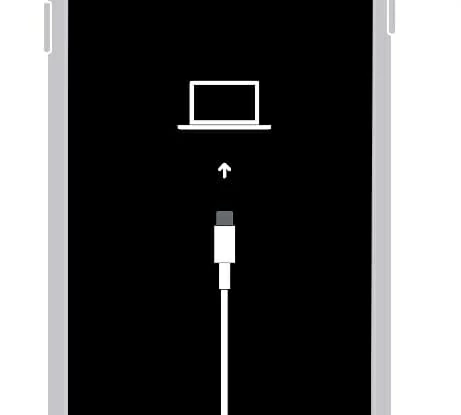
2. Press and quickly release Volume Up, then Volume Down. Press and hold the Side button until the recovery mode screen (a cable pointing to a computer) appears. This will boot the device into Recovery mode.
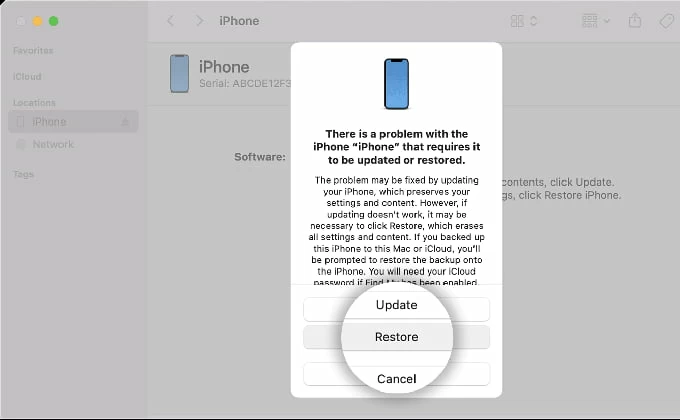
3. On your Mac (Finder) or PC (iTunes/Apple Devices app), a pop-up will appear. Select Restore. If you haven't iTunes or Apple Devices app installed, download it from Microsoft Store first.
4. Wait for it to download the latest iOS and completely wipe the phone.
5. Once the device restarts and shows the Hello screen, set it up by following the onscreen instructions. Keep in mind that when asked how you want to set up the device, select Don't Transfer Apps & Data.
Performing a factory reset is a dramatic step, but when you are stuck behind an unbreakable Screen Time lockout, it is the most reliable way to regain access to your iPhone or iPad.