
How to transfer videos from iPhone 15 to computer


If your iPhone 18 is unavailable and you forgot your passcode, you can still regain access. Built-in iOS reset features and third-party unlock tools make the process straightforward.

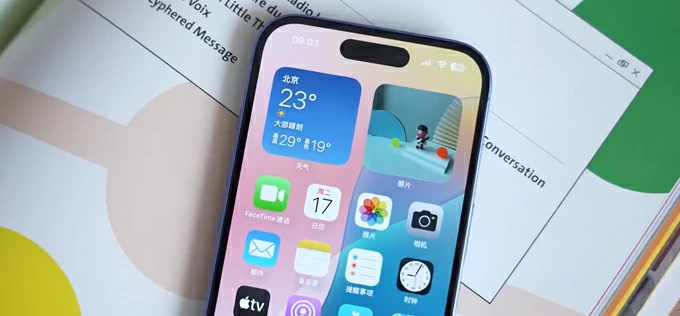
If your iPhone 18 shows an "Unavailable" message without a passcode, you will need to restore the phone.
Entering the wrong passcode on your iPhone 18 once or twice is harmless. But enter it incorrectly five or six times in a row, and Apple's built-in security kicks in, displaying the dread-inducing message: iPhone 18 Unavailable or Security Lockout. If you continue guessing wrong, the timer escalates from a 1-minute delay to 5 minutes, 15 minutes, 1 hour, and ultimately a complete lockout.
If you've completely forgotten your passcode and see iPhone 18 unavailable screen, you might wonder whether your device is permanently bricked. The short answer is no. You can regain full access to your phone, though doing so requires resetting the device and erasing everything (data, settings, apps, sensitive info) to start from fresh.
In this guide, we walk through native Apple reset procedures as well as dedicated recovery tools like Appgeeker iPhone Unlocker (iKnockin) to get rid of iPhone 18 unavailable error and get your smartphone back up and running.
Before initiating a process of fixing your iPhone 18 unavailable screen, ensure you have the following:
This is the simplest and most straightforward way to fix the unavailable iPhone 18 screen issue quickly — no computer or any other physical tools required.
Keep your phone's battery level above 50% before you start.
Step 1: Trigger the option
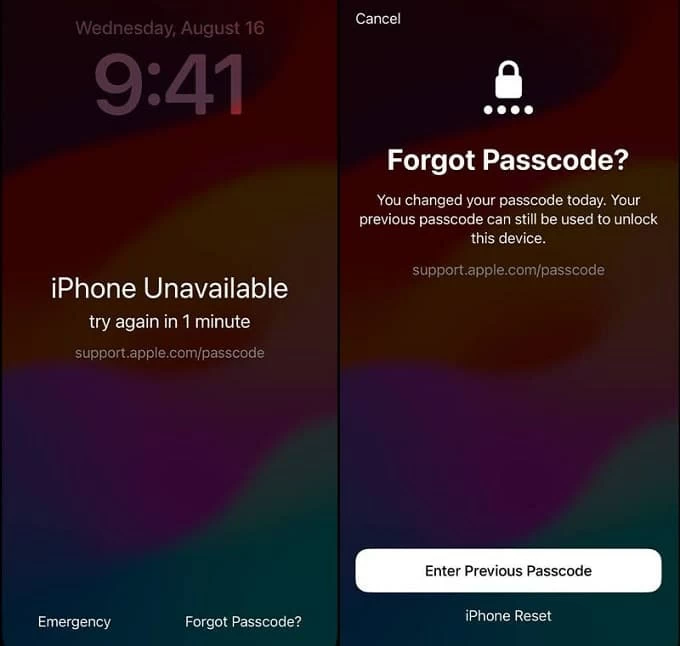
Keep entering an incorrect passcode on the lock screen until your iPhone 18 shows "iPhone Unavailable" or "Security Lockout" message. Look for "Forgot Passcode?" in the bottom corner of the display.
Step 2: Confirm the reset
Tap "Forgot Passcode?" to continue.
If you recently changed your passcode within the last 72 hours, you may see an option to "Enter Previous Passcode" to unlock without wiping data. Otherwise, select "Start iPhone Reset."
Step 3: Enter Apple ID password
When prompted, type in your Apple ID password to sign out of your Apple account and disable Activation Lock.
Step 4: Finish erasing
Tap "Erase iPhone" again to confirm. The device will restart, showing an Apple logo with a progress bar. Wait a few minutes.
Once complete, follow the on-screen setup assistant to rebuild your phone. During the process, you can re-download your content from an iCloud backup or a local iTunes/Finder computer backup.
If your iPhone lacks a working network connection, has broken touch controls, or fails to show the "Forgot Passcode?" button on screen, desktop utility software offers a streamlined alternative. Appgeeker iPhone Unlocker automates firmware detection and bypasses screen lockouts across all current iPhone models and iOS versions.
Key advantages:
When you're ready, download the right version on your either Mac or PC.
Here're steps to remove iPhone 18 unavailable error and unlock the phone.
Step 1: Launch iPhone Unlocker and connect the iPhone 18
Open the application, select "Unlock iOS Screen" from the main interface.
Connect your locked iPhone to the computer using an USB-C cable and click "Start."
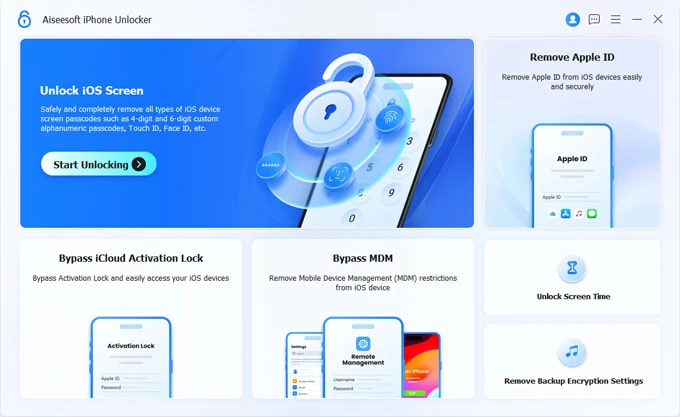
Follow the on-screen hardware button instructions to force your device into Restore mode if the application doesn't recognize it.
See also: iPad says Security Lockout
Step 2: Confirm your device information
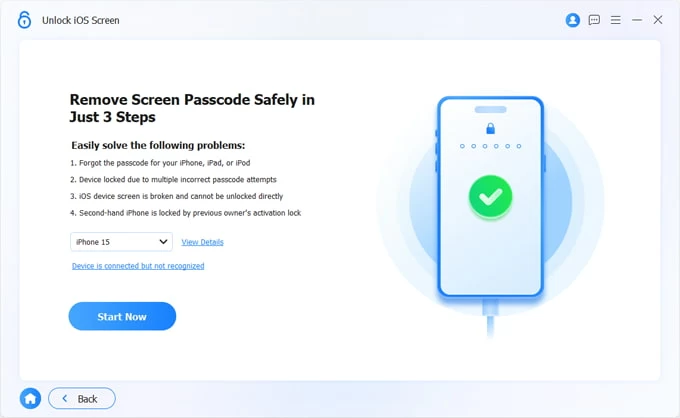
Once in Restore mode, Appgeeker iPhone Unlocker automatically detects your iPhone model and hardware specifications. Verify that the detected model and iOS system version match your device, followed by "Start Now" button.
Step 3: Download firmware package
Wait for it to grab the official Apple firmware package. This might take a few minutes, depending on your internet speed.
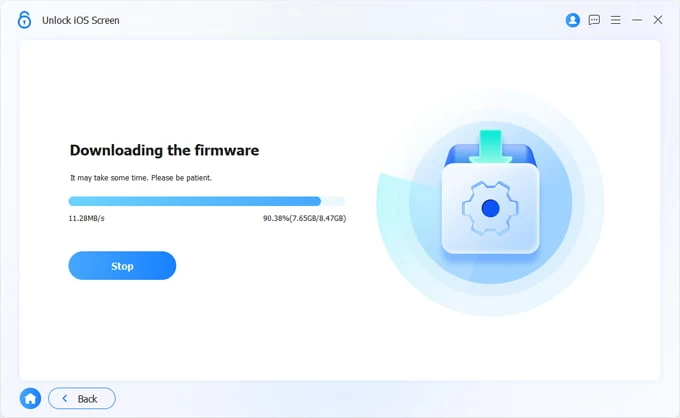
Step 4: Unlock the iPhone screen
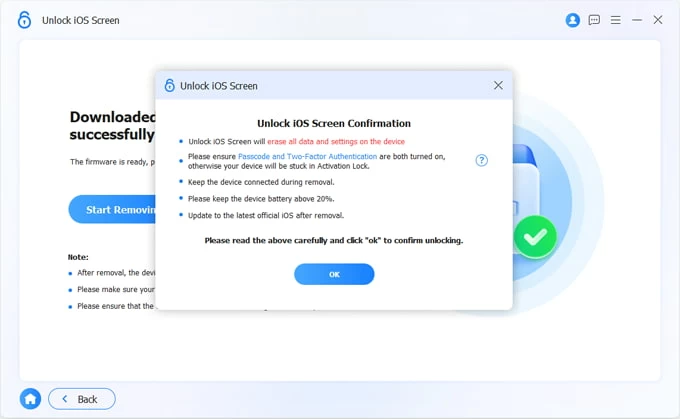
After firmware verification finishes, click "Start Removing" button.
Read the on-screen safety warning messages that pop up and click "OK" to proceed. The application will start erasing your iPhone 18 unavailable screen and restoring it.
Keep your device connected while the application completes the unlocking sequence.
See also: How to transfer files from Windows to iPhone
For users who prefer native desktop software, Apple's recovery procedure through iTunes (Windows) or Finder (macOS) provides a built-in solution to help you restore iPhone 18 when it says unavailable message.
The most important part of this method is making sure your unavailable iPhone 18 can actually boot into Recovery Mode.
Step 1: Connect iPhone 18 to computer
Open Finder on macOS Catalina or later, or launch iTunes on Windows/older macOS versions. Plug your locked iPhone into the computer.
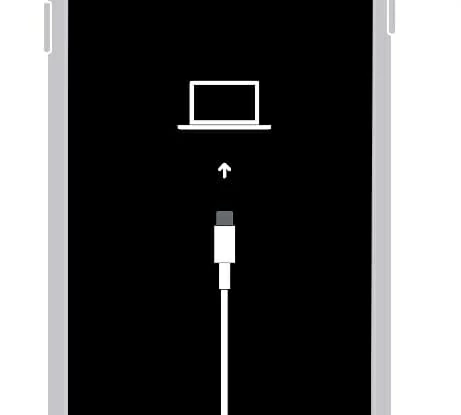
Step 2: Trigger recovery mode
Press and quickly release Volume Up. Press and quickly release Volume Down. Then, press and hold the Side button until the cable-to-computer icon appears on screen.
Step 3: Choose Restore option
When iTunes or Finder detects the connected device, a pop-up alert will state that your unavailable iPhone 18 is in a bad situation and ask you to update or restore it.
Click "Restore."
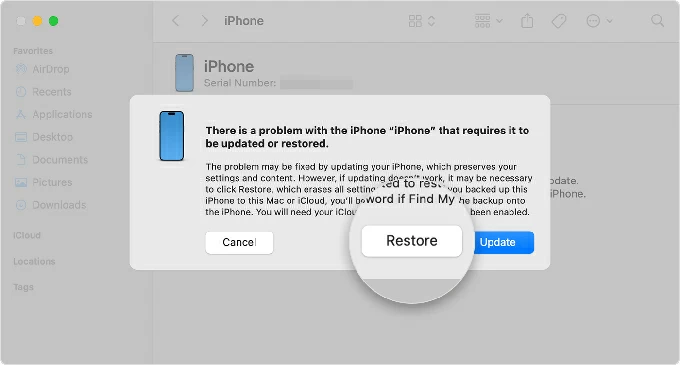
Your computer will download the software for your iPhone. If the download takes longer than 15 minutes, your iPhone will exit Recovery Mode, and you will need to re-enter it.
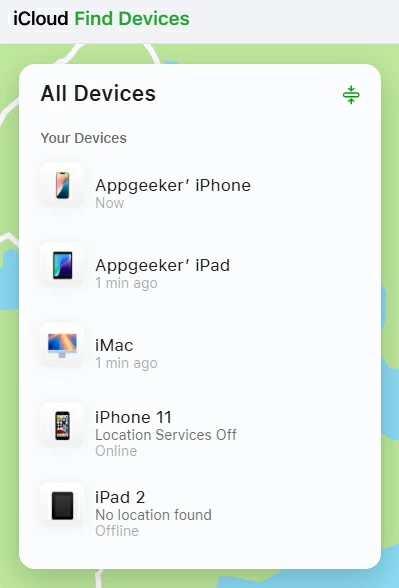
If your unavailable iPhone can't enter recovery mode, you can execute a remote factory reset from any web browser or another Apple device through iCloud's Find My feature. Make sure you haven't turned off "Find My" option in Settings before.
1. Open a web browser and go to iCloud.com/find.
2. Sign in with the Apple ID and password linked to the locked iPhone.
3. Click "All Devices" at the top or side panel and select your locked iPhone from the list of devices associated with the same Apple ID.
4. Select "Erase This Device."
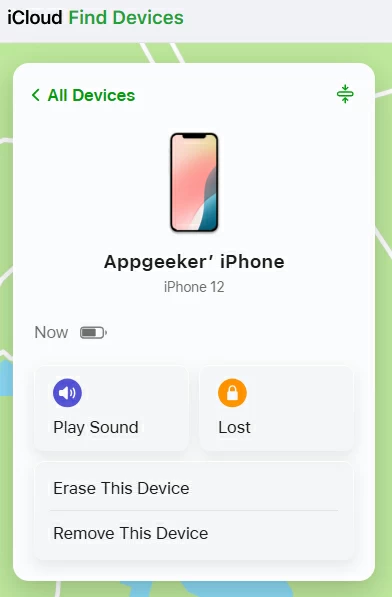
5. Re-enter your Apple ID credentials to confirm.
As soon as the iPhone connects to Wi-Fi or cellular data, it will wipe itself remotely, clearing the passcode and removing the unavailable screen. Make sure your phone is at least 50% charged.
See also: iMessages not showing up on iPhone
Once your iPhone 18 finishes resetting and restoring the unavailable screen, it will display the initial "Hello" setup screen. Follow these final steps to configure your device:
1. Select your language, region, and connect to Wi-Fi.
2. If prompted, enter the Apple ID and password previously linked to the phone.
3. On the Transfer Apps & Data screen, choose either "Restore from iCloud Backup" or "Restore from Mac or PC."
4. Go to Settings > Face ID & Passcode (or Touch ID & Passcode) to set up a new PIN. Consider recording your new passcode in a secure password manager.
An iPhone 18 Unavailable screen can feel like a major roadblock, but it is simply a protective security protocol. Whether you perform an on-device reset, use Apple's native iTunes/Finder tools, or deploy Appgeeker iPhone Unlocker for an automated fix, restoring access is straightforward. To protect yourself in the future, keep iCloud Backup enabled so your personal data remains safe no matter what.
Can I fix an unavailable iPhone 18 without losing data?
No. Apple's security architecture encrypts personal data using your passcode key. Erasing the lock screen inherently wipes local storage unless you restore from a recent backup. The only exception is on iOS 17+, where you can use your previous passcode if changed within the last 72 hours.
Why isn't the "Forgot Passcode?" button showing up on my screen?
The button requires an active Wi-Fi/Cellular connection, iOS 17 or later, and Find My enabled on the device before the lockout. If any of these conditions are missing, use Appgeeker iPhone Unlocker or iTunes Recovery Mode.
Is iPhone 18 Unavailable the same as Security Lockout?
Yes, functionally they are the same.
While iPhone 18 Unavailable typically appears during the initial timer-based lockouts, Security Lockout usually appears after maximum failed attempts or when the device requires an Apple ID verification to proceed with a reset. Both indicate that the passcode lock security mechanism is engaged.