
How to Restore WhatsApp Messages from iCloud Backup


For those who got an iPhone 15 and need to migrate WhatsApp data from another iPhone, this article provides a detailed walkthrough to transfer your WhatsApp to iPhone 15.

To avoid complex steps or losing data, using a dedicated Appgeeker WhatsApp Transfer tool ensures a seamless transfer of WhatsApp to your iPhone 15, including chat history and media files, quickly and securely.

You can transfer your WhatsApp data from an old iPhone to new iPhone 15 wirelessly, without the need for cables.
Upgrading to the iPhone 15 is exciting, but before enjoying the experience brought by the new iPhone, most users are most concerned about their WhatsApp history, which includes years of conversations, precious photos, work discussions, and other important data. Therefore, many users are faced with the challenge of how to transfer WhatsApp from their old iPhone to the iPhone 15.
Unlike photos or contacts that sync effortlessly, WhatsApp follows its own unique transfer logic. Choosing the wrong method could result in lost messages, missing media, or incomplete histories. Transferring WhatsApp to your iPhone 15 completely and orderly is not as simple as just logging in, it requires the right method.
Whether you prefer a wireless setup, a full migration to the new iPhone 15, or a WhatsApp-only move, this guide will help you unlock your WhatsApp chats and transfer it safely to your new iPhone 15 — complete, intact, and ready to use.
Table of Contents
If you want the cleanest without-disk experience, WhatsApp's built-in Chat Transfer is the most direct path. It creates a secure bridge between two unlocked iPhones and moves your chats locally, without uploading anything to the cloud or involving a computer. Think of it as a private tunnel that carries your WhatsApp world straight into your new iPhone 15.
However, using WhatsApp's Chat Transfer function to move chats from one iPhone to your iPhone 15 requires meeting the following conditions:
If you're ready, here are the steps to transfer your WhatsApp chat history from old iPhone to iPhone 15:
On your source iPhone or old iPhone:
1. Open WhatsApp and tap Settings at the bottom.
2. Go to Chats > Transfer Chats to iPhone.
3. Read the privacy notice and tap Start; you will be directed to the "Scan QR code" screen.
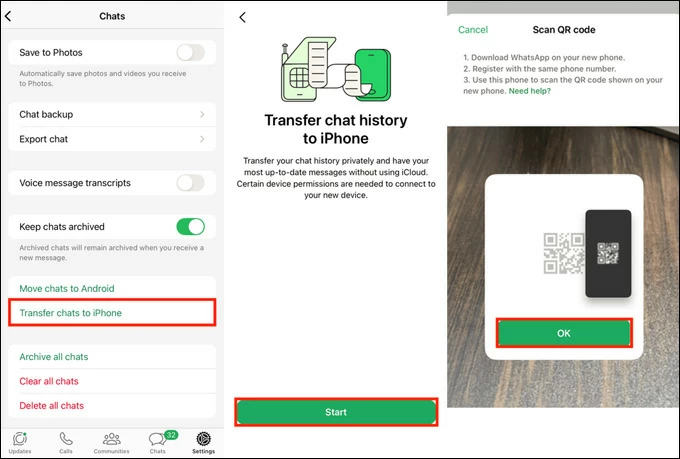
On your iPhone 15:
1. Open the freshly installed WhatsApp. Remember, your WhatsApp must be unactivated. If you have already logged in, first remove it from your iPhone 15 and reinstall it.
2. Tap Agree & Continue, and enter the phone number used on your previous iPhone.
3. If prompted, enter the verification code to proceed.
4. Tap Continue, and allow WhatsApp to enable local network permissions. A QR code will appear on your iPhone 15 screen.
5. Use the old iPhone's camera to scan the QR code and accept the local network connection, which will securely pair the two phones.
6. The screen will display a prompt "Stay on this screen." Do not lock any devices. You will see a percentage "Receiving..." on the iPhone 15 screen, showing the transfer progress.
7. Once the iPhone 15 displays "Transfer completed," tap Next, and the WhatsApp will rebuild your chat history index.
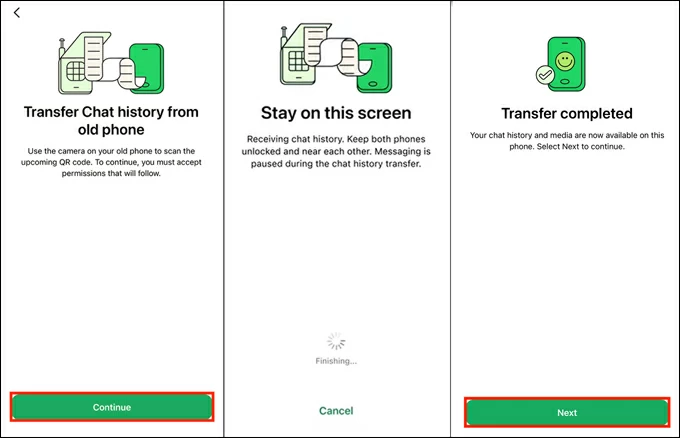
Your WhatsApp account will automatically log out from the old iPhone. All transferred chat history will now be fully visible on your iPhone 15, allowing you to resume all conversations seamlessly.
Note:
In addition to direct iPhone-to-iPhone chat transfer, WhatsApp provides a chat backup feature that saves a snapshot of your chat history to iCloud, which you can then download when logging into WhatsApp on your iPhone 15. But note that chat backup can only restore the data included in the last backup, any new messages sent or received after that backup will be lost.
Step 1. Backup WhatsApp data on old iPhone
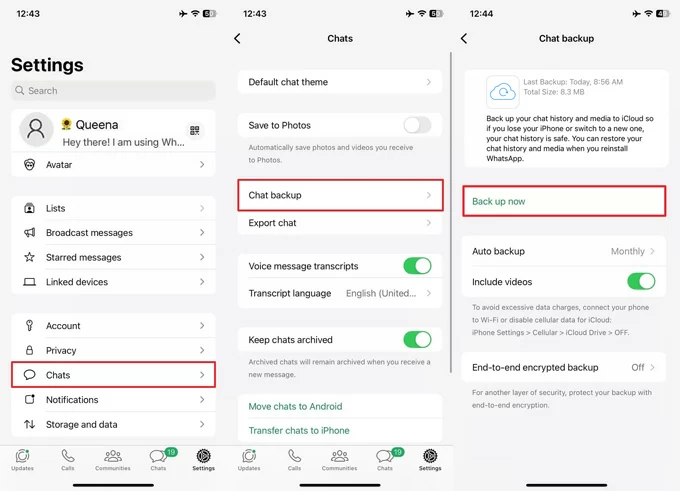
1. Navigate to Settings > Chats > Chat Backup in WhatsApp.
2. Tap Back up now to create a backup in iCloud containing your recent chat history.
3. If you want complete media history, turn on the Include videos toggle and confirm.
Note:
Step 2. Restore your WhatsApp backup on iPhone 15
1. Open the unregistered WhatsApp and tap Agree & Continue.
2. Input the same phone number associated with your old Phone and verify your number.
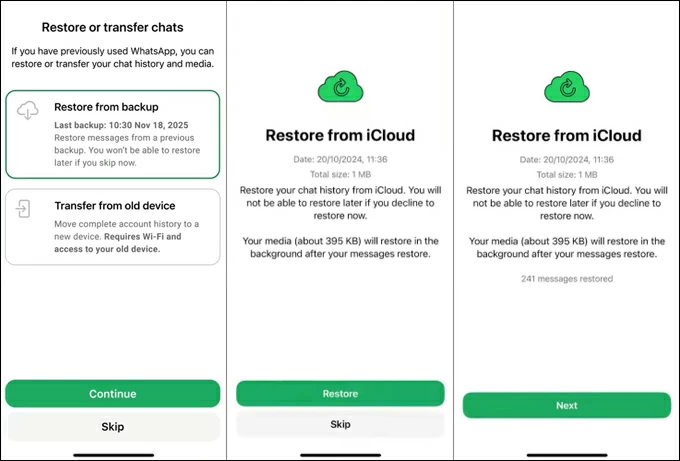
3. On the "Restore or transfer chats" screen, select Restore from Backup, then tap Continue.
4. Tap Restore to retrieve your WhatsApp messages from the latest backup.
5. After completion, tap Next; media (photos/videos) will continue downloading in the background to ensure you can start chatting immediately.
Note:
When using WhatsApp's native transfer feature to transfer chats from one iPhone to an iPhone 15 results in issues like disordered chat sequences or missing messages, a professional USB-based Appgeeker WhatsApp Transfer tool can offer you greater flexibility and stability.
This software enables quick and seamless transfer of WhatsApp data between iPhones, including messages, photos, videos, files, and more, while fully preserving the data structure and timestamps—no additional requirements needed.
It also allows you to back up your WhatsApp to Google Drive or your computer, preventing any data loss. Moreover, it supports cross-platform WhatsApp transfers, making it easy to migrate WhatsApp chats between iPhone and Android devices.
1. Download and run WhatsApp Transfer (WhatsSync) on your computer, then use a compatible data cable to connect your iPhone 15 and the other iPhone to the computer. If necessary, unlock the iPhones and trust the computer.
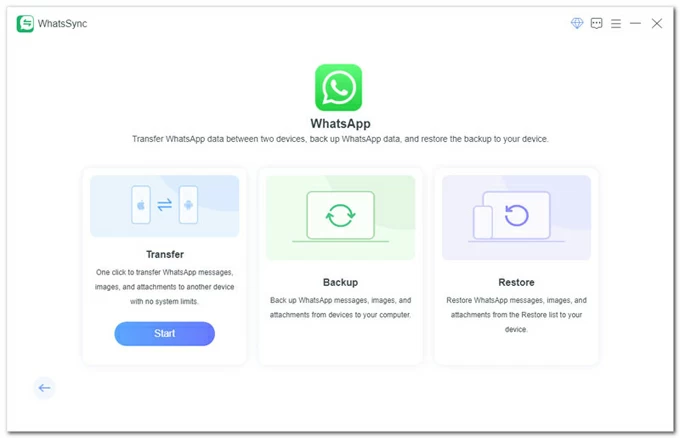
2. From the main dashboard, select the Transfer option to begin moving WhatsApp from your old iPhone to your iPhone 15.
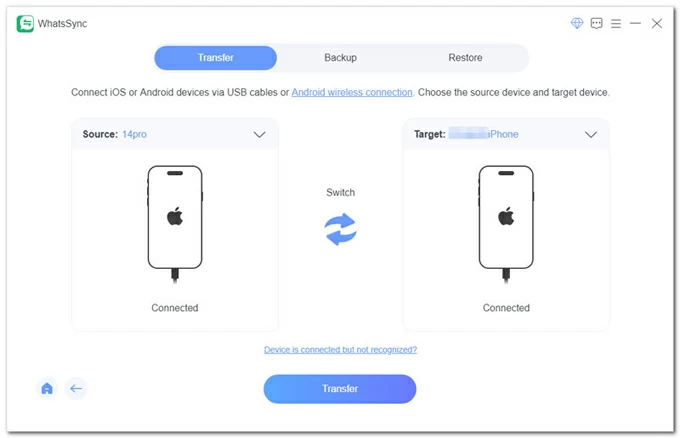
3. Here, correctly select your source device (old iPhone) and target device (iPhone 15), then click Transfer.
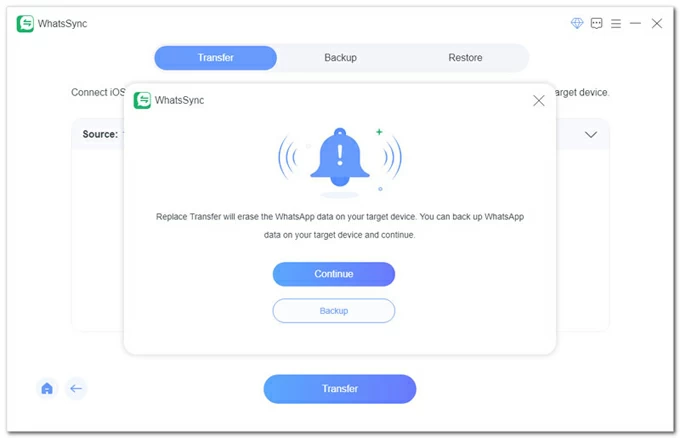
4. If WhatsApp on your iPhone 15 has already been in use, you can click Backup to save your current data first. Otherwise, click Continue to start transferring WhatsApp messages to your iPhone 15.
5. Follow the tutorials to enter your iTunes backup encryption password and the lock screen passcode on your iPhone. The software will then begin backing up WhatsApp data from your source device.
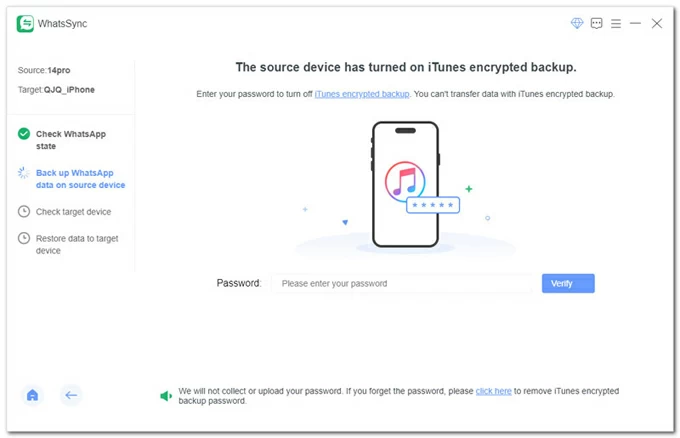
If you forgot the passcode for iPhone, see how to get into locked iPhone without passcode.
6. Log in to WhatsApp on your iPhone 15 as required, then click Logged in & Continue. The WhatsApp data will be transferred to your target device—simply wait for it to complete.
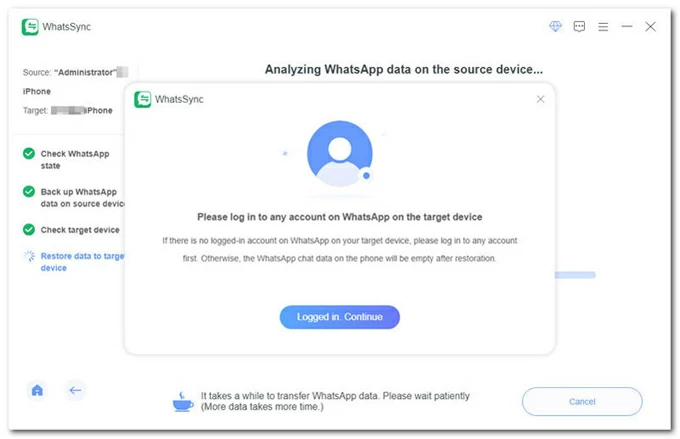
The tool fully migrates WhatsApp to iPhone 15 from any iPhone, even if your WhatsApp is already activated. You can also click how to transfer WhatsApp from Android to iPhone without factory reset to learn more.
For a brand-new iPhone 15, transferring WhatsApp can be a worry-free process. If you plan to recreate your old iPhone entirely on the iPhone 15, iCloud Backup Restore offers a big-picture solution. Instead of isolating WhatsApp, it migrates your whole digital environment — apps, settings, and WhatsApp included — in one go.
Keep in mind that if your iPhone 15 is already set up, you must factory reset the device first to use an iCloud backup for your WhatsApp migration.
1. Navigate to Settings > [your name] > iCloud > iCloud Backup and tap Back Up Now to trigger a full backup on the old iPhone.
2. On your iPhone 15, head to Settings > General > Transfer or Reset iPhone, tap Erase All Content and Settings to erase your iPhone.
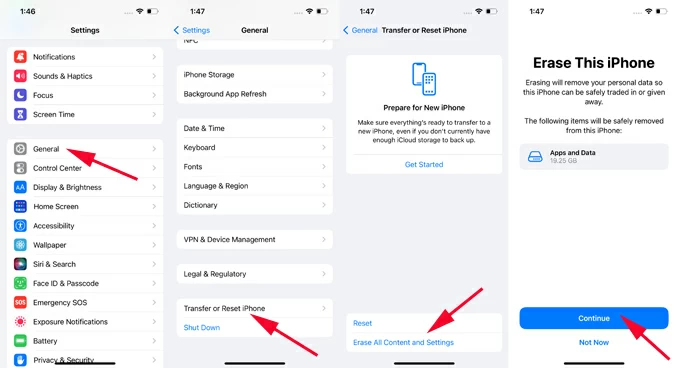
Tip: If your iPhone is brand new and has not been turned on yet, you can skip this step.
3. Your iPhone 15 will boot up to the Hello screen; follow the onscreen instructions to set up your iPhone step by step.
4. When you reach the "Transfer Your Apps & Data" screen, select From iCloud Backup.
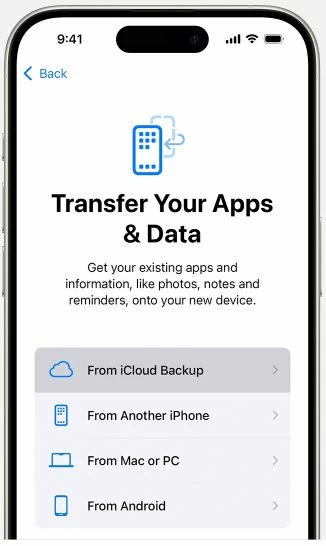
5. Sign in with the same Apple ID used previously, then select the latest backup from the list based on the timestamp.
Keep a stable Wi-Fi connection; iOS will prioritize restoring system settings, and WhatsApp data will download in the background. Once finished, open WhatsApp, and you'll have your transferred WhatsApp chats on your iPhone 15.
Apple's "Quick Start" feature works like cloning your phone. By placing two unlocked iPhones close together, you can copy almost everything — including WhatsApp — directly from device to device. This method is best suited for transferring WhatsApp to an iPhone 15 from an iPhone during its initial setup.
1. Enable Bluetooth and Wi-Fi on old iPhone. Keep it unlocked and nearby.
2. Power on new iPhone 15 and choose your language and region. Place it next to the old phone until the Quick Start screen appears on your iPhone 15.
3. Your old iPhone will pop up "Set Up New iPhone" screen, tap Continue to move on.
4. Use the old iPhone's camera to scan the moving pattern on the new screen.
5. Tap Set Up for Me on the old iPhone and enter your old phone's passcode on the iPhone 15 when prompted. This confirms your identity and unlocks the migration protocol.
6. Complete the remaining steps on your iPhone 15 as prompted, including setting up Face ID, the lock screen passcode, and signing in to your Apple account.
7. At the "Transfer Your Data" step, choose Transfer from iPhone to begin migrating all data and settings from the old iPhone to the iPhone 15.
When the iPhone 15 finishes its reboot, WhatsApp will be there, pre-logged in and fully populated with your history.
Sometimes, you don't need the entire WhatsApp chat library; you only need to transfer a few key conversations to your iPhone 15. The email export feature lets you extract a single WhatsApp conversation as a readable file and send it to your iPhone 15 as a copy for easy access anytime.
1. Open the conversation you want to transfer on the old iPhone.
2. Tap the name at the top of the chat screen.
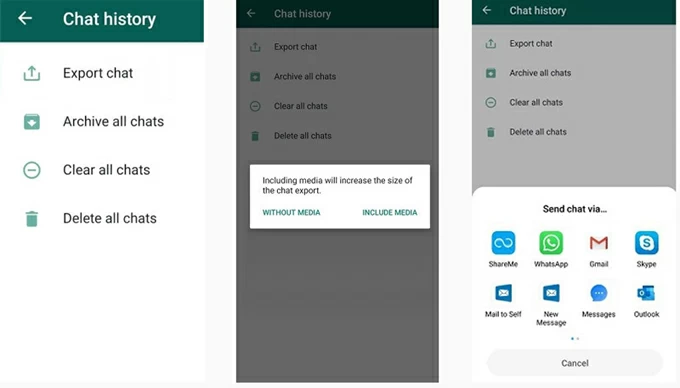
3. Locate Export Chat, then select Attach Media or Without Media.
4. Pick Email from the share menu, then choose your email app.
5. Enter your email address to send the chat file to yourself.
6. On your iPhone 15, open the email and download the attachment to access the WhatsApp chats you want.
Note:
Conclusion
Transferring WhatsApp from your old iPhone to the new iPhone 15 doesn't have to feel risky or complicated. With the right approach, your messages, memories, and media can follow you seamlessly — exactly where you left off. The key is to match the method with your priorities — convenience, completeness, speed, or flexibility — and prepare properly before you start.
1. What happens to the messages I receive during the transfer process?
This is the "Migration Gap." To ensure zero data loss, we recommend switching your old phone to "Airplane Mode" the moment you begin the final sync. If you use the third-party Appgeeker WhatsApp Transfer tool, the software creates a more stable bridge than the native QR method, reducing the risk of losing data during the identity handover.
Also read: How to recover deleted WhatsApp messages on iPhone
2. Can I transfer WhatsApp only, without moving my entire iPhone data?
Absolutely. Chat Transfer, WhatsApp in-app backup, and Appgeeker WhatsApp Transfer tool focus specifically on WhatsApp. In contrast, iCloud restore and Quick Start migrate everything on the phone, including apps, settings, and photos.
3. Can I move WhatsApp to iPhone 15 after it's already set up?
Yes. Chat Transfer, in-app backup restore, and Appgeeker WhatsApp Transfer tool can be used even if the iPhone 15 has already been activated. However, Quick Start and iCloud full restore usually require a fresh setup or a factory reset.
4. What should I do if some photos or videos are missing after transfer?
First, keep your iPhone 15 connected to Wi-Fi and power — media often syncs after chats appear. If items are still missing, retry the restore or consider using WhatsApp Transfer tool for a full re-migration to ensure no data is skipped.




