
How to quickly sync iPhone to iPad in 4 easy ways


Already set up your new iPhone? Discover how to fully or selectively transfer data after setup, with or without resetting, using official Apple tools or flexible transfer options.

Non-reset option: Appgeeker iPhone Data Transfer enables users to transfer almost everything from one iPhone to another after setup, including photos, videos, music, contacts, and more.
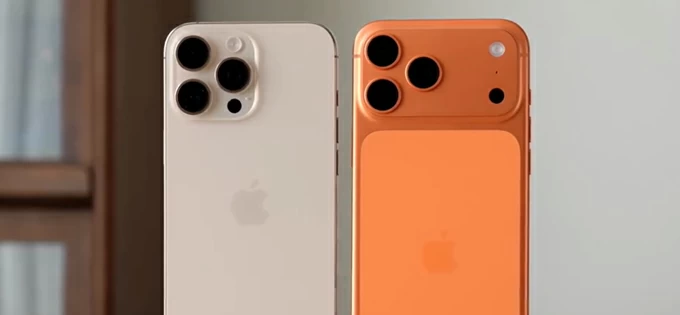
It's possible to transfer old iPhone to new iPhone after initial setup, whether entirely or selectively, with or without resetting.
When switching from an old iPhone to a new iPhone, transferring your data is often the first action. Apple's official tools — Quick Start and iCloud Backup, make the transfer process straightforward, but they only work during the initial setup of a brand-new or newly-reset iPhone.
If you're looking to transfer data to a new iPhone after setup, Apple typically requires a factory reset to return the device to the setup screen, which erases all current data and settings. For many users, this may not be an ideal option.
Thankfully, there are alternative ways to transfer everything from iPhone to iPhone after setup, allowing you to move your data without resetting the device or losing existing content.
In this guide, we'll walk through several effective methods to transfer iPhone to iPhone after setup, so you can start using your new device seamlessly while keeping all your data intact.
Table of Contents
Yes. It's possible to transfer data from one iPhone to another iPhone that is already in use. Although Apple's official transfer methods typically require a factory reset on the target device, there are effective alternatives that let you transfer iPhone to iPhone after setup without reset.
The following methods can help you complete the transfer smoothly, whether you want to migrate the entire iPhone or move only selected data files.
When transferring old iPhone to new iPhone, Apple's official options — Quick Start and iCloud Backup — are designed to move all content during the initial setup process. However, if the target iPhone has already been set up, you'll need to factory reset it to return to the setup screen, which erases all existing data on the device.
If you want to transfer data from iPhone to iPhone without resetting, skip to the next section for alternative, lossless methods.
Whether using Quick Start or restoring from an iCloud Backup, ensure the target device is in a brand-new state. If it has already been in use, the process requires a factory reset to return it to the setup screen before transferring one iPhone to another.
If both devices are running iOS 11 or later, Quick Start is the fastest way to transfer everything from one iPhone to another without using a computer. It allows you to migrate apps, photos, videos, personal data, and system settings when switching to a new iPhone.
To transfer iPhone to iPhone after setup using Quick Start, the target device should be returned to initial setup screen first. Then, follow the steps below to move all data at once:
1. Connect the current iPhone to a stable Wi-Fi network and turn on the Bluetooth.
2. Turn on the target iPhone and place it to your source device.
3. Follow the onscreen prompts until a Set Up New iPhone prompt appears on your old iPhone; tap Continue and enter your current passcode to go on.
4. When an animation shows up on the new iPhone, scan it using your old iPhone's camera.
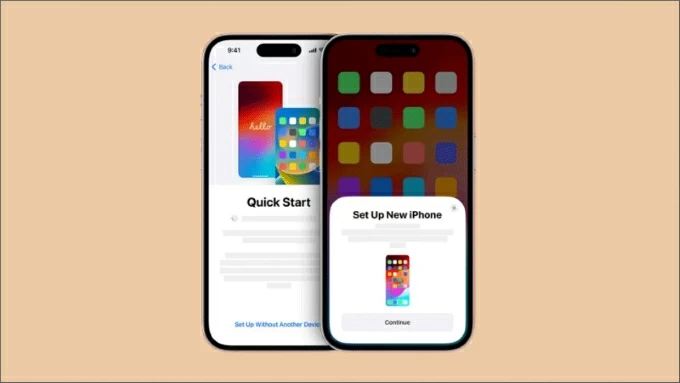
5. Tap Set Up for Me on the old phone and enter the passcode on the new one. This will pair the devices for a stable connection.
6. Continue to set up the new iPhone until you're on Transfer Your Data screen.
7. Choose Transfer from iPhone and complete the remaining setup steps.
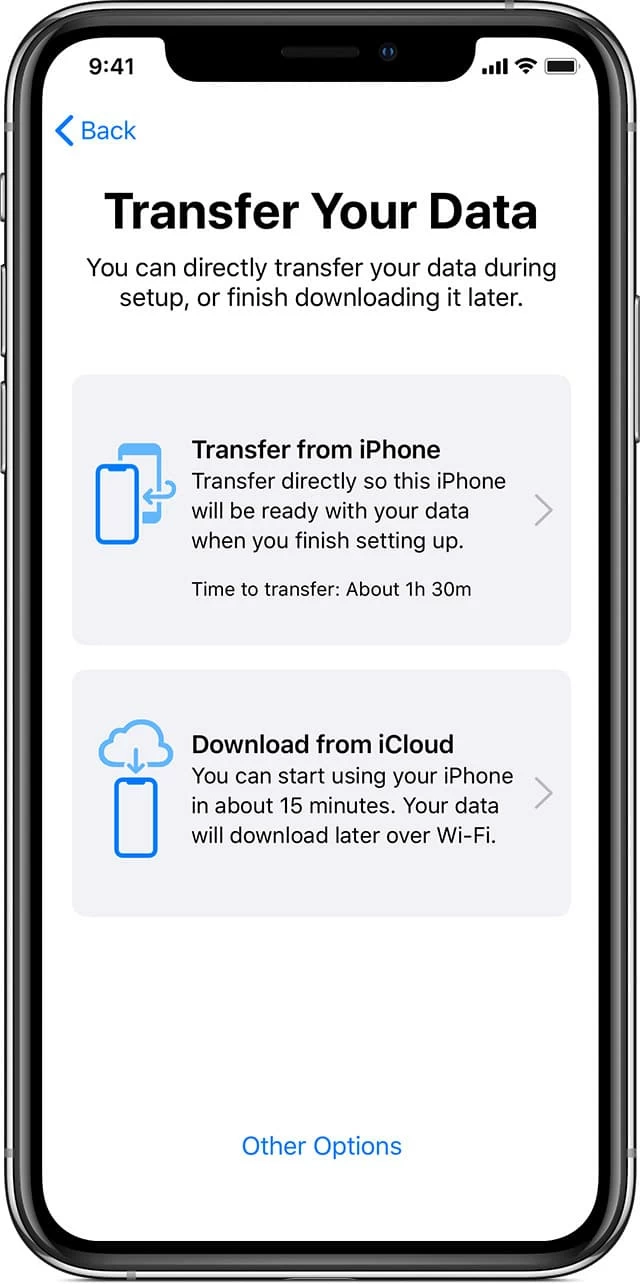
Keep the iOS devices close to each other and connected to Wi-Fi. Once done, everything on your old iPhone will transfer to the new iPhone and keep intact.
Another way to transfer iPhone to iPhone after setup is by performing a factory reset and using iCloud Backup. This method lets you create a full backup of your current iPhone in iCloud and then restore that backup to the new iPhone during setup, transferring apps, photos, settings, and other data wirelessly. Here's how:
TIP: iCloud provides 5 GB of free storage per Apple Account, which may not be enough for a full iPhone backup. If needed, you may upgrade to iCloud + for additional storage.
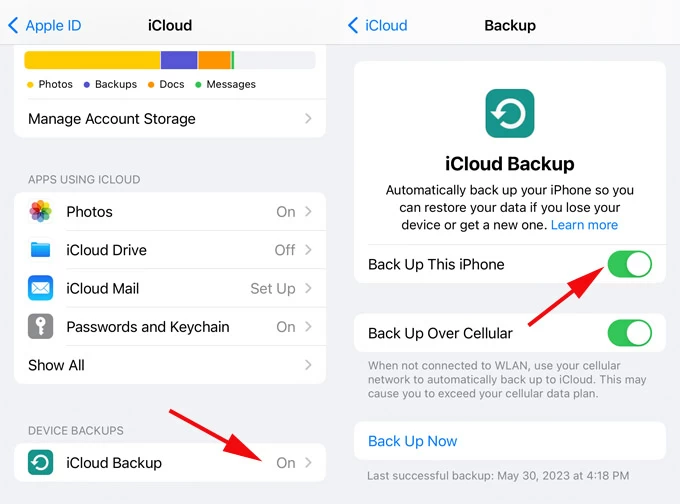
1. On the source iPhone, go to Settings > [your name] > iCloud > iCloud Backup.
2. Tap Back Up Now to create a new backup of your current iPhone data.
3. Power on the target iPhone. Ensure it's brand new or newly erased; otherwise, a factory reset is necessary to return it to the setup state.
4. Go through the setup prompts until you reach the Transfer Your Apps & Data screen.
5. Tap From iCloud Backup and sign in with the same Apple Account used on your old iPhone.
6. From the list of available backups, choose the latest iCloud backup you just created.
7. Stay connected to the internet until the iPhone is restored from iCloud successfully.
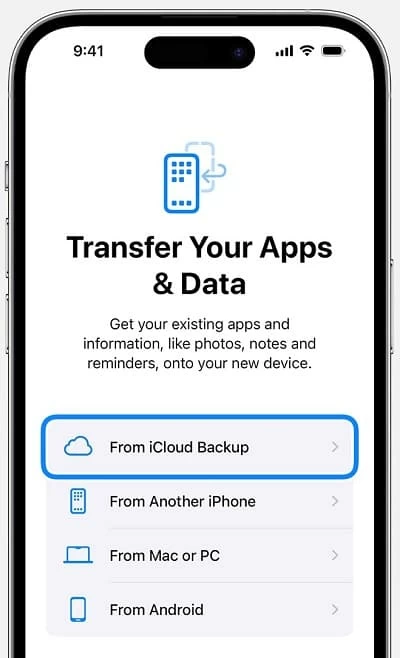
After the transfer starts, all backed-up apps and data will be downloaded to the new iPhone. The transfer speed depends on your internet connection, and large file transfers may take a significant amount of time.
With no factory reset required, Appgeeker iPhone Data Transfer offers a lossless way to transfer iPhone to iPhone even after setup.
Whether you're upgrading from an old iPhone to a new one or simply moving specific file types, this tool lets you transfer data from one iPhone to another setup iPhone quickly and easily.
It supports a wide range of data files, including photos, videos, music, ringtones, voice memos, playlists, movies, contacts, and more. You can preview all items in advance and choose to transfer selected data or everything at once.
Blow is how to transfer iPhone to iPhone after setup without resetting or iCloud. The steps work for all iPhone models and the latest iOS versions.
Step 1. Install and open Appgeeker iPhone Data Transfer on your computer. It works on both macOS and Windows.

Step 2. Connect both iPhones using suitable USB or Lightning cables. If you're prompted with Trust This Computer message, tap Trust and enter the passcode to continue.
Step 3. Click the drop-down menu at the top and choose the source iPhone.
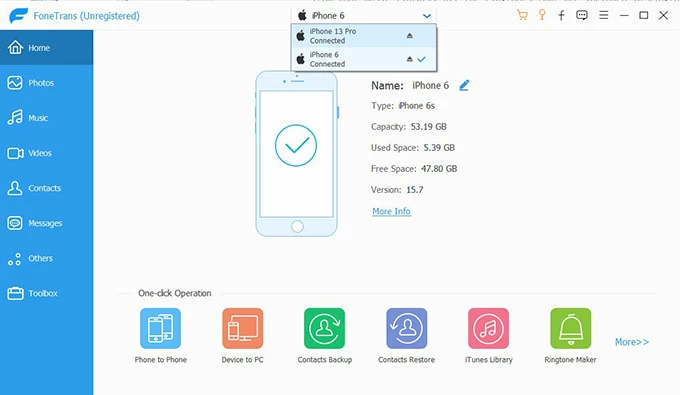
Step 4. From the left-side categories, select what you prefer to transfer to the other iPhone.
For example, click the Photos tab to view the entire Photos Library on your current iPhone.
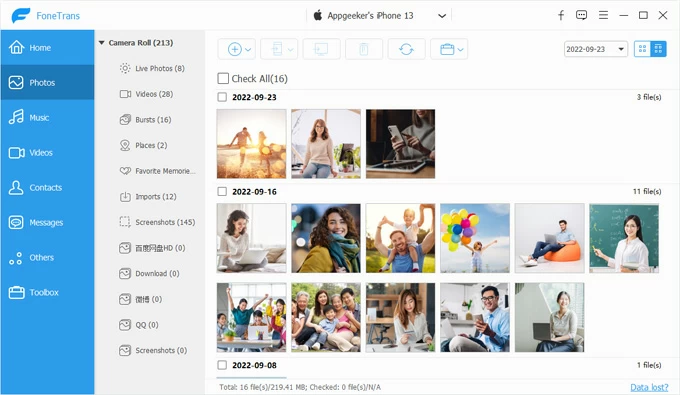
Then select individual pictures or videos you want or tick the Check All box.
Click Export to Device button (a phone icon) in top toolbar, and target your new iPhone to transfer everything after setup.
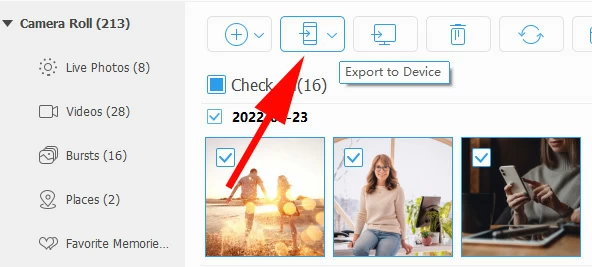
It also supports photo transfer form iPhone to a MacBook or Windows PC if you click the computer icon at the top.
That's it! The photos are transferred directly from one iPhone to another without resetting or relying on iCloud. Once completed, you can open the Photos app on your new iPhone to access all transferred photos while keeping the items that already exist on the device.
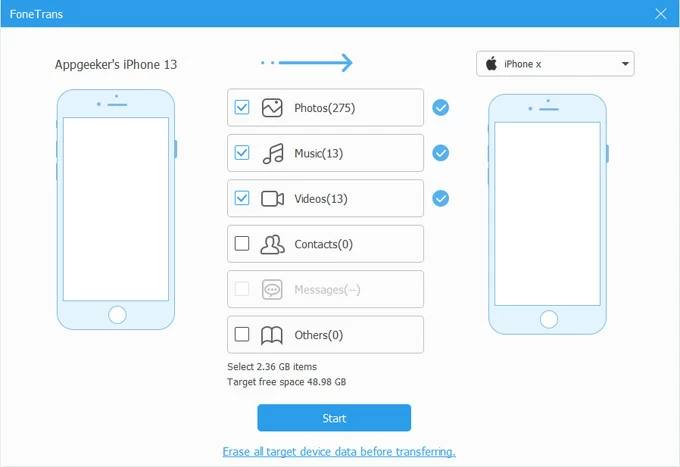
For even greater convenience, Appgeeker iPhone Data Transfer also offers a one-click option to help you transfer everything from iPhone to iPhone after setup, no factory reset and no iCloud storage required.
Instead of transferring the entire iPhone, iCloud also allows you to move specific types of data from iPhone to iPhone after setup, without resetting the device.
By enabling automatic iCloud syncing for specific apps, you can wirelessly transfer current data to your newly-setup iPhone in a more flexible, selective way. Supported data types include photos, files, notes, messages, calendars, contacts, Mail, and more. Once iCloud syncing is enabled, data from your current iPhone will automatically sync to the new iPhone and stay up to date.
Make sure both devices are signed in with the same Apple Account and connected to a stable Wi-Fi network. Below are the steps to transfer apps to new iPhone after setup via iCloud syncing:
1. On the source iPhone, open the Settings app and tap on your Apple Account.
2. Select iCloud and tap See All to access the list of apps available for iCloud syncing.
3. Turn on the toggle next to the apps you prefer to transfer to the other iPhone. You'll see the common options as following:
Other apps that support syncing after iPhone setup include Contacts, Reminders, Mail, Wallet, Safari, News, etc.
Note: All synced apps use your iCloud storage, limited to 5 GB free or upgraded plans). If you're running low on space, the transfer may fail or stop midway.
4. Repeat the same steps on the target iPhone and enable iCloud syncing for the corresponding apps and services.
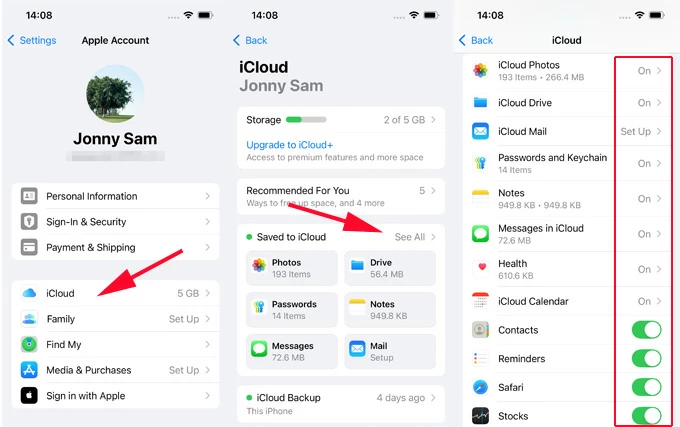
This way, the selected app data will sync automatically between the two iPhones, no need for resetting.
Q1 - What can I transfer from one iPhone to another after setup?
Apple's official methods, such as Quick Start and iCloud Backup, can transfer nearly everything from your current iPhone to a new one, including apps, settings, and personal data. However, to transfer after setup, these methods require the target iPhone to be erases and reset first.
If you don't want a factory reset, iCloud syncing allows you to transfer selected app data between iPhones after setup. This includes photos, files, messages, iMessages, contacts, Mail, notes, calendars, Safari data, and more.
Third-party transfer tools typically support a wider range of data types and let you choose exactly what to transfer. Most of them do not require a factory reset.
Q2 - How can I transfer old iPhone to new iPhone after initial setup?
The methods to transfer an old iPhone to a new iPhone after setup depends on whether you're willing to reset the target device.
Methods that require a reset:
Methods that require No reset:
Q3 - Can transfer data from iPhone to iPhone without resetting?
Yes. There are several ways to transfer data between iPhones without performing a factory reset.
For instance, iCloud syncing lets you move selected app data after setup, while third-party tools like Appgeeker iPhone Data Transfer enable lossless transfers of various file types without requiring any reset.
Q4 - How do I transfer everything from old iPhone to new iPhone after setup without iCloud?
Apple's Quick Start feature can transfer everything directly from one iPhone to another without using iCloud, but it does require resetting the target iPhone first.
To avoid data loss, third-party tools like Appgeeker iPhone Data Transfer can move most data types between iPhones after setup in one click, without using iCloud or an internet connection.




