
How to unlock Motorola phone forgotten password


Locked out due to a forgotten password? Discover these easy ways to get into a locked phone using Smart Lock, Recovery Mode, remote reset services, or trusted unlocking tools.

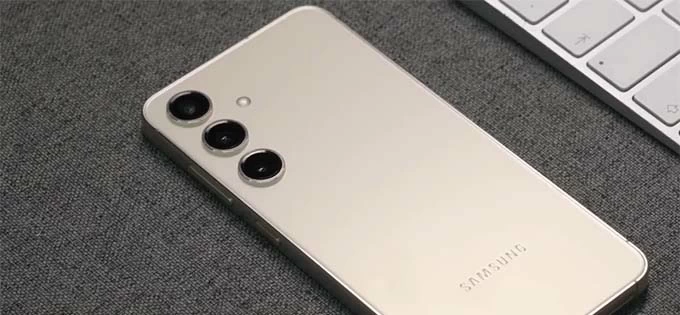
There are practical methods to get into a locked phone, even if the password is forgotten.
Forgetting a phone password doesn't lead to permanent lockout. In many cases, you can still get into a locked phone using Smart Lock or biometric options like fingerprint or facial recognition.
However, if the device has been restarted or the system has been updated, the password will be required again. When that happens, a factory reset is often the only way to remove the forgotten password and get into your locked phone.
In this guide, we'll explore several practical methods and show you how to get into a locked phone if you forgot the password. From using built-in recovery modes to remote reset services, these options can help you unlock your phone and regain full access without original password.
Table of contents
Efficient access recovery: If you're looking to regain access after forgetting the phone password, Appgeeker Android Unlocker is a powerful tool to help you remove the screen lock password and get into your phone in minutes.
In fact, you can still get into a locked phone after forgetting the password if the biometric unlocking or Smart Lock (or Extend Unlock) was enabled beforehand.
If neither option is available, the last resort to regain access is to perform a factory reset. This process erases all data on the device, including the forgotten password. After the reset, you can go through the setups from scratch and get back to your phone for new use.
Official services like Google Find Hub and Samsung SmartThings Find offer remote reset features that allow you to remotely reset a locked phone and regain access even if the password was forgotten. To use these options, ensure the device is still linked to your associated account, and the service has been enabled prior to a lockout.
Not limited to locating or tracking devices, Google Find Hub (formerly Find My Device) also provides a remote reset option that enables you to unlock an Android phone without password. By signing into Google Find Hub with your associated Google account, you can easily erase the device and get into your phone even if you've forgotten the password. Here's how:
1. Visit Google Find Hub on a browser and sign in with the same Google account used on the locked phone.
2. Click Devices from the left-side menu.
3. Select the locked phone you would like to unlock.
4. In the expanded options, choose Factory reset device.
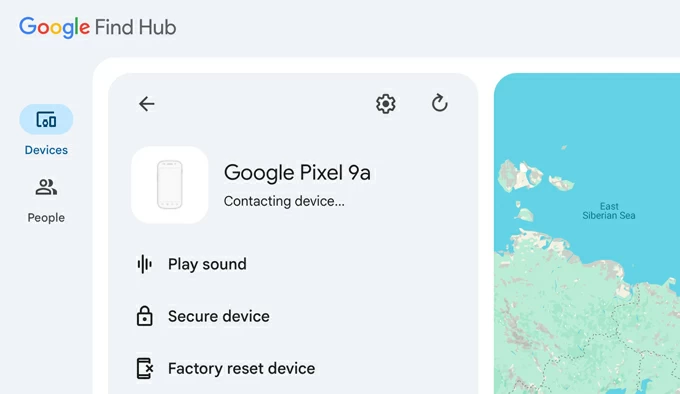
5. Confirm the Reset option on the prompt, and click Next to start.
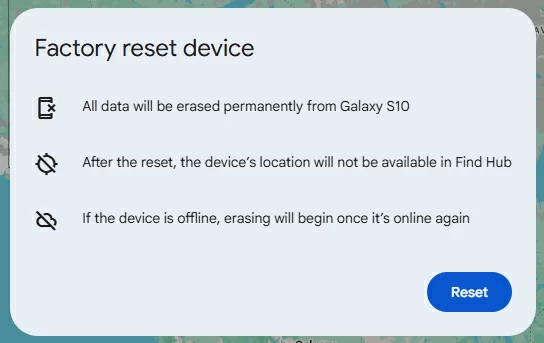
The reset process begins on the device once it's connected to an active network. After that, you can go through the setup prompts and get into your phone for a new start, no password needed.
For a locked Samsung phone, Samsung SmartThings Find also enables users to remove the forgotten password and get into their phone by performing a remote factory reset.
1. Open a browser and go to Samsung SmartThings Find website.
2. Sign in with the same Samsung Account associated with the locked phone.
3. If you have multiple Samsung Galaxy devices, select the phone you want to access.
4. Choose Erase data in the opening menu.
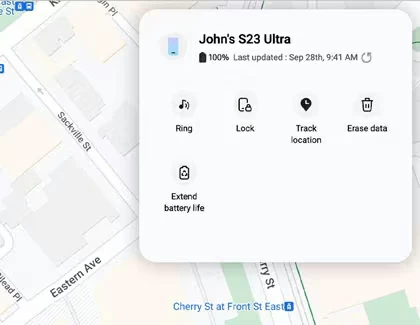
5. Confirm the Erase option to start. If asked, verify your Samsung Account password again.
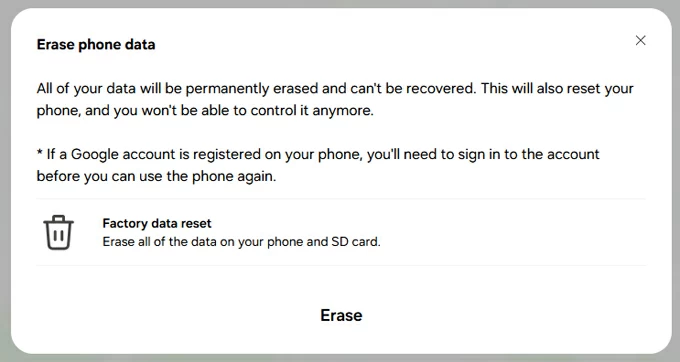
This way, the password will be removed from your device along with all other data. You can then complete the setup prompts and get into your Samsung phone again.
In addition to remote reset options, there are also on-device solutions that can help you get into a locked phone offline, whether you've forgotten the password on a long-unused device or recently changed the screen lock and can't remember the new one.
For anyone locked out due to a forgotten password, Appgeeker Android Unlocker is proven to be an effective tool that helps users get into their locked Android phone or tablet easily.
This Android unlocking tool can remove all types of screen locks, including passwords, PINs, patterns, fingerprints, face recognition, and even Google's FRP locks. With its powerful lock removal capability, you can quickly regain access to a locked phone even if you no longer remember the unlock password.
It supports a wide range of Android brands and models, such as Samsung, Motorola, Google Pixel, LG, Xiaomi, HTC, VIVO, OPPO, Redmi, Realme, Huawei, and more.
When you forget your password, simply follow the click-through process below to remove the lock screen and get back to your Android phone, no technical skills required.
Step 1. Install and open Appgeeker Android Unlocker on a Windows PC, and then select Remove Screen Password to get started.

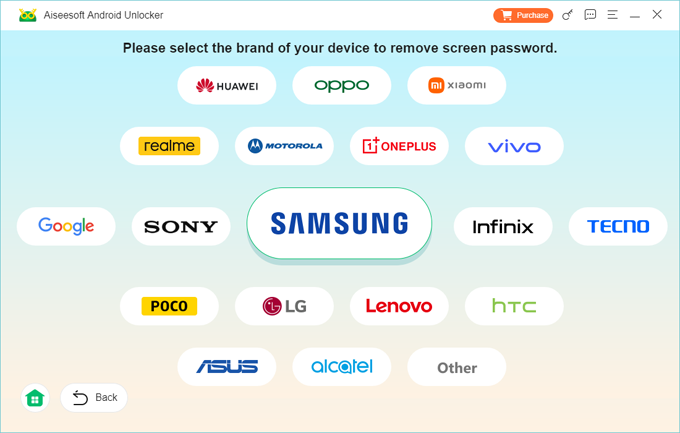
Step 2. Select the Android brand of your locked device.
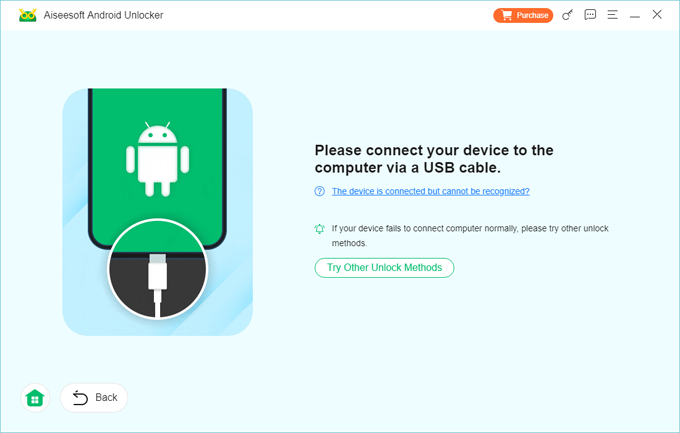
Step 3. Connect the locked Android phone to computer using a USB cable.
TIP: If the unlocking tool cannot recognize the device, click the onscreen link or select Try Other Unlock Methods to go on.
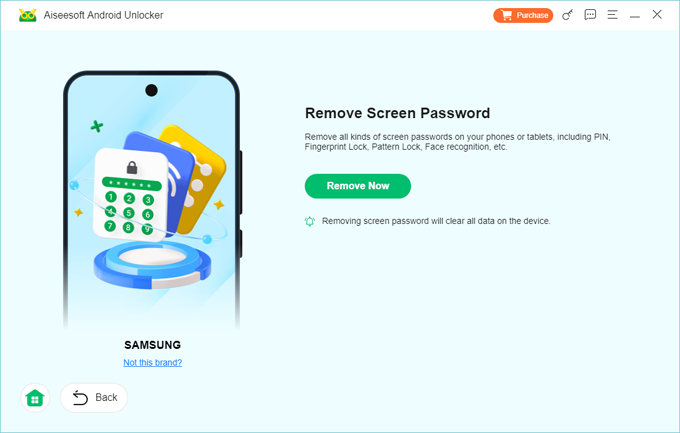
Step 4. Click Remove Now and keep your phone connected until the process is complete.
After successful password removal, the Android phone will be unlocked and restart, allowing you to get in and set it up again from the scratch.
It also works when you forgot your Android PIN or pattern. If you're stuck on Google account verification (FRP lock) after a reset, it can also be used as a FRP bypass tool to help you regain full access to your phone without the original credentials.
If you have no access to remote reset services, using Recovery Mode is another reliable way to get into a phone locked with a forgotten password. Rather than relying on a linked online account, Recovery Mode lets you manually perform a factory reset by pressing and holding a specific combination of buttons.
1. Power off the locked phone completely.
2. To enter Android Recovery Mode, press and hold the buttons as following. For a locked Samsung device, connect it to your computer before proceeding.
3. Do not release the buttons until your phone vibrates and shows the Android Recovery menu.
4. Scroll down to Wipe data/factory reset option using the Volume Down button, and select it via Power button.
5. Use either Volume button to highlight Factory data reset or Yes, then confirm via Power key.
6. Wait for the factory reset process to complete
7. Select Reboot system now to restart the device.
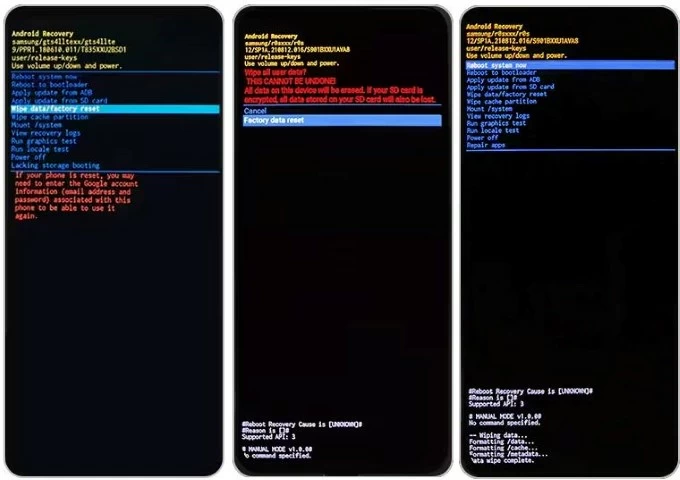
Once done, the lock screen password will be removed. You can get into your phone after completing the initial setup steps.
It's possible to access a locked phone without the password or a factory reset, provided that certain features were enabled before the device was locked.
When Smart Lock or Extend Unlock is set up on Android 14 and later, your phone can automatically remain unlocked in specific trusted situations, such as when it's at a trusted location or connected to a trusted Bluetooth device. This allows you to get into a locked phone even after forgetting the password, no factory reset required. Here are the common steps to enable Smart Lock:
1. Open Settings menu on Android phone.
2. Navigate to Security > More security settings > Smart Lock.
3. In some devices, you may follow Security & privacy > More security & privacy > Extend Unlock. If you don't see the option, select Security & location instead.
4. Verify your current password as required.
5. Pick an option that allows access to your phone without password.
6. Add the trusted scenarios according to your choice.
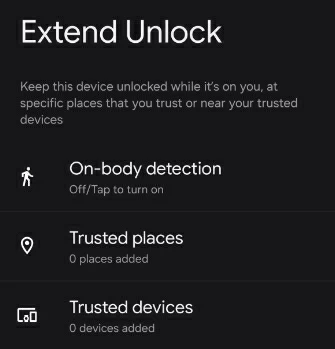
Once enabled, your phone gets unlocked automatically when trusted situations are met.
Note: While this allows instant access, your phone will still require a password after a restart or system update.
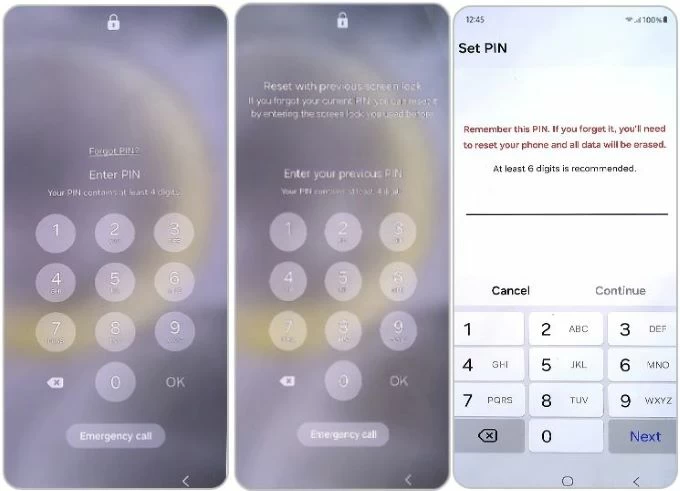
If you're using a Samsung phone running One UI 6.1 or later, the Forgot Password? feature can be a lifesaver. When you forget a screen lock that was changed within the last 72 hours, this option lets you get into your Samsung phone using the previous password and immediately set a new one.
1. After 5 unsuccessful password attempts, there will be a Forgot Password? prompt on Samsung lock screen.
TIP: If you've selected Delete previous PIN now when creating the password, the Forgot password option won't appear.
2. Tap Forgot Password? option and you will see the Reset with previous screen lock screen.
3. Enter the previous password you've used on your phone.
4. Set a new password and tap Continue. If asked, enter it again to confirm.
5. Return to the lock screen and enter the new password to get back to your Samsung phone.
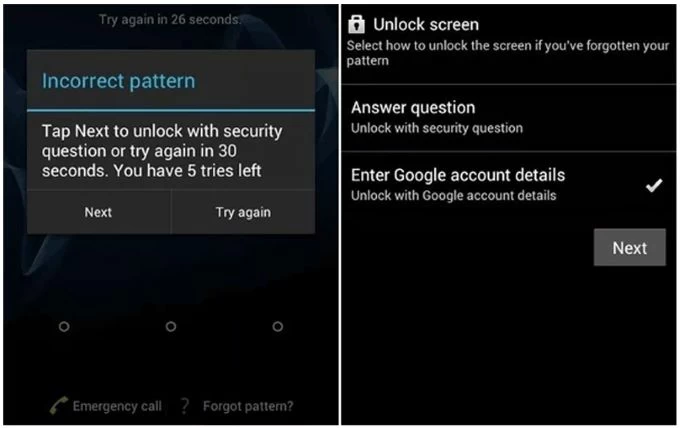
On Android 4.4 or earlier, entering the wrong password more than five times will trigger the Forgot Password option. This allows you to sign in with your Google account credentials and reset the forgotten password by creating a new one. Once reset, you can bypass the Android lock screen without a reset and get back to your phone using the new password.
1. Enter 5 incorrect passwords on lock screen until your phone prompts the Forgot Password option.
2. Tap on Forgot password.
3. Choose Enter Google account details and tap Next.
4. Enter your Google account and password associated with this device.
5. After verifying the Google credentials, follow the onscreen instructions to create a new unlock password for your phone.
6. Confirm the password change and go back to the lock screen.
7. Enter the new password to unlock your Android phone without a factory reset.
Just like with Android, there are ways to access a locked iPhone when the password is forgotten.
Apple has its own remote reset service included in iCloud Find My. When you're trying to get into a locked iPhone after forgetting the passcode, iCloud Find My (if enabled in advance) allows you to perform a wireless factory reset, which erases the screen lock and all other data, so you can regain access and set up the device as a new one.
Putting a locked iPhone into Recovery Mode also allows a direct factory reset. This wipes all current data and removes the forgotten passcode, letting you get full access to your phone and start fresh from the Hello screen.
With iOS 15.2 and later, the Forgot Passcode? feature makes it easier to get into your locked phone with or without a factory reset.
Regain access with previous passcode
If you changed your passcode within the last 72 hours and forgot the latest one, you can get temporary access to your phone using the previous passcode and immediately set a new one, no factory reset required.
Full reset from the lock screen
If iCloud Find My is enabled and you remember your Apple ID password, the Forgot Passcode? option lets you initiate a factory reset directly from the lock screen. After which you'll get full access to your phone after the passcode is removed completely.
If these options are not available, Appgeeker iPhone Unlocker offers an efficient way to remove a forgotten passcode, letting you get full access to your iPhone with minimal effort.
Q1 - How can I unlock my phone if I forget the password?
There are multiple methods to unlock a phone even if the password is forgotten.
If the pre-setup features are enabled:
Alternative options:
Q2 - How can you get into a phone without a factory reset after forgetting the password?
If the Biometrics or Smart Lock are enabled, you may bypass the forgotten password to get into your phone using a fingerprint / facial ID or in trusted situations.
Also, on Android 4.4 or earlier, the Forgot Password feature lets you reset the password using your Google account credentials, avoiding a factory reset to get back in.
If none of these available, a factory reset becomes necessary to regain phone access. This removes the lock screen along with all data, allowing you to set up the device again from scratch.
Q3 - Is it possible to get into an iPhone if I forgot my passcode?
Yes. If you forget your iPhone passcode, these methods can help you regain access:
If you're still unable to get into your phone, third-party tools like Appgeeker iPhone Unlocker can unlock your iPhone without the forgotten passcode, letting get full access instantly.




