How to bypass iPad lock screen if you forgot your passcode


Apple users can easily change the Screen Time passcode on their or their child's iPhone, iPad, or Mac, even without the original passcode or the Apple Account used for it.

Screen Time is a built-in feature on iPhone, iPad, and Mac that helps manage device usage and set limits for apps, websites, and other activities. When you enable Screen Time for your or your child's device, you may also set a Screen Time passcode to secure the settings and prevent others from changing the app limits and restrictions without your permission.

This guide explores detailed steps for changing a Screen Time passcode on iPhone, iPad, and Mac.
If you want to change the Screen Time passcode, you can easily enter the current 4-digit passcode and then create a new one. If you forgot your Screen Time passcode, you can still change it by verifying the Apple Account and password that were originally used for creating it.
Even if neither of the passcode nor Apple Account credentials are accessible, efficient tools like Appgeeker iPhone Unlocker can also help change your or your child's Screen Time passcode on an iPhone or iPad, without needing the original information.
Below, we'll walk through several useful ways for Screen Time passcode change on iPhone, iPad, or Mac, helping you regain full access to your Screen Time settings without restrictions.
Table of Contents
Screen Time helps control device usage by setting limits and restrictions for apps, games, websites, and other activities. To protect these settings from unauthorized changes, a 4-digit Screen Time passcode is always used to lock the access.
When someone attempts to change the Screen Time passcode or modify app limits, the original passcode is required. This ensures the app limits and restrictions remain in place, especially when you're managing the usage of your child's device.
The method for changing a Screen Time passcode depends on your specific situation.
Changing the Screen Time passcode on your own Apple device is simple if you still remember the current code or have access to the Apple Account email address and password that were originally used to set up Screen Time. Once updated, you can use the new passcode to change Screen Time settings and adjust app restrictions as needed.
1. Go to the Settings app and select Screen Time.
2. When you're able to, tap Change Screen Time Passcode and tap it again in the prompt.
3. Enter the current Screen Time passcode for verification.
4. Create a new 4-digit passcode for Screen Time lock, and enter it again to confirm the change.
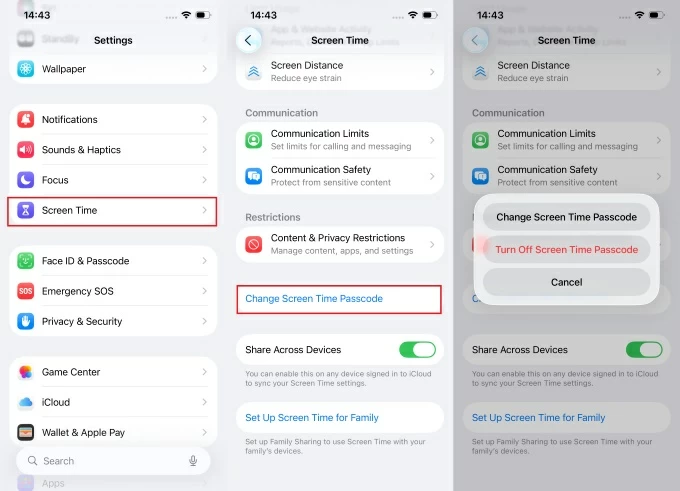
If you're unable to recall the original passcode, use the Forgot Passcode? link and verify the associated Apple Account and password to change your own Screen Time passcode:
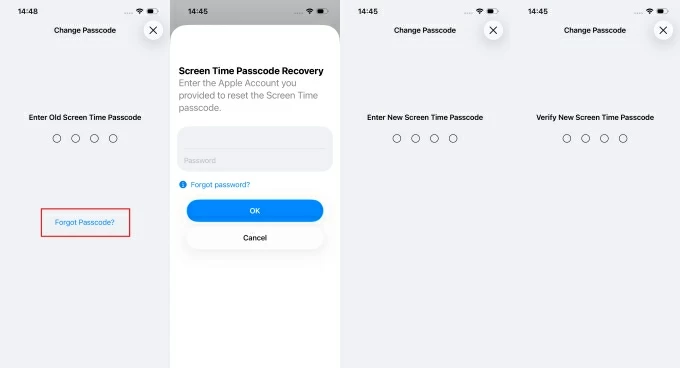
Done! The Screen Time passcode will be changed immediately. If the Share Across Devices option is turned on, the new code will automatically update on all devices under your account.
Note: If you don't see the Change Screen Time Passcode option, check whether you're using an Apple device managed under parent control. Also, repeatedly entering an incorrect passcode over 10 times will lock you out from trying again.
The steps are slightly different when changing a Screen Time passcode on a Mac.
1. Open the Apple Menu from the top-right corner and access System Settings or System Preferences.
2. Select Screen Time option from the left sidebar.
3. Scroll down and click Change Passcode... button.
4. When prompted, enter the 4-digit passcode as required.
5. After verification, create a new Screen Time passcode and re-enter it to confirm.
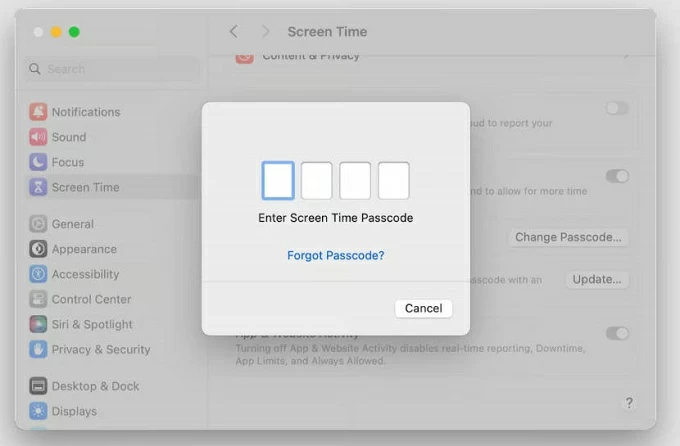
Similarly, if you don't remember the current code, select the Forgot Passcode? link and follow the onscreen instructions to reset your Screen Time passcode by verifying the Apple Account credentials originally used to set it up.
When you use Screen Time for parental controls on your child's iPhone or iPad, a Screen Time passcode helps prevent unauthorized changes to the app limits and restrictions you've set. To change your child's Screen Time passcode, ensure the target device is part of your Family Sharing group and that you're signed in with the family organizer's Apple Account on your device.
1. Unlock the organizer's iPhone or iPad, then move to Settings > Screen Time.
2. Scroll down for FAMILY and choose the name of a child or family member.
3. Under Restrictions, tap Change Screen Time Passcode and tap it again in the pop-up box.
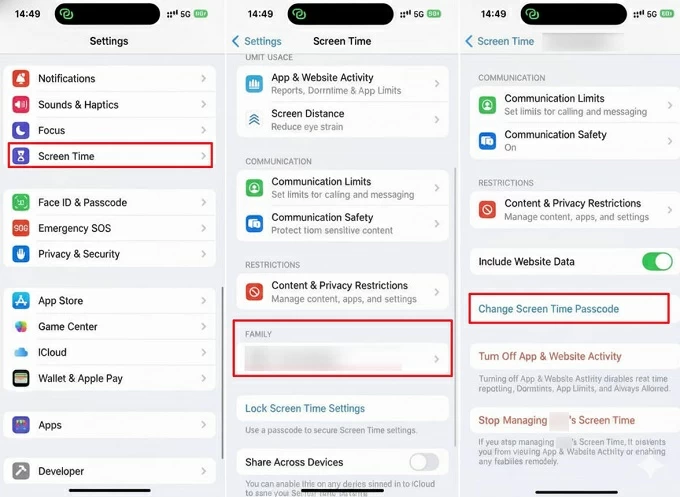
4. Change your child's Screen Time passcode by entering the old code.
5. Create a new Screen Time passcode and confirm the change by entering it again.
If you're changing the Screen Time passcode for your child or another family member but have forgotten the previous code, use the Forgot Passcode? option instead:
Once done, keep the newly changed Screen Time passcode secure to maintain the usage limits and restrictions on your child's device.
If you cannot change your Screen Time passcode, whether you have forgotten the old code, lost access to the Apple Account originally used to set it up, or are using a managed device under parental control, Appgeeker iPhone Unlocker can help you out.
This iOS unlocking tool provides an efficient way to remove a forgotten or unknown Screen Time passcode directly from an iPhone or iPad, so that you can set a new passcode and use it to unlock full Screen Time Settings and manage the app limits without restrictions.
In addition to Screen Time passcodes, it also supports removing other types of locks, including screen passcodes, Apple ID, SIM locks, MDM restrictions, and more.
Whether you're changing the Screen Time passcode on your own or a child's iPhone/iPad, its straightforward interface guides you through the process step by step, no tech skills required.
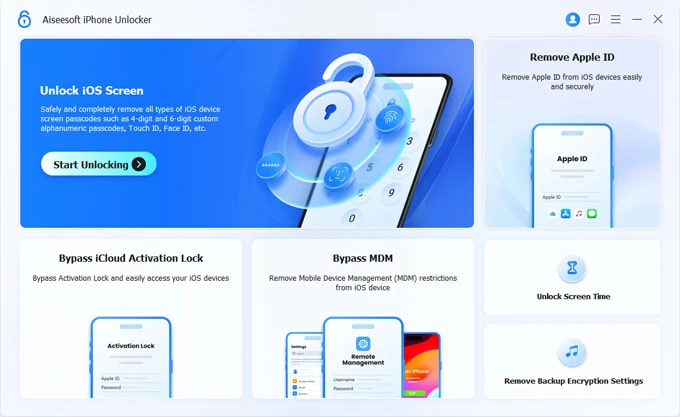
Step 1. Install and open Appgeeker iPhone Unlocker on your PC or Mac, then click Unlock Screen Time to start.
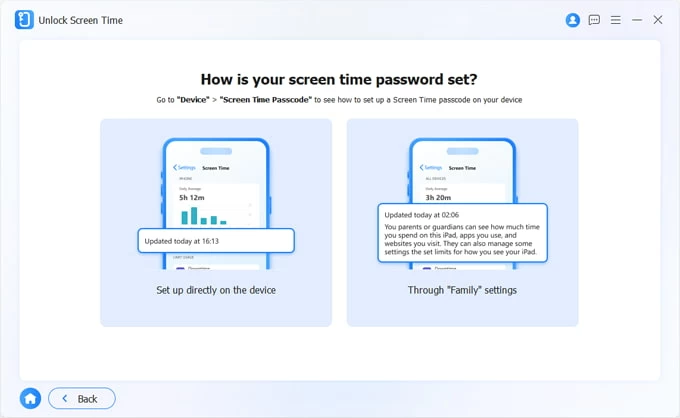
Step 2. Choose how Screen Time passcode is set on your device: Set up directly on the device, or Through "Family" settings.
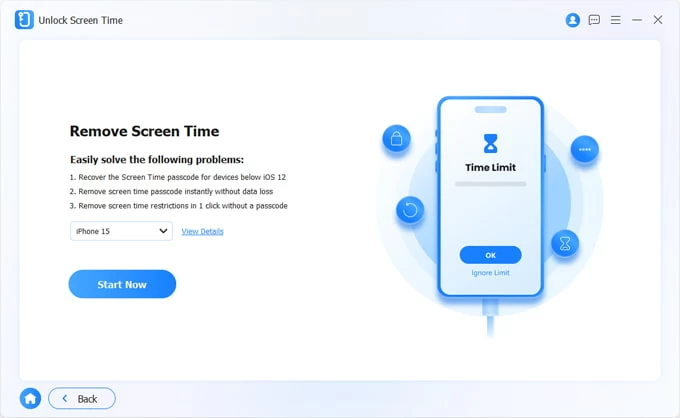
Step 3. Connect the iPhone or iPad using a USB cable, then click Start Now button. If needed, select the device model from the drop-down box.
Step 4. When prompted, tap Trust on your device and enter your screen passcode to trust this computer; then click Trusted to proceed.

Note: To ensure a successful passcode change, make sure the Find My feature is disabled on your iPhone or iPad by going to Settings > [your name] > Find My.
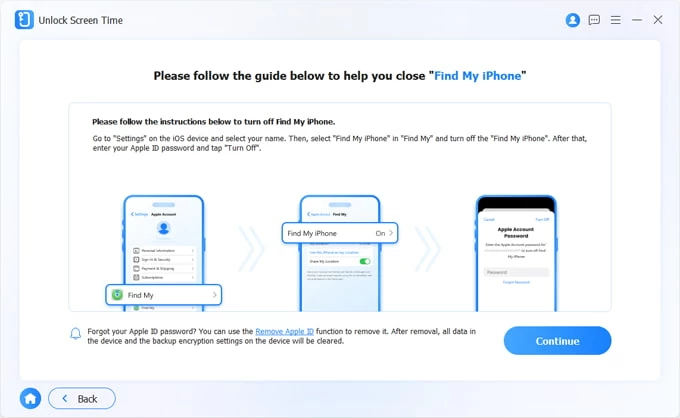
Step 5. Hit the Continue button to remove the Screen Time passcode from iPhone or iPad.
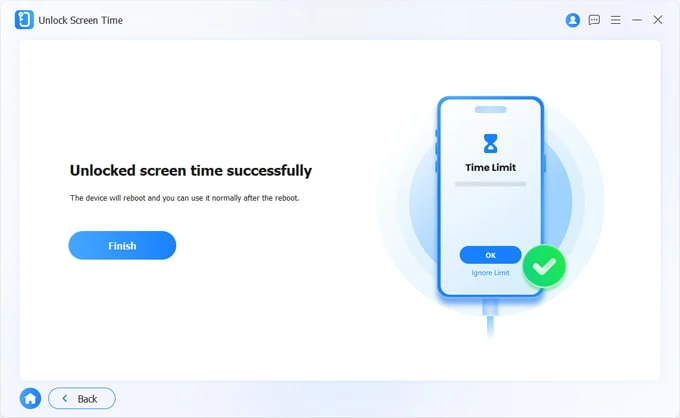
After removal, follow the instructions to set up your device. The Screen Time Settings will be accessible, allowing you to change a new passcode or turn off the lock completely.
Typically, a child cannot change their Screen Time passcode unless they know the original passcode or have access to the Apple Account credentials used to create it. Otherwise, the passcode remains secure and the app limits and restrictions will stay in place.
Here are the ways a child could change a Screen Time passcode on their own:
If none of these methods work, third-party tools such as Appgeeker iPhone Unlocker may provide an alternative. Instead of changing the Screen Time passcode directly, it removes the passcode from the child's iPhone or iPad, allowing you to set a new four-digit code afterward.
If you can't see the Change Screen Time Passcode option, here are the common causes and fixes:
Your device is managed through Family Sharing
If the Screen Time is controlled by a family organizer, the Change Screen Time Passcode option may not appear on the child's device. In this case, you may request a remote passcode change from the family organizer.
Too many incorrect passcode attempts
When you enter the wrong Screen Time passcode multiple times, the system may temporarily lock you out of another attempts. The lockout period can range from 1 minute to up to 1 hour, depending on how many failed attempts were made.
If you're unable to recall the correct passcode after 10 failed attempts, you may need a passcode reset to regain access to the Screen Time settings. Alternatively, reliable tools such as Appgeeker iPhone Unlocker can help remove the existing passcode from your iPhone/iPad, allowing you to set up a new one and recover access within minutes.
Q1 - Can I change a Screen Time passcode without knowing the old one?
Yes. On the Change Passcode screen, you'll be given a Forgot Passcode? option, which allows you to change the Screen Time passcode by verifying the Apple Account and password that were used when the passcode was originally set up.
Q2 - How do I change my child's Screen Time passcode from my phone?
If you're using Family Sharing and signed in with the family organizer's Apple Account on your own iPhone/iPad:
Q3 - Can I check the Screen Time passcode that was changed last time?
No. For security reasons, Apple does not allow you to view the current or previous Screen Time passcodes. However, if you manage a child's device through Family Sharing, you can receive notifications when the Screen Time passcode is last used. If needed, turn on it through:
Once enabled, you'll receive a notification whenever the Screen Time passcode is used on your child's device. You may also disable it by following the same steps.