How to transfer photos from iPhone to MacBook


Blanking on the password for your Screen Time on iPhone? Here's how to turn off the Screen Time without passcode whether you own the device or it's in Family Sharing plan.

In most of cases, when you forgot the passcode, you can turn off Screen Time by verifying your Apple Account credentials. If it fails, before performing a factory reset that Apple suggests, you can use a reputable tool like Appgeeker iPhone Unlocker to disable the Screen Time without erasing your data. It supports removal of different screen locks instantly.

Apple allows you to use Apple ID credentials to turn off Screen Time without a passcode.
Apple's Screen Time controls manage a device usage by setting daily time limits, scheduling downtime, and restricting specific apps or content. It can be a great feature, especially if you want to remotely monitor or control a child's time spent on the device. What if you want to turn off the Screen Time and you can't remember that password?
If you're staring at a "Try again in 60 minutes" prompt, take a breath. You aren't stuck. Whether you're turning off Screen Time on your own iPhone without passcode or you're navigating the complexities of a family-managed device, there are a few practical paths to fix the Screen Time Lockout and regain control of the device.
This guide will show you how to reset or turn off this passcode on Screen Time without the original digits, and what to do if your parents are the ones managing the settings. In most cases, you don't have to factory resetting your phone.
Table of Contents
Since the release of iOS 13.4 and iPadOS 13.4, Apple has provided a much easier way for those of us who need to turn off screen time without password on an iPhone or iPad. The best part is that this method doesn't require you to wipe your phone data.
Requirements:
Steps to turn off screen time without passcode:
1. Open the Settings app on your iPhone or iPad.
2. Scroll down and tap on Screen Time.
3. Tap on Change Screen Time Passcode.
4. When a menu pops up, tap Turn Off Screen Time Passcode to remove it entirely.
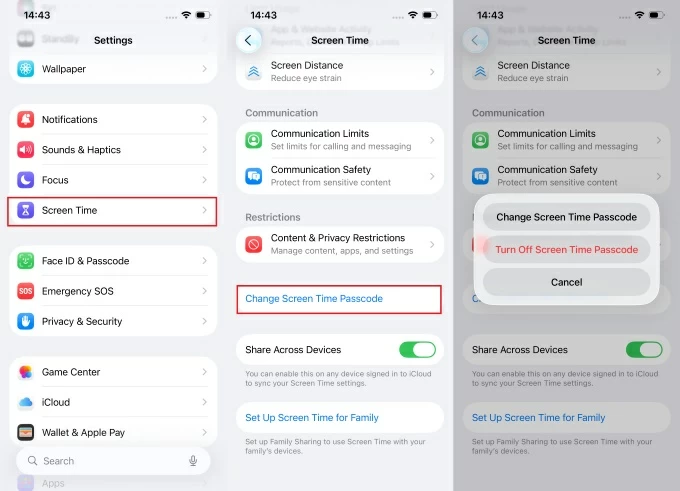
5. Select Forgot Passcode?
6. When prompted, enter the same Apple ID and password you used to set up the Screen Time passcode before.
7. Once authenticated, tap Turn Off, the forgotten passcode will simply be removed.
If you have successfully reset your passcode using Method 1, or if you suddenly remembered it, you can disable Screen Time by accessing iPhone Settings to prevent future lockouts.
1. Open Settings app.
2. Scroll down and tap on Screen Time.
3. Tap Turn Off App & Website Activity. In iOS 16 or earlier, select Turn Off Screen Time instead.
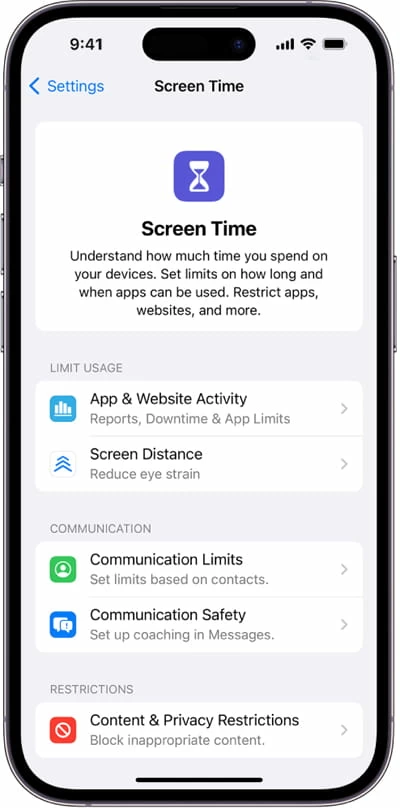
4. When asked, enter your Screen Time passcode.
5. Confirm to disable Screen Time fully.
See also: iPhone Unavailable
If your iPhone is part of a Family Sharing group and your parent or guardian has set up Screen Time for you, you can't turn off screen time without password using your own Apple ID or via Settings app. There is no "Forgot Passcode" option for Screen Time on your device. You need to ask them to reset the passcode from their own device.
Here is how to turn off screen time passcode through Family Sharing:
1. On the Parent's device, open Settings app.
2. Find Screen Time and tap it.
3. Scroll down to the Family section and tap the Child's Name.
4. Tap Turn Off Screen Time and confirm it.
5. Enter the 4-digit Screen Time passcode. After the Screen Time is turned off, you can go to Content & Privacy Restrictions within the child's profile and toggle it off. This way, you still can keep data tracking on the child's phone.
If the parent or guardian forgot the password set for the child, to get rid of Screen Time, select Change Screen Time Passcode > Turn Off Screen Time Passcode and use Forgot Passcode to reset it using your Apple Account.
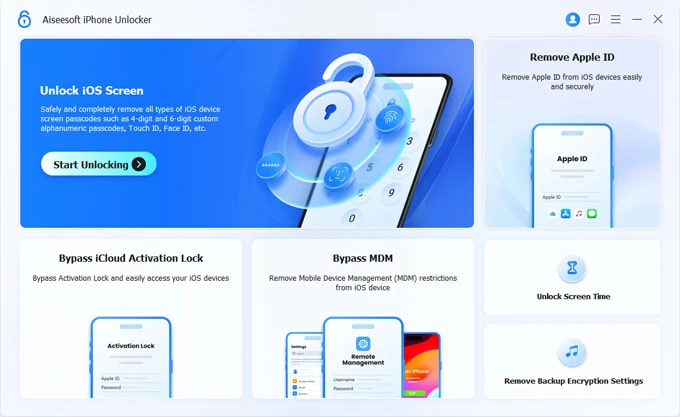
Another reliable way to accomplish the task is to use the dedicated tool in Appgeeker iPhone Unlocker. It's an all-in-one suite that has a set of tools to unlock your iPhone or iPad when locked, including the ability to turn off Screen Time without password. Best of all, it won't wipe your device's data during the Screen Time disabling process.
Before starting, ensure your iPhone or iPad is connected to your computer with a reliable USB cable and have this software installed on the machine.
Follow these steps to turn off Screen Time when you forgot password.
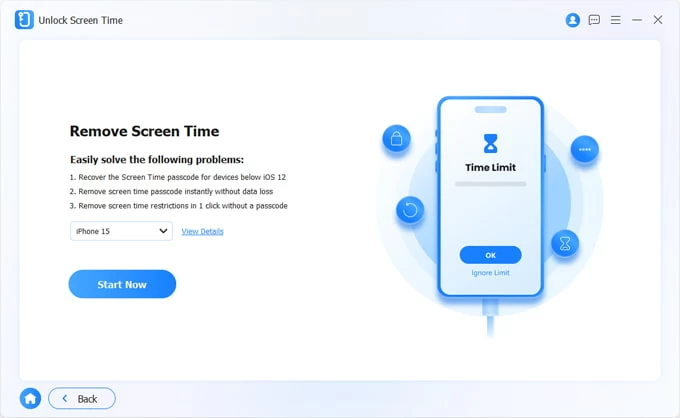
1. Open iPhone Unlocker on your PC or Mac and select the "Unlock Screen Time" option at the lower right from the main interface.
See also: How to reset iPad without passcode
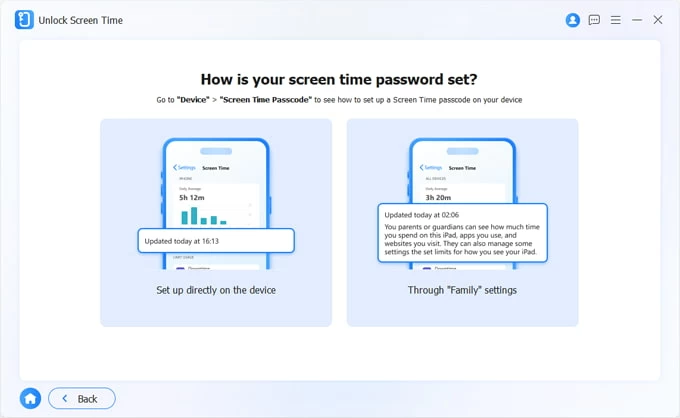
2. Select how the device is set before: directly on the device, or through Family settings.
3. Click Start Now to proceed.
4. To remove the passcode without data loss, you generally need to turn off Find My iPhone first. Simply go to Settings > [Your Name] > Find My. Then toggle the Find My iPhone switch off. You will need to verify your Apple ID password for this.
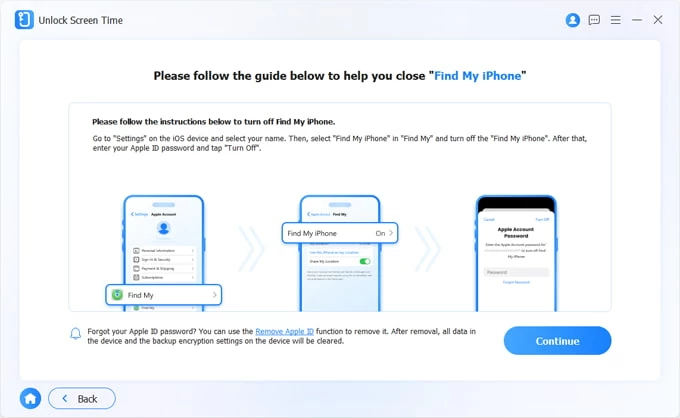
5. Click the "Continue" button in the software's window. It will begin analyzing your phone and turning off Screen Time without passcode. This usually takes only a minute or two.
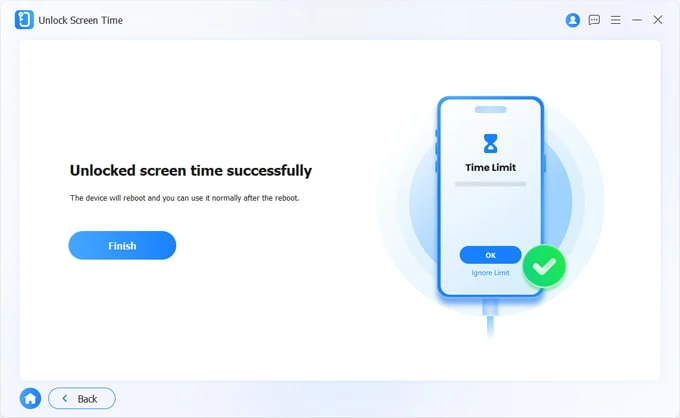
Once the Sceen Time lock is removed, the device will restart with a Hello screen.
To ensure you don't accidentally restore the old passcode or lose your personal data, follow the specific "Hello" screen to set the phone up, and when you reach the "Transfer Apps & Data" screen, select Don't Transfer Apps & Data. This does not delete your current data; it just prevents the device from pulling in an old backup that might contain the passcode.
See also: How to transfer photos from iPhone to Mac
If you have exhausted all efforts and still can't turn off the Screen Time without having a password, you are facing a factory reset. The process erases everything on your device, including photos, messages, apps and settings.
1. Turn off the phone completely.
2. Connect it to your Mac or PC and boot it from recovery mode.
3. Launch Finder or iTunes on your computer.
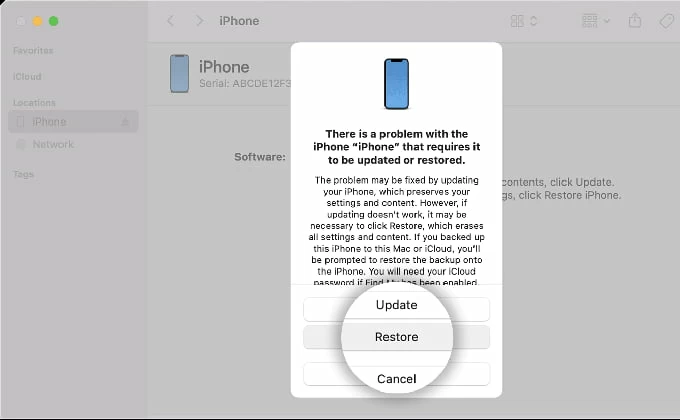
4. When a pop-up appears saying there is a problem with the iPhone. Select Restore. This will download the latest software and wipe the device completely.
If you just want to turn off Downtime rather than disabling Screen Time entirely, do the following:
1. Navigate to Settings > Screen Time.
2. Tap Change Screen Time Passcode in the list.
3. Select Turn Off Screen Time Passcode.
4. Tap Forgot Passcode?.
5. Enter the Apple ID and password used to set up the restrictions.
6. Once the passcode is reset, back to Screen Time > Downtime.
7. Toggle the Scheduled switch to off or select Turn Off Downtime.
Forgetting Screen Time passcode is a nightmare. By leveraging the Apple ID recovery method, you can remove the Screen Time lock and turn off the feature in under two minutes. If you are a part of a Family Sharing group, the Family Organizer has option to get rid of it. You can even use third-party tool like Appgeeker iPhone Unlocker to turn off the Screen Time without erasing data.
See also: Contacts now showing up on iPhone
What happens if I enter the wrong passcode too many times?
Just like the device lock screen, Screen Time has a lockout penalty. After several failed attempts to turn off Screen Time without right passcode, the device will force a waiting period (e.g., 1 minute, 5 minutes, 60 minutes) before you can try again.
Will signing out of iCloud turn off Screen Time?
No. Signing out of iCloud usually requires the Screen Time passcode if "Account Changes" are restricted under the Content & Privacy Restrictions section.
Does Screen Time automatically turn off after a certain period?
No, Screen Time restrictions are only turned off until the correct passcode is entered, the associated Apple ID is used to reset it, or the device is wiped.
Do third-party software tools actually work?
Yes, try Appgeeker iPhone Unlocker to turn off Screen Time passcode. It won't touch your data.
Can I disable Screen Time from another device?
If the device is part of an Apple Family Sharing group, the organizer (parent) can change or turn off the Screen Time without passcode from their own device. Check the detailed steps above.