
How to fake iPhone GPS location without jailbreak


Have an extensive music collection on computer, and now want to put it on your iPhone 15 for playback? Follow these steps, and you may enjoy your music files on the go.

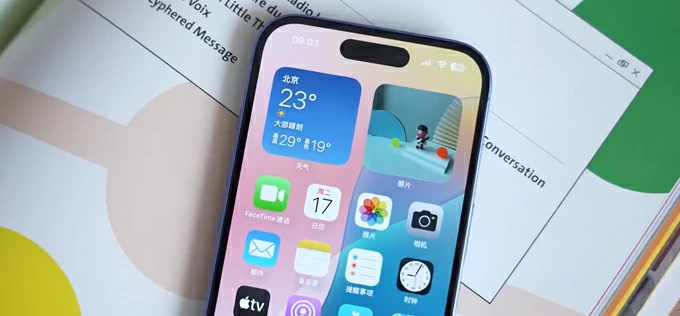
There are several ways to add music files from computer hard drive to iPhone 15, wired or wirelessly.
In a world dominated by streaming subscriptions, owning a local media collection still offers a level of ownership and quality that the cloud simply can't match. If you're new to Apple ecosystem, you may be wondering how you can get your music that's sitting on your computer's hard drive onto your iPhone 15 device, whether it's a massive library of high-fidelity FLAC files, rare live recordings, or decades of curated MP3s.
The good news is that transferring music from a computer to an iPhone 15 doesn't have to be a headache. Windows users can transition from the legacy iTunes app to the newer Apple Devices app for a more streamlined experience, while Mac users can use the modern Finder interface. You can enable the Sync Library feature via Apple Music for a wireless sync, or even use a more flexible third-party alternative like Appgeeker iPhone Data Transfer, which offers a drag-and-drop simplicity that official route often lacks, to bypass Apple's walled garden. Regardless of what method you take, the process is straightforward once you know which levers to pull.
Below, we'll break down the most reliable methods to bridge the gap between your computer and your iPhone 15 so you can stop managing your files and start listening to them. Keep on reading to learn how to copy music from computer to iPhone 15.
Table of Contents
For Windows users, the era of the bloated iTunes app is coming to an end. Apple has introduced a dedicated Apple Devices app specifically designed to assist you in syncing music from computer to iPhone 15 and other Apple devices.
What does syncing music mean? You can set Apple Devices app to automatically sync your entire library or specific playlists, artists, and albums with your iPhone 15. The primary drawback, however, is if you delete a song from your Music library on your computer, it will be removed from your iPhone 15 during the next sync.
How to transfer music to iPhone 15 using Apple Devices:
1. Download the Apple Devices app from the Microsoft Store.
2. Connect your iPhone 15 to your PC using a USB-C cable.
3. When a prompt appears on your iPhone, tap Trust and enter your passcode.
4. Select your iPhone name in the sidebar of the Apple Devices app (see below), then click on the Music tab.
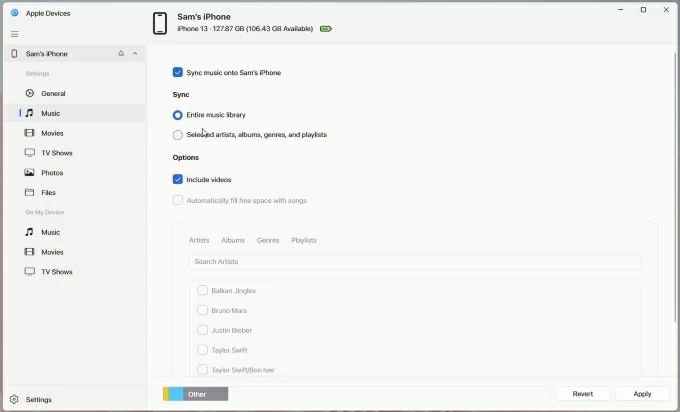
5. Check the box for "Sync music onto [Your iPhone Name]."
6. To sync all songs from local computer folder, select Entire music library. Or you may choose Selected artists, albums, genres, and playlists, which allows you to manually choose specific music content to transfer from your computer to an iPhone 15.
7. Optional. You can even check the box next to Include videos if you want to sync music videos.
8. Click the Apply button in the bottom right corner.
Your music files on computer will begin syncing with your iPhone 15. For Windows users, Apple Devices app should be ideal for those who want to transfer a large local library of MP3, AAC, or WAV files
See also: How to fix iPhone unavailable try again
If you have a Mac, you always have official route for music transfer from computer to your iPhone 15 in the form of Finder. This makes your device appear as an external drive in your sidebar, allowing to hand syncing and backups.
Note, for machine that's running macOS Mojave or earlier, Apple still integrates device management in iTunes app.
Steps to sync iPhone 15 music on Mac:
1. Connect your iPhone 15 to your Mac via USB-C cable.
2. Open Finder and select your device under the Locations section in the sidebar.
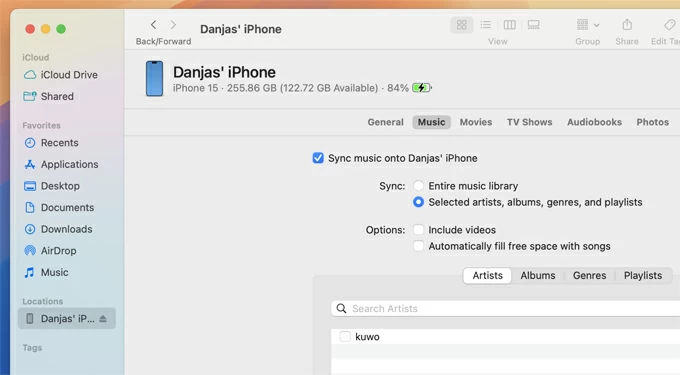
3. Click the Music tab in the main window, next to General.
4. Enable "Sync music onto [Your iPhone Name]" beneath Music tab.
5. Choose whether to sync the whole library or specific artists and playlists. Ensure your iPhone 15 storage capacity is larger than your computer's music library.
6. Finally, click Apply to start putting music on iPhone 15 from computer. Keep in mind, all existing tracks on your phone will be overwritten and replaced with songs from Mac.
Finder provides a direct and wired connection to transfer music, playlists, movies, and podcasts directly from your Mac computer to your iPhone15 music.
Both Apple Devices and Finder are certainly reliable. But it's far from perfect. They generally operate on a one-way sync protocol (computer to device) and overwrite existing content. Professional third-party tools, such as Appgeeker iPhone Data Transfer, offers a more flexible "drag-and-drop" experience
To use it, you simply connect your iPhone, open the software, and drag your FLAC, MP3 or AAC files directly into the Music section of the interface. It automatically converts unsupported files (like high-res FLAC or WAV) into iPhone playable formats during the transfer process.
Benefits:
See also: How to download photos from iPhone to laptop
Have your music ready? Follow these steps to copy music from computer to iPhone 15:
Download and install the software on your either Mac or PC computer.
1. Launch it and connect your iPhone 15 using a USB-C cable. If prompts, unlock your device with passcode.

2. Click on the Music icon in the sidebar. This will load your current iPhone music library.
Tip: You can create a new album in the center pane to store new transferred songs if necessary.
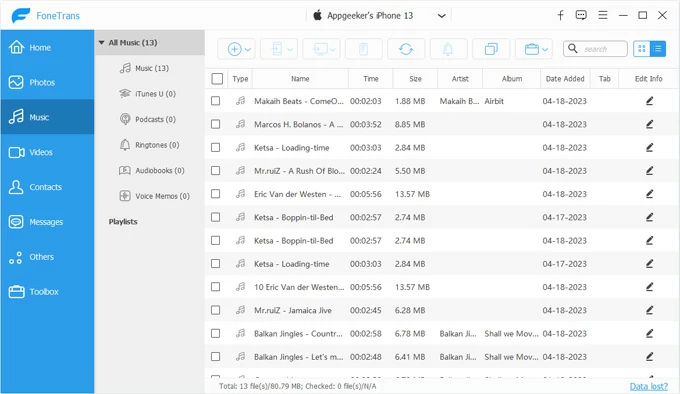
3. To Transfer music from computer to iPhone 15 without iTunes, you have two primary ways.
Method 1: Drag and Drop
Open the folder on your computer that contains the music files, Select the songs or folders you want to transfer. FLAC, WAV, APE, MKA, MP3, AAC, M4A and other files are all supported.
Drag and drop them directly into the software Music window.
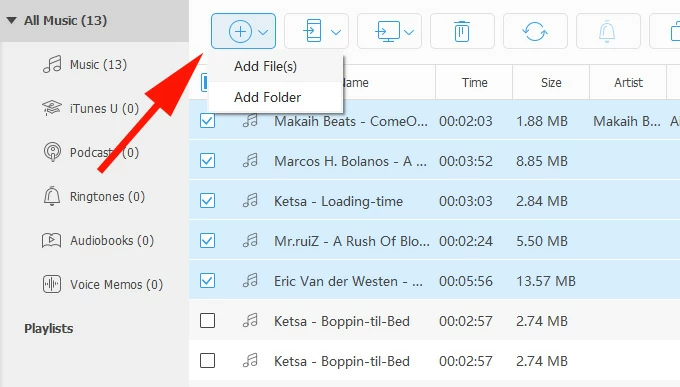
Method 2: Traditional import
Click the Add Folder or Add File(s) button located in the top toolbar. In the opening dialog, navigate to your music files stored on the computer hard drive, select the desired tracks and click Open.
Let the software do its work. You can track the progress in the opening small window.
Once finished, open the Music app on your iPhone 15. The newly transferred songs should appear in your Library under Recently Added.
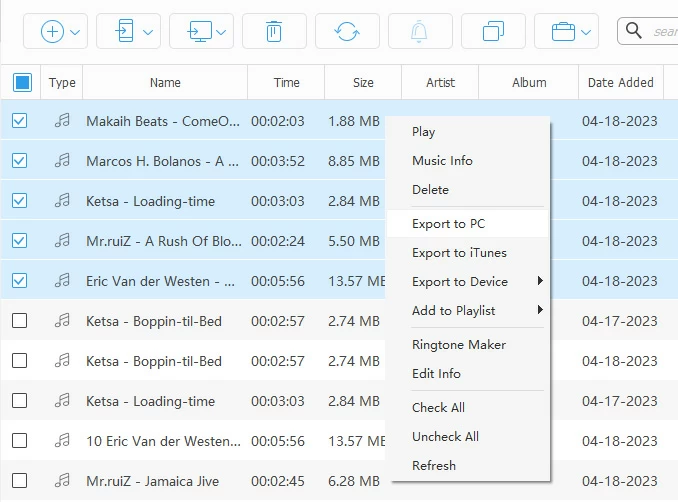
After importing your music files from computer, you can use the software to manage the iPhone 15 library. The software comes with a set of options available to use.
See also: How to add videos from Windows 11 to iPhone
If you subscribe to Apple Music, you don't need a cable to move songs from your music library on computer to your iPhone 15. The Sync Library feature (formerly iCloud Music Library) enables you to upload music files to Apple's cloud and makes it accessible across all devices that sharing the same Apple ID, including your iPhone 15.
To transfer music from computer to iPhone without a cable via iCloud, you just turn on Sync Library:
On Mac
Open the Music app > Settings > General > Check "Sync Library." Wait for your library to upload.
On PC
Open iTunes > Edit > Preferences > General > Check "iCloud Music Library" or "Sync Library."
On iPhone 15
Go to Settings > Music > Toggle "Sync Library" to ON. If you don't have a subscription, you will not see this option.
Once enabled, any song you add to the Music library on your computer will automatically appear in the Music app on your iPhone 15.
If your songs say "Waiting" or "Ineligible," they are still uploading to Apple's cloud. Give it a few minutes.
If you only need to move a few songs from your computer to your iPhone 15, AirDrop is the fastest wireless method for Mac users to accomplish the task.
1. Right-click the music on your Mac and select Share > AirDrop from the context menu.
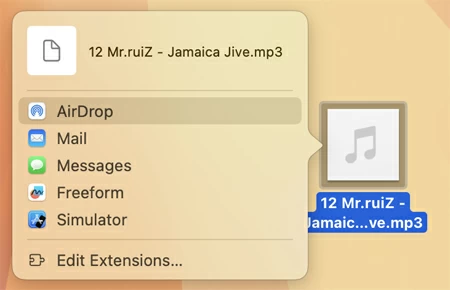
2. Select your iPhone 15 from the list of available devices.
3. On your iPhone, the file will arrive and can usually be opened in the Files app.
Note that the track imported by AirDrop won't appear in the default Music app. You will need a third-party player to listen to it.
For users who want to add music from computer to iPhone 15 wirelessly without using Apple's ecosystem, cloud storage services are a robust alternative. There are a lot of those services you can choose from, and most of them make it easy to store, access, and share files in the cloud.
Whether you're using a Mac or Windows computer, here're the basic steps you may take.
1. Download the cloud service like Google Drive (i.e. OneDrive, Dropbox, etc.) for desktop on your computer.
2. Sign in with your account.
3. Upload your music files to a folder in Google Drive on your computer.
4. Download the corresponding app on your iPhone 15, and log in with the same ID.
5. Open the app and locate your songs.
4. You can now play the songs directly from the cloud app, or download them to your iPhone 15.
See also: How to retrieve deleted iMessages on iPhone
It's hard to say what's the best software to import music from a computer to an iPhone 15. Whether you rely on the Apple's cloud syncing, Finder or Apple Devices app, or prefer the granular control of third-party tools like Appgeeker iPhone Data Transfer, music transfer has become a remarkably versatile process. By choosing the method that fits your workflow, you can ensure your entire music collection is always in your pocket.
Can I transfer music from my computer to iPhone 15 without using iTunes?
Yes. Windows users can use the new Apple Devices app, while Mac users use Finder. Alternatively, you can use third-party tools like Appgeeker iPhone Data Transfer, cloud services like Dropbox, or AirDrop for individual files.
How do I move downloaded MP3 files to my iPhone 15?
The easiest way is to add the MP3 files to your Music library on your computer and then sync with your iPhone 15 via Finder or the Apple Devices app. You can also directly drag and drop them onto the device through Appgeeker iPhone Data Transfer.
Will syncing new music delete the songs already on my iPhone?
If you use the standard Sync feature in Finder or Apple Devices, it will delete all existing music on your iPhone 15 and replace it with the library on that computer. To avoid this, use a third-party tool that allows for additive transfers without a full sync.
Can I import a CD to my iPhone 15?
Yes. First, insert the CD into your computer and use the Music app or iTunes to import CD. Once the tracks are in your computer's library, add them to your iPhone 15.
Why is my music not syncing to my iPhone 15 wirelessly?
Wireless syncing usually requires you to enable Sync Library feature tin both your iPhone and your computer. You will also want to check if both are signed into the same Apple ID and connected to the internet.
Why iPhone music sync not working on computer?
To fix it, you may update both software on both devices, check storage on your iPhone 15 to ensure you have enough room for your library. Plus, in iTunes or Apple Devices, ensure your computer is Authorized under the Account menu.




