
How to fix iPad Unavailable or Security Lockout screen


iPhone says Unavailable with no Erase option? Learn why it's missing and discover effective solutions to unlock your iPhone when the Erase option is unavailable.

There is a distinct sinking feeling that occurs when you look down at your phone and see a stark black screen reading iPhone Unavailable or Security Lockout. Usually, this happens after your phone rolls around in your pocket, a toddler gets a hold of it, or you simply type the wrong passcode one too many times, temporarily locking your iPhone.
Normally, modern versions of iOS (iOS 15.2 and later) offer a small, life-saving button at the bottom of the screen: Erase iPhone or Forgot Passcode? allowing you to unlock unavailable iPhone without passcode. However, in some cases, you may find there's no Erase option on screen, only leaving you staring at a digital brick with no obvious way out.
Locked out? What to do if the Erase iPhone option is unavailable on your locked iPhone.
Don't panic just yet. A missing erase button is a common hiccup caused by an outdated iOS version, a lack of internet connection, or Find My iPhone not being enabled.
In this guide, we'll explain the common causes behind iPhone Unavailable no Erase option and show you how to fix it. Also, there are several proven ways that can be used to unlock your unavailable iPhone without the Erase option or passcode. Let's dive in!
Table of Contents
For an unavailable iPhone with no Erase option, Appgeeker iPhone Unlocker is a perfect option to bypass the unavailable screen and unlock your iPhone without needing a passcode.
Starting with iOS 15.2, if you enter the wrong passcode more than five times, your iPhone will display an "iPhone Unavailable" screen, usually with an Erase iPhone option at the bottom and a timer indicating when you can try again. Apple designed this button to let users reset their devices directly without needing a computer. If the Erase iPhone option is missing on Unavailable or Security Lockout screen, several possible reasons could explain why:
No active internet connection
The iPhone must be actively connected to the internet via cellular data or Wi-Fi. If you turned on Airplane Mode before getting locked out, or if you are in a dead zone, the button will not show up because the phone cannot authenticate your Apple ID credentials and allow the erase process with Apple's servers.
iOS version requirement
The "Erase iPhone" feature is only available starting from iOS 15.2 and later. If your iPhone is running an earlier version, the system simply doesn't support on-device erasing from the lock screen. And if you're using iOS 17 or later, you'll see the "Forgot Passcode" option instead of "Erase iPhone."
Find My iPhone disabled
The Erase iPhone option depends on Find My iPhone being turned on in iCloud Settings. If it's off, the erase option won't appear on iPhone Unavailable screen.
Apple ID not signed in
If you're not signed into your Apple ID on the device, the system won't offer the option to erase iPhone directly from the unavailable lock screen.
More than 10 failed passcode attempts
After more than 10 incorrect passcodes, your iPhone becomes permanently locked, and the Erase iPhone option will no longer appear. At this point, performing a factory reset is the only way for unlocking your iPhone.
If your phone falls short on any of these requirements, you will need to look beyond the lock screen to fix it. Here is how to tackle the lockout step-by-step.
Related: How to add music to iPhone without iTunes
Because a lack of internet connectivity is the number one reason the erase option disappeared on iPhone, your first goal should be getting your phone back online. If your device cannot communicate with the outside world, it won't give you the option to wipe it securely.
If you're already stuck on iPhone Unavailable screen with no Erase option, there are still fixes to help you erase your iPhone and unlock it for full access.
If your iPhone is updated to iOS 17 or an above version, the Erase iPhone is replaced by Forgot Passcode — it allows you to directly erase your iPhone from the Unavailable or Security Lockout screen without using a computer. Ensure you know your associated Apple ID passcode and have an active Wi-Fi or mobile data. Here's how to fix:
1. After 5 failed passcode attempts, your iPhone displays iPhone Unavailable screen.
2. Tap Forgot Passcode? option from the bottom-right corner.
3. When you see Start iPhone Reset option, tap it to confirm.
4. Enter your Apple ID password to sign out of your Apple Account used on this iPhone.
5. Tap Erase iPhone to perform a factory reset and delete all current data permanently.
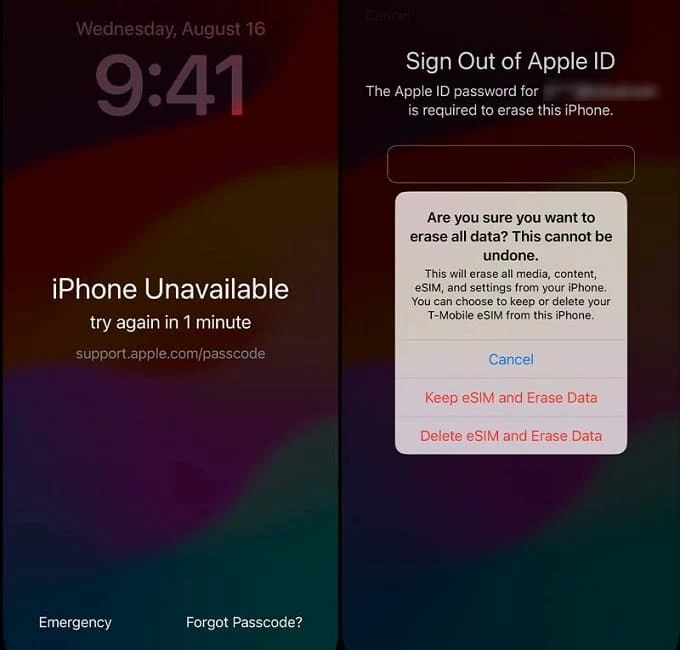
TIP: If you're using an eSIM with iOS 17 or later, you have the options to keep or delete your eSIM while erasing iPhone data.
The erasing process will reset your unavailable iPhone and unlock it. After that, follow the onscreen prompts to set up your iPhone again or restore it from an earlier backup.
To unlock an iPhone without Erase option or a timer, Appgeeker iPhone Unlocker offers the simplest solution. Just connect your device to a computer and follow the direct, step-by-step instructions to unlock your iPhone — no passcode or Apple ID required.
This powerful iOS unlocking tool is compatible with all iPhone and iPad models, enabling users to bypass the iPhone Unavailable/Security Lockout screen and remove various Apple locks, including forgotten passcodes, Screen Time restrictions, Apple ID, and even the SIM locks.
If you've been locked out and there's no Erase option, follow these steps to fix the iPhone Unavailable issue and regain access:
1. Install and open Appgeeker iPhone Unlocker on a Windows PC or Mac.
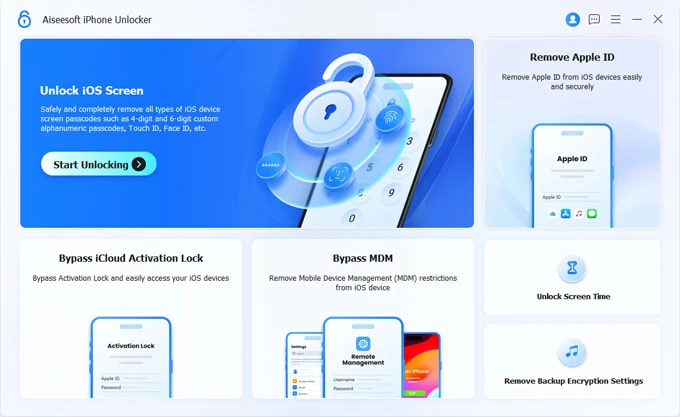
2. Select Start Unlocking to begin.
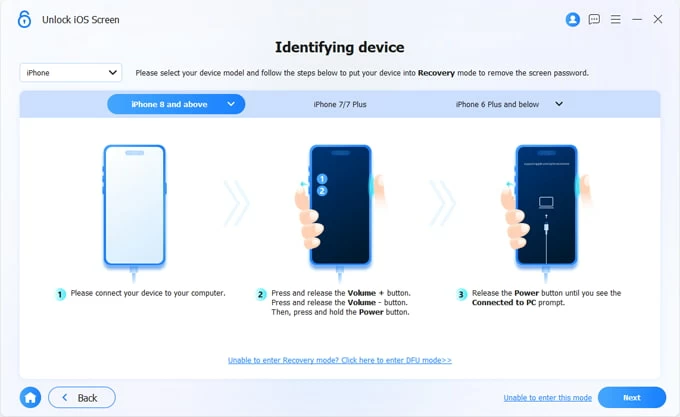
3. Connect your unavailable iPhone with a USB cable and initiate Recovery Mode for the software to detect your device.
4. Hit Start Now button to download the appropriate iOS unlock firmware for your locked iPhone.
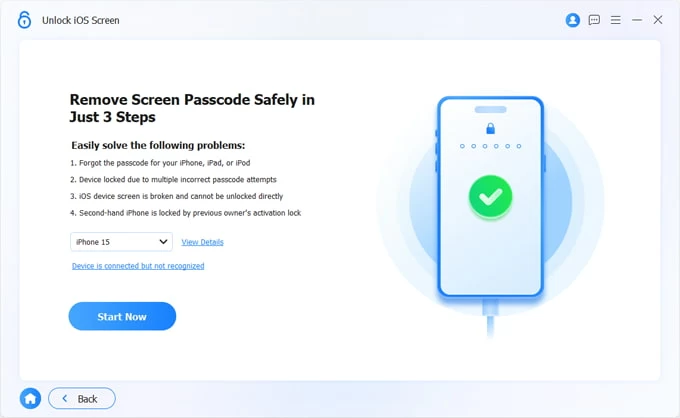
It may take a short while, depending on your network speed.
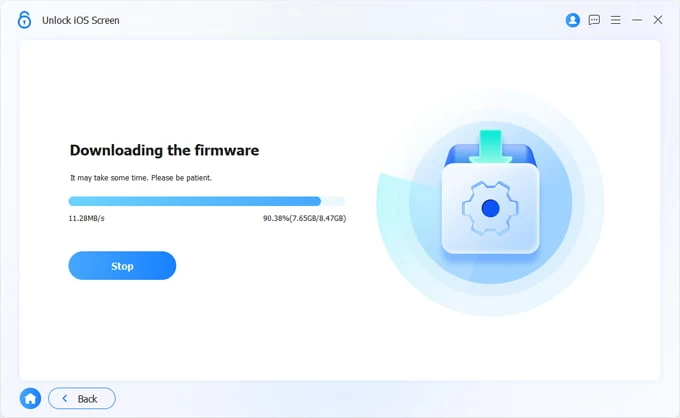
5. Once downloaded, click OK and then click Confirm Again button to initiate unlocking process.
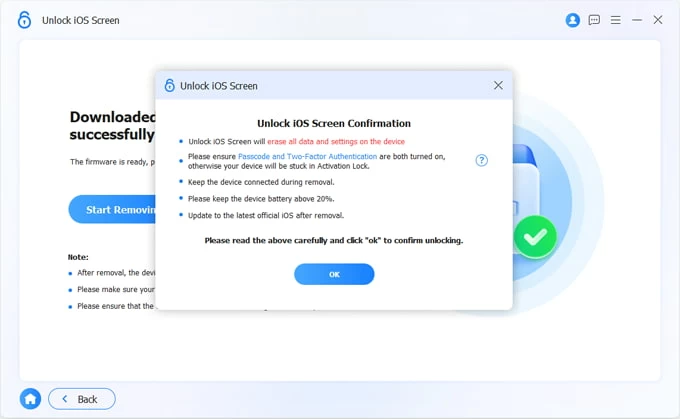
Keep the device connected until the process is complete. By following these steps, you can unlock an unavailable iPhone without needing the Erase option. If there's a previous backup, restore your data after the unlock process is finished.
Related: How to transfer iPhone photos to external hard drive
If you have access to a computer with iTunes or Finder installed, it's easy to fix iPhone Unavailable with no Erase option. The process uses Recovery Mode, a failsafe system built into Apple hardware that forces the device to communicate with a computer even when it is completely locked down. It will restore your locked iPhone to its factory settings with everything erased.
Setting up your computer
On a Mac running macOS Catalina or later: You will use the native Finder app.
On a Mac running macOS Mojave or earlier, or a Windows PC: Open iTunes. If you are on Windows, ensure your iTunes app is updated to the latest version by opening the app and selecting Help > Check for Updates.
Entering Recovery Mode
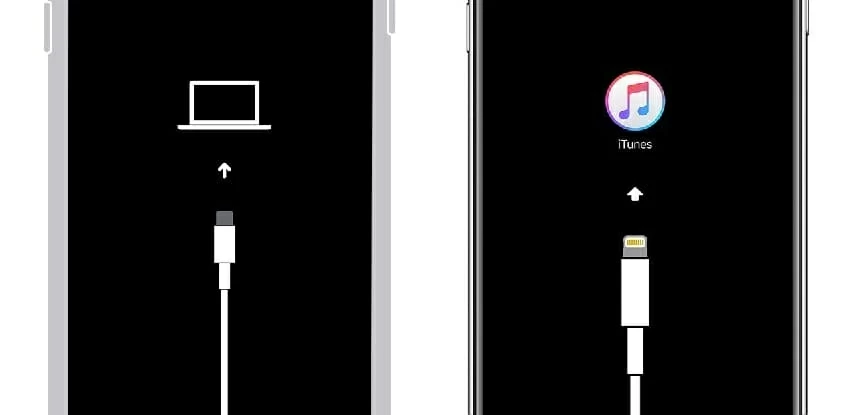
1. Power off your iPhone and connect it to your computer using a USB cable.
2. Keep holding the Side button until an image of a computer and a cable appears.
Restoring via Finder or iTunes
Once your phone successfully enters Recovery Mode, a pop-up window will automatically appear on your computer screen within Finder or iTunes.
4. When it presents two options: Restore or Update, choose Restore. It will wipe the entire phone, deleting the passcode along with your data.
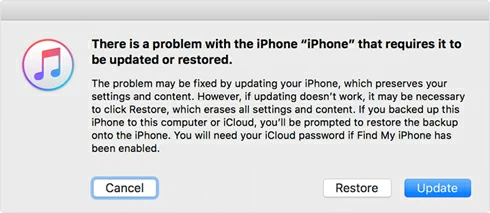
5. Click Restore and Update, then agree to the on-screen prompts. Your computer will download the latest version of iOS for your device.
Once done, your iPhone will be reset to factory settings and unlocked no longer with an unavailable screen. Set it up again from the Hello screen and use it as a new device.
If you are running a modern Windows 10 or Windows 11 machine, Apple has largely decoupled device management from the aging iTunes app. If iTunes is throwing errors or failing to recognize your unavailable iPhone no erase option, you should move to the modern standalone application designed for Windows hardware.
1. Launch the Microsoft Store on your PC and search for the official Apple Devices app. Download and install it.
2. Connect your iPhone to your PC using a reliable USB cable.
3. Put your phone into Recovery Mode using the exact button sequences outlined in the section above.
4. Open the Apple Devices app. You will see a prompt indicating that there is a problem with the connected iPhone.
5. Select the Restore option. The app will securely download Apple's official system image and factory-reset your device, clearing out the "iPhone Unavailable" block.
If your phone remains stubbornly offline or the on-screen Erase iPhone button refuses to show up, you can bypass the device's physical screen entirely by using Apple's cloud infrastructure. As long as your locked iPhone has an active network connection, you can initiate a wipe from any secondary device wirelessly:
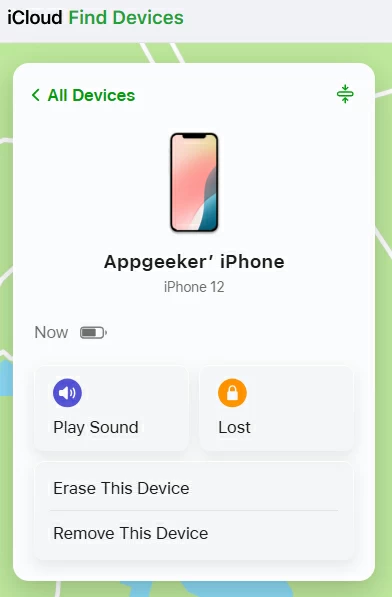
The remote erase will start as soon as your unavailable iPhone comes online. Once complete, the device will be restored to factory settings with all data erased — no passcode needed.
After using iCloud, Finder, or iTunes to wipe the device, your iPhone will restart and display the multi-language setup screen. From here, you can rebuild your device:
1. During setup, you will be prompted to enter the Apple ID password previously tied to the device. This is a theft-protection feature called Activation Lock. Simply log in with your credentials to prove ownership.
2. You will reach a screen asking how you want to set up the device. Select Restore from iCloud Backup or Restore from Mac/PC Backup to download your photos, contacts, apps, and settings.
3. When creating a new lock screen passcode, choose a sequence you will easily remember. Consider storing it securely inside a dedicated password manager, and immediately set up Face ID or Touch ID to minimize how often you need to type it manually.
By exploring these causes and fixes, you're able to regain access to your unavailable iPhone even without the Erase option. In case you're locked out again, it's important to configure the settings properly to prevent the issue of no Erase iPhone option:
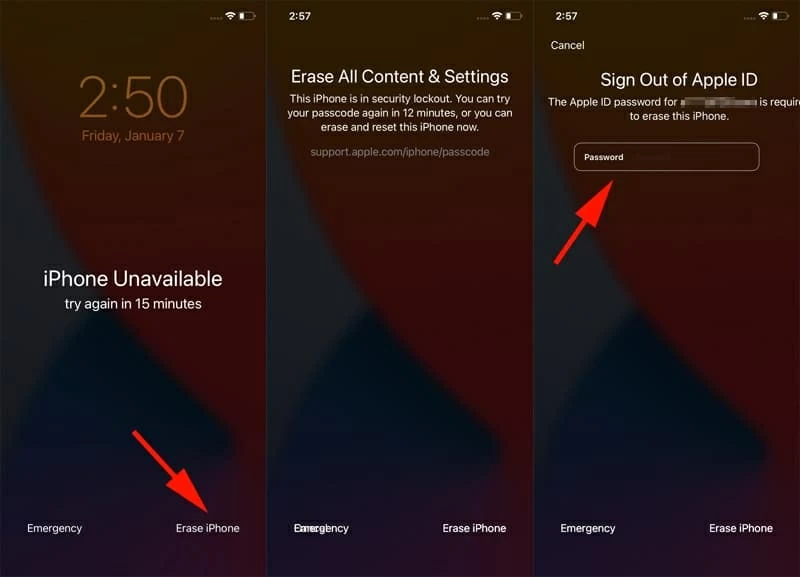
Once everything is properly set up, the Erase iPhone option should appear with the iPhone Unavailable screen after multiple wrong passcodes, allowing you to regain access with a straightforward factory reset.
1. Enter incorrect passcode on your iPhone 5 times.
2. When iPhone Unavailable screen displays, tap Erase iPhone option at the bottom.
3. Tap Erase iPhone again.
4. Enter your Apple Account password to sign out of this iPhone.
The iPhone reset process will start automatically after Apple verifies your identity.
Related: How to recover permanently deleted photos from iPhone without backup
Q1 - Which iOS versions show the Erase option on iPhone Unavailable screen?
Apple introduced the Erase iPhone option in iOS 15.2 as part of the iPhone Unavailable feature for added security. However, starting with iOS 17, this has been replaced by the Forgot Passcode? option.
Q2 - How long does Erase iPhone option stay on iPhone Unavailable Screen?
By default, you have up to 10 passcode attempts before your iPhone becomes permanently locked. After 5 incorrect tries, your device locks for 1 minute, and each subsequent failed attempt increases the wait time — ranging from 5 to 15 minutes and even an hour.
Once you've reached 10 failed attempts, your iPhone becomes unavailable without a timer, and the Erase iPhone option is no longer displayed.
Q3 - Can I unlock my iPhone if it says unavailable with no Erase option?
Yes, there are several ways that requires no Erase option to unlock an iPhone that's unavailable: